USB port DODGE CHARGER 2023 User Guide
[x] Cancel search | Manufacturer: DODGE, Model Year: 2023, Model line: CHARGER, Model: DODGE CHARGER 2023Pages: 292, PDF Size: 13.05 MB
Page 154 of 292

152MULTIMEDIA
Messages
Push and hold the VR button on the steering
wheel to activate a Siri voice recognition
session. Apple CarPlay® allows you to use Siri
to send or reply to text messages. Siri can also
read incoming text messages, but drivers will not be able
to read messages, as everything is done via voice.
Maps
Push and hold the VR button on the steering
wheel until the beep or tap the Microphone
icon to ask Apple® Siri to take you to a desired
destination by voice. You can also touch the
Navigation icon in Apple CarPlay® to access Apple®
Maps.
Apps
The Apple CarPlay® App plays all compatible apps that are
available to use, every time it is launched. You must have
the compatible app downloaded, and you must be signed
in to the app through your mobile device for it to work with
Apple CarPlay®.
Refer to http://www.apple.com/ios/carplay/ (US) or
https://www.apple.com/ca/ios/carplay/ (Canada) to see
the latest list of available apps for Apple CarPlay®.
Apple CarPlay® Voice Command
NOTE:Feature availability depends on your carrier and mobile
phone maker. Some Apple CarPlay® features may not be
available in every region and/or language.
Apple CarPlay® allows you to use your voice to interact
with Siri through your vehicle’s voice recognition system,
and use your smartphone’s data plan to project your
iPhone® and a number of its apps onto your Uconnect
touchscreen. Connect your iPhone® 5 or higher to one of
the media USB ports, using the factory-provided Lightning
cable, and press the new Apple CarPlay® icon that
replaces your Phone icon on the main menu bar to begin
Apple CarPlay®. Push and hold the VR button on the
steering wheel, or press and hold the Home button within
Apple CarPlay®, to activate Siri, which recognizes natural
voice commands to use a list of your iPhone® features:
Phone
Music
Messages
Maps — If Equipped
Additional Apps — If Equipped
NOTE:Apple CarPlay® is a trademark of Apple® Inc. iPhone® is
a trademark of Apple® Inc., registered in the US and other
countries. Apple® terms of use and privacy statements
apply.
ANDROID AUTO™ AND APPLE
C
ARPLAY® TIPS AND TRICKS
Android Auto™ And Apple CarPlay® Automatic Bluetooth®
Pairing
After connecting to Android Auto™ or Apple CarPlay® for
the first time and undergoing the setup procedure, the
smartphone pairs to the Uconnect system via Bluetooth®
without any setup required every time it is within range, if
Bluetooth® is turned on.
NOTE:Apple CarPlay® uses a USB connection while Android
Auto™ uses both USB and Bluetooth® connections to
function. The connected device is unavailable to other
devices when connected using Android Auto™ or Apple
CarPlay®.
Multiple Devices Connecting To The Uconnect System —
If Equipped
It is possible to have multiple devices connected to the
Uconnect system. For example, if using Android Auto™/
Apple CarPlay®, the connected device will be used to
place hands-free phone calls or send hands-free text
messages. However, another device can also be paired to
the Uconnect system, via Bluetooth®, as an audio source,
so the passenger can stream music.
NOTE:Apple CarPlay® and Android Auto™ can only be launched
from the front and center console USB ports.
23_LD_OM_EN_USC_t.book Page 152
Page 158 of 292
156MULTIMEDIA
Best
The best recorded run of performance timers, except
for braking data.
Save
Pressing the Save button will let you save the visible
page, Recent/Last/Best. Any saved run over 10 will
overwrite the last saved run for Uconnect system
storage.
NOTE:Pressing the Camera icon in the upper right corner of the
screen at any time will save a screenshot of the screen
currently being viewed to the connected USB device.
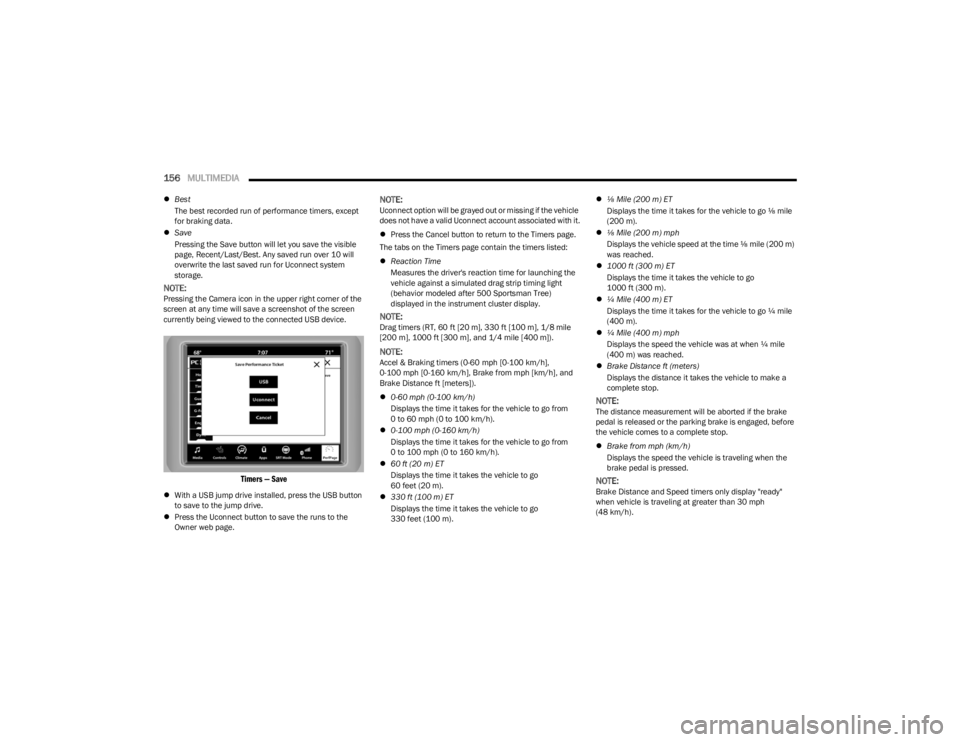
Timers — Save
With a USB jump drive installed, press the USB button
to save to the jump drive.
Press the Uconnect button to save the runs to the
Owner web page.
NOTE:Uconnect option will be grayed out or missing if the vehicle
does not have a valid Uconnect account associated with it.
Press the Cancel button to return to the Timers page.
The tabs on the Timers page contain the timers listed:
Reaction Time
Measures the driver's reaction time for launching the
vehicle against a simulated drag strip timing light
(behavior modeled after 500 Sportsman Tree)
displayed in the instrument cluster display.
NOTE:Drag timers (RT, 60 ft [20 m], 330 ft [100 m], 1/8 mile
[200 m], 1000 ft [300 m], and 1/4 mile [400 m]).
NOTE:Accel & Braking timers (0-60 mph [0-100 km/h],
0-100 mph [0-160 km/h], Brake from mph [km/h], and
Brake Distance ft [meters]).
0-60 mph (0-100 km/h)
Displays the time it takes for the vehicle to go from
0 to 60 mph (0 to 100 km/h).
0-100 mph (0-160 km/h)
Displays the time it takes for the vehicle to go from
0 to 100 mph (0 to 160 km/h).
60 ft (20 m) ET
Displays the time it takes the vehicle to go
60 feet (20 m).
330 ft (100 m) ET
Displays the time it takes the vehicle to go
330 feet (100 m).
⅛ Mile (200 m) ET
Displays the time it takes for the vehicle to go ⅛ mile
(200 m).
⅛ Mile (200 m) mph
Displays the vehicle speed at the time ⅛ mile (200 m)
was reached.
1000 ft (300 m) ET
Displays the time it takes the vehicle to go
1000 ft (300 m).
¼ Mile (400 m) ET
Displays the time it takes for the vehicle to go ¼ mile
(400 m).
¼ Mile (400 m) mph
Displays the speed the vehicle was at when ¼ mile
(400 m) was reached.
Brake Distance ft (meters)
Displays the distance it takes the vehicle to make a
complete stop.
NOTE:The distance measurement will be aborted if the brake
pedal is released or the parking brake is engaged, before
the vehicle comes to a complete stop.
Brake from mph (km/h)
Displays the speed the vehicle is traveling when the
brake pedal is pressed.
NOTE:Brake Distance and Speed timers only display "ready"
when vehicle is traveling at greater than 30 mph
(48 km/h).
23_LD_OM_EN_USC_t.book Page 156