USB port DODGE CHARGER 2023 Owners Manual
[x] Cancel search | Manufacturer: DODGE, Model Year: 2023, Model line: CHARGER, Model: DODGE CHARGER 2023Pages: 292, PDF Size: 13.05 MB
Page 56 of 292
54GETTING TO KNOW YOUR VEHICLE
USB/AUX CONTROL
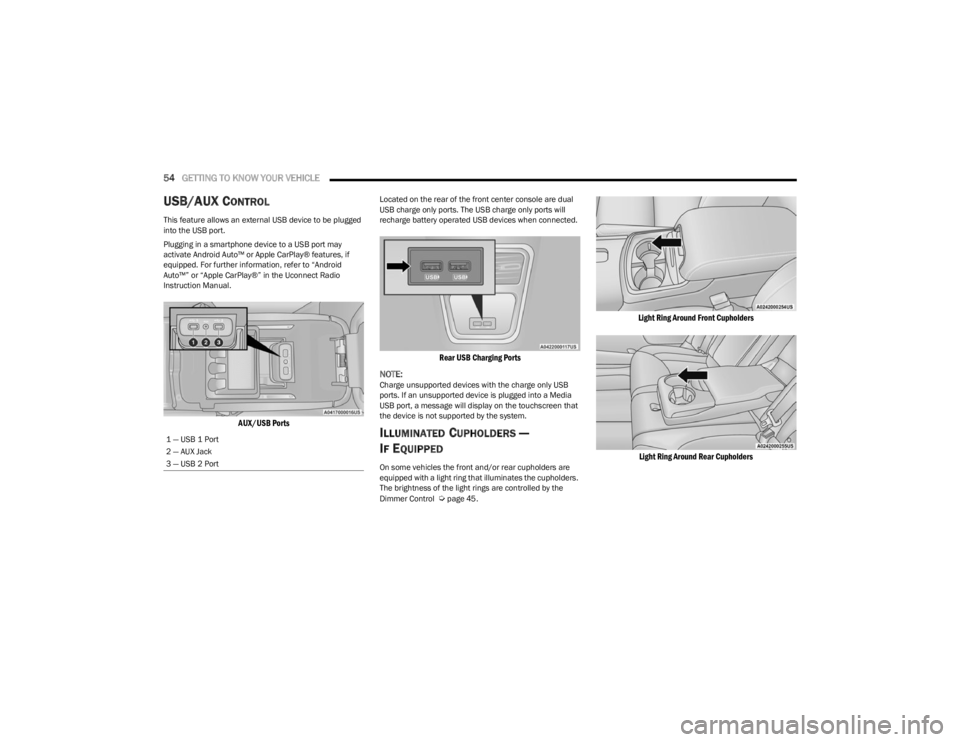
This feature allows an external USB device to be plugged
into the USB port.
Plugging in a smartphone device to a USB port may
activate Android Auto™ or Apple CarPlay® features, if
equipped. For further information, refer to “Android
Auto™” or “Apple CarPlay®” in the Uconnect Radio
Instruction Manual.
AUX/USB Ports
Located on the rear of the front center console are dual
USB charge only ports. The USB charge only ports will
recharge battery operated USB devices when connected.
Rear USB Charging Ports
NOTE:
Charge unsupported devices with the charge only USB
ports. If an unsupported device is plugged into a Media
USB port, a message will display on the touchscreen that
the device is not supported by the system.
ILLUMINATED CUPHOLDERS —
I
F EQUIPPED
On some vehicles the front and/or rear cupholders are
equipped with a light ring that illuminates the cupholders.
The brightness of the light rings are controlled by the
Dimmer Control
Úpage 45.
Light Ring Around Front Cupholders
Light Ring Around Rear Cupholders
1 — USB 1 Port
2 — AUX Jack
3 — USB 2 Port
23_LD_OM_EN_USC_t.book Page 54
Page 57 of 292
GETTING TO KNOW YOUR VEHICLE55
POWER OUTLETS
Your vehicle is equipped with 12 Volt (15 Amp) power
outlets that can be used to power cellular phones, small
electronics and other low powered electrical accessories.
The power outlets are labeled with either a “key” or a
“battery” symbol to indicate how the outlet is powered.
Power outlets labeled with a key symbol are powered
when the ignition is in the ON or ACC position, while the
outlets labeled with a battery symbol are connected
directly to the battery and powered at all times.
NOTE:All accessories connected to the battery powered outlets
should be removed or turned off when the vehicle is not in
use to protect the battery against discharge.
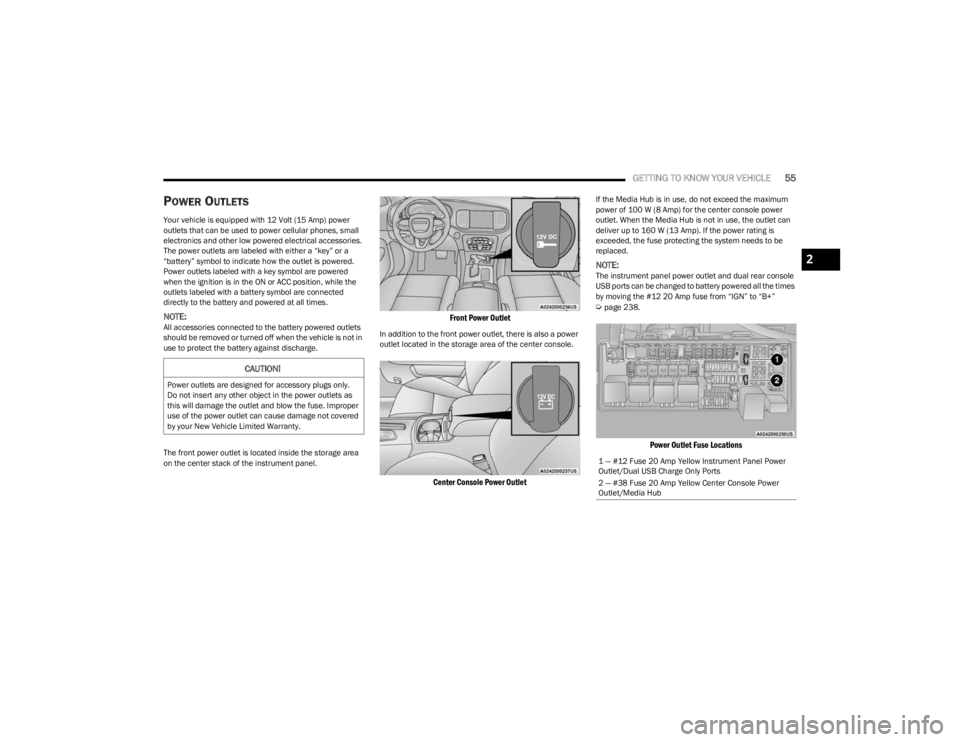
The front power outlet is located inside the storage area
on the center stack of the instrument panel.
Front Power Outlet
In addition to the front power outlet, there is also a power
outlet located in the storage area of the center console.
Center Console Power Outlet
If the Media Hub is in use, do not exceed the maximum
power of 100 W (8 Amp) for the center console power
outlet. When the Media Hub is not in use, the outlet can
deliver up to 160 W (13 Amp). If the power rating is
exceeded, the fuse protecting the system needs to be
replaced.
NOTE:The instrument panel power outlet and dual rear console
USB ports can be changed to battery powered all the times
by moving the #12 20 Amp fuse from “IGN” to “B+”
Úpage 238.
Power Outlet Fuse Locations
CAUTION!
Power outlets are designed for accessory plugs only.
Do not insert any other object in the power outlets as
this will damage the outlet and blow the fuse. Improper
use of the power outlet can cause damage not covered
by your New Vehicle Limited Warranty.
1 — #12 Fuse 20 Amp Yellow Instrument Panel Power
Outlet/Dual USB Charge Only Ports
2 — #38 Fuse 20 Amp Yellow Center Console Power
Outlet/Media Hub
2
23_LD_OM_EN_USC_t.book Page 55
Page 70 of 292
68GETTING TO KNOW YOUR INSTRUMENT PANEL
Loss of the battery charge may indicate one or more of the
following conditions:
The charging system cannot deliver enough electrical
power to the vehicle system because the electrical
loads are larger than the capability of the charging
system. The charging system is still functioning
properly.
Turning on all possible vehicle electrical loads (e.g.
HVAC to max settings, exterior and interior lights,
overloaded power outlets +12 Volts, 115 Volts AC, USB
ports) during certain driving conditions (city driving,
towing, frequent stopping).
Installing options like additional lights, upfitter elec -
trical accessories, audio systems, alarms and similar
devices.
Unusual driving cycles (short trips separated by long
parking periods).
The vehicle was parked for an extended period of time
(weeks, months).
The battery was recently replaced and was not charged
completely.
The battery was discharged by an electrical load left on
when the vehicle was parked.
The battery was used for an extended period with the
engine not running to supply radio, lights, chargers,
+12 Volts portable appliances like vacuum cleaners,
game consoles and similar devices. What to do when an electrical load reduction action
message is present
(“Battery Saver On” or “Battery Saver Mode”)
During a trip:
Reduce power to unnecessary loads if possible:
Turn off redundant lights (interior or exterior)
Check what may be plugged in to power outlets
+12 Volts, 115 Volts AC, USB ports
Check HVAC settings (blower, temperature)
Check the audio settings (volume)
After a trip:
Check if any aftermarket equipment was installed
(additional lights, upfitter electrical accessories, audio
systems, alarms) and review specifications if any (load
and Ignition Off Draw currents).
Evaluate the latest driving cycles (distance, driving
time and parking time).
The vehicle should have service performed if the
message is still present during consecutive trips and
the evaluation of the vehicle and driving pattern did not
help to identify the cause.
WARNING LIGHTS AND MESSAGES
The warning/indicator lights will illuminate in the
instrument panel together with a dedicated message and/
or acoustic signal when applicable. These indications are
indicative and precautionary and as such must not be
considered as exhaustive. Always refer to the information
in this chapter in the event of a failure indication. All active
telltales will display first if applicable. The system check menu may appear different based upon
equipment options and current vehicle status. Some
telltales are optional and may not appear.
RED WARNING LIGHTS
Air Bag Warning Light
This warning light will illuminate to indicate a
fault with the air bag, and will turn on for four to
eight seconds as a bulb check when the
ignition is placed in the ON/RUN or ACC/ON/
RUN position. This light will illuminate with a single chime
when a fault with the air bag has been detected, it will stay
on until the fault is cleared. If the light is either not on
during startup, stays on, or turns on while driving, have the
system inspected at an authorized dealer as soon as
possible.
Brake Warning Light
This warning light monitors various brake
functions, including brake fluid level and
parking brake application. If the brake light
turns on it may indicate that the parking brake
is applied, that the brake fluid level is low, or that there is
a problem with the Anti-Lock Brake System reservoir.
If the light remains on when the parking brake has been
disengaged, and the fluid level is at the full mark on the
master cylinder reservoir, it indicates a possible brake
hydraulic system malfunction or that a problem with the
Brake Booster has been detected by the Anti-Lock Brake
System (ABS) / Electronic Stability Control (ESC) system.
23_LD_OM_EN_USC_t.book Page 68
Page 139 of 292

MULTIMEDIA137
Audio Setting Description
Balance/FadePress the Balance/Fade button on the touchscreen to balance audio between the front
speakers or fade the audio between the rear and front speakers. Press the Front, Rear,
Left or Right button or press and drag the red Speaker icon to adjust the Balance/Fade.
Equalizer Press the + or - button or press and drag the level bar to increase or decrease each of the
equalizer bands. The level value, which spans between plus or minus nine, is displayed at
the top of each of the bands.
Speed Adjusted Volume The Speed Adjusted Volume is adjusted by selecting from “Off”, “1”, “2”, and “3”.
This alters the automatic adjustment of the audio volume with variation to vehicle speed. Volume increases automatically as speed increases to compensate for normal road noise.
Surround Sound When Surround Sound is on, you can hear audio coming from every direction as in a
movie theatre or home theatre system.
AUX Volume Offset The AUX Volume Offset is adjusted by pressing + and - buttons. This alters the AUX input
audio volume. The level value, which spans between plus or minus three, is displayed above the adjustment bar.
Auto Play The Auto Play feature begins playing music as soon as a USB Media device is connected
to one of the vehicle’s Media USB ports, when it is turned on. Press “Off” to turn the setting off.
Radio Off With Door The Radio Off With Door feature, when activated, keeps the radio on until the driver or
passenger door is opened or until the “Radio Off Delay” selected time has expired.
5
23_LD_OM_EN_USC_t.book Page 137
Page 140 of 292
138MULTIMEDIA
MEDIA MODE
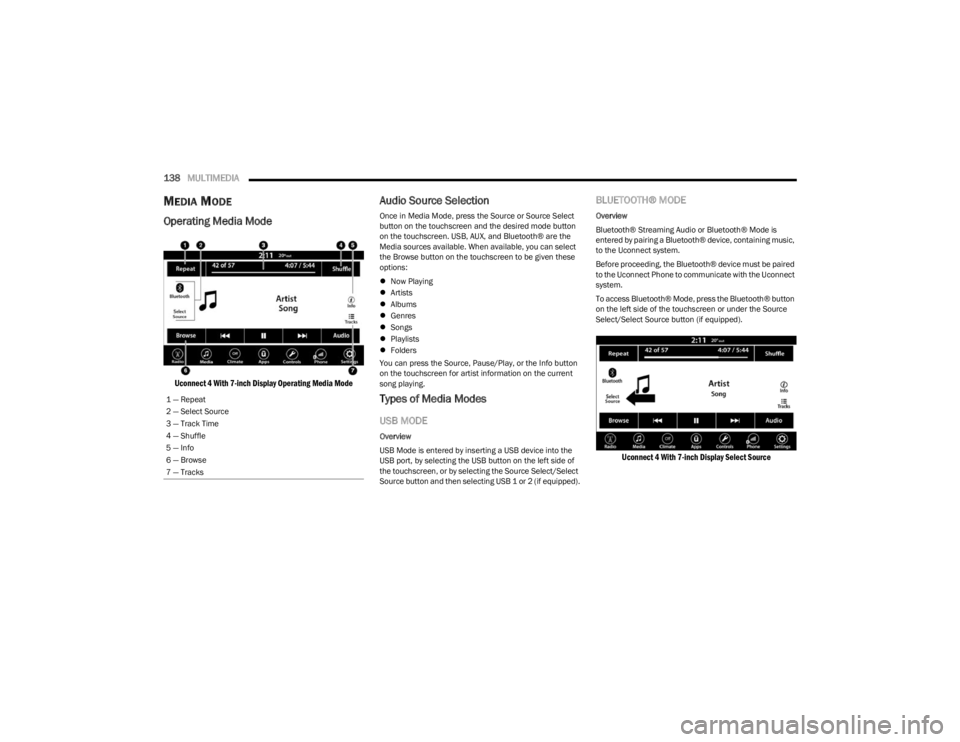
Operating Media Mode
Uconnect 4 With 7-inch Display Operating Media Mode
Audio Source Selection
Once in Media Mode, press the Source or Source Select
button on the touchscreen and the desired mode button
on the touchscreen. USB, AUX, and Bluetooth® are the
Media sources available. When available, you can select
the Browse button on the touchscreen to be given these
options:
Now Playing
Artists
Albums
Genres
Songs
Playlists
Folders
You can press the Source, Pause/Play, or the Info button
on the touchscreen for artist information on the current
song playing.
Types of Media Modes
USB MODE
Overview
USB Mode is entered by inserting a USB device into the
USB port, by selecting the USB button on the left side of
the touchscreen, or by selecting the Source Select/Select
Source button and then selecting USB 1 or 2 (if equipped).
BLUETOOTH® MODE
Overview
Bluetooth® Streaming Audio or Bluetooth® Mode is
entered by pairing a Bluetooth® device, containing music,
to the Uconnect system.
Before proceeding, the Bluetooth® device must be paired
to the Uconnect Phone to communicate with the Uconnect
system.
To access Bluetooth® Mode, press the Bluetooth® button
on the left side of the touchscreen or under the Source
Select/Select Source button (if equipped).
Uconnect 4 With 7-inch Display Select Source
1 — Repeat
2 — Select Source
3 — Track Time
4 — Shuffle
5 — Info
6 — Browse
7 — Tracks
23_LD_OM_EN_USC_t.book Page 138
Page 141 of 292

MULTIMEDIA139
AUX MODE
Overview
Auxiliary Mode (AUX) is entered by inserting an AUX device
using a cable with a 3.5 mm audio jack into the AUX port,
or by pressing the AUX button on the left side of the
touchscreen or under the Source Select button
(if equipped).
To insert an Auxiliary device, gently insert the Auxiliary
device cable into the AUX port. If you insert an Auxiliary
device with the ignition and the radio on, the unit will
switch to AUX Mode and begin to play.
Controlling The Auxiliary Device
Auxiliary Mode (AUX) is entered by inserting an AUX device
using a cable with a 3.5 mm audio jack into the AUX port
or by pressing the AUX button on the left side of the
touchscreen, or under the Source Select button
(if equipped).
NOTE:The radio unit is acting as the amplifier for audio output
from the Auxiliary device. Therefore, if the volume control
on the Auxiliary device is set too low, there will be insuffi -
cient audio signal for the radio unit to play the music on
the device.
Seek Up /Seek Down
In USB Mode, press the Seek Up button on the
touchscreen for the next selection on the USB device.
Press and release the Seek Down button on the
touchscreen to return to the beginning of the current
selection, or to return to the beginning of the previous
selection if the USB device is within the first three seconds
of the current selection. In Bluetooth® Mode, press and release the Seek Up
button on the touchscreen for the next selection on the
Bluetooth® device. Press and release the Seek Down
button on the touchscreen to return to the beginning of
the current selection, or return to the beginning of the
previous selection if the Bluetooth® device is within the
first second of the current selection.
Browse
In USB Mode, press the Browse button on the touchscreen
to display the browse window. In USB Mode, the left side
of the browse window displays a list of ways you can
browse through the contents of the USB device. If
supported by the device, you can browse by Folder, Artist,
Playlist, Album, Song, etc. Press the desired button on the
touchscreen on the left side of the screen. The center of
the browse window shows items and their sub-functions,
which can be scrolled through by pressing the Up and
Down buttons to the right. The TUNE/SCROLL knob can
also be used to scroll.
Media Mode
In USB Mode, press the Media button on the touchscreen
to select the desired audio source: USB.
In Bluetooth® Mode, press the Media button on the
touchscreen to select the desired audio source:
Bluetooth®.
In AUX Mode, press the Media button on the touchscreen
to select the desired audio source: AUX.
Repeat
In USB Mode, press the Repeat button on the touchscreen
to toggle the repeat functionality. The Repeat button on
the touchscreen is highlighted when active. The Radio will
continue to play the current track, repeatedly, as long as
the repeat is active. Press the Repeat button again to
enter Repeat All. The radio will continue to play all the
current tracks, repeatedly, as long as the repeat function
is active. To cancel Repeat, press the Repeat button a
third time.
Shuffle
In USB Mode, press the Shuffle button on the touchscreen
to play the selections on the USB device in random order
to provide an interesting change of pace. Press the Shuffle
button on the touchscreen a second time to turn this
feature off.
Audio
Audio settings can be accessed by pressing the Audio
button Úpage 130.
Info
In USB Mode, press the Info button on the touchscreen to
display the current track information. Press the Info or X
button on the touchscreen a second time to cancel this
feature.
5
23_LD_OM_EN_USC_t.book Page 139
Page 142 of 292

140MULTIMEDIA
Tracks
In USB Mode, press the Tracks button on the touchscreen
to display a pop-up with the Song List. The song currently
playing is indicated by an arrow and lines above and below
the song title. When in the Tracks List screen you can
rotate the TUNE/SCROLL knob to highlight a track
(indicated by the line above and below the track name)
and then push the ENTER/BROWSE knob to start playing
that track.
In Bluetooth® Mode, if the Bluetooth® device supports
this feature, press the Tracks button on the touchscreen
to display a pop-up with the Song List. The currently
playing song is indicated by a red arrow and lines above
and below the song title.
Pressing the Tracks button on the touchscreen while the
pop-up is displayed will close the pop-up.
MEDIA VOICE COMMANDS
Uconnect offers connections via USB, Bluetooth®, and
auxiliary (AUX) ports. Voice operation is only available for
connected USB and AUX devices.
Push the VR button located on the steering wheel.
After the beep, say one of the following commands and
follow the prompts to switch your media source or choose
an artist:
“Change source to Bluetooth®”
“Change source to AUX”
“Change source to USB”
“Play artist Beethoven”; “ Play album Greatest Hits”;
“ Play song Moonlight Sonata”; “ Play genre Classical” Did You Know:
Press the Browse button on the
touchscreen to see all of the music on your USB device.
Your Voice Command must match exactly how the artist,
album, song, and genre information is displayed.
PHONE MODE
Overview
Uconnect Phone is a voice-activated, hands-free,
in-vehicle communications system. It allows you to dial a
phone number with your mobile phone.
The feature supports the following:
Voice Activated Features
Hands-Free dialing via Voice
(“Call John Smith Mobile” or “Dial 248-555-1212”).
Hands-Free text-to-speech listening of your incoming
SMS messages.
Hands-Free Text Message Replying: Forward one of
18 predefined SMS messages to incoming calls/text
messages.
Redialing last dialed numbers (“Redial”).
Calling Back the last incoming call number
(“Call Back”).
Viewing call logs on screen (“Show Incoming Calls,”
“Show Outgoing Calls,” “Show Missed Calls,” or
“Show Recent Calls”).
Searching Contacts phone number
(“Search for John Smith Mobile”). Screen Activated Features
Dialing via Keypad using touchscreen.
Viewing and Calling contacts from Phonebooks
displayed on the touchscreen.
Setting Favorite Contact phone numbers so they are
easily accessible on the Main Phone screen.
Viewing and Calling contacts from Recent Call logs.
Reviewing your recent Incoming SMS Messages.
Pairing up to 10 phones/audio devices for easy access
to connect to them quickly.
NOTE:Your phone must be capable of SMS messaging via Blue -
tooth® for messaging features to work properly.
Your mobile phone’s audio is transmitted through your
vehicle’s audio system; the system will automatically mute
your radio when using the Uconnect Phone.
For Uconnect customer support:
US visit UconnectPhone.com or call 877-855-8400
Canada visit UconnectPhone.com or call
800-465-2001 (English) or (French) call
800-387-9983
Uconnect Phone allows you to transfer calls between the
system and your mobile phone as you enter or exit your
vehicle and enables you to mute the system's microphone
for private conversation.
23_LD_OM_EN_USC_t.book Page 140
Page 151 of 292
MULTIMEDIA149
Siri® Eyes Free — If Equipped
When used with your Apple® iPhone® connected to your
vehicle via Bluetooth®, Siri lets you use your voice to send
text messages, select media, place phone calls and much
more. Siri uses your natural language to understand what
you mean and responds back to confirm your requests.
The system is designed to keep your eyes on the road and
your hands on the wheel by letting Siri help you perform
useful tasks.
To enable Siri, push and hold, then release the Uconnect
Voice Recognition (VR) button on the steering wheel. After
you hear a double beep, you can ask Siri to play podcasts
and music, get directions, read text messages, and many
other useful requests.
BLUETOOTH® COMMUNICATION LINK
Mobile phones may lose connection to the Uconnect
Phone. When this happens, the connection can generally
be re-established by restarting the mobile phone. Your
mobile phone is recommended to remain in Bluetooth®
ON Mode.
POWER-UP
After switching the ignition key from OFF to either the ON/
RUN or ACC position, or after a language change, you must
wait at least 15 seconds prior to using the system
Úpage 277.
ANDROID AUTO™ & APPLE CARPLAY® —
IF EQUIPPED
ANDROID AUTO™
Use this QR code to access your digital
experience.
Android Auto™ is a feature of your
Uconnect system, and your Android™
6.0 or higher powered smartphone
with a data plan, that allows you to
project your smartphone and a number
of its apps onto the touchscreen radio
display. Android Auto™ brings you useful information, and
organizes it into simple cards that appear just when they
are needed. Android Auto™ can be used with speech
technology, the steering wheel controls, the knobs and
buttons on your radio faceplate, and the radio display’s
touchscreen to control many of your apps. To use Android
Auto™, perform the following procedure:
NOTE:Feature availability depends on your carrier and mobile
phone manufacturer. Some Android Auto™ features may
or may not be available in every region and/or language.
1. Download the Android Auto™ app from the Google
Play store on your Android™-powered smartphone.
2. Connect your Android™-powered smartphone to one
of the media USB ports in your vehicle. If the Android
Auto™ app was not downloaded, the first time you
plug your device in the app begins to download. Your
vehicle should be in PARK the first time you use the
app.
NOTE:Be sure to use the factory-provided USB cable that came
with your phone, as aftermarket cables may not work.
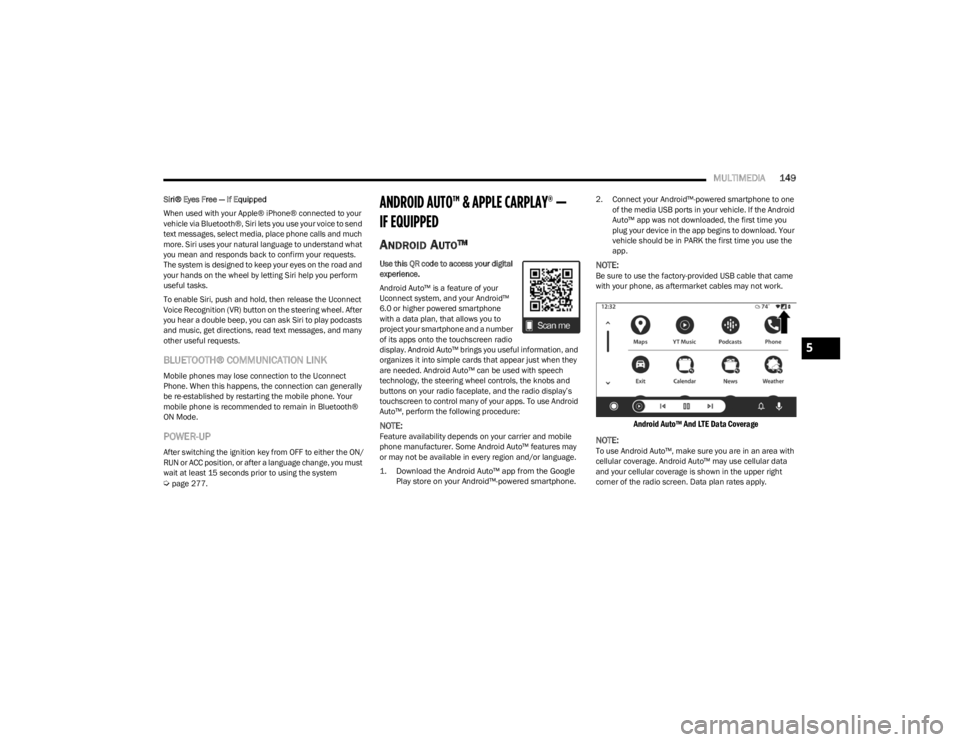
Android Auto™ And LTE Data Coverage
NOTE:
To use Android Auto™, make sure you are in an area with
cellular coverage. Android Auto™ may use cellular data
and your cellular coverage is shown in the upper right
corner of the radio screen. Data plan rates apply.
5
23_LD_OM_EN_USC_t.book Page 149
Page 152 of 292
150MULTIMEDIA
3. Once the device is connected and recognized, the
Phone icon on the drag & drop menu bar changes to
the Android Auto™ icon.
NOTE:Android Auto™ is set to launch immediately once a
compatible device is connected. You can also launch it by
pressing the Android Auto™ icon on the touchscreen.
Once Android Auto™ is up and running on your Uconnect
system, the following features can be utilized using your
smartphone’s data plan:
Google Maps™ for navigation
YouTube Music, Spotify, iHeart Radio, etc. for music
Hands-free calling and texting for communication
Various compatible apps
Maps
Push and hold the Voice Recognition (VR)
button on the steering wheel until the beep or
tap the Microphone icon to ask Google to take
you to a desired destination by voice. You can
also touch the Navigation icon in Android Auto™ to access
other navigation apps.
While using Android Auto™, Google Maps™ provides
voice-guided:
Navigation
Live traffic information
Lane guidance For further information, refer to www.android.com/auto/
(US) or https://www.android.com/intl/en_ca/auto/
(Canada).
For further information on the navigation function, please
refer to https://support.google.com/android or https://
support.google.com/androidauto/.
Music
Android Auto™ allows you to access and
stream your favorite music with apps like
YouTube Music, iHeartRadio, and Spotify.
Using your smartphone’s data plan, you can
stream endless music on the road.
NOTE:Music apps, playlists, and stations must be set up on your
smartphone prior to using Android Auto™ for them to work
with Android Auto™.
NOTE:To see the track details for the music playing through
Android Auto™, select the Uconnect system’s media
screen.
For further information, refer to https://
support.google.com/androidauto.
Communication
With Android Auto™ connected, push and hold
the VR button on the steering wheel to activate
voice recognition specific to Android Auto™.
This allows you to send and reply to text
messages, have incoming text messages read out loud,
and place and receive hands-free calls.
Apps
The Android Auto™ App displays all the compatible apps
that are available to use with Android Auto™, every time it
is launched. You must have the compatible app
downloaded, and you must be signed in to the app through
your mobile device for it to work with Android Auto™.
Refer to https://play.google.com/store/apps/ to see the
latest list of available apps for Android Auto™.
Android Auto™ Voice Command
NOTE:Feature availability depends on your carrier and mobile
phone manufacturer. Some Android Auto™ features may
or may not be available in every region and/or language.
Android Auto™ allows you to use your voice to interact with
its best-in-class speech technology through your vehicle’s
voice recognition system, and use your smartphone’s data
plan to project your Android™-powered smartphone and a
number of its apps onto your Uconnect touchscreen.
Connect your Android™ 6.0 or higher to one of the media
USB ports, using the factory-provided USB cable, and
press the new Android Auto™ icon that replaces your
Phone icon on the main menu bar to begin Android Auto™.
Push and hold the VR button on the steering wheel, or
press and hold the Microphone icon within Android Auto™,
to activate its VR, which recognizes natural voice
commands, to use a list of your smartphone’s features:
Maps
Music
Phone
Text Messages
Additional Apps
23_LD_OM_EN_USC_t.book Page 150
Page 153 of 292
MULTIMEDIA151
NOTE:
To use Android Auto™ on your car display, you’ll need
an Android™ phone running Android™ 6.0 or higher, an
active data plan, and the Android Auto™ app.
To wirelessly use Android Auto™ on your car display,
you need a compatible Android™ smartphone with an
active data plan. You can check which smartphones
are compatible at g.co/androidauto/requirements.
Android™ is a trademark of Google Inc.
APPLE CARPLAY®
Use this QR code to access your digital
experience.
Uconnect works seamlessly with Apple
CarPlay®, the smarter, more secure
way to use your iPhone® in the car, and
stay focused on the road. Use your
Uconnect Touchscreen display, the
vehicle's knobs and controls, and your
voice with Siri to get access to Apple Music®, Maps,
Messages, and more.
NOTE:Feature availability depends on your carrier and mobile
phone manufacturer. Some Apple CarPlay® features may
or may not be available in every region and/or language.
To use Apple CarPlay®, make sure you are using iPhone®
5 or later, have Siri enabled in Settings, ensure your
iPhone® is unlocked for the very first connection only, and
then use the following procedure:
1. Connect your iPhone® to one of the media USB
ports in your vehicle.
NOTE:Be sure to use the factory-provided Lightning cable that
came with your phone, as aftermarket cables may not
work.
2. Once the device is connected and recognized, the Phone icon on the drag & drop menu bar changes to
the Apple CarPlay® Icon.
NOTE:Apple CarPlay® is set to launch immediately. You can also
launch it by pressing the Apple CarPlay® icon on the
touchscreen.
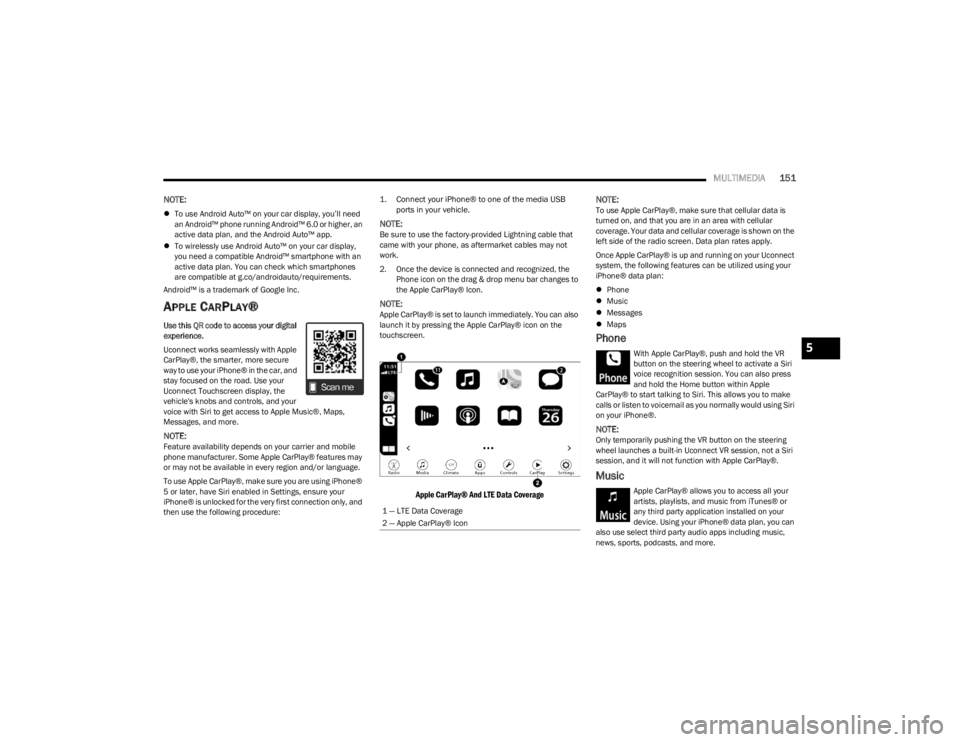
Apple CarPlay® And LTE Data Coverage
NOTE:
To use Apple CarPlay®, make sure that cellular data is
turned on, and that you are in an area with cellular
coverage. Your data and cellular coverage is shown on the
left side of the radio screen. Data plan rates apply.
Once Apple CarPlay® is up and running on your Uconnect
system, the following features can be utilized using your
iPhone® data plan:
Phone
Music
Messages
Maps
Phone
With Apple CarPlay®, push and hold the VR
button on the steering wheel to activate a Siri
voice recognition session. You can also press
and hold the Home button within Apple
CarPlay® to start talking to Siri. This allows you to make
calls or listen to voicemail as you normally would using Siri
on your iPhone®.
NOTE:Only temporarily pushing the VR button on the steering
wheel launches a built-in Uconnect VR session, not a Siri
session, and it will not function with Apple CarPlay®.
Music
Apple CarPlay® allows you to access all your
artists, playlists, and music from iTunes® or
any third party application installed on your
device. Using your iPhone® data plan, you can
also use select third party audio apps including music,
news, sports, podcasts, and more.
1 — LTE Data Coverage
2 — Apple CarPlay® Icon
5
23_LD_OM_EN_USC_t.book Page 151