reset DODGE CHARGER 2023 User Guide
[x] Cancel search | Manufacturer: DODGE, Model Year: 2023, Model line: CHARGER, Model: DODGE CHARGER 2023Pages: 292, PDF Size: 13.05 MB
Page 123 of 292
MULTIMEDIA121
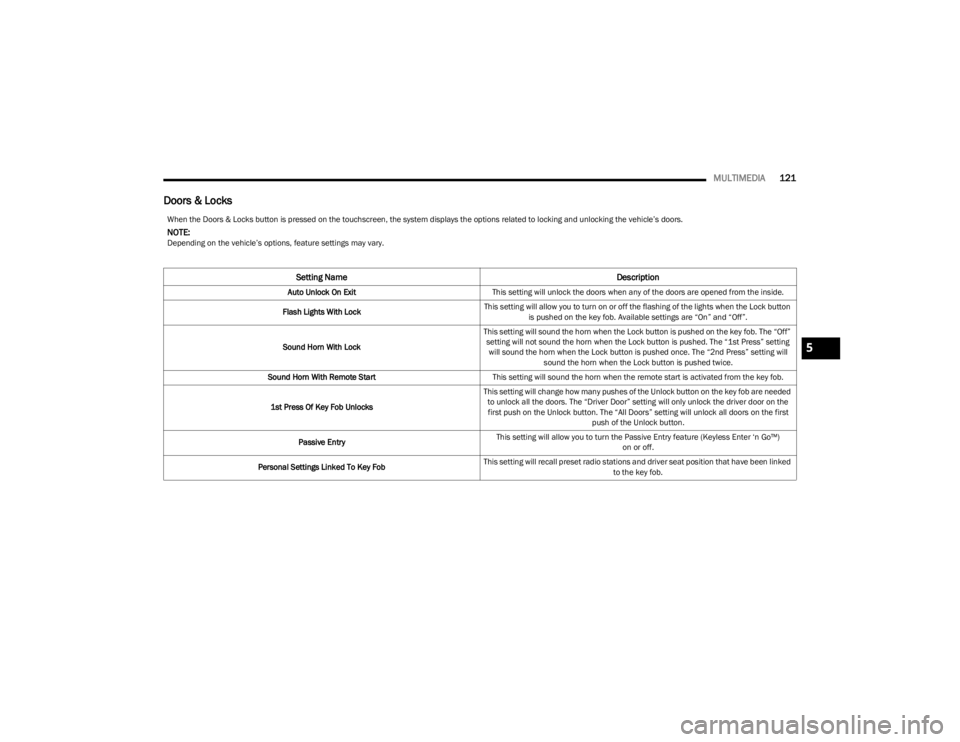
Doors & Locks
When the Doors & Locks button is pressed on the touchscreen, the system displays the options related to locking and unlocking the vehicle’s doors.
NOTE:Depending on the vehicle’s options, feature settings may vary.
Setting Name Description
Auto Unlock On ExitThis setting will unlock the doors when any of the doors are opened from the inside.
Flash Lights With Lock This setting will allow you to turn on or off the flashing of the lights when the Lock button
is pushed on the key fob. Available settings are “On” and “Off”.
Sound Horn With Lock This setting will sound the horn when the Lock button is pushed on the key fob. The “Off”
setting will not sound the horn when the Lock button is pushed. The “1st Press” setting will sound the horn when the Lock button is pushed once. The “2nd Press” setting will sound the horn when the Lock button is pushed twice.
Sound Horn With Remote Start This setting will sound the horn when the remote start is activated from the key fob.
1st Press Of Key Fob Unlocks This setting will change how many pushes of the Unlock button on the key fob are needed
to unlock all the doors. The “Driver Door” setting will only unlock the driver door on the first push on the Unlock button. The “All Doors” setting will unlock all doors on the first push of the Unlock button.
Passive Entry This setting will allow you to turn the Passive Entry feature (Keyless Enter ‘n Go™)
on or off.
Personal Settings Linked To Key Fob This setting will recall preset radio stations and driver seat position that have been linked
to the key fob.
5
23_LD_OM_EN_USC_t.book Page 121
Page 126 of 292
124MULTIMEDIA
Phone/Bluetooth®
SiriusXM® Setup — If Equipped
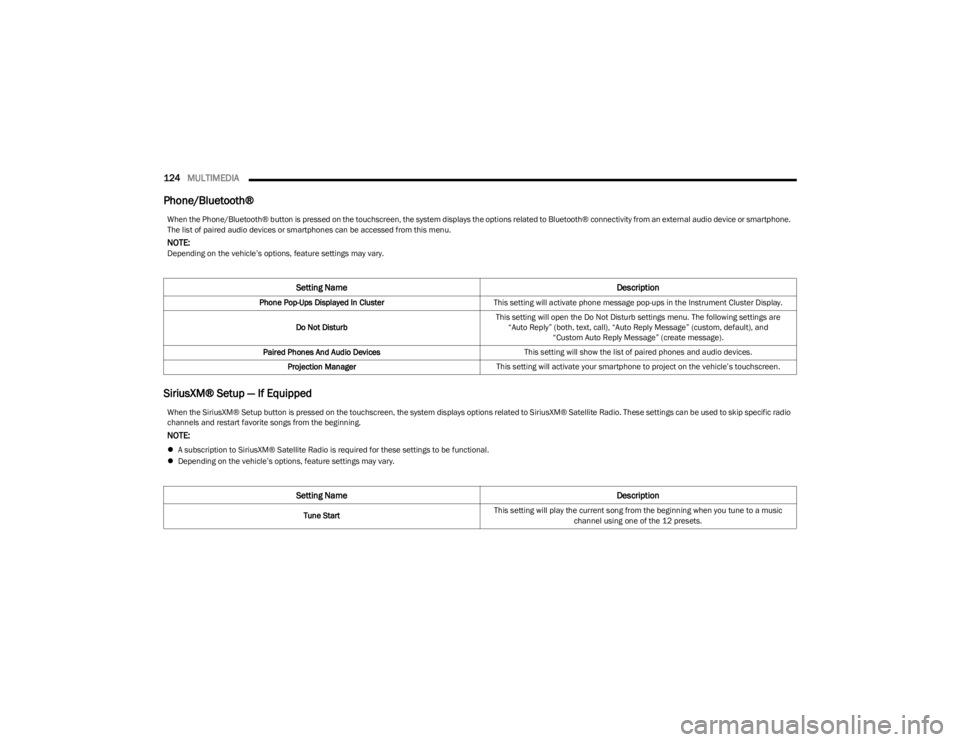
When the Phone/Bluetooth® button is pressed on the touchscreen, the system displays the options related to Bluetooth® connectivity from an external audio device or smartphone.
The list of paired audio devices or smartphones can be accessed from this menu.
NOTE:Depending on the vehicle’s options, feature settings may vary.
Setting Name Description
Phone Pop-Ups Displayed In ClusterThis setting will activate phone message pop-ups in the Instrument Cluster Display.
Do Not Disturb This setting will open the Do Not Disturb settings menu. The following settings are
“Auto Reply” (both, text, call), “Auto Reply Message” (custom, default), and “Custom Auto Reply Message” (create message).
Paired Phones And Audio Devices This setting will show the list of paired phones and audio devices.
Projection Manager This setting will activate your smartphone to project on the vehicle’s touchscreen.
When the SiriusXM® Setup button is pressed on the touchscreen, the system displays options related to SiriusXM® Satellite Radio. These settings can be used to skip specific radio
channels and restart favorite songs from the beginning.
NOTE:
A subscription to SiriusXM® Satellite Radio is required for these settings to be functional.
Depending on the vehicle’s options, feature settings may vary.
Setting Name Description
Tune StartThis setting will play the current song from the beginning when you tune to a music
channel using one of the 12 presets.
23_LD_OM_EN_USC_t.book Page 124
Page 127 of 292
MULTIMEDIA125
Reset/Restore Settings
System Information — If Equipped
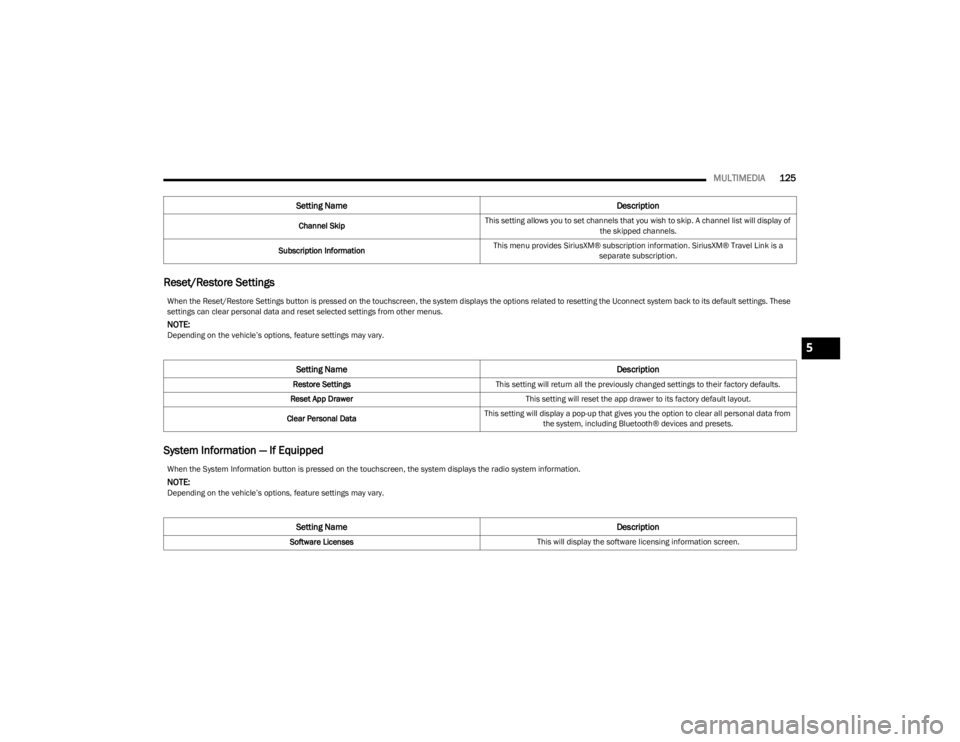
Channel Skip This setting allows you to set channels that you wish to skip. A channel list will display of
the skipped channels.
Subscription Information This menu provides SiriusXM® subscription information. SiriusXM® Travel Link is a
separate subscription.
Setting Name Description
When the Reset/Restore Settings button is pressed on the touchscreen, the system displays the options related to resetting the Uconnect system back to its default settings. These
settings can clear personal data and reset selected settings from other menus.
NOTE:Depending on the vehicle’s options, feature settings may vary.
Setting NameDescription
Restore SettingsThis setting will return all the previously changed settings to their factory defaults.
Reset App Drawer This setting will reset the app drawer to its factory default layout.
Clear Personal Data This setting will display a pop-up that gives you the option to clear all personal data from
the system, including Bluetooth® devices and presets.
When the System Information button is pressed on the touchscreen, the system displays the radio system information.
NOTE:Depending on the vehicle’s options, feature settings may vary.
Setting Name Description
Software LicensesThis will display the software licensing information screen.
5
23_LD_OM_EN_USC_t.book Page 125
Page 129 of 292
MULTIMEDIA127
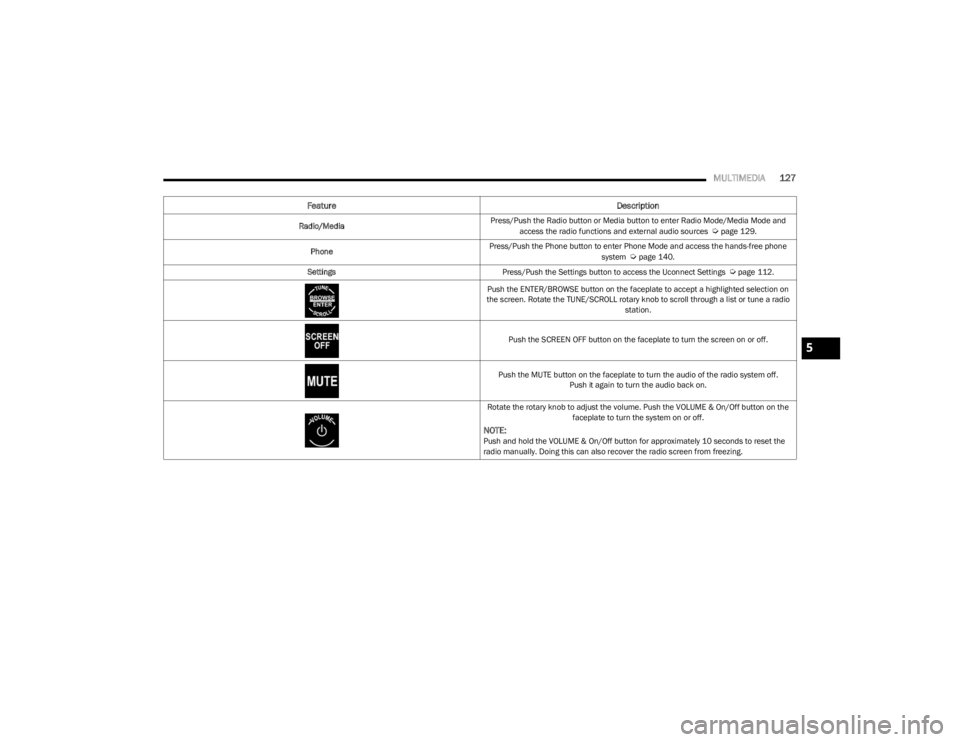
Feature Description
Radio/MediaPress/Push the Radio button or Media button to enter Radio Mode/Media Mode and
access the radio functions and external audio sources Úpage 129.
Phone Press/Push the Phone button to enter Phone Mode and access the hands-free phone
system
Úpage 140.
Settings Press/Push the Settings button to access the Uconnect Settings
Úpage 112.
Push the ENTER/BROWSE button on the faceplate to accept a highlighted selection on
the screen. Rotate the TUNE/SCROLL rotary knob to scroll through a list or tune a radio station.
Push the SCREEN OFF button on the faceplate to turn the screen on or off.
Push the MUTE button on the faceplate to turn the audio of the radio system off. Push it again to turn the audio back on.
Rotate the rotary knob to adjust the volume. Push the VOLUME & On/Off button on the faceplate to turn the system on or off.
NOTE:Push and hold the VOLUME & On/Off button for approximately 10 seconds to reset the
radio manually. Doing this can also recover the radio screen from freezing.
5
23_LD_OM_EN_USC_t.book Page 127
Page 131 of 292
MULTIMEDIA129
Safe Usage Of The Uconnect System
The Uconnect system is a sophisticated electronic
device. Do not let young children use the system.
Permanent hearing loss may occur if you play your
music or sound system at loud volumes. Exercise
caution when setting the volume on the system.
Keep drinks, rain and other sources of moisture away
from the system. Besides damage to the system, mois -
ture can cause electric shocks as with any electronic
device.
NOTE:Many features of this system are speed dependent.
For your own safety, it is not possible to use some of the
touchscreen features while the vehicle is in motion.
Care And Maintenance
Do not press the touchscreen with any hard or sharp
objects (pen, USB stick, jewelry, etc.), which could
scratch the surface.
Do not spray any liquid or chemicals directly on the
screen! Use a clean and dry microfiber lens cleaning
cloth in order to clean the touchscreen.
If necessary, use a lint-free cloth dampened with a
cleaning solution, such as isopropyl alcohol or an
isopropyl alcohol and water solution ratio of 50:50.
Be sure to follow the solvent manufacturer's precau -
tions and directions
Úpage 277.
UCONNECT MODES
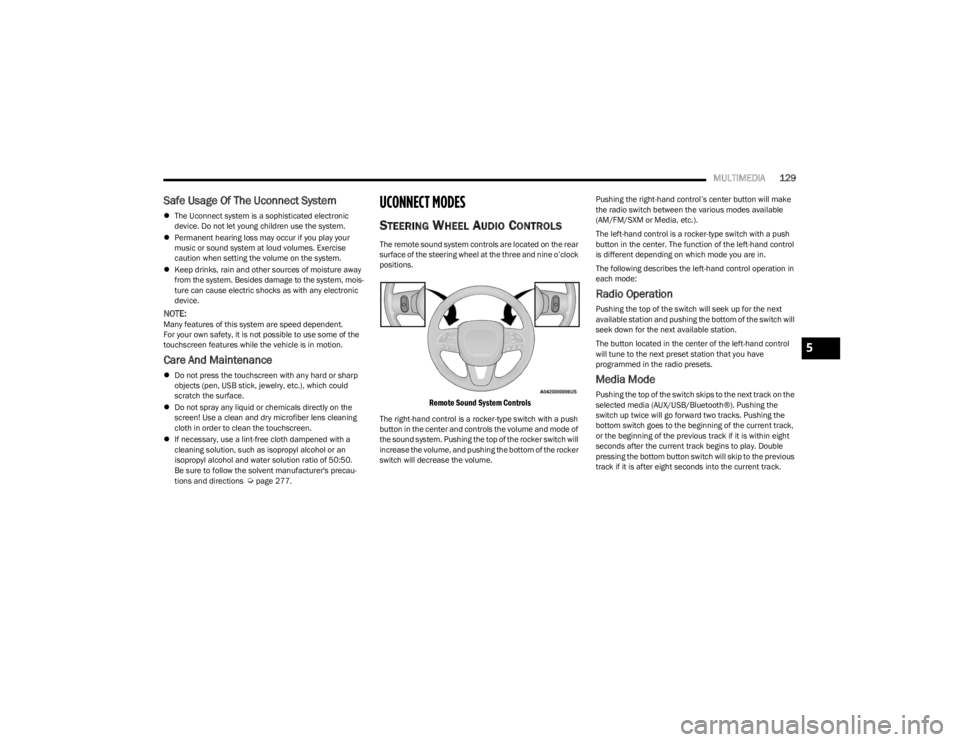
STEERING WHEEL AUDIO CONTROLS
The remote sound system controls are located on the rear
surface of the steering wheel at the three and nine o’clock
positions.
Remote Sound System Controls
The right-hand control is a rocker-type switch with a push
button in the center and controls the volume and mode of
the sound system. Pushing the top of the rocker switch will
increase the volume, and pushing the bottom of the rocker
switch will decrease the volume. Pushing the right-hand control’s center button will make
the radio switch between the various modes available
(AM/FM/SXM or Media, etc.).
The left-hand control is a rocker-type switch with a push
button in the center. The function of the left-hand control
is different depending on which mode you are in.
The following describes the left-hand control operation in
each mode:
Radio Operation
Pushing the top of the switch will seek up for the next
available station and pushing the bottom of the switch will
seek down for the next available station.
The button located in the center of the left-hand control
will tune to the next preset station that you have
programmed in the radio presets.
Media Mode
Pushing the top of the switch skips to the next track on the
selected media (AUX/USB/Bluetooth®). Pushing the
switch up twice will go forward two tracks. Pushing the
bottom switch goes to the beginning of the current track,
or the beginning of the previous track if it is within eight
seconds after the current track begins to play. Double
pressing the bottom button switch will skip to the previous
track if it is after eight seconds into the current track.
5
23_LD_OM_EN_USC_t.book Page 129
Page 132 of 292
130MULTIMEDIA
RADIO MODE
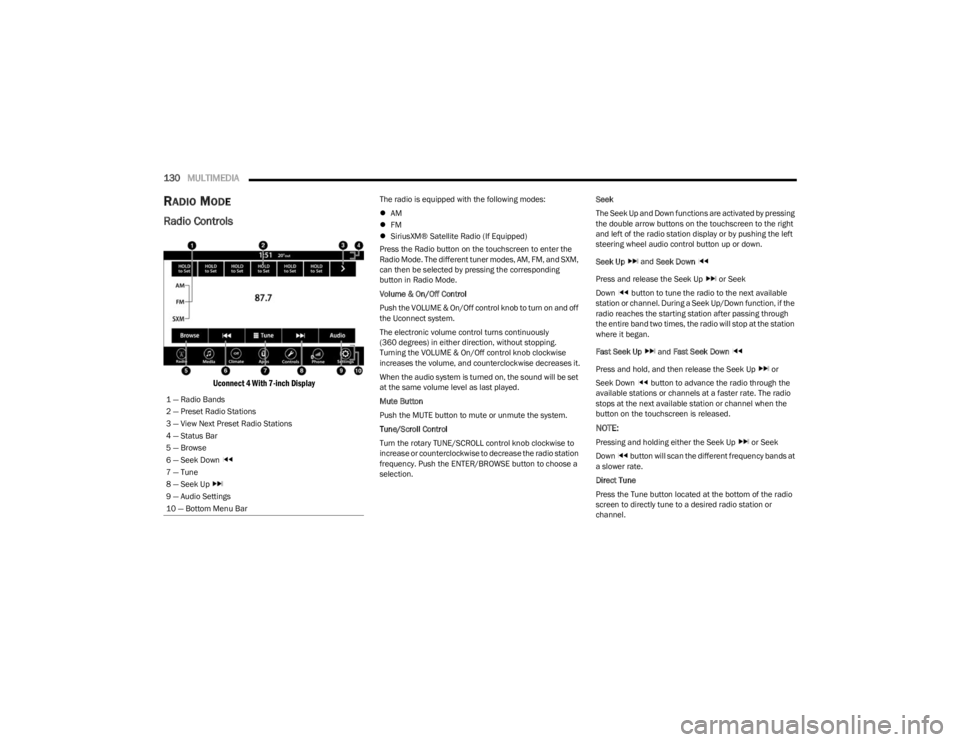
Radio Controls
Uconnect 4 With 7-inch Display
The radio is equipped with the following modes:
AM
FM
SiriusXM® Satellite Radio (If Equipped)
Press the Radio button on the touchscreen to enter the
Radio Mode. The different tuner modes, AM, FM, and SXM,
can then be selected by pressing the corresponding
button in Radio Mode.
Volume & On/Off Control
Push the VOLUME & On/Off control knob to turn on and off
the Uconnect system.
The electronic volume control turns continuously
(360 degrees) in either direction, without stopping.
Turning the VOLUME & On/Off control knob clockwise
increases the volume, and counterclockwise decreases it.
When the audio system is turned on, the sound will be set
at the same volume level as last played.
Mute Button
Push the MUTE button to mute or unmute the system.
Tune/Scroll Control
Turn the rotary TUNE/SCROLL control knob clockwise to
increase or counterclockwise to decrease the radio station
frequency. Push the ENTER/BROWSE button to choose a
selection. Seek
The Seek Up and Down functions are activated by pressing
the double arrow buttons on the touchscreen to the right
and left of the radio station display or by pushing the left
steering wheel audio control button up or down.
Seek Up
and Seek Down
Press and release the Seek Up or Seek
Down button to tune the radio to the next available
station or channel. During a Seek Up/Down function, if the
radio reaches the starting station after passing through
the entire band two times, the radio will stop at the station
where it began.
Fast Seek Up and Fast Seek Down
Press and hold, and then release the Seek Up or
Seek Down button to advance the radio through the
available stations or channels at a faster rate. The radio
stops at the next available station or channel when the
button on the touchscreen is released.
NOTE:
Pressing and holding either the Seek Up or Seek
Down button will scan the different frequency bands at
a slower rate.
Direct Tune
Press the Tune button located at the bottom of the radio
screen to directly tune to a desired radio station or
channel.
1 — Radio Bands
2 — Preset Radio Stations
3 — View Next Preset Radio Stations
4 — Status Bar
5 — Browse
6 — Seek Down
7 — Tune
8 — Seek Up
9 — Audio Settings
10 — Bottom Menu Bar
23_LD_OM_EN_USC_t.book Page 130
Page 134 of 292
132MULTIMEDIA
No Subscription
Radios equipped with a Satellite receiver require a
subscription to the SiriusXM® Service. When the radio
does not have the necessary subscription, the radio is
able to receive the Preview channel only.
Acquiring SiriusXM® Subscription
To activate the SiriusXM® Satellite Radio subscription, US
residents visit https://www.siriusxm.com/phx/getlogin or
call: 1-800-643-2112
Canadian residents visit https://www.siriusxm.ca/ or call:
1-888-539-7474.
NOTE:You will need to provide the SiriusXM® ID (RID) located at
the bottom of the Channel 0 screen.
The Satellite Mode is activated by a press of the SXM
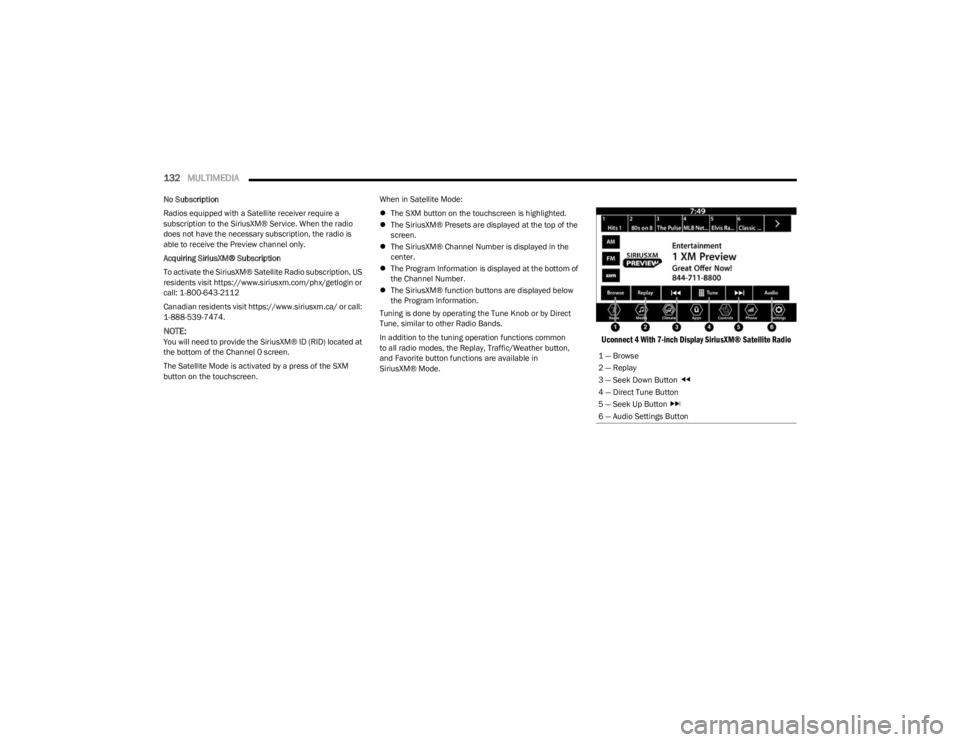
button on the touchscreen. When in Satellite Mode:
The SXM button on the touchscreen is highlighted.
The SiriusXM® Presets are displayed at the top of the
screen.
The SiriusXM® Channel Number is displayed in the
center.
The Program Information is displayed at the bottom of
the Channel Number.
The SiriusXM® function buttons are displayed below
the Program Information.
Tuning is done by operating the Tune Knob or by Direct
Tune, similar to other Radio Bands.
In addition to the tuning operation functions common
to all radio modes, the Replay, Traffic/Weather button,
and Favorite button functions are available in
SiriusXM® Mode.
Uconnect 4 With 7-inch Display SiriusXM® Satellite Radio
1 — Browse
2 — Replay
3 — Seek Down Button
4 — Direct Tune Button
5 — Seek Up Button
6 — Audio Settings Button
23_LD_OM_EN_USC_t.book Page 132
Page 136 of 292
134MULTIMEDIA
FAVORITES
Press the Favorites button on the touchscreen to activate
the favorites menu, which will time out within 20 seconds
in absence of user interaction.
You can exit the Favorites Menu by a press of the X button.
The Favorites feature enables you to set a favorite artist or
song that is currently playing. The radio then uses this
information to alert you when either the favorite artist or
song is being played at any time by any of the SiriusXM®
Channels.
The maximum number of favorites that can be stored in
the Radio is 50.
Favorite Artist: While the song is playing, to set a favorite
artist, press the Favorites button on the touchscreen and
then the Favorite Artist button on the touchscreen.
Favorite Song: While the song is playing, to set a favorite
song, press the Favorites button on the touchscreen and
then the Favorite Song button on the touchscreen.
BROWSE IN SXM
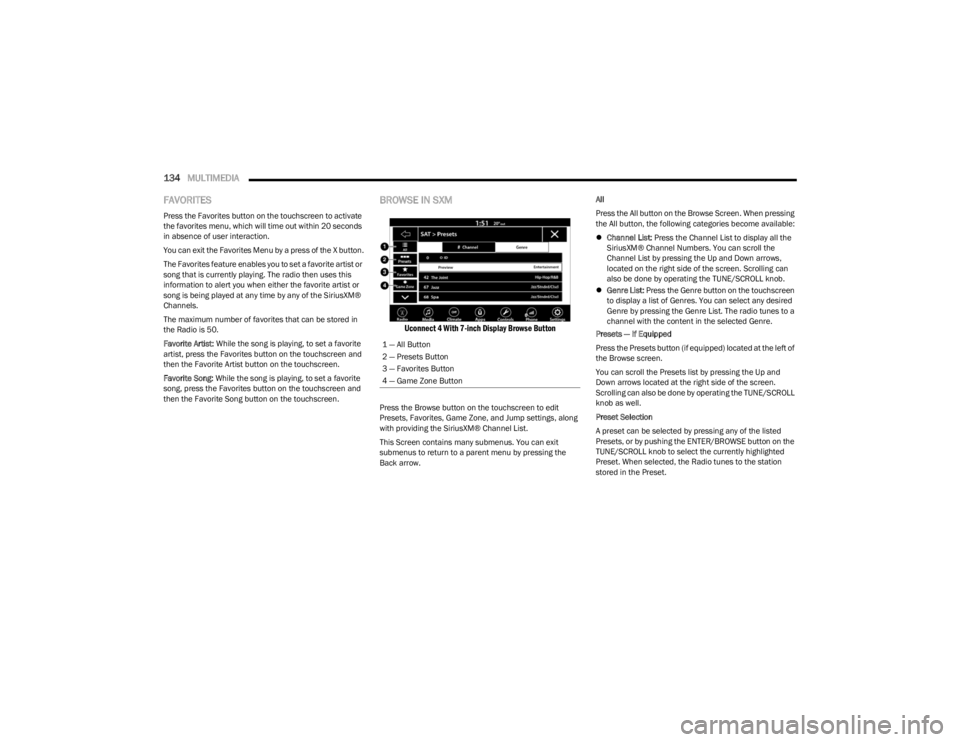
Uconnect 4 With 7-inch Display Browse Button
Press the Browse button on the touchscreen to edit
Presets, Favorites, Game Zone, and Jump settings, along
with providing the SiriusXM® Channel List.
This Screen contains many submenus. You can exit
submenus to return to a parent menu by pressing the
Back arrow. All
Press the All button on the Browse Screen. When pressing
the All button, the following categories become available:
Channel List: Press the Channel List to display all the
SiriusXM® Channel Numbers. You can scroll the
Channel List by pressing the Up and Down arrows,
located on the right side of the screen. Scrolling can
also be done by operating the TUNE/SCROLL knob.
Genre List: Press the Genre button on the touchscreen
to display a list of Genres. You can select any desired
Genre by pressing the Genre List. The radio tunes to a
channel with the content in the selected Genre.
Presets — If Equipped
Press the Presets button (if equipped) located at the left of
the Browse screen.
You can scroll the Presets list by pressing the Up and
Down arrows located at the right side of the screen.
Scrolling can also be done by operating the TUNE/SCROLL
knob as well.
Preset Selection
A preset can be selected by pressing any of the listed
Presets, or by pushing the ENTER/BROWSE button on the
TUNE/SCROLL knob to select the currently highlighted
Preset. When selected, the Radio tunes to the station
stored in the Preset.
1 — All Button
2 — Presets Button
3 — Favorites Button
4 — Game Zone Button
23_LD_OM_EN_USC_t.book Page 134
Page 137 of 292
MULTIMEDIA135
Deleting A Preset
A preset can be deleted in the Presets Browse screen by
pressing the Trash Can icon for the corresponding preset.
Favorites
Press the Favorites button on the Browse screen.
The Favorites menu provides a means to edit the Favorites
list and to configure the Alert Settings, along with
providing a list of Channels currently airing any of the
items in the Favorites list.
You can scroll the Favorites list by pressing the Up and
Down arrows located at the right side of the screen.
Scrolling can also be done by operating the TUNE/SCROLL
knob as well.
Remove Favorites
Press the Remove Favorites tab at the top of the screen.
Press the Delete All button on the touchscreen to delete
all of the Favorites or press the Trash Can icon next to the
Favorite to be deleted.
Alert Settings
Press the Alert Settings tab at the top of the Favorites
screen. The Alert Settings menu allows you to choose from
a visual alert or audible and visual alert when one of your
favorites is airing on any of the SiriusXM® channels. Game Zone
Press the Game Zone button, located at the left of the
Browse screen. This feature provides you with the ability to
select teams, edit the selection, and set alerts.
On-Air
Press the On-Air tab at the top of the screen. The On-Air list
provides a list of Channels currently airing any of the items
in the Selections list, and pressing any of the items in the
list tunes the radio to that channel.
Select Team — If Equipped
Press the Select Team button on the touchscreen to
activate the League Scroll list. Press the chosen league
and a scroll list of all teams within the league will appear,
then you can select a team by pressing the corresponding
box. A check mark appears for all teams that are chosen.
Remove Selection/Trash Can Icon
Press the Remove Selection tab at the top of the screen.
Press the Delete All button on the touchscreen to delete
all of the selections or press the Trash Can icon next to the
selection to be deleted. Alert Settings
Press the Alert Setting tab at the top of the screen. The
Alert Settings menu allows you to choose from “Alert me to
on-air games upon start” or “Alert upon score update” or
both when one or more of your selections is airing on any
of the SiriusXM® channels.
Tune Start
Tune Start begins playing the current song from the
beginning when you tune to a music channel using one of
the 12 presets. This feature occurs the first time the
preset is selected during that current song.
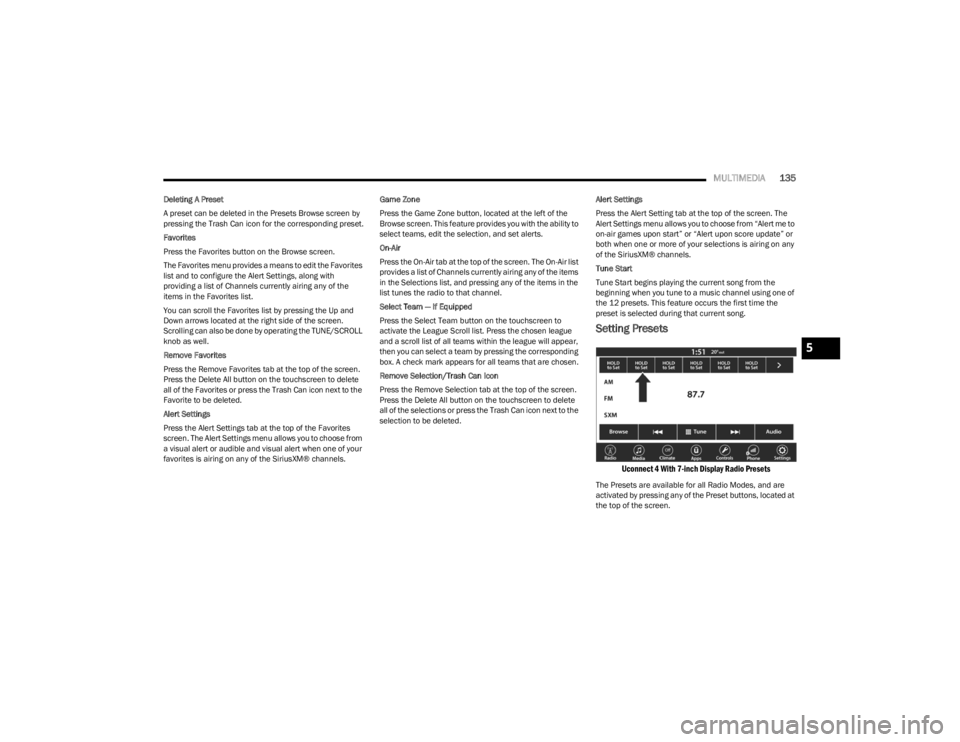
Setting Presets
Uconnect 4 With 7-inch Display Radio Presets
The Presets are available for all Radio Modes, and are
activated by pressing any of the Preset buttons, located at
the top of the screen.
5
23_LD_OM_EN_USC_t.book Page 135
Page 138 of 292
136MULTIMEDIA
When you are on a station that you wish to save as a
preset, press and hold the numbered button on the
touchscreen for more than two seconds.
The Radio stores up to 12 presets in each of the
Radio Modes.
A total of six presets will appear on the screen. You can
switch between the radio presets list by pressing the Arrow
button located in the upper right of the radio touchscreen.
PRESET FEATURES — IF EQUIPPED
Browse In AM/FM
When in either AM or FM, the Browse Screen provides a
means to edit the Presets List and is entered by pushing
the ENTER/BROWSE button.
Scrolling Preset List
Once in the Browse Presets screen, you can scroll the
preset list by rotation of the TUNE/SCROLL knob or by
pressing the Up or Down Arrow key, located on the right of
the screen. Preset Selection From List
A preset can be selected by pressing any of the listed
Presets, or by pushing the ENTER/BROWSE button or the
TUNE/SCROLL knob to select the currently highlighted
Preset.
When selected, the radio tunes to the station stored in the
Presets.
Deleting Presets
A preset can be deleted in the Presets Browse screen by
pressing the Trash Can icon for the corresponding preset.
Return To Main Radio Screen
You can return to the Main Radio Screen by pressing
the X button or the Back Arrow button when in the
Browse Presets screen.
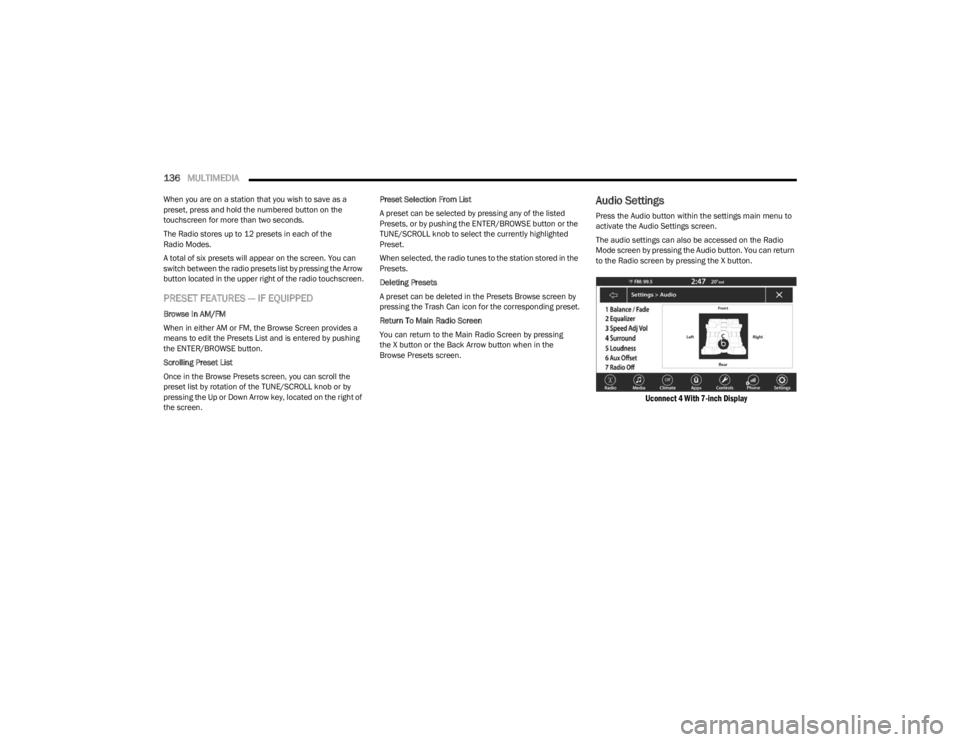
Audio Settings
Press the Audio button within the settings main menu to
activate the Audio Settings screen.
The audio settings can also be accessed on the Radio
Mode screen by pressing the Audio button. You can return
to the Radio screen by pressing the X button.
Uconnect 4 With 7-inch Display
23_LD_OM_EN_USC_t.book Page 136