buttons DODGE CHARGER 2023 Owner's Manual
[x] Cancel search | Manufacturer: DODGE, Model Year: 2023, Model line: CHARGER, Model: DODGE CHARGER 2023Pages: 292, PDF Size: 13.05 MB
Page 137 of 292
MULTIMEDIA135
Deleting A Preset
A preset can be deleted in the Presets Browse screen by
pressing the Trash Can icon for the corresponding preset.
Favorites
Press the Favorites button on the Browse screen.
The Favorites menu provides a means to edit the Favorites
list and to configure the Alert Settings, along with
providing a list of Channels currently airing any of the
items in the Favorites list.
You can scroll the Favorites list by pressing the Up and
Down arrows located at the right side of the screen.
Scrolling can also be done by operating the TUNE/SCROLL
knob as well.
Remove Favorites
Press the Remove Favorites tab at the top of the screen.
Press the Delete All button on the touchscreen to delete
all of the Favorites or press the Trash Can icon next to the
Favorite to be deleted.
Alert Settings
Press the Alert Settings tab at the top of the Favorites
screen. The Alert Settings menu allows you to choose from
a visual alert or audible and visual alert when one of your
favorites is airing on any of the SiriusXM® channels. Game Zone
Press the Game Zone button, located at the left of the
Browse screen. This feature provides you with the ability to
select teams, edit the selection, and set alerts.
On-Air
Press the On-Air tab at the top of the screen. The On-Air list
provides a list of Channels currently airing any of the items
in the Selections list, and pressing any of the items in the
list tunes the radio to that channel.
Select Team — If Equipped
Press the Select Team button on the touchscreen to
activate the League Scroll list. Press the chosen league
and a scroll list of all teams within the league will appear,
then you can select a team by pressing the corresponding
box. A check mark appears for all teams that are chosen.
Remove Selection/Trash Can Icon
Press the Remove Selection tab at the top of the screen.
Press the Delete All button on the touchscreen to delete
all of the selections or press the Trash Can icon next to the
selection to be deleted. Alert Settings
Press the Alert Setting tab at the top of the screen. The
Alert Settings menu allows you to choose from “Alert me to
on-air games upon start” or “Alert upon score update” or
both when one or more of your selections is airing on any
of the SiriusXM® channels.
Tune Start
Tune Start begins playing the current song from the
beginning when you tune to a music channel using one of
the 12 presets. This feature occurs the first time the
preset is selected during that current song.
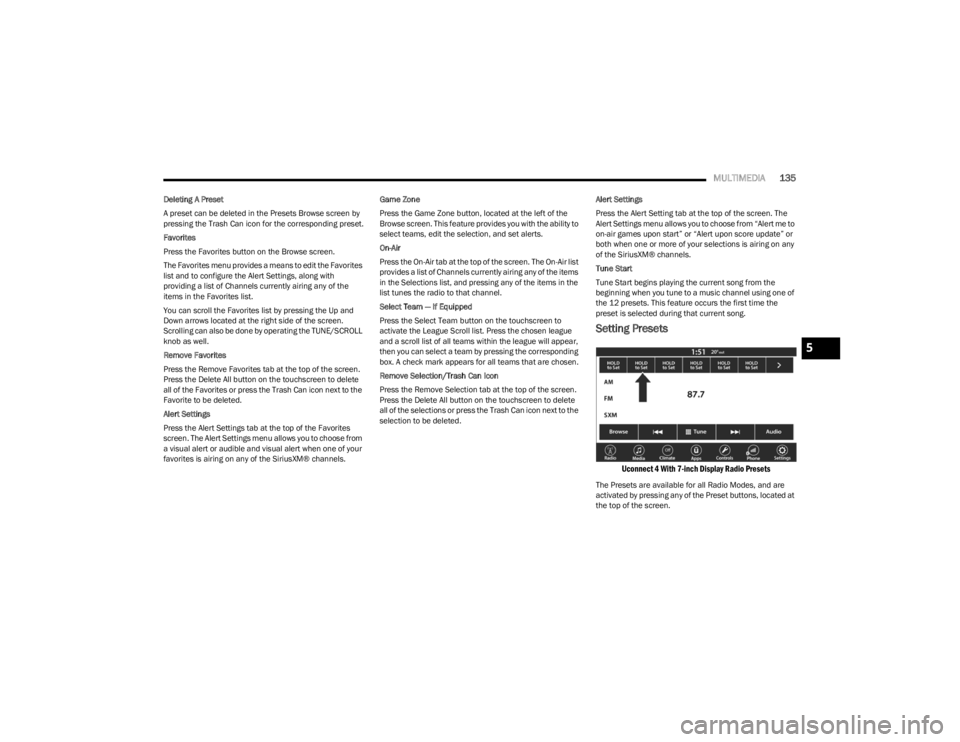
Setting Presets
Uconnect 4 With 7-inch Display Radio Presets
The Presets are available for all Radio Modes, and are
activated by pressing any of the Preset buttons, located at
the top of the screen.
5
23_LD_OM_EN_USC_t.book Page 135
Page 139 of 292

MULTIMEDIA137
Audio Setting Description
Balance/FadePress the Balance/Fade button on the touchscreen to balance audio between the front
speakers or fade the audio between the rear and front speakers. Press the Front, Rear,
Left or Right button or press and drag the red Speaker icon to adjust the Balance/Fade.
Equalizer Press the + or - button or press and drag the level bar to increase or decrease each of the
equalizer bands. The level value, which spans between plus or minus nine, is displayed at
the top of each of the bands.
Speed Adjusted Volume The Speed Adjusted Volume is adjusted by selecting from “Off”, “1”, “2”, and “3”.
This alters the automatic adjustment of the audio volume with variation to vehicle speed. Volume increases automatically as speed increases to compensate for normal road noise.
Surround Sound When Surround Sound is on, you can hear audio coming from every direction as in a
movie theatre or home theatre system.
AUX Volume Offset The AUX Volume Offset is adjusted by pressing + and - buttons. This alters the AUX input
audio volume. The level value, which spans between plus or minus three, is displayed above the adjustment bar.
Auto Play The Auto Play feature begins playing music as soon as a USB Media device is connected
to one of the vehicle’s Media USB ports, when it is turned on. Press “Off” to turn the setting off.
Radio Off With Door The Radio Off With Door feature, when activated, keeps the radio on until the driver or
passenger door is opened or until the “Radio Off Delay” selected time has expired.
5
23_LD_OM_EN_USC_t.book Page 137
Page 141 of 292

MULTIMEDIA139
AUX MODE
Overview
Auxiliary Mode (AUX) is entered by inserting an AUX device
using a cable with a 3.5 mm audio jack into the AUX port,
or by pressing the AUX button on the left side of the
touchscreen or under the Source Select button
(if equipped).
To insert an Auxiliary device, gently insert the Auxiliary
device cable into the AUX port. If you insert an Auxiliary
device with the ignition and the radio on, the unit will
switch to AUX Mode and begin to play.
Controlling The Auxiliary Device
Auxiliary Mode (AUX) is entered by inserting an AUX device
using a cable with a 3.5 mm audio jack into the AUX port
or by pressing the AUX button on the left side of the
touchscreen, or under the Source Select button
(if equipped).
NOTE:The radio unit is acting as the amplifier for audio output
from the Auxiliary device. Therefore, if the volume control
on the Auxiliary device is set too low, there will be insuffi -
cient audio signal for the radio unit to play the music on
the device.
Seek Up /Seek Down
In USB Mode, press the Seek Up button on the
touchscreen for the next selection on the USB device.
Press and release the Seek Down button on the
touchscreen to return to the beginning of the current
selection, or to return to the beginning of the previous
selection if the USB device is within the first three seconds
of the current selection. In Bluetooth® Mode, press and release the Seek Up
button on the touchscreen for the next selection on the
Bluetooth® device. Press and release the Seek Down
button on the touchscreen to return to the beginning of
the current selection, or return to the beginning of the
previous selection if the Bluetooth® device is within the
first second of the current selection.
Browse
In USB Mode, press the Browse button on the touchscreen
to display the browse window. In USB Mode, the left side
of the browse window displays a list of ways you can
browse through the contents of the USB device. If
supported by the device, you can browse by Folder, Artist,
Playlist, Album, Song, etc. Press the desired button on the
touchscreen on the left side of the screen. The center of
the browse window shows items and their sub-functions,
which can be scrolled through by pressing the Up and
Down buttons to the right. The TUNE/SCROLL knob can
also be used to scroll.
Media Mode
In USB Mode, press the Media button on the touchscreen
to select the desired audio source: USB.
In Bluetooth® Mode, press the Media button on the
touchscreen to select the desired audio source:
Bluetooth®.
In AUX Mode, press the Media button on the touchscreen
to select the desired audio source: AUX.
Repeat
In USB Mode, press the Repeat button on the touchscreen
to toggle the repeat functionality. The Repeat button on
the touchscreen is highlighted when active. The Radio will
continue to play the current track, repeatedly, as long as
the repeat is active. Press the Repeat button again to
enter Repeat All. The radio will continue to play all the
current tracks, repeatedly, as long as the repeat function
is active. To cancel Repeat, press the Repeat button a
third time.
Shuffle
In USB Mode, press the Shuffle button on the touchscreen
to play the selections on the USB device in random order
to provide an interesting change of pace. Press the Shuffle
button on the touchscreen a second time to turn this
feature off.
Audio
Audio settings can be accessed by pressing the Audio
button Úpage 130.
Info
In USB Mode, press the Info button on the touchscreen to
display the current track information. Press the Info or X
button on the touchscreen a second time to cancel this
feature.
5
23_LD_OM_EN_USC_t.book Page 139
Page 147 of 292
MULTIMEDIA145
MANAGING YOUR FAVORITES — IF EQUIPPED
There are two ways you can add an entry to your favorites:
1. After loading the mobile phonebook, press the
Favorites button on the touchscreen, and then press
one of the +Add Favorite Contact buttons that
appears on the list.
2. After loading the mobile phonebook, select “Contacts” from the Phone main screen, and then
select the appropriate number. Press the Down Arrow
button or the Settings Gear button next to the
selected number to display the option’s pop-up. In the
pop-up, select “Add to Favorites”.
NOTE:If the Favorites list is full, you will be asked to remove an
existing favorite.
TO REMOVE A FAVORITE — IF EQUIPPED
1. To remove a Favorite, select “Favorites” from the Phone main screen.
2. Next, select the Down Arrow icon or the Settings Gear icon next to the contact you want to remove from your
favorites. This will bring up the options for that
Favorite contact.
3. Deselect the Star icon to delete the Favorite.
Phone Call Features
The following features can be accessed through the
Uconnect Phone if the feature(s) are available and
supported by Bluetooth® on your mobile service plan. For
example, if your mobile service plan provides three-way
calling, this feature can be accessed through the
Uconnect Phone. Check with your mobile service provider
for the features that you have.
Here are the phone options with Uconnect:
Redial
Dial by pressing in the number
Voice Commands (Dial by Saying a Name, Call by
Saying a Phonebook Name, Redial or Call Back)
Favorites
Mobile Phonebook
Recent Call Log
SMS Message Viewer
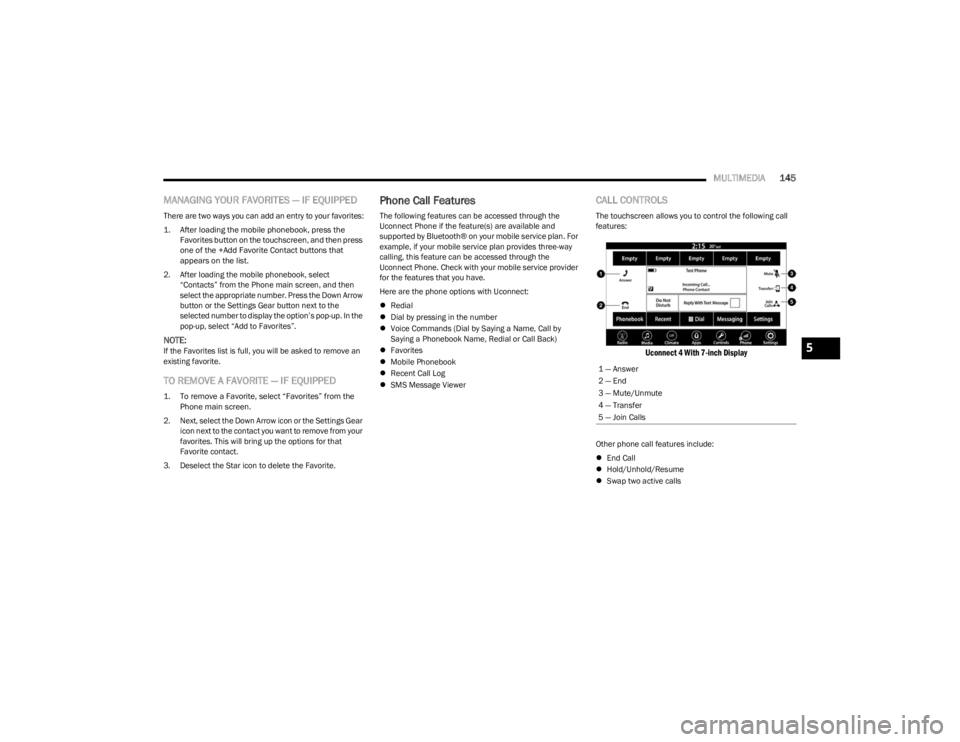
CALL CONTROLS
The touchscreen allows you to control the following call
features:
Uconnect 4 With 7-inch Display
Other phone call features include:
End Call
Hold/Unhold/Resume
Swap two active calls
1 — Answer
2 — End
3 — Mute/Unmute
4 — Transfer
5 — Join Calls
5
23_LD_OM_EN_USC_t.book Page 145
Page 148 of 292
146MULTIMEDIA
KEY PAD NUMBER ENTRY
1. Press the Phone button.
2. Press the Dial/Keypad button on the touchscreen.
3. The Touch-Tone screen will be displayed.
4. Use the numbered buttons on the touchscreens to
enter the number and press “Dial/Call”.
RECENT CALLS — IF EQUIPPED
You may browse a list of the most recent of each of the
following call types:
All Calls
Incoming Calls or Calls Received
Outgoing Calls or Calls Made
Missed Calls
These can be accessed by pressing the Recent Calls
button on the phone main screen.
You can also push the VR button on your steering wheel
and perform the operation. For example, say “Show my
incoming calls”.
ANSWER OR IGNORE AN INCOMING CALL —
NO CALL CURRENTLY IN PROGRESS
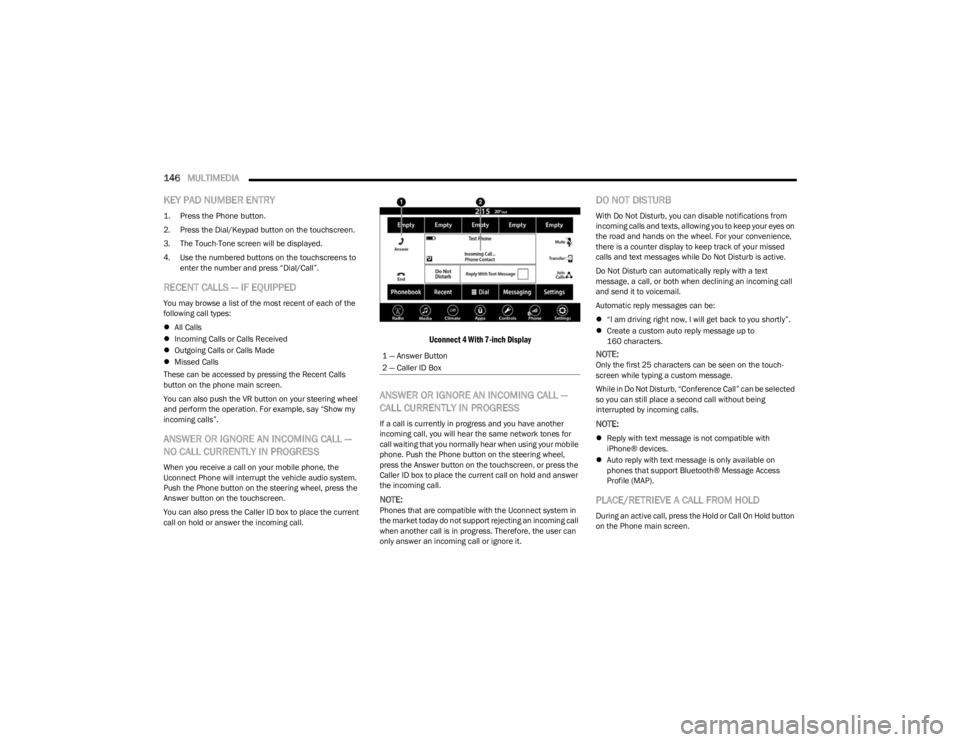
When you receive a call on your mobile phone, the
Uconnect Phone will interrupt the vehicle audio system.
Push the Phone button on the steering wheel, press the
Answer button on the touchscreen.
You can also press the Caller ID box to place the current
call on hold or answer the incoming call.
Uconnect 4 With 7-inch Display
ANSWER OR IGNORE AN INCOMING CALL —
CALL CURRENTLY IN PROGRESS
If a call is currently in progress and you have another
incoming call, you will hear the same network tones for
call waiting that you normally hear when using your mobile
phone. Push the Phone button on the steering wheel,
press the Answer button on the touchscreen, or press the
Caller ID box to place the current call on hold and answer
the incoming call.
NOTE:Phones that are compatible with the Uconnect system in
the market today do not support rejecting an incoming call
when another call is in progress. Therefore, the user can
only answer an incoming call or ignore it.
DO NOT DISTURB
With Do Not Disturb, you can disable notifications from
incoming calls and texts, allowing you to keep your eyes on
the road and hands on the wheel. For your convenience,
there is a counter display to keep track of your missed
calls and text messages while Do Not Disturb is active.
Do Not Disturb can automatically reply with a text
message, a call, or both when declining an incoming call
and send it to voicemail.
Automatic reply messages can be:
“I am driving right now, I will get back to you shortly”.
Create a custom auto reply message up to
160 characters.
NOTE:Only the first 25 characters can be seen on the touch -
screen while typing a custom message.
While in Do Not Disturb, “Conference Call” can be selected
so you can still place a second call without being
interrupted by incoming calls.
NOTE:
Reply with text message is not compatible with
iPhone® devices.
Auto reply with text message is only available on
phones that support Bluetooth® Message Access
Profile (MAP).
PLACE/RETRIEVE A CALL FROM HOLD
During an active call, press the Hold or Call On Hold button
on the Phone main screen.
1 — Answer Button
2 — Caller ID Box
23_LD_OM_EN_USC_t.book Page 146
Page 151 of 292
MULTIMEDIA149
Siri® Eyes Free — If Equipped
When used with your Apple® iPhone® connected to your
vehicle via Bluetooth®, Siri lets you use your voice to send
text messages, select media, place phone calls and much
more. Siri uses your natural language to understand what
you mean and responds back to confirm your requests.
The system is designed to keep your eyes on the road and
your hands on the wheel by letting Siri help you perform
useful tasks.
To enable Siri, push and hold, then release the Uconnect
Voice Recognition (VR) button on the steering wheel. After
you hear a double beep, you can ask Siri to play podcasts
and music, get directions, read text messages, and many
other useful requests.
BLUETOOTH® COMMUNICATION LINK
Mobile phones may lose connection to the Uconnect
Phone. When this happens, the connection can generally
be re-established by restarting the mobile phone. Your
mobile phone is recommended to remain in Bluetooth®
ON Mode.
POWER-UP
After switching the ignition key from OFF to either the ON/
RUN or ACC position, or after a language change, you must
wait at least 15 seconds prior to using the system
Úpage 277.
ANDROID AUTO™ & APPLE CARPLAY® —
IF EQUIPPED
ANDROID AUTO™
Use this QR code to access your digital
experience.
Android Auto™ is a feature of your
Uconnect system, and your Android™
6.0 or higher powered smartphone
with a data plan, that allows you to
project your smartphone and a number
of its apps onto the touchscreen radio
display. Android Auto™ brings you useful information, and
organizes it into simple cards that appear just when they
are needed. Android Auto™ can be used with speech
technology, the steering wheel controls, the knobs and
buttons on your radio faceplate, and the radio display’s
touchscreen to control many of your apps. To use Android
Auto™, perform the following procedure:
NOTE:Feature availability depends on your carrier and mobile
phone manufacturer. Some Android Auto™ features may
or may not be available in every region and/or language.
1. Download the Android Auto™ app from the Google
Play store on your Android™-powered smartphone.
2. Connect your Android™-powered smartphone to one
of the media USB ports in your vehicle. If the Android
Auto™ app was not downloaded, the first time you
plug your device in the app begins to download. Your
vehicle should be in PARK the first time you use the
app.
NOTE:Be sure to use the factory-provided USB cable that came
with your phone, as aftermarket cables may not work.
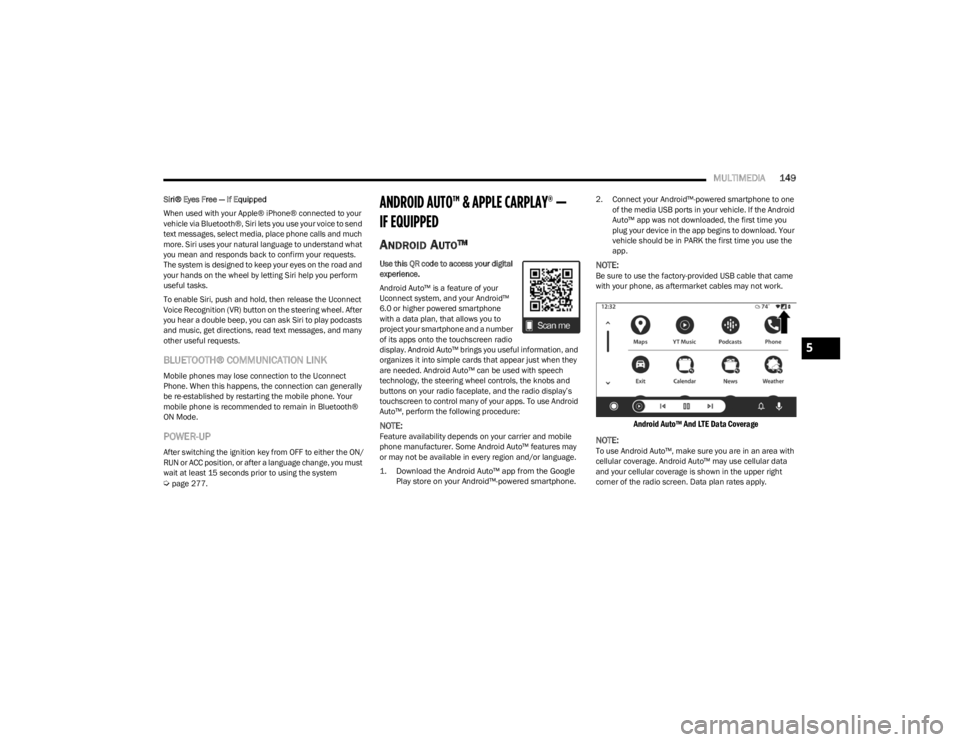
Android Auto™ And LTE Data Coverage
NOTE:
To use Android Auto™, make sure you are in an area with
cellular coverage. Android Auto™ may use cellular data
and your cellular coverage is shown in the upper right
corner of the radio screen. Data plan rates apply.
5
23_LD_OM_EN_USC_t.book Page 149
Page 161 of 292
MULTIMEDIA159
The following options can be selected:
Pressing the STOP button will freeze the graph.
Selecting Play will clear the graph and restart the
process over.
Press the + or - buttons to change the history of the
graph. The selectable options are “30”, “60”, “90”, and
“120” seconds. The graph will expand or constrict
depending on the setting selected.
Select the “Gear” display setting to turn the graph gear
markers on and off for automatic transmission vehicles
only.
NOTE:The Gear on/off feature will only display if your vehicle is
equipped with an Automatic Transmission.
DODGE DRIVE MODES — IF EQUIPPED
PERFORMANCE CONTROL —
I
F EQUIPPED
Your vehicle may be equipped with a Performance Control
feature which allows for coordinating the operation of
various vehicle systems depending upon the type of
driving behavior desired. The Performance Control feature
is controlled through the Uconnect system and may be
accessed by performing any of the following:
Pushing the Super Track Pack button on the instru -
ment panel switch bank.
Selecting “Performance Control” from the Apps menu.
Selecting “Performance Control” from within the
Performance Pages menu. You will be able to enable, disable, and customize the
functionality of the Launch Control and Performance
Control Set-Up features within Performance Control.
To access information about the functionality of these
features through the Uconnect system, press the Info
button on the touchscreen.
NOTE:Dodge vehicles equipped with a 6.4L engine, except for
R/T Scat Pack 1320 6.4L non-widebody vehicles, will use
SRT Drive Modes rather than the Dodge Performance
Control Pages. Please refer to the following sections for
further information on the SRT Drive Modes.
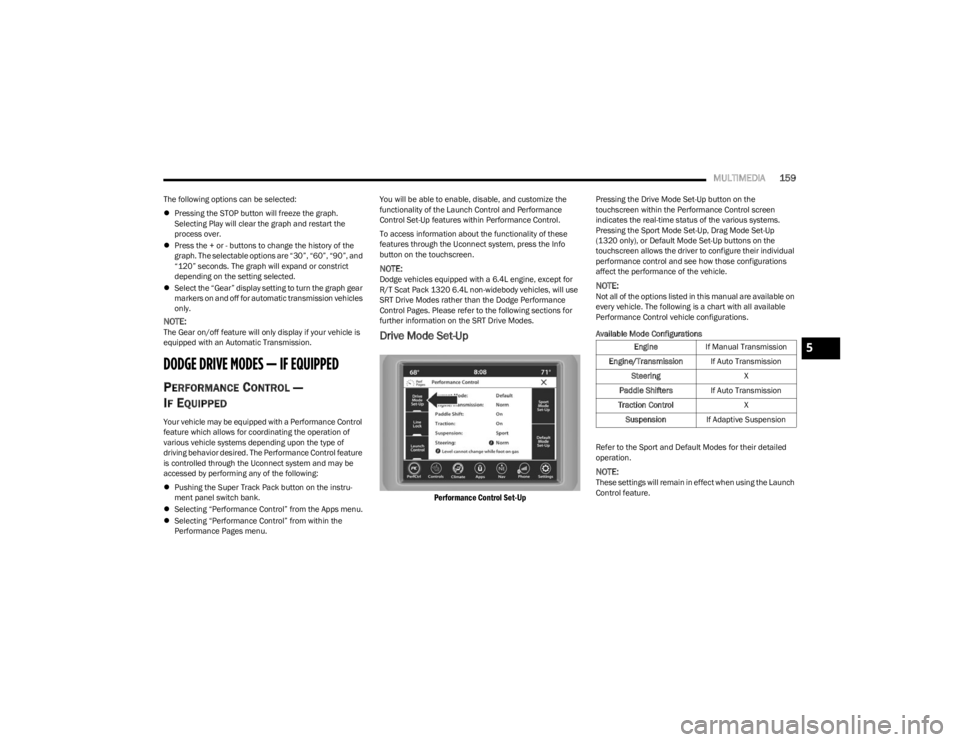
Drive Mode Set-Up
Performance Control Set-Up
Pressing the Drive Mode Set-Up button on the
touchscreen within the Performance Control screen
indicates the real-time status of the various systems.
Pressing the Sport Mode Set-Up, Drag Mode Set-Up
(1320 only), or Default Mode Set-Up buttons on the
touchscreen allows the driver to configure their individual
performance control and see how those configurations
affect the performance of the vehicle.
NOTE:Not all of the options listed in this manual are available on
every vehicle. The following is a chart with all available
Performance Control vehicle configurations.
Available Mode Configurations
Refer to the Sport and Default Modes for their detailed
operation.
NOTE:These settings will remain in effect when using the Launch
Control feature.
Engine
If Manual Transmission
Engine/Transmission If Auto Transmission
Steering X
Paddle Shifters If Auto Transmission
Traction Control X
Suspension If Adaptive Suspension5
23_LD_OM_EN_USC_t.book Page 159
Page 162 of 292
160MULTIMEDIA
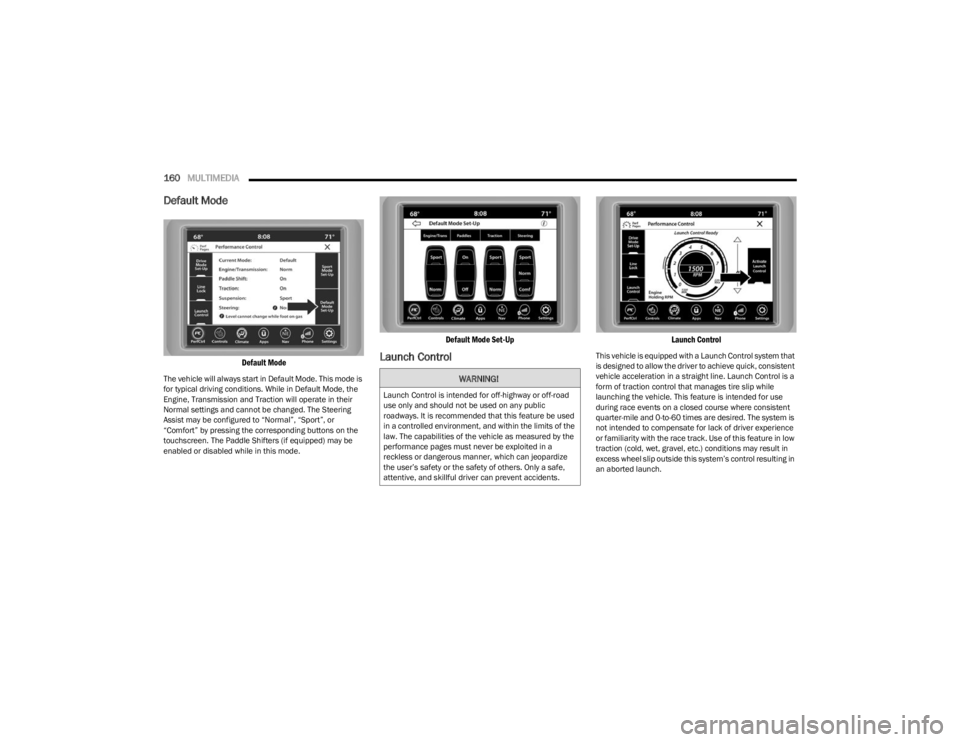
Default Mode
Default Mode
The vehicle will always start in Default Mode. This mode is
for typical driving conditions. While in Default Mode, the
Engine, Transmission and Traction will operate in their
Normal settings and cannot be changed. The Steering
Assist may be configured to “Normal”, “Sport”, or
“Comfort” by pressing the corresponding buttons on the
touchscreen. The Paddle Shifters (if equipped) may be
enabled or disabled while in this mode.
Default Mode Set-Up
Launch Control
Launch Control
This vehicle is equipped with a Launch Control system that
is designed to allow the driver to achieve quick, consistent
vehicle acceleration in a straight line. Launch Control is a
form of traction control that manages tire slip while
launching the vehicle. This feature is intended for use
during race events on a closed course where consistent
quarter-mile and 0-to-60 times are desired. The system is
not intended to compensate for lack of driver experience
or familiarity with the race track. Use of this feature in low
traction (cold, wet, gravel, etc.) conditions may result in
excess wheel slip outside this system’s control resulting in
an aborted launch.
WARNING!
Launch Control is intended for off-highway or off-road
use only and should not be used on any public
roadways. It is recommended that this feature be used
in a controlled environment, and within the limits of the
law. The capabilities of the vehicle as measured by the
performance pages must never be exploited in a
reckless or dangerous manner, which can jeopardize
the user’s safety or the safety of others. Only a safe,
attentive, and skillful driver can prevent accidents.
23_LD_OM_EN_USC_t.book Page 160
Page 163 of 292
MULTIMEDIA161
NOTE:
Launch Control should not be used on public roads.
Always check track conditions and the surrounding
area.
Launch Control is not available for the first 500 miles
(805 km) of the vehicle’s life.
Launch Control should only be used when the engine
and transmission are at operating temperature.
Launch Control is intended to be used on dry, paved
road surfaces only. Use on slippery or loose surfaces
may cause damage to vehicle components and is not
recommended.
Launch Control is not available in ESC Full Off Mode.
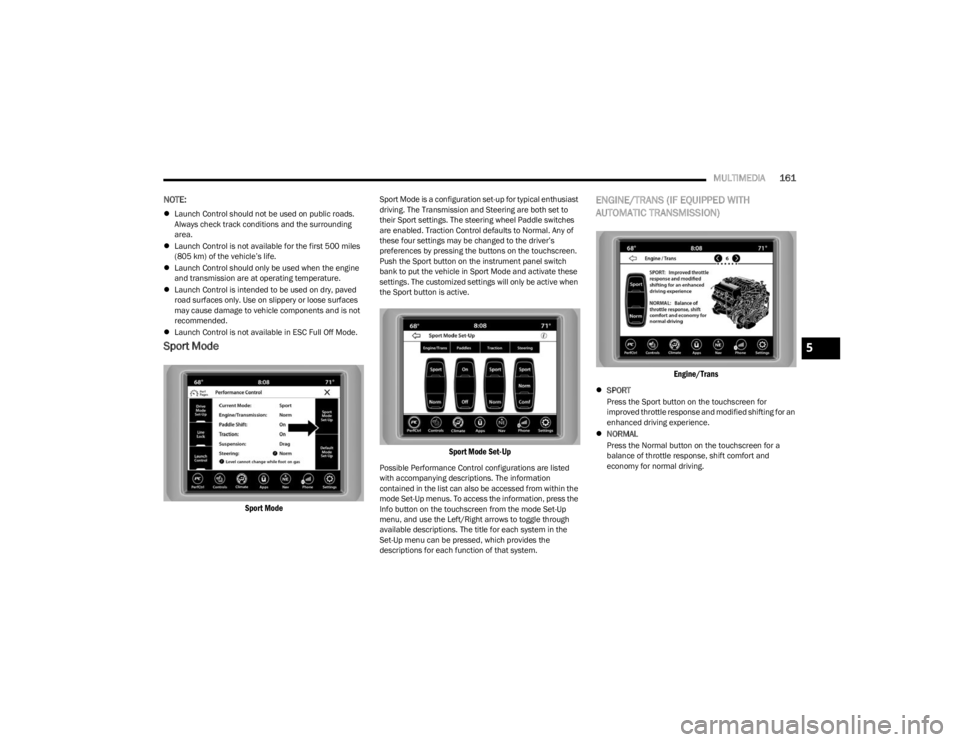
Sport Mode
Sport Mode
Sport Mode is a configuration set-up for typical enthusiast
driving. The Transmission and Steering are both set to
their Sport settings. The steering wheel Paddle switches
are enabled. Traction Control defaults to Normal. Any of
these four settings may be changed to the driver’s
preferences by pressing the buttons on the touchscreen.
Push the Sport button on the instrument panel switch
bank to put the vehicle in Sport Mode and activate these
settings. The customized settings will only be active when
the Sport button is active.
Sport Mode Set-Up
Possible Performance Control configurations are listed
with accompanying descriptions. The information
contained in the list can also be accessed from within the
mode Set-Up menus. To access the information, press the
Info button on the touchscreen from the mode Set-Up
menu, and use the Left/Right arrows to toggle through
available descriptions. The title for each system in the
Set-Up menu can be pressed, which provides the
descriptions for each function of that system.
ENGINE/TRANS (IF EQUIPPED WITH
AUTOMATIC TRANSMISSION)
Engine/Trans
SPORT
Press the Sport button on the touchscreen for
improved throttle response and modified shifting for an
enhanced driving experience.
NORMAL
Press the Normal button on the touchscreen for a
balance of throttle response, shift comfort and
economy for normal driving.
5
23_LD_OM_EN_USC_t.book Page 161
Page 204 of 292
202
IN CASE OF EMERGENCY
HAZARD WARNING FLASHERS
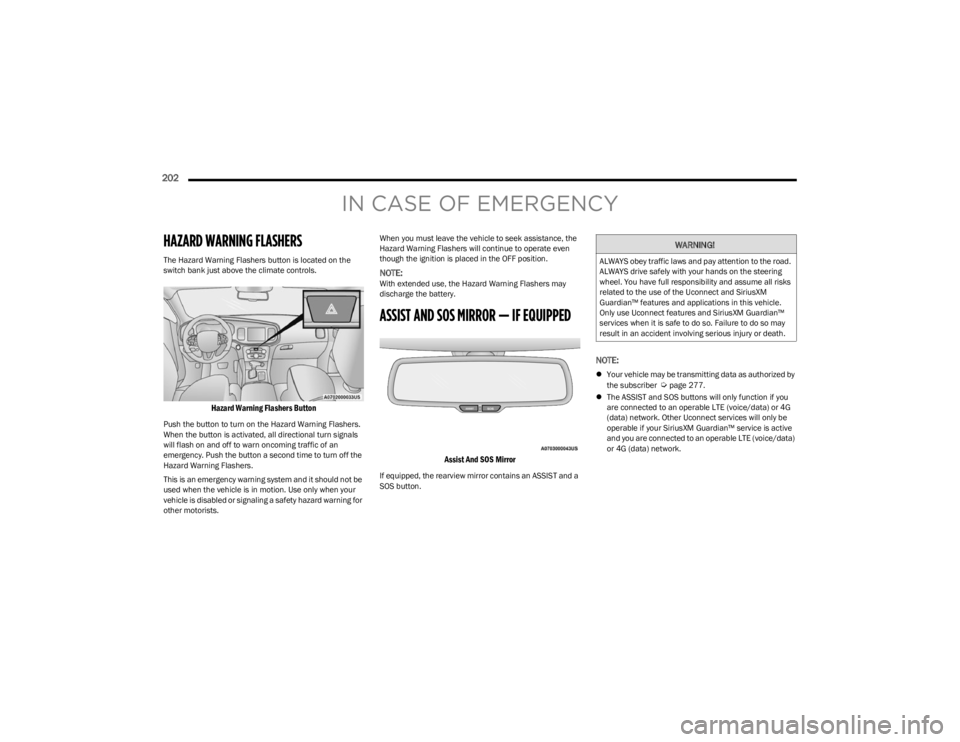
The Hazard Warning Flashers button is located on the
switch bank just above the climate controls.
Hazard Warning Flashers Button
Push the button to turn on the Hazard Warning Flashers.
When the button is activated, all directional turn signals
will flash on and off to warn oncoming traffic of an
emergency. Push the button a second time to turn off the
Hazard Warning Flashers.
This is an emergency warning system and it should not be
used when the vehicle is in motion. Use only when your
vehicle is disabled or signaling a safety hazard warning for
other motorists.When you must leave the vehicle to seek assistance, the
Hazard Warning Flashers will continue to operate even
though the ignition is placed in the OFF position.
NOTE:With extended use, the Hazard Warning Flashers may
discharge the battery.
ASSIST AND SOS MIRROR — IF EQUIPPED
Assist And SOS Mirror
If equipped, the rearview mirror contains an ASSIST and a
SOS button.
NOTE:
Your vehicle may be transmitting data as authorized by
the subscriber Úpage 277.
The ASSIST and SOS buttons will only function if you
are connected to an operable LTE (voice/data) or 4G
(data) network. Other Uconnect services will only be
operable if your SiriusXM Guardian™ service is active
and you are connected to an operable LTE (voice/data)
or 4G (data) network.
WARNING!
ALWAYS obey traffic laws and pay attention to the road.
ALWAYS drive safely with your hands on the steering
wheel. You have full responsibility and assume all risks
related to the use of the Uconnect and SiriusXM
Guardian™ features and applications in this vehicle.
Only use Uconnect features and SiriusXM Guardian™
services when it is safe to do so. Failure to do so may
result in an accident involving serious injury or death.
23_LD_OM_EN_USC_t.book Page 202