engine DODGE CHARGER 2023 Workshop Manual
[x] Cancel search | Manufacturer: DODGE, Model Year: 2023, Model line: CHARGER, Model: DODGE CHARGER 2023Pages: 292, PDF Size: 13.05 MB
Page 110 of 292
108STARTING AND OPERATING
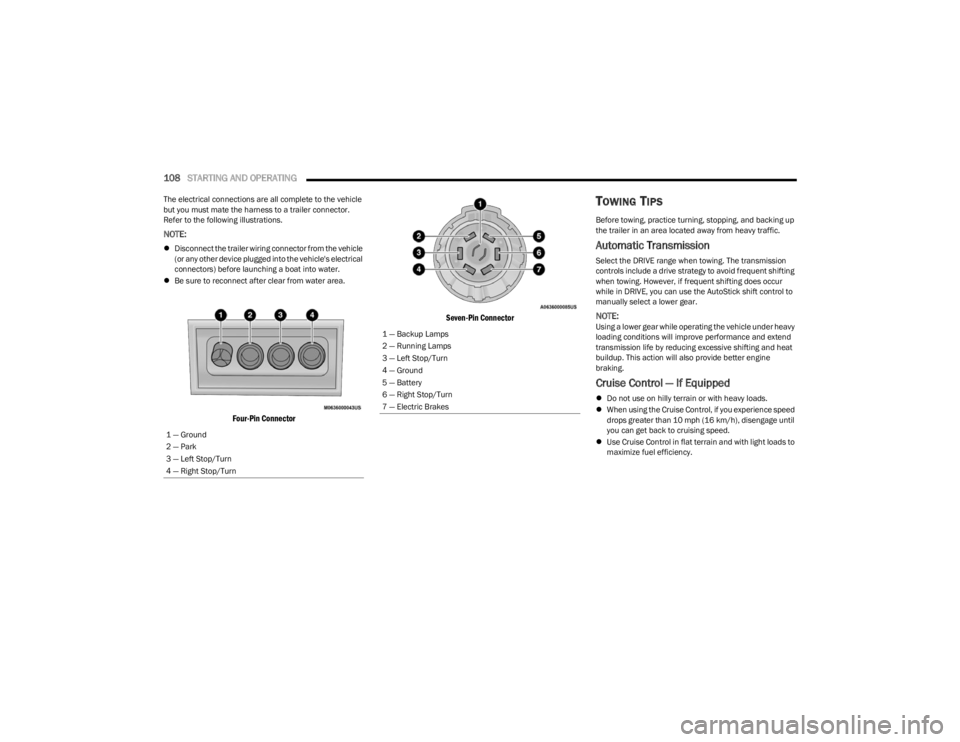
The electrical connections are all complete to the vehicle
but you must mate the harness to a trailer connector.
Refer to the following illustrations.
NOTE:
Disconnect the trailer wiring connector from the vehicle
(or any other device plugged into the vehicle's electrical
connectors) before launching a boat into water.
Be sure to reconnect after clear from water area.
Four-Pin Connector Seven-Pin Connector
TOWING TIPS
Before towing, practice turning, stopping, and backing up
the trailer in an area located away from heavy traffic.
Automatic Transmission
Select the DRIVE range when towing. The transmission
controls include a drive strategy to avoid frequent shifting
when towing. However, if frequent shifting does occur
while in DRIVE, you can use the AutoStick shift control to
manually select a lower gear.
NOTE:Using a lower gear while operating the vehicle under heavy
loading conditions will improve performance and extend
transmission life by reducing excessive shifting and heat
buildup. This action will also provide better engine
braking.
Cruise Control — If Equipped
Do not use on hilly terrain or with heavy loads.
When using the Cruise Control, if you experience speed
drops greater than 10 mph (16 km/h), disengage until
you can get back to cruising speed.
Use Cruise Control in flat terrain and with light loads to
maximize fuel efficiency.
1 — Ground
2 — Park
3 — Left Stop/Turn
4 — Right Stop/Turn
1 — Backup Lamps
2 — Running Lamps
3 — Left Stop/Turn
4 — Ground
5 — Battery
6 — Right Stop/Turn
7 — Electric Brakes
23_LD_OM_EN_USC_t.book Page 108
Page 112 of 292
110STARTING AND OPERATING
DRIVING THROUGH WATER
Driving through water more than a few inches/
centimeters deep will require extra caution to ensure
safety and prevent damage to your vehicle.
Flowing/Rising Water Shallow Standing Water
Although your vehicle is capable of driving through shallow
standing water, consider the following Warnings and
Cautions before doing so.
WARNING!
Do not drive on or across a road or path where water is
flowing and/or rising (as in storm run-off). Flowing water
can wear away the road or path's surface and cause
your vehicle to sink into deeper water. Furthermore,
flowing and/or rising water can carry your vehicle away
swiftly. Failure to follow this warning may result in
injuries that are serious or fatal to you, your
passengers, and others around you.
WARNING!
Driving through standing water limits your vehicle’s
traction capabilities. Do not exceed 5 mph (8 km/h)
when driving through standing water.
Driving through standing water limits your vehicle’s
braking capabilities, which increases stopping
distances. Therefore, after driving through standing
water, drive slowly and lightly press on the brake
pedal several times to dry the brakes.
Failure to follow these warnings may result in injuries
that are serious or fatal to you, your passengers, and
others around you.
CAUTION!
Always check the depth of the standing water before
driving through it. Never drive through standing
water that is deeper than the bottom of the tire rims
mounted on the vehicle.
Determine the condition of the road or the path that
is under water and if there are any obstacles in the
way before driving through the standing water.
Do not exceed 5 mph (8 km/h) when driving through
standing water. This will minimize wave effects.
Driving through standing water may cause damage
to your vehicle’s drivetrain components. Always
inspect your vehicle’s fluids (i.e., engine oil, transmis -
sion, axle, etc.) for signs of contamination (i.e., fluid
that is milky or foamy in appearance) after driving
through standing water. Do not continue to operate
the vehicle if any fluid appears contaminated, as this
may result in further damage. Such damage is not
covered by the New Vehicle Limited Warranty.
Getting water inside your vehicle’s engine can cause
it to lock up and stall out, and cause serious internal
damage to the engine. Such damage is not covered
by the New Vehicle Limited Warranty.
23_LD_OM_EN_USC_t.book Page 110
Page 124 of 292

122MULTIMEDIA
Seats & Comfort
Key Off Options
When Seats & Comfort button is pressed on the touchscreen, the system displays the option related to the vehicle’s comfort systems when remote start has been activated or the
vehicle has been started.
NOTE:Depending on the vehicle’s options, feature settings may vary.
Setting Name Description
Auto-On Driver Heated/Ventilated Seat & Steering Wheel With Vehicle Start This setting will activate the vehicle’s comfort systems and heated seats or heated
steering wheel when the vehicle is remote started or ignition is started. The “Off” setting will not activate the comfort systems. The “Remote Start” setting (if equipped) will only activate the comfort systems when using Remote Start. The “All Start” setting will activate the comfort systems whenever the vehicle is started.
When the Key Off Options button is pressed on the touchscreen, the system displays the options related to vehicle shut off. These settings will only activate when the ignition is set
to OFF.
NOTE:Depending on the vehicle’s options, feature settings may vary.
Setting Name Description
Easy Exit SeatThis setting adjusts the seats to make exiting the vehicle easier.
Key Off Power Delay This setting will keep certain electrical features running after the engine is turned off.
When any door is opened, the electronics will deactivate. The available settings are “0 sec”, “45 sec”, “5 min”, and “10 min”.
Headlight Off Delay This setting will allow you to set the amount of time the headlights remain on after the
vehicle has been turned off. The available settings are “0 sec”, “30 sec”, “60 sec”, and “90 sec”.
23_LD_OM_EN_USC_t.book Page 122
Page 143 of 292
MULTIMEDIA141
The Phone feature is driven through your Bluetooth®
“Hands-Free Profile” mobile phone. Uconnect features
Bluetooth® technology — the global standard that enables
different electronic devices to connect to each other
without wires or a docking station. Ensure you phone is
turned on with Bluetooth® active and has been paired to
the Uconnect system. Up to 10 mobile phones or audio
devices are allowed to be linked to the system. Only one
linked (or paired) mobile phone and one audio device can
be used with the system at a time.
Phone Button
The Phone button on your steering wheel is
used to get into the Phone Mode and make
calls, show recent, incoming or outgoing calls,
view phonebook, etc. When you push the
button you will hear a BEEP. The BEEP is your signal to give
a command.
Voice Command Button
The Voice Command button on your steering
wheel is only used for “barge in” and when you
are already in a call or want to make another
call. The button on your steering wheel is also used to access
the Voice Commands for the Uconnect Voice Command
features if your vehicle is equipped.
Phone Operation
OPERATION
Voice commands can be used to operate the Uconnect
Phone and to navigate its menu structure. Voice
commands are required after most Uconnect Phone
prompts. There are two general methods for how Voice
Command works:
1. Say compound commands like
“Call John Smith mobile”.
2. Say the individual commands and allow the system to guide you to complete the task.
You will be prompted for a specific command and then
guided through the available options.
Prior to giving a voice command, one must wait for the
beep, which follows the “Listen” prompt or another
prompt.
For certain operations, compound commands can be
used. For example, instead of saying “Call” and then
“John Smith” and then “mobile”, the following
compound command can be said:
“Call John Smith mobile.”
For each feature explanation in this section, only the
compound command form of the voice command is
given. You can also break the commands into parts and
say each part of the command when you are asked for
it. For example, you can use the compound command
form voice command “Search for John Smith,” or you
can break the compound command form into two voice
commands: “Search Contacts” and when asked, “John
Smith.” Please remember, the Uconnect Phone works
best when you talk in a normal conversational tone, as
if speaking to someone sitting a few feet/meters away
from you.
NATURAL SPEECH
Your Uconnect Phone Voice system uses a Natural
Language Voice Recognition (VR) engine.
Natural speech allows the user to speak commands in
phrases or complete sentences. The system filters out
certain non-word utterances and sounds such as “ah”
and “eh.” The system handles fill-in words such as
“I would like to”.
The system handles multiple inputs in the same phrase or
sentence such as “make a phone call” and “to Kelly
Smith”. For multiple inputs in the same phrase or
sentence, the system identifies the topic or context and
provides the associated follow-up prompt such as “Who
do you want to call?” in the case where a phone call was
requested but the specific name was not recognized.
The system utilizes continuous dialog. When the system
requires more information from the user, it will ask a
question to which the user can respond without pushing
the Voice Command button on the steering wheel.
WARNING!
ALWAYS drive safely with your hands on the steering
wheel. You have full responsibility and assume all risks
related to the use of the Uconnect features and
applications in this vehicle. Only use Uconnect when it
is safe to do so. Failure to do so may result in an
accident involving serious injury or death.
5
23_LD_OM_EN_USC_t.book Page 141
Page 155 of 292
MULTIMEDIA153
PERFORMANCE PAGES
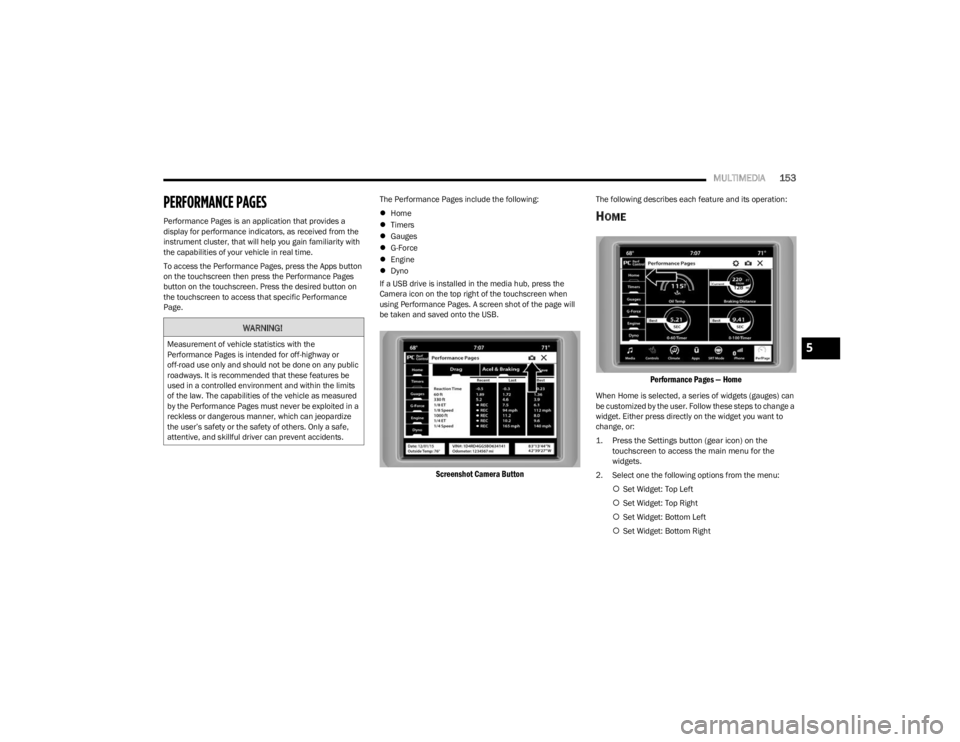
Performance Pages is an application that provides a
display for performance indicators, as received from the
instrument cluster, that will help you gain familiarity with
the capabilities of your vehicle in real time.
To access the Performance Pages, press the Apps button
on the touchscreen then press the Performance Pages
button on the touchscreen. Press the desired button on
the touchscreen to access that specific Performance
Page. The Performance Pages include the following:
Home
Timers
Gauges
G-Force
Engine
Dyno
If a USB drive is installed in the media hub, press the
Camera icon on the top right of the touchscreen when
using Performance Pages. A screen shot of the page will
be taken and saved onto the USB.
Screenshot Camera Button
The following describes each feature and its operation:
HOME
Performance Pages — Home
When Home is selected, a series of widgets (gauges) can
be customized by the user. Follow these steps to change a
widget. Either press directly on the widget you want to
change, or:
1. Press the Settings button (gear icon) on the touchscreen to access the main menu for the
widgets.
2. Select one the following options from the menu: Set Widget: Top Left
Set Widget: Top Right
Set Widget: Bottom Left
Set Widget: Bottom Right
WARNING!
Measurement of vehicle statistics with the
Performance Pages is intended for off-highway or
off-road use only and should not be done on any public
roadways. It is recommended that these features be
used in a controlled environment and within the limits
of the law. The capabilities of the vehicle as measured
by the Performance Pages must never be exploited in a
reckless or dangerous manner, which can jeopardize
the user’s safety or the safety of others. Only a safe,
attentive, and skillful driver can prevent accidents.5
23_LD_OM_EN_USC_t.book Page 153
Page 156 of 292
154MULTIMEDIA
3. After selecting a widget location, select the gauge to
display:
Gauge: Oil Temp
Gauge: Oil Pressure
Gauge: Coolant Temp
Gauge: Battery Voltage
Gauge: Trans Temp — If Equipped with an
Automatic Transmission
Gauge: Boost Pressure — If Equipped
Gauge: Air/Fuel Ratio — If Equipped
Gauge: I/C Coolant Temp — If Equipped
Gauge: Intake Air Temp
Gauge: Engine Torque
Gauge: Engine Power
Gauge: G-Force
Gauge: Steering Angle
Gauge: Current Gear
Gauge: Current Speed
Timer: 0–60 mph (0–100 km/h)
Timer: 0–100 mph (0–160 km/h)
Timer: 60 ft (20 m)
Timer: 330 ft (100 m)
Timer: 1/8 Mile (200 m)
Timer: 1000 ft (300 m)
Timer: 1/4 Mile (400 m)
Timer: Braking Distance
Timer: Reaction Time
Historical Data
The Historical Data feature allows you to view information
about your vehicle such as the VIN, miles on the odometer,
longitude and latitude coordinates, and more.
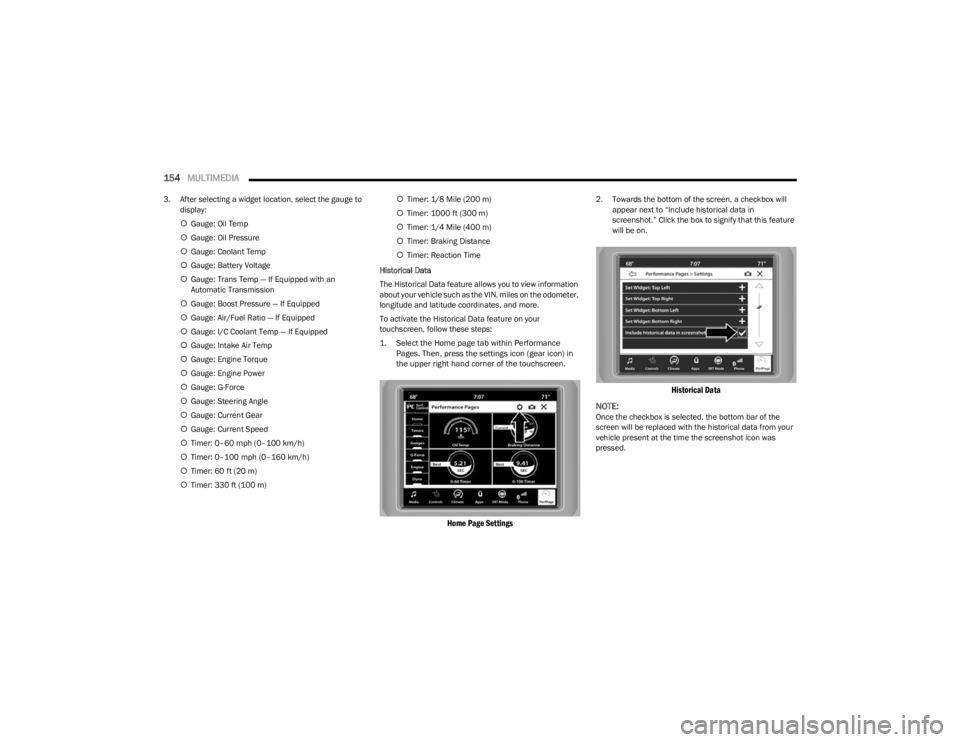
To activate the Historical Data feature on your
touchscreen, follow these steps:
1. Select the Home page tab within Performance Pages. Then, press the settings icon (gear icon) in
the upper right hand corner of the touchscreen.
Home Page Settings
2. Towards the bottom of the screen, a checkbox will appear next to “Include historical data in
screenshot.” Click the box to signify that this feature
will be on.
Historical Data
NOTE:
Once the checkbox is selected, the bottom bar of the
screen will be replaced with the historical data from your
vehicle present at the time the screenshot icon was
pressed.
23_LD_OM_EN_USC_t.book Page 154
Page 160 of 292
158MULTIMEDIA
Right G-Force:
Measures the peak force on the right side of the
vehicle.
Left G-Force:
Measures the peak force on the left side of the vehicle.
Rear G-Force:
Measures the peak acceleration force on the rear of
the vehicle.
NOTE:Front, Right, Left, and Rear G-Forces are all peak values.
These readings can be reset by clearing peak G-Force on
the instrument cluster.
Steering Wheel Angle
Steering Wheel Angle utilizes the steering angle sensor
to measure the degree of the steering wheel relative to
zero (straight ahead) reference angle. The zero degree
reference angle measurement indicates a steering
wheel straight ahead position.
The friction circle display shows instantaneous G-Force as
a highlight and previous G-Force as dots within the circle.
The system records previous G-Force for three minutes. If
there are multiple samples at a given point, the color of
the dot will darken from blue to red. Vectors more frequent
will show in red; infrequent vectors will show in blue.
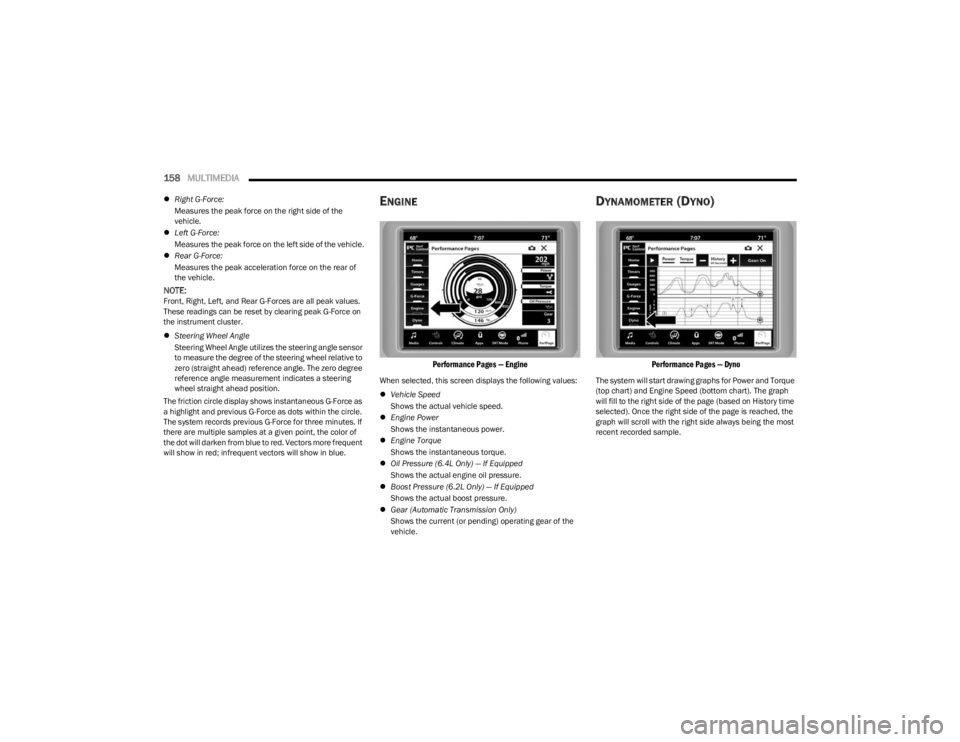
ENGINE
Performance Pages — Engine
When selected, this screen displays the following values:
Vehicle Speed
Shows the actual vehicle speed.
Engine Power
Shows the instantaneous power.
Engine Torque
Shows the instantaneous torque.
Oil Pressure (6.4L Only) — If Equipped
Shows the actual engine oil pressure.
Boost Pressure (6.2L Only) — If Equipped
Shows the actual boost pressure.
Gear (Automatic Transmission Only)
Shows the current (or pending) operating gear of the
vehicle.
DYNAMOMETER (DYNO)
Performance Pages — Dyno
The system will start drawing graphs for Power and Torque
(top chart) and Engine Speed (bottom chart). The graph
will fill to the right side of the page (based on History time
selected). Once the right side of the page is reached, the
graph will scroll with the right side always being the most
recent recorded sample.
23_LD_OM_EN_USC_t.book Page 158
Page 161 of 292
MULTIMEDIA159
The following options can be selected:
Pressing the STOP button will freeze the graph.
Selecting Play will clear the graph and restart the
process over.
Press the + or - buttons to change the history of the
graph. The selectable options are “30”, “60”, “90”, and
“120” seconds. The graph will expand or constrict
depending on the setting selected.
Select the “Gear” display setting to turn the graph gear
markers on and off for automatic transmission vehicles
only.
NOTE:The Gear on/off feature will only display if your vehicle is
equipped with an Automatic Transmission.
DODGE DRIVE MODES — IF EQUIPPED
PERFORMANCE CONTROL —
I
F EQUIPPED
Your vehicle may be equipped with a Performance Control
feature which allows for coordinating the operation of
various vehicle systems depending upon the type of
driving behavior desired. The Performance Control feature
is controlled through the Uconnect system and may be
accessed by performing any of the following:
Pushing the Super Track Pack button on the instru -
ment panel switch bank.
Selecting “Performance Control” from the Apps menu.
Selecting “Performance Control” from within the
Performance Pages menu. You will be able to enable, disable, and customize the
functionality of the Launch Control and Performance
Control Set-Up features within Performance Control.
To access information about the functionality of these
features through the Uconnect system, press the Info
button on the touchscreen.
NOTE:Dodge vehicles equipped with a 6.4L engine, except for
R/T Scat Pack 1320 6.4L non-widebody vehicles, will use
SRT Drive Modes rather than the Dodge Performance
Control Pages. Please refer to the following sections for
further information on the SRT Drive Modes.
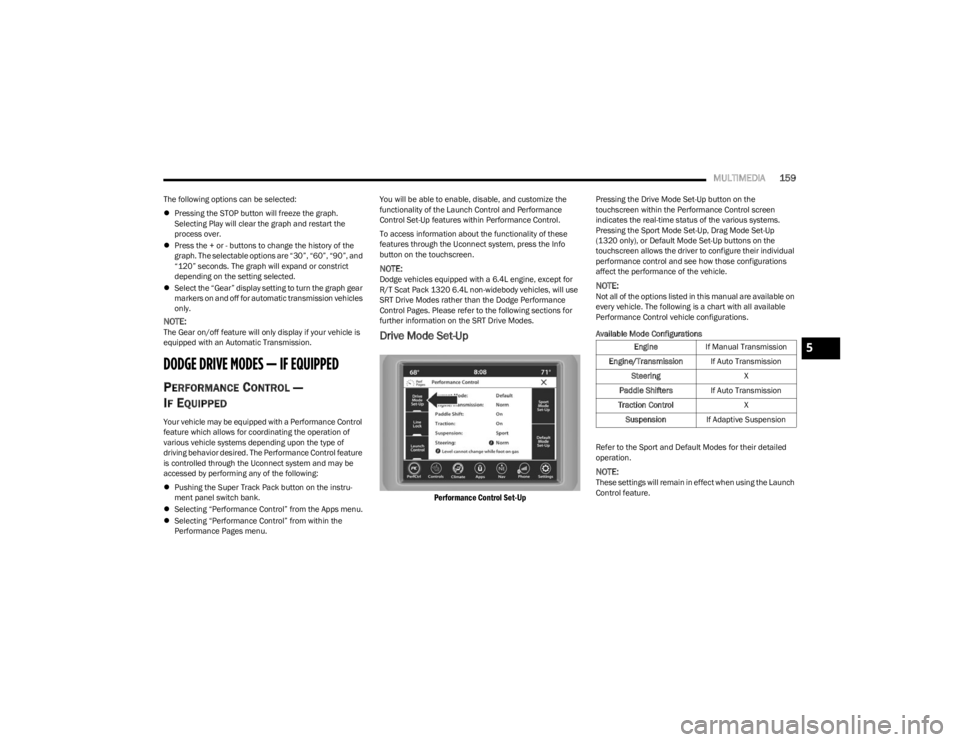
Drive Mode Set-Up
Performance Control Set-Up
Pressing the Drive Mode Set-Up button on the
touchscreen within the Performance Control screen
indicates the real-time status of the various systems.
Pressing the Sport Mode Set-Up, Drag Mode Set-Up
(1320 only), or Default Mode Set-Up buttons on the
touchscreen allows the driver to configure their individual
performance control and see how those configurations
affect the performance of the vehicle.
NOTE:Not all of the options listed in this manual are available on
every vehicle. The following is a chart with all available
Performance Control vehicle configurations.
Available Mode Configurations
Refer to the Sport and Default Modes for their detailed
operation.
NOTE:These settings will remain in effect when using the Launch
Control feature.
Engine
If Manual Transmission
Engine/Transmission If Auto Transmission
Steering X
Paddle Shifters If Auto Transmission
Traction Control X
Suspension If Adaptive Suspension5
23_LD_OM_EN_USC_t.book Page 159
Page 162 of 292
160MULTIMEDIA
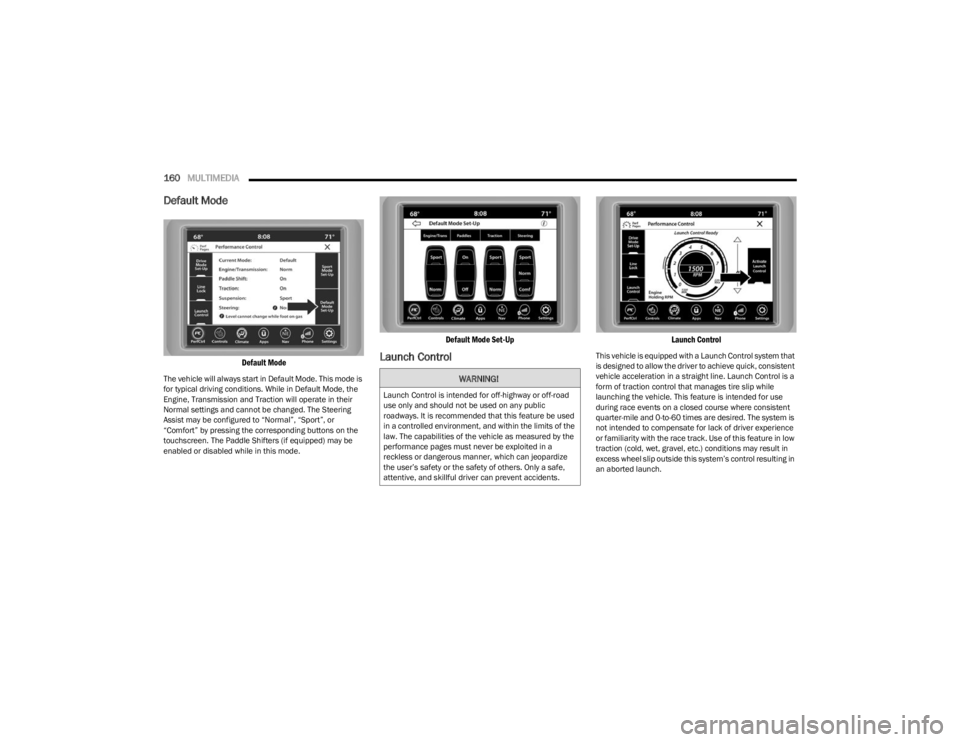
Default Mode
Default Mode
The vehicle will always start in Default Mode. This mode is
for typical driving conditions. While in Default Mode, the
Engine, Transmission and Traction will operate in their
Normal settings and cannot be changed. The Steering
Assist may be configured to “Normal”, “Sport”, or
“Comfort” by pressing the corresponding buttons on the
touchscreen. The Paddle Shifters (if equipped) may be
enabled or disabled while in this mode.
Default Mode Set-Up
Launch Control
Launch Control
This vehicle is equipped with a Launch Control system that
is designed to allow the driver to achieve quick, consistent
vehicle acceleration in a straight line. Launch Control is a
form of traction control that manages tire slip while
launching the vehicle. This feature is intended for use
during race events on a closed course where consistent
quarter-mile and 0-to-60 times are desired. The system is
not intended to compensate for lack of driver experience
or familiarity with the race track. Use of this feature in low
traction (cold, wet, gravel, etc.) conditions may result in
excess wheel slip outside this system’s control resulting in
an aborted launch.
WARNING!
Launch Control is intended for off-highway or off-road
use only and should not be used on any public
roadways. It is recommended that this feature be used
in a controlled environment, and within the limits of the
law. The capabilities of the vehicle as measured by the
performance pages must never be exploited in a
reckless or dangerous manner, which can jeopardize
the user’s safety or the safety of others. Only a safe,
attentive, and skillful driver can prevent accidents.
23_LD_OM_EN_USC_t.book Page 160
Page 163 of 292
MULTIMEDIA161
NOTE:
Launch Control should not be used on public roads.
Always check track conditions and the surrounding
area.
Launch Control is not available for the first 500 miles
(805 km) of the vehicle’s life.
Launch Control should only be used when the engine
and transmission are at operating temperature.
Launch Control is intended to be used on dry, paved
road surfaces only. Use on slippery or loose surfaces
may cause damage to vehicle components and is not
recommended.
Launch Control is not available in ESC Full Off Mode.
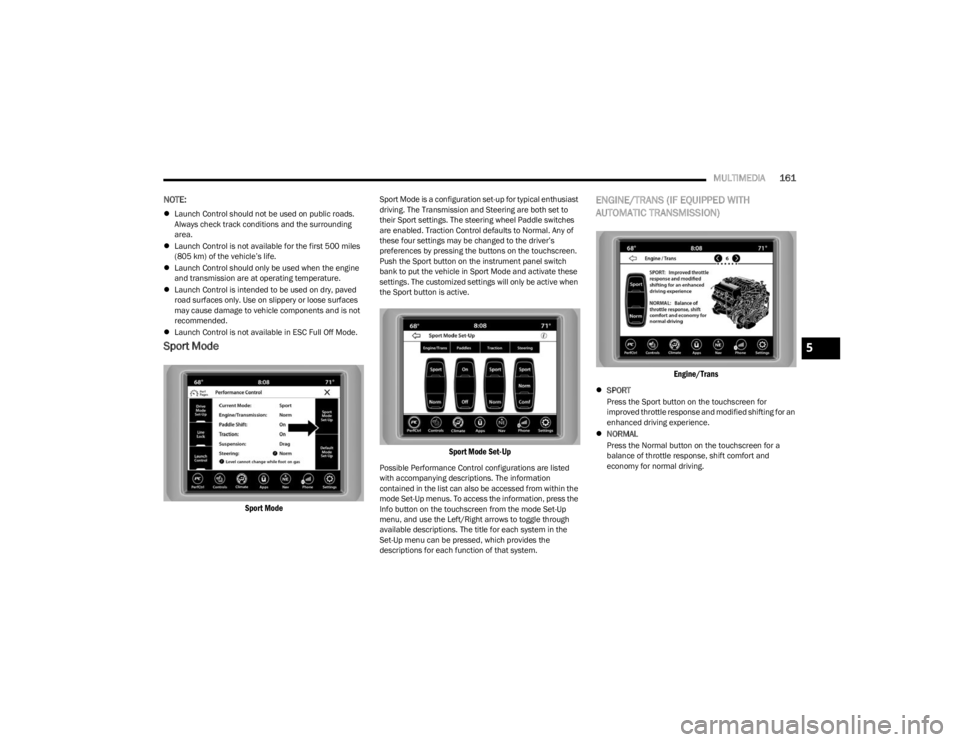
Sport Mode
Sport Mode
Sport Mode is a configuration set-up for typical enthusiast
driving. The Transmission and Steering are both set to
their Sport settings. The steering wheel Paddle switches
are enabled. Traction Control defaults to Normal. Any of
these four settings may be changed to the driver’s
preferences by pressing the buttons on the touchscreen.
Push the Sport button on the instrument panel switch
bank to put the vehicle in Sport Mode and activate these
settings. The customized settings will only be active when
the Sport button is active.
Sport Mode Set-Up
Possible Performance Control configurations are listed
with accompanying descriptions. The information
contained in the list can also be accessed from within the
mode Set-Up menus. To access the information, press the
Info button on the touchscreen from the mode Set-Up
menu, and use the Left/Right arrows to toggle through
available descriptions. The title for each system in the
Set-Up menu can be pressed, which provides the
descriptions for each function of that system.
ENGINE/TRANS (IF EQUIPPED WITH
AUTOMATIC TRANSMISSION)
Engine/Trans
SPORT
Press the Sport button on the touchscreen for
improved throttle response and modified shifting for an
enhanced driving experience.
NORMAL
Press the Normal button on the touchscreen for a
balance of throttle response, shift comfort and
economy for normal driving.
5
23_LD_OM_EN_USC_t.book Page 161