ECO mode DODGE CHARGER SRT 2015 7.G Owner's Manual
[x] Cancel search | Manufacturer: DODGE, Model Year: 2015, Model line: CHARGER SRT, Model: DODGE CHARGER SRT 2015 7.GPages: 595, PDF Size: 16.43 MB
Page 233 of 595
WARNING!(Continued)
•Do not allow small children to operate the sunroof.
Never allow your fingers, other body parts, or any
object, to project through the sunroof opening.
Injury may result.
Opening Sunroof — Express
Push the switch rearward and release it within one-half
second. The sunroof and sunshade will open automati-
cally from any position. The sunroof and sunshade will
open fully and stop automatically. This is called “Express
Open”. During Express Open operation, any movement
of the sunroof switch will stop the sunroof.
Opening Sunroof — Manual Mode
To open the sunroof, push and hold the switch rearward
to full open. Any release of the switch will stop the
movement. The sunroof and sunshade will remain in a
partially opened condition until the switch is pushed and
held rearward again.
Closing Sunroof — Express
Push the switch forward and release it within one-half
second and the sunroof will close automatically from any
position. The sunroof will close fully and stop automati-
cally. This is called “Express Close”. During Express
Close operation, any movement of the switch will stop
the sunroof.
Closing Sunroof — Manual Mode
To close the sunroof, push and hold the switch in the
forward position. Any release of the switch will stop the
movement and the sunroof will remain in a partially
closed condition until the switch is pushed and held
forward again.
3
UNDERSTANDING THE FEATURES OF YOUR VEHICLE 231
Page 247 of 595
UNDERSTANDING YOUR INSTRUMENT PANEL
CONTENTS
!INSTRUMENT PANEL FEATURES..........248
!INSTRUMENT CLUSTER — SRT...........249
!INSTRUMENT CLUSTER — SRT...........250
!INSTRUMENT CLUSTER DESCRIPTIONS.....251
!DRIVER INFORMATION DISPLAY (DID).....260
▫Engine Oil Life Reset..................263
▫Cruise Control........................265
▫DID Yellow Telltales....................265
▫DID Red Telltales.....................266
▫DID Selectable Menu Items..............270
!Uconnect® SETTINGS...................280
▫Buttons On The Faceplate................281
▫Buttons On The Touchscreen..............281
▫Customer Programmable Features — Uconnect®
8.4 Settings..........................281
▫SRT Performance Pages.................302
▫SRT Drive Modes.....................314
▫Race Options.........................325
▫Valet Mode..........................329
▫ECO Mode..........................332
4
Page 258 of 595
9. Electronic Stability Control (ESC) OFF Indicator
Light — If Equipped
This light indicates the Electronic Stability Con-
trol (ESC) is off.
With Drive Modes, the ESC OFF indicator will
be lit any time the Traction modes is set to Sport, Track,
or Full OFF.
10. Speedometer
Indicates vehicle speed.
11. Electronic Stability Control (ESC) Activation/
Malfunction Indicator Light
The “ESC Activation/Malfunction Indicator
Light” in the instrument cluster will come on
when the ignition is placed in the ON/RUN
position. It should go out with the engine
running. If the “ESC Activation/Malfunction Indicator
Light” comes on continuously with the engine running, a
malfunction has been detected in the ESC system. If this
light remains on after several ignition cycles, and the
vehicle has been driven several miles (kilometers) at
speeds greater than 30 mph (48 km/h), see your autho-
rized dealer as soon as possible to have the problem
diagnosed and corrected.
NOTE:
•The “ESC Off Indicator Light” and the “ESC
Activation/Malfunction Indicator Light” will come
on momentarily each time the ignition is placed in
the ON/RUN position.
•Each time the ignition is placed in the ON/RUN
position, the ESC system will be ON, even if it was
turned off previously.
•The ESC system will make buzzing or clicking
sounds when it is active. This is normal; the sounds
will stop when ESC becomes inactive following the
maneuver that caused the ESC activation.
256 UNDERSTANDING YOUR INSTRUMENT PANEL
Page 283 of 595
Buttons On The Faceplate
Buttons on the faceplate are located below the Uconnect®
system in the center of the instrument panel. In addition,
there is a Scroll/Enter control knob located on the right
side. Turn the control knob to scroll through menus and
change settings (i.e., 30, 60, 90), push the center of the
control knob one or more times to select or change a
setting (i.e., ON, OFF).
Your Uconnect® system may also have a Screen Off and
Back buttons on the faceplate.
Push the Screen Off button on the faceplate to turn off the
Uconnect® screen. Push the Screen Off button on the
faceplate a second time to turn the screen on.
Push the Back button on the faceplate to exit out of a
Menu or certain option on the Uconnect® system.
Buttons On The Touchscreen
Buttons on the touchscreen are accessible on the
Uconnect® touchscreen.
Customer Programmable Features — Uconnect®
8.4 Settings
Press the “SRT & Apps” button on the touchscreen, then
press the “Settings” button on the touchscreen to display
the menu setting screen. In this mode the Uconnect®
system allows you to access programmable features that
may be equipped such as Display, Units, Voice, Clock,
Safety & Driving Assistance, Lights, Doors & Locks,
Auto-On Comfort & Remote Start, Engine Off Options,
Audio, Phone/Bluetooth®, SiriusXM Setup, Restore Set-
tings, Clear Personal Data and System Information.
4
UNDERSTANDING YOUR INSTRUMENT PANEL 281
Page 293 of 595
•Blind Spot Alert
When this feature is selected, the Blind Spot Alert feature
Provides alerts, visual and/or audible, to indicate objects
in your blind spot. The Blind Spot Alert feature can be
activated in “Lights” mode. When this mode is selected,
the Blind Spot Monitor (BSM) system is activated and
will only show a visual alert in the exterior mirrors.
When “Lights & Chime” mode is activated, the Blind
Spot Monitor (BSM) will show a visual alert in the
exterior mirrors as well as an audible alert when the turn
signal is on. When “Off” is selected, the Blind Spot
Monitor (BSM) system is deactivated. To change the
Blind Spot Alert status, press the “Off,” “Lights” or
“Lights & Chime” button on the touchscreen. Then press
the back arrow button on the touchscreen.
NOTE:If your vehicle has experienced any damage in
the area where the sensor is located, even if the fascia is
not damaged, the sensor may have become misaligned.
Take your vehicle to an authorized dealer to verify sensor
alignment. Having a sensor that is misaligned will result
in the BSM not operating to specification.
•ParkView® Backup Camera Active Guidelines
Your vehicle may be equipped with the ParkView® Rear
Back Up Camera Active Guidelines that allows you to see
active guidelines over the ParkView Back up camera
display whenever the shift lever is put into REVERSE.
The image will be displayed on the radio touchscreen
display along with a caution note to “check entire sur-
roundings” across the top of the screen. After five sec-
onds, this note will disappear. To make your selection,
press the “ParkView Backup Camera Active Guidelines”
button on the touchscreen, until a check-mark appears
4
UNDERSTANDING YOUR INSTRUMENT PANEL 291
Page 294 of 595
next to setting, indicating that the setting had been
selected. Press the back arrow button on the touchscreen
to return to the previous menu.
•ParkView® Backup Camera Delay
When the vehicle is shifted out of REVERSE (with camera
delay turned OFF), the rear camera mode is exited and
the navigation or audio screen appears again. When the
vehicle is shifted out of REVERSE (with camera delay
turned ON), the rear view image with dynamic grid lines
will be displayed for up to 10 seconds after shifting out of
“REVERSE” unless the forward vehicle speed exceeds
8 mph (12 km/h), the transmission is shifted into
“PARK” or the ignition is switched to the OFF position.
To set the ParkView® Backup Camera Delay press the
“Controls” button on the touchscreen, the “settings”
button on the touchscreen, then the “Safety & Driving
Assistance” button on the touchscreen. Press the
“Parkview Backup Camera Delay” button on the touch-
screen to turn the ParkView® Delay ON or OFF.
•Rain Sensing Auto Wipers
When this feature is selected, the system will automati-
cally activate the windshield wipers if it senses moisture
on the windshield. To make your selection, press the
“Rain Sensing Auto Wipers” button on the touchscreen,
until a check-mark appears next to setting, indicating that
the setting had been selected. Press the back arrow button
on the touchscreen to return to the previous menu.
•Hill Start Assist — If Equipped
When this feature is selected, the Hill Start Assist (HSA)
system is active. Refer to “Electronic Brake Control
System” in “Starting And Operating” for system function
and operating information. To make your selection, press
the “Hill Start Assist” button on the touchscreen, until a
check-mark appears next to setting, indicating that the
setting had been selected. Press the back arrow button on
the touchscreen to return to the previous menu.
292 UNDERSTANDING YOUR INSTRUMENT PANEL
Page 319 of 595
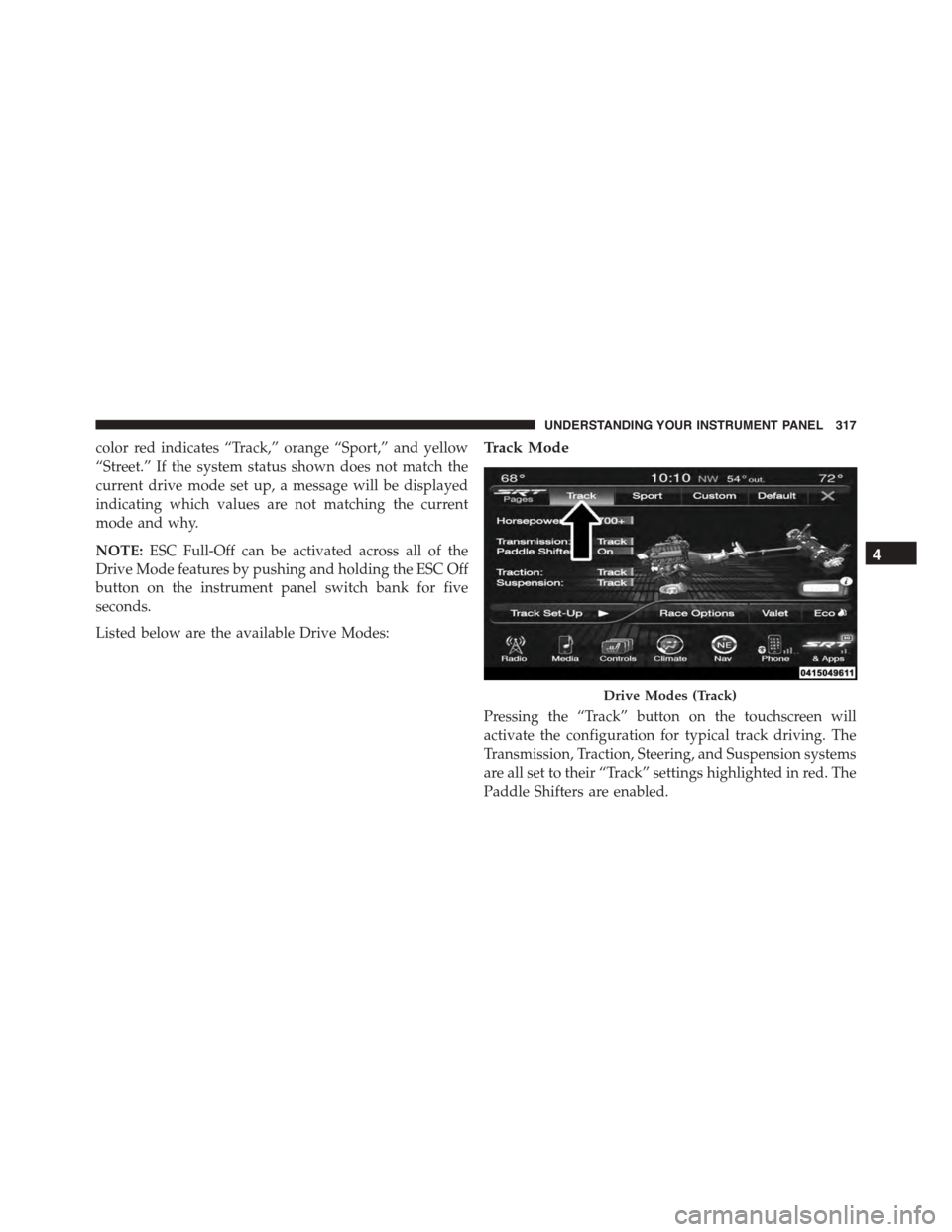
color red indicates “Track,” orange “Sport,” and yellow
“Street.” If the system status shown does not match the
current drive mode set up, a message will be displayed
indicating which values are not matching the current
mode and why.
NOTE:ESC Full-Off can be activated across all of the
Drive Mode features by pushing and holding the ESC Off
button on the instrument panel switch bank for five
seconds.
Listed below are the available Drive Modes:
Track Mode
Pressing the “Track” button on the touchscreen will
activate the configuration for typical track driving. The
Transmission, Traction, Steering, and Suspension systems
are all set to their “Track” settings highlighted in red. The
Paddle Shifters are enabled.
Drive Modes (Track)
4
UNDERSTANDING YOUR INSTRUMENT PANEL 317
Page 328 of 595
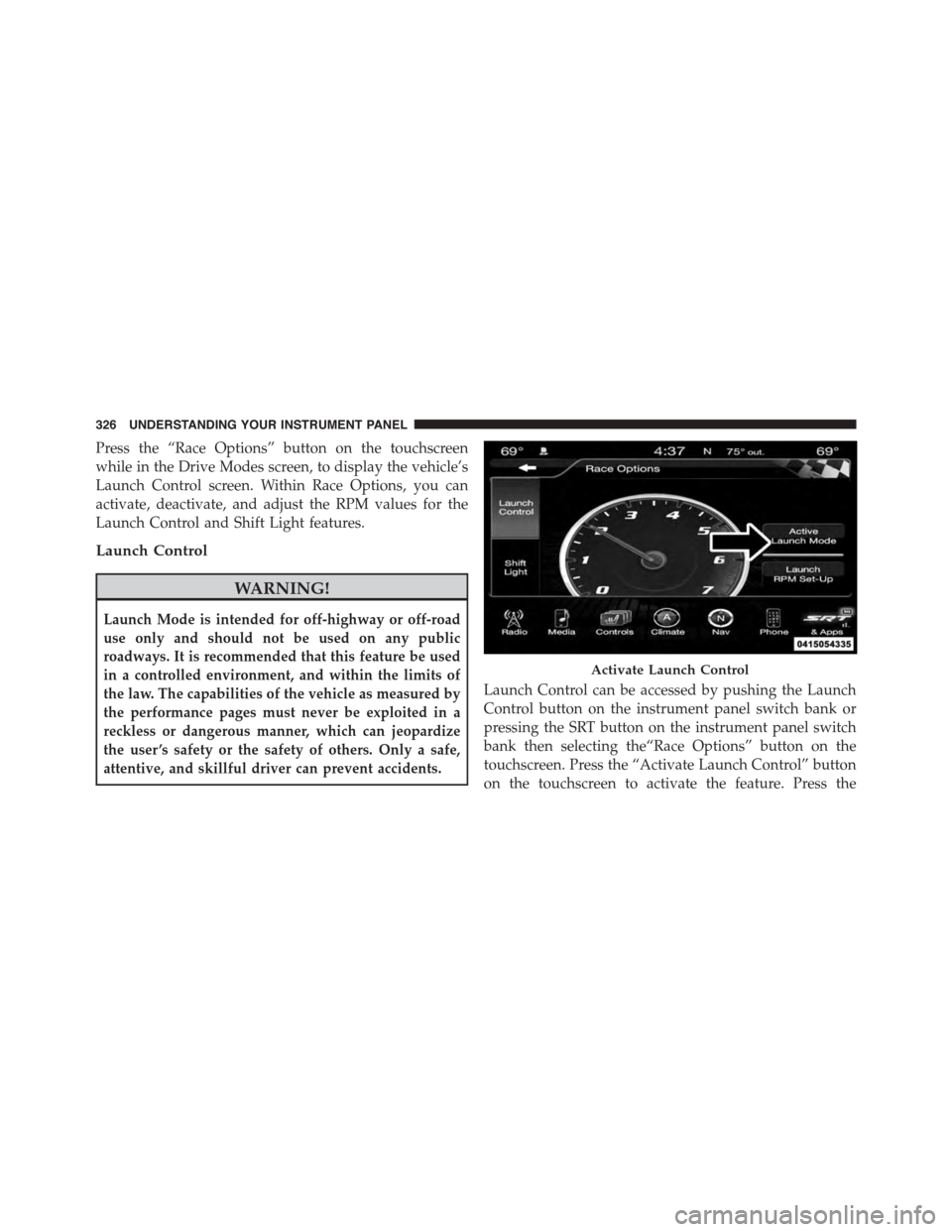
Press the “Race Options” button on the touchscreen
while in the Drive Modes screen, to display the vehicle’s
Launch Control screen. Within Race Options, you can
activate, deactivate, and adjust the RPM values for the
Launch Control and Shift Light features.
Launch Control
WARNING!
Launch Mode is intended for off-highway or off-road
use only and should not be used on any public
roadways. It is recommended that this feature be used
in a controlled environment, and within the limits of
the law. The capabilities of the vehicle as measured by
the performance pages must never be exploited in a
reckless or dangerous manner, which can jeopardize
the user ’s safety or the safety of others. Only a safe,
attentive, and skillful driver can prevent accidents.
Launch Control can be accessed by pushing the Launch
Control button on the instrument panel switch bank or
pressing the SRT button on the instrument panel switch
bank then selecting the“Race Options” button on the
touchscreen. Press the “Activate Launch Control” button
on the touchscreen to activate the feature. Press the
Activate Launch Control
326 UNDERSTANDING YOUR INSTRUMENT PANEL
Page 333 of 595
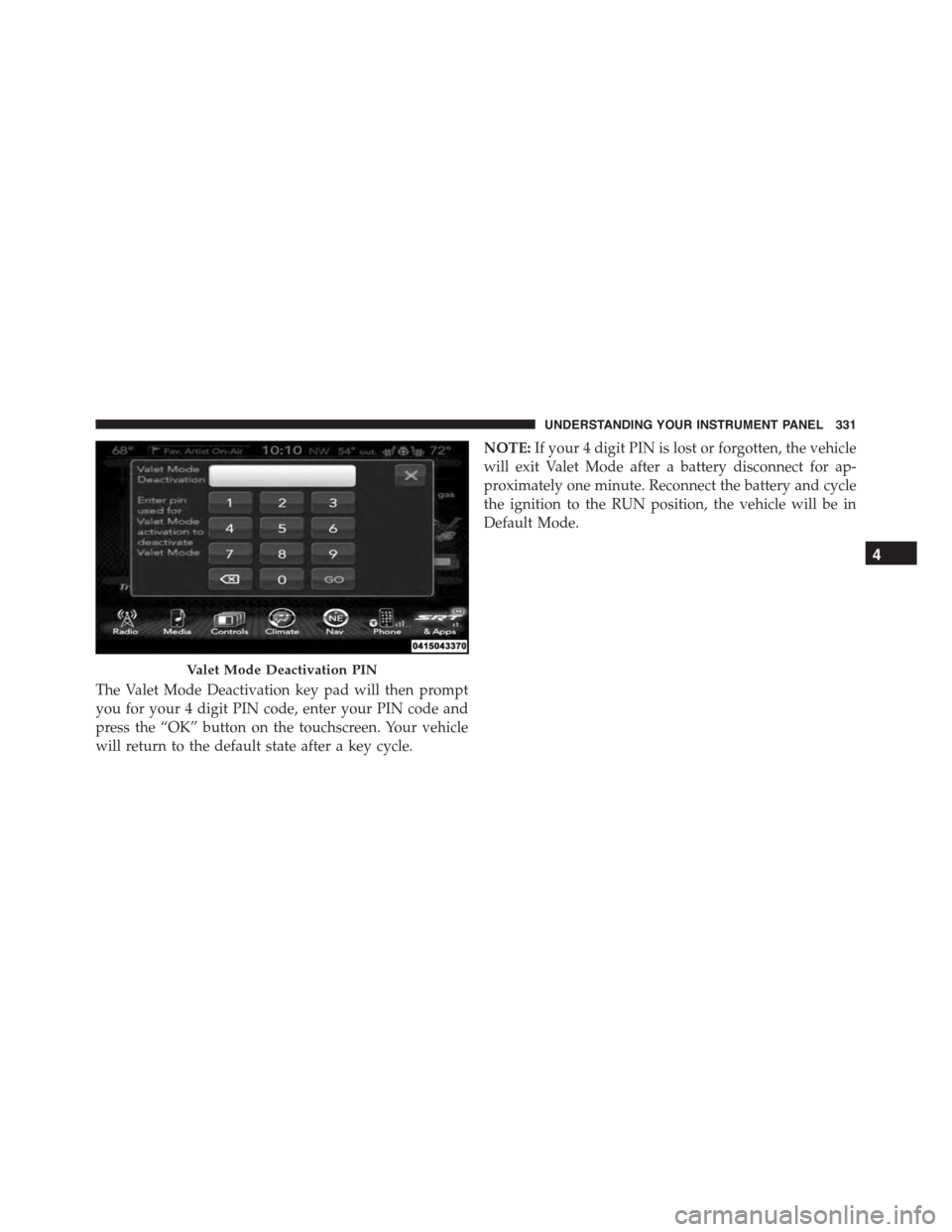
The Valet Mode Deactivation key pad will then prompt
you for your 4 digit PIN code, enter your PIN code and
press the “OK” button on the touchscreen. Your vehicle
will return to the default state after a key cycle.
NOTE:If your 4 digit PIN is lost or forgotten, the vehicle
will exit Valet Mode after a battery disconnect for ap-
proximately one minute. Reconnect the battery and cycle
the ignition to the RUN position, the vehicle will be in
Default Mode.
Valet Mode Deactivation PIN
4
UNDERSTANDING YOUR INSTRUMENT PANEL 331
Page 334 of 595
ECO Mode
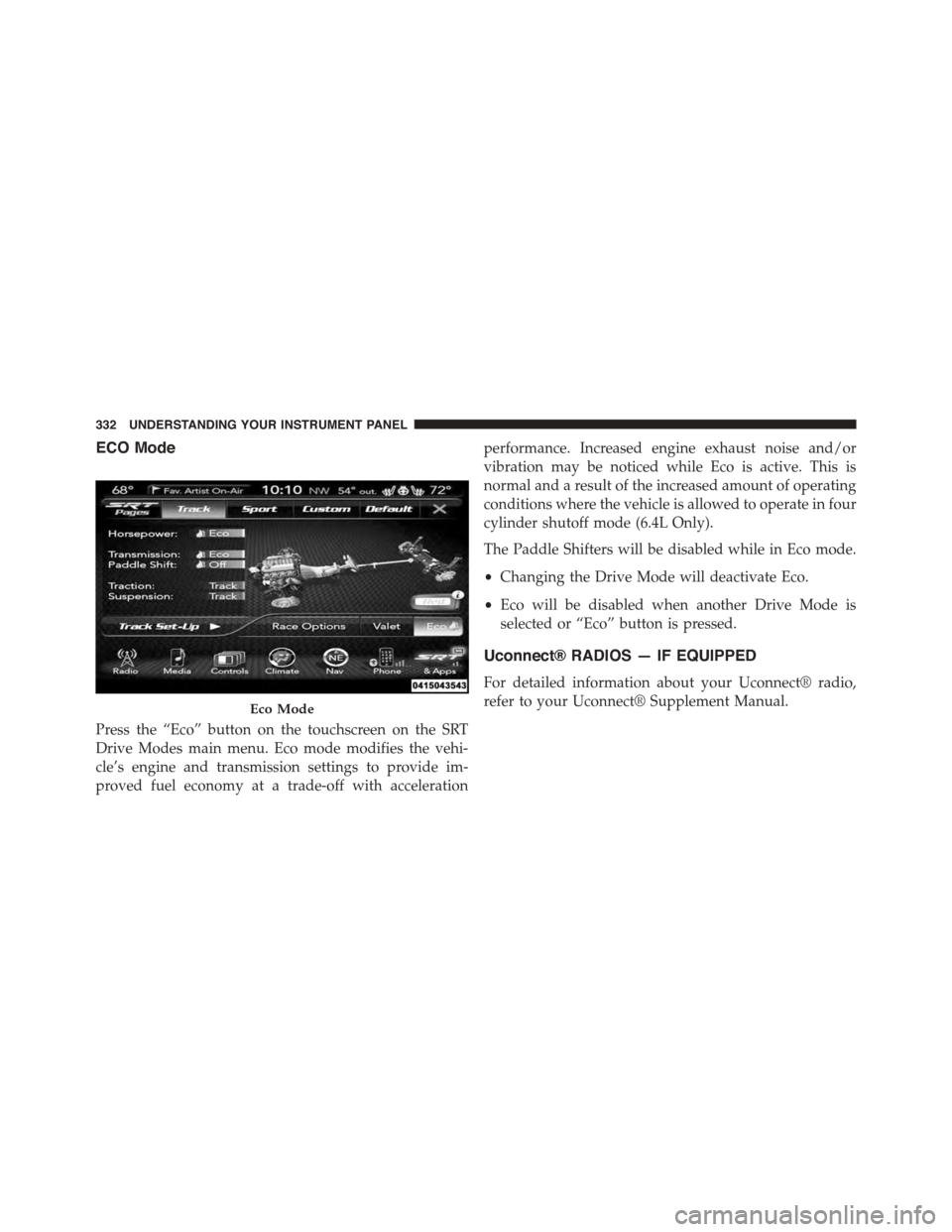
Press the “Eco” button on the touchscreen on the SRT
Drive Modes main menu. Eco mode modifies the vehi-
cle’s engine and transmission settings to provide im-
proved fuel economy at a trade-off with acceleration
performance. Increased engine exhaust noise and/or
vibration may be noticed while Eco is active. This is
normal and a result of the increased amount of operating
conditions where the vehicle is allowed to operate in four
cylinder shutoff mode (6.4L Only).
The Paddle Shifters will be disabled while in Eco mode.
•Changing the Drive Mode will deactivate Eco.
•Eco will be disabled when another Drive Mode is
selected or “Eco” button is pressed.
Uconnect® RADIOS — IF EQUIPPED
For detailed information about your Uconnect® radio,
refer to your Uconnect® Supplement Manual.Eco Mode
332 UNDERSTANDING YOUR INSTRUMENT PANEL