buttons DODGE CHARGER SRT 2015 7.G Owner's Manual
[x] Cancel search | Manufacturer: DODGE, Model Year: 2015, Model line: CHARGER SRT, Model: DODGE CHARGER SRT 2015 7.GPages: 595, PDF Size: 16.43 MB
Page 230 of 595
3.Without releasing the buttonproceed with
“Canadian/Gate Operator Programming” step 2 and
follow all remaining steps.
Using HomeLink®
To operate, push and release the programmed
HomeLink® button. Activation will now occur for the
programmed device (i.e., garage door opener, gate opera-
tor, security system, entry door lock, home/office light-
ing, etc.,). The hand-held transmitter of the device may
also be used at any time.
Security
It is advised to erase all channels before you sell or turn
in your vehicle.
To do this, push and hold the two outside buttons for 20
seconds until the red indicator flashes. Note that all
channels will be erased. Individual channels cannot be
erased.
The HomeLink® Universal Transceiver is disabled when
the Vehicle Security Alarm is active.
Troubleshooting Tips
If you are having trouble programming HomeLink®,
here are some of the most common solutions:
•Replace the battery in the original hand-held transmit-
ter.
•Push the LEARN button on the Garage Door Opener
to complete the training for a Rolling Code.
•Did you unplug the device for programming and
remember to plug it back in?
If you have any problems, or require assistance, please
call toll-free 1-800-355-3515 or, on the Internet at
HomeLink.com for information or assistance.
228 UNDERSTANDING THE FEATURES OF YOUR VEHICLE
Page 247 of 595
UNDERSTANDING YOUR INSTRUMENT PANEL
CONTENTS
!INSTRUMENT PANEL FEATURES..........248
!INSTRUMENT CLUSTER — SRT...........249
!INSTRUMENT CLUSTER — SRT...........250
!INSTRUMENT CLUSTER DESCRIPTIONS.....251
!DRIVER INFORMATION DISPLAY (DID).....260
▫Engine Oil Life Reset..................263
▫Cruise Control........................265
▫DID Yellow Telltales....................265
▫DID Red Telltales.....................266
▫DID Selectable Menu Items..............270
!Uconnect® SETTINGS...................280
▫Buttons On The Faceplate................281
▫Buttons On The Touchscreen..............281
▫Customer Programmable Features — Uconnect®
8.4 Settings..........................281
▫SRT Performance Pages.................302
▫SRT Drive Modes.....................314
▫Race Options.........................325
▫Valet Mode..........................329
▫ECO Mode..........................332
4
Page 263 of 595
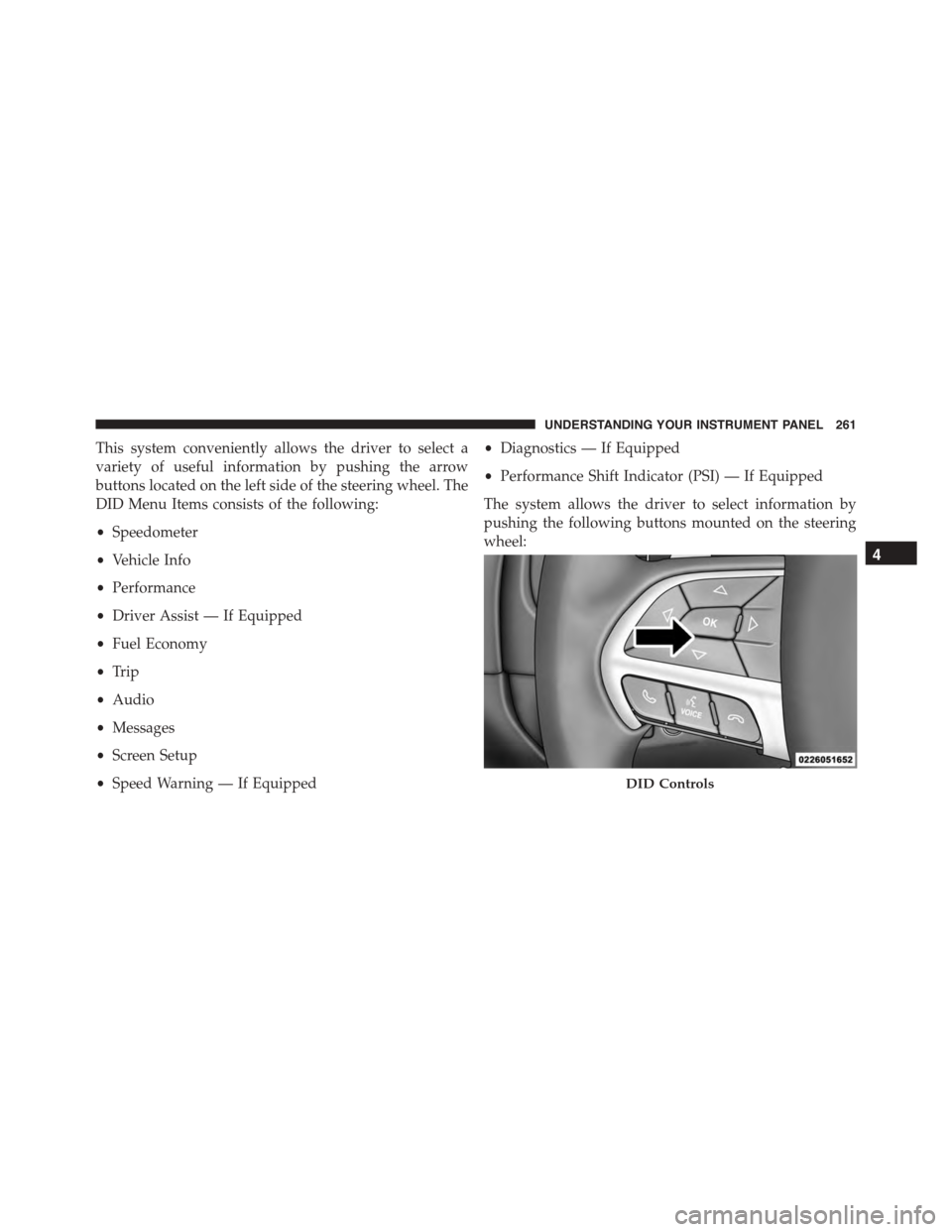
This system conveniently allows the driver to select a
variety of useful information by pushing the arrow
buttons located on the left side of the steering wheel. The
DID Menu Items consists of the following:
•Speedometer
•Vehicle Info
•Performance
•Driver Assist — If Equipped
•Fuel Economy
•Trip
•Audio
•Messages
•Screen Setup
•Speed Warning — If Equipped
•Diagnostics — If Equipped
•Performance Shift Indicator (PSI) — If Equipped
The system allows the driver to select information by
pushing the following buttons mounted on the steering
wheel:
DID Controls
4
UNDERSTANDING YOUR INSTRUMENT PANEL 261
Page 264 of 595
Up And Down Arrow Buttons:
Using the Up or Down arrows allows you to
cycle through the Main Menu Items.
Changes the Main Screen area and Menu Title
area.
Left And Right Arrow Buttons:
Using the Left or Right arrow buttons allows
you to cycle through the submenu items of the
Main menu item.
NOTE:
•Holding the Up/Down or Left/Right arrow
buttons will loop the user through the cur-
rently selected menu or options presented
on the screen.
•Main menu and submenu’s wrap for continuous
scrolling.
•Upon returning to a main menu, the last submenu
screen viewed within that main menu will be dis-
played.
OK Button:
For Digital Speedometer
•Pushing the OK button changes units (MPH or km/h).
For Screen Setup and Vehicle Settings:
•OK button allows user to enter menu and submenus.
•Within each submenu layer, the up/down arrows will
allow the user to select the item of interest.
•Pushing the OK button makes the selection and a
confirmation screen will appear (returning the user to
the 1st page of the submenu).
262 UNDERSTANDING YOUR INSTRUMENT PANEL
Page 272 of 595
DID Selectable Menu Items
Push and release the UP or DOWN arrow buttons until
the desired Selectable Menu item is displayed in the DID.
Follow the Menu or submenu prompts as desired.
Speedometer
Push and release the UP or DOWN arrow button until
the Speedometer menu is displayed in the DID. Push and
release the OK button to toggle units (km/h or mph) of
digital speedometer.
Vehicle Info
Push and release the UP or DOWN arrow button until
the Vehicle Info menu is highlighted in the DID. Push and
release the RIGHT arrow buttons to enter the submenu
items of Vehicle Info. Follow the directional prompts to
access or reset any of the following Vehicle Info submenu
items:
Tire Pressure Monitor
Coolant Temp
Trans Temp
Oil Temp
Oil Pressure
Oil Life
Battery Voltage
Intake Air Temp
Engine Torque
Engine Power
Air-Fuel Ratio — 6.2L Supercharged
Boost Pressure — 6.2L Supercharged
Intercooler Water Temp — 6.2L Supercharged
270 UNDERSTANDING YOUR INSTRUMENT PANEL
Page 282 of 595
The PSI indicator in the DID display remains illuminated
until the driver changes gear, or the driving conditions
return to a situation where changing gear is not required,
corresponding to the configured RPMs in the head unit.
Uconnect® SETTINGS
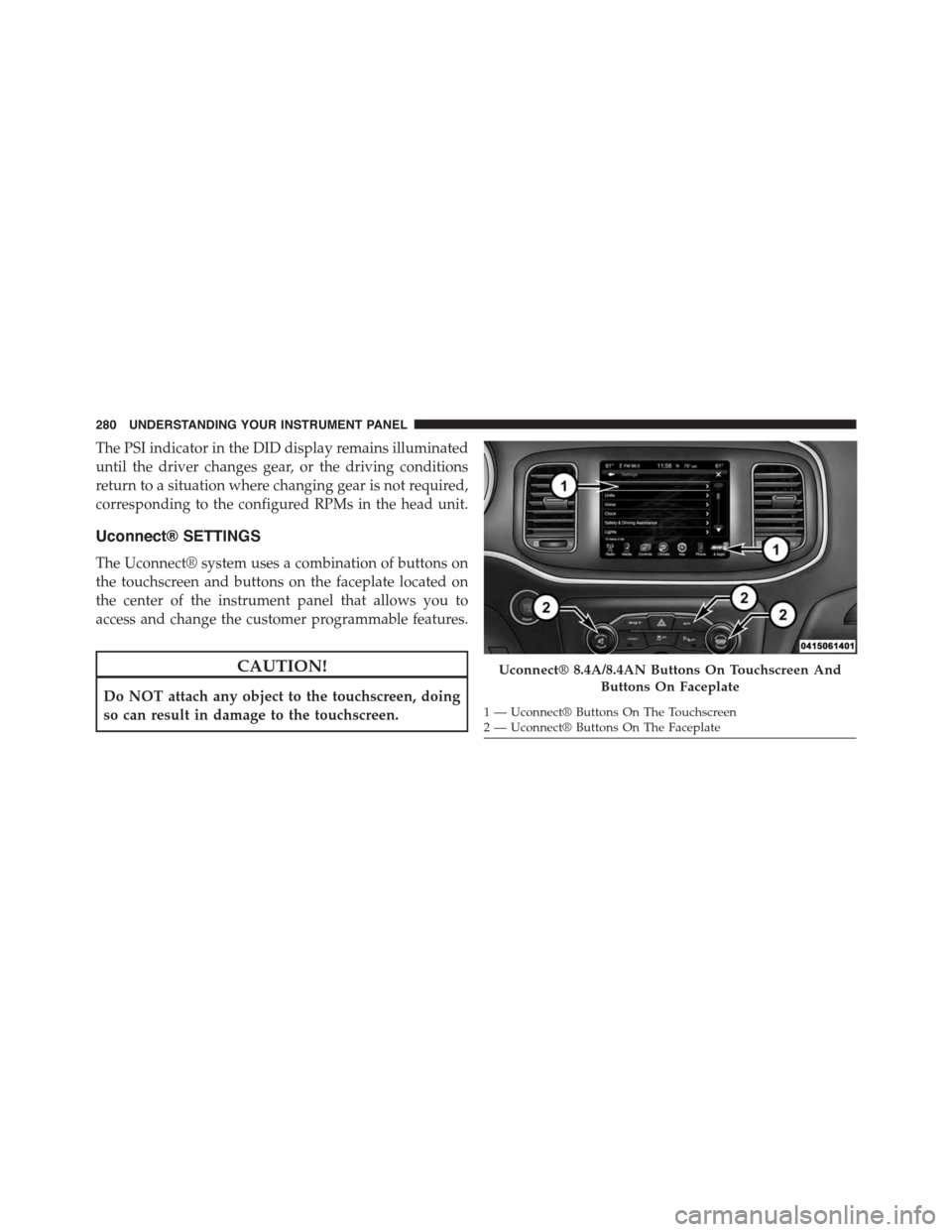
The Uconnect® system uses a combination of buttons on
the touchscreen and buttons on the faceplate located on
the center of the instrument panel that allows you to
access and change the customer programmable features.
CAUTION!
Do NOT attach any object to the touchscreen, doing
so can result in damage to the touchscreen.
Uconnect® 8.4A/8.4AN Buttons On Touchscreen And
Buttons On Faceplate
1—Uconnect®ButtonsOnTheTouchscreen2—Uconnect®ButtonsOnTheFaceplate
280 UNDERSTANDING YOUR INSTRUMENT PANEL
Page 283 of 595
Buttons On The Faceplate
Buttons on the faceplate are located below the Uconnect®
system in the center of the instrument panel. In addition,
there is a Scroll/Enter control knob located on the right
side. Turn the control knob to scroll through menus and
change settings (i.e., 30, 60, 90), push the center of the
control knob one or more times to select or change a
setting (i.e., ON, OFF).
Your Uconnect® system may also have a Screen Off and
Back buttons on the faceplate.
Push the Screen Off button on the faceplate to turn off the
Uconnect® screen. Push the Screen Off button on the
faceplate a second time to turn the screen on.
Push the Back button on the faceplate to exit out of a
Menu or certain option on the Uconnect® system.
Buttons On The Touchscreen
Buttons on the touchscreen are accessible on the
Uconnect® touchscreen.
Customer Programmable Features — Uconnect®
8.4 Settings
Press the “SRT & Apps” button on the touchscreen, then
press the “Settings” button on the touchscreen to display
the menu setting screen. In this mode the Uconnect®
system allows you to access programmable features that
may be equipped such as Display, Units, Voice, Clock,
Safety & Driving Assistance, Lights, Doors & Locks,
Auto-On Comfort & Remote Start, Engine Off Options,
Audio, Phone/Bluetooth®, SiriusXM Setup, Restore Set-
tings, Clear Personal Data and System Information.
4
UNDERSTANDING YOUR INSTRUMENT PANEL 281
Page 285 of 595
•Display Brightness With Headlights ON
When in this display, you may select the brightness with
the headlights on. Adjust the brightness with the “+” and
“–” setting buttons on the touchscreen or by selecting any
point on the scale between the “+” and “–” buttons on the
touchscreen. Then press the back arrow button on the
touchscreen.
NOTE:To make changes to the#Display Brightness with
Headlights ON#setting, the headlights must be on and
the interior dimmer switch must not be in the#party#or
#parade#positions.
•Display Brightness With Headlights OFF
When in this display, you may select the brightness with
the headlights off. Adjust the brightness with the “+” and
“–” setting buttons on the touchscreen or by selecting any
point on the scale between the “+” and “–” buttons on the
touchscreen. Then press the back arrow button on the
touchscreen.
NOTE:To make changes to the#Display Brightness with
Headlights OFF#setting, the headlights must be off and
the interior dimmer switch must not be in the#party#or
#parade#positions.
•Set Theme — If Equipped
This feature will allow you to choose a theme for the
display screen. The theme will change the background
color, highlight color, and button color of the display
screen.
4
UNDERSTANDING YOUR INSTRUMENT PANEL 283
Page 289 of 595
buttons on the touchscreen to adjust the hours up or
down. Press the back arrow button on the touchscreen to
return to the previous menu.
•Set Time Minutes
This feature will allow you to adjust the minutes. The
“Sync time with GPS” button on the touchscreen must be
unchecked. To make your selection, press the “+” or “–”
buttons on the touchscreen to adjust the minutes up or
down. Press the back arrow button on the touchscreen to
return to the previous menu.
•Time Format
This feature will allow you to select the time format
display setting. Press the “Time Format” button on the
touchscreen until a check-mark appears next to the 12hrs
or 24hrs setting, showing that setting has been selected.
Press the back arrow button on the touchscreen to return
to the previous menu.
•Show Time In Status Bar — If Equipped
This feature will allow you to turn on or shut off the
digital clock in the status bar. To change the Show Time
Status setting press the “Show Time in Status Bar” button
on the touchscreen until a check-mark appears next to
setting, indicating that the setting has been selected. Press
the back arrow button on the touchscreen to return to the
previous menu or press the “X” button on the touch-
screen to close out of the settings screen.
Safety & Driving Assistance
After pressing the “Safety & Driving Assistance” button
on the touchscreen the following settings will be avail-
able:
•Forward Collision Warning — If Equipped
The Front Collision Warning (FCW) feature provides an
audible and/or visual warning to potential forward
collisions. The feature can be can be set to Far, or set to
4
UNDERSTANDING YOUR INSTRUMENT PANEL 287
Page 298 of 595
•Sound Horn With Remote Start
When this feature is selected, the horn will sound when
the remote start is activated. To make your selection,
press the “Sound Horn with Remote Start” button on the
touchscreen until a check-mark appears next to setting,
showing that setting has been selected. Press the back
arrow button on the touchscreen to return to the previous
menu.
•1st Press Of Key Fob Unlocks
When#Driver Door#is selected with 1st Press Of Key Fob
Unlocks, only the driver’s door will unlock with the first
press of the Remote Keyless Entry (RKE) transmitter
UNLOCK button. You must press the RKE transmitter
UNLOCK button twice to unlock the passenger’s doors.
When#All Doors#is selected for 1st Press Of Key Fob
Unlocks, all doors will unlock on the first press of the
RKE transmitter UNLOCK button.
NOTE:If the vehicle is programmed 1st Press Of Key Fob
Unlocks “All Doors,” all doors will unlock no matter
which Passive Entry equipped door handle is grasped. If
1st Press Of Key Fob Unlocks “Driver Door” is pro-
grammed, only the driver ’s door will unlock when the
driver ’s door is grasped. With Passive Entry, if 1st Press
Of Key Fob Unlocks “Driver Door” is programmed,
touching the handle more than once will only result in
the driver ’s door opening. If “Driver Door” is selected,
once the driver door is opened, the interior door lock/
unlock switch can be used to unlock all doors (or use
RKE transmitter).
•Passive Entry
This feature allows you to lock and unlock the vehicles
door(s) without having to push the Remote Keyless Entry
(RKE) transmitter LOCK or UNLOCK buttons. To make
your selection, press the “Passive Entry” button on the
touchscreen, until a check-mark appears next to the
296 UNDERSTANDING YOUR INSTRUMENT PANEL