engine DODGE CHARGER SRT 2015 7.G Service Manual
[x] Cancel search | Manufacturer: DODGE, Model Year: 2015, Model line: CHARGER SRT, Model: DODGE CHARGER SRT 2015 7.GPages: 595, PDF Size: 16.43 MB
Page 279 of 595
The ACC screen may display once again if any ACC
activity occurs, which may include any of the following:
•Distance Setting Change
•System Cancel
•Driver Override
•System Off
•ACC Proximity Warning
•ACC Unavailable Warning
•The DID will return to the last display selected after
five seconds of no ACC display activity.
For further information, refer to “Adaptive Cruise Con-
trol (ACC) — If Equipped” in “Understanding The
Features Of Your Vehicle.”
LaneSense — If Equipped
The DID displays the current LaneSense system settings.
The information displayed depends on LaneSense sys-
tem status and the conditions that need to be met. For
further information, refer to “LaneSense — If Equipped”
in “Understanding The Features Of Your Vehicle.”
Fuel Economy
Push and release the UP or DOWN arrow button until
the Fuel Economy Menu item is highlighted in the DID.
•Two sub menu pages one with Current value dis-
played and one without the Current Value displayed:
– Current MPG (or L/100 km)
– Range (miles or km)
– Average MPG (or L/100 km)
– The Max and Min values will correspond to the
particular engine requirements
4
UNDERSTANDING YOUR INSTRUMENT PANEL 277
Page 281 of 595
Diagnostics — If Equipped
Push and release the UP or DOWN arrow button until
the diagnostic Menu is selected. Then, the Driver is able
to view engine and emission vehicle faults.
•PushOKto have the most recent fault code sent.
•There is a delay when the next diagnostic code is
requested during which the following message is
displayed:
•“Checking System for Diagnostic Codes.”
•Driver must push theOKbutton again to see the next
Pcode otherwise current message remains displayed.
•Driver exits when they cycle to another submenu (up
or down).
•Faults are displayed from newest to the oldest.
•If the menu is exited before the end of codes is reached
- when the driver re-enters the list will be restarted
from the beginning.
•When no codes are present or the last code is reached
= (P0000) and this message is displayed:
•“No Further or End of Diagnostic Codes.”
Performance Shift Indicator (PSI) – If Equipped
The Performance Shift Indicator (PSI) is enabled on
vehicles with manual transmission, or when a vehicle
with automatic transmission is in manual shift mode. The
PSI provides the driver with a visual indication within
the DID display when the driver configured gear shift
point has been reached and the driver is still accelerating.
This indication notifies the driver to change gear corre-
sponding to the configured RPMs in the head unit. When
the shift up indicator is shown on the display, the PSI is
advising the driver to engage a higher gear.
4
UNDERSTANDING YOUR INSTRUMENT PANEL 279
Page 283 of 595
Buttons On The Faceplate
Buttons on the faceplate are located below the Uconnect®
system in the center of the instrument panel. In addition,
there is a Scroll/Enter control knob located on the right
side. Turn the control knob to scroll through menus and
change settings (i.e., 30, 60, 90), push the center of the
control knob one or more times to select or change a
setting (i.e., ON, OFF).
Your Uconnect® system may also have a Screen Off and
Back buttons on the faceplate.
Push the Screen Off button on the faceplate to turn off the
Uconnect® screen. Push the Screen Off button on the
faceplate a second time to turn the screen on.
Push the Back button on the faceplate to exit out of a
Menu or certain option on the Uconnect® system.
Buttons On The Touchscreen
Buttons on the touchscreen are accessible on the
Uconnect® touchscreen.
Customer Programmable Features — Uconnect®
8.4 Settings
Press the “SRT & Apps” button on the touchscreen, then
press the “Settings” button on the touchscreen to display
the menu setting screen. In this mode the Uconnect®
system allows you to access programmable features that
may be equipped such as Display, Units, Voice, Clock,
Safety & Driving Assistance, Lights, Doors & Locks,
Auto-On Comfort & Remote Start, Engine Off Options,
Audio, Phone/Bluetooth®, SiriusXM Setup, Restore Set-
tings, Clear Personal Data and System Information.
4
UNDERSTANDING YOUR INSTRUMENT PANEL 281
Page 295 of 595
Lights
After pressing the “Lights” button on the touchscreen the
following settings will be available.
•Headlight Off Delay
When this feature is selected, it allows adjustment of the
amount of time the headlights remain on after the engine
is shut off. To change the Headlights Off Delay setting,
press the “+” or “-” button on the touchscreen to select
your desired time interval, and choose either 0 sec, 30 sec,
60 sec or 90 seconds. Press the back arrow button on the
touchscreen to return to the previous menu, or push the
back button on the faceplate.
•Headlight Illumination On Approach
When this feature is selected, the headlights will activate
and remain on for 0, 30, 60, or 90 seconds when the doors
are unlocked with the Remote Keyless Entry (RKE)
transmitter. To change the Illuminated Approach status,
press the “+” or “-” button on the touchscreen to select
your desired time interval. Press the back arrow button
on the touchscreen to return to the previous menu, or
push the back button on the faceplate.
•Headlights With Wipers — If Equipped
When this feature is selected, and the headlight switch is
in the AUTO position, the headlights will turn on ap-
proximately 10 seconds after the wipers are turned on.
The headlights will also turn off when the wipers are
turned off if they were turned on by this feature. To make
your selection, press the “Headlights With Wipers” but-
ton on the touchscreen, until a check-mark appears next
to setting, indicating that the setting has been selected.
Press the back arrow button on the touchscreen to return
to the previous menu, or push the back button on the
faceplate.
4
UNDERSTANDING YOUR INSTRUMENT PANEL 293
Page 296 of 595
•Auto Dim High Beams — If Equipped
When this feature is selected, the high beam headlights
will activate/deactivate automatically under certain con-
ditions. To make your selection, press the “Auto High
Beams” button on the touchscreen, until a check-mark
appears next to setting, indicating that the setting has
been selected. Press the back arrow button on the touch-
screen to return to the previous menu, or push the back
button on the faceplate. Refer to “Lights — If Equipped”
in “Understanding The Features Of Your Vehicle” for
further information.
•Daytime Running Lights — If Equipped
When this feature is selected, the headlights will turn on
whenever the engine is running. To make your selection,
press the “Daytime Running Lights” button on the touch-
screen, until a check-mark appears next to setting, indi-
cating that the setting has been selected. Press the back
arrow button on the touchscreen to return to the previous
menu, or push the back button on the faceplate.
•Flash Lights With Lock
When this feature is selected, the hazard lights will flash
when the doors are locked or unlocked with the Remote
Keyless Entry (RKE) transmitter, or when using the
passive entry feature. This feature may be selected with
or without the sound horn on lock feature selected. To
make your selection, press the “Flash Lights with Lock”
button on the touchscreen, until a check-mark appears
next to setting, indicating that the setting has been
selected. Press the back arrow button on the touchscreen
to return to the previous menu, or push the back button
on the faceplate.
294 UNDERSTANDING YOUR INSTRUMENT PANEL
Page 300 of 595
Vehicle Start” button to select from “Off,” “Remote Start”
or “All Starts” until a check-mark appears next to setting,
showing that setting has been selected. Press the back
arrow button on the touchscreen to return to the previous
menu.
Engine Off Options
After pressing the “Engine Off Options” button on the
touchscreen the following settings will be available:
•Easy Exit Seat — If Equipped
When this feature is selected, the Driver ’s seat will
automatically move rearward once the engine is shut off.
To make your selection, press the “Easy Exit Seat” button
on the touchscreen, until a check-mark appears next to
setting, showing that setting has been selected. Press the
back arrow button on the touchscreen to return to the
previous menu.
•Engine Off Power Delay
When this feature is selected, the power window
switches, radio, Uconnect® Phone system (if equipped),
DVD video system (if equipped), power sunroof (if
equipped), and power outlets will remain active for up to
10 minutes after the ignition is cycled to OFF. Opening
either front door will cancel this feature. To change the
Engine Off Power Delay setting, press the “+” or “-”
button on the touchscreen to select your desired time
interval, and choose from “0 seconds,” “45 seconds,” “5
minutes” or “10 minutes.” Press the back arrow button
on the touchscreen to return to the previous menu.
•Headlight Off Delay
When this feature is selected, the driver can choose to have
the headlights remain on for 0, 30, 60, or 90 seconds when
exiting the vehicle. To change the Headlight Off Delay
status press the “+” or “–” button on the touchscreen to
select your desired time interval. Press the back arrow
button on the touchscreen to return to the previous menu.
298 UNDERSTANDING YOUR INSTRUMENT PANEL
Page 305 of 595
WARNING!
Measurement of vehicle statistics with the SRT Per-
formance Pages is intended for off-highway or off-
road use only and should not be done on any public
roadways. It is recommended that these features be
used in a controlled environment and within the
limits of the law. The capabilities of the vehicle as
measured by the Performance Pages must never be
exploited in a reckless or dangerous manner, which
can jeopardize the user ’s safety or the safety of
others. Only a safe, attentive, and skillful driver can
prevent accidents.
The Performance Pages include the following:
•Home
•Timers
•Digital Gauge 1
•Digital Gauge 2
•G-Force
•Engine
4
UNDERSTANDING YOUR INSTRUMENT PANEL 303
Page 315 of 595
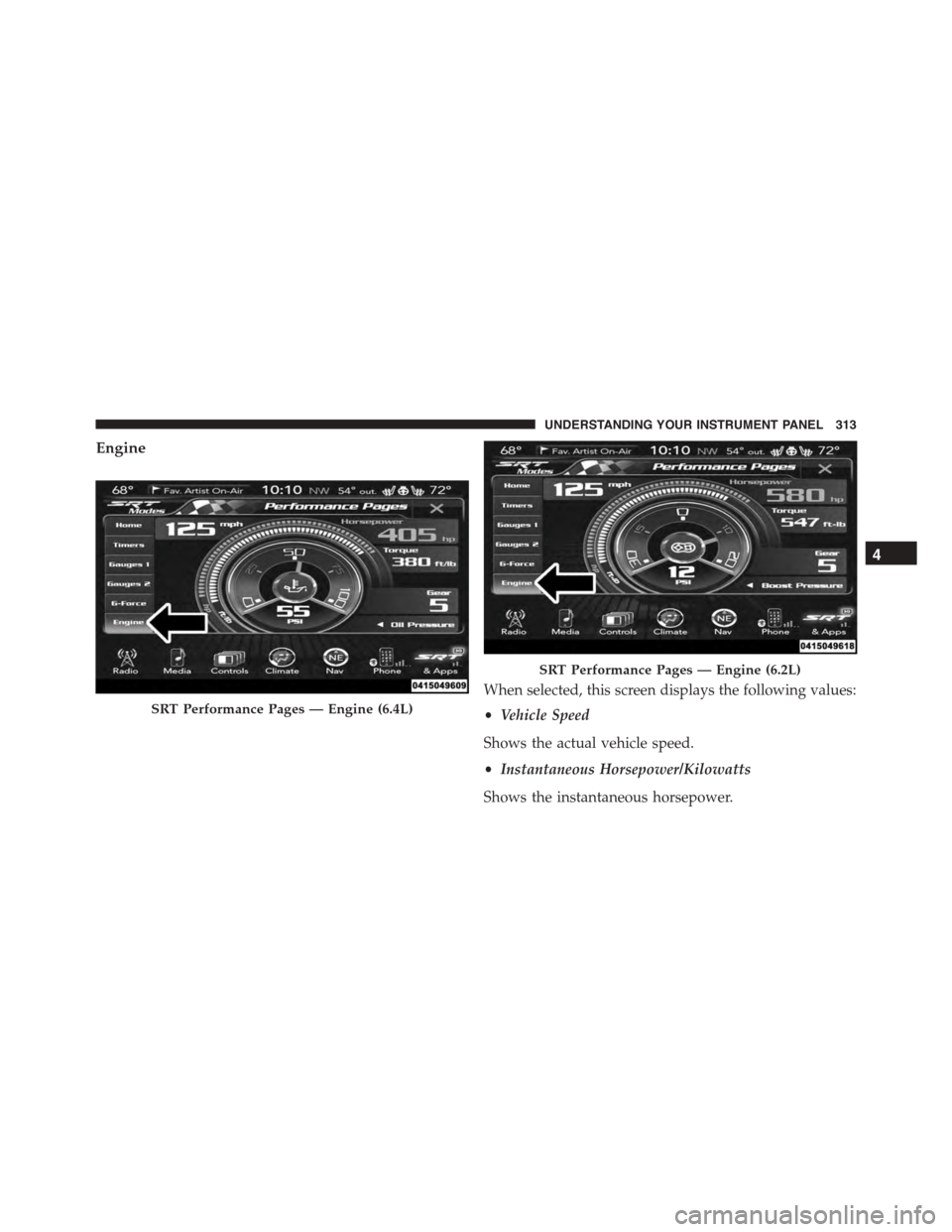
Engine
When selected, this screen displays the following values:
•Vehicle Speed
Shows the actual vehicle speed.
•Instantaneous Horsepower/Kilowatts
Shows the instantaneous horsepower.
SRT Performance Pages — Engine (6.4L)
SRT Performance Pages — Engine (6.2L)
4
UNDERSTANDING YOUR INSTRUMENT PANEL 313
Page 316 of 595
•Instantaneous Torque
Shows the instantaneous torque.
•Oil Pressure (6.4L Only)
Shows the actual oil pressure.
•Gear
Shows the current (or pending) operating gear of the
vehicle.
•Boost Pressure (6.2L Only)
Shows the actual boost pressure.
SRT Drive Modes
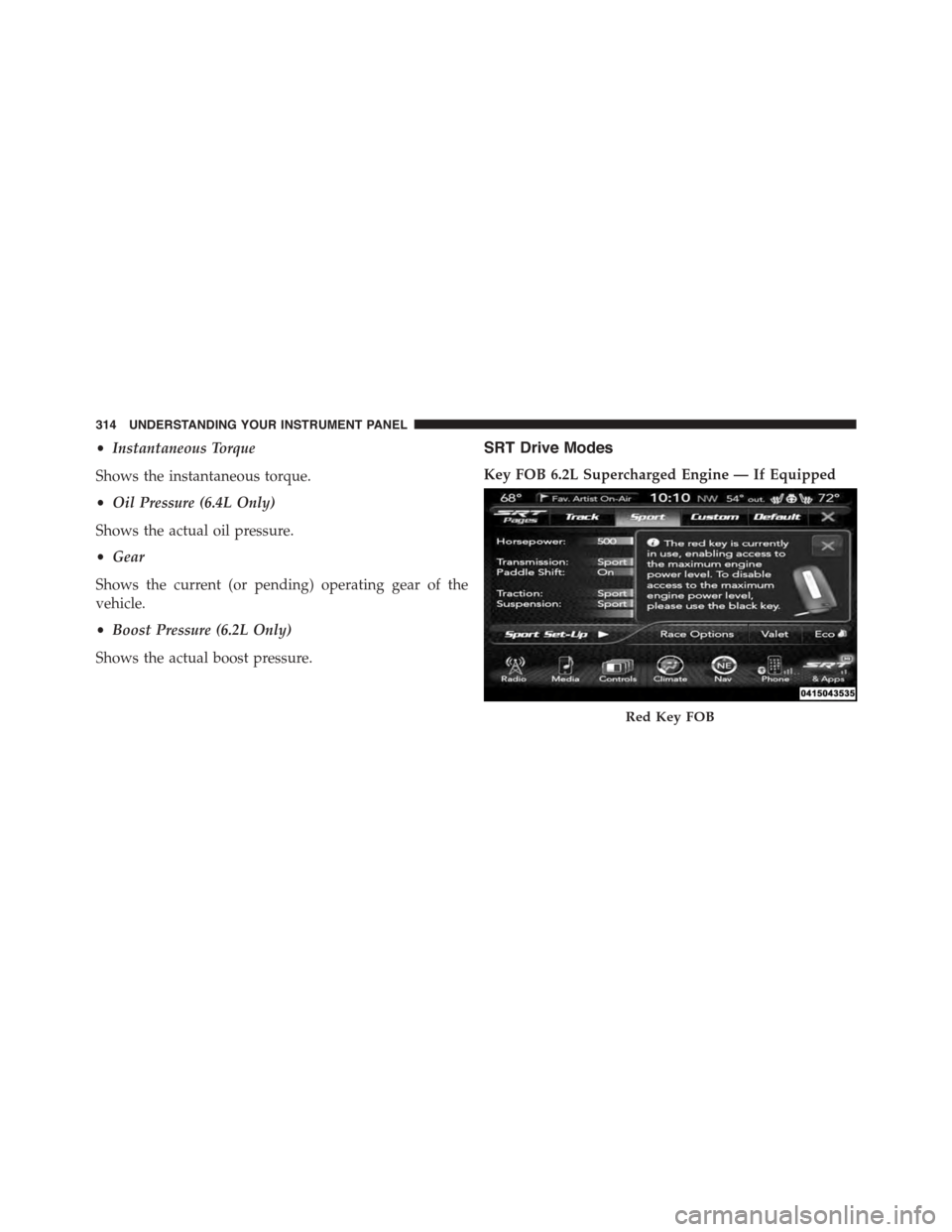
Key FOB 6.2L Supercharged Engine — If Equipped
Red Key FOB
314 UNDERSTANDING YOUR INSTRUMENT PANEL
Page 317 of 595
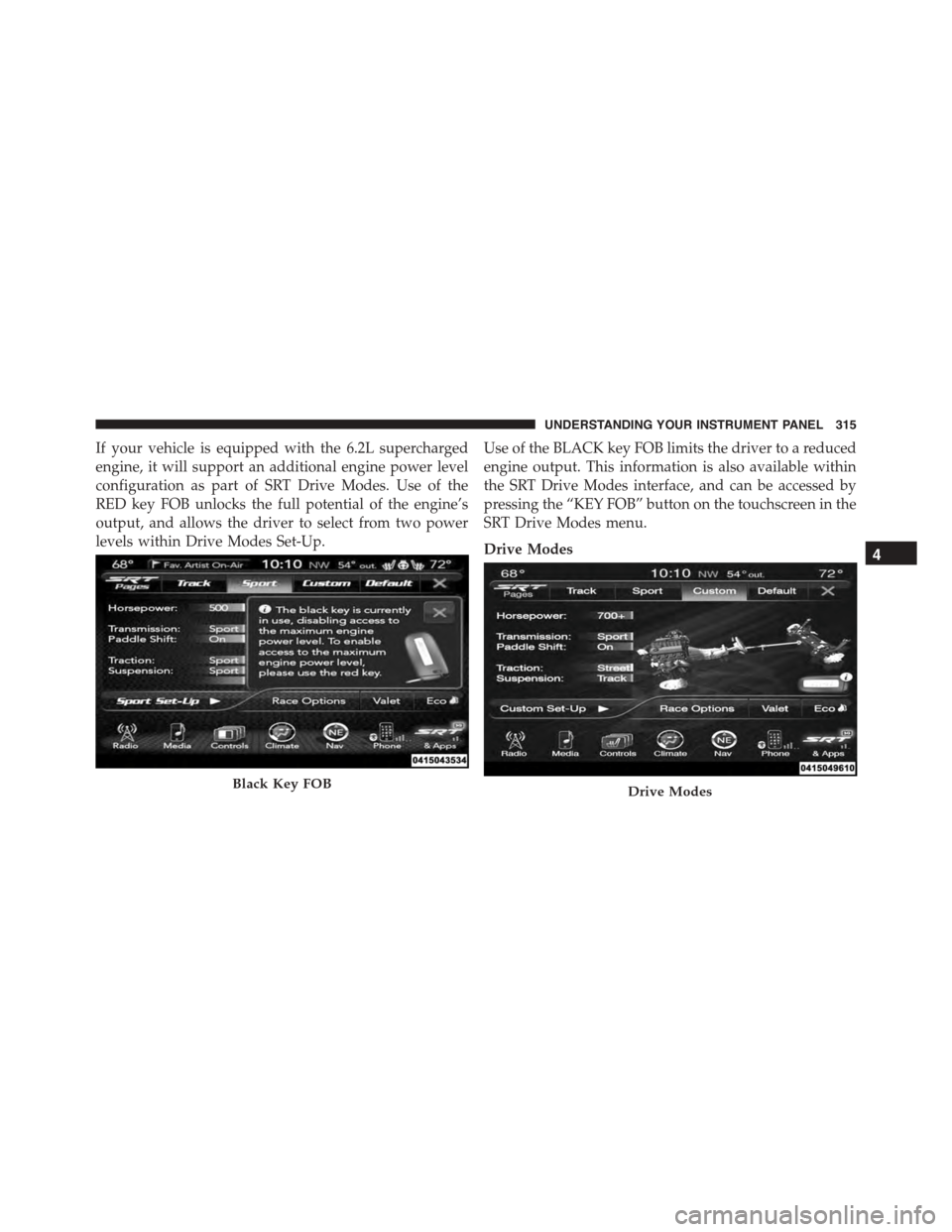
If your vehicle is equipped with the 6.2L supercharged
engine, it will support an additional engine power level
configuration as part of SRT Drive Modes. Use of the
RED key FOB unlocks the full potential of the engine’s
output, and allows the driver to select from two power
levels within Drive Modes Set-Up.
Use of the BLACK key FOB limits the driver to a reduced
engine output. This information is also available within
the SRT Drive Modes interface, and can be accessed by
pressing the “KEY FOB” button on the touchscreen in the
SRT Drive Modes menu.
Drive Modes
Black Key FOBDrive Modes
4
UNDERSTANDING YOUR INSTRUMENT PANEL 315