phone DODGE CHARGER SRT 2015 7.G Owners Manual
[x] Cancel search | Manufacturer: DODGE, Model Year: 2015, Model line: CHARGER SRT, Model: DODGE CHARGER SRT 2015 7.GPages: 595, PDF Size: 16.43 MB
Page 47 of 595
2. If a child from 2 to 12 years old (not in a rear-facing
child restraint) must ride in the front passenger seat,
move the seat as far back as possible and use the
proper child restraint. (Refer to “Child Restraints”)
3. Children that are not big enough to wear the vehicle
seat belt properly (Refer to#Child Restraints#) should
be secured in a vehicle with a rear seat in child
restraints or belt-positioning booster seats. Older chil-
dren who do not use child restraints or belt-
positioning booster seats should ride properly buckled
up in a vehicle with a rear seat.
4. Never allow children to slide the shoulder belt behind
them or under their arm.
5. You should read the instructions provided with your
child restraint to make sure that you are using it
properly.
6. All occupants should always wear their lap and
shoulder belts properly.
7. The driver and front passenger seats should be moved
back as far as practical to allow the Advanced Front
Air Bags room to inflate.
8. Do not lean against the door or window. If your
vehicle has side air bags, and deployment occurs, the
side air bags will inflate forcefully into the space
between you and the door and you could be injured.
9. If the air bag system in this vehicle needs to be
modified to accommodate a disabled person, contact
the Customer Center. Phone numbers are provided
under#If You Need Assistance.#
2
THINGS TO KNOW BEFORE STARTING YOUR VEHICLE 45
Page 112 of 595
NOTE:The ASSIST and 9–1–1 features operate through
the Uconnect® Access service. These buttons will only
operate as long as your Uconnect® Access service is
active. Refer to your “Uconnect® System supplement
manual” for further information.
ASSIST Call
The ASSIST Button is used to automatically connect you
to any one of the following support centers:
•Roadside Assistance – If you get a flat tire, or need a
tow, just push the Assist button and you’ll be con-
nected to someone who can help. Roadside Assistance
will know what vehicle you’re driving and its location.
Additional fees may apply for roadside Assistance.
•Uconnect® Access Customer Care – In-vehicle support
for Uconnect® Access and Uconnect® Access Via
Mobile features.
•Vehicle Customer Care – Total support for all other
vehicle issues.
9-1-1 Call
1. Push the 9-1-1 Call button on the Rearview Mirror.
NOTE:In case the 9-1-1 Call button is pushed in error,
there will be a 10 second delay before the 9-1-1 Call
system initiates a call to a 9-1-1 operator. To cancel the
9-1-1 Call connection, push the 9-1-1 Call button on the
Rearview Mirror or push the cancellation button on the
Phone Screen. Termination of the 9-1-1 Call will turn the
green LED light on the Rearview Mirror off.
2. The LED light located between the Assist and 9-1-1
buttons on the Rearview Mirror will turn green once a
connection to a 9-1-1 operator has been made.
11 0 U N D E R S TA N D I N G T H E F E AT U R E S O F Y O U R V E H I C L E
Page 115 of 595
WARNING!(Continued)
•Modifications to any part of the 9-1-1 Call system
could cause the air bag system to fail when you
need it. You could be injured if the air bag system
is not there to help protect you.
9-1-1 Call System Limitations
Vehicles sold in Canada and MexicoDO NOThave 9-1-1
Call system capabilities.
9-1-1 or other emergency line operators in Canada and
Mexico may not answer or respond to 9-1-1 system calls.
If the 9-1-1 Call system detects a malfunction, any of the
following may occur at the time the malfunction is
detected, and at the beginning of each ignition cycle:
•The Rearview Mirror light located between the Assist
and 9-1-1 buttons will continuously be illuminated
red.
•The Phone Screen will display the following message
“Vehicle phone requires service. Please contact your
dealer.”
•An In-Vehicle Audio message will state “Vehicle phone
requires service. Please contact your dealer.”
WARNING!
•Ignoring the Rearview Mirror light could mean you
will not have 9-1-1 Call services. If the Rearview
Mirror light is illuminated, have an authorized
dealer service the 9-1-1 Call system immediately.
(Continued)
3
UNDERSTANDING THE FEATURES OF YOUR VEHICLE 113
Page 235 of 595
Sunroof Maintenance
Use only a non-abrasive cleaner and a soft cloth to clean
the glass panel.
Ignition Off Operation
NOTE:
•The power sunroof switch can remain active for up to
approximately ten minutes after the vehicles ignition is
placed to the Off position. Opening either front door
will cancel this feature.
•This feature is programmable using the Uconnect®
System. Refer to “Uconnect® Settings” in “Under-
standing Your Instrument Panel” for further informa-
tion.
ELECTRICAL POWER OUTLETS
Your vehicle is equipped with one 12 Volt (13 Amp)
power outlet on the instrument panel and one 12 Volt (10
Amp) power outlet in the center console that can be used
to power cellular phones, small electronics and other low
powered electrical accessories. The power outlets are
labeled with either a “key” or a “battery” symbol to
indicate how the outlet is powered. Power outlets labeled
with a “key” are powered when the ignition switch is in
the ON or ACC position, while the outlets labeled with a
“battery” are connected directly to the battery and pow-
ered at all times.
NOTE:
•All accessories connected to the “battery” powered
outlets should be removed or turned off when the
vehicle is not in use to protect the battery against
discharge.
3
UNDERSTANDING THE FEATURES OF YOUR VEHICLE 233
Page 238 of 595
NOTE:The instrument panel power outlet and dual rear
console USB ports can be changed to “battery” powered
all the time by moving the #12 20 Amp fuse from “IGN”
to “B+”. Refer to “Rear Power Distribution Center
Cover” in “Rear Power Distribution Center (Fuses)”.
WARNING!
To avoid serious injury or death:
•Only devices designed for use in this type of outlet
should be inserted into any 12 Volt outlet.
•Do not touch with wet hands.
•Close the lid when not in use and while driving the
vehicle.
•If this outlet is mishandled, it may cause an electric
shock and failure.
CAUTION!
•Many accessories that can be plugged in draw
power from the vehicle’s battery even when not in
use (i.e., cellular phones, etc.). Eventually, if
plugged in long enough, the vehicle’s battery will
discharge sufficiently to degrade battery life and/or
prevent the engine from starting.
•Accessories that draw higher power (i.e., coolers,
vacuum cleaners, lights, etc.) will degrade the bat-
tery even more quickly. Only use these intermit-
tently and with greater caution.
•After the use of high power draw accessories or
long periods of the vehicle not being started (with
accessories still plugged in), the vehicle must be
driven a sufficient length of time to allow the
alternator to recharge the vehicle’s battery.
(Continued)
236 UNDERSTANDING THE FEATURES OF YOUR VEHICLE
Page 242 of 595
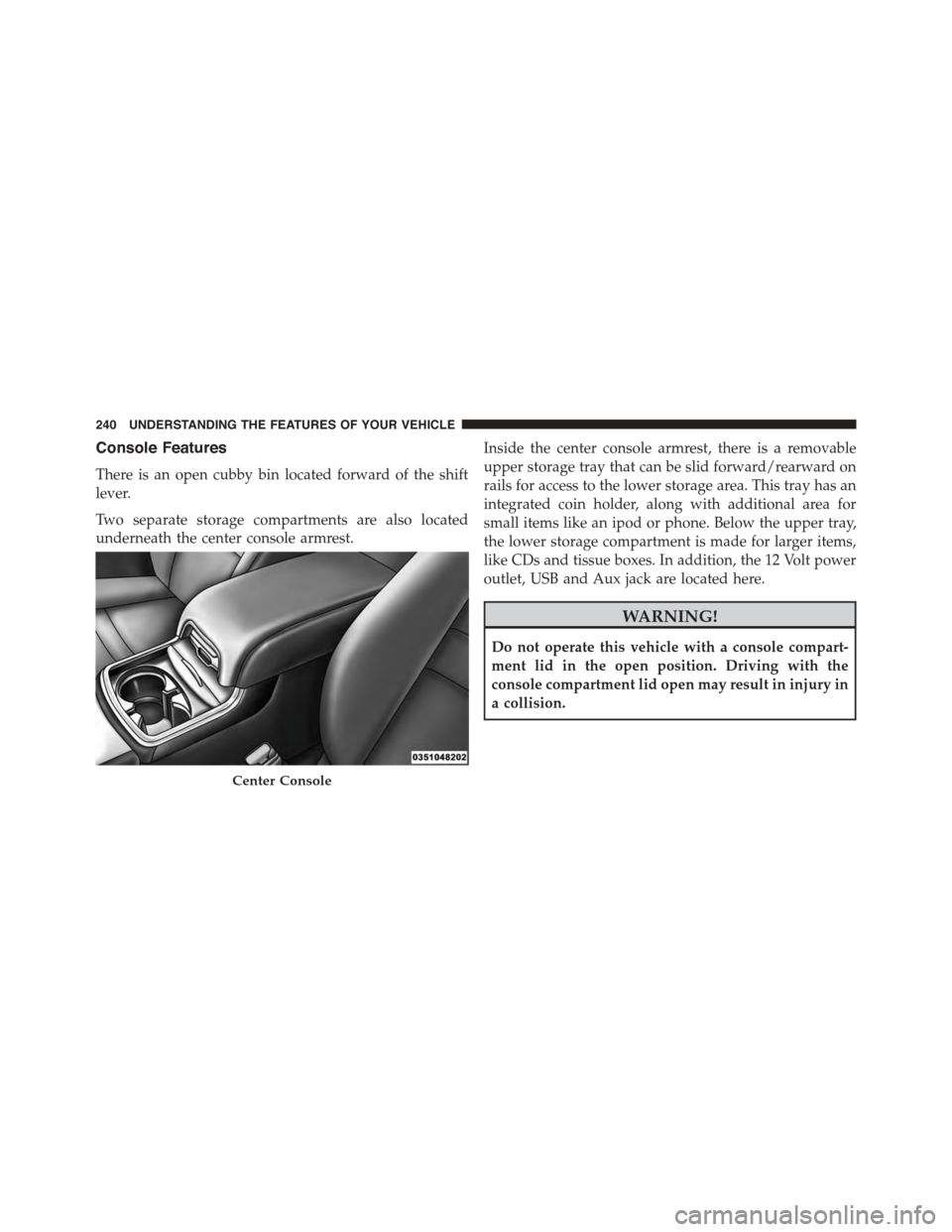
Console Features
There is an open cubby bin located forward of the shift
lever.
Two separate storage compartments are also located
underneath the center console armrest.
Inside the center console armrest, there is a removable
upper storage tray that can be slid forward/rearward on
rails for access to the lower storage area. This tray has an
integrated coin holder, along with additional area for
small items like an ipod or phone. Below the upper tray,
the lower storage compartment is made for larger items,
like CDs and tissue boxes. In addition, the 12 Volt power
outlet, USB and Aux jack are located here.
WARNING!
Do not operate this vehicle with a console compart-
ment lid in the open position. Driving with the
console compartment lid open may result in injury in
a collision.
Center Console
240 UNDERSTANDING THE FEATURES OF YOUR VEHICLE
Page 248 of 595
!Uconnect® RADIOS — IF EQUIPPED........332
!iPod®/USB/MP3 CONTROL..............333
!STEERING WHEEL AUDIO CONTROLS — IF
EQUIPPED...........................334
▫Radio Operation......................335
!RADIO OPERATION AND MOBILE PHONES . .335
▫Regulatory And Safety Information.........335
!CLIMATE CONTROLS...................337
▫Dual Zone Automatic Climate Controls With
Touchscreen.........................338
▫Climate Control Functions...............343
▫Automatic Temperature Control (ATC)......345
▫Operating Tips.......................346
!Uconnect® VOICE RECOGNITION QUICK
TIPS................................350
▫Introducing Uconnect®.................350
▫Get Started..........................351
▫Basic Voice Commands..................352
▫Radio..............................353
▫Media..............................354
▫Phone..............................355
▫Voice Text Reply......................356
▫Climate (8.4A/8.4AN)..................357
▫Navigation (8.4A/8.4AN)................358
▫Uconnect® Access* (8.4A/8.4AN)..........358
▫Register (8.4A/8.4AN)..................359
246 UNDERSTANDING YOUR INSTRUMENT PANEL
Page 283 of 595
Buttons On The Faceplate
Buttons on the faceplate are located below the Uconnect®
system in the center of the instrument panel. In addition,
there is a Scroll/Enter control knob located on the right
side. Turn the control knob to scroll through menus and
change settings (i.e., 30, 60, 90), push the center of the
control knob one or more times to select or change a
setting (i.e., ON, OFF).
Your Uconnect® system may also have a Screen Off and
Back buttons on the faceplate.
Push the Screen Off button on the faceplate to turn off the
Uconnect® screen. Push the Screen Off button on the
faceplate a second time to turn the screen on.
Push the Back button on the faceplate to exit out of a
Menu or certain option on the Uconnect® system.
Buttons On The Touchscreen
Buttons on the touchscreen are accessible on the
Uconnect® touchscreen.
Customer Programmable Features — Uconnect®
8.4 Settings
Press the “SRT & Apps” button on the touchscreen, then
press the “Settings” button on the touchscreen to display
the menu setting screen. In this mode the Uconnect®
system allows you to access programmable features that
may be equipped such as Display, Units, Voice, Clock,
Safety & Driving Assistance, Lights, Doors & Locks,
Auto-On Comfort & Remote Start, Engine Off Options,
Audio, Phone/Bluetooth®, SiriusXM Setup, Restore Set-
tings, Clear Personal Data and System Information.
4
UNDERSTANDING YOUR INSTRUMENT PANEL 281
Page 300 of 595
Vehicle Start” button to select from “Off,” “Remote Start”
or “All Starts” until a check-mark appears next to setting,
showing that setting has been selected. Press the back
arrow button on the touchscreen to return to the previous
menu.
Engine Off Options
After pressing the “Engine Off Options” button on the
touchscreen the following settings will be available:
•Easy Exit Seat — If Equipped
When this feature is selected, the Driver ’s seat will
automatically move rearward once the engine is shut off.
To make your selection, press the “Easy Exit Seat” button
on the touchscreen, until a check-mark appears next to
setting, showing that setting has been selected. Press the
back arrow button on the touchscreen to return to the
previous menu.
•Engine Off Power Delay
When this feature is selected, the power window
switches, radio, Uconnect® Phone system (if equipped),
DVD video system (if equipped), power sunroof (if
equipped), and power outlets will remain active for up to
10 minutes after the ignition is cycled to OFF. Opening
either front door will cancel this feature. To change the
Engine Off Power Delay setting, press the “+” or “-”
button on the touchscreen to select your desired time
interval, and choose from “0 seconds,” “45 seconds,” “5
minutes” or “10 minutes.” Press the back arrow button
on the touchscreen to return to the previous menu.
•Headlight Off Delay
When this feature is selected, the driver can choose to have
the headlights remain on for 0, 30, 60, or 90 seconds when
exiting the vehicle. To change the Headlight Off Delay
status press the “+” or “–” button on the touchscreen to
select your desired time interval. Press the back arrow
button on the touchscreen to return to the previous menu.
298 UNDERSTANDING YOUR INSTRUMENT PANEL
Page 302 of 595
•AUX Volume Offset — If Equipped
This feature provides the ability to tune the audio level
for portable devices connected through the AUX input.
To make your selection, press the AUX Volume Match
button on the touchscreen, choose a level from –3 to +3.
Press the back arrow button on the touchscreen to return
to the previous menu.
•Loudness — If Equipped
Loudness improves sound quality at lower volumes. To
make your selection, press the “Loudness” button on the
touchscreen, then choose “Yes” or “No.” Press the back
arrow button on the touchscreen to return to the previous
menu.
Phone/Bluetooth®
After pressing the “Phone/Bluetooth®” button on the
touchscreen the following settings will be available:
•Paired Phones
This feature shows which phones are paired to the
Phone/Bluetooth® system. For further information, refer
to the Uconnect® Supplement Manual.
•Paired Audio Sources
This feature shows which audio devices are paired to the
Phone/Bluetooth® system. For further information, refer
to the Uconnect® Supplement Manual.
SiriusXM Setup — If Equipped
After pressing the “SiriusXM Setup” button on the touch-
screen, the following settings will be available:
•Channel Skip
SiriusXM can be programmed to designate a group of
channels that are the most desirable to listen to or to
exclude undesirable channels while scanning. To make
your selection, press the “Channel Skip” button on the
300 UNDERSTANDING YOUR INSTRUMENT PANEL