phone DODGE CHARGER SRT 2015 7.G Uconnect 8.4A
[x] Cancel search | Manufacturer: DODGE, Model Year: 2015, Model line: CHARGER SRT, Model: DODGE CHARGER SRT 2015 7.GPages: 429, PDF Size: 4.01 MB
Page 404 of 429
WARNING!
If anyone in the vehicle could be in danger (e.g.,
fire or smoke is visible, dangerous road conditions
or location), do not wait for voice contact from a
9-1-1 operator. All occupants should exit the ve-
hicle immediately and move to a safe location.
WARNING!
Do not add any aftermarket electrical equipment to
the vehicle’s electrical system. This may prevent your
vehicle from sending a signal to initiate an emer-
gency call. To avoid interference that can cause the
9-1-1 Call system to fail, never add aftermarket
equipment (e.g., two way mobile radio, CB radio,
data recorder, etc.) to your vehicle’s electrical system
or modify the antennas on your vehicle.
9-1-1 Call System Limitations
Vehicles sold in Canada and Mexico DO NOT have 9-1-1
Call system capabilities.
9-1-1 or other emergency line operators in Canada and
Mexico may not answer or respond to 9-1-1 system calls.
If the 9-1-1 Call system detects a malfunction, any of the
following may occur at the time the malfunction is
detected, and at the beginning of each ignition cycle:
•The Rearview Mirror light will continuously be illu-
minated red.
•The Phone Screen will display the following message
“Vehicle phone requires service. Please contact your
dealer.”
•An In-Vehicle Audio message will state “Vehicle phone
requires service. Please contact your dealer.”
4
Uconnect® 8.4AN — If Equipped 403
Page 408 of 429
Uconnect® 8.4A/8.4AN VOICE RECOGNITION QUICK
TIPS
CONTENTS
!Uconnect® VOICE RECOGNITION..........408
▫Introducing Uconnect®.................408
▫Get Started..........................408
▫Basic Voice Commands..................410
▫Radio. . . . . . . . . . . . . . . . . . . . . . . . . . . . . .411
▫Media..............................412
▫Climate.............................413
▫Navigation..........................414
▫Phone..............................415
▫Voice Text Reply......................416
▫Uconnect® Access*....................417
▫Register............................418
▫Mobile App..........................418
▫Voice Texting.........................419
▫YELP®.............................420
▫SiriusXM Travel Link™.................421
▫Additional Information.................422
5
Page 409 of 429
Uconnect® VOICE RECOGNITION
Introducing Uconnect®
Start using Uconnect® Voice Recognition with these
helpful quick tips. It provides the key Voice Commands
and tips you need to know to control your Uconnect®
8.4A or 8.4AN systems.
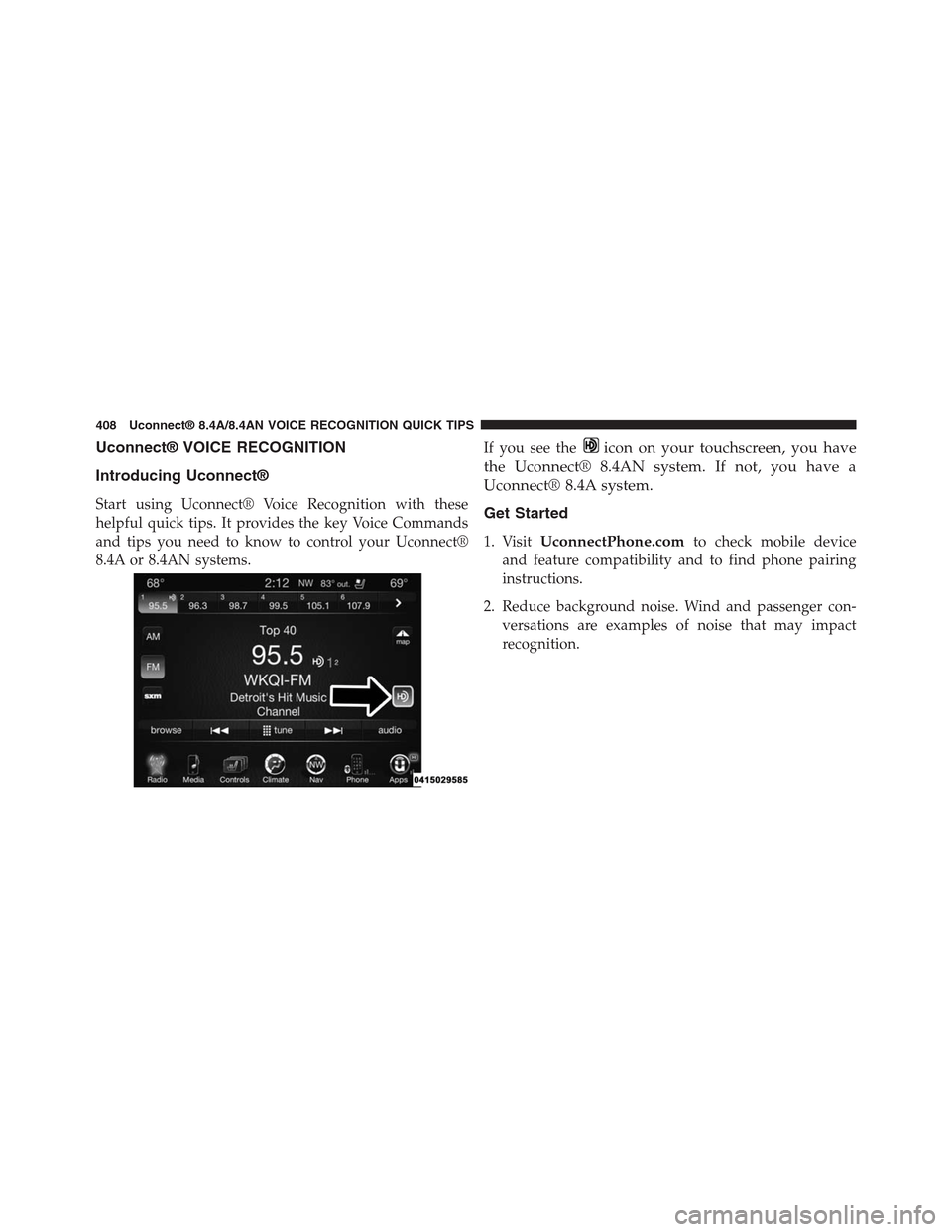
If you see theicon on your touchscreen, you have
the Uconnect® 8.4AN system. If not, you have a
Uconnect® 8.4A system.
Get Started
1. VisitUconnectPhone.comto check mobile device
and feature compatibility and to find phone pairing
instructions.
2. Reduce background noise. Wind and passenger con-
versations are examples of noise that may impact
recognition.
408 Uconnect® 8.4A/8.4AN VOICE RECOGNITION QUICK TIPS
Page 410 of 429
3. Speak clearly at a normal pace and volume while
facing straight ahead. The microphone is positioned
on the rearview mirror and aimed at the driver.
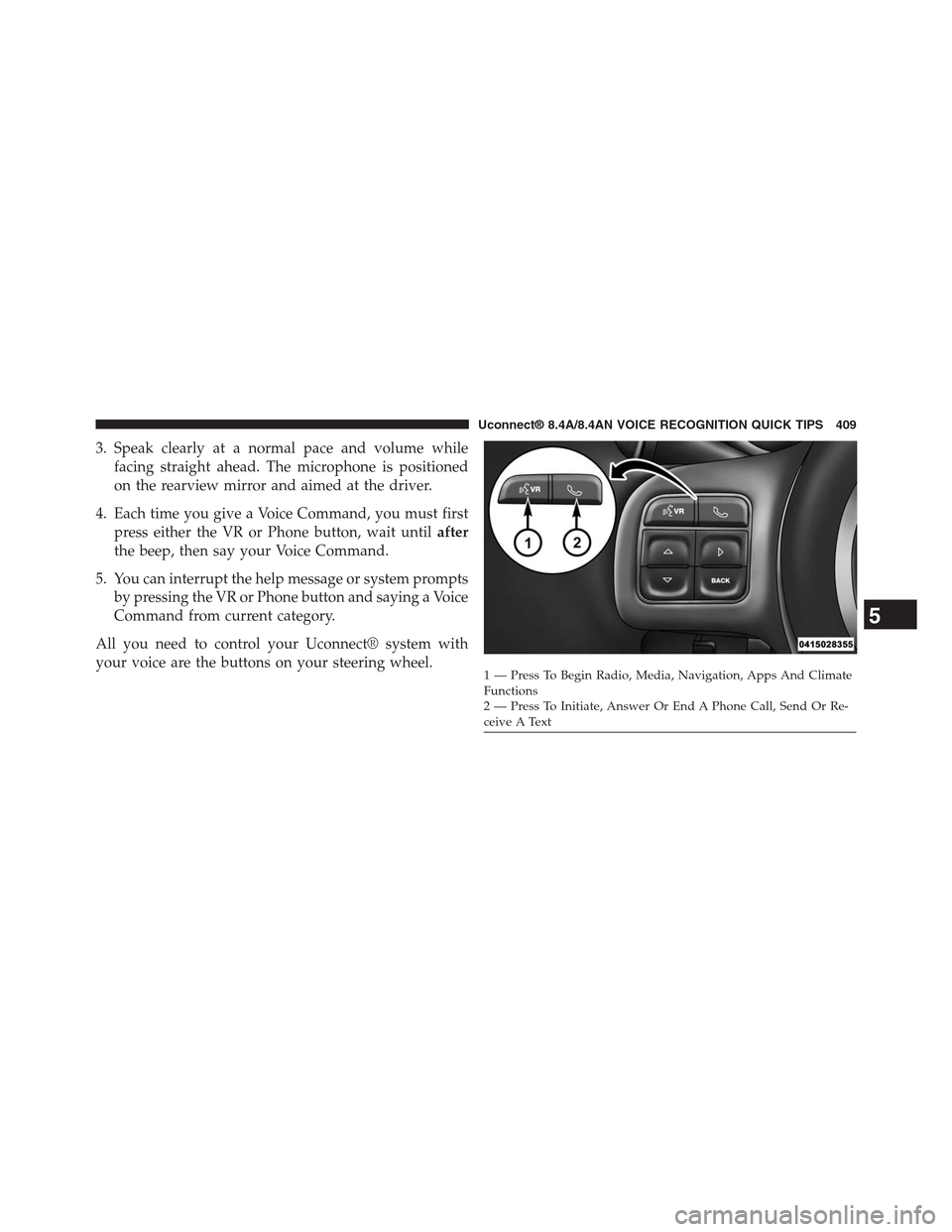
4. Each time you give a Voice Command, you must first
press either the VR or Phone button, wait untilafter
the beep, then say your Voice Command.
5. You can interrupt the help message or system prompts
by pressing the VR or Phone button and saying a Voice
Command from current category.
All you need to control your Uconnect® system with
your voice are the buttons on your steering wheel.1—PressToBeginRadio,Media,Navigation,AppsAndClimateFunctions2—PressToInitiate,AnswerOrEndAPhoneCall,SendOrRe-ceive A Text
5
Uconnect® 8.4A/8.4AN VOICE RECOGNITION QUICK TIPS 409
Page 411 of 429
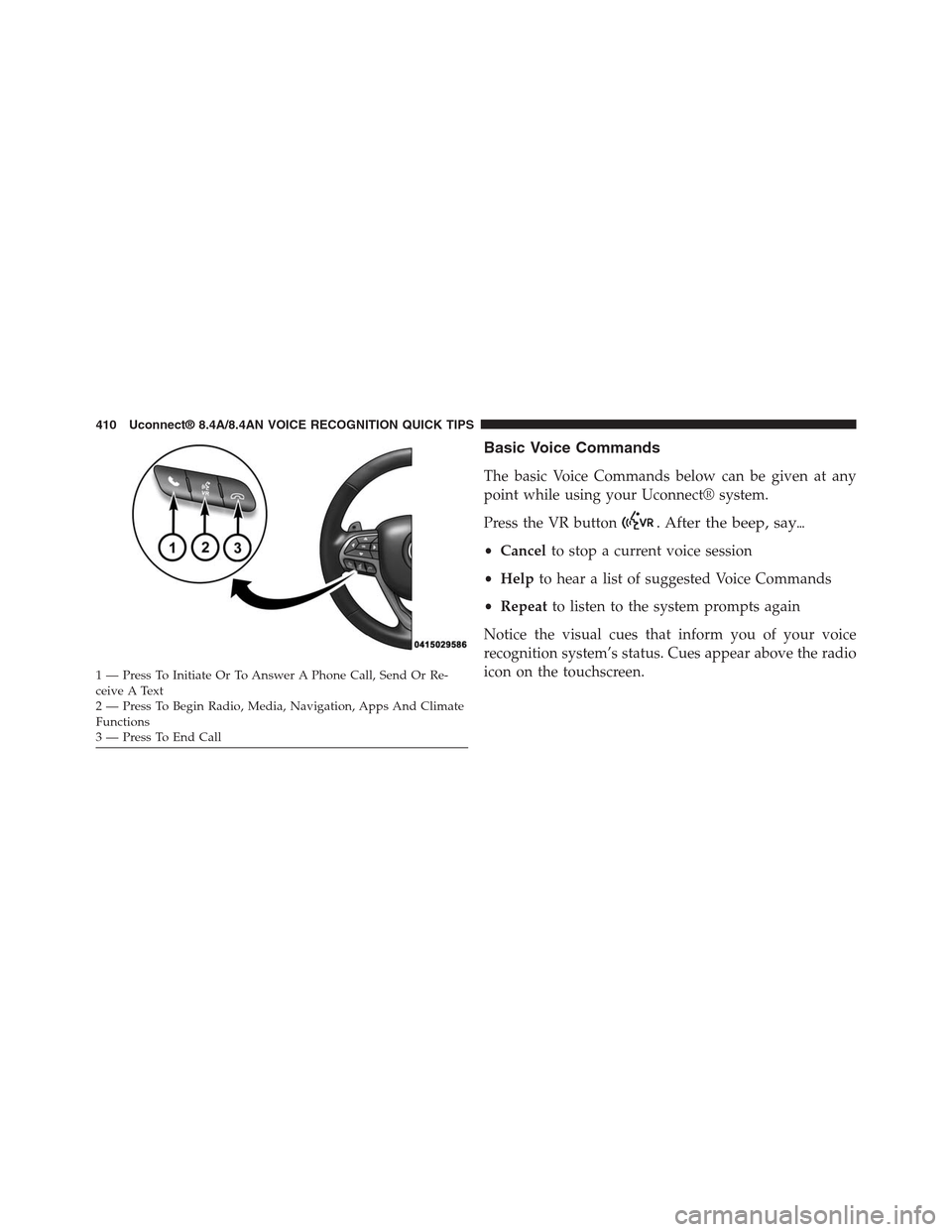
Basic Voice Commands
The basic Voice Commands below can be given at any
point while using your Uconnect® system.
Press the VR button. After the beep, say%
•Cancelto stop a current voice session
•Helpto hear a list of suggested Voice Commands
•Repeatto listen to the system prompts again
Notice the visual cues that inform you of your voice
recognition system’s status. Cues appear above the radio
icon on the touchscreen.1—PressToInitiateOrToAnswerAPhoneCall,SendOrRe-ceive A Text2—PressToBeginRadio,Media,Navigation,AppsAndClimateFunctions3—PressToEndCall
410 Uconnect® 8.4A/8.4AN VOICE RECOGNITION QUICK TIPS
Page 416 of 429
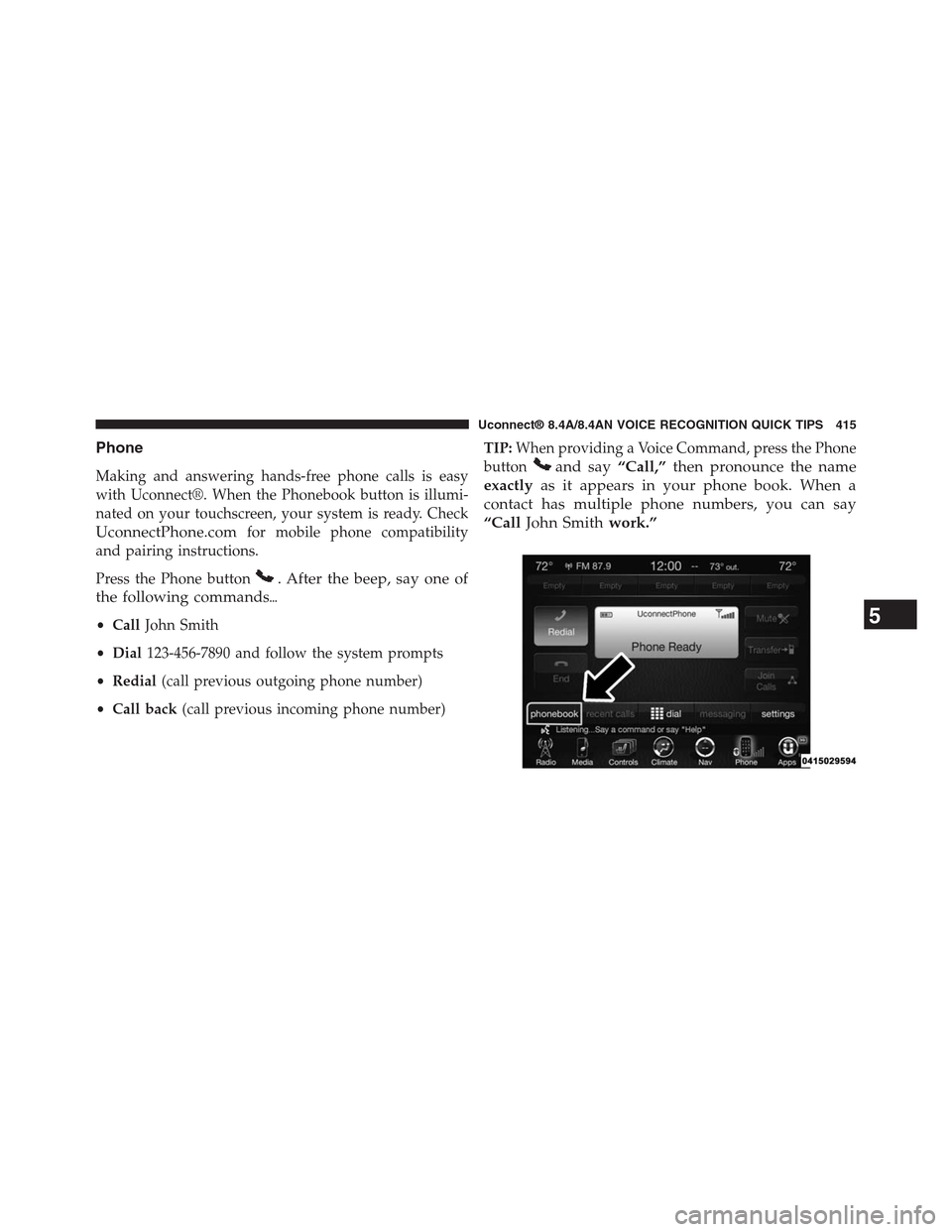
Phone
Making and answering hands-free phone calls is easy
with Uconnect®. When the Phonebook button is illumi-
nated on your touchscreen, your system is ready. Check
UconnectPhone.comfor mobile phone compatibility
and pairing instructions.
Press the Phone button. After the beep, say one of
the following commands%
•CallJohn Smith
•Dial123-456-7890 and follow the system prompts
•Redial(call previous outgoing phone number)
•Call back(call previous incoming phone number)
TIP:When providing a Voice Command, press the Phone
buttonand say“Call,”then pronounce the name
exactlyas it appears in your phone book. When a
contact has multiple phone numbers, you can say
“CallJohn Smithwork.”
5
Uconnect® 8.4A/8.4AN VOICE RECOGNITION QUICK TIPS 415
Page 417 of 429
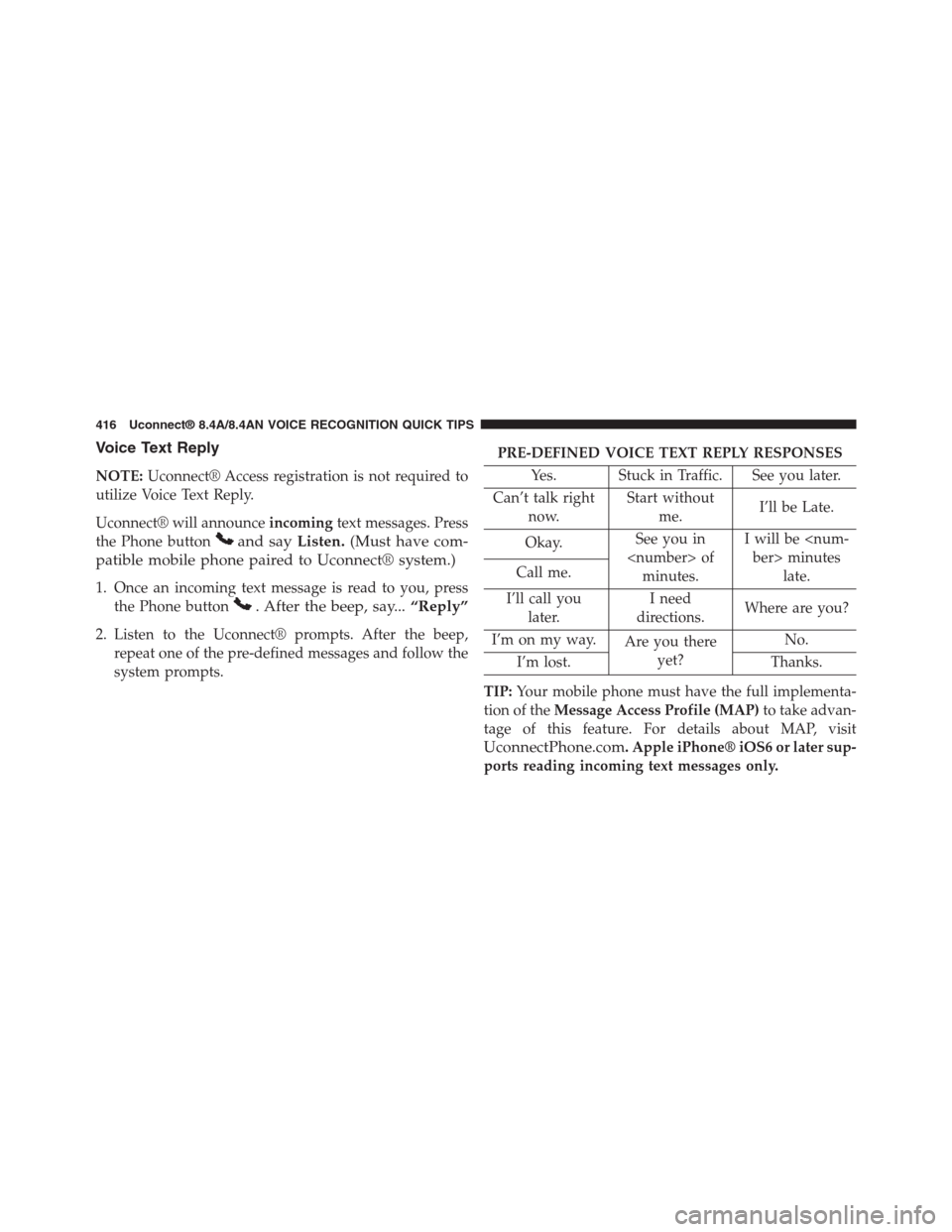
Voice Text Reply
NOTE:Uconnect® Access registration is not required to
utilize Voice Text Reply.
Uconnect® will announceincomingtext messages. Press
the Phone buttonand sayListen.(Must have com-
patible mobile phone paired to Uconnect® system.)
1. Once an incoming text message is read to you, press
the Phone button. After the beep, say...“Reply”
2. Listen to the Uconnect® prompts. After the beep,
repeat one of the pre-defined messages and follow the
system prompts.
PRE-DEFINED VOICE TEXT REPLY RESPONSES
Yes. Stuck in Traffic. See you later.
Can’t talk right
now.
Start without
me.I’ll be Late.
Okay.See you in
minutes.
I will be
late.Call me.
I’ll call you
later.
I need
directions.Where are you?
I’m on my way.Are you there
yet?
No.
I’m lost. Thanks.
TIP:Your mobile phone must have the full implementa-
tion of theMessage Access Profile (MAP)to take advan-
tage of this feature. For details about MAP, visit
UconnectPhone.com. Apple iPhone® iOS6 or later sup-
ports reading incoming text messages only.
416 Uconnect® 8.4A/8.4AN VOICE RECOGNITION QUICK TIPS
Page 420 of 429
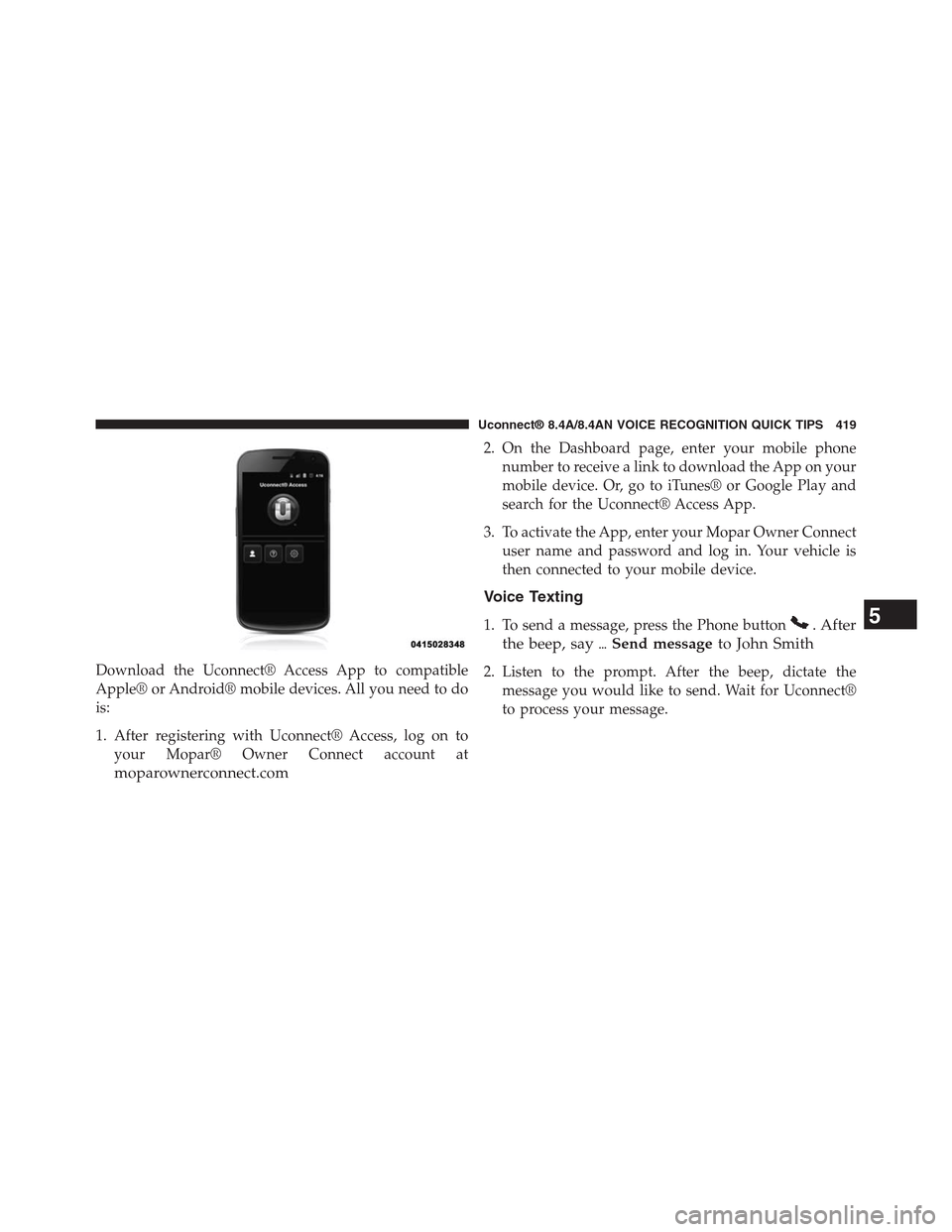
Download the Uconnect® Access App to compatible
Apple® or Android® mobile devices. All you need to do
is:
1. After registering with Uconnect® Access, log on to
your Mopar® Owner Connect account at
moparownerconnect.com
2. On the Dashboard page, enter your mobile phone
number to receive a link to download the App on your
mobile device. Or, go to iTunes® or Google Play and
search for the Uconnect® Access App.
3. To activate the App, enter your Mopar Owner Connect
user name and password and log in. Your vehicle is
then connected to your mobile device.
Voice Texting
1. To send a message, press the Phone button. After
the beep, say%Send messageto John Smith
2. Listen to the prompt. After the beep, dictate the
message you would like to send. Wait for Uconnect®
to process your message.
5
Uconnect® 8.4A/8.4AN VOICE RECOGNITION QUICK TIPS 419
Page 421 of 429
3. The Uconnect® system will repeat your message and
provide a variety of options to add to, delete, send or
hear the message again. After the beep, tell Uconnect®
what you’d like to do. For instance, if you’re happy
with your message, after the beep, say“Send.”
You must be registered with Uconnect® Access and have
a compatible MAP – enabled smartphone to use your
voice to send a personalized text message. (Not compat-
ible with iPhone®.)
TIP:
•Messages are limited to 140 characters.
•The Messaging button on the touchscreen must be
illuminated to use the feature.
YELP®
Once registered with Uconnect® Access, you can use
your voice to search for the most popular places or things
around you.
1. Press the VR button. After the beep, say%
“Launch YELP”
2. Once the YELP® home screen appears on the touch-
screen, press the VR button, then say%“YELP
search”
3. Listen to the system prompts and after the beep, tell
Uconnect® the place or business that you’d like
Uconnect® to find.
420 Uconnect® 8.4A/8.4AN VOICE RECOGNITION QUICK TIPS
Page 428 of 429
Safety Information
Exposure to Radio Frequency Radiation
The radiated output power of the this internal wireless
radio is far below the FCC radio frequency exposure
limits. Nevertheless, the wireless radio shall be used in
such a manner that the radio is 20 cm or further from the
human body.
The internal wireless radio operates within guidelines
found in radio frequency safety standards and recom-
mendations, which reflect the consensus of the scientific
community.
The radio manufacturer believes the internal wireless
radio is safe for use by consumers. The level of energy
emitted is far less than the electromagnetic energy emit-
ted by wireless devices such as mobile phones. However,
the use of wireless radios may be restricted in some
situations or environments, such as aboard airplanes. If
you are unsure of restrictions, you are encouraged to ask
for authorization before turning on the wireless radio.
6
SAFETY GUIDELINES 427