ECO mode DODGE DAKOTA 2009 3.G User Guide
[x] Cancel search | Manufacturer: DODGE, Model Year: 2009, Model line: DAKOTA, Model: DODGE DAKOTA 2009 3.GPages: 449, PDF Size: 10.96 MB
Page 114 of 449
Commands
The Voice Recognition System understands two types of
commands. Universal commands are available at all
times. Local commands are available if the supported
radio mode is active.
Changing the Volume
1. Start a dialogue by pressing the VR hard-key.
2. Say a command (e.g., HELP).
3. Use the ON/OFF VOLUME rotary knob to adjust the
volume to a comfortable level while the voice recognition
system is speaking. Please note the volume setting for VR
is different then the audio system.
Main Menu
Start a dialogue by pressing the VR hard-key. You may
say MAIN MENU to switch to the main menu.
In this mode, you can say the following commands:
²RADIO (to switch to the radio mode)
²DISC (to switch to the disc mode)
²MEMO (to switch to the memo recorder)
²SYSTEM SETUP (to switch to system setup)
Radio AM (or Radio Long Wave or Radio Medium
Wave - if equipped)
To switch to the AM band say AM or RADIO AM. In this
mode, you may say the following commands:
²FREQUENCY (to change the frequency)
²NEXT STATION (to select the next station)
²PREVIOUS STATION (to select the previous station)
²RADIO MENU (to switch to the radio menu)
²MAIN MENU (to switch to the main menu)
112 UNDERSTANDING THE FEATURES OF YOUR VEHICLE
Page 116 of 449
Memo
To switch to the voice recorder mode say MEMO. In this
mode, you may say the following commands:
²NEW MEMO (to record a new memo) Ð During the
recording you may press the VR hard-key to stop
recording. You proceed by saying one of the following
commands:
þSAVE (to save the memo)
þCONTINUE (to continue recording)
þDELETE (to delete the recording)
²PLAY MEMOS (to play previously recorded memos)
Ð During the playback you may press the VR hard-
key to stop playing memos. You proceed by saying one
of the following commands:
þREPEAT (to repeat a memo)
þNEXT (to play the next memo)
þPREVIOUS (to play the previous memo)
þDELETE (to delete a memo)
²DELETE ALL (to delete all memos)
System Setup
To switch to system setup say ªSetupº. In this mode, you
may say the following commands:
²Language English
²Language French
²Language Spanish
²Tutorial
²Voice Training
NOTE:Keep in mind that you have to press the VR
hard-key first and wait for the beep, before speaking the
ªbarge inº commands.
114 UNDERSTANDING THE FEATURES OF YOUR VEHICLE
Page 125 of 449
LIGHTS
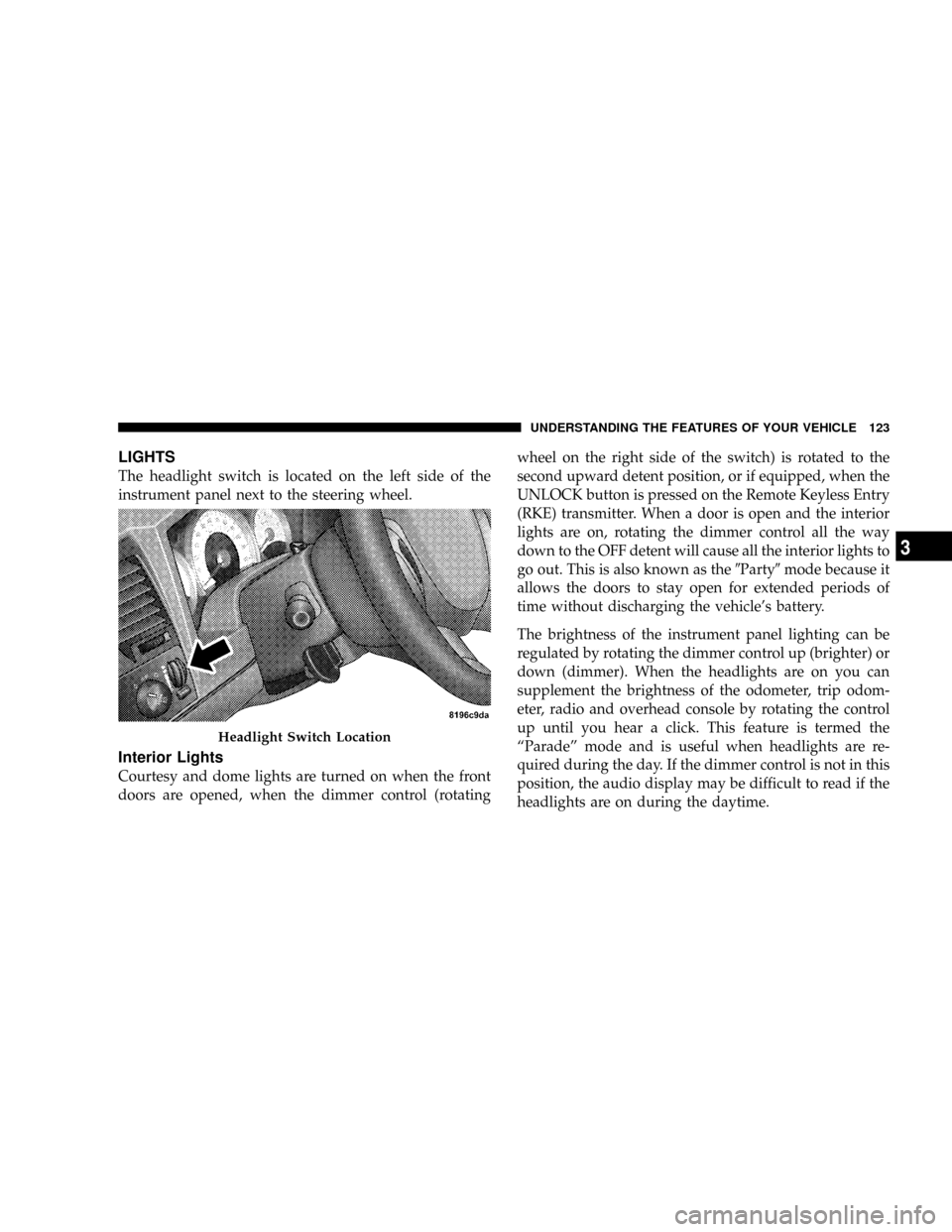
The headlight switch is located on the left side of the
instrument panel next to the steering wheel.
Interior Lights
Courtesy and dome lights are turned on when the front
doors are opened, when the dimmer control (rotatingwheel on the right side of the switch) is rotated to the
second upward detent position, or if equipped, when the
UNLOCK button is pressed on the Remote Keyless Entry
(RKE) transmitter. When a door is open and the interior
lights are on, rotating the dimmer control all the way
down to the OFF detent will cause all the interior lights to
go out. This is also known as the9Party9mode because it
allows the doors to stay open for extended periods of
time without discharging the vehicle's battery.
The brightness of the instrument panel lighting can be
regulated by rotating the dimmer control up (brighter) or
down (dimmer). When the headlights are on you can
supplement the brightness of the odometer, trip odom-
eter, radio and overhead console by rotating the control
up until you hear a click. This feature is termed the
ªParadeº mode and is useful when headlights are re-
quired during the day. If the dimmer control is not in this
position, the audio display may be difficult to read if the
headlights are on during the daytime.
Headlight Switch Location
UNDERSTANDING THE FEATURES OF YOUR VEHICLE 123
3
Page 159 of 449
prior to the time-out. The Rear Window Defroster will
turn off automatically after 15 minutes from the first
activation, and 10 minutes after the second activation, all
within the same ignition cycle. To prevent excessive
battery drain, use the rear defroster only when the engine
is running.
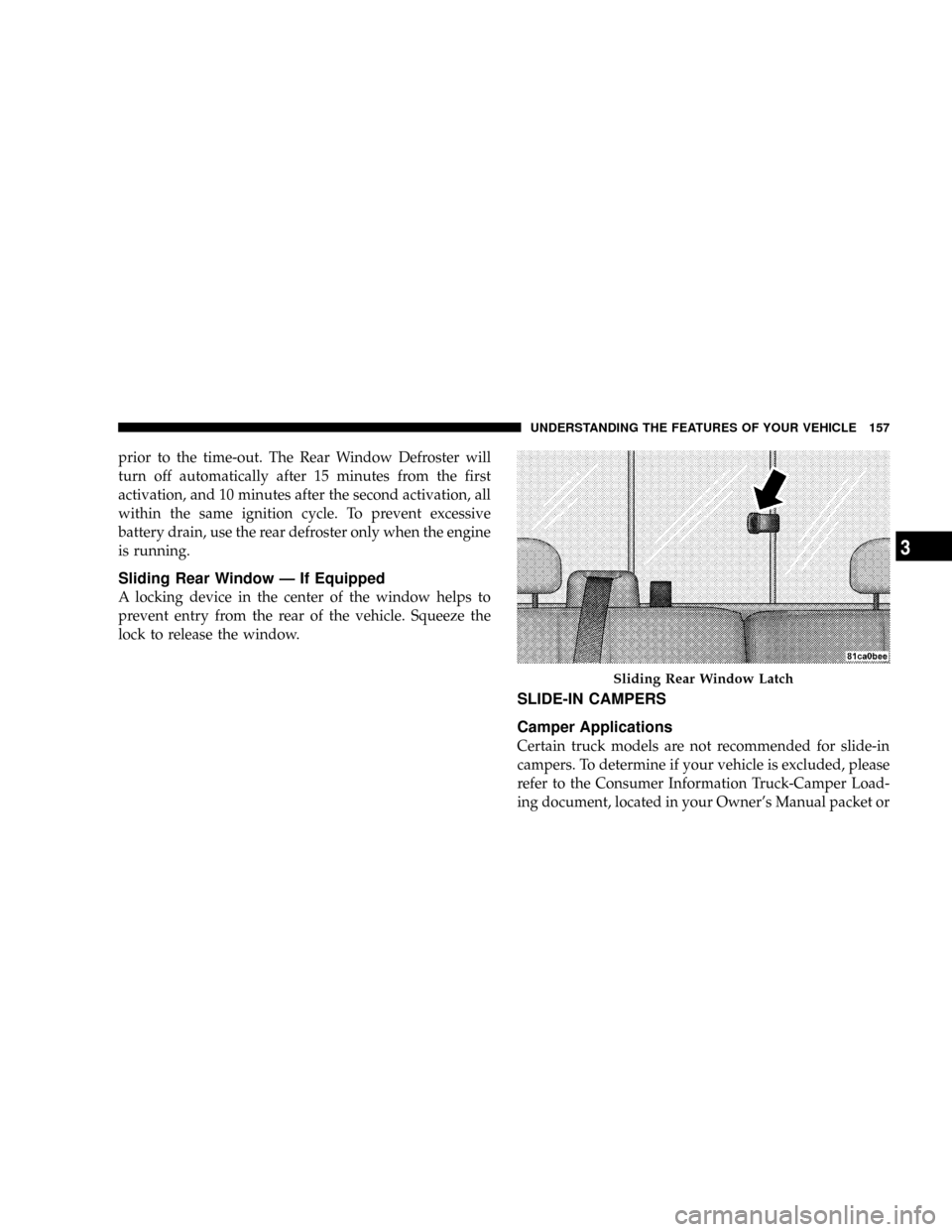
Sliding Rear Window Ð If Equipped
A locking device in the center of the window helps to
prevent entry from the rear of the vehicle. Squeeze the
lock to release the window.
SLIDE-IN CAMPERS
Camper Applications
Certain truck models are not recommended for slide-in
campers. To determine if your vehicle is excluded, please
refer to the Consumer Information Truck-Camper Load-
ing document, located in your Owner's Manual packet or
Sliding Rear Window Latch
UNDERSTANDING THE FEATURES OF YOUR VEHICLE 157
3
Page 165 of 449
UNDERSTANDING YOUR INSTRUMENT PANEL
CONTENTS
mInstruments And Controls................ 166
mInstrument Cluster..................... 167
mInstrument Cluster Description............ 168
mElectronic Digital Clock................. 179
NClock Setting Procedure................ 179
mSales Code REQ Ð AM/FM Stereo Radio And
6±Disc CD/DVD Changer (MP3/WMA AUX
Jack)................................ 180
NOperating Instructions - Radio Mode....... 180NOperation Instructions - (Disc Mode For CD
And MP3/WMA Audio Play, DVD-Video) . . . 189
NNotes On Playing MP3/WMA Files........ 191
NList Button (Disc Mode For MP3/WMA
Play)............................. 193
NInfo Button (Disc Mode For MP3/WMA
Play)............................. 193
mAM/FM/CD/DVD Multimedia System Radio
(RER/REN) ± If Equipped................ 196
NOperating Instructions Ð Voice Recognition
System (VR) Ð If Equipped............. 1964
Page 182 of 449
3. After the hours are adjusted, push the TUNE/AUDIO
control knob to set the minutes.
4. Adjust the minutes by turning the TUNE/AUDIO
control knob.
5. To exit, press any button/knob, or wait approximately
five seconds.
SALES CODE REQ Ð AM/FM STEREO RADIO
AND 6±DISC CD/DVD CHANGER (MP3/WMA AUX
JACK)
NOTE:The radio sales code is located on the lower right
side of your radio faceplate.
Operating Instructions - Radio Mode
NOTE:The ignition switch must be in the ON or ACC
position to operate the radio.
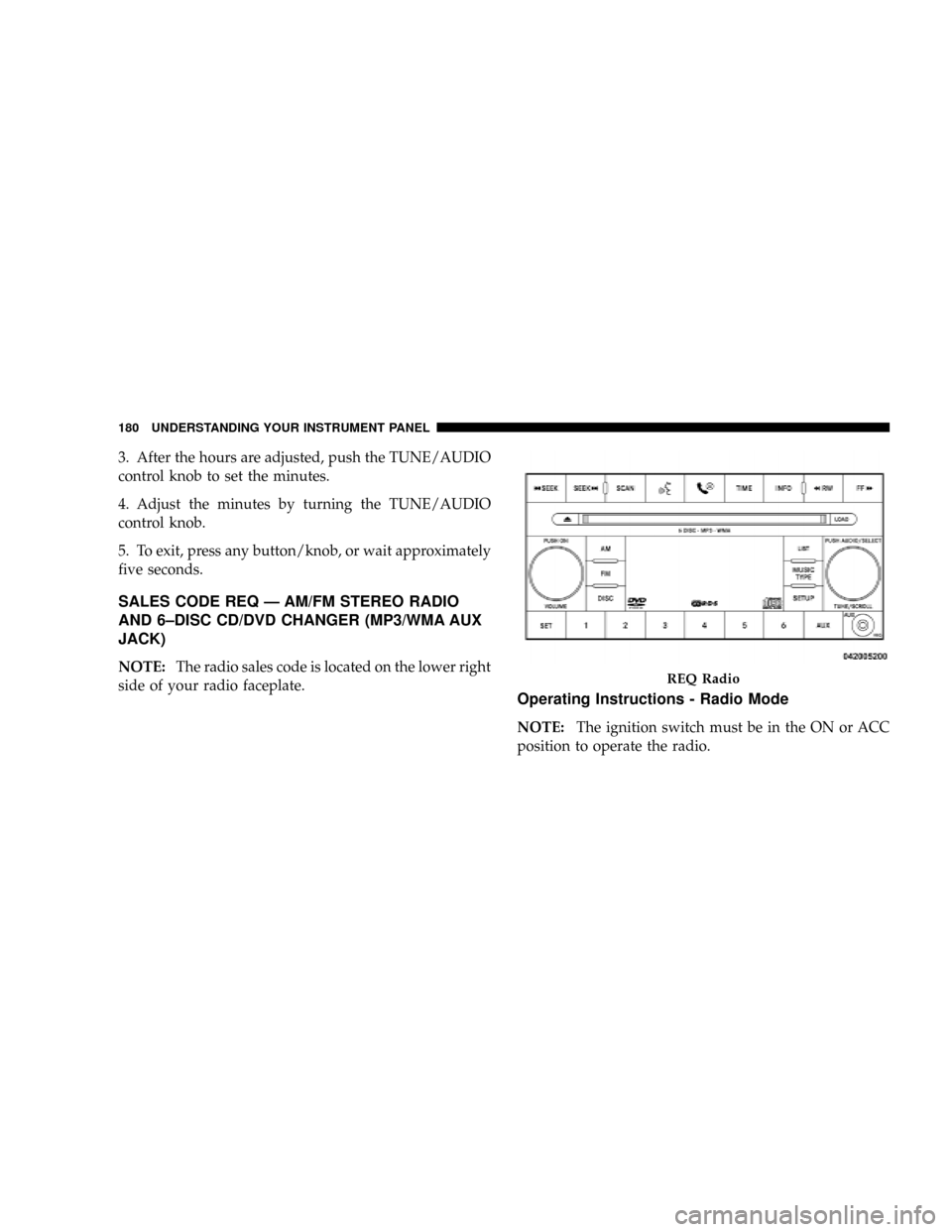
REQ Radio
180 UNDERSTANDING YOUR INSTRUMENT PANEL
Page 183 of 449
Power Switch/Volume Control (Rotary)
Push the ON/VOLUME control knob to turn on the
radio. Press the ON/VOLUME control knob a second
time to turn off the radio.
Electronic Volume Control
The electronic volume control turns continuously (360
degrees) in either direction without stopping. Turning the
ON/VOLUME control knob to the right increases the
volume and to the left decreases it.
When the audio system is turned ON, the sound will be
set at the same volume level as last played.
SEEK Buttons
Press and release the SEEK buttons to search for the next
listenable station in AM/FM mode. Press the right switch
to seek up and the left switch to seek down. The radio
will remain tuned to the new station until you make
another selection. Holding either button will bypass
stations without stopping until you release it.
SCAN Button
Pressing the SCAN button causes the tuner to search for
the next listenable station, in AM, FM or Satellite (if
equipped) frequencies, pausing for five seconds at each
listenable station before continuing to the next. To stop
the search, press the SCAN button a second time.
Voice Recognition Button (UConnecttHands-Free
Phone) Ð If Equipped
Press this button to operate the Hands-Free Phone
(UConnectt) feature (if equipped). Refer to ªHands-Free
Communication (UConnectt)º in Section 3.
If your vehicle is not equipped with or this feature is not
available on your vehicle, a ªNot Equipped With
UConnectº message will display on the radio screen.
UNDERSTANDING YOUR INSTRUMENT PANEL 181
4
Page 184 of 449
Phone Button (UConnecttHands-Free Phone) Ð If
Equipped
Press this button to operate the Hands-Free Phone
(UConnectt) feature (if equipped). Refer to ªHands-Free
Communication (UConnectt)º in Section 3.
If your vehicle is not equipped with or this feature is not
available on your vehicle, a ªNot Equipped With
UConnectº message will display on the radio screen.
TIME Button
Press the TIME button and the time of day will display. In
AM or FM mode, pressing the TIME button will switch
between the time and frequency displays.
Clock Setting Procedure
1. Press and hold the TIME button until the hours blink.
2. Adjust the hours by turning the right side TUNE/
SCROLL control knob.3. After adjusting the hours, press the right side TUNE/
SCROLL control knob to set the minutes. The minutes
will begin to blink.
4. Adjust the minutes using the right side TUNE/
SCROLL control knob. Press the TUNE/SCROLL control
knob to save the time change.
5. To exit, press any button/knob or wait five seconds.
The clock can also be set by pressing the SETUP button
and selecting the ªSET HOME CLOCKº entry. Once in
this display follow the above procedure, starting at
step 2.
INFO Button
Press the INFO button for an RDS station (one with call
letters displayed). The radio will return a Radio Text
message broadcast from an FM station (FM mode only).
182 UNDERSTANDING YOUR INSTRUMENT PANEL
Page 185 of 449
RW/FF
Pressing the RW (Rewind) or FF (Fast Forward) buttons
causes the tuner to search for the next frequency in the
direction of the arrows. This feature operates in AM, FM
or Satellite (if equipped) frequencies.
TUNE Control
Turn the rotary TUNE/SCROLL control knob clockwise
to increase or counterclockwise to decrease the frequency.
Setting the Tone, Balance, and Fade
Push the rotary TUNE/SCROLL control knob and BASS
will display. Turn the TUNE/SCROLL control knob to
the right or left to increase or decrease the bass tones.
Push the rotary TUNE/SCROLL control knob a second
time and MID will display. Turn the TUNE/SCROLL
control knob to the right or left to increase or decrease the
mid-range tones.Push the rotary TUNE/SCROLL control knob a third
time and TREBLE will display. Turn the TUNE/SCROLL
control knob to the right or left to increase or decrease the
treble tones.
Push the rotary TUNE/SCROLL control knob a fourth
time and BALANCE will display. Turn the TUNE/
SCROLL control knob to the right or left to adjust the
sound level from the right or left side speakers.
Push the rotary TUNE/SCROLL control knob a fifth time
and FADE will display. Turn the TUNE/SCROLL control
knob to the left or right to adjust the sound level between
the front and rear speakers.
Push the rotary TUNE/SCROLL control knob again to
exit setting tone, balance, and fade.
MUSIC TYPE Button
Pressing this button once will turn on the Music Type
mode for five seconds. Pressing the MUSIC TYPE button
UNDERSTANDING YOUR INSTRUMENT PANEL 183
4
Page 190 of 449
NOTE:The user will have to set these defaults before
loading a disc. If changes are made to these settings after
a disc is loaded, changes will not be effective. Also, the
defaults are effective only if the disc supports the
customer-preferred settings.
AM and FM Buttons
Press the buttons to select AM or FM Modes.
SET Button Ð To Set the Pushbutton Memory
When you are receiving a station that you wish to
commit to pushbutton memory, press the SET button.
The symbol SET 1 will now show in the display window.
Select the button (1-6) you wish to lock onto this station
and press and release that button. If a button is not
selected within five seconds after pressing the SET but-
ton, the station will continue to play but will not be
stored into pushbutton memory.
You may add a second station to each pushbutton by
repeating the above procedure with this exception: Pressthe SET button twice and SET 2 will show in the display
window. Each button can be set for SET 1 and SET 2 in
both AM and FM. This allows a total of 12 AM, 12 FM,
and 12 Satellite (if equipped) stations to be stored into
pushbutton memory. The stations stored in SET 2
memory can be selected by pressing the pushbutton
twice.
Every time a preset button is used, a corresponding
button number will display.
Buttons1-6
These buttons tune the radio to the stations that you
commit to pushbutton memory {12 AM, 12 FM, and 12
Satellite (if equipped) stations}.
DISC Button
Pressing the DISC button will allow you to switch from
AM/FM modes to Disc modes.
188 UNDERSTANDING YOUR INSTRUMENT PANEL