instrument panel DODGE DURANGO 2015 3.G Owners Manual
[x] Cancel search | Manufacturer: DODGE, Model Year: 2015, Model line: DURANGO, Model: DODGE DURANGO 2015 3.GPages: 689, PDF Size: 20.05 MB
Page 411 of 689
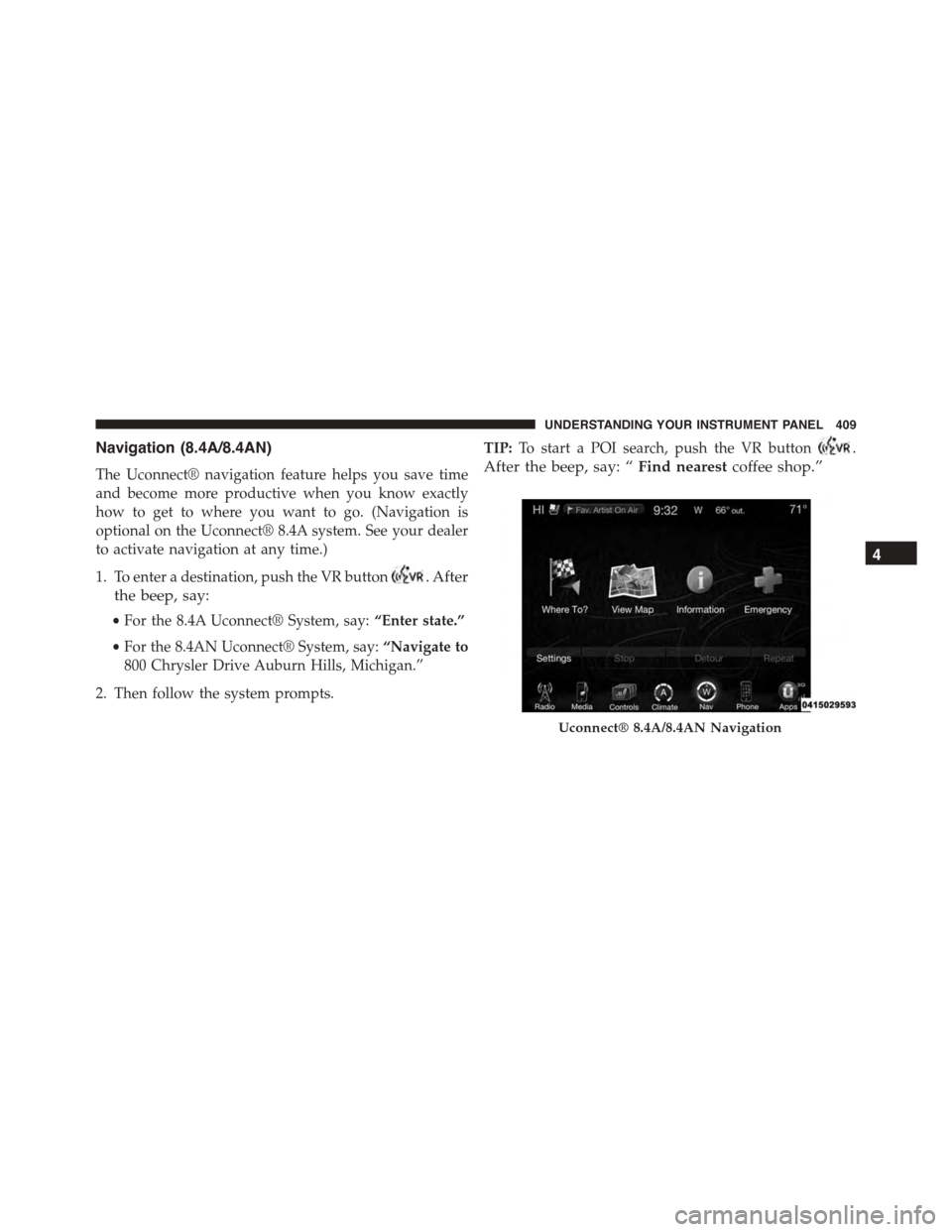
Navigation (8.4A/8.4AN)
The Uconnect® navigation feature helps you save time
and become more productive when you know exactly
how to get to where you want to go. (Navigation is
optional on the Uconnect® 8.4A system. See your dealer
to activate navigation at any time.)
1. To enter a destination, push the VR button. After
the beep, say:
•For the 8.4A Uconnect® System, say:“Enter state.”
•For the 8.4AN Uconnect® System, say:“Navigate to
800 Chrysler Drive Auburn Hills, Michigan.”
2. Then follow the system prompts.
TIP:To start a POI search, push the VR button.
After the beep, say: “Find nearestcoffee shop.”
Uconnect® 8.4A/8.4AN Navigation
4
UNDERSTANDING YOUR INSTRUMENT PANEL 409
Page 412 of 689
Uconnect® Access* (8.4A/8.4AN)
An included trial and/or subscription is required to take
advantage of the Uconnect® Access services in the next
section of this guide. To register with Uconnect® Access,
press the Apps button on the 8.4-inch touchscreen to get
started. Detailed registration instructions can be found
on the next page.
*Uconnect® Access is available only on equipped ve-
hicles purchased within the continental United States and
Alaska. Services can only be used where coverage is
available; see coverage map for details.
9-1-1 Call
Theft Alarm Notification
Remote Door Lock/Unlock
Stolen Vehicle Assistance
Remote Vehicle Start**
Remote Horn and Lights
Yelp® Search
Voice Texting
Roadside Assistance Call
Wi-Fi Hotspot***
**If vehicle is equipped.
***Extra charges apply.
410 UNDERSTANDING YOUR INSTRUMENT PANEL
Page 413 of 689
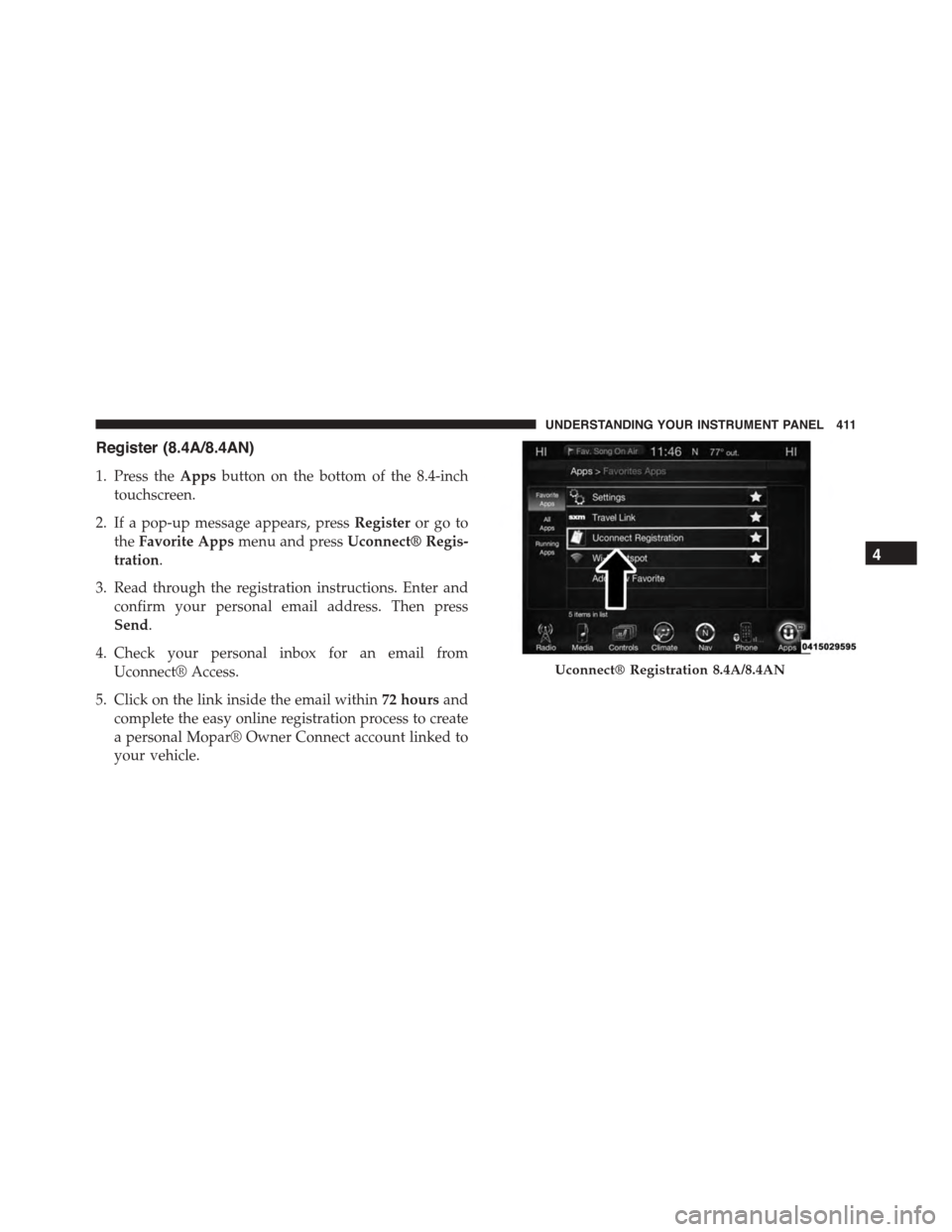
Register (8.4A/8.4AN)
1. Press theAppsbutton on the bottom of the 8.4-inch
touchscreen.
2. If a pop-up message appears, pressRegisteror go to
theFavorite Appsmenu and pressUconnect® Regis-
tration.
3. Read through the registration instructions. Enter and
confirm your personal email address. Then press
Send.
4. Check your personal inbox for an email from
Uconnect® Access.
5. Click on the link inside the email within72 hoursand
complete the easy online registration process to create
a personal Mopar® Owner Connect account linked to
your vehicle.
Uconnect® Registration 8.4A/8.4AN
4
UNDERSTANDING YOUR INSTRUMENT PANEL 411
Page 414 of 689
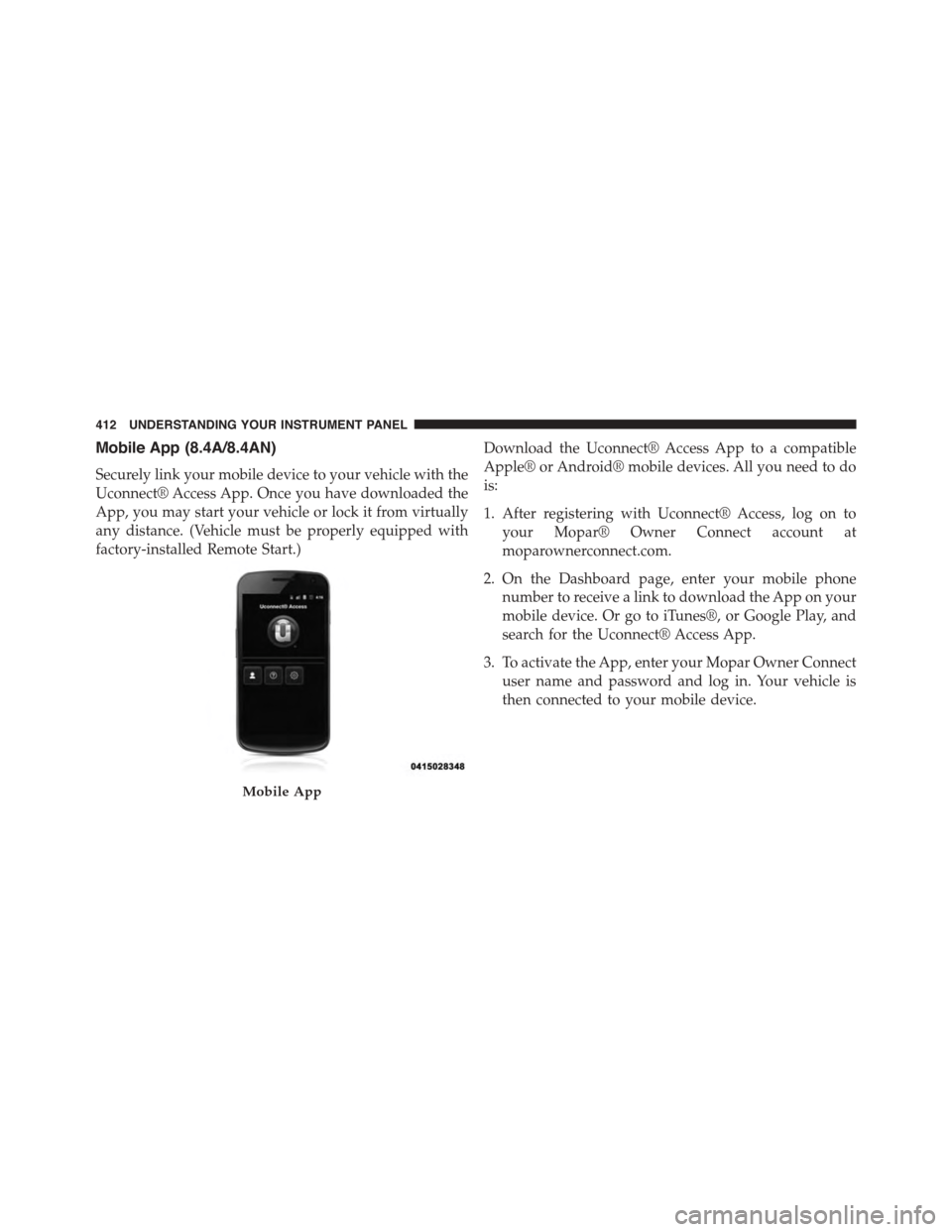
Mobile App (8.4A/8.4AN)
Securely link your mobile device to your vehicle with the
Uconnect® Access App. Once you have downloaded the
App, you may start your vehicle or lock it from virtually
any distance. (Vehicle must be properly equipped with
factory-installed Remote Start.)
Download the Uconnect® Access App to a compatible
Apple® or Android® mobile devices. All you need to do
is:
1. After registering with Uconnect® Access, log on to
your Mopar® Owner Connect account at
moparownerconnect.com.
2. On the Dashboard page, enter your mobile phone
number to receive a link to download the App on your
mobile device. Or go to iTunes®, or Google Play, and
search for the Uconnect® Access App.
3. To activate the App, enter your Mopar Owner Connect
user name and password and log in. Your vehicle is
then connected to your mobile device.
Mobile App
412 UNDERSTANDING YOUR INSTRUMENT PANEL
Page 415 of 689
Voice Texting (8.4A/8.4AN)
1. To send a message, push the Phone button. After
the beep, say the following command:“Send mes-
sageto John Smith.”
2. Listen to the prompt. After the beep, dictate the
message you would like to send. Wait for Uconnect®
to process your message.
3. The Uconnect® system will repeat your message and
provide a variety of options to add to, delete, send or
hear the message again. After the beep, tell Uconnect®
what you’d like to do. For instance, if you’re happy
with your message, after the beep, say:“Send.”
You must be registered with Uconnect® Access and have
a compatible MAP – enabled smartphone to use your
voice to send a personalized text message.
TIP:
•Not compatible with iPhone®.
•Messages are limited to 140 characters.
•The Messaging button on the touchscreen must be
illuminated to use the feature.
4
UNDERSTANDING YOUR INSTRUMENT PANEL 413
Page 416 of 689
Yelp® (8.4A/8.4AN)
Once registered with Uconnect® Access, you can use
your voice to search for the most popular places or things
around you.
1. Press the “Apps” button on the touchscreen.
2. Press the “All Apps” button on the touchscreen.
3. Press the “Yelp” button on the touchscreen.
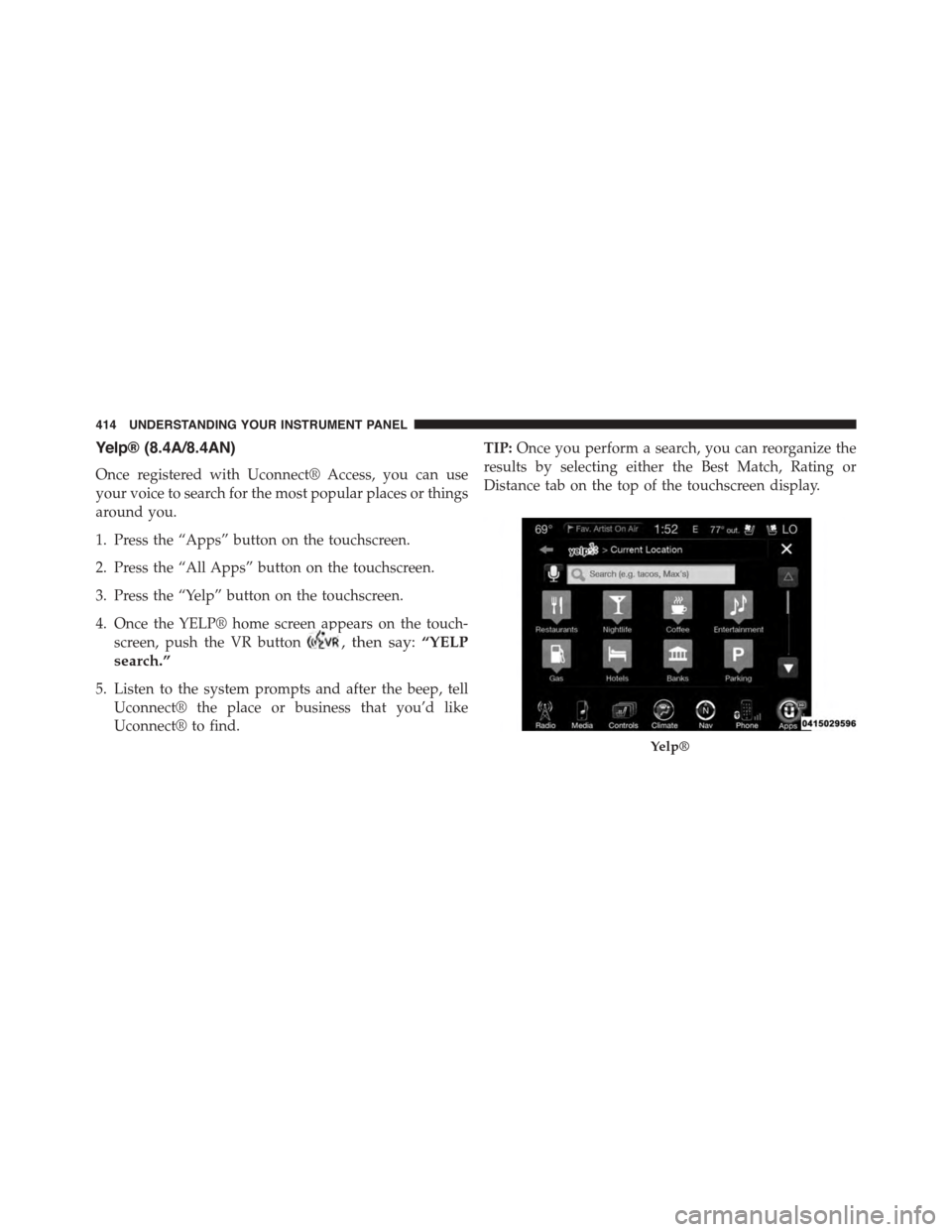
4. Once the YELP® home screen appears on the touch-
screen, push the VR button, then say:“YELP
search.”
5. Listen to the system prompts and after the beep, tell
Uconnect® the place or business that you’d like
Uconnect® to find.
TIP:Once you perform a search, you can reorganize the
results by selecting either the Best Match, Rating or
Distance tab on the top of the touchscreen display.
Yelp®
414 UNDERSTANDING YOUR INSTRUMENT PANEL
Page 417 of 689
SiriusXM Travel Link™ (8.4A/8.4AN)
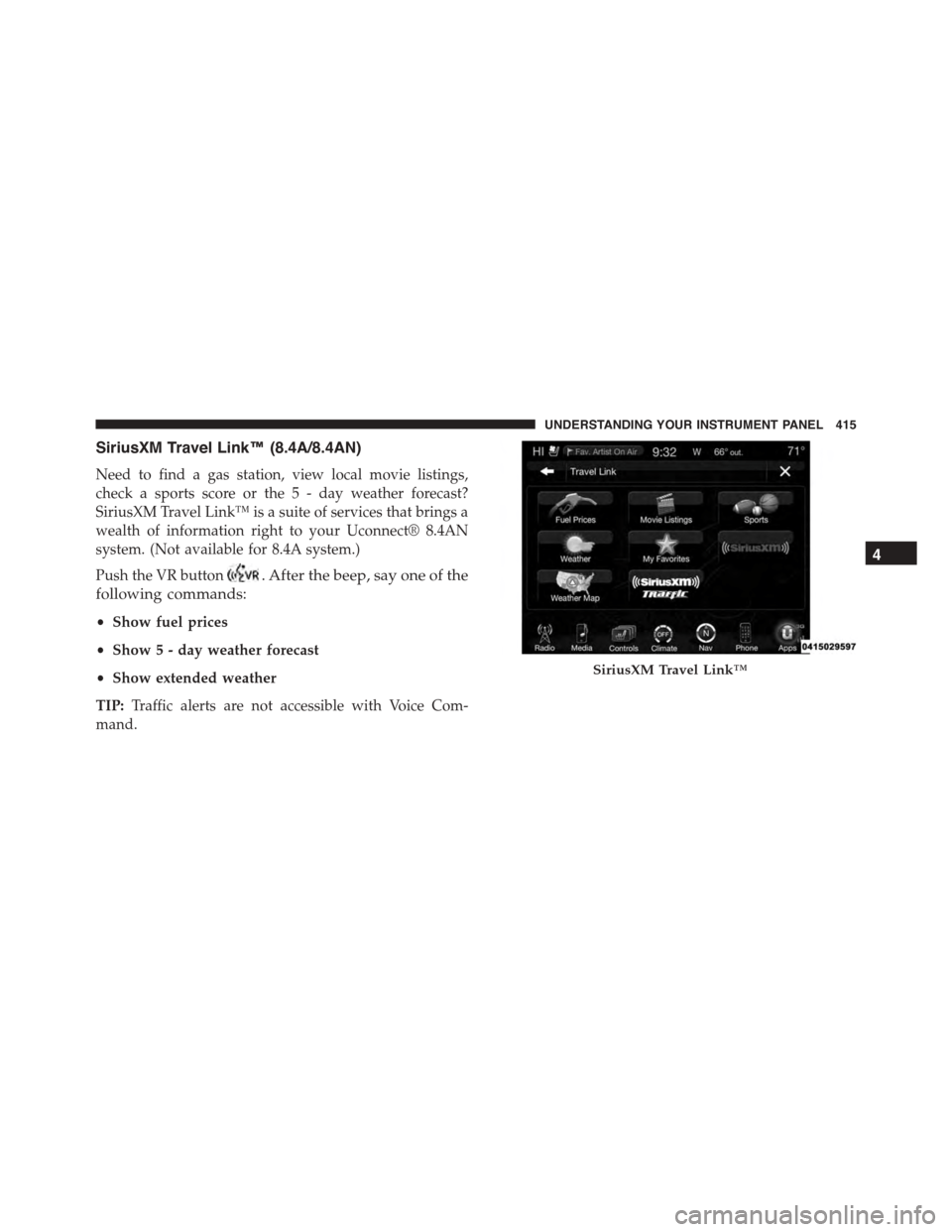
Need to find a gas station, view local movie listings,
check a sports score or the 5 - day weather forecast?
SiriusXM Travel Link™ is a suite of services that brings a
wealth of information right to your Uconnect® 8.4AN
system. (Not available for 8.4A system.)
Push the VR button. After the beep, say one of the
following commands:
•Show fuel prices
•Show 5 - day weather forecast
•Show extended weather
TIP:Traffic alerts are not accessible with Voice Com-
mand.
SiriusXM Travel Link™
4
UNDERSTANDING YOUR INSTRUMENT PANEL 415
Page 418 of 689
Additional Information
© 2014 Chrysler Group LLC. All rights reserved. Mopar
and Uconnect are registered trademarks and Mopar
Owner Connect is a trademark of Chrysler Group LLC.
Android is a trademark of Google Inc. SiriusXM and all
related marks and logos are trademarks of SiriusXM
Radio Inc. Yelp, Yelp logo, Yelp burst and related marks
are registered trademarks of Yelp.
Uconnect® System Support:
•U.S. residents call 1-877-855-8400 or visit
DriveUconnect.com
•Canadian residents call 1-800-465-2001 (English) or
1-800-387-9983 (French) or visit DriveUconnect.ca
Mon. – Fri., 7:00 am – 12:00 am, ET
Sat., 8:00 am – 10:00 pm, ET
Sun., 9:00 am – 5:00 pm, ET
Uconnect® Access Services Support 1-855-792-4241.
Please have your Uconnect® Security PIN ready when
you call.
416 UNDERSTANDING YOUR INSTRUMENT PANEL
Page 432 of 689
Key Ignition Park Interlock
This vehicle is equipped with a Key Ignition Park Inter-
lock which requires the transmission to be in PARK
before the engine can be turned off. This helps the driver
avoid inadvertently leaving the vehicle without placing
the transmission in PARK.
This system also locks the transmission in PARK when-
ever the ignition switch is in the OFF position.
Brake/Transmission Shift Interlock System
This vehicle is equipped with a Brake Transmission Shift
Interlock System (BTSI) that holds the transmission gear
selector in PARK unless the brakes are applied. To shift
the transmission out of PARK, the engine must be
running and the brake pedal must be pressed.
The brake pedal must also be pressed to shift from
NEUTRAL into DRIVE or REVERSE when the vehicle is
stopped or moving at low speeds.
Fuel Economy (ECO) Mode
The Fuel Economy (ECO) mode can improve the vehi-
cle’s overall fuel economy during normal driving condi-
tions. Each time the vehicle is started ECO mode is
engaged and an amber light in the center stack of the
instrument panel will be illuminated. To disable ECO
mode, press the “ECO” switch in the center stack of the
instrument panel and the amber light will go out indi-
cating ECO mode is disabled.
430 STARTING AND OPERATING
Page 444 of 689
This electronically shifted transfer case is designed to be
driven in the AWD AUTO position for normal street and
highway conditions on dry hard surfaced roads.
For variable driving conditions, the AWD AUTO mode
can be used. In this mode, the front axle is engaged, but
the vehicle’s power is sent to the rear wheels. All-wheel
drive will be automatically engaged when the vehicle
senses a loss of traction.
When additional traction is required, the transfer case
LOW RANGE position can be used to lock the front and
rear driveshafts together forcing the front and rear
wheels to rotate at the same speed. This is accomplished
by rotating the AWD Control Switch to the desired
position. Refer to “Shifting Procedure” for specific shift-
ing instructions. The LOW RANGE position is designed
for loose, slippery road surfaces only. Driving in the
LOW RANGE position on dry hard surfaced roads may
cause increased tire wear and damage to the driveline
components.
Transfer Case Position Indicator Messages
The Transfer Case Position Indicator messages (AWD
AUTO and LOW RANGE) are located in the Driver
Information Display (DID) and indicate the current and
desired transfer case selection. Refer to “Driver Informa-
tion Display (DID)” in “Understanding Your Instrument
Panel” for further information. When you select a differ-
ent transfer case position, the position indicator lights
will do the following:
If All Shift Conditions Are Met:
1. The current position indicator light will turn OFF.
2. The selected position indicator light will flash until the
transfer case completes the shift.
3. When the shift is complete, the indicator light for the
selected position will stop flashing and remain ON.
442 STARTING AND OPERATING