change time DODGE DURANGO 2015 3.G Owner's Manual
[x] Cancel search | Manufacturer: DODGE, Model Year: 2015, Model line: DURANGO, Model: DODGE DURANGO 2015 3.GPages: 689, PDF Size: 20.05 MB
Page 340 of 689
Voice
After pressing the “Voice” button on the touchscreen the
following settings will be available:
•Voice Response Length
When in this display, you may change the Voice Re-
sponse Length settings. To change the Voice Response
Length, press the “Brief” or “Detailed” button on the
touchscreen until a check-mark appears next to the
setting, showing that setting has been selected. Press the
back arrow button on the touchscreen to return to the
previous menu.
•Show Command List
When in this display, you may choose to Always, With
Help, or Never display the Teleprompter with possible
options while in a voice session. To change the Show
Command List settings, press the “Always,” “With
Help,” or “Never” button on the touchscreen until a
check-mark appears next to the setting, showing that
setting has been selected. Press the back arrow button on
the touchscreen to return to the previous menu.
Clock
After pressing the “Clock” button on the touchscreen the
following settings will be available:
•Sync Time With GPS
This feature will allow the radio to sync time with a GPS
signal. To change the Sync Time setting, press the “Sync
time with GPS” button on the touchscreen until a check-
mark appears next to the setting, showing that setting has
been selected. Press the back arrow button on the touch-
screen to return to the previous menu.
•Set Time Hours
This feature will allow you to adjust the hours. The “Sync
time with GPS” button on the touchscreen must be
unchecked. To make your selection, press the “+” or “–”
338 UNDERSTANDING YOUR INSTRUMENT PANEL
Page 341 of 689
buttons on the touchscreen to adjust the hours up or
down. Press the back arrow button on the touchscreen to
return to the previous menu.
•Set Time Minutes
This feature will allow you to adjust the minutes. The
“Sync time with GPS” button on the touchscreen must be
unchecked. To make your selection, press the “+” or “–”
buttons on the touchscreen to adjust the minutes up or
down. Press the back arrow button on the touchscreen to
return to the previous menu.
•Time Format
This feature will allow you to select the time format
display setting. Press the “Time Format” button on the
touchscreen until a check-mark appears next to the
“12hrs” or “24hrs” setting, showing that setting has been
selected. Press the back arrow button on the touchscreen
to return to the previous menu.
•Show Time In Status Bar — If Equipped
This feature will allow you to turn on or shut off the
digital clock in the status bar. To change the Show Time
Status setting press the “Show Time in Status Bar” button
on the touchscreen until a check-mark appears next to
setting, indicating that the setting has been selected. Press
the back arrow button on the touchscreen to return to the
previous menu.
Safety & Driving Assistance
After pressing the “Safety & Driving Assistance” button
on the touchscreen the following settings will be avail-
able:
•Forward Collision Warning — If Equipped
The Front Collision Warning (FCW) feature provides an
audible and/or visual warning to potential forward
collisions. The feature can be can be set to Far, or set to
Near. The default status of FCW is the Far setting. This
4
UNDERSTANDING YOUR INSTRUMENT PANEL 339
Page 342 of 689
means the system will warn you of a possible collision
with the vehicle in front of you when you are farther
away. This gives you the most reaction time. To change
the setting for more dynamic driving, select the Near
setting. This warns you of a possible collision when you
are much closer to the vehicle in front of you. To change
the FCW status, press and release the “Near” or “Far”
button. Then press the back arrow button on the touch-
screen.
For further information, refer to “Adaptive Cruise Con-
trol (ACC)” in “Understanding The Features Of Your
Vehicle”.
•Forward Collision Warning (FCW) Active Braking —
If Equipped
The FCW system includes Advanced Brake Assist (ABA).
When this feature is selected, the ABA applies additional
brake pressure when the driver requests insufficient
brake pressure to avoid a potential frontal collision. The
ABA system becomes active at 5 mph (8 km/h). To make
your selection, press the “Forward Collision Warning
(FCW) with Mitigation - Active Braking” button on the
touchscreen, until a check-mark appears next to setting,
indicating that the setting had been selected. Press the
back arrow button on the touchscreen to return to the
previous menu. For further information, refer to “For-
ward Collision Warning (FCW) With Mitigation” in “Un-
derstanding The Features Of Your Vehicle.”
•ParkSense®
The ParkSense® system will scan for objects behind the
vehicle when the transmission shift lever is in REVERSE
and the vehicle speed is less than 11 mph (18 km/h). It
will provide an alert (audible and/or visual) to indicate
the proximity to other objects. The system can be enabled
with Sound Only, or Sound and Display. To change the
ParkSense® status, press and release the “Sound” or
“Sound and Display” button. Then press the back arrow
340 UNDERSTANDING YOUR INSTRUMENT PANEL
Page 346 of 689
Lights
After pressing the Lights button on the touchscreen the
following settings will be available.
•Headlight Off Delay
When this feature is selected, it allows adjustment of the
amount of time the headlights remain on after the engine
is shut off. To change the Headlights Off Delay setting,
press the “+” or “–” button on the touchscreen to select
your desired time interval, and choose either 0 sec, 30 sec,
60 sec or 90 seconds. Press the back arrow button on the
touchscreen to return to the previous menu, or push the
back button on the faceplate.
•Headlight Illumination On Approach
When this feature is selected, the headlights will activate
and remain on for 0, 30, 60, or 90 seconds when the doors
are unlocked with the Remote Keyless Entry (RKE)
transmitter. To change the Illuminated Approach status,
press the “+” or “–” button on the touchscreen to select
your desired time interval. Press the back arrow button
on the touchscreen to return to the previous menu, or
push the back button on the faceplate.
•Headlights With Wipers — If Equipped
When this feature is selected, and the headlight switch is
in the AUTO position, the headlights will turn on ap-
proximately 10 seconds after the wipers are turned on.
The headlights will also turn off when the wipers are
turned off if they were turned on by this feature. To make
your selection, press the Headlights With Wipers button
on the touchscreen, until a check-mark appears next to
setting, showing that setting has been selected. Press the
back arrow button on the touchscreen to return to the
previous menu, or push the back button on the faceplate.
344 UNDERSTANDING YOUR INSTRUMENT PANEL
Page 352 of 689
Engine Off Power Delay status press the press the “+” or
“-” button to choose from “0 seconds,” “45 seconds,” “5
minutes,” or “10 minutes.” Press the back arrow button
on the touchscreen to return to the previous menu.
•Headlight Off Delay
When this feature is selected, the driver can choose to have
the headlights remain on for 0, 30, 60, or 90 seconds when
exiting the vehicle. To change the Headlight Off Delay
status press the “+” or “-” button on the touchscreen to
select your desired time interval. Press the back arrow
button on the touchscreen to return to the previous menu.
Audio
After pressing the “Audio” button on the touchscreen the
following settings will be available.
•Balance/Fade
This feature allows you to adjust the Balance and Fade
settings. Press and drag the speaker icon, use the arrows
to adjust, or tap the ‘C’ icon to readjust to the center. Press
the back arrow button on the touchscreen to return to the
previous menu.
•Equalizer
This feature allows you to adjust the Bass, Mid and Treble
settings. Adjust the settings with the “+” and “–” setting
buttons on the touchscreen or by selecting any point on
the scale between the “+” and “–” buttons on the
touchscreen. Press the back arrow button on the touch-
screen to return to the previous menu.
NOTE:Bass/Mid/Treble allow you to simply slide your
finger up or down to change the setting as well as press
directly on the desired setting.
•Speed Adjusted Volume
This feature increases or decreases volume relative to
vehicle speed. To change the Speed Adjusted Volume
350 UNDERSTANDING YOUR INSTRUMENT PANEL
Page 378 of 689
•Other compression formats such as AAC, MP3 Pro,
Ogg Vorbis, and ATRAC3 will not play. The Blu-ray™
player will automatically skip the file and begin play-
ing the next available file.
•If you are creating your own files, the recommended
fixed bit rate for MP3 files is between 96 and 192Kbps
and the recommended fixed bit rate for WMA files is
between 64 and 192Kbps. Variable bit rates are also
supported. For both formats, the recommended
sample rate is either 44.1kHz or 48kHz.
•To change the current file, use the remote control’s or
Blu-ray™ Disc player ’s$button to advance to the
next file, or the#button to return to the start of the
current or previous file.
Disc Errors
If the Blu-ray™ Disc player is unable to read the disc, a
#Disc Error#message is displayed on the rear screen and
Radio displays. A dirty, damaged, or incompatible disc
format are all potential causes for a#Disc Error#message.
If a disc has a damaged track which results in audible or
visible errors that persists for two seconds, the Blu-ray™
Disc player will attempt to continue playing the disc by
skipping forward one to three seconds at a time. If the
end of the disc is reached, the Blu-ray™ Disc player will
return to the beginning of the disc and attempt to play
the start of the first track.
The Blu-ray™ Disc player may shut down during ex-
tremely hot conditions, such as when the vehicle’s inte-
rior temperature is above 120° F (48.9° C). When this
occurs, the player will display#High Temp#and will shut
off the Rear Seat displays until a safe temperature is
reached. This shutdown is necessary to protect the optics
of the Blu-ray™ Disc player.
376 UNDERSTANDING YOUR INSTRUMENT PANEL
Page 427 of 689
position. If the shift lever/gear selector is not in PARK
and the ENGINE START/STOP button is pressed
once, the DID will display a “Vehicle Not In Park”
message and the engine will remain running. Never
leave a vehicle out of the PARK position, or it could
roll.
NOTE:If the ignition switch is left in the ACC or RUN
(engine not running) position and the transmission is in
PARK, the system will automatically time out after 30
minutes of inactivity and the ignition will switch to the
OFF position.
ENGINE START/STOP Button Functions — With
Driver ’s Foot OFF The Brake Pedal (In PARK Or
NEUTRAL Position)
The ENGINE START/STOP button operates similar to an
ignition switch. It has four positions, OFF, ACC, RUN
and START. To change the ignition positions without
starting the vehicle and use the accessories follow these
steps:
•Starting with the ignition in the OFF position.
•Press the ENGINE START/STOP button once to place
the ignition to the ACC position (DID will display
“ACC”).
•Press the ENGINE START/STOP button a second time
to place the ignition to the RUN position (DID will
display “ON/RUN”).
•Press the ENGINE START/STOP button a third time to
return the ignition to the OFF position (DID will
display “OFF”).
5
STARTING AND OPERATING 425
Page 538 of 689

•Use speed control in flat terrain and with light loads to
maximize fuel efficiency.
Cooling System
To reduce potential for engine and transmission over-
heating, take the following actions:
City Driving
When stopped for short periods of time, shift the trans-
mission into NEUTRAL and increase engine idle speed.
Highway Driving
Reduce speed.
Air Conditioning
Turn off temporarily.
SNOW PLOW
Snow plows, winches, and other aftermarket equipment
shouldnotbe added to the front end of your vehicle. The
airbag crash sensors may be affected by the change in the
front end structure. The airbags could deploy unexpect-
edly or could fail to deploy during a collision.
WARNING!
Do not add a snow plow, winches, or any other
aftermarket equipment to the front of your vehicle.
This could adversely affect the functioning of the
airbag system and you could be injured.
536 STARTING AND OPERATING
Page 594 of 689
Change Engine Oil
The oil change indicator system will remind you that it is
time to take your vehicle in for scheduled maintenance.
Refer to the “Maintenance Schedule” for further informa-
tion.
NOTE: Under no circumstances should oil change in-
tervals exceed 10,000 miles (16,000 km) or twelve
months, whichever occurs first.
Engine Oil Selection
For best performance and maximum protection under all
types of operating conditions, the manufacturer only
recommends engine oils that are API Certified and meet
the requirements of Chrysler Material Standard MS-6395.
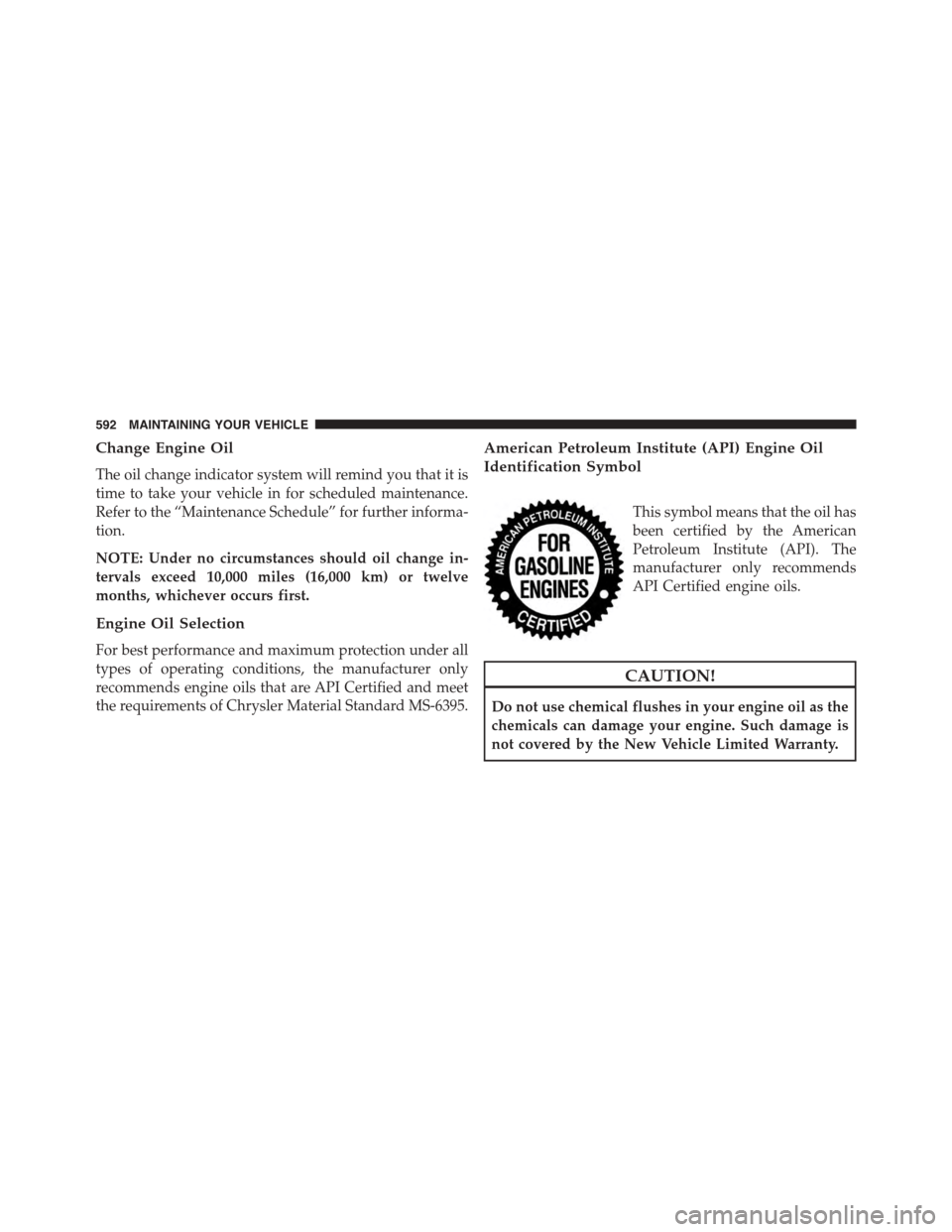
American Petroleum Institute (API) Engine Oil
Identification Symbol
This symbol means that the oil has
been certified by the American
Petroleum Institute (API). The
manufacturer only recommends
API Certified engine oils.
CAUTION!
Do not use chemical flushes in your engine oil as the
chemicals can damage your engine. Such damage is
not covered by the New Vehicle Limited Warranty.
592 MAINTAINING YOUR VEHICLE
Page 607 of 689
Exhaust System
The best protection against carbon monoxide entry into
the vehicle body is a properly maintained engine exhaust
system.
If you notice a change in the sound of the exhaust system;
or if the exhaust fumes can be detected inside the vehicle;
or when the underside or rear of the vehicle is damaged;
have an authorized technician inspect the complete ex-
haust system and adjacent body areas for broken, dam-
aged, deteriorated, or mispositioned parts. Open seams
or loose connections could permit exhaust fumes to seep
into the passenger compartment. In addition, have the
exhaust system inspected each time the vehicle is raised
for lubrication or oil change. Replace as required.
WARNING!
•Exhaust gases can injure or kill. They contain
carbon monoxide (CO), which is colorless and
odorless. Breathing it can make you unconscious
and can eventually poison you. To avoid breathing
CO, refer to “Safety Tips/Exhaust Gas” in “Things
To Know Before Starting Your Vehicle” for further
information.
•A hot exhaust system can start a fire if you park
over materials that can burn. Such materials might
be grass or leaves coming into contact with your
exhaust system. Do not park or operate your ve-
hicle in areas where your exhaust system can con-
tact anything that can burn.
7
MAINTAINING YOUR VEHICLE 605