radio DODGE DURANGO 2016 3.G Service Manual
[x] Cancel search | Manufacturer: DODGE, Model Year: 2016, Model line: DURANGO, Model: DODGE DURANGO 2016 3.GPages: 739, PDF Size: 5.52 MB
Page 382 of 739
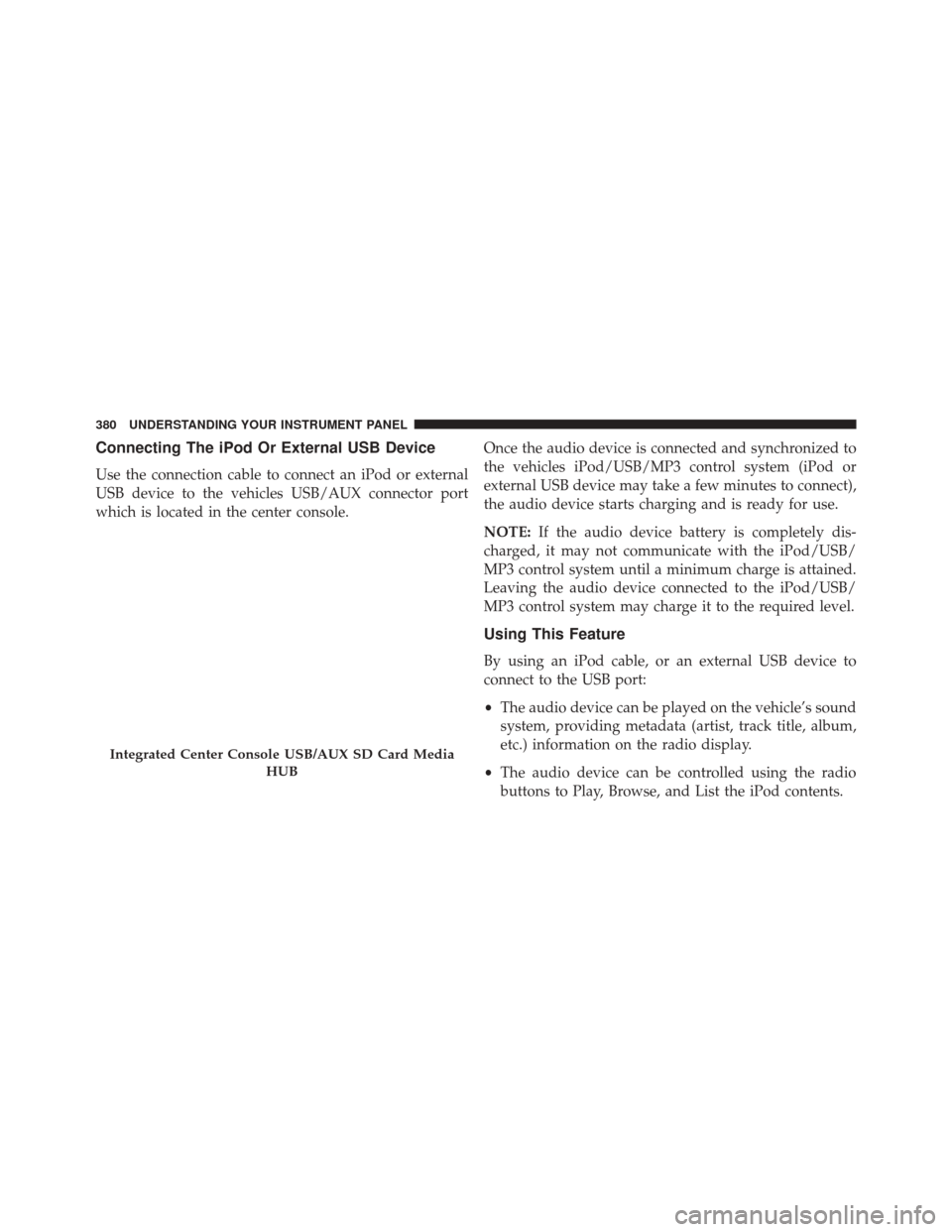
Connecting The iPod Or External USB Device
Use the connection cable to connect an iPod or external
USB device to the vehicles USB/AUX connector port
which is located in the center console.Once the audio device is connected and synchronized to
the vehicles iPod/USB/MP3 control system (iPod or
external USB device may take a few minutes to connect),
the audio device starts charging and is ready for use.
NOTE:
If the audio device battery is completely dis-
charged, it may not communicate with the iPod/USB/
MP3 control system until a minimum charge is attained.
Leaving the audio device connected to the iPod/USB/
MP3 control system may charge it to the required level.
Using This Feature
By using an iPod cable, or an external USB device to
connect to the USB port:
• The audio device can be played on the vehicle’s sound
system, providing metadata (artist, track title, album,
etc.) information on the radio display.
• The audio device can be controlled using the radio
buttons to Play, Browse, and List the iPod contents.
Integrated Center Console USB/AUX SD Card Media
HUB
380 UNDERSTANDING YOUR INSTRUMENT PANEL
Page 385 of 739
Getting Started
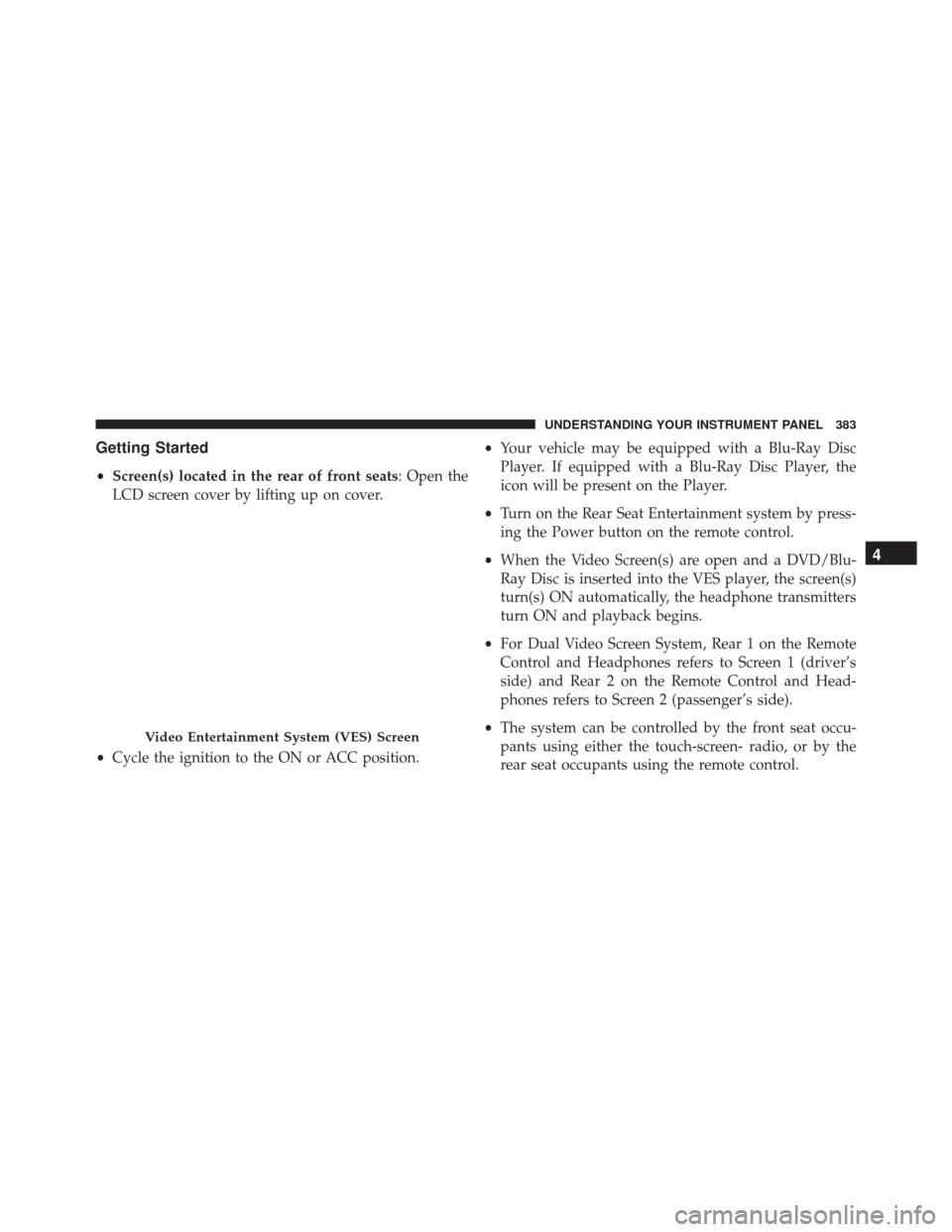
•Screen(s) located in the rear of front seats: Open the
LCD screen cover by lifting up on cover.
• Cycle the ignition to the ON or ACC position. •
Your vehicle may be equipped with a Blu-Ray Disc
Player. If equipped with a Blu-Ray Disc Player, the
icon will be present on the Player.
• Turn on the Rear Seat Entertainment system by press-
ing the Power button on the remote control.
• When the Video Screen(s) are open and a DVD/Blu-
Ray Disc is inserted into the VES player, the screen(s)
turn(s) ON automatically, the headphone transmitters
turn ON and playback begins.
• For Dual Video Screen System, Rear 1 on the Remote
Control and Headphones refers to Screen 1 (driver’s
side) and Rear 2 on the Remote Control and Head-
phones refers to Screen 2 (passenger’s side).
• The system can be controlled by the front seat occu-
pants using either the touch-screen- radio, or by the
rear seat occupants using the remote control.
Video Entertainment System (VES) Screen
4
UNDERSTANDING YOUR INSTRUMENT PANEL 383
Page 386 of 739
Blu-ray Disc Player
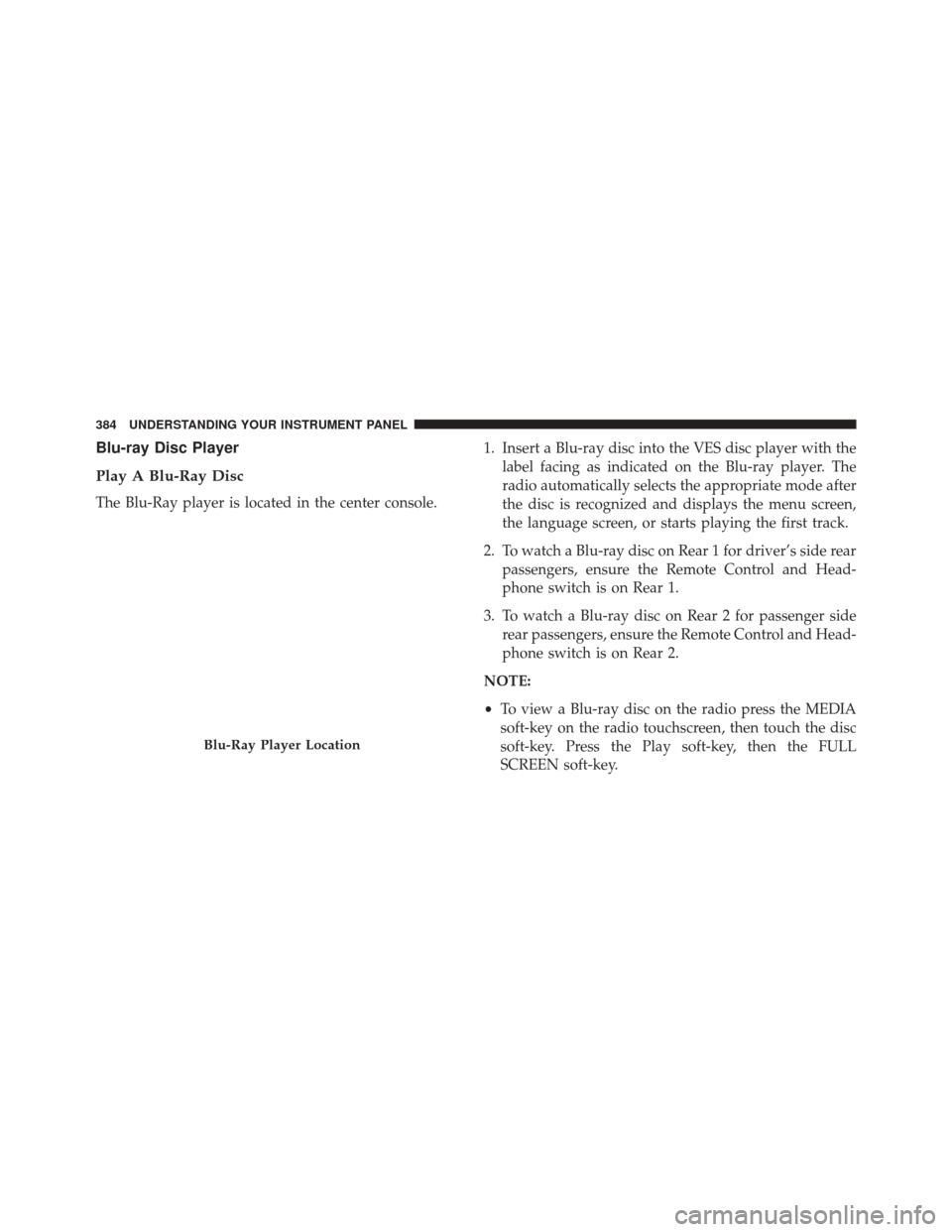
Play A Blu-Ray Disc
The Blu-Ray player is located in the center console.1. Insert a Blu-ray disc into the VES disc player with the
label facing as indicated on the Blu-ray player. The
radio automatically selects the appropriate mode after
the disc is recognized and displays the menu screen,
the language screen, or starts playing the first track.
2. To watch a Blu-ray disc on Rear 1 for driver’s side rear passengers, ensure the Remote Control and Head-
phone switch is on Rear 1.
3. To watch a Blu-ray disc on Rear 2 for passenger side rear passengers, ensure the Remote Control and Head-
phone switch is on Rear 2.
NOTE:
• To view a Blu-ray disc on the radio press the MEDIA
soft-key on the radio touchscreen, then touch the disc
soft-key. Press the Play soft-key, then the FULL
SCREEN soft-key.
Blu-Ray Player Location
384 UNDERSTANDING YOUR INSTRUMENT PANEL
Page 387 of 739
•Viewing a Blu-ray disc on the Touch-Screen radio
screen is not available in all states/provinces, and the
vehicle must be stopped, and the shift lever must be in
the PARK position for vehicles with automatic trans-
mission. In vehicles with manual transmission the
parking brake must be engaged.
DVD Player
Play A DVD
1. Insert a DVD into the VES disc player with the label facing as indicated on the DVD player. The radio
automatically selects the appropriate mode after the
disc is recognized and displays the menu screen, or
starts playing the first track.
2. To watch a DVD on Rear 1 for driver’s side rear passengers, ensure the Remote Control and Head-
phone switch is on Rear 1. 3. To watch a DVD on Rear 2 for passenger side rear
passengers, ensure the Remote Control and Head-
phone switch is on Rear 2.
NOTE:
• To view a DVD on the radio press the MEDIA soft-key
on the radio touchscreen, then touch the disc soft-key.
Press the Play soft-key, then the FULL SCREEN soft-
key.
• Viewing a DVD on the Touch-Screen radio screen is
not available in all states/provinces, and the vehicle
must be stopped, and the shift lever must be in the
PARK position for vehicles with automatic transmis-
sion. In vehicles with manual transmission the parking
brake must be engaged.
4
UNDERSTANDING YOUR INSTRUMENT PANEL 385
Page 389 of 739
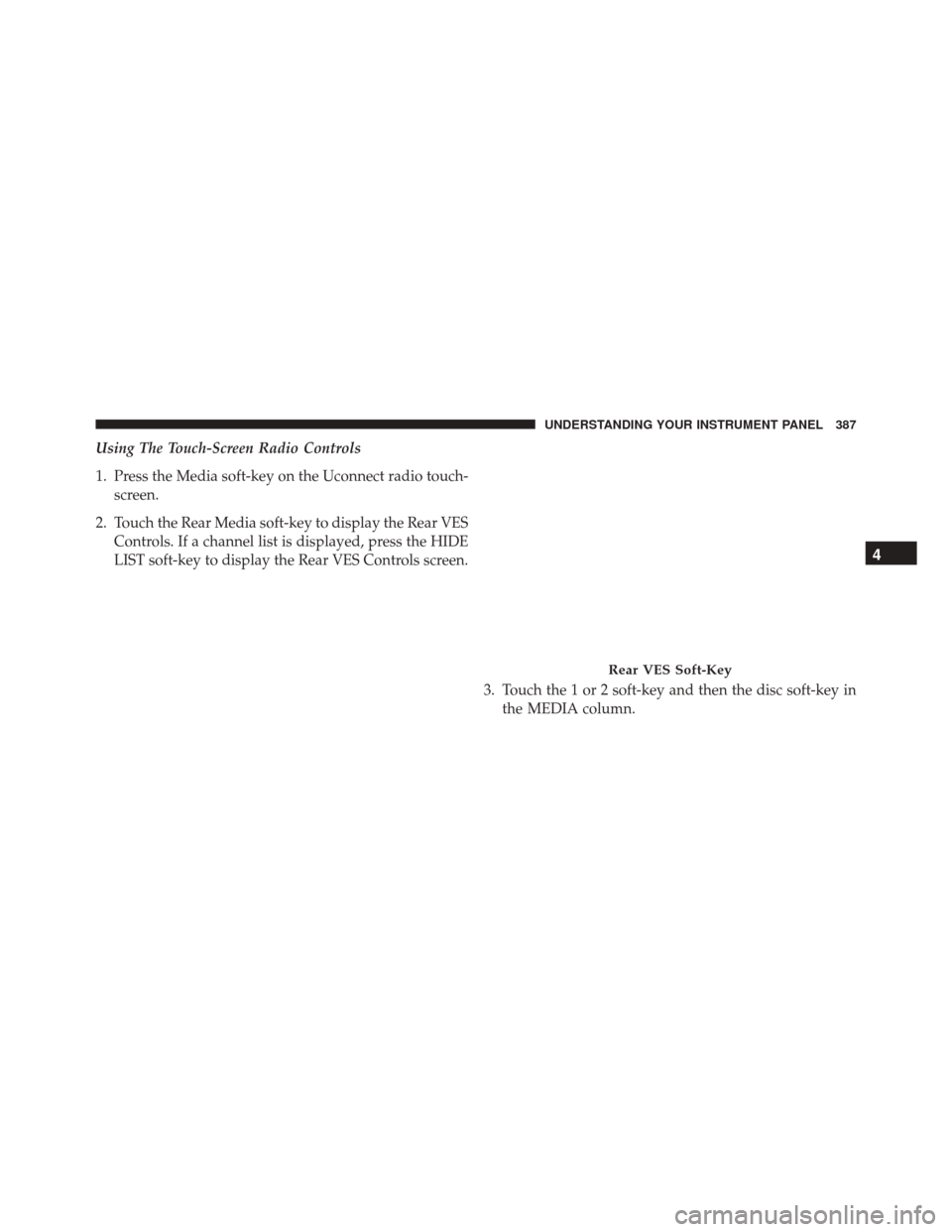
Using The Touch-Screen Radio Controls
1. Press the Media soft-key on the Uconnect radio touch-screen.
2. Touch the Rear Media soft-key to display the Rear VES Controls. If a channel list is displayed, press the HIDE
LIST soft-key to display the Rear VES Controls screen.
3. Touch the 1 or 2 soft-key and then the disc soft-key inthe MEDIA column.
Rear VES Soft-Key
4
UNDERSTANDING YOUR INSTRUMENT PANEL 387
Page 390 of 739
NOTE:
•Touching the screen on a Touch-Screen radio while a
DVD is playing brings up basic remote control func-
tions for DVD play such as scene selection, Play, Pause,
FF, RW, and Stop. Pressing the X in the upper corner
will turn off the remote control screen functions.
Play Video Games
Connect the video game console to the Auxiliary RCA/
HDMI input jacks located on the side of each seat.
Audio/Video RCA/HDMI Jacks
(AUX/HDMI Jacks) on the side of
each seat enable the monitor to display
video directly from a video camera,
connect video games for display on
the screen, or play music directly from
an MP3 player. When connecting an external source to the AUX/HDMI
input, be sure to follow the standard color coding for the
VES jacks:
1. Video in (yellow)
2. Left audio in (white)
3. Right audio in (red)
NOTE:
Certain high-end video game consoles will ex-
ceed the power limit of the vehicle’s Power Inverter.
Refer to the Power Inverter section in your vehicle’s
Owner’s Manual for more information.
Ensure the Remote Control and Headphone switch is on
Channel 1.
388 UNDERSTANDING YOUR INSTRUMENT PANEL
Page 391 of 739
Using The Remote Control
1. Press the MODE/SOURCE button on the RemoteControl.
2. While looking at the video screen, highlight VES AUX 1 or 2 (depending which AUX input the gaming
console is plugged into), by either pressing Up/
Down/Left/Right buttons or by repeatedly pressing
the MODE button, then press ENTER on the Remote
Control.
Using The Touch-Screen Radio Controls
1. Press the MENU hard-key on the radio faceplate.
2. Touch the Rear VES soft-key to display the Rear VESControls. If a channel list is displayed, press the HIDE
LIST soft-key to display the Rear VES Controls screen. 3. Touch the 1 soft-key and then touch either AUX 1 or
AUX 2 in the VES column (depending which AUX
input is used). To exit press the back arrow soft-key at
the top of the screen.Rear VES Soft-Key
4
UNDERSTANDING YOUR INSTRUMENT PANEL 389
Page 392 of 739
Dual Video Screen
NOTE:Typically there are two different ways to operate
the features of the Video Entertainment System (VES).
• The Remote Control
• The Touch-Screen Radio (If Equipped)
Play A DVD Using The VES Player (If Equipped)
1. Insert the DVD with the label facing up. The VES
player automatically selects the appropriate mode
after the disc is recognized and starts playing the
DVD. NOTE:
The VES player has basic DVD control function
such as Menu, Play, Pause, FF, RW and Stop.
2. To watch a DVD on Rear 1 for driver’s side passen- gers, ensure the Remote Control and Headphone
switch is on Rear 1.
3. To watch a DVD on Rear 2 for passenger’s side passengers, ensure the Remote Control and Head-
phone switch is on Rear 2.
390 UNDERSTANDING YOUR INSTRUMENT PANEL
Page 394 of 739
•Rear 2 select mode information is shown on the right
side of the screen.
• The VES will retain the last setting when turned off.
Using The Touch-Screen Radio Controls
1. Press the MENU hard-key on the radio faceplate.
2. Touch the Rear VES soft-key to display the Rear VES
Controls. If a channel list is displayed, touch the HIDE
LIST soft-key to display the Rear VES Controls screen.
3. Touch the 1 or 2 soft-key and then the DISC soft-key inthe VES column. To exit touch the back arrow soft-key
at the top left of the screen.
Rear VES Soft-key
392 UNDERSTANDING YOUR INSTRUMENT PANEL
Page 395 of 739
NOTE:
•To view a DVD on the radio press the RADIO/MEDIA
hard-key, on the radio faceplate, then touch the DISC
tab soft-key and then the VIEW VIDEO soft-key. •
Viewing a DVD on the Touch-Screen radio screen is
not available in all states/provinces, and the vehicle
must be stopped, and the shift lever must be in the
PARK position for vehicles with automatic transmis-
sion. In vehicles with manual transmission the parking
brake must be engaged.
Listen To An Audio Source While A Video Is
Playing
Ensure the Remote Control and Headphone switch are on
the same channel. If watching a video on Rear 1 , then
Rear 2 could be used for audio. If watching a video on
Rear 2, then Rear 1 could be used for audio.
Using The Remote Control
1. Press the MODE/SOURCE button on the Remote Control and the Mode Select Screen will display,
unless a video is playing then only a small banner will
appear on the bottom of the screen.
Select Channel/Screen 1 And DISC In The VES Column
4
UNDERSTANDING YOUR INSTRUMENT PANEL 393