warning DODGE DURANGO 2017 3.G Owners Manual
[x] Cancel search | Manufacturer: DODGE, Model Year: 2017, Model line: DURANGO, Model: DODGE DURANGO 2017 3.GPages: 584, PDF Size: 5.14 MB
Page 266 of 584
•Remote Start Canceled Liftgate Open
• Remote Start Canceled Time Expired
• Remote Start Disabled Start To Reset
• Service Air Bag System
• Service Air Bag Warning Light
• Door Open
• Doors Open
• Liftgate Open
• Hood Open
• Shift Not Allowed
• Vehicle Speed Too High To Shift to D
• Vehicle Speed is Too High to Shift to R
• Vehicle Speed is Too High to Shift to P
• Service Transmission
• Service Shifter
The Reconfigurable Telltales section is divided into the
white or green telltales area on the right, and the amber or
red telltales area on the left.Instrument Cluster Display Selectable Menu Items
Push and release the UPorDOWNarrow button
until the desired Selectable Menu icon is highlighted in
the Instrument Cluster Display.
Speedometer
Push and release the UPorDOWNar-
row button until the Speedometer icon is dis-
played in the Instrument Cluster Display.
Push and release the LEFT
orRIGHT
arrow button to change the speedometer
type (Analog or Digital). Push and release the
OK button to toggle units (km/h or MPH) of
the speedometer.
Vehicle Info
Push and release the UPorDOWNar-
row button until the Vehicle Info icon/title is
highlighted in the Instrument Cluster Display.
Push the LEFT
orRIGHTarrow button
to scroll through the information submenus
264 UNDERSTANDING YOUR INSTRUMENT PANEL
Page 270 of 584
Stored Messages
Push and release theUPorDOWNar-
row button until the Messages Menu item is
highlighted. This feature shows the number of
stored warning messages. Pushing the RIGHT
arrow button will allow you to see what the stored
messages are.
When no messages are present, main menu icon will be a
closed envelope.
Screen Setup
Push and release the UPorDOWNar-
row button until the Screen Setup Menu icon/
title is highlighted in the Instrument Cluster
Display. Push and release the OKbutton to
enter the submenus and follow the prompts on the
screen as needed. The Screen Setup feature allows you
to change what information is displayed in the instru-
ment cluster as well as the location that information is
displayed. Screen Setup Driver Selectable Items
Current Gear
•
On
• Off (default setting)
Favorite Menus
• Speedometer
• Vehicle Info
• Driver Assist (Show/Hide)
• Fuel Economy (Show/Hide)
• Trip (Show/Hide)
• Stop/Start
• Audio (Show/Hide)
• Stored Messages
• Screen Setup
NOTE: Menus with (show/hide) can push the OKbutton
to choose whether to show or hide this menu on the
Instrument Cluster Display.
268 UNDERSTANDING YOUR INSTRUMENT PANEL
Page 272 of 584
When load reduction is activated, the message “Battery
Saver On” or “Battery Saver Mode” will appear in the
Instrument Cluster Display.
These messages indicate the vehicle battery has a low state
of charge and continues to lose electrical charge at a rate
that the charging system cannot sustain.
NOTE:
•The charging system is independent from load reduc-
tion. The charging system performs a diagnostic on the
charging system continuously.
• If the Battery Charge Warning Light is on it may indicate
a problem with the charging system. Refer to “Battery
Charge Warning Light” in “Understanding Your Instru-
ment Panel” for further information.
The electrical loads that may be switched off (if equipped),
and vehicle functions which can be effected by load reduction:
• Heated Seat/Vented Seats/Heated Wheel
• Heated/Cooled Cup Holders — If Equipped
• Rear Defroster And Heated Mirrors
• HVAC System •
115V AC Power Inverter System
• Audio and Telematics System
Loss of the battery charge may indicate one or more of the
following conditions:
• The charging system cannot deliver enough electrical
power to the vehicle system because the electrical loads
are larger than the capability of charging system. The
charging system is still functioning properly.
• Turning on all possible vehicle electrical loads (e.g.
HVAC to max settings, exterior and interior lights,
overloaded power outlets +12V, 115V AC, USB ports)
during certain driving conditions (city driving, towing,
frequent stopping).
•
Installing options like additional lights, upfitter electrical
accessories, audio systems, alarms and similar devices.
• Unusual driving cycles (short trips separated by long
parking periods).
• The vehicle was parked for an extended period of time
(weeks, months).
• The battery was recently replaced and was not charged
completely.
270 UNDERSTANDING YOUR INSTRUMENT PANEL
Page 274 of 584
The risk of unauthorized and unlawful access to your
vehicle systems may still exist, even if the most recent
version of vehicle software (such as Uconnect software) is
installed.
WARNING!
•It is not possible to know or to predict all of the
possible outcomes if your vehicle’s systems are
breached. It may be possible that vehicle systems,
including safety related systems, could be impaired
or a loss of vehicle control could occur that may
result in an accident involving serious injury or
death.
• ONLY insert media (e.g., USB, SD card, or CD) into
your vehicle if it came from a trusted source. Media
of unknown origin could possibly contain malicious
software, and if installed in your vehicle, it may
increase the possibility for vehicle systems to be
breached.
• As always, if you experience unusual vehicle behav-
ior, take your vehicle to your nearest Authorized
Dealer immediately. NOTE:
•
FCA or your dealer may contact you directly regarding
software updates.
• To help further improve vehicle security and minimize
the potential risk of a security breach, vehicle owners
should:
• Routinely check www.driveuconnect.com/software-
update to learn about available Uconnect software
updates.
• Only connect and use trusted media devices (e.g.
personal mobile phones, USBs, CDs).
Privacy of any wireless and wired communications cannot
be assured. Third parties may unlawfully intercept infor-
mation and private communications without your consent.
For further information, refer to “Privacy Practices – If
Equipped with Uconnect 8.4 radio” in “All About
Uconnect Access” in your Uconnect Owner ’s Manual
Supplement and “Onboard Diagnostic System (OBD II)
Cybersecurity”.
272 UNDERSTANDING YOUR INSTRUMENT PANEL
Page 281 of 584
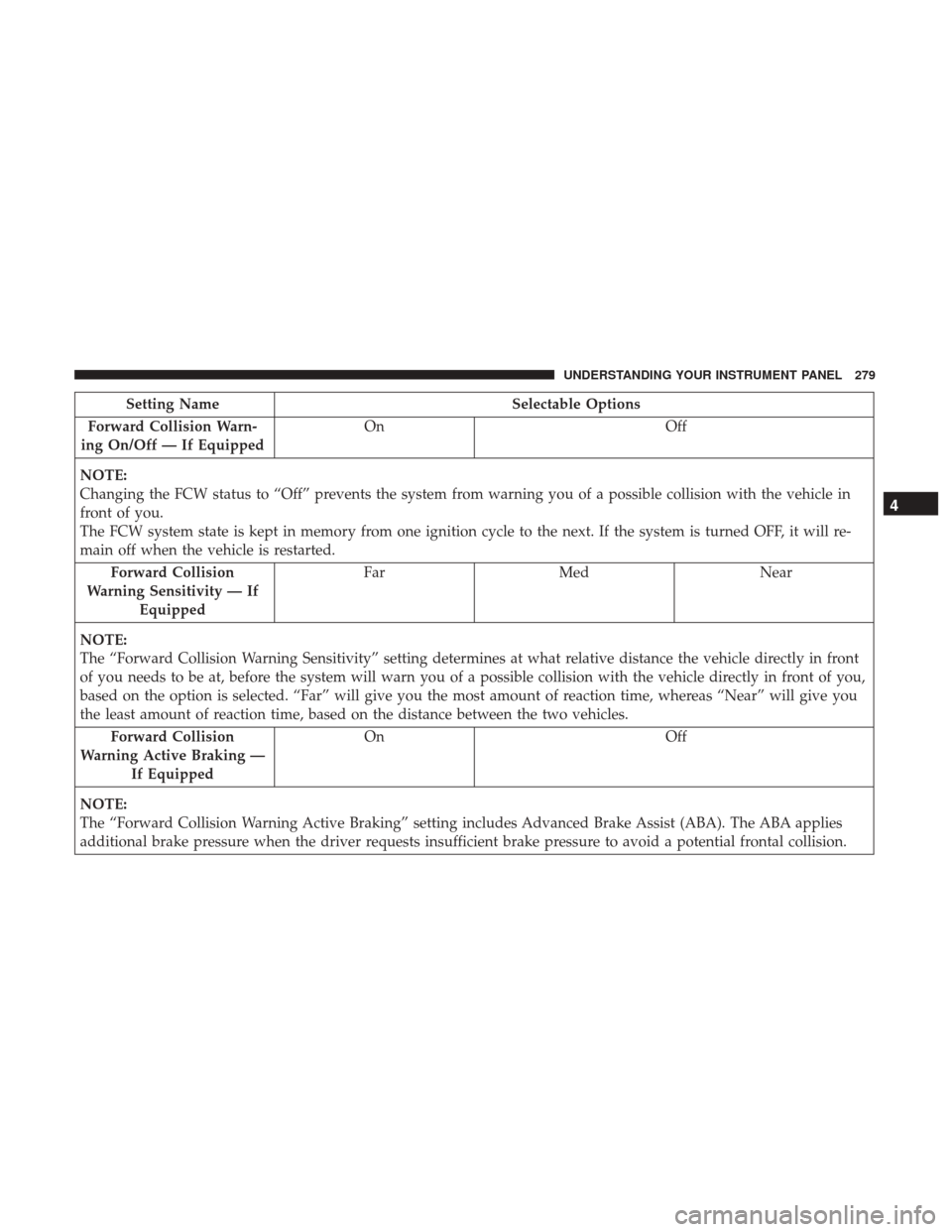
Setting NameSelectable Options
Forward Collision Warn-
ing On/Off — If Equipped On
Off
NOTE:
Changing the FCW status to “Off” prevents the system from warning you of a possible collision with the vehicle in
front of you.
The FCW system state is kept in memory from one ignition cycle to the next. If the system is turned OFF, it will re-
main off when the vehicle is restarted. Forward Collision
Warning Sensitivity — If Equipped Far
Med Near
NOTE:
The “Forward Collision Warning Sensitivity” setting determines at what relative distance the vehicle directly in front
of you needs to be at, before the system will warn you of a possible collision with the vehicle directly in front of you,
based on the option is selected. “Far” will give you the most amount of reaction time, whereas “Near” will give you
the least amount of reaction time, based on the distance between the two vehicles. Forward Collision
Warning Active Braking — If Equipped On
Off
NOTE:
The “Forward Collision Warning Active Braking” setting includes Advanced Brake Assist (ABA). The ABA applies
additional brake pressure when the driver requests insufficient brake pressure to avoid a potential frontal collision.
4
UNDERSTANDING YOUR INSTRUMENT PANEL 279
Page 282 of 584
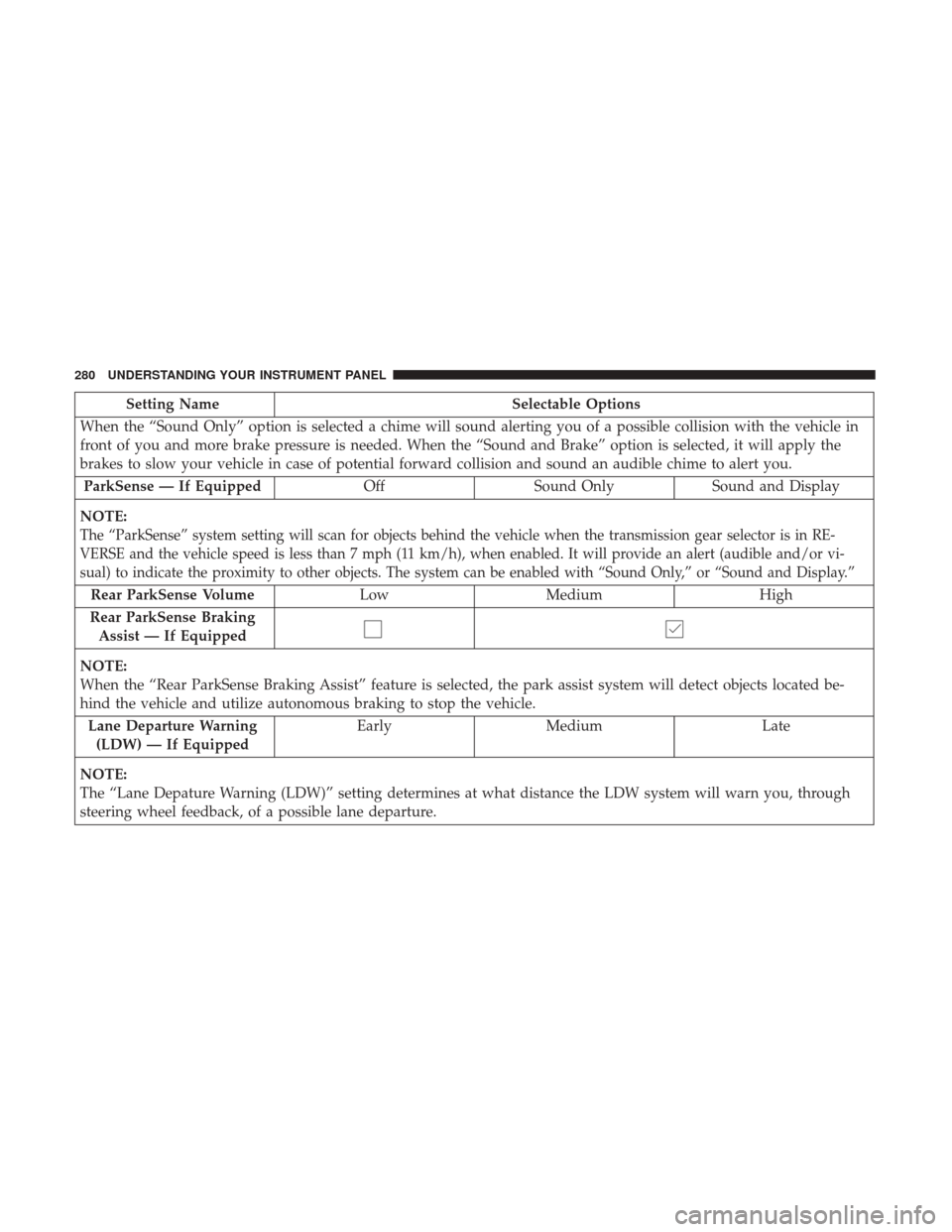
Setting NameSelectable Options
When the “Sound Only” option is selected a chime will sound alerting you of a possible collision with the vehicle in
front of you and more brake pressure is needed. When the “Sound and Brake” option is selected, it will apply the
brakes to slow your vehicle in case of potential forward collision and sound an audible chime to alert you. ParkSense — If Equipped OffSound Only Sound and Display
NOTE:
The “ParkSense” system setting will scan for objects behind the vehicle when the transmission gear selector is in RE-
VERSE and the vehicle speed is less than 7 mph (11 km/h), when enabled. It will provide an alert (audible and/or vi-
sual) to indicate the proximity to other objects. The system can be enabled with “Sound Only,” or “Sound and Display.”
Rear ParkSense Volume Low Medium High
Rear ParkSense Braking Assist — If Equipped
NOTE:
When the “Rear ParkSense Braking Assist” feature is selected, the park assist system will detect objects located be-
hind the vehicle and utilize autonomous braking to stop the vehicle. Lane Departure Warning (LDW) — If Equipped Early
Medium Late
NOTE:
The “Lane Depature Warning (LDW)” setting determines at what distance the LDW system will warn you, through
steering wheel feedback, of a possible lane departure.
280 UNDERSTANDING YOUR INSTRUMENT PANEL
Page 301 of 584
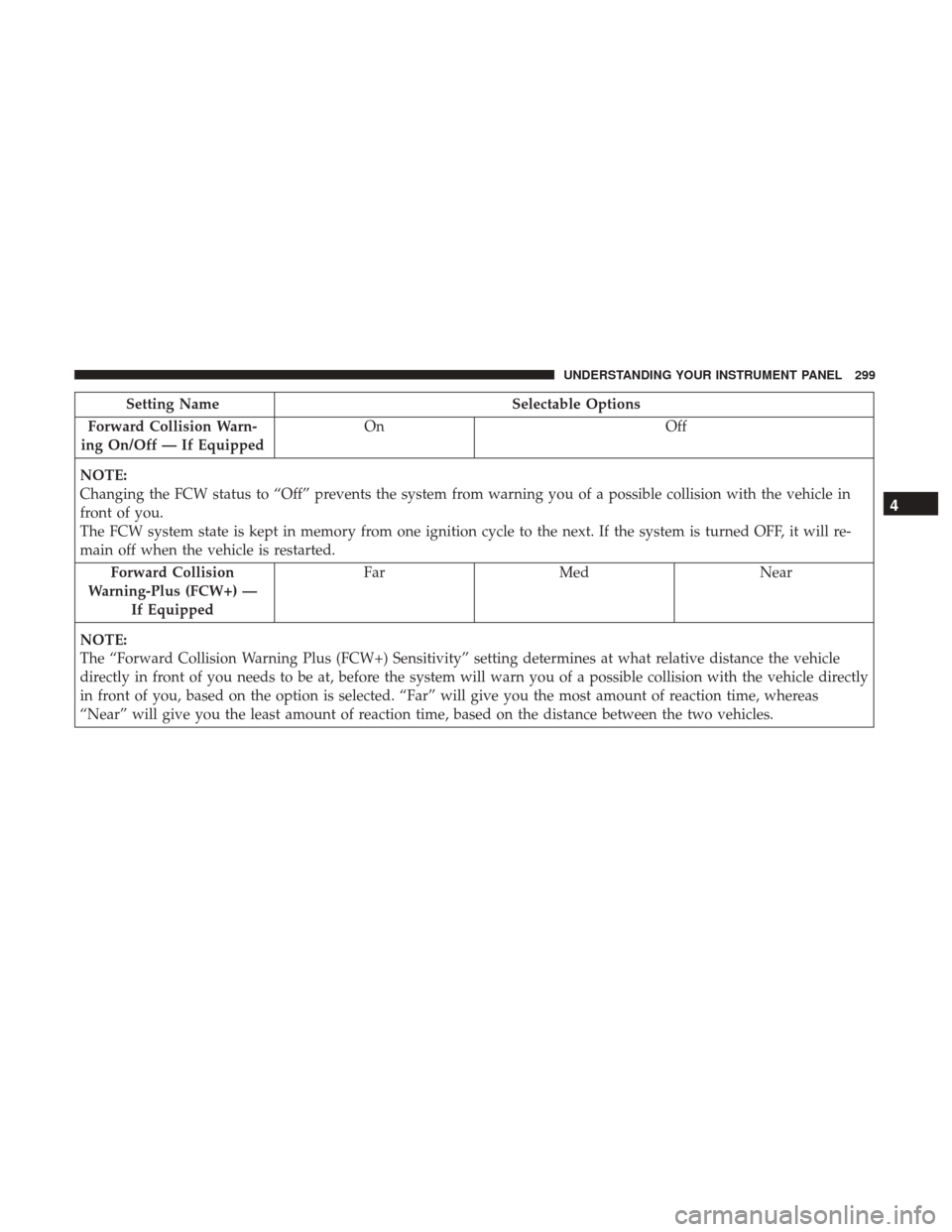
Setting NameSelectable Options
Forward Collision Warn-
ing On/Off — If Equipped On
Off
NOTE:
Changing the FCW status to “Off” prevents the system from warning you of a possible collision with the vehicle in
front of you.
The FCW system state is kept in memory from one ignition cycle to the next. If the system is turned OFF, it will re-
main off when the vehicle is restarted. Forward Collision
Warning-Plus (FCW+) — If Equipped Far
Med Near
NOTE:
The “Forward Collision Warning Plus (FCW+) Sensitivity” setting determines at what relative distance the vehicle
directly in front of you needs to be at, before the system will warn you of a possible collision with the vehicle directly
in front of you, based on the option is selected. “Far” will give you the most amount of reaction time, whereas
“Near” will give you the least amount of reaction time, based on the distance between the two vehicles.
4
UNDERSTANDING YOUR INSTRUMENT PANEL 299
Page 302 of 584
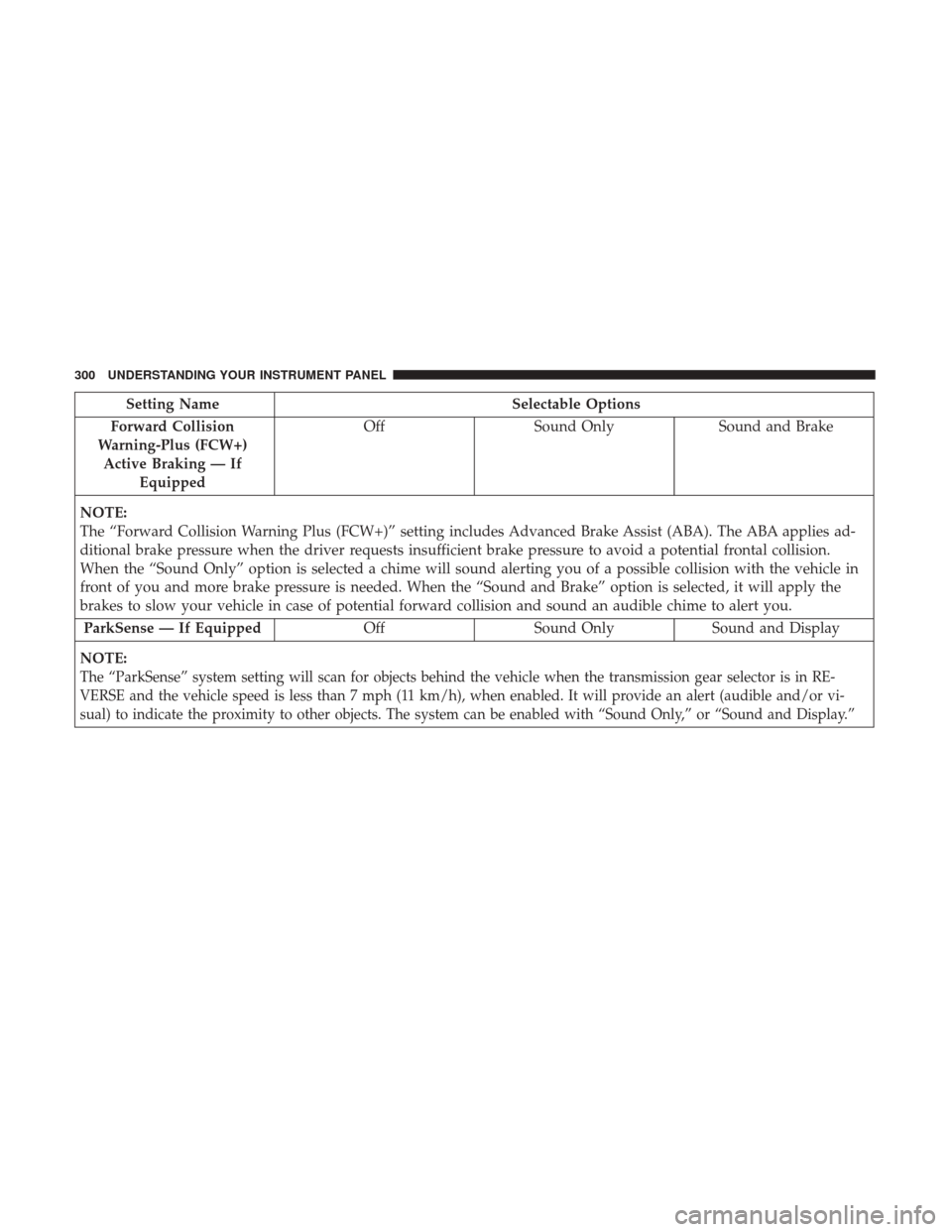
Setting NameSelectable Options
Forward Collision
Warning-Plus (FCW+) Active Braking — If Equipped Off
Sound Only Sound and Brake
NOTE:
The “Forward Collision Warning Plus (FCW+)” setting includes Advanced Brake Assist (ABA). The ABA applies ad-
ditional brake pressure when the driver requests insufficient brake pressure to avoid a potential frontal collision.
When the “Sound Only” option is selected a chime will sound alerting you of a possible collision with the vehicle in
front of you and more brake pressure is needed. When the “Sound and Brake” option is selected, it will apply the
brakes to slow your vehicle in case of potential forward collision and sound an audible chime to alert you. ParkSense — If Equipped OffSound Only Sound and Display
NOTE:
The “ParkSense” system setting will scan for objects behind the vehicle when the transmission gear selector is in RE-
VERSE and the vehicle speed is less than 7 mph (11 km/h), when enabled. It will provide an alert (audible and/or vi-
sual) to indicate the proximity to other objects. The system can be enabled with “Sound Only,” or “Sound and Display.”
300 UNDERSTANDING YOUR INSTRUMENT PANEL
Page 303 of 584
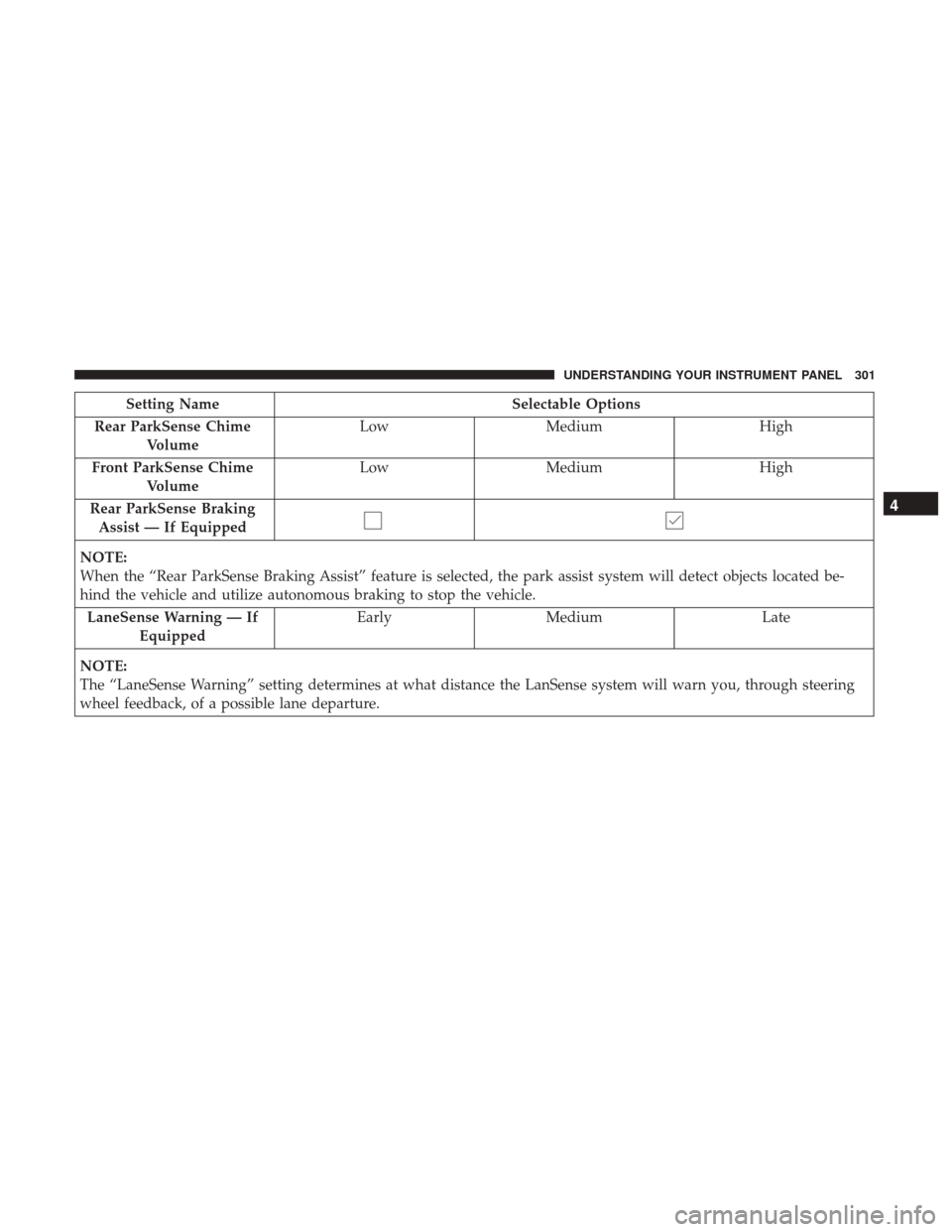
Setting NameSelectable Options
Rear ParkSense Chime Volume Low
Medium High
Front ParkSense Chime Volume Low
Medium High
Rear ParkSense Braking Assist — If Equipped
NOTE:
When the “Rear ParkSense Braking Assist” feature is selected, the park assist system will detect objects located be-
hind the vehicle and utilize autonomous braking to stop the vehicle. LaneSense Warning — If Equipped Early
Medium Late
NOTE:
The “LaneSense Warning” setting determines at what distance the LanSense system will warn you, through steering
wheel feedback, of a possible lane departure.
4
UNDERSTANDING YOUR INSTRUMENT PANEL 301
Page 347 of 584
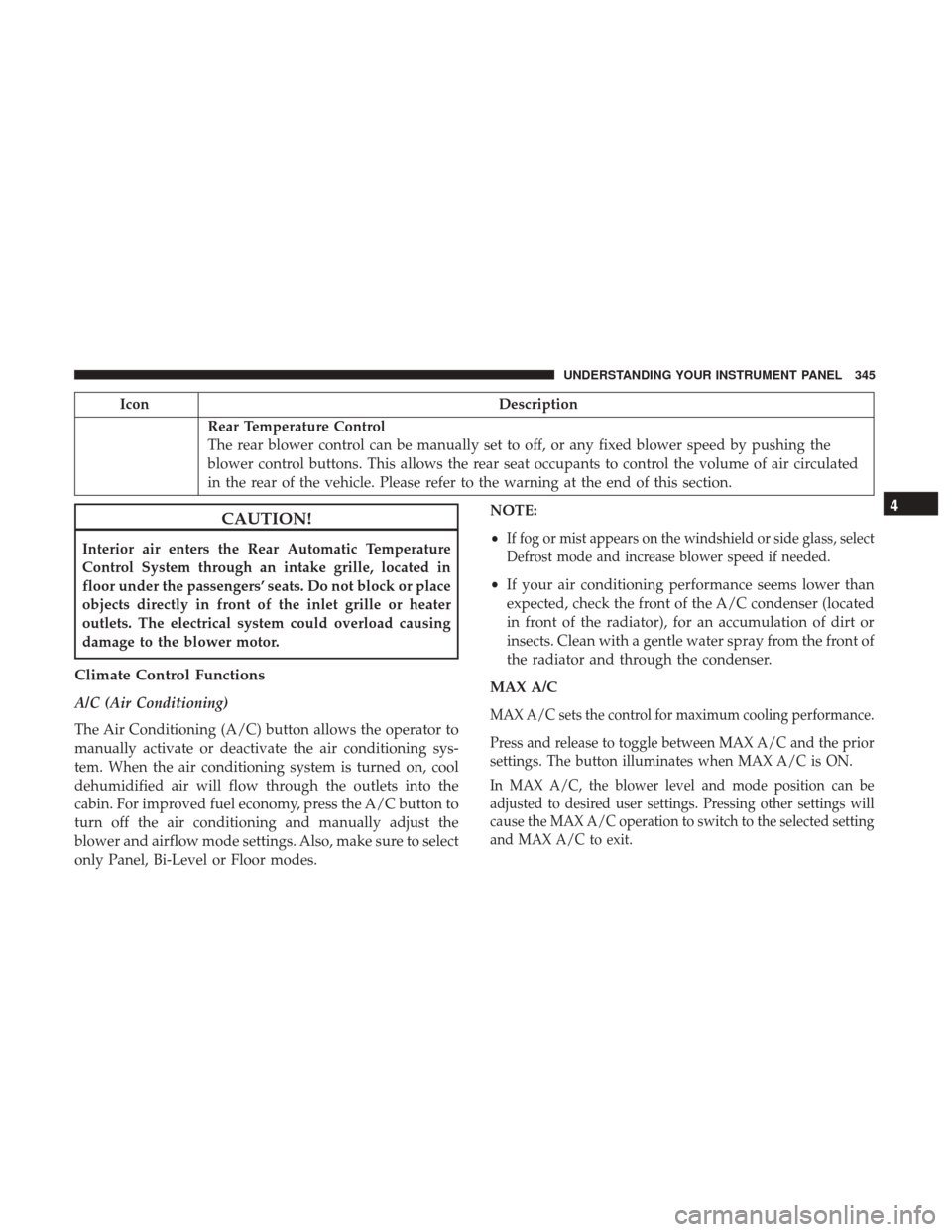
IconDescription
Rear Temperature Control
The rear blower control can be manually set to off, or any fixed blower speed by pushing the
blower control buttons. This allows the rear seat occupants to control the volume of air circulated
in the rear of the vehicle. Please refer to the warning at the end of this section.
CAUTION!
Interior air enters the Rear Automatic Temperature
Control System through an intake grille, located in
floor under the passengers’ seats. Do not block or place
objects directly in front of the inlet grille or heater
outlets. The electrical system could overload causing
damage to the blower motor.
Climate Control Functions
A/C (Air Conditioning)
The Air Conditioning (A/C) button allows the operator to
manually activate or deactivate the air conditioning sys-
tem. When the air conditioning system is turned on, cool
dehumidified air will flow through the outlets into the
cabin. For improved fuel economy, press the A/C button to
turn off the air conditioning and manually adjust the
blower and airflow mode settings. Also, make sure to select
only Panel, Bi-Level or Floor modes. NOTE:
•
If fog or mist appears on the windshield or side glass, select
Defrost mode and increase blower speed if needed.
• If your air conditioning performance seems lower than
expected, check the front of the A/C condenser (located
in front of the radiator), for an accumulation of dirt or
insects. Clean with a gentle water spray from the front of
the radiator and through the condenser.
MAX A/C
MAX A/C sets the control for maximum cooling performance.
Press and release to toggle between MAX A/C and the prior
settings. The button illuminates when MAX A/C is ON.
In MAX A/C, the blower level and mode position can be
adjusted to desired user settings. Pressing other settings will
cause the MAX A/C operation to switch to the selected setting
and MAX A/C to exit.
4
UNDERSTANDING YOUR INSTRUMENT PANEL 345