wheel DODGE DURANGO 2020 Owners Manual
[x] Cancel search | Manufacturer: DODGE, Model Year: 2020, Model line: DURANGO, Model: DODGE DURANGO 2020Pages: 464, PDF Size: 22.14 MB
Page 410 of 464
408MULTIMEDIA
Android Auto™ Maps
Push and hold the VR button on the
steering wheel or tap the microphone
icon to ask Google to take you to a
desired destination by voice. You can
also touch the Navigation icon in Android Auto™
to access Google Maps™.
NOTE:
If the VR button is not held, and is only pushed,
the built-in Uconnect VR prompts you and any
navigation command said launches the built-in
Uconnect navigation system.
While using Android Auto™, Google Maps™
provides voice-guided:
Navigation
Live traffic information
Lane guidance
For further information, refer to
www.android.com/auto/ (US Residents) https:/
/www.android.com/intl/en_ca/auto (Canadian
Residents). For further information on the navigation
function, please refer to https://
support.google.com/android or https://
support.google.com/androidauto/.
Android Auto™ Music
Android Auto™ allows you to access
and stream your favorite music with
apps like Google Play Music,
iHeartRadio, and Spotify. Using your
smartphone’s data plan, you can stream
endless music on the road.
NOTE:
Music apps, playlists, and stations must be set
up on your smartphone prior to using Android
Auto™, for them to work with Android Auto™.
NOTE:
To see the metadata for the music playing
through Android Auto™, select the Uconnect
System’s media screen.
For further information refer to https://
support.google.com/androidauto. Android Auto™ Communication
With Android Auto™ connected, push
and hold the VR button on the
steering wheel to activate voice
recognition specific to the Android
Auto™. This will allow you to send and reply to
text messages, have incoming text messages
read out loud, and place and receive hands-free
calls.
Android Auto™ Apps
The Android Auto™ App will display all the
compatible apps that are available to use with
Android Auto™, every time it is launched. You
must have the compatible app downloaded,
and you must be signed in to the app for it to
work with Android Auto™.
Apple CarPlay® Integration
NOTE:
Feature availability depends on your carrier and
mobile phone manufacturer. Some Apple
CarPlay® features may or may not be available
in every region and/or language.
20_WD_OM_EN_USC_t.book Page 408
Page 412 of 464
410MULTIMEDIA
Apple CarPlay® Phone
With Apple CarPlay®, push and hold
the VR button on the steering wheel to
activate a Siri voice recognition
session. You can also press and hold
the Home button within Apple CarPlay® to start
talking to Siri. This allows you to make calls or
listen to voice mail as you normally would using
Siri on your iPhone®.
NOTE:
Only temporarily pushing the VR button on the
steering wheel launches a built-in VR session,
not a Siri session, and it will not function with
Apple CarPlay®.
Apple CarPlay® Music
Apple CarPlay® allows you to access
all your artists, playlists, and music
from iTunes®. Using your iPhone’s®
data plan, you can also use select
third party audio apps including music, news,
sports, podcasts and more.
Apple CarPlay® Messages
Just like Phone, Apple CarPlay®
allows you to use Siri to send or reply
to text messages. Siri can also read incoming text messages, but
driver’s will not be able to read messages, as
everything is done via voice.
Apple CarPlay® Maps
To use your Apple® Maps for
navigation on your Uconnect system,
launch Apple CarPlay®, and push and
hold the VR button on the steering
wheel to use Siri to set your desired destination.
Alternatively, choose a nearby destination by
pressing Destinations and selecting a category,
by launching Siri from the destinations page, or
even by typing in a destination.
NOTE:
If the Voice Recognition (VR) button is not held,
and is only pushed, the built-in Uconnect VR
prompts you and any navigation command said
launches the built-in Uconnect navigation
system.
Apple CarPlay® Apps
To use a compatible app with Apple CarPlay®,
you must have the compatible app downloaded,
and you must be signed in to the app. Refer to http://www.apple.com/ios/carplay/
(US Residents) or https://www.apple.com/ca/
ios/carplay/
(Canadian Residents) to see the
latest list of available apps for Apple CarPlay®.
Android Auto™ And Apple CarPlay® Tips And
Tricks
AutoPlay
AutoPlay is a feature of the Uconnect system
that automatically begins playing music off of
the connected device, as soon as it is
connected. This feature can be turned on or off
in the Uconnect Settings, within the Audio
Settings category. Its default setting is on.
NOTE:
AutoPlay® is not supported by Android Auto™.
20_WD_OM_EN_USC_t.book Page 410
Page 414 of 464

412MULTIMEDIA
Uconnect Phone supports the following
features:
Voice Activated Features
Hands-Free dialing via Voice (“Call John
Smith Mobile” or, “Dial 248-555-1212”).
Hands-Free text-to-speech listening of your
incoming SMS messages.
Hands-Free text message replying (Forward
one of 18 pre-defined SMS messages to
incoming calls/text messages).
Redialing last dialed numbers (“Redial”).
Calling back the last incoming call number
(“Call Back”).
Viewing call logs on screen (“Show incoming
calls,” “Show outgoing calls,” “Show missed
calls,” “Show recent calls”).
Searching contacts phone number (“Search
for John Smith Mobile”).
NOTE:
Examples of Voice Commands are provided
throughout this manual. For quick use, go to the
Voice Command Quick Reference Section. Screen Activated Features
Dialing via keypad using touchscreen.
Viewing and calling contacts from phone -
books displayed on the touchscreen.
Setting favorite contact phone numbers so
they are easily accessible on the main phone
screen.
Viewing and calling contacts from recent call
logs.
Reviewing your recent incoming SMS.
Listening to music on your Bluetooth® device
via the touchscreen.
Pairing up to 10 phones/audio devices for
easy access to connect to them quickly.
NOTE:
Your phone must be capable of SMS messaging
via Bluetooth® for messaging features to work
properly.
Your mobile phone’s audio is transmitted
through your vehicle’s audio system; the system
automatically mutes your radio when using the
Uconnect Phone. For Uconnect customer support:
US residents - visit UconnectPhone.com or
call:
877-855-8400
Canadian residents - (English) call:
800-465-2001
or (French) call:
800-387-9983
Visit UconnectPhone.com
Uconnect Phone allows you to transfer calls
between the system and your mobile phone as
you enter or exit your vehicle and enables you to
mute the system's microphone for private
conversation.
WARNING!
ALWAYS drive safely with your hands on the
steering wheel. You have full responsibility
and assume all risks related to the use of the
Uconnect features and applications in this
vehicle. Only use Uconnect when it is safe to
do so. Failure to do so may result in an
accident involving serious injury or death.
20_WD_OM_EN_USC_t.book Page 412
Page 415 of 464

MULTIMEDIA413
The Uconnect Phone is driven through your
Bluetooth® “Hands-Free Profile” mobile phone.
Uconnect features Bluetooth® technology - the
global standard that enables different
electronic devices to connect to each other
without wires or a docking station, so Uconnect
Phone works no matter where you stow your
mobile phone (be it your purse, pocket, or
briefcase), as long as your phone is turned on
and has been paired to the vehicle's Uconnect
Phone. The Uconnect Phone allows up to
10 mobile phones or audio devices to be linked
to the system. Only one linked (or paired) mobile
phone and one audio device can be used with
the system at a time.
Uconnect Phone Button
The Uconnect Phone button on your steering
wheel is used to get into the phone mode and
make calls, show recent, incoming, outgoing
calls, view phonebook etc.
Uconnect Voice Command Button
The Uconnect Voice Command button on your
steering wheel is only used for “barge in” and
when you are already in a call and you want to
send tones or make another call. The button on your steering wheel is also used
to access the Voice Commands for the
Uconnect Voice Command features if your
vehicle is equipped. Please see the Uconnect
Voice Command section for direction on how to
use the button.
The Uconnect Phone is fully integrated with the
vehicle's audio system. The volume of the
Uconnect Phone can be adjusted either from
the radio volume control knob or from the
steering wheel radio control.
Phone Operation
Operation
Voice commands can be used to operate the
Uconnect Phone and to navigate through the
Uconnect Phone menu structure. Voice
commands are required after most Uconnect
Phone prompts. There are two general methods
for how Voice Command works:
1. Say compound commands like “Call John
Smith mobile”.
2. Say the individual commands and allow the system to guide you to complete the task. You will be prompted for a specific command
and then guided through the available options.
Prior to giving a voice command, one must
wait for the beep, which follows the “Listen”
prompt or another prompt.
For certain operations, compound
commands can be used. For example,
instead of saying “Call” and then “John
Smith” and then “mobile”, the following
compound command can be said: “Call John
Smith mobile.”
For each feature explanation in this section,
only the compound command form of the
voice command is given. You can also break
the commands into parts and say each part
of the command when you are asked for it.
For example, you can use the compound
command form voice command “Search for
John Smith,” or you can break the compound
command form into two voice commands:
“Search Contact” and when asked “John
Smith.” Please remember, the Uconnect
Phone works best when you talk in a normal
conversational tone, as if speaking to
someone sitting a few feet/meters away from
you.
9
20_WD_OM_EN_USC_t.book Page 413
Page 416 of 464

414MULTIMEDIA
Natural Speech
Your Uconnect Phone Voice system uses a
Natural Language Voice Recognition (VR)
engine.
Natural speech allows the user to speak
commands in phrases or complete sentences.
The system filters out certain non-word
utterances and sounds such as “ah” and “eh.”
The system handles fill-in words such as “I
would like to.”
The system handles multiple inputs in the same
phrase or sentence such as “make a phone
call” and “to Kelly Smith”. For multiple inputs in
the same phrase or sentence, the system
identifies the topic or context and provides the
associated follow-up prompt such as “Who do
you want to call?” in the case where a phone
call was requested but the specific name was
not recognized.
The system utilizes continuous dialog; when the
system requires more information from the user
it will ask a question to which the user can
respond without pushing the Voice Command
button on your steering wheel. Help Command
If you need assistance at any prompt, or if you
want to know your options at any prompt, say
“Help” following the beep.
To activate the Uconnect Phone from idle,
simply push the Phone button (if active) on your
steering wheel and say a command or say
“Help.” All Uconnect Phone sessions begin with
a push of the VR button or the Phone button (if
active) on the radio control head.
Cancel Command
At any prompt, after the beep, you can say
“Cancel” and you will be returned to the main
menu.
You can also push the VR button or Phone
button (if active) on your steering wheel when
the system is listening for a command and be
returned to the main or previous menu.
Pair (Link) Uconnect Phone To A Mobile Phone
To begin using your Uconnect Phone, you must
pair your compatible Bluetooth®-enabled
mobile phone. Mobile phone pairing is the
process of establishing a wireless connection
between a cellular phone and the Uconnect
system.To complete the pairing process, you need to
reference your mobile phone Owner's Manual.
Please visit UconnectPhone.com for complete
mobile phone compatibility information.
NOTE:
You must have Bluetooth® enabled on your
phone to complete this procedure.
The vehicle must be in PARK.
1. Place the ignition in the ACC or ON/RUN position.
2. Press the Phone button in the Menu Bar on the touchscreen.
NOTE:
If there are no phones currently connected with
the system, a pop-up will appear asking if you
would like to pair a mobile phone.
3. Select “Yes” to begin the pairing process.
20_WD_OM_EN_USC_t.book Page 414
Page 421 of 464

MULTIMEDIA419
Ways To Initiate A Phone Call
Listed below are all the ways you can initiate a
phone call with Uconnect Phone.
Redial
Dial by pressing in the number
Voice Commands (Dial by Saying a Name,
Call by Saying a Phonebook Name, Redial or
Call Back)
Favorites
Mobile Phonebook
Recent Call Log
SMS Message Viewer
Dial By Saying A Number
1. Push the VR button on your steering wheel to begin.
2. After the “Listening” prompt and the following beep, say “Dial 151-123-4444.”
3. The Uconnect Phone will dial the number 151-123-4444. Call By Saying A Phonebook Name
1. Push the VR button on your steering wheel
to begin.
2. After the “Listening” prompt and the following beep, say “Call John Doe Mobile.”
3. The Uconnect Phone will dial the number associated with John Doe, or if there are
multiple numbers it will ask which number
you want to call for John Doe.
Call Controls
The touchscreen allows you to control the
following call features: Answer
End
Ignore
Hold/unhold
Mute/unmute
Transfer the call to/from the phone
Swap two active calls
Join two active calls together Touch-Tone Number Entry
1. Press the Phone button on the
touchscreen.
2. Press the Dial button on the touchscreen.
3. The Touch-Tone screen will be displayed.
4. Use the numbered buttons on the touchscreens to enter the number and
press Call.
If your vehicle has two or three buttons on the
steering wheel (VR, Phone Send, and Phone
End) press the VR button to send a touch-tone
and say “Send 1234#” or you can say “Send
Voicemail Password” if Voicemail password is
stored in your mobile phonebook.
Recent Calls
You may browse a list of the most recent of each
of the following call types:
All Calls
Incoming Calls
Outgoing Calls
Missed Calls
9
20_WD_OM_EN_USC_t.book Page 419
Page 422 of 464

420MULTIMEDIA
These can be accessed by pressing the recent
calls button on the Phone main screen.
You can also push the VR button on your
steering wheel and say “Show my incoming
calls” from any screen and the incoming calls
will be displayed.
NOTE:
Incoming can also be replaced with “Outgoing,”
“Recent”, or “Missed.”
Answer Or Ignore An Incoming Call — No Call
Currently In Progress
When you receive a call on your mobile phone,
the Uconnect Phone will interrupt the vehicle
audio system. Push the Phone button on the
steering wheel to accept the call. You can also
press the Answer button on the touchscreen or
press the caller ID box.
Answer Or Ignore An Incoming Call — Call
Currently In Progress
If a call is currently in progress and you have
another incoming call, you will hear the same
network tones for call waiting that you normally
hear when using your mobile phone. Press the Uconnect Phone button on the
steering wheel, answer button on the
touchscreen or caller ID box to place the current
call on hold and answer the incoming call.
NOTE:
The Uconnect Phone compatible phones in the
market today do not support rejecting an
incoming call when another call is in progress.
Therefore, the user can only answer an
incoming call or ignore it.
Do Not Disturb
With Do Not Disturb, you can disable
notifications from incoming calls and texts,
allowing you to keep your eyes on the road and
hands on the wheel. For your convenience,
there is a counter display to keep track of your
missed calls and text messages while you were
using Do Not Disturb.
Do Not Disturb can automatically reply with a
text message, a call, or both when declining an
incoming call and send it to voicemail.
Automatic reply messages can be:
“I am driving right now, I will get back to you
shortly.”
Create a custom auto reply message up to
160 characters.
NOTE:
Only the first 25 characters can be seen on the
touchscreen while typing a custom message.
While in Do Not Disturb, Conference Call can be
selected so you can still place a second call
without being interrupted by incoming calls.
NOTE:
Reply with text message is not compatible
with iPhones®.
Auto reply with text message is only available
on phones that support Bluetooth® MAP.
Place/Retrieve A Call From Hold
During an active call, press the Hold button on
the Phone main screen.
20_WD_OM_EN_USC_t.book Page 420
Page 423 of 464

MULTIMEDIA421
Making A Second Call While Current Call Is In
Progress
You can place a call on hold by pressing the
Hold button on the Phone main screen, then
dial a number from the dialpad, recent calls,
SMS Inbox or from the phonebooks. To go back
to the first call, refer to “Toggling Between Calls”
in this section. To combine two calls, refer to
“Join Calls” in this section.
Toggling Between Calls
If two calls are in progress (one active and one
on hold), press the Swap button on the Phone
main screen. Only one call can be placed on
hold at a time.
You can also press the Phone button on the
touchscreen to toggle between the active and
held phone call.
Join Calls
When two calls are in progress (one active and
one on hold), press the Join Calls button on the
Phone main screen to combine all calls into a
Conference Call. Call Termination
To end a call in progress, momentarily press the
Phone End button on the touchscreen or push
the Phone End button on the steering wheel.
Only the active call(s) will be terminated and if
there is a call on hold, it will become the new
active call.
Redial
Press the Redial button on the touchscreen, or
push the VR button and after the “Listening”
prompt and the following beep, say “Redial.”
The Uconnect Phone will call the last number
that was dialed from your mobile phone.
Call Continuation
Call continuation is the progression of a phone
call on the Uconnect Phone after the vehicle
ignition has been switched to OFF.
NOTE:
The call will remain within the vehicle audio
system until the phone becomes out of range
for the Bluetooth® connection. It is recom
-mended to press the Transfer button on the
touchscreen when leaving the vehicle.
Browsing SMS
Using the steering wheel commands, you can
view and manage the last 10 SMS messages
received on the instrument panel. To use this
function, the mobile phone must support the
SMS exchange function through Bluetooth®.
Select the PHONE button on the instrument
panel menu, and then select “SMS Reader”
using the arrow keys on the steering wheel
controls.
The “SMS Reader” submenu allows the last 10
SMS messages to be displayed.
Advanced Phone Connectivity
Transfer Call To And From Mobile Phone
The Uconnect Phone allows ongoing calls to be
transferred from your mobile phone to the
Uconnect Phone without terminating the call. To
transfer an ongoing call from your connected
mobile phone to the Uconnect Phone or vice
versa, press the Transfer button on the Phone
main screen.
9
20_WD_OM_EN_USC_t.book Page 421
Page 424 of 464
422MULTIMEDIA
Connect Or Disconnect Link Between The
Uconnect Phone And Mobile Phone
If you would like to connect or disconnect the
Bluetooth® connection between a Uconnect
Phone paired mobile phone and the Uconnect
Phone, follow the instructions described in your
mobile phone User's Manual.
Things You Should Know About Your
Uconnect Phone
Voice Command
For the best performance:
Adjust the rearview mirror to provide at least
½-inch (1 cm) gap between the overhead
console (if equipped) and the mirror.
Always wait for the beep before speaking.
Speak normally, without pausing, just as you
would speak to a person sitting a few feet/
meters away from you.
Ensure that no one other than you is
speaking during a voice command period. Performance is maximized under:
Low-To-Medium Blower Setting
Low-To-Medium Vehicle Speed
Low Road Noise
Smooth Road Surface
Fully Closed Windows
Dry Weather Conditions
Even though the system is designed for many
languages and accents, the system may not
always work for some. NOTE:
It is recommended that you do not store names
in your favorites phonebook while the vehicle is
in motion.
Phonebook (Mobile and Favorites) name
recognition rate is optimized when the entries
are not similar. You can say “O” (letter “O”) for
“0” (zero).
Even though international dialing for most
number combinations is supported, some
shortcut dialing number combinations may not
be supported.
Far End Audio Performance
Audio quality is maximized under:
Low-To-Medium Blower Setting
Low-To-Medium Vehicle Speed
Low Road Noise
Smooth Road Surface
Fully Closed Windows
Dry Weather Conditions
Operation From The Driver's Seat
WARNING!
ALWAYS drive safely with your hands on the
wheel. You have full responsibility and
assume all risks related to the use of the
Uconnect features and applications in this
vehicle. Only use Uconnect when it is safe to
do so. Failure to do so may result in an
accident involving serious injury or death.
20_WD_OM_EN_USC_t.book Page 422
Page 425 of 464
MULTIMEDIA423
Performance such as audio clarity, echo, and
loudness to a large degree rely on the phone
and network, and not the Uconnect Phone.
Echo at the far end can sometimes be reduced
by lowering the in-vehicle audio volume.
Bluetooth® Communication Link
Mobile phones have been found to lose
connection to the Uconnect Phone. When this
happens, the connection can generally be
re-established by switching the mobile phone
OFF/ON. Your mobile phone is recommended to
remain in Bluetooth® ON mode.
Power-Up
After switching the ignition key from OFF to
either the ON/RUN or ACC position, or after a
language change, you must wait at least
15 seconds prior to using the system.
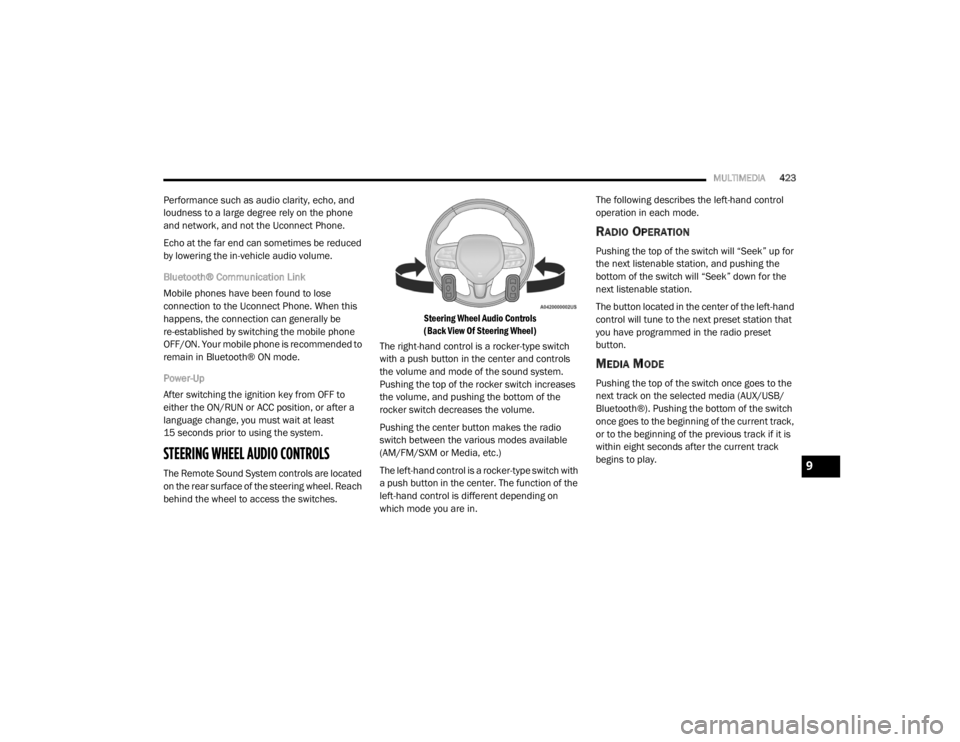
STEERING WHEEL AUDIO CONTROLS
The Remote Sound System controls are located
on the rear surface of the steering wheel. Reach
behind the wheel to access the switches.
Steering Wheel Audio Controls
(Back View Of Steering Wheel)
The right-hand control is a rocker-type switch
with a push button in the center and controls
the volume and mode of the sound system.
Pushing the top of the rocker switch increases
the volume, and pushing the bottom of the
rocker switch decreases the volume.
Pushing the center button makes the radio
switch between the various modes available
(AM/FM/SXM or Media, etc.)
The left-hand control is a rocker-type switch with
a push button in the center. The function of the
left-hand control is different depending on
which mode you are in. The following describes the left-hand control
operation in each mode.
RADIO OPERATION
Pushing the top of the switch will “Seek” up for
the next listenable station, and pushing the
bottom of the switch will “Seek” down for the
next listenable station.
The button located in the center of the left-hand
control will tune to the next preset station that
you have programmed in the radio preset
button.
MEDIA MODE
Pushing the top of the switch once goes to the
next track on the selected media (AUX/USB/
Bluetooth®). Pushing the bottom of the switch
once goes to the beginning of the current track,
or to the beginning of the previous track if it is
within eight seconds after the current track
begins to play.
9
20_WD_OM_EN_USC_t.book Page 423