power steering DODGE DURANGO 2020 Owner's Manual
[x] Cancel search | Manufacturer: DODGE, Model Year: 2020, Model line: DURANGO, Model: DODGE DURANGO 2020Pages: 464, PDF Size: 22.14 MB
Page 276 of 464

274IN CASE OF EMERGENCY
F77 –10 Amp RedDrivetrain Control Module/Front Axle Disconnect Module
— If Equipped
F78 –10 Amp RedEngine Control Module (ECM) /Electric Power Steering/
PCM
F80 –10 Amp RedUniversal Garage Door Opener/Anti-Intrusion Module — If
Equipped/Siren — If Equipped
F81 –20 Amp Yellow Trailer Tow Right Turn/Stop Lights — If Equipped
F82 –10 Amp RedSteering Column Control Module/Cruise Control/DTV — If
Equipped
F83 –10 Amp Red Fuel Door
F84 –15 Amp Blue Instrument Cluster
F85 –10 Amp Red Airbag Module
F86 –10 Amp Red Airbag Module
F87 –10 Amp Red Air Suspension — If Equipped
F88 –15 Amp Blue Instrument Panel Cluster/SGW/ITBM — If Equipped
F90/F91 –20 Amp Yellow Power Outlet (Rear Seats) Selectable
F92 –10 Amp Red Rear Console Lamp — If Equipped
F93 –20 Amp Yellow Cigar Lighter
F94 –10 Amp Red Shifter/Transfer Case Module
F95 –10 Amp Red Rear Camera / Blind Spot Sensor — If Equipped
F96 –10 Amp RedRear Seat Heater Switch/Flashlamp Charger — If
Equipped
Cavity
Cartridge Fuse Micro Fuse Description
20_WD_OM_EN_USC_t.book Page 274
Page 277 of 464

IN CASE OF EMERGENCY275
(Continued)
(Continued)
JACKING AND TIRE CHANGING
F97 –20 Amp Yellow Rear Heated Seats & Heated Steering Wheel — If
Equipped
F98 –20 Amp Yellow Ventilated Seats/Front Heated Seats — If Equipped
F99 –10 Amp RedClimate Control/Driver Assistance Systems Module/HALF/
Park Assist
F100 –10 Amp Red Active Damping — If Equipped
F101 –15 Amp Blue ECCM/SMRT HI-Beams
F102 –15 Amp Blue Spare
F103 –10 Amp RedCabin Heater (Diesel Engine Only)/Rear HVAC — If
Equipped
F104 –20 Amp Yellow Power Outlets (Instrument Panel/Center Console/Rear
Cargo — If Equipped)
Cavity
Cartridge Fuse Micro Fuse Description
CAUTION!
When installing the power distribution
center cover, it is important to ensure the
cover is properly positioned and fully
latched. Failure to do so may allow water to
get into the power distribution center and
possibly result in an electrical system
failure.When replacing a blown fuse, it is important
to use only a fuse having the correct
amperage rating. The use of a fuse with a
rating other than indicated may result in a
dangerous electrical system overload. If a
properly rated fuse continues to blow, it
indicates a problem in the circuit that must
be corrected.
CAUTION! (Continued)
WARNING!
Do not attempt to change a tire on the side
of the vehicle close to moving traffic. Pull
far enough off the road to avoid the danger
of being hit when operating the jack or
changing the wheel.
6
20_WD_OM_EN_USC_t.book Page 275
Page 373 of 464

MULTIMEDIA371
Horn With Remote Start — If
Equipped On
Off
Passive Entry On Off
Remote Door Unlock/Door Lock Driver All
NOTE:
When “Driver” is programmed, only the driver's door will unlock on the first push of the key fob unlock button. You must push the key fob unlock button
twice to unlock the passengers’ doors. When “All” is programmed, all of the doors unlock on the first press of the key fob unlock button. If “All” is
programmed, all doors unlock no matter which Passive Entry equipped door handle is grasped. If “Driver” is programmed, only the driver’s door
unlocks when the driver’s door is grasped. Touching the handle more than once only results in the driver’s door opening once. If the driver door is
opened, the interior door lock/unlock switch can be used to unlock all doors (or use key fob). Personal Settings Linked To Key Fob — If Equipped On
Off
NOTE:
The “Personal Settings Linked To Key Fob” feature provides automatic recall of all settings stored to a memory location (driver’s seat, exterior mirrors,
steering column position, and radio station presets) to enhance driver mobility when entering and exiting the vehicle. Power Liftgate Alert — If Equipped On Off
NOTE:
The “Power Liftgate Alert” feature plays an alert when the power liftgate is raising or lowering.
Setting Name Selectable Options
9
20_WD_OM_EN_USC_t.book Page 371
Page 374 of 464

372MULTIMEDIA
Auto-On Comfort Systems — If Equipped
After pressing the Auto-On Comfort Systems button on the touchscreen, the following setting will be available:
Engine Off Options
After pressing the Engine Off Options button on the touchscreen, the following settings will be available:
Setting Name Selectable Options
Auto-On Driver Heated/Ventilated
Seat & Steering Wheel With Vehicle Start — If Equipped Off
Remote Start All Starts
NOTE:
When this feature is selected, the driver’s heated seat and heated steering wheel will automatically turn on when temperatures are below 40°F
(4.4°C). When temperatures are above 80°F (26.7°C) the driver vented seat will turn on.
Setting Name Selectable Options
Engine Off Power Delay — If Equipped 0 sec
45 sec
5 min 10 min
NOTE:
When the “Engine Off Power Delay” feature is selected, the power window switches, radio, Uconnect phone system (if equipped), DVD video system
(if equipped), power sunroof (if equipped), and power outlets will remain active for up to 10 minutes after the ignition is cycled to OFF. Opening either
front door will cancel this feature.
Headlight Off Delay 0 sec
30 sec
60 sec 90 sec
NOTE:
When the “Headlight Off Delay” feature is selected, it allows the adjustment of the amount of time the headlights remain on after the engine is shut off.
20_WD_OM_EN_USC_t.book Page 372
Page 385 of 464

MULTIMEDIA383
Rear ParkSense Braking Assist — If
Equipped On
Off
NOTE:
When the “Rear ParkSense Braking Assist” feature is selected, the Park Assist system detects objects located behind the vehicle and utilizes auton -
omous braking to stop the vehicle.
Blind Spot Alert — If Equipped OffLightsLights & Chime
NOTE:
When the “Blind Spot Alert” feature is selected, the Blind Spot Alert (BSA) system is activated and shows a visual alert in the outside mirrors, and may
also play an audible alert when the turn signal is on. When “Off” is selected, the BSA system is deactivated.
If your vehicle has experienced any damage in the area where the sensor is located, even if the fascia is not damaged, the sensor may have become
misaligned. Take your vehicle to an authorized dealer to verify sensor alignment. A sensor that is misaligned results in the Blind Spot Alert System
not operating to specification. Electric Power Steering Default — If Equipped Normal
SportComfort
NOTE:
When “Electric Power Steering Default” is selected, it allows you to change the default setting of your vehicle to either Normal, Sport, or Comfort. Hill Start Assist — If Equipped On Off
Paddle Shifters — If Equipped On Off
Setting Name Selectable Options
9
20_WD_OM_EN_USC_t.book Page 383
Page 388 of 464

386MULTIMEDIA
1st Press Of Key Fob Unlocks Driver Door All Doors
NOTE:
When "Driver Door" is programmed with 1st Press Of Key Fob Unlocks, only the driver's door will unlock with the first press of the key fob unlock button.
You must push the key fob unlock button twice to unlock the passengers’ doors. When "All Doors" is programmed for 1st Press Of Key Fob Unlocks,
all doors will unlock on the first push of the key fob unlock button. If the vehicle is programmed 1st Press Of Key Fob Unlocks “All Doors”, all doors
will unlock no matter which Passive Entry equipped door handle is grasped. If 1st Press Of Key Fob Unlocks “Driver Door” is programmed, only the
driver’s door will unlock when the driver’s door is grasped. With Passive Entry, if 1st Press Of Key Fob Unlocks “Driver Door” is programmed, touching
the handle more than once will result in only the driver’s door opening. If “Driver Door” is selected, once the driver door is opened, the interior door
lock/unlock switch can be used to unlock all doors (or use the key fob). Passive Entry — If Equipped On Off
NOTE:
This feature allows you to lock and unlock the vehicle’s door(s) without having to push the key fob lock or unlock buttons.
Personal Settings Linked to Key Fob — If Equipped On
Off
NOTE:
This feature provides automatic recall of all settings stored to a memory location (driver’s seat, exterior mirrors, steering column position, and radio
station presets) to enhance driver mobility when entering and exiting the vehicle. Power Liftgate Alert — If Equipped On Off
Setting Name Selectable Options
20_WD_OM_EN_USC_t.book Page 386
Page 389 of 464

MULTIMEDIA387
Seats & Comfort — If Equipped
After pressing the Seats & Comfort button on the touchscreen, the following setting will be available:
Key Off Options
After pressing the Key Off Options button on the touchscreen, the following settings will be available:
Setting Name Selectable Options
Auto-On Driver Heated/Vented &
Steering Wheel With Vehicle Start — If Equipped Off
Remote Start All Starts
NOTE:
When this feature is selected, the driver’s heated seat and heated steering wheel will automatically turn On when temperatures are below 40°F
(4.4°C). When temperatures are above 80°F (26.7°C) the driver vented seat will turn On.
Setting Name Selectable Options
Key Off Power Delay — If Equipped 0 sec
45 sec
5 min 10 min
NOTE:
When the “Key Off Power Delay” feature is selected, the power window switches, radio, Uconnect phone system (if equipped), DVD video system (if
equipped), power sunroof (if equipped), and power outlets remains active for up to 10 minutes after the ignition is cycled to OFF. Opening either front
door cancels this feature.
9
20_WD_OM_EN_USC_t.book Page 387
Page 409 of 464
MULTIMEDIA407
Android Auto™ is a feature of your Uconnect
system, and your Android™ 5.0 or higher
powered smartphone with a data plan, that
allows you to project your smartphone and a
number of its apps onto the touchscreen radio
display. Android Auto™ automatically brings you
useful information, and organizes it into simple
cards that appear just when they are needed.
Android Auto™ can be used with Google's
best-in-class speech technology, the steering
wheel controls, the knobs and buttons on your
radio faceplate, and the radio display’s
touchscreen to control many of your apps. To
use Android Auto™, follow the following
procedure:
1. Download the Android Auto™ app from the
Google Play store on your
Android™-powered smartphone.
2. Connect your Android™-powered smartphone to one of the media USB ports
in your vehicle. If the Android Auto™ app
was not downloaded, the first time you plug
your device in, the app will begin to
download. NOTE:
Be sure to use the factory-provided USB cable
that came with your phone, as aftermarket
cables may not work.
3. Once the device is connected and recognized, the “Phone” icon on the drag &
drop menu bar changes to the Android
Auto™ Icon.
Once Android Auto™ is up and running on your
Uconnect system, the following features can be
utilized using your smartphone’s data plan:
Google Maps™ for navigation
Google Play Music, Spotify, iHeart Radio, etc.
for music
Hands-free Calling and Texting for communi
-
cation
Hundred of compatible apps NOTE:
To use Android Auto™, make sure you are in an
area with cellular coverage. Android Auto™ may
use cellular data and your cellular coverage is
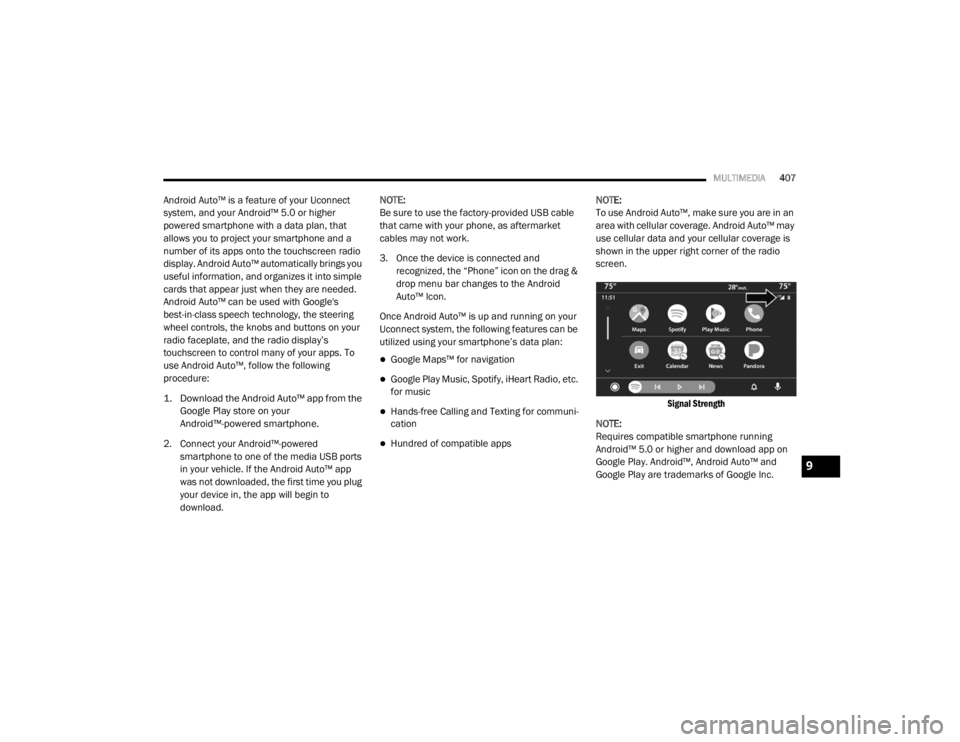
shown in the upper right corner of the radio
screen.
Signal Strength
NOTE:
Requires compatible smartphone running
Android™ 5.0 or higher and download app on
Google Play. Android™, Android Auto™ and
Google Play are trademarks of Google Inc.
9
20_WD_OM_EN_USC_t.book Page 407
Page 425 of 464
MULTIMEDIA423
Performance such as audio clarity, echo, and
loudness to a large degree rely on the phone
and network, and not the Uconnect Phone.
Echo at the far end can sometimes be reduced
by lowering the in-vehicle audio volume.
Bluetooth® Communication Link
Mobile phones have been found to lose
connection to the Uconnect Phone. When this
happens, the connection can generally be
re-established by switching the mobile phone
OFF/ON. Your mobile phone is recommended to
remain in Bluetooth® ON mode.
Power-Up
After switching the ignition key from OFF to
either the ON/RUN or ACC position, or after a
language change, you must wait at least
15 seconds prior to using the system.
STEERING WHEEL AUDIO CONTROLS
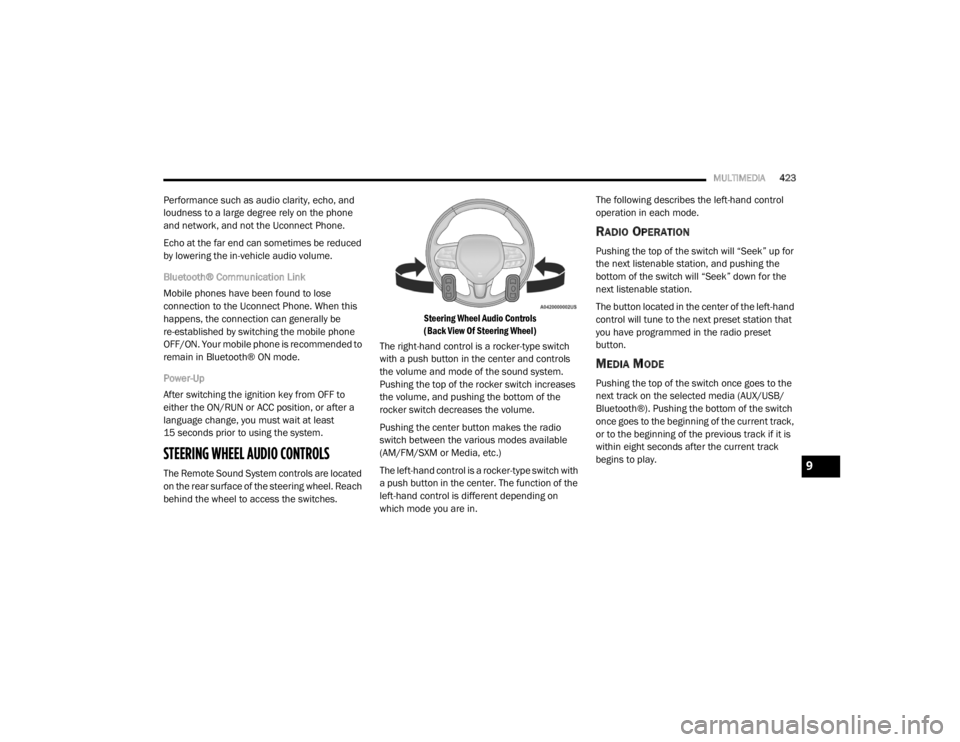
The Remote Sound System controls are located
on the rear surface of the steering wheel. Reach
behind the wheel to access the switches.
Steering Wheel Audio Controls
(Back View Of Steering Wheel)
The right-hand control is a rocker-type switch
with a push button in the center and controls
the volume and mode of the sound system.
Pushing the top of the rocker switch increases
the volume, and pushing the bottom of the
rocker switch decreases the volume.
Pushing the center button makes the radio
switch between the various modes available
(AM/FM/SXM or Media, etc.)
The left-hand control is a rocker-type switch with
a push button in the center. The function of the
left-hand control is different depending on
which mode you are in. The following describes the left-hand control
operation in each mode.
RADIO OPERATION
Pushing the top of the switch will “Seek” up for
the next listenable station, and pushing the
bottom of the switch will “Seek” down for the
next listenable station.
The button located in the center of the left-hand
control will tune to the next preset station that
you have programmed in the radio preset
button.
MEDIA MODE
Pushing the top of the switch once goes to the
next track on the selected media (AUX/USB/
Bluetooth®). Pushing the bottom of the switch
once goes to the beginning of the current track,
or to the beginning of the previous track if it is
within eight seconds after the current track
begins to play.
9
20_WD_OM_EN_USC_t.book Page 423
Page 444 of 464

442MULTIMEDIA
ANDROID AUTO™ — IF EQUIPPED
NOTE:
Feature availability depends on your carrier and
mobile phone manufacturer. Some Android
Auto™ features may or may not be available in
every region and/or language.
Android Auto™ allows you to use your voice to
interact with Android’s™ best-in-class speech
technology through your vehicle’s voice
recognition system, and use your smartphone’s
data plan to project your Android™-powered
smartphone and a number of its apps onto your
Uconnect touchscreen. Connect your Android™
5.0 or higher to one of the media USB ports,
using the factory-provided USB cable, and press
the new Android Auto™ icon that replaces your
“Phone” icon on the main menu bar to begin
Android Auto™. Push and hold the VR button on
the steering wheel, or press and hold the
Microphone icon within Android Auto™, to
activate Android’s™ VR, which recognizes
natural voice commands, to use a list of your
smartphone’s features:
Maps
Music
Phone
Text Messages
Additional Apps
Refer to your Uconnect Owner’s Manual
Supplement for further information.
NOTE:
Requires compatible smartphone running
Android™ 5.0 or higher and download app on
Google Play. Android™, Android Auto™, and
Google Play are trademarks of Google Inc.
APPLE CARPLAY® — IF EQUIPPED
NOTE:
Feature availability depends on your carrier and
mobile phone manufacturer. Some Apple
CarPlay® features may or may not be available
in every region and/or language.
Apple CarPlay® allows you to use your voice to
interact with Siri through your vehicle’s voice
recognition system, and use your smartphone’s
data plan to project your iPhone® and a
number of its apps onto your Uconnect
touchscreen. Connect your iPhone® 5, or higher, to one of the
media USB ports, using the factory-provided
Lightning cable, and press the new Apple
CarPlay® icon that replaces your Phone icon on
the main menu bar to begin Apple CarPlay®.
Push and hold the VR button on the steering
wheel, or press and hold the Home button
within Apple CarPlay®, to activate Siri, which
recognizes natural voice commands to use a list
of your iPhone’s® features:
Phone
Music
Messages
Maps — if equipped
Additional Apps — if equipped
Refer to your Uconnect Owner’s Manual
Supplement for further information.
NOTE:
Requires compatible iPhone®. See dealer for
phone compatibility. Data plan rates apply.
Vehicle user interface is a product of Apple®.
20_WD_OM_EN_USC_t.book Page 442