lane assist DODGE DURANGO 2023 Owners Manual
[x] Cancel search | Manufacturer: DODGE, Model Year: 2023, Model line: DURANGO, Model: DODGE DURANGO 2023Pages: 328, PDF Size: 13.82 MB
Page 5 of 328

3
EXTERIOR LIGHTS.................................................. 45 Multifunction Lever ..........................................45
Headlight Switch ..............................................45
Daytime Running Lights (DRLs) ......................46
High/Low Beam Switch....................................46
Automatic High Beam — If Equipped ..............47
Flash-To-Pass....................................................47
Automatic Headlights ......................................47
Parking Lights And Panel Lights ......................47
Automatic Headlights With Wipers..................47
Headlight Delay ................................................48
Lights-On Reminder..........................................48
Fog Lights — If Equipped ..................................48
Turn Signals ......................................................48
Lane Change Assist — If Equipped ..................48
Automatic Headlight Leveling — If Equipped ..49
Battery Saver ....................................................49
INTERIOR LIGHTS ................................................. 49
Courtesy Lights .................................................49
Front Map/Reading Lights —If Equipped ........49
Ambient Light — If Equipped ............................50
Dimmer Control ................................................50
Illuminated Entry ..............................................51
WINDSHIELD WIPERS AND WASHERS .............. 51
Windshield Wiper Operation ...........................51
Rain Sensing Wipers — If Equipped ...............52
Rear Window Wiper/Washer ..........................53 CLIMATE CONTROLS..............................................53
Automatic Climate Control Descriptions
And Functions ...................................................53
Automatic Temperature Control (ATC) ............59
Climate Voice Recognition ...............................59
Operating Tips .................................................60
INTERIOR STORAGE AND EQUIPMENT ............... 61
Storage..............................................................61
USB/AUX Control .............................................63
Lighted Cupholders — If Equipped ..................65
Electrical Power Outlets ...................................65
Power Inverter — If Equipped ..........................67
Wireless Charging Pad —If Equipped .............68
WINDOWS ..............................................................68
Power Windows ................................................68
Wind Buffeting .................................................70
POWER SUNROOF — IF EQUIPPED ...................... 70
Opening And Closing The Sunroof...................70
Sunshade Operation ........................................71
Pinch Protect Feature ......................................71
Sunroof Maintenance ......................................71
Ignition Off Operation.......................................71
HOOD .......................................................................71
Opening The Hood............................................71
Closing The Hood .............................................72
LIFTGATE ................................................................. 72
Power Liftgate — If Equipped ...........................72
Cargo Area Features .......................................73
ROOF LUGGAGE RACK — IF EQUIPPED ............... 74
Deploying The Crossbars .................................75
Stowing The Crossbars ....................................76
GETTING TO KNOW YOUR
INSTRUMENT PANEL
INSTRUMENT CLUSTER ........................................ 78Instrument Cluster Descriptions ..................... 79
INSTRUMENT CLUSTER DISPLAY ........................ 79
Location And Controls...................................... 80
Engine Oil Life Reset ....................................... 82
Display And Messages ..................................... 83
Instrument Cluster Display Menu Items ........ 84
Battery Saver On/Battery Saver Mode
Message — Electrical Load Reduction
Actions — If Equipped ..................................... 87
WARNING LIGHTS AND MESSAGES ................... 88
Red Warning Lights ..........................................88
Yellow Warning Lights ...................................... 91
Yellow Indicator Lights ..................................... 94
Green Indicator Lights ..................................... 94
White Indicator Lights ...................................... 95
Blue Indicator Lights ........................................ 95
ONBOARD DIAGNOSTIC SYSTEM — OBD II ....... 96
Onboard Diagnostic System
(OBD II) Cybersecurity ...................................... 96
EMISSIONS INSPECTION AND MAINTENANCE
PROGRAMS ........................................................... 96
23_WD_OM_EN_USC_t.book Page 3
Page 6 of 328

4
STARTING AND OPERATING
STARTING THE ENGINE ......................................... 98
Automatic Transmission ..................................98
Normal Starting ...............................................98
AutoPark ...........................................................99
Extended Park Starting ................................. 100If Engine Fails To Start .................................. 101
Cold Weather Operation
(Below –22°F Or −30°C) ............................ 101
After Starting.................................................. 101
ENGINE BREAK-IN RECOMMENDATIONS ........ 101
PARKING BRAKE ................................................ 102
AUTOMATIC TRANSMISSION.............................. 103 Ignition Park Interlock ................................... 104Brake Transmission Shift Interlock (BTSI)
System ........................................................... 104Fuel Economy (ECO) Mode ........................... 104
8-Speed Automatic Transmission ................ 104
SPORT MODE — IF EQUIPPED ............................ 108
ALL-WHEEL DRIVE OPERATION .........................108
Single-Speed Operating Instructions/
Precautions — If Equipped ............................ 108
Electronically Shifted Transfer Case —
If Equipped..................................................... 109
Shifting Procedure......................................... 110
TOW N GO — IF EQUIPPED ................................. 111
Guidelines For Track Use .............................. 112
FUEL SAVER TECHNOLOGY 5.7L ONLY —
IF EQUIPPED ......................................................... 113
POWER STEERING ............................................... 113 STOP/START SYSTEM — IF EQUIPPED ............. 114
Autostop Mode .............................................. 114
Possible Reasons The Engine Does Not
Autostop......................................................... 114
To Start The Engine While In Autostop
Mode .............................................................. 114
To Manually Turn Off The
Stop/Start System......................................... 115
To Manually Turn On The
Stop/Start System......................................... 115
System Malfunction ...................................... 115
CRUISE CONTROL SYSTEMS — IF EQUIPPED .... 115
Cruise Control ............................................... 115
Adaptive Cruise Control (ACC) ...................... 117
PARKSENSE FRONT/REAR PARK ASSIST
SYSTEM — IF EQUIPPED .................................... 125
ParkSense Sensors ....................................... 126
ParkSense Display ........................................ 126ParkSense Warning Display ......................... 129
Enabling And Disabling ParkSense .............. 129Operation With A Trailer................................ 129
Service The ParkSense Park Assist System ...130
Cleaning The ParkSense System ................. 130
ParkSense System Usage Precautions........ 130
LANESENSE — IF EQUIPPED ............................. 131
LaneSense Operation ................................... 131Turning LaneSense On Or Off ....................... 132
LaneSense Warning Message ...................... 132Changing LaneSense Status ........................ 134 PARKVIEW REAR BACK UP CAMERA .............. 134
REFUELING THE VEHICLE ................................... 135
VEHICLE LOADING .............................................. 136
Certification Label ......................................... 136
TRAILER TOWING ................................................ 137
Common Towing Definitions......................... 137
Trailer Hitch Classification............................ 139
Trailer Towing Weights (Maximum Trailer
Weight Ratings) ............................................ 139
Trailer Hitch Receiver Cover Removal —
If Equipped .................................................... 140
Trailer And Tongue Weight .......................... 140
Towing Requirements .................................. 141Towing Tips ................................................... 145
RECREATIONAL TOWING
(BEHIND MOTORHOME) ..................................... 146
Towing This Vehicle Behind Another Vehicle ..146
Recreational Towing — Rear-Wheel
Drive Models ................................................. 147
Recreational Towing — All-Wheel Drive
Models (Single-Speed Transfer Case) ......... 147
Recreational Towing — All-Wheel Drive
Models (Two-Speed Transfer Case) ............. 147
DRIVING TIPS ....................................................... 150
On-Road Driving Tips..................................... 150Off-Road Driving Tips .................................... 150
23_WD_OM_EN_USC_t.book Page 4
Page 50 of 328
48GETTING TO KNOW YOUR VEHICLE
HEADLIGHT DELAY
To assist when exiting the vehicle, the headlight
delay feature will leave the headlights on for up to
90 seconds. This delay is initiated when the
ignition is placed in the OFF position while the
headlight switch is on, and then the headlight
switch is cycled off. Headlight delay can be
canceled by either turning the headlight switch on
then off, or by placing the ignition in the ON
position.
NOTE:The headlight delay timing is programmable
through the Uconnect system Úpage 153.
LIGHTS-ON REMINDER
If the headlights, parking lights, or cargo lights are
left on after the ignition is placed in the OFF
position, the vehicle will chime when the driver’s
door is opened.
FOG LIGHTS — IF EQUIPPED
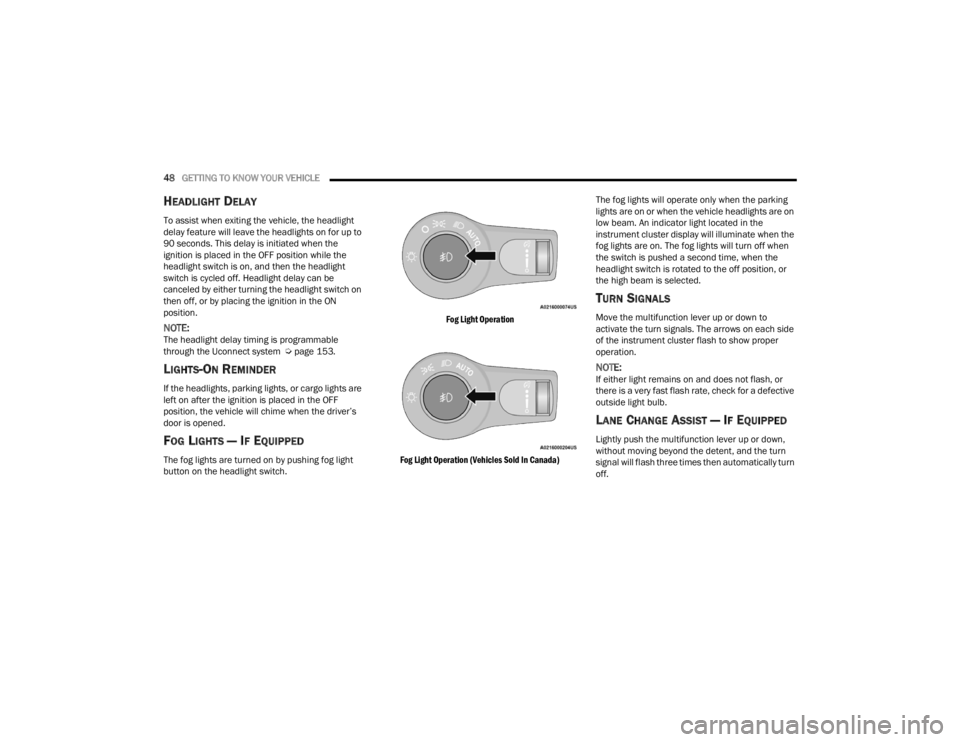
The fog lights are turned on by pushing fog light
button on the headlight switch.
Fog Light Operation
Fog Light Operation (Vehicles Sold In Canada)
The fog lights will operate only when the parking
lights are on or when the vehicle headlights are on
low beam. An indicator light located in the
instrument cluster display will illuminate when the
fog lights are on. The fog lights will turn off when
the switch is pushed a second time, when the
headlight switch is rotated to the off position, or
the high beam is selected.
TURN SIGNALS
Move the multifunction lever up or down to
activate the turn signals. The arrows on each side
of the instrument cluster flash to show proper
operation.
NOTE:If either light remains on and does not flash, or
there is a very fast flash rate, check for a defective
outside light bulb.
LANE CHANGE ASSIST — IF EQUIPPED
Lightly push the multifunction lever up or down,
without moving beyond the detent, and the turn
signal will flash three times then automatically turn
off.
23_WD_OM_EN_USC_t.book Page 48
Page 87 of 328
GETTING TO KNOW YOUR INSTRUMENT PANEL85
0-100 mph (0-160 km/h) Timer
Best
Last
Current
Reaction Time — If Selected
0-60ft Duration
Best
Last
Current
Reaction Time — If Selected
1/8 Mile (200 meters) Timer
Best
Last
Current
Reaction Time — If Selected
1/4 Mile (400 meters) Timer
Best
Last
Current
Reaction Time — If Selected
Braking Distance
Distance
From Speed
Current G-Forces
Peak G-Forces
Lap Timer
Lap History
Will list the last four laps with the best lap
highlighted in green.
Top Speed
Driver Assist — If Equipped
Push and release the up or down arrow
button until the Driver Assist display icon/title is
highlighted in the instrument cluster display then
use the left or right arrow button to choose
adaptive cruise control or LaneSense Úpage 117.
Fuel Economy
Push and release the up or down arrow
button until the Fuel Economy Menu icon/title is
highlighted. Push the left or right arrow
button to scroll the submenus, one with current
fuel economy display and one without it.
Current MPG, L/100 km, or km/L
Average MPG, L/100 km, or km/L
Range to empty
Press the OK button to reset the average fuel
economy
NOTE:The Range to empty feature is not able to be reset
through the instrument cluster display controls.
Trip
Push and release the up or down arrow
button until the Trip icon/title is highlighted in the
instrument cluster display, then push and release
the left or right arrow button to select Trip A
or Trip B.
The Trip A and Trip B information will display the
following:
Distance
Average Fuel Economy
Elapsed Time
Hold the OK button to reset all the information.
Stop/Start – If Equipped
Push and release the up or down
arrow button on the steering wheel to see
the Stop/Start status in the driver
interactive display Ú page 114.
Trailer Tow — If Equipped
Push and release the up or down arrow
button until the Trailer Tow Menu icon/title is
highlighted in the instrument cluster display. Push
and release the left or right arrow button to
select Trailer Trip or Trailer Brake.
3
23_WD_OM_EN_USC_t.book Page 85
Page 124 of 328
122STARTING AND OPERATING
If there is no vehicle ahead, the vehicle will
maintain the set speed. If a slower moving vehicle
is detected in the same lane, the instrument
cluster display will show the ACC Set With Target
Detected Indicator Light. The system will then
adjust the vehicle speed automatically to maintain
the distance setting, regardless of the set speed.
The vehicle will then maintain the set distance
until:
The vehicle ahead accelerates to a speed above
the set speed.
The vehicle ahead moves out of your lane or
view of the sensor.
The distance setting is changed.
The system disengages Ú page 119.
The maximum braking applied by ACC is limited;
however, the driver can always apply the brakes
manually, if necessary.
NOTE:The brake lights will illuminate whenever the ACC
system applies the brakes.
A Proximity Warning will alert the driver if ACC
predicts that its maximum braking level is not
sufficient to maintain the set distance. If this
occurs, a visual alert “BRAKE!” will flash in the
instrument cluster display and a chime will sound
while ACC continues to apply its maximum braking
capacity.
NOTE:The “BRAKE!” screen in the instrument cluster
display is a warning for the driver to take action
and does not necessarily mean that the Forward
Collision Warning system is applying the brakes
autonomously.
Overtake Aid
When driving with Adaptive Cruise Control (ACC)
engaged and following a vehicle, the system will
provide an additional acceleration up to the ACC
set speed to assist in passing the vehicle. This
additional acceleration is triggered when the driver
utilizes the left turn signal and will only be active
when passing on the left hand side.
ACC Operation At Stop
If the ACC system brings your vehicle to a standstill
while following a vehicle ahead, your vehicle will
resume motion, without any driver interaction, if
the vehicle ahead starts moving within two
seconds of your vehicle coming to a standstill.
If the target vehicle does not start moving within
two seconds of your vehicle coming to a standstill,
the ACC with Stop system will cancel and the
brakes will release. A cancel message will display
on the instrument cluster display and produce a
warning chime. Driver intervention will be required
at this moment.
While ACC with Stop is holding your vehicle at a
standstill, if the driver seat belt is unbuckled or the driver door is opened, the ACC with Stop system
will cancel and the brakes will release. A cancel
message will display on the instrument cluster
display and produce a warning chime. The driver
must now manually operate the vehicle’s
accelerator and brakes.
Display Warnings And Maintenance
“WIPE FRONT RADAR SENSOR IN FRONT OF
VEHICLE” WARNING
The “ACC/FCW Unavailable Wipe Front Radar
Sensor” warning will display and a chime will
sound when conditions temporarily limit system
performance.
This most often occurs at times of poor visibility,
such as in snow or heavy rain. The ACC system may
also become temporarily blinded due to
obstructions, such as mud, dirt or ice. In these
cases, the instrument cluster display will display
this message and the system will deactivate.
WARNING!
When the ACC system is resumed, the driver
must ensure that there are no pedestrians,
vehicles or objects in the path of the vehicle.
Failure to follow these warnings can result in a
collision and death or serious personal injury.
23_WD_OM_EN_USC_t.book Page 122
Page 127 of 328
STARTING AND OPERATING125
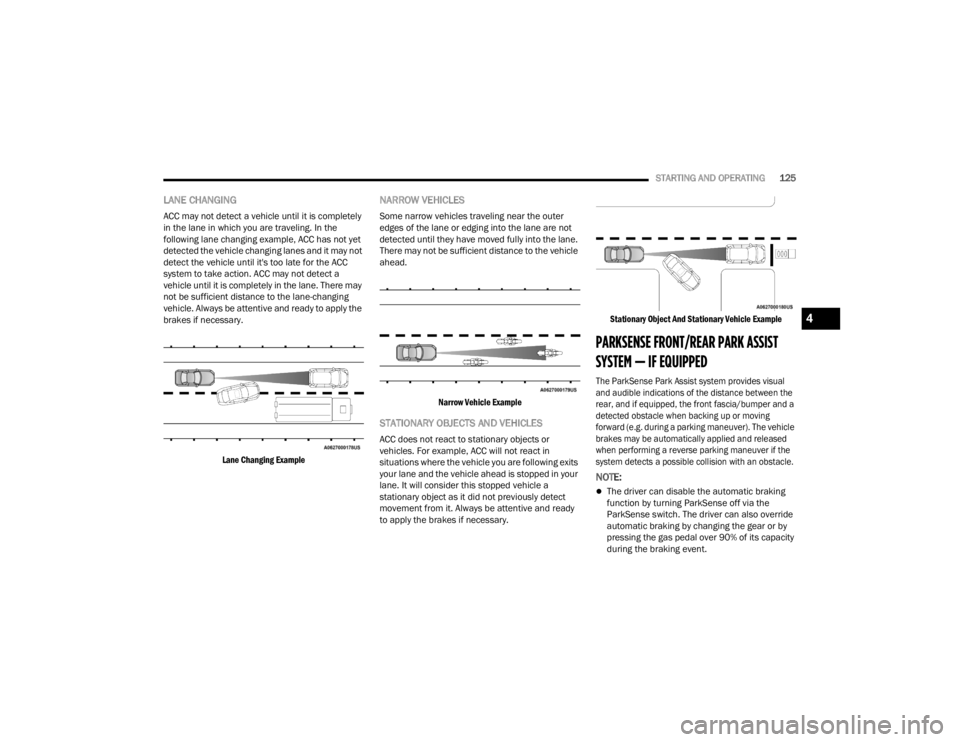
LANE CHANGING
ACC may not detect a vehicle until it is completely
in the lane in which you are traveling. In the
following lane changing example, ACC has not yet
detected the vehicle changing lanes and it may not
detect the vehicle until it's too late for the ACC
system to take action. ACC may not detect a
vehicle until it is completely in the lane. There may
not be sufficient distance to the lane-changing
vehicle. Always be attentive and ready to apply the
brakes if necessary.
Lane Changing Example
NARROW VEHICLES
Some narrow vehicles traveling near the outer
edges of the lane or edging into the lane are not
detected until they have moved fully into the lane.
There may not be sufficient distance to the vehicle
ahead.
Narrow Vehicle Example
STATIONARY OBJECTS AND VEHICLES
ACC does not react to stationary objects or
vehicles. For example, ACC will not react in
situations where the vehicle you are following exits
your lane and the vehicle ahead is stopped in your
lane. It will consider this stopped vehicle a
stationary object as it did not previously detect
movement from it. Always be attentive and ready
to apply the brakes if necessary.
Stationary Object And Stationary Vehicle Example
PARKSENSE FRONT/REAR PARK ASSIST
SYSTEM — IF EQUIPPED
The ParkSense Park Assist system provides visual
and audible indications of the distance between the
rear, and if equipped, the front fascia/bumper and a
detected obstacle when backing up or moving
forward (e.g. during a parking maneuver). The vehicle
brakes may be automatically applied and released
when performing a reverse parking maneuver if the
system detects a possible collision with an obstacle.
NOTE:
The driver can disable the automatic braking
function by turning ParkSense off via the
ParkSense switch. The driver can also override
automatic braking by changing the gear or by
pressing the gas pedal over 90% of its capacity
during the braking event.
4
23_WD_OM_EN_USC_t.book Page 125
Page 136 of 328

134STARTING AND OPERATING
CHANGING LANESENSE STATUS
The LaneSense system has settings to adjust the
intensity of the torque warning and the warning
zone sensitivity (early/late) that you can configure
through the Uconnect system Ú page 153.
NOTE:
When enabled the system operates above
37 mph (60 km/h) and below 112 mph
(180 km/h).
The warnings are disabled with use of the turn
signal.
The system will not apply torque to the steering
wheel whenever a safety system engages
(Anti-Lock Brakes, Traction Control System,
Electronic Stability Control, Forward Collision
Warning, etc.).
PARKVIEW REAR BACK UP CAMERA
Your vehicle is equipped with the ParkView Rear
Back Up Camera that allows you to see an on-screen
image of the rear surroundings of your vehicle
whenever the gear selector is put into REVERSE. The
image will be displayed on the Navigation/
Multimedia radio display screen along with a caution
note to “Check Entire Surroundings” across the top
of the screen. After five seconds this note will
disappear. The ParkView camera is located on the
rear of the vehicle above the rear license plate.
When the vehicle is shifted out of REVERSE with
camera delay turned off, the rear camera mode is
exited and the previous screen appears.
Manual Activation Of The Back Up Camera
1. Press the Vehicle Menu button located at the
bottom of the Uconnect display. Then select
the Controls tab.
2. Press the Rear View Camera button to turn the Rear View Camera system on.
3. Alternatively, the Rear View Camera feature can be enabled by pressing the Rear View
Camera button in the App Drawer.
NOTE:The ParkView Rear Back Up Camera has program -
mable modes of operation that may be selected
through the Uconnect system Ú page 153. In
certain radio configurations, these modes of oper -
ation will be found in the Camera section of the
vehicle settings menu.
When the vehicle is shifted out of REVERSE with
camera delay turned off, the rear camera mode is
exited and the previous screen appears. When the
vehicle is shifted out of REVERSE with camera
delay turned on, the camera image will continue to
be displayed for up to 10 seconds after shifting out
of REVERSE unless the following conditions occur:
the vehicle speed exceeds 8 mph (13 km/h), the
vehicle is shifted into PARK, the vehicle’s ignition is
placed in the OFF position, or the touchscreen X button to disable the display of the Rear View
Camera is pressed.
When enabled, active guidelines are overlaid on
the image to illustrate the width of the vehicle and
its projected back up path based on the steering
wheel position. A dashed center line overlay
indicates the center of the vehicle to assist with
parking or aligning to a hitch/receiver. Different
colored zones indicate the distance to the rear of
the vehicle.
The following table shows the approximate
distances for each zone:
Rear View Camera — Viewing At Speed
When the vehicle is in PARK, NEUTRAL or
DRIVE, the Rear View Camera can be
activated with the Rear View Camera
button in the Controls tab of the Vehicle
Menu. This feature allows the customer to monitor
the area directly behind the vehicle (or trailer, if
equipped) for up to 10 seconds while driving. If the
vehicle speed remains below 8 mph (13 km/h), Zone
Distance To The Rear Of
The Vehicle
Red 0 - 1 ft (0 - 30 cm)
Yellow 1 ft - 6.5 ft (30 cm - 2 m)
Green 6.5 ft or greater
(2 m or greater)
23_WD_OM_EN_USC_t.book Page 134
Page 162 of 328

160MULTIMEDIA
Safety & Driving Assistance
After pressing the Safety & Driving Assistance button on the touchscreen, the following settings will be available:
NOTE:Depending on the vehicle’s options, feature settings may vary.
Setting Name Description
Automatic Emergency BrakingThis setting will take you to the selectable options for “Forward Collision
Warning” and “Forward Collision Warning Sensitivity”.
Forward Collision Warning This setting will turn the Forward Collision system on or off. The “Off” setting
will deactivate the Forward Collision Warning (FCW) system. The “Warning
Only” setting will provide only an audible chime when a collision is detected.
The “Warning + Active Braking” setting will provide an audible chime and apply
some brake pressure when a collision is detected.
Forward Collision Warning Sensitivity This setting will change the distance at which the Forward Collision Warning
alert sounds. The “Medium” setting will have the FCW system signal when an
object is in view, and the possibility of a collision is detected. The “Near”
setting will have the FCW system signal when the object is closer to the vehicle.
The “Far” setting will have the FCW system signal when an object is at a far
distance from the vehicle.
Active Lane Management Warning This setting will change the distance at which the steering wheel will provide
lane departure feedback. The available settings are “Early”, “Medium”, and
“Late”.
23_WD_OM_EN_USC_t.book Page 160
Page 163 of 328

MULTIMEDIA161
Active Lane Management This setting will alert the driver by vibrating the steering wheel and moving the
steering wheel when a lane departure is detected. The available options within
Active Lane Management are Lane Management “Vibration Only”, “Steering
Assist Only”, and “Vibration + Steering Assist”; Lane Warning “Early”,
“Medium”, and “Late”; Vibration Strength “Low”, “Medium” and “High”; and
Steering Assist Strength “Low”, “Medium” and “High”.
ParkSense This setting will change the type of ParkSense alert when a close object is
detected and can provide both an audible chime and a visual display.
Front ParkSense Volume This setting adjusts the volume of the Front ParkSense system. The available
settings are “Low”, “Medium”, and “High”.
Rear ParkSense Volume This setting adjusts the volume of the Rear ParkSense system. The available
settings are “Low”, “Medium”, and “High”.
Rear ParkSense Braking Assist This setting will turn the Rear ParkSense Braking Assist on or off.
Blind Spot Alert This setting will change the type of alert provided when an object is detected in
a vehicle’s blind spot. The “Off” setting will turn off Blind Spot Alert. The
“Lights” setting will activate the Blind Spot Alert lights on the outside mirrors.
The “Lights & Chime” setting will activate both the lights on the outside mirrors
and an audible chime.
Electric Power Steering Default This setting will change the Electric Power setting to “Normal”,” Sport”, or
“Comfort”.
Paddle Shifters This setting will turn the paddle shifters on or off.
LaneSense Warning This setting will change the distance at which the steering wheel will provide
lane departure feedback. The available settings are “Early”, “Medium”, and
“Late”.
Setting Name
Description
5
23_WD_OM_EN_USC_t.book Page 161
Page 164 of 328

162MULTIMEDIA
Units
LaneSense Strength This setting will change the strength of the steering wheel feedback during a
lane departure. The available settings are “Low”, “Medium”, and “High”.
ParkView Backup Camera Delay This setting will add a timed delay to the ParkView Backup Camera when
shifting out of REVERSE.
ParkView Backup Camera Active Guidelines This setting will turn the ParkView Backup Camera Active Guidelines on or off.
Hill Start Assist This setting will turn the Hill Start Assist system on or off.
Rear Seat Alert When this setting is turned on and the rear doors are opened while the engine
is running, or if the engine is turned on within 10 minutes of the door opening,
a message will appear to check the rear seat when the vehicle is powered OFF.
Setting Name
Description
When the Units button is pressed on the touchscreen, the system displays the different measurement options. The selected unit of measurement will display
in the instrument cluster display and Navigation system (if equipped). The available settings are:
NOTE:Depending on the vehicle’s options, feature settings may vary.
Setting NameDescription
USThis setting will change the unit of measurement on the display to US.
Metric This setting will change the unit of measurement on the display to Metric.
Custom This setting changes the “Speed” (MPH or km/h), “Distance” (mi or km), “Fuel
Consumption” (MPG [US], MPG [UK], L/100 km, or km/L), “Pressure” (psi,
kPa, or bar), and “Temperature” (°C or °F) units of measurement
independently.
23_WD_OM_EN_USC_t.book Page 162