phone DODGE DURANGO SRT 2018 User Guide
[x] Cancel search | Manufacturer: DODGE, Model Year: 2018, Model line: DURANGO SRT, Model: DODGE DURANGO SRT 2018Pages: 568, PDF Size: 6.54 MB
Page 480 of 568
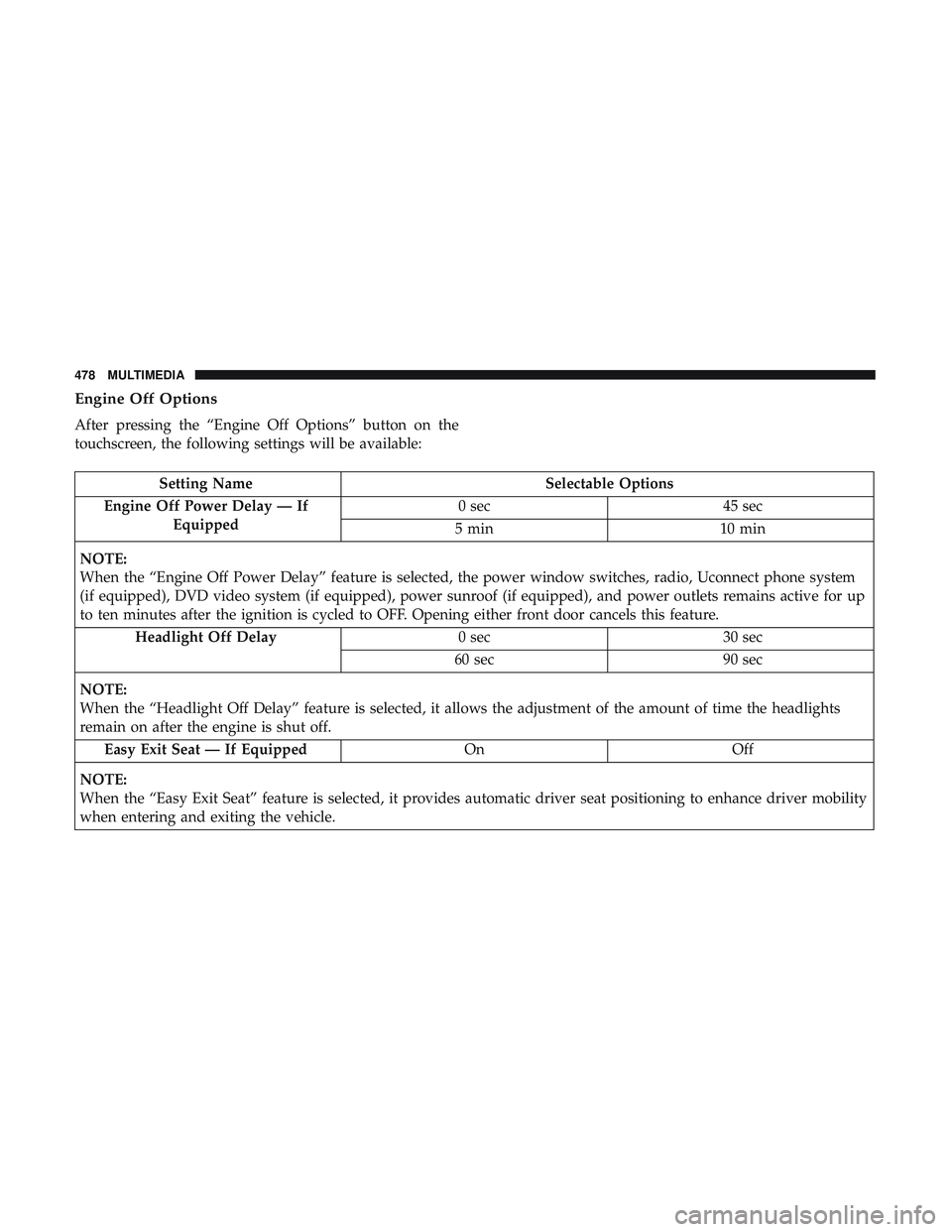
Engine Off Options
After pressing the “Engine Off Options” button on the
touchscreen, the following settings will be available:
Setting NameSelectable Options
Engine Off Power Delay — If Equipped 0 sec
45 sec
5 min 10 min
NOTE:
When the “Engine Off Power Delay” feature is selected, the power window switches, radio, Uconnect phone system
(if equipped), DVD video system (if equipped), power sunroof (if equipped), and power outlets remains active for up
to ten minutes after the ignition is cycled to OFF. Opening either front door cancels this feature. Headlight Off Delay 0 sec30 sec
60 sec 90 sec
NOTE:
When the “Headlight Off Delay” feature is selected, it allows the adjustment of the amount of time the headlights
remain on after the engine is shut off. Easy Exit Seat — If Equipped OnOff
NOTE:
When the “Easy Exit Seat” feature is selected, it provides automatic driver seat positioning to enhance driver mobility
when entering and exiting the vehicle.
478 MULTIMEDIA
Page 482 of 568
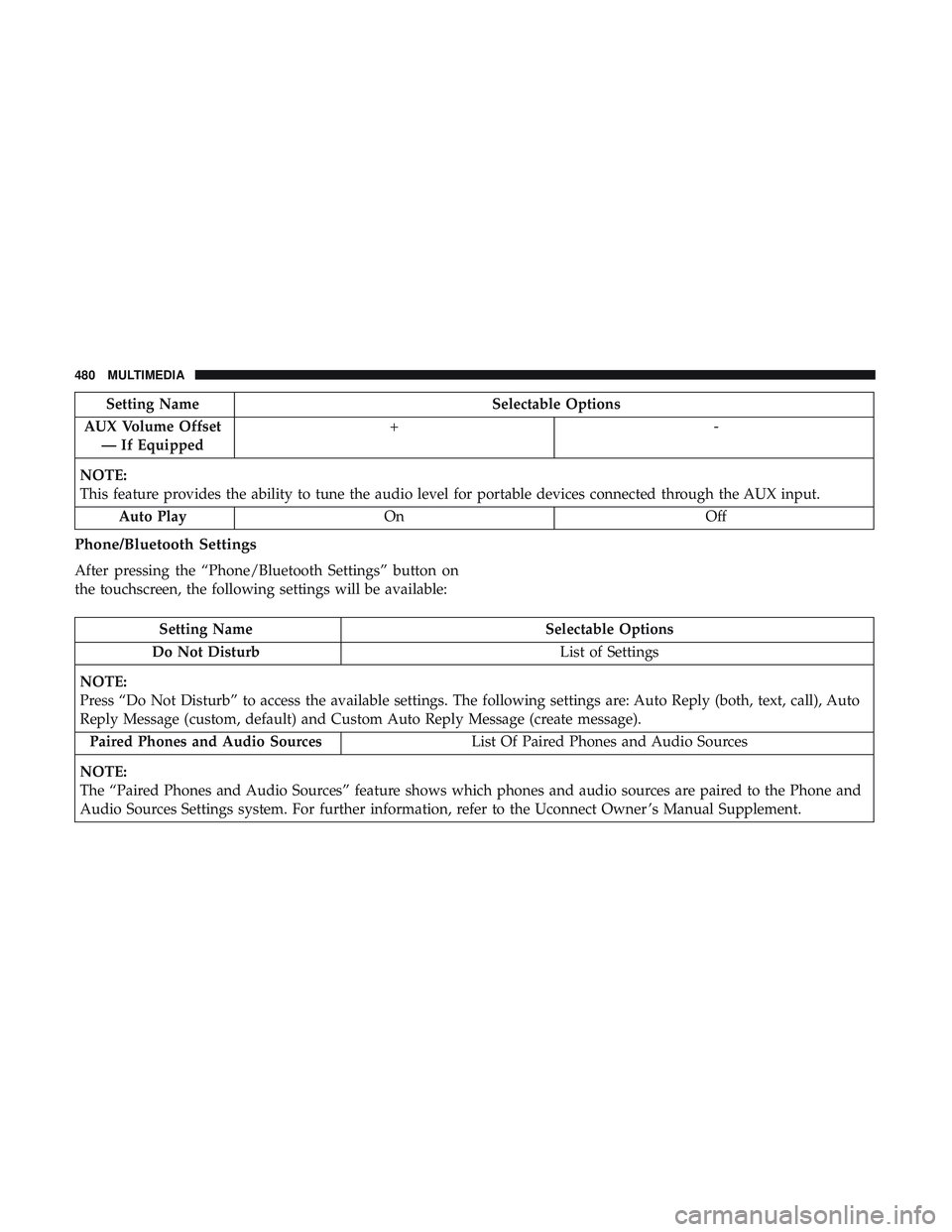
Setting NameSelectable Options
AUX Volume Offset — If Equipped +-
NOTE:
This feature provides the ability to tune the audio level for portable devices connected through the AUX input. Auto Play On Off
Phone/Bluetooth Settings
After pressing the “Phone/Bluetooth Settings” button on
the touchscreen, the following settings will be available:
Setting Name Selectable Options
Do Not Disturb List of Settings
NOTE:
Press “Do Not Disturb” to access the available settings. The following settings are: Auto Reply (both, text, call), Auto
Reply Message (custom, default) and Custom Auto Reply Message (create message). Paired Phones and Audio Sources List Of Paired Phones and Audio Sources
NOTE:
The “Paired Phones and Audio Sources” feature shows which phones and audio sources are paired to the Phone and
Audio Sources Settings system. For further information, refer to the Uconnect Owner ’s Manual Supplement.
480 MULTIMEDIA
Page 483 of 568
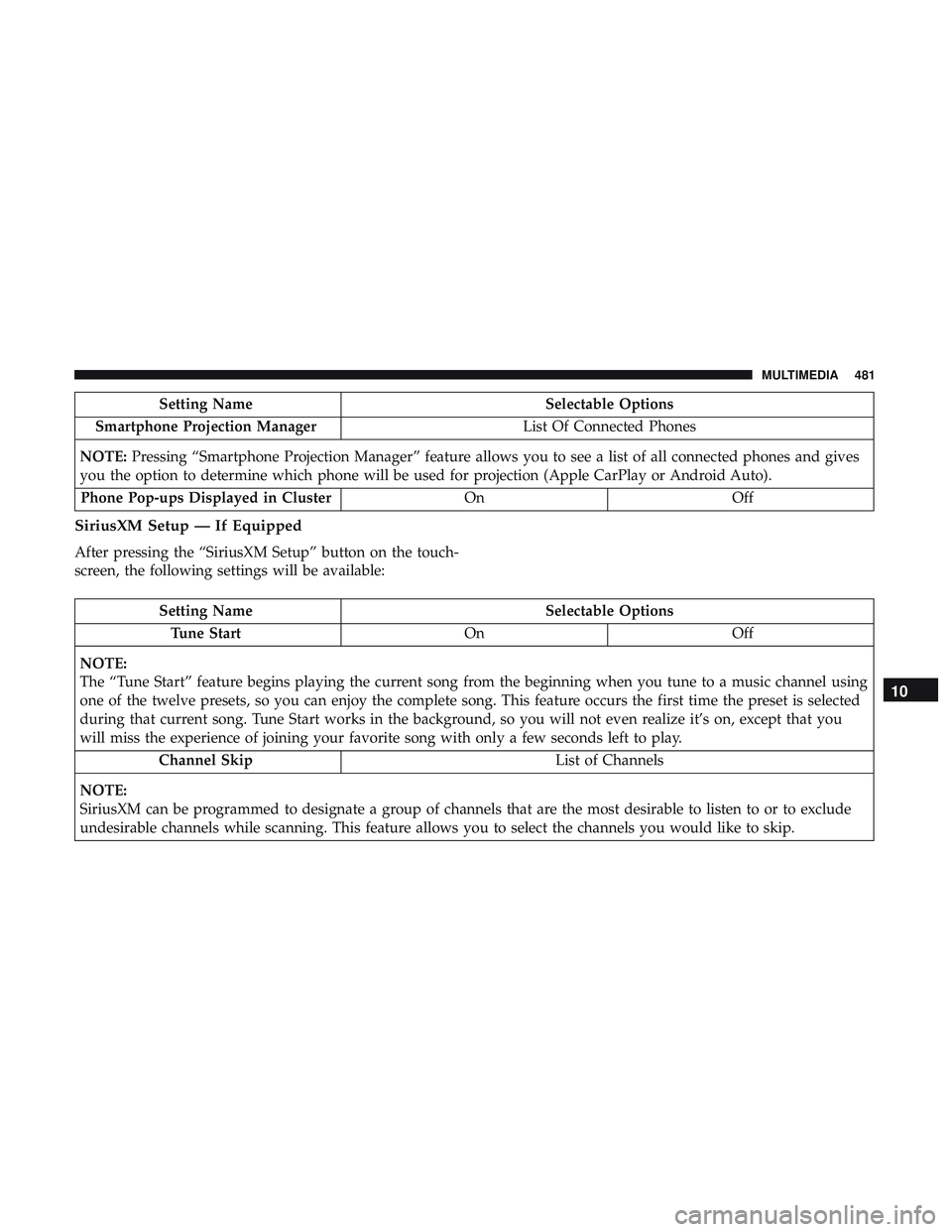
Setting NameSelectable Options
Smartphone Projection Manager List Of Connected Phones
NOTE: Pressing “Smartphone Projection Manager” feature allows you to see a list of all connected phones and gives
you the option to determine which phone will be used for projection (Apple CarPlay or Android Auto).
Phone Pop-ups Displayed in Cluster OnOff
SiriusXM Setup — If Equipped
After pressing the “SiriusXM Setup” button on the touch-
screen, the following settings will be available:
Setting Name Selectable Options
Tune Start OnOff
NOTE:
The “Tune Start” feature begins playing the current song from the beginning when you tune to a music channel using
one of the twelve presets, so you can enjoy the complete song. This feature occurs the first time the preset is selected
during that current song. Tune Start works in the background, so you will not even realize it’s on, except that you
will miss the experience of joining your favorite song with only a few seconds left to play. Channel Skip List of Channels
NOTE:
SiriusXM can be programmed to designate a group of channels that are the most desirable to listen to or to exclude
undesirable channels while scanning. This feature allows you to select the channels you would like to skip.
10
MULTIMEDIA 481
Page 509 of 568
IPOD/USB/MP3 CONTROL — IF EQUIPPED
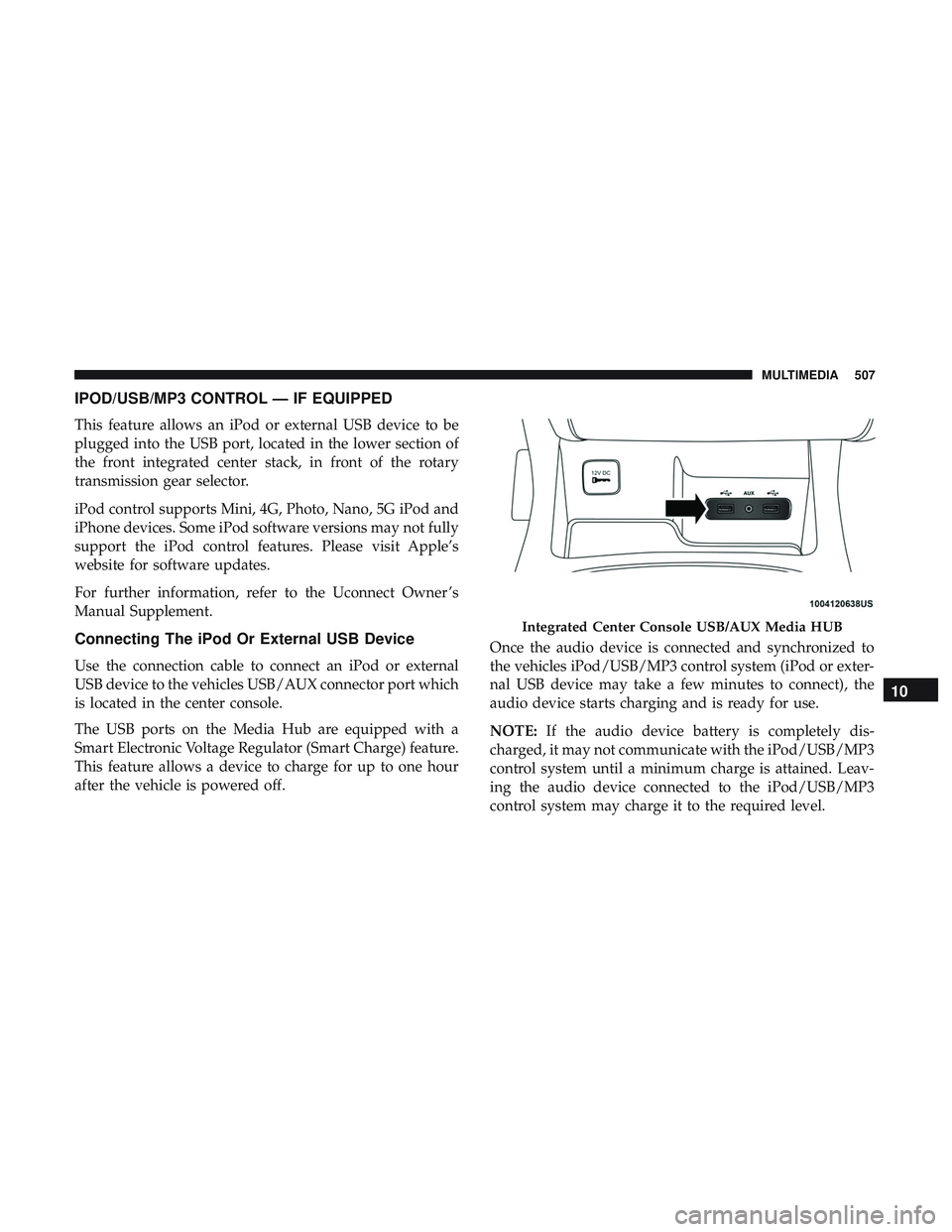
This feature allows an iPod or external USB device to be
plugged into the USB port, located in the lower section of
the front integrated center stack, in front of the rotary
transmission gear selector.
iPod control supports Mini, 4G, Photo, Nano, 5G iPod and
iPhone devices. Some iPod software versions may not fully
support the iPod control features. Please visit Apple’s
website for software updates.
For further information, refer to the Uconnect Owner ’s
Manual Supplement.
Connecting The iPod Or External USB Device
Use the connection cable to connect an iPod or external
USB device to the vehicles USB/AUX connector port which
is located in the center console.
The USB ports on the Media Hub are equipped with a
Smart Electronic Voltage Regulator (Smart Charge) feature.
This feature allows a device to charge for up to one hour
after the vehicle is powered off.Once the audio device is connected and synchronized to
the vehicles iPod/USB/MP3 control system (iPod or exter-
nal USB device may take a few minutes to connect), the
audio device starts charging and is ready for use.
NOTE:
If the audio device battery is completely dis-
charged, it may not communicate with the iPod/USB/MP3
control system until a minimum charge is attained. Leav-
ing the audio device connected to the iPod/USB/MP3
control system may charge it to the required level.
Integrated Center Console USB/AUX Media HUB
10
MULTIMEDIA 507
Page 511 of 568
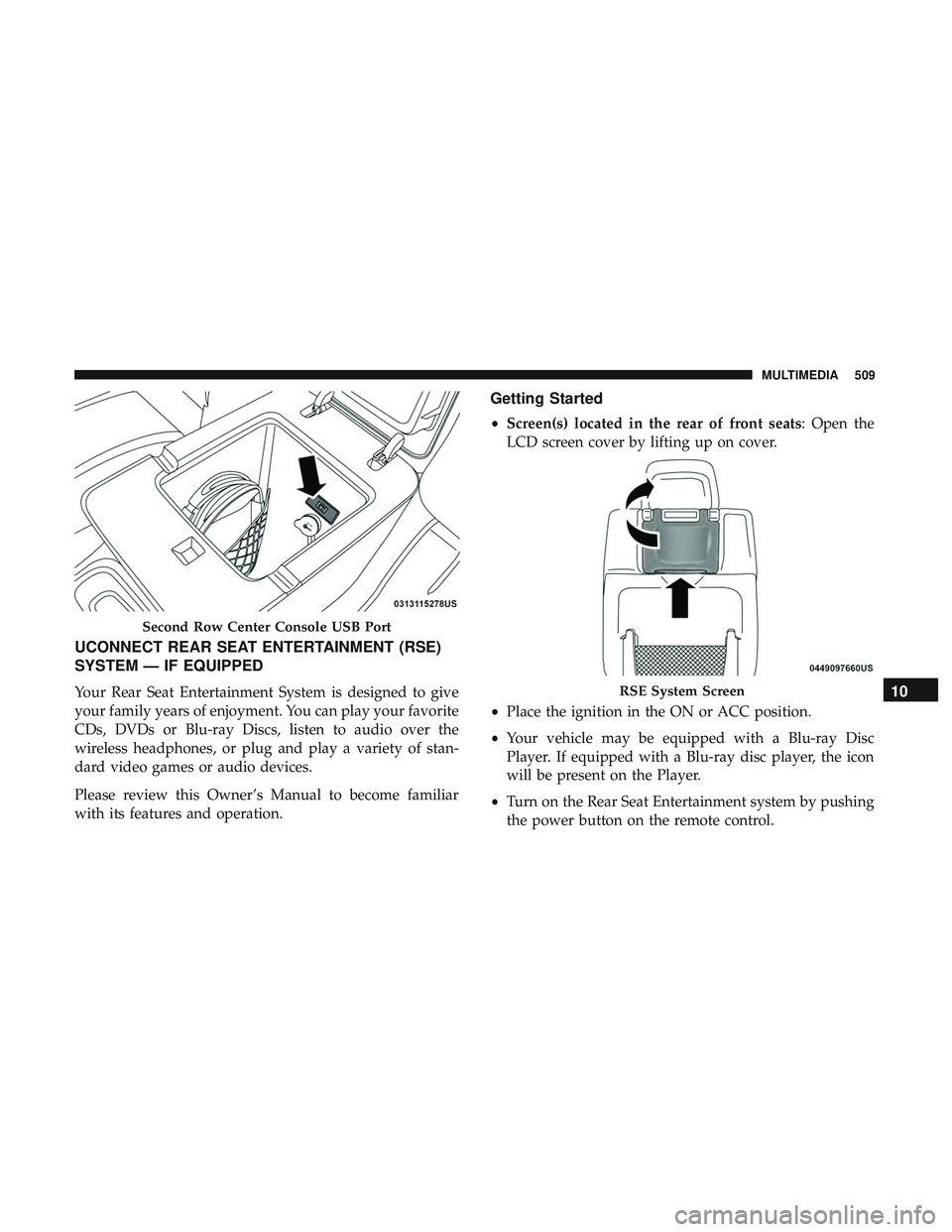
UCONNECT REAR SEAT ENTERTAINMENT (RSE)
SYSTEM — IF EQUIPPED
Your Rear Seat Entertainment System is designed to give
your family years of enjoyment. You can play your favorite
CDs, DVDs or Blu-ray Discs, listen to audio over the
wireless headphones, or plug and play a variety of stan-
dard video games or audio devices.
Please review this Owner’s Manual to become familiar
with its features and operation.
Getting Started
•Screen(s) located in the rear of front seats: Open the
LCD screen cover by lifting up on cover.
• Place the ignition in the ON or ACC position.
• Your vehicle may be equipped with a Blu-ray Disc
Player. If equipped with a Blu-ray disc player, the icon
will be present on the Player.
• Turn on the Rear Seat Entertainment system by pushing
the power button on the remote control.
Second Row Center Console USB Port
RSE System Screen10
MULTIMEDIA 509
Page 512 of 568
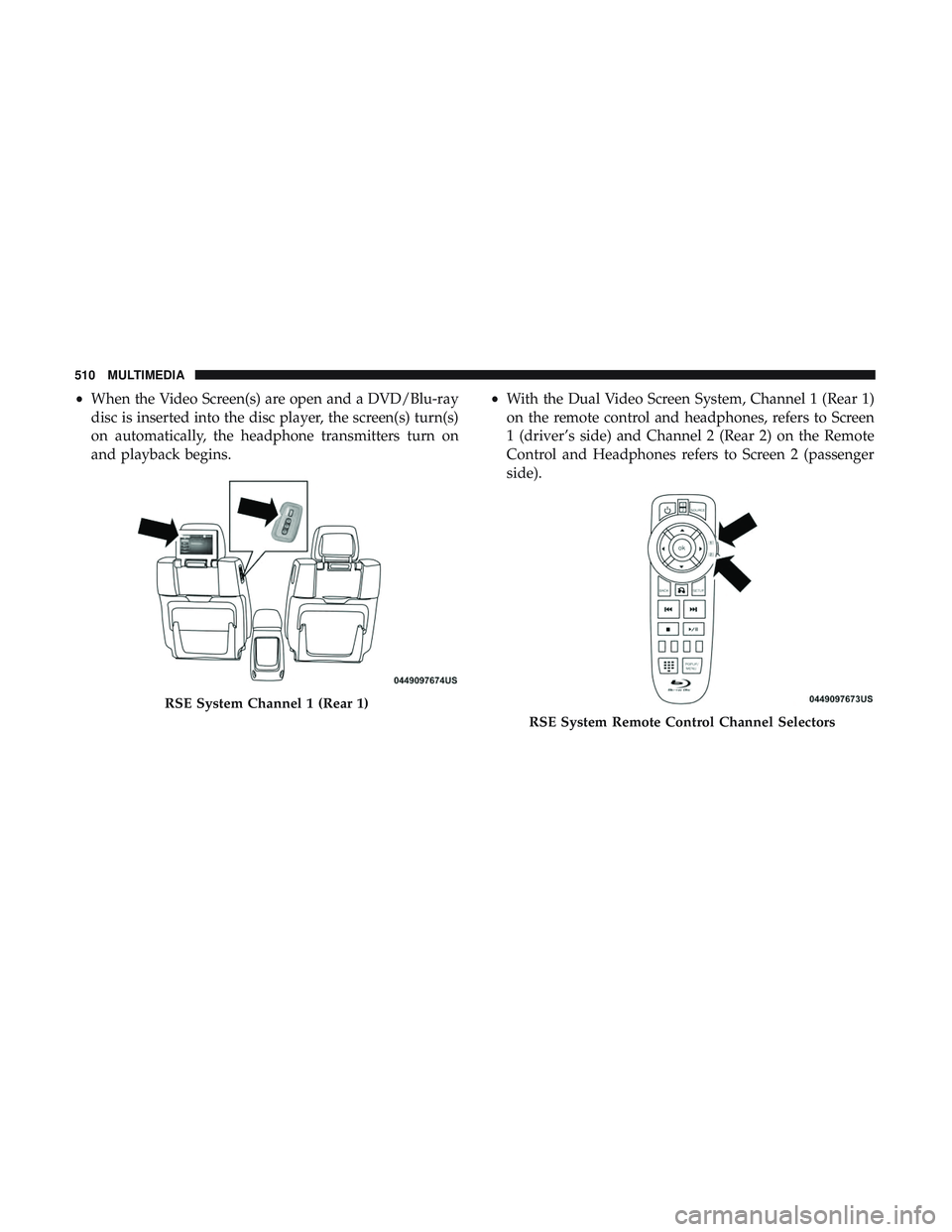
•When the Video Screen(s) are open and a DVD/Blu-ray
disc is inserted into the disc player, the screen(s) turn(s)
on automatically, the headphone transmitters turn on
and playback begins. •
With the Dual Video Screen System, Channel 1 (Rear 1)
on the remote control and headphones, refers to Screen
1 (driver’s side) and Channel 2 (Rear 2) on the Remote
Control and Headphones refers to Screen 2 (passenger
side).
RSE System Channel 1 (Rear 1)
RSE System Remote Control Channel Selectors
510 MULTIMEDIA
Page 513 of 568
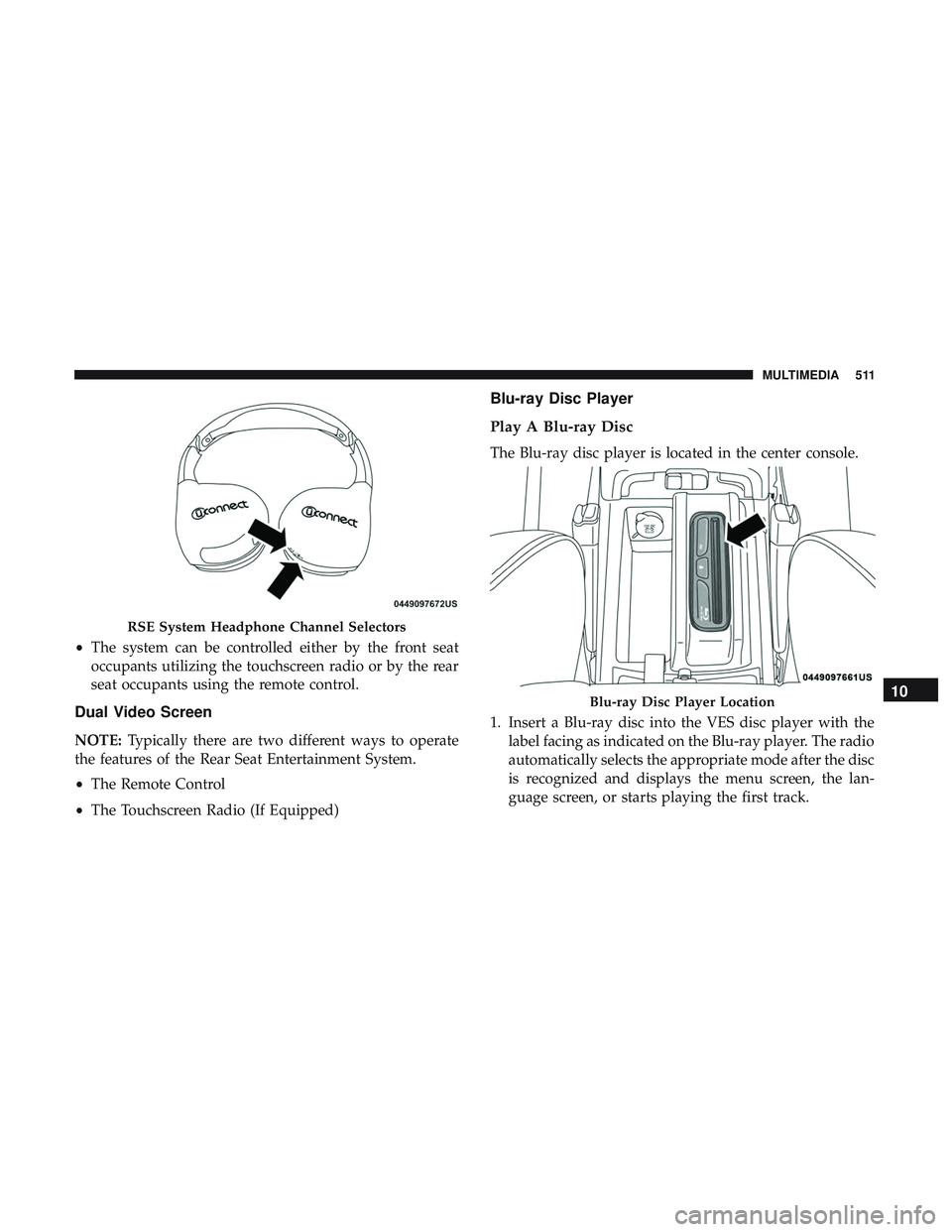
•The system can be controlled either by the front seat
occupants utilizing the touchscreen radio or by the rear
seat occupants using the remote control.
Dual Video Screen
NOTE: Typically there are two different ways to operate
the features of the Rear Seat Entertainment System.
• The Remote Control
• The Touchscreen Radio (If Equipped)
Blu-ray Disc Player
Play A Blu-ray Disc
The Blu-ray disc player is located in the center console.
1. Insert a Blu-ray disc into the VES disc player with the
label facing as indicated on the Blu-ray player. The radio
automatically selects the appropriate mode after the disc
is recognized and displays the menu screen, the lan-
guage screen, or starts playing the first track.
RSE System Headphone Channel Selectors
Blu-ray Disc Player Location10
MULTIMEDIA 511
Page 514 of 568
2. To watch a Blu-ray disc on Rear 1 for driver’s side rearpassengers, ensure the Remote Control and Headphone
switch is on Rear 1.
3. To watch a Blu-ray disc on Rear 2 for passenger side rear passengers, ensure the Remote Control and Headphone
switch is on Rear 2.
NOTE:
• To view a Blu-ray disc on the radio, press the “Media”
button on the touchscreen, and then press the “Disc”
button. Press the “Play” button, and then the “full
screen” button.
• Viewing a Blu-ray disc on the radio screen is not
available in all states/provinces. The vehicle must be
stopped, and the gear selector must be in the PARK
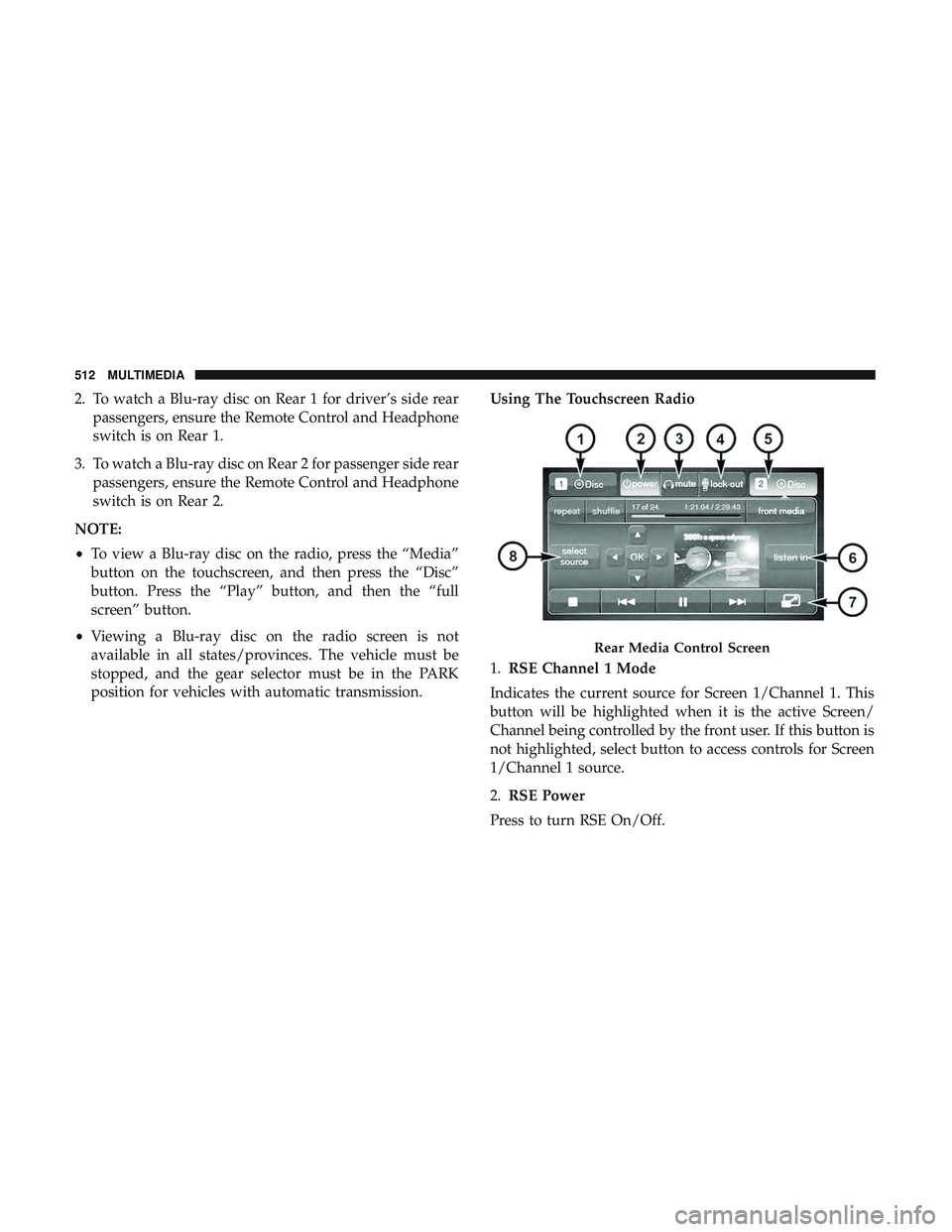
position for vehicles with automatic transmission. Using The Touchscreen Radio
1.
RSE Channel 1 Mode
Indicates the current source for Screen 1/Channel 1. This
button will be highlighted when it is the active Screen/
Channel being controlled by the front user. If this button is
not highlighted, select button to access controls for Screen
1/Channel 1 source.
2. RSE Power
Press to turn RSE On/Off.
Rear Media Control Screen
512 MULTIMEDIA
Page 515 of 568
3.RSE Mute
Mute rear headphones for the current ignition cycle. Press-
ing mute again will unmute rear headphones.
4. RSE Remote Control Lock Out
Press to enable/disable remote control functions.
5. RSE Channel 2 Mode
Indicates the current source for Screen 2/Channel 2. This
button will be highlighted when it is the active Screen/
Channel being controlled by the front user. If this button is
not highlighted, select button to access controls for Screen
2/Channel 2 source.
6. Cabin Audio Mode
Select this button to change the cabin audio to the rear
entertainment source currently shown on the rear media
control screen.
7. Radio Full Screen Mode
Select this button to change to Full Screen Mode. 8.
RSE Mode
Select this button to change source for the active (high-
lighted) rear Screen/Channel on the rear media control
screen.
• Press the Media button on the touchscreen, and then
press the rear media button on the touchscreen.
• Press the OK button on the touchscreen to begin playing
the Blu-ray disc on the touchscreen radio.
Using The Remote Control
• Select an audio channel (Rear 1 for driver ’s side rear
screen and Rear 2 for passenger ’s side rear screen), and
then press the source key, and using the up and down
arrows, highlight disc from the menu and press the OK
button.
• Press the popup/menu key to navigate the disc menu
and options.
10
MULTIMEDIA 513
Page 516 of 568
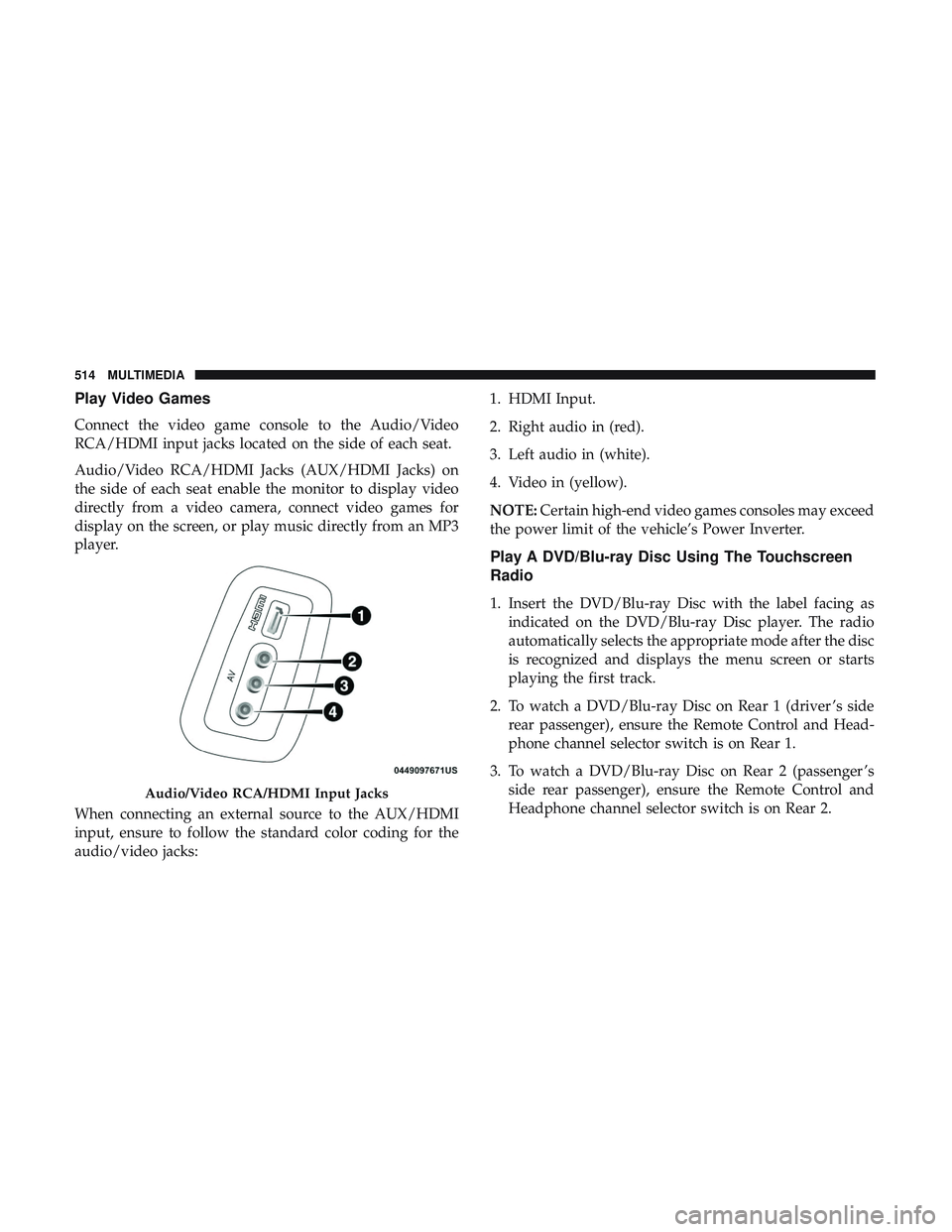
Play Video Games
Connect the video game console to the Audio/Video
RCA/HDMI input jacks located on the side of each seat.
Audio/Video RCA/HDMI Jacks (AUX/HDMI Jacks) on
the side of each seat enable the monitor to display video
directly from a video camera, connect video games for
display on the screen, or play music directly from an MP3
player.
When connecting an external source to the AUX/HDMI
input, ensure to follow the standard color coding for the
audio/video jacks:1. HDMI Input.
2. Right audio in (red).
3. Left audio in (white).
4. Video in (yellow).
NOTE:
Certain high-end video games consoles may exceed
the power limit of the vehicle’s Power Inverter.
Play A DVD/Blu-ray Disc Using The Touchscreen
Radio
1. Insert the DVD/Blu-ray Disc with the label facing as indicated on the DVD/Blu-ray Disc player. The radio
automatically selects the appropriate mode after the disc
is recognized and displays the menu screen or starts
playing the first track.
2. To watch a DVD/Blu-ray Disc on Rear 1 (driver ’s side rear passenger), ensure the Remote Control and Head-
phone channel selector switch is on Rear 1.
3. To watch a DVD/Blu-ray Disc on Rear 2 (passenger ’s side rear passenger), ensure the Remote Control and
Headphone channel selector switch is on Rear 2.
Audio/Video RCA/HDMI Input Jacks
514 MULTIMEDIA