phone DODGE DURANGO SRT 2018 Owner's Guide
[x] Cancel search | Manufacturer: DODGE, Model Year: 2018, Model line: DURANGO SRT, Model: DODGE DURANGO SRT 2018Pages: 568, PDF Size: 6.54 MB
Page 533 of 568
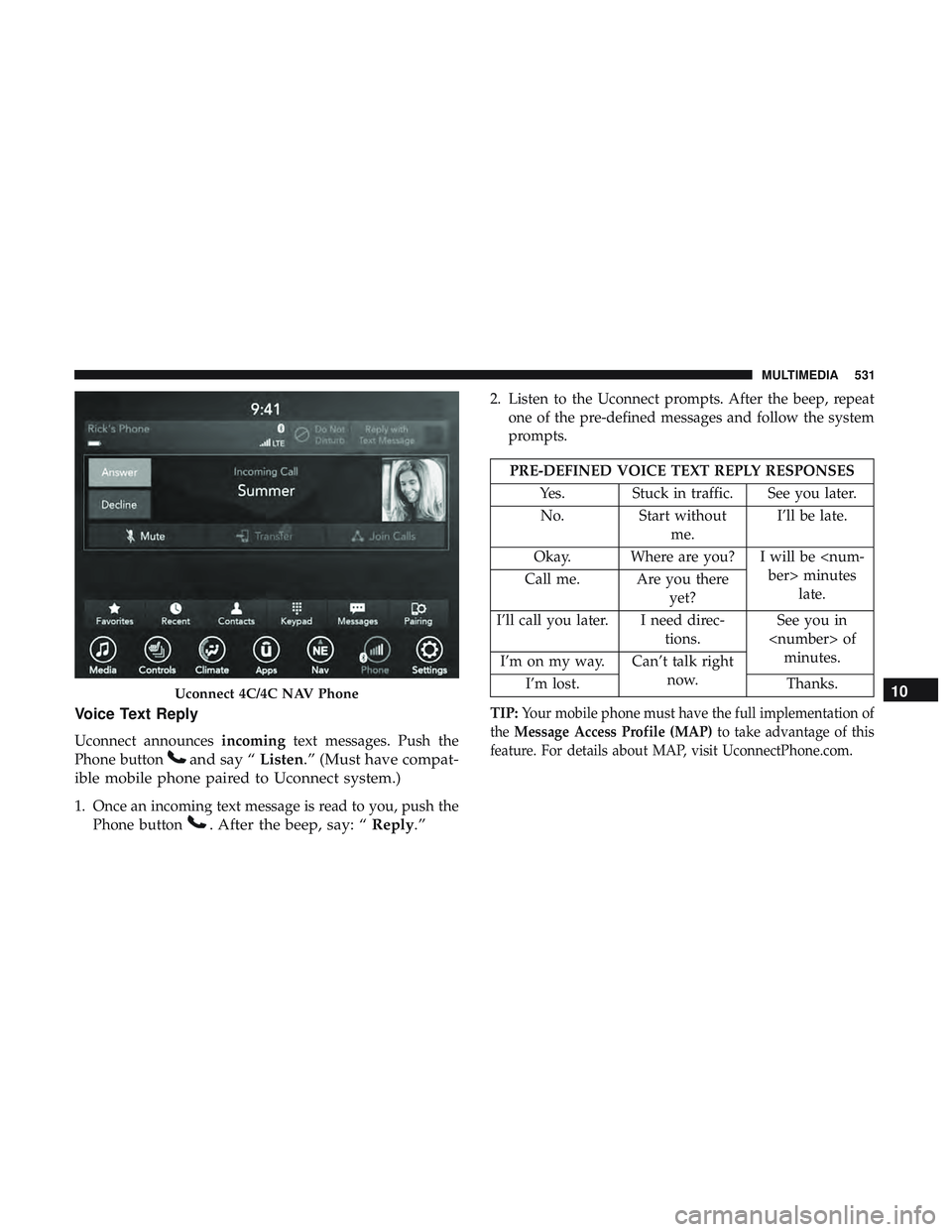
Voice Text Reply
Uconnect announcesincomingtext messages. Push the
Phone button
and say “ Listen.” (Must have compat-
ible mobile phone paired to Uconnect system.)
1. Once an incoming text message is read to you, push the Phone button
. After the beep, say: “ Reply.”
2. Listen to the Uconnect prompts. After the beep, repeat
one of the pre-defined messages and follow the system
prompts.
PRE-DEFINED VOICE TEXT REPLY RESPONSES
Yes. Stuck in traffic. See you later.No. Start without
me. I’ll be late.
Okay. Where are you? I will be
Call me. Are you there
yet?
I’ll call you later. I need direc- tions.See you in
I’m on my way. Can’t talk right
now.
I’m lost. Thanks.
TIP:
Your mobile phone must have the full implementation of
the Message Access Profile (MAP) to take advantage of this
feature. For details about MAP, visit UconnectPhone.com.
Uconnect 4C/4C NAV Phone10
MULTIMEDIA 531
Page 534 of 568
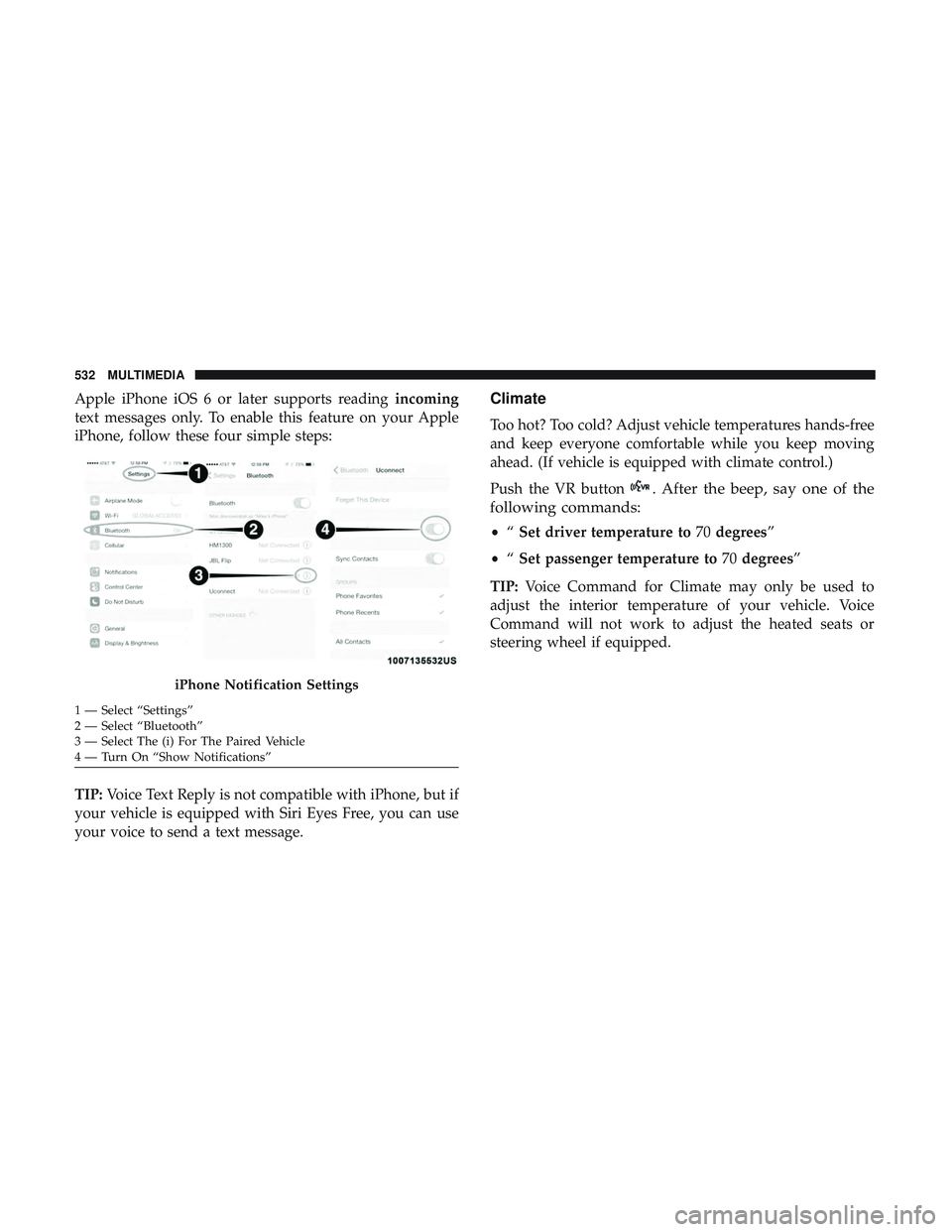
Apple iPhone iOS 6 or later supports readingincoming
text messages only. To enable this feature on your Apple
iPhone, follow these four simple steps:
TIP: Voice Text Reply is not compatible with iPhone, but if
your vehicle is equipped with Siri Eyes Free, you can use
your voice to send a text message.Climate
Too hot? Too cold? Adjust vehicle temperatures hands-free
and keep everyone comfortable while you keep moving
ahead. (If vehicle is equipped with climate control.)
Push the VR button
. After the beep, say one of the
following commands:
• “Set driver temperature to 70degrees”
• “Set passenger temperature to 70degrees”
TIP: Voice Command for Climate may only be used to
adjust the interior temperature of your vehicle. Voice
Command will not work to adjust the heated seats or
steering wheel if equipped.
iPhone Notification Settings
1 — Select “Settings”
2 — Select “Bluetooth”
3 — Select The (i) For The Paired Vehicle
4 — Turn On “Show Notifications” 532 MULTIMEDIA
Page 537 of 568
3. Select “Customer Care” to speak with a SiriusXMGuardian Customer Care agent who will activate ser-
vices in your vehicle, or select “Enter Email” to activate
on the web.
• U.S. residents visit: www.siriusxm.com/guardian.
• Canadian residents visit: www.siriusxm.ca/guardian.
Vehicle Health Report/Alert (4C/4C NAV)
Your vehicle will send you a monthly email report, which
summarizes the performance of your vehicle’s key systems
so you can stay on top of your vehicle’s maintenance needs
if you are registered for SiriusXM Guardian. Your vehicle
will also send you Vehicle Health Alerts when it detects
issues with its key systems that need your attention. For
further information, refer to your Uconnect Owner ’s
Manual Supplement.
Mobile App (4C/4C NAV)
You’re only a few steps away from using remote com-
mands and sending a destination from your phone to your
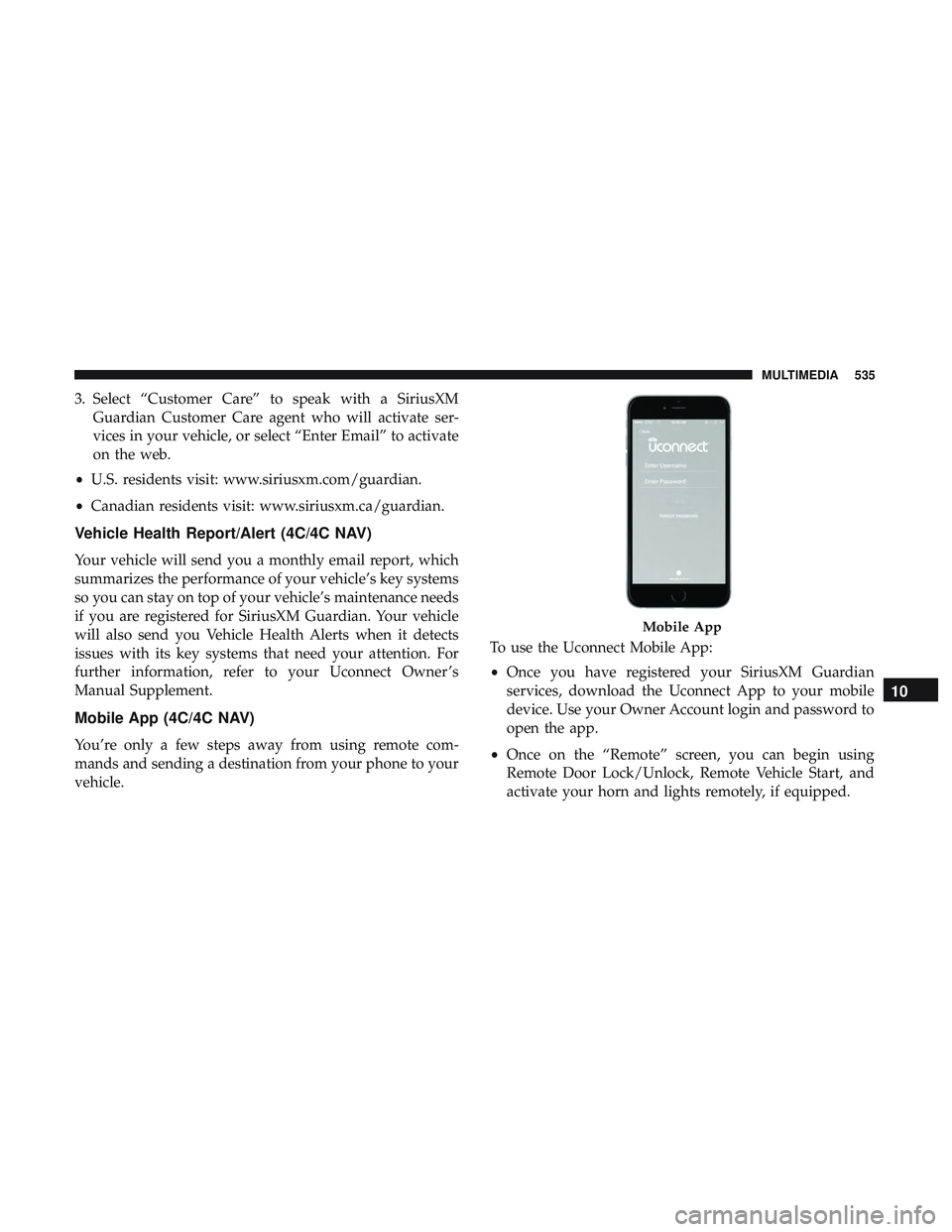
vehicle. To use the Uconnect Mobile App:
•
Once you have registered your SiriusXM Guardian
services, download the Uconnect App to your mobile
device. Use your Owner Account login and password to
open the app.
• Once on the “Remote” screen, you can begin using
Remote Door Lock/Unlock, Remote Vehicle Start, and
activate your horn and lights remotely, if equipped.
Mobile App
10
MULTIMEDIA 535
Page 538 of 568
•Press the “Location” button on the bottom menu bar of
the app to bring up a map to locate your vehicle or send
a location to your Uconnect Navigation using Vehicle
Finder and Send & Go , if equipped.
• Press the “Settings” side menu in the upper left corner of
the app to bring up app settings.
NOTE: For further information please visit
DriveUconnect.com (U.S. Residents) or DriveUconnect.ca
(Canadian Residents).
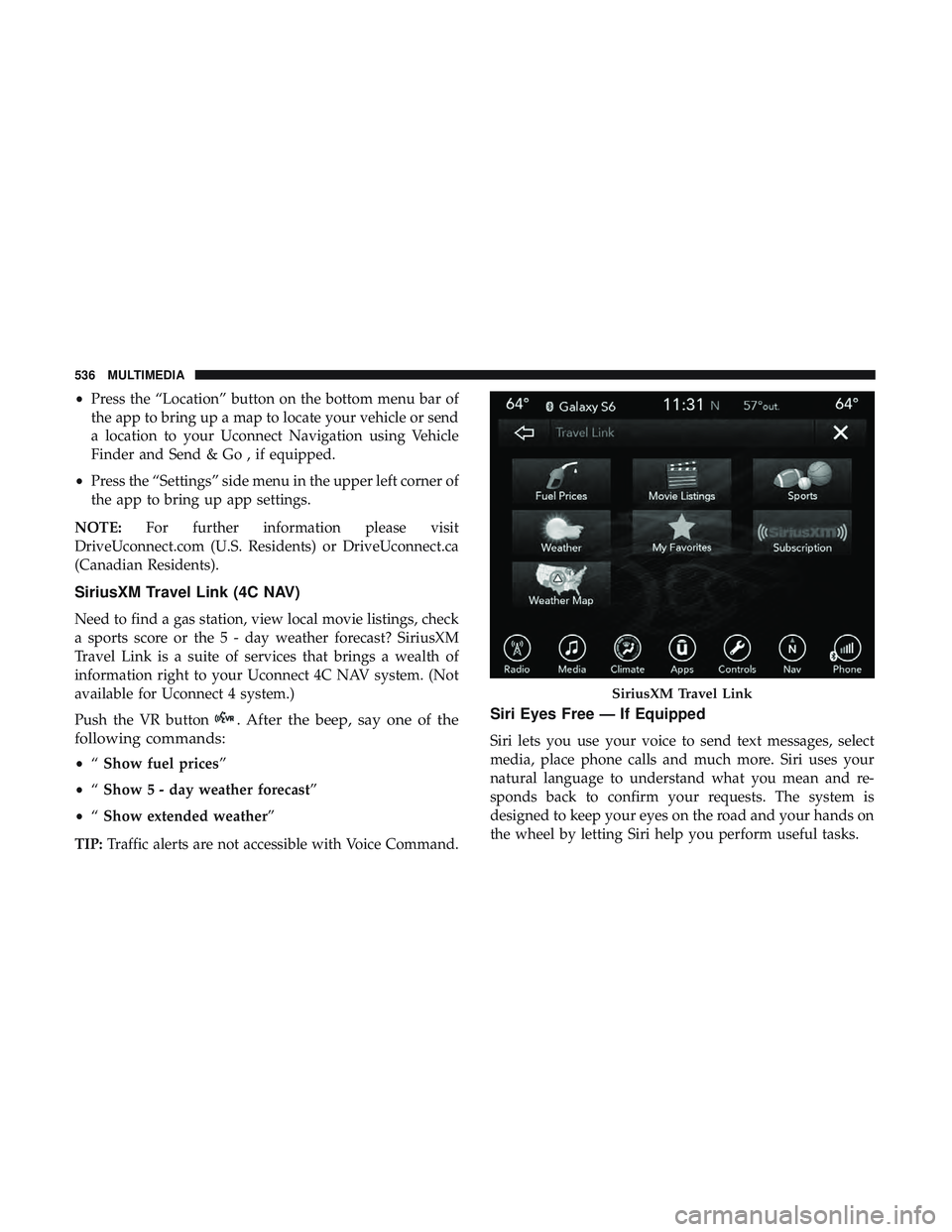
SiriusXM Travel Link (4C NAV)
Need to find a gas station, view local movie listings, check
a sports score or the 5 - day weather forecast? SiriusXM
Travel Link is a suite of services that brings a wealth of
information right to your Uconnect 4C NAV system. (Not
available for Uconnect 4 system.)
Push the VR button
. After the beep, say one of the
following commands:
• “Show fuel prices”
• “Show 5 - day weather forecast”
• “Show extended weather”
TIP: Traffic alerts are not accessible with Voice Command.
Siri Eyes Free — If Equipped
Siri lets you use your voice to send text messages, select
media, place phone calls and much more. Siri uses your
natural language to understand what you mean and re-
sponds back to confirm your requests. The system is
designed to keep your eyes on the road and your hands on
the wheel by letting Siri help you perform useful tasks.
SiriusXM Travel Link
536 MULTIMEDIA
Page 539 of 568
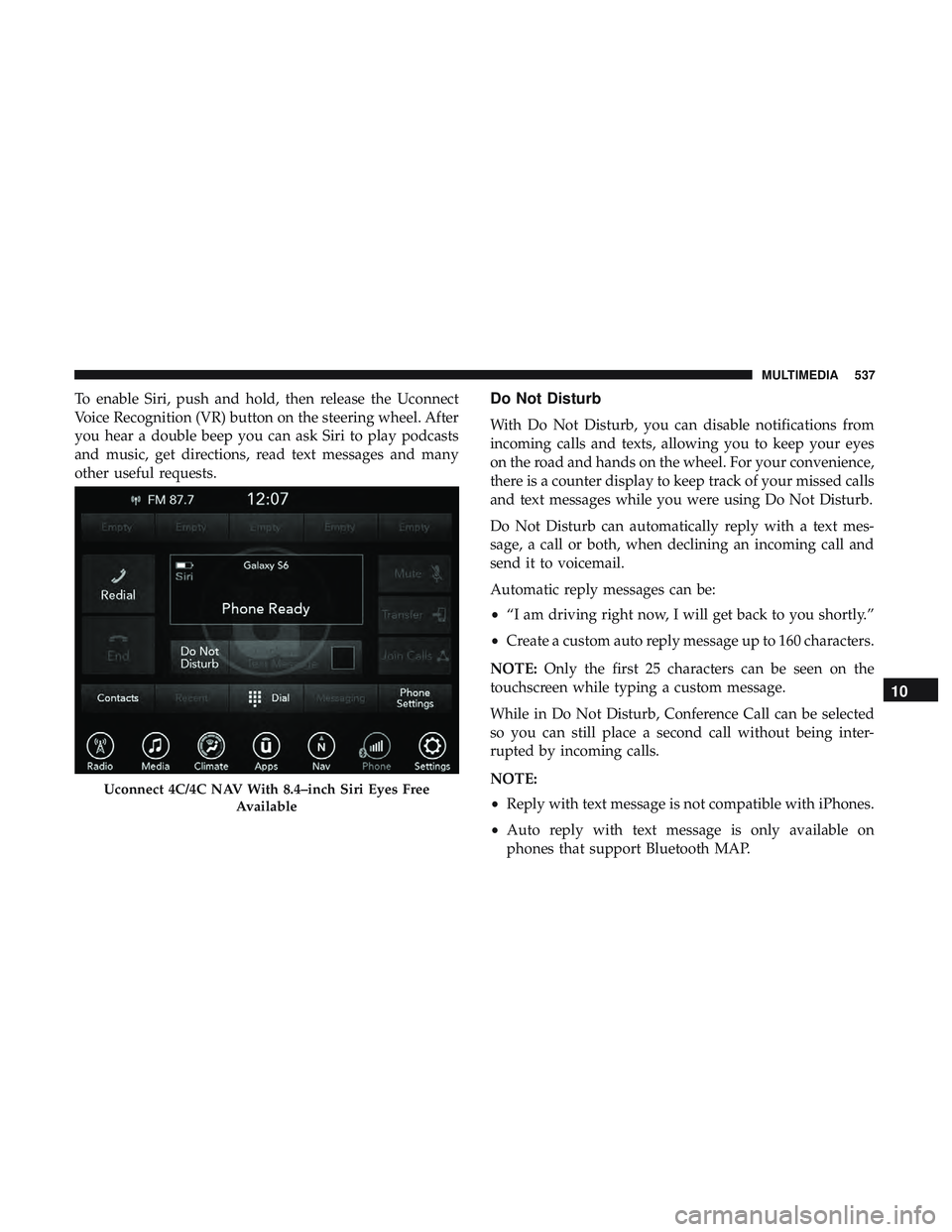
To enable Siri, push and hold, then release the Uconnect
Voice Recognition (VR) button on the steering wheel. After
you hear a double beep you can ask Siri to play podcasts
and music, get directions, read text messages and many
other useful requests.Do Not Disturb
With Do Not Disturb, you can disable notifications from
incoming calls and texts, allowing you to keep your eyes
on the road and hands on the wheel. For your convenience,
there is a counter display to keep track of your missed calls
and text messages while you were using Do Not Disturb.
Do Not Disturb can automatically reply with a text mes-
sage, a call or both, when declining an incoming call and
send it to voicemail.
Automatic reply messages can be:
•“I am driving right now, I will get back to you shortly.”
• Create a custom auto reply message up to 160 characters.
NOTE: Only the first 25 characters can be seen on the
touchscreen while typing a custom message.
While in Do Not Disturb, Conference Call can be selected
so you can still place a second call without being inter-
rupted by incoming calls.
NOTE:
• Reply with text message is not compatible with iPhones.
• Auto reply with text message is only available on
phones that support Bluetooth MAP.
Uconnect 4C/4C NAV With 8.4–inch Siri Eyes Free
Available
10
MULTIMEDIA 537
Page 540 of 568
Android Auto — If Equipped
NOTE:Feature availability depends on your carrier and
mobile phone manufacturer. Some Android Auto features
may or may not be available in every region and/or
language.
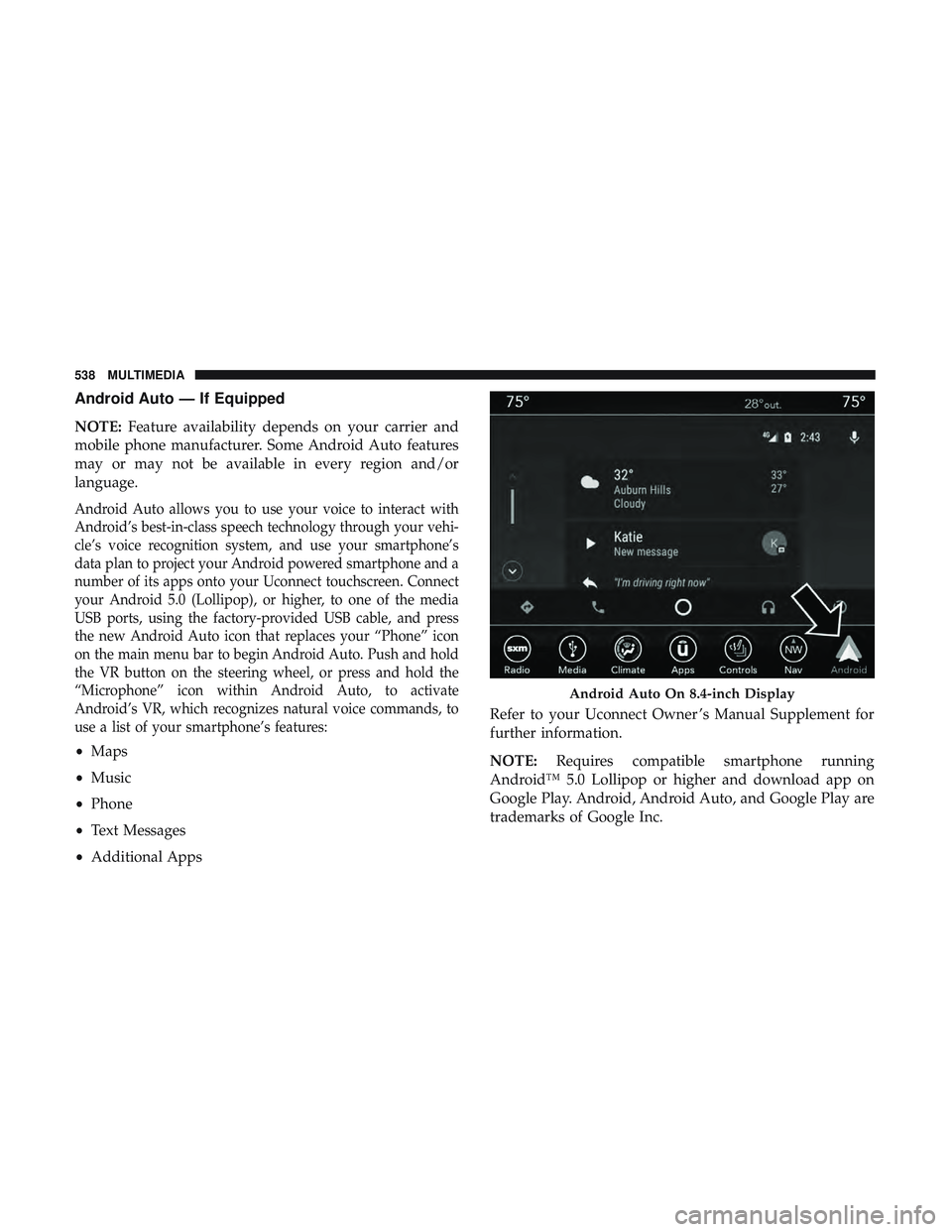
Android Auto allows you to use your voice to interact with
Android’s best-in-class speech technology through your vehi-
cle’s voice recognition system, and use your smartphone’s
data plan to project your Android powered smartphone and a
number of its apps onto your Uconnect touchscreen. Connect
your Android 5.0 (Lollipop), or higher, to one of the media
USB ports, using the factory-provided USB cable, and press
the new Android Auto icon that replaces your “Phone” icon
on the main menu bar to begin Android Auto. Push and hold
the VR button on the steering wheel, or press and hold the
“Microphone” icon within Android Auto, to activate
Android’s VR, which recognizes natural voice commands, to
use a list of your smartphone’s features:
• Maps
• Music
• Phone
• Text Messages
• Additional Apps Refer to your Uconnect Owner ’s Manual Supplement for
further information.
NOTE:
Requires compatible smartphone running
Android™ 5.0 Lollipop or higher and download app on
Google Play. Android, Android Auto, and Google Play are
trademarks of Google Inc.
Android Auto On 8.4-inch Display
538 MULTIMEDIA
Page 541 of 568
Apple CarPlay — If Equipped
NOTE:Feature availability depends on your carrier and
mobile phone manufacturer. Some Apple CarPlay features
may or may not be available in every region and/or
language.
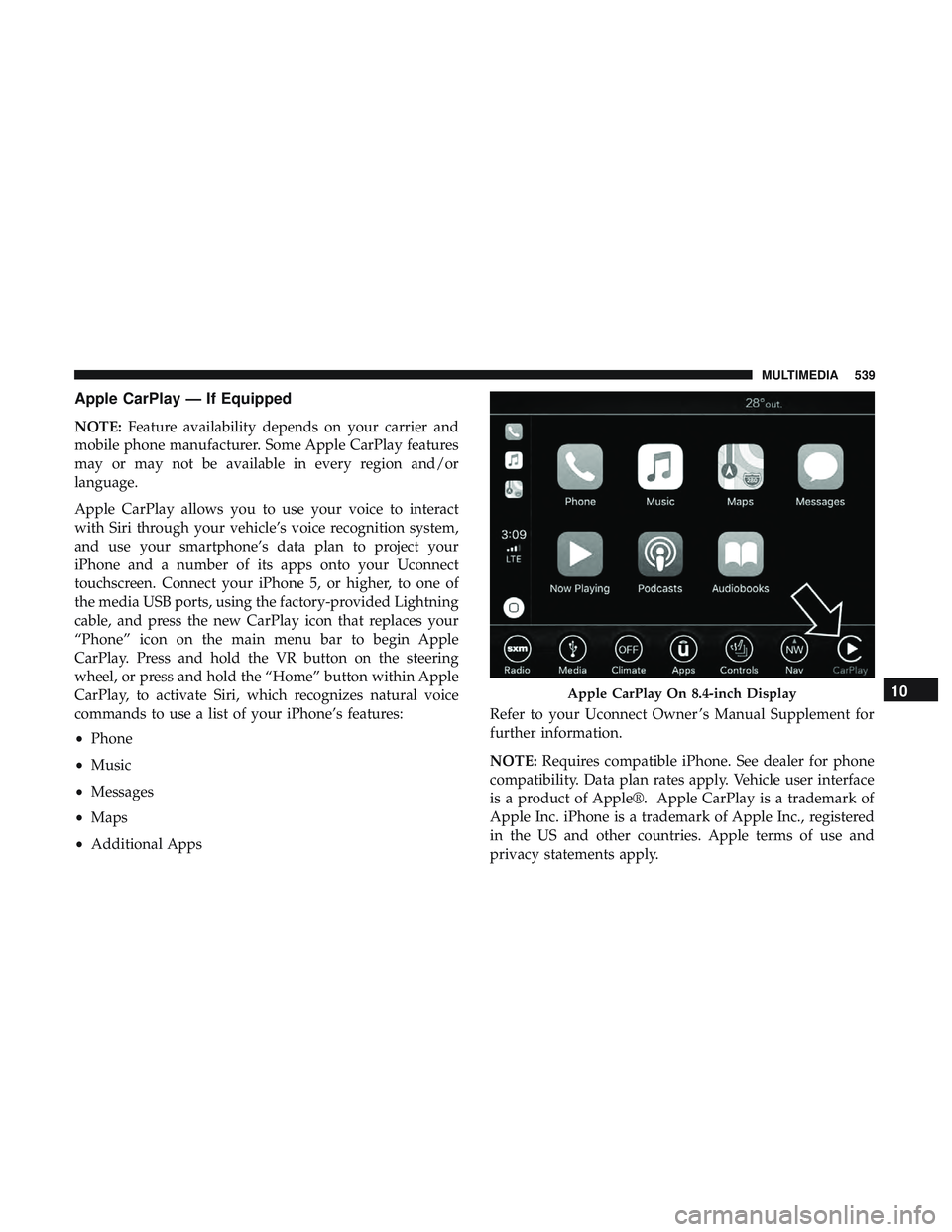
Apple CarPlay allows you to use your voice to interact
with Siri through your vehicle’s voice recognition system,
and use your smartphone’s data plan to project your
iPhone and a number of its apps onto your Uconnect
touchscreen. Connect your iPhone 5, or higher, to one of
the media USB ports, using the factory-provided Lightning
cable, and press the new CarPlay icon that replaces your
“Phone” icon on the main menu bar to begin Apple
CarPlay. Press and hold the VR button on the steering
wheel, or press and hold the “Home” button within Apple
CarPlay, to activate Siri, which recognizes natural voice
commands to use a list of your iPhone’s features:
• Phone
• Music
• Messages
• Maps
• Additional Apps Refer to your Uconnect Owner ’s Manual Supplement for
further information.
NOTE:
Requires compatible iPhone. See dealer for phone
compatibility. Data plan rates apply. Vehicle user interface
is a product of Apple®. Apple CarPlay is a trademark of
Apple Inc. iPhone is a trademark of Apple Inc., registered
in the US and other countries. Apple terms of use and
privacy statements apply.
Apple CarPlay On 8.4-inch Display10
MULTIMEDIA 539
Page 547 of 568
Any communication to the manufacturer’s customer center
should include the following information:
•Owner’s name and address
• Owner’s telephone number (home and office)
• Authorized dealer name
• Vehicle Identification Number (VIN)
• Vehicle delivery date and mileage
FCA US LLC Customer Center
P.O. Box 21–8004
Auburn Hills, MI 48321–8004
Phone: (800) 423-6343
FCA Canada Inc. Customer Center
P.O. Box 1621
Windsor, Ontario N9A 4H6
Phone: (800) 465-2001 English / (800) 387-9983 French
In Mexico Contact
Av. Prolongacion Paseo de la Reforma, 1240
Sante Fe C.P. 05109
Mexico, D. F.
In Mexico City: 800-505-1300
Outside Mexico City: +(52)55 50817568
Puerto Rico And U.S. Virgin Islands
FCA Caribbean LLC
P.O. Box 191857
San Juan 00919-1857
Phone: (800) 423-6343
Fax: (787) 782-3345
11
CUSTOMER ASSISTANCE 545
Page 550 of 568
In Canada
If you believe that your vehicle has a safety defect, you
should contact the Customer Service Department imme-
diately. Canadian customers who wish to report a safety
defect to the Canadian government should contact
Transport Canada, Motor Vehicle Defect Investigations
and Recalls at 1-800-333-0510 or go to http://
www.tc.gc.ca/roadsafety/.
PUBLICATION ORDER FORMS
To order the following manuals, you may use either the
website or the phone numbers listed below. Visa, Master-
card, American Express, and Discover orders are accepted.
Service Manuals
These comprehensive Service Manuals provide the infor-
mation that students and professional technicians need in
diagnosing/troubleshooting, problem solving, maintain-
ing, servicing, and repairing FCA US LLC vehicles. A
complete working knowledge of the vehicle, system,
and/or components is written in straightforward language
with illustrations, diagrams, and charts.Diagnostic Procedure Manuals
Diagnostic Procedure Manuals are filled with diagrams,
charts and detailed illustrations. These practical manuals
make it easy for students and technicians to find and fix
problems on computer-controlled vehicle systems and fea-
tures. They show exactly how to find and correct problems
the first time, using step-by-step troubleshooting and driv-
ability procedures, proven diagnostic tests and a complete
list of all tools and equipment.
Owner’s Manuals
These Owner’s Manuals have been prepared with the
assistance of service and engineering specialists to acquaint
you with specific FCA US LLC vehicles. Included are
starting, operating, emergency and maintenance proce-
dures as well as specifications, capabilities and safety tips.
Call toll free at:
•
1-800-890-4038 (U.S.)
• 1-800-387-1143 (Canada)
Or
Visit us on the Worldwide Web at:
• www.techauthority.com (U.S.)
548 CUSTOMER ASSISTANCE
Page 554 of 568
Carbon Monoxide Warning................248, 456
Cargo Area Cover .......................106, 107
Cargo Compartment ........................106
Light .................................106
Luggage Carrier ........................ .127
Cargo Light ............................. .106
Cargo Tie-Downs .......................... .107
Car Washes ...............................445
Cellular Phone ............................525
Center High Mounted Stop Light ...............362
Chains, Tire ............................. .441
Changing A Flat Tire ........................420
Chart, Tire Sizing .......................... .422
Check Engine Light (Malfunction Indicator Light). . . .164
Checking Your Vehicle For Safety ...............248
Checks, Safety ............................ .248
Child Restraint ............................224
Child Restraints Booster Seats ............................227
Child Seat Installation .....................242
How To Stow An unused ALR Seat Belt ........239
Infant And Child Restraints .................226
Locating The LATCH Anchorages .............232
Lower Anchors And Tethers For Children .......229
Older Children And Child Restraints ...........226Seating Positions
........................ .228
Child Safety Locks ..........................38
Clean Air Gasoline ........................ .453
Cleaning Wheels ............................... .440
Climate Control ............................81
Automatic ..............................82
Cold Weather Operation ..................... .262
Compact Disc (CD) Maintenance ................541
Compact Spare Tire ........................ .438
Contract, Service .......................... .546
Cooling Pressure Cap (Radiator Cap) ............415
Cooling System............................412
Adding
Coolant (Antifreeze) .................414
Coolant Level .......................... .415
Cooling Capacity ........................ .456
Disposal Of Used Coolant ..................415
Drain, Flush, And Refill ....................413
Inspection ..........................412, 415
Points To Remember ..................... .416
Pressure Cap ............................415
Radiator Cap .......................... .415
Selection Of Coolant (Antifreeze) .......413, 456, 457
Corrosion Protection ........................444
Cruise Control (Speed Control) ..............282, 285
552 INDEX