display DODGE DURANGO SRT 2019 Owners Manual
[x] Cancel search | Manufacturer: DODGE, Model Year: 2019, Model line: DURANGO SRT, Model: DODGE DURANGO SRT 2019Pages: 572, PDF Size: 6.59 MB
Page 540 of 572
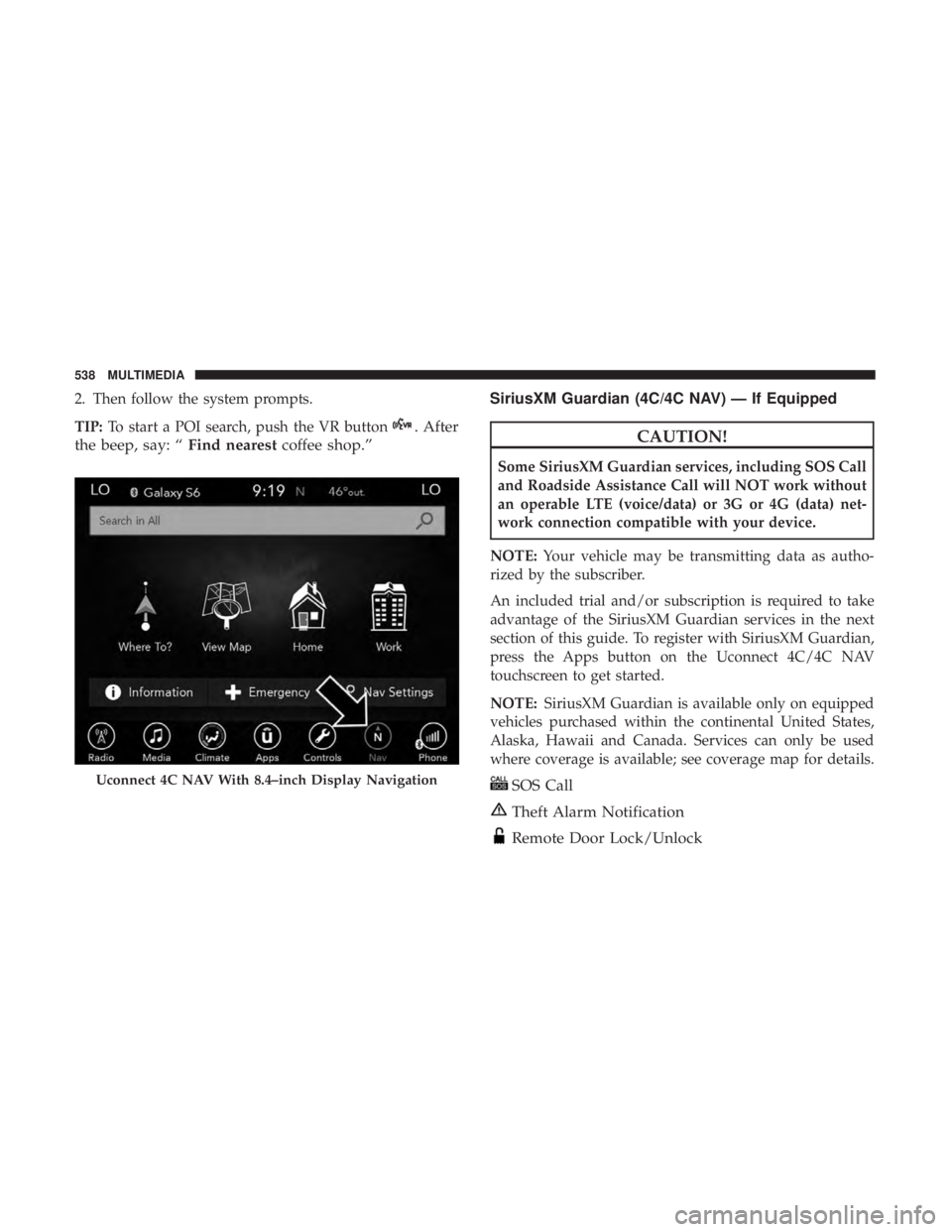
2. Then follow the system prompts.
TIP:To start a POI search, push the VR button
. After
the beep, say: “ Find nearestcoffee shop.” SiriusXM Guardian (4C/4C NAV) — If EquippedCAUTION!
Some SiriusXM Guardian services, including SOS Call
and Roadside Assistance Call will NOT work without
an operable LTE (voice/data) or 3G or 4G (data) net-
work connection compatible with your device.
NOTE: Your vehicle may be transmitting data as autho-
rized by the subscriber.
An included trial and/or subscription is required to take
advantage of the SiriusXM Guardian services in the next
section of this guide. To register with SiriusXM Guardian,
press the Apps button on the Uconnect 4C/4C NAV
touchscreen to get started.
NOTE: SiriusXM Guardian is available only on equipped
vehicles purchased within the continental United States,
Alaska, Hawaii and Canada. Services can only be used
where coverage is available; see coverage map for details.
SOS Call
Theft Alarm Notification
Remote Door Lock/Unlock
Uconnect 4C NAV With 8.4–inch Display Navigation
538 MULTIMEDIA
Page 544 of 572
Do Not Disturb
With Do Not Disturb, you can disable notifications from
incoming calls and texts, allowing you to keep your eyes
on the road and hands on the wheel. For your convenience,
there is a counter display to keep track of your missed calls
and text messages while you were using Do Not Disturb.
Do Not Disturb can automatically reply with a text mes-
sage, a call or both, when declining an incoming call and
send it to voicemail.
Automatic reply messages can be:
•“I am driving right now, I will get back to you shortly.”
• Create a custom auto reply message up to 160 characters.
NOTE: Only the first 25 characters can be seen on the
touchscreen while typing a custom message.
While in Do Not Disturb, Conference Call can be selected
so you can still place a second call without being inter-
rupted by incoming calls.
NOTE:
• Reply with text message is not compatible with iPhones.
• Auto reply with text message is only available on
phones that support Bluetooth MAP.
Android Auto — If Equipped
NOTE: Feature availability depends on your carrier and
mobile phone manufacturer. Some Android Auto features
may or may not be available in every region and/or
language.
Android Auto allows you to use your voice to interact with
Android’s best-in-class speech technology through your
vehicle’s voice recognition system, and use your smart-
phone’s data plan to project your Android powered smart-
phone and a number of its apps onto your Uconnect
touchscreen. Connect your Android 5.0 (Lollipop), or
higher, to one of the media USB ports, using the factory-
provided USB cable, and press the new Android Auto icon
that replaces your “Phone” icon on the main menu bar to
begin Android Auto. Push and hold the VR button on the
steering wheel, or press and hold the “Microphone” icon
within Android Auto, to activate Android’s VR, which
recognizes natural voice commands, to use a list of your
smartphone’s features:
542 MULTIMEDIA
Page 545 of 572
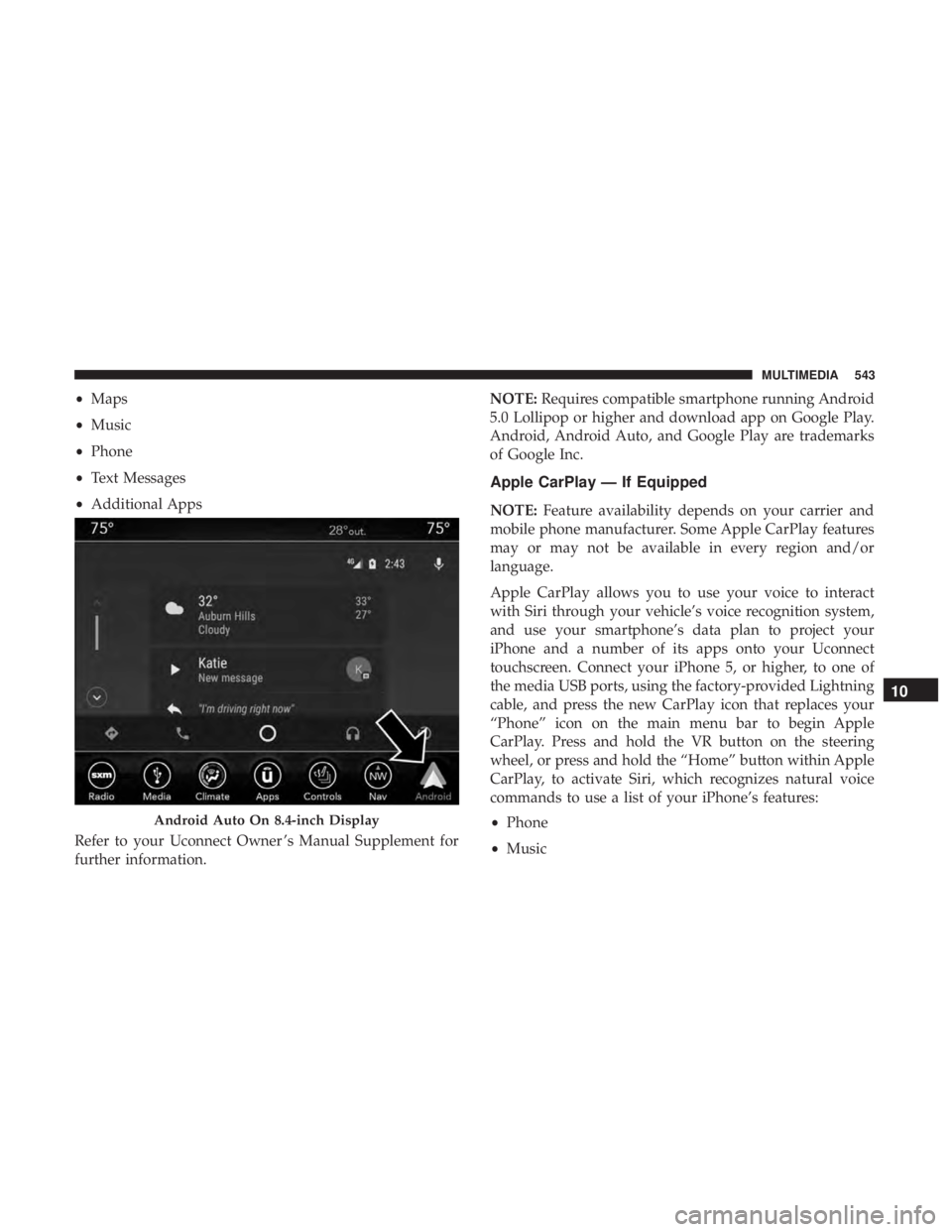
•Maps
• Music
• Phone
• Text Messages
• Additional Apps
Refer to your Uconnect Owner ’s Manual Supplement for
further information. NOTE:
Requires compatible smartphone running Android
5.0 Lollipop or higher and download app on Google Play.
Android, Android Auto, and Google Play are trademarks
of Google Inc.
Apple CarPlay — If Equipped
NOTE: Feature availability depends on your carrier and
mobile phone manufacturer. Some Apple CarPlay features
may or may not be available in every region and/or
language.
Apple CarPlay allows you to use your voice to interact
with Siri through your vehicle’s voice recognition system,
and use your smartphone’s data plan to project your
iPhone and a number of its apps onto your Uconnect
touchscreen. Connect your iPhone 5, or higher, to one of
the media USB ports, using the factory-provided Lightning
cable, and press the new CarPlay icon that replaces your
“Phone” icon on the main menu bar to begin Apple
CarPlay. Press and hold the VR button on the steering
wheel, or press and hold the “Home” button within Apple
CarPlay, to activate Siri, which recognizes natural voice
commands to use a list of your iPhone’s features:
• Phone
• Music
Android Auto On 8.4-inch Display
10
MULTIMEDIA 543
Page 546 of 572
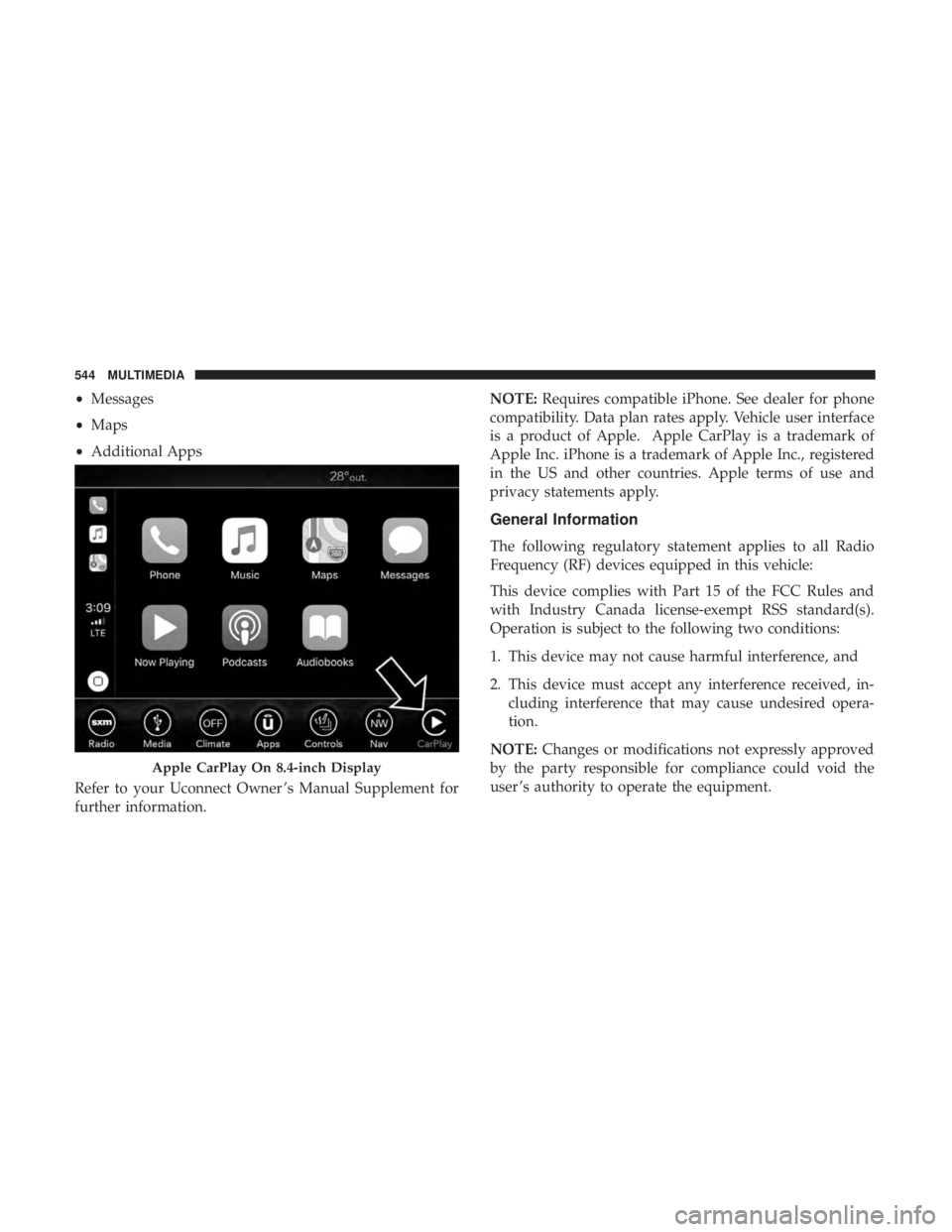
•Messages
• Maps
• Additional Apps
Refer to your Uconnect Owner ’s Manual Supplement for
further information. NOTE:
Requires compatible iPhone. See dealer for phone
compatibility. Data plan rates apply. Vehicle user interface
is a product of Apple. Apple CarPlay is a trademark of
Apple Inc. iPhone is a trademark of Apple Inc., registered
in the US and other countries. Apple terms of use and
privacy statements apply.
General Information
The following regulatory statement applies to all Radio
Frequency (RF) devices equipped in this vehicle:
This device complies with Part 15 of the FCC Rules and
with Industry Canada license-exempt RSS standard(s).
Operation is subject to the following two conditions:
1. This device may not cause harmful interference, and
2. This device must accept any interference received, in- cluding interference that may cause undesired opera-
tion.
NOTE: Changes or modifications not expressly approved
by the party responsible for compliance could void the
user ’s authority to operate the equipment.
Apple CarPlay On 8.4-inch Display
544 MULTIMEDIA
Page 562 of 572
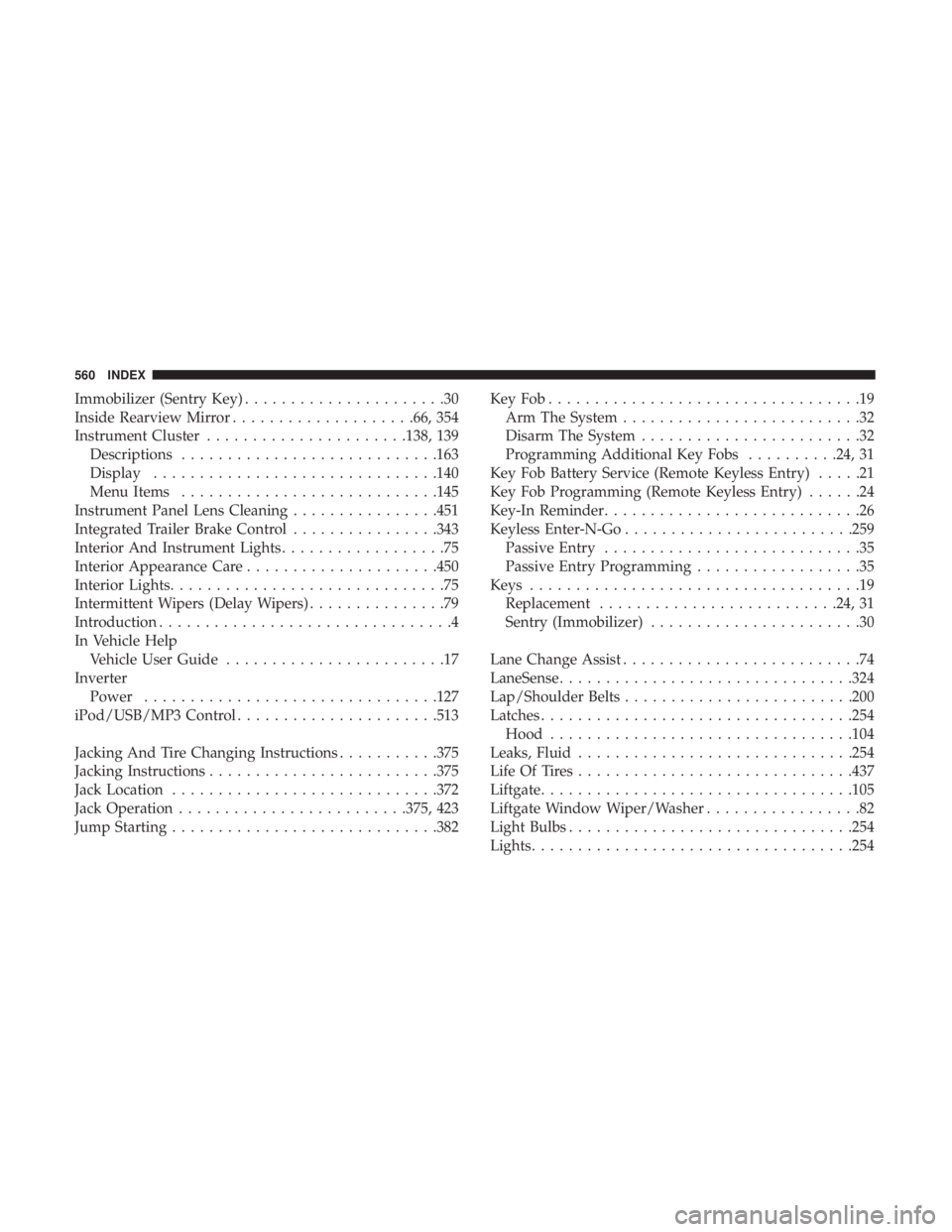
Immobilizer (Sentry Key)......................30
Inside Rearview Mirror ....................66, 354
Instrument Cluster ..................... .138, 139
Descriptions ........................... .163
Display .............................. .140
Menu Items ........................... .145
Instrument Panel Lens Cleaning ................451
Integrated Trailer Brake Control ................343
Interior And Instrument Lights ..................75
Interior Appearance Care .....................450
Interior Lights ..............................75
Intermittent Wipers (Delay Wipers) ...............79
Introduction ................................4
In Vehicle Help Vehicle User Guide ........................17
Inverter Power ............................... .127
iPod/USB/MP3 Control ..................... .513
Jacking And Tire Changing Instructions ...........375
Jacking Instructions ........................ .375
Jack Location ............................ .372
Jack Operation ........................ .375, 423
Jump Starting ............................ .382KeyFob..................................19
Arm The System ..........................32
Disarm The System ........................32
Programming Additional Key Fobs ..........24, 31
Key Fob Battery Service (Remote Keyless Entry) .....21
Key Fob Programming (Remote Keyless Entry) ......24
Key-In Reminder ............................26
Keyless Enter-N-Go ........................ .259
Passive Entry ............................35
Passive Entry Programming ..................35
Keys ....................................19
Replacement ......................... .24, 31
Sentry (Immobilizer) .......................30
Lane Change Assist ..........................74
LaneSense ............................... .324
Lap/Shoulder Belts ........................ .200
Latches ................................. .254
Hood ................................ .104
Leaks, Fluid ............................. .254
Life
Of Tires ............................. .437
Liftgate ................................. .105
Liftgate Window Wiper/Washer .................82
Light Bulbs .............................. .254
Lights .................................. .254
560 INDEX