audio DODGE GRAND CARAVAN 2005 User Guide
[x] Cancel search | Manufacturer: DODGE, Model Year: 2005, Model line: GRAND CARAVAN, Model: DODGE GRAND CARAVAN 2005Pages: 480, PDF Size: 15.54 MB
Page 248 of 480

Remote Control Buttons
17. Enter
18. Light
Headphone Transmitter Button (1)
After a disc is inserted into the DVD changer, both the
headphone transmitter button (1) on the remote control
and the power button on the headphones must be turned
ON before sound can be heard from the headphones. On
some radios the headphone symbol will flash for ap-
proximately 5 seconds in the radio display, indicating the
headphones are in use.
ARROW Buttons (2, 3, 15, 16)
These buttons only function in DVD video mode. Use the
arrow buttons to toggle through the DVD disc menu
screen options. RTN Button (4)
This button only functions in DVD video mode. Press this
button to return to the previous menu when in the DVD
disc menu mode.
SETUP Button (5)
This button only functions in DVD video mode. Press the
button after pressing the STOP button to access the DVD
changer set up menu. Use the right and left arrows to
move between tabs for language, rating, mark, audio and
aspect. Use the up and down arrows to move between
options within each tab.
To change an item highlighted in blue, press ENTER. This
should cause the highlight to turn yellow. Again, using
the up and down arrows will cause the arrow to move up
or down. Once the arrow is on the desired selection, press
ENTER. When finished, press setup or play to return to
playing the DVD or Menu to return to the DVD disc
menu.248 UNDERSTANDING YOUR INSTRUMENT PANEL
Page 252 of 480
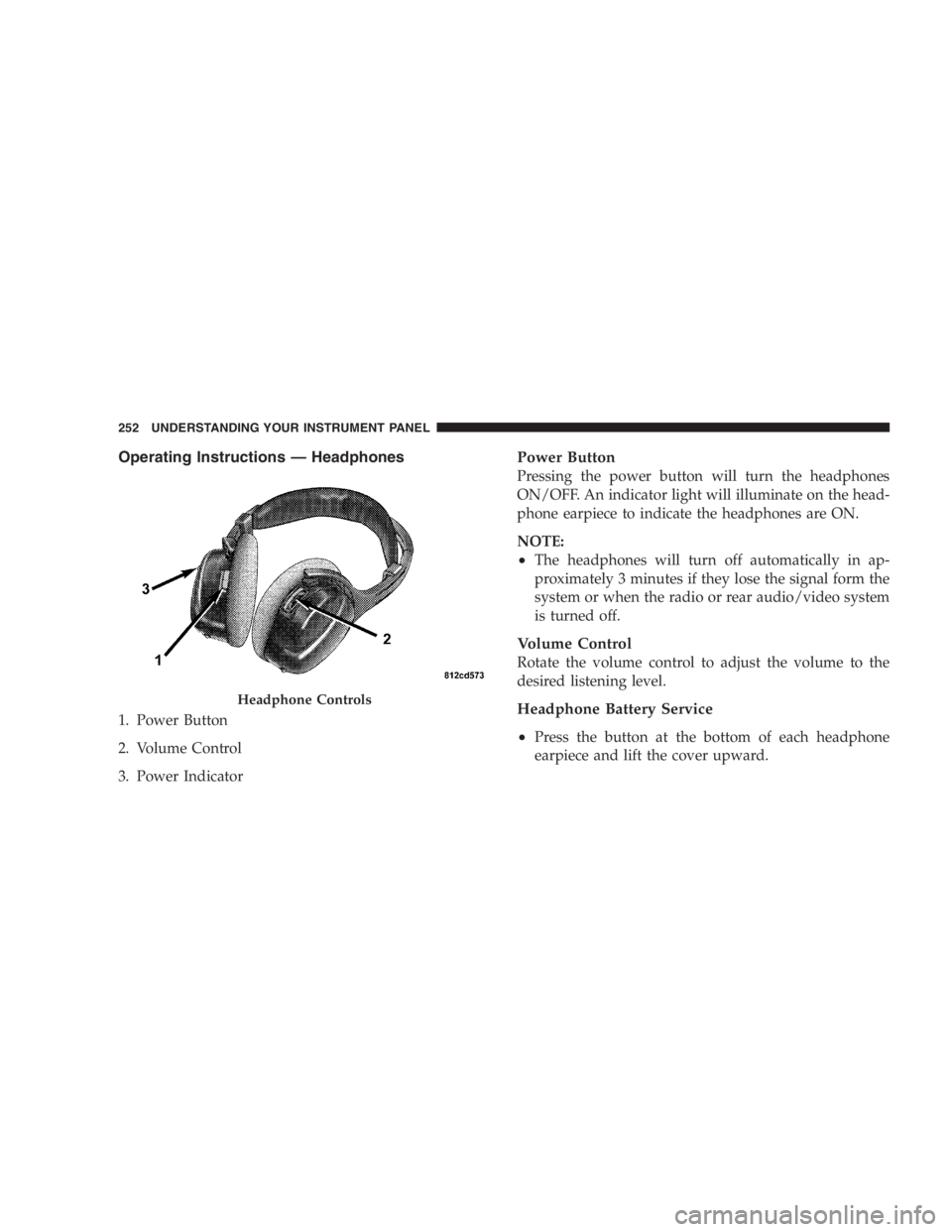
Operating Instructions — Headphones
1. Power Button
2. Volume Control
3. Power Indicator Power Button
Pressing the power button will turn the headphones
ON/OFF. An indicator light will illuminate on the head-
phone earpiece to indicate the headphones are ON.
NOTE:
• The headphones will turn off automatically in ap-
proximately 3 minutes if they lose the signal form the
system or when the radio or rear audio/video system
is turned off.
Volume Control
Rotate the volume control to adjust the volume to the
desired listening level.
Headphone Battery Service
• Press the button at the bottom of each headphone
earpiece and lift the cover upward.Headphone Controls252 UNDERSTANDING YOUR INSTRUMENT PANEL
Page 253 of 480
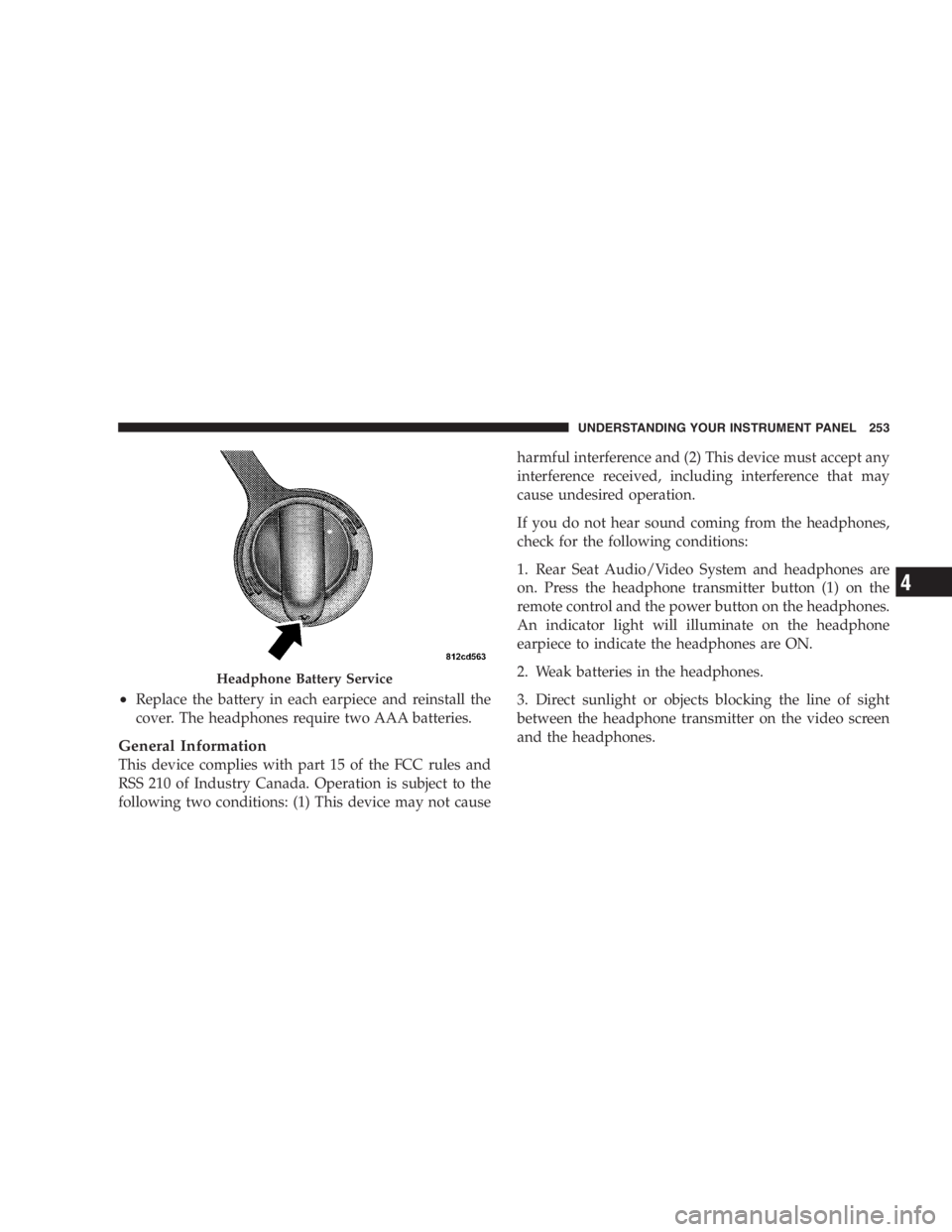
• Replace the battery in each earpiece and reinstall the
cover. The headphones require two AAA batteries.
General Information
This device complies with part 15 of the FCC rules and
RSS 210 of Industry Canada. Operation is subject to the
following two conditions: (1) This device may not cause harmful interference and (2) This device must accept any
interference received, including interference that may
cause undesired operation.
If you do not hear sound coming from the headphones,
check for the following conditions:
1. Rear Seat Audio/Video System and headphones are
on. Press the headphone transmitter button (1) on the
remote control and the power button on the headphones.
An indicator light will illuminate on the headphone
earpiece to indicate the headphones are ON.
2. Weak batteries in the headphones.
3. Direct sunlight or objects blocking the line of sight
between the headphone transmitter on the video screen
and the headphones.Headphone Battery Service UNDERSTANDING YOUR INSTRUMENT PANEL 253
4
Page 254 of 480
Operating Instructions — MP3 Player, Portable
Walkman
An MP3 player can be connected to the audio system.
Connect the cables to the RCA jacks located on the front
of the CD/DVD changer.
NOTE: Follow the manufactures instructions for the
correct colors when connecting the RCA cables.
Operating Instructions — Video
Games/Camcorders
A video game unit or camcorder can be connected to the
rear audio/video system. Connect the cables to the RCA
jacks located on the front of the CD/DVD changer.
NOTE: To operate a video game unit a DC to AC
adapter may be required, plug the adapter into any
power outlet.
Follow the manufactures instructions for the correct
colors when connecting the RCA cables. NOTE: MP3 player ’ s, video game systems, camcorders
connected to the RCA jacks and CD ’ sorDVD ’ s inserted
into the CD/DVD changer can be heard through the
headphones.
SATELLITE RADIO — IF EQUIPPED
Satellite radio uses direct satellite to receiver broadcast-
ing technology to provide clear digital sound, coast to
coast. The subscription service provider is Sirius ™ Satel-
lite Radio. This service offers up to 100 channels of music,
sports, news, entertainment, and programming for chil-
dren, directly from its satellites and broadcasting studios.
System Activation
To activate your Sirius Satellite Radio service, call the
toll-free number 888-539-7474, or visit the Sirius web site
at www.sirius.com. Please have the following informa-
tion available when activating your system:
1. The Electronic Serial Number/Sirius Identification
Number (ESN/SID).254 UNDERSTANDING YOUR INSTRUMENT PANEL
Page 258 of 480
Reception Quality
Satellite reception may be interrupted due to one of the
following reasons.
• The vehicle is parked in an underground parking
structure or under a physical obstacle.
• Dense tree coverage may interrupt reception in the
form of short audio mutes.
• Driving under wide bridges or along tall buildings can
cause intermittent reception.
• Placing objects over or too close to the antenna can
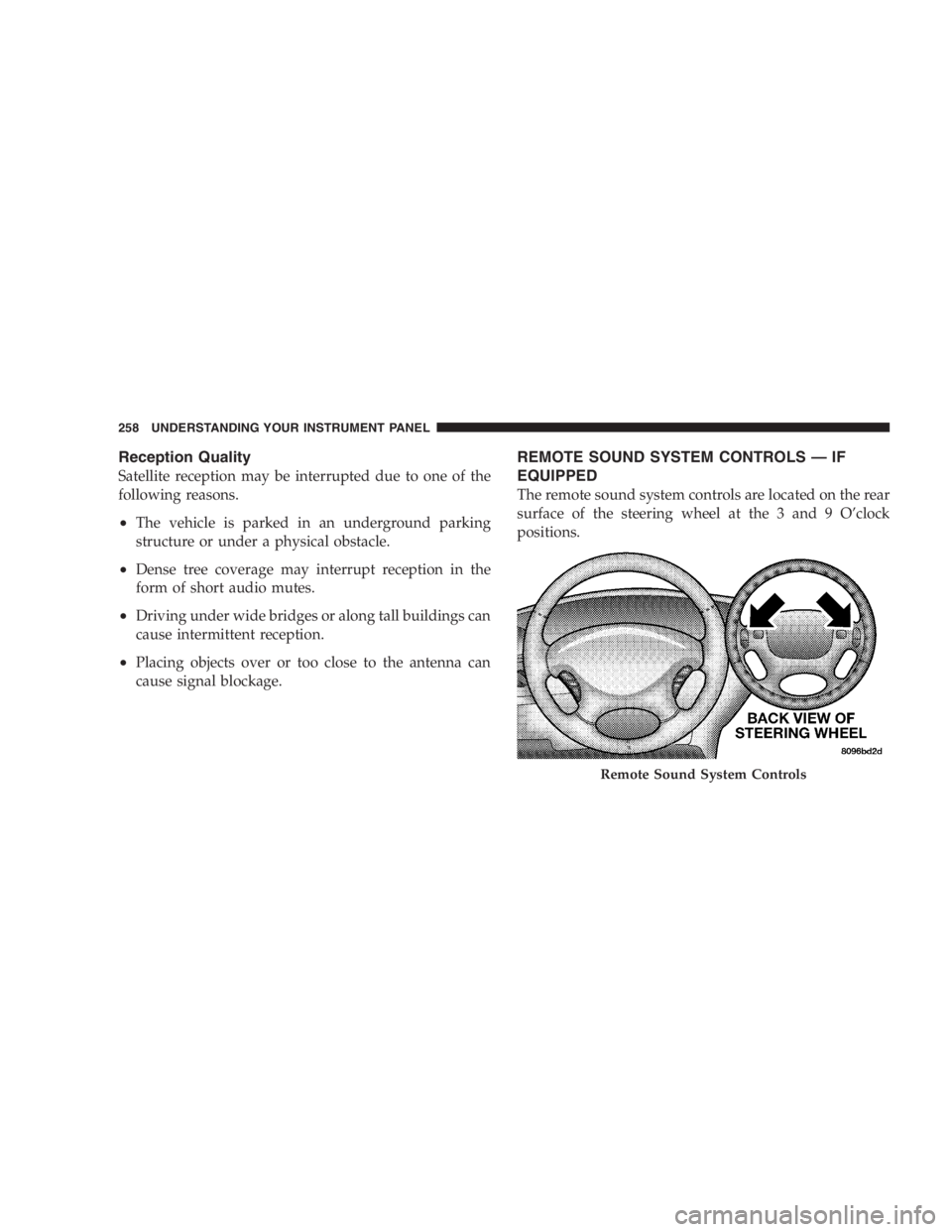
cause signal blockage. REMOTE SOUND SYSTEM CONTROLS — IF
EQUIPPED
The remote sound system controls are located on the rear
surface of the steering wheel at the 3 and 9 O ’ clock
positions.
Remote Sound System Controls258 UNDERSTANDING YOUR INSTRUMENT PANEL