win DODGE GRAND CARAVAN 2013 5.G Workshop Manual
[x] Cancel search | Manufacturer: DODGE, Model Year: 2013, Model line: GRAND CARAVAN, Model: DODGE GRAND CARAVAN 2013 5.GPages: 683, PDF Size: 5.5 MB
Page 137 of 683
NOTE:If the vehicle speed is greater than 10 mph
(16 km/h) the folding feature will be disabled.
If the mirrors are in the folded position, and vehicle
speed is equal or greater than 10 mph (16 km/h), they
will automatically unfold.
Illuminated Vanity Mirrors — If Equipped
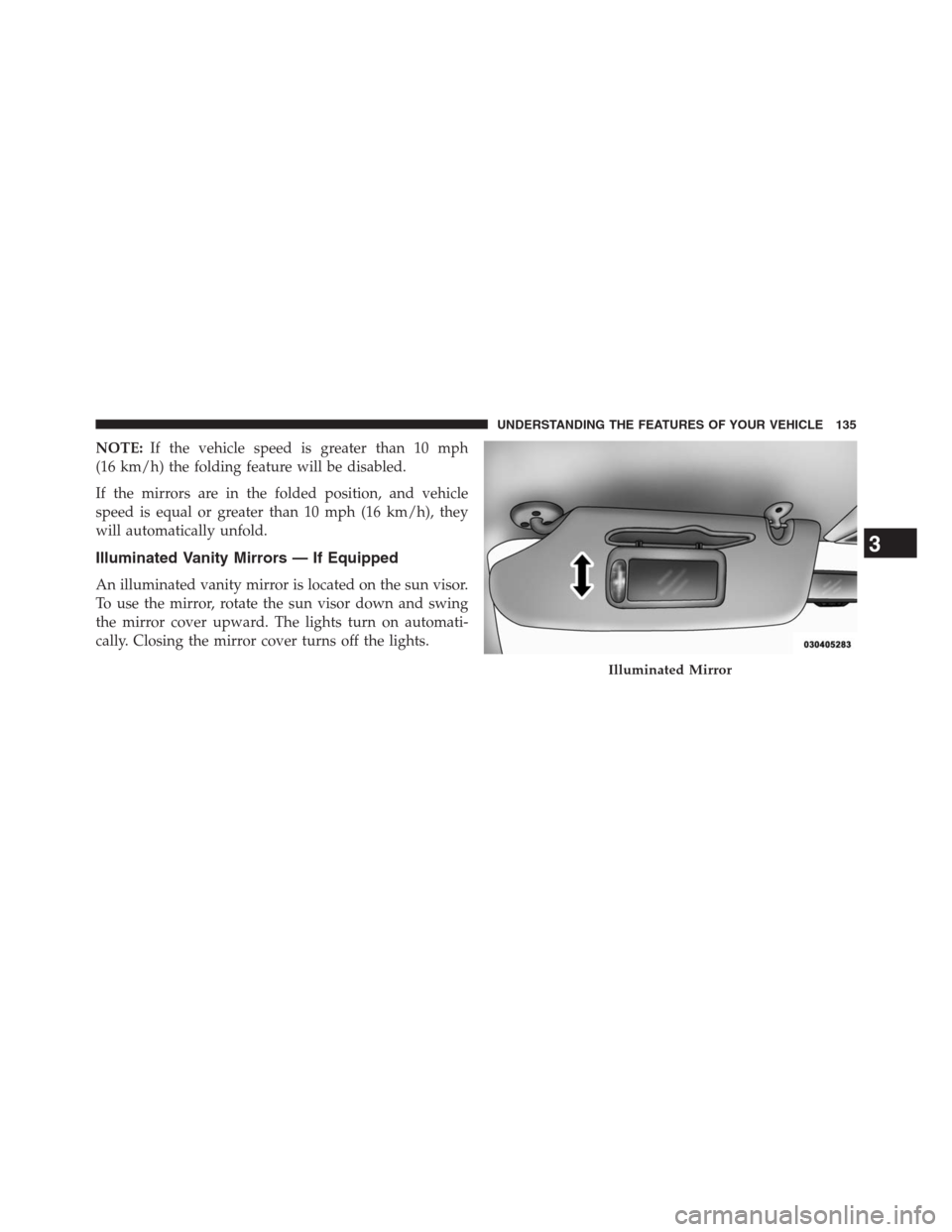
An illuminated vanity mirror is located on the sun visor.
To use the mirror, rotate the sun visor down and swing
the mirror cover upward. The lights turn on automati-
cally. Closing the mirror cover turns off the lights.
Illuminated Mirror
3
UNDERSTANDING THE FEATURES OF YOUR VEHICLE 135
Page 139 of 683
NOTE:
•The BSM system does NOT alert the driver about
rapidly approaching vehicles that are outside the de-
tection zones.
•The BSM system detection zone DOES NOT change if
your vehicle is towing a trailer. Therefore, visually
verify the adjacent lane is clear for both your vehicle
and trailer before making a lane change. If the trailer or
other object (i.e., bicycle, sports equipment) extends
beyond the side of your vehicle, this may result in the
BSM warning light remaining illuminated the entire
time the vehicle is in a forward gear.
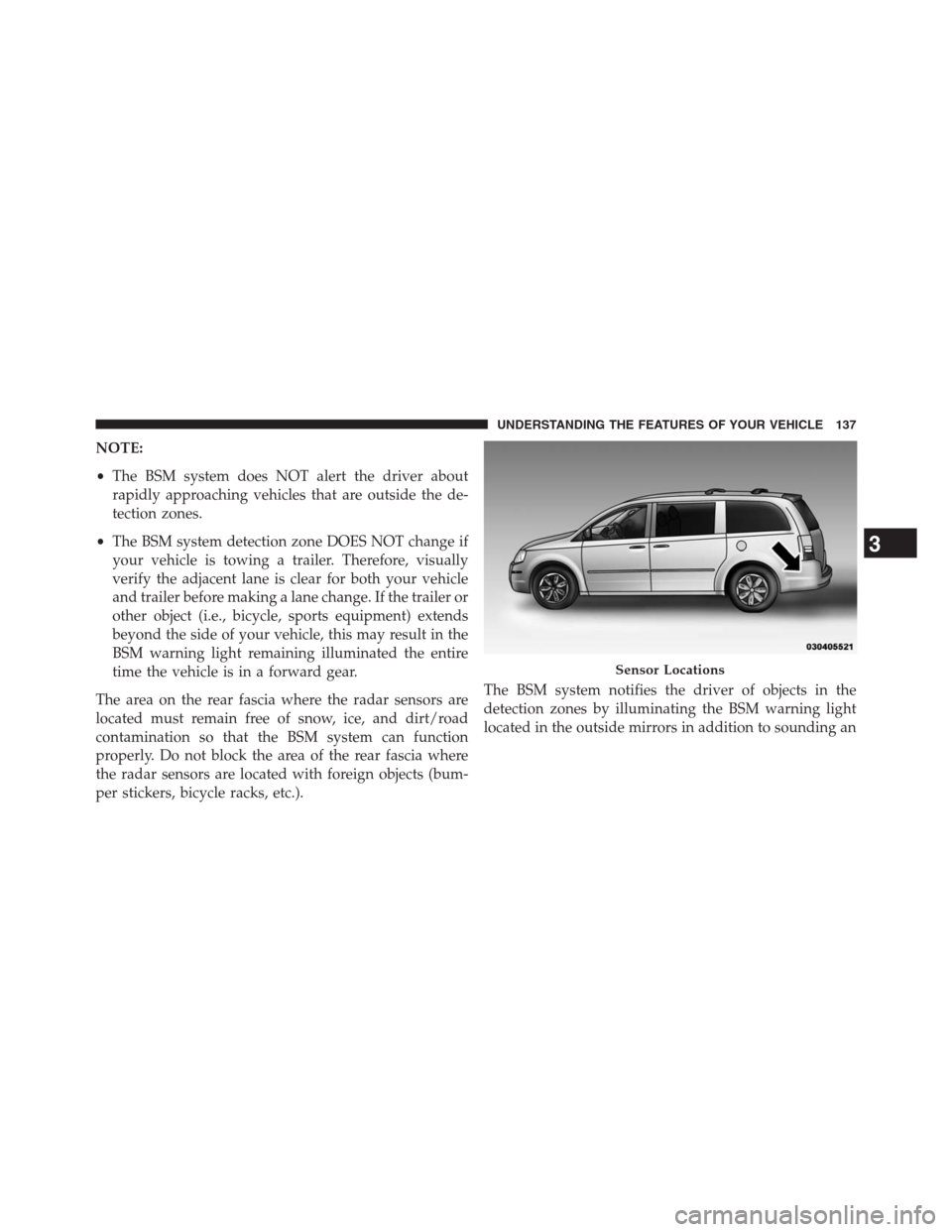
The area on the rear fascia where the radar sensors are
located must remain free of snow, ice, and dirt/road
contamination so that the BSM system can function
properly. Do not block the area of the rear fascia where
the radar sensors are located with foreign objects (bum-
per stickers, bicycle racks, etc.).The BSM system notifies the driver of objects in the
detection zones by illuminating the BSM warning light
located in the outside mirrors in addition to sounding an
Sensor Locations
3
UNDERSTANDING THE FEATURES OF YOUR VEHICLE 137
Page 148 of 683
wires or a docking station, so Uconnect® Phone works no
matter where you stow your mobile phone (be it your purse,
pocket, or briefcase), as long as your phone is turned on and
has been paired to the vehicle’s Uconnect® Phone. The
Uconnect® Phone allows up to seven mobile phones to be
linked to the system. Only one linked (or paired) mobile
phone can be used with the system at a time. The system is
available in English, Spanish, or French languages.
WARNING!
Any voice commanded system should be used only
in safe driving conditions following all applicable
laws, including laws regarding phone use. Your at-
tention should be focused on safely operating the
vehicle. Failure to do so may result in a collision
causing serious injury or death.Uconnect® Phone Button
The radio or steering wheel controls (if
equipped) will contain the two control buttons
(Uconnect® Phone
button and Voice Com-
mand
button) that will enable you to
access the system. When you press the button you will
hear the word Uconnect® followed by a BEEP. The beep
is your signal to give a command.
Voice Command Button
Actual button location may vary with the ra-
dio. The individual buttons are described in the
“Operation” section.
146 UNDERSTANDING THE FEATURES OF YOUR VEHICLE
Page 149 of 683
The Uconnect® Phone can be used with any Hands-Free
Profile certified Bluetooth® mobile phone. See the
Uconnect® website for supported phones. Refer to your
mobile service provider or the phone manufacturer for
details.
The Uconnect® Phone is fully integrated with the vehi-
cle’s audio system. The volume of the Uconnect® Phone
can be adjusted either from the radio volume control
knob or from the steering wheel radio control (right
switch), if so equipped.
The radio display will be used for visual prompts from
the Uconnect® Phone such as “CELL” or caller ID on
certain radios.Operation
Voice commands can be used to operate the Uconnect®
Phone and to navigate through the Uconnect® Phone
menu structure. Voice commands are required after mos-
tUconnect® Phone prompts. You will be prompted for a
specific command and then guided through the available
options.
•
Prior to giving a voice command, one must wait for the
beep, which follows the “Ready” prompt or another
prompt.
•For certain operations, compound commands can be
used. For example, instead of saying “Setup” and then
“Pair a Device”, the following compound command
can be said: “Pair a Bluetooth® Device”.
3
UNDERSTANDING THE FEATURES OF YOUR VEHICLE 147
Page 150 of 683
•For each feature explanation in this section, only the
compound form of the voice command is given. You
can also break the commands into parts and say each
part of the command when you are asked for it. For
example, you can use the compound form voice com-
mand “Phonebook New Entry”, or you can break the
compound form command into two voice commands:
“Phonebook” and “New Entry”. Please remember, the
Uconnect® Phone works best when you talk in a
normal conversational tone, as if speaking to someone
sitting a few feet/meters away from you.
Voice Command Tree
Refer to “Voice Tree” in this section.
Help Command
If you need assistance at any prompt, or if you want to
know your options at any prompt, say “Help” following
the beep. The Uconnect® Phone will play some of the
options at any prompt if you ask for help.To activate the Uconnect® Phone, simply press the
button and follow the audible prompts for directions.
Uconnect® Phone sessions begin with a press of the
button on the radio control head.
Cancel Command
At any prompt, after the beep, you can say “Cancel” and
you will be returned to the main menu. However, in a
few instances the system will take you back to the
previous menu.
Pair (Link) Uconnect® Phone To A Mobile Phone
To begin using your Uconnect® Phone, you must pair
your compatible Bluetooth® enabled mobile phone.
To complete the pairing process, you will need to reference
your mobile phone Owner’s Manual. The Uconnect® web-
site may also provide detailed instructions for pairing.
148 UNDERSTANDING THE FEATURES OF YOUR VEHICLE
Page 151 of 683
The following are general phone to Uconnect® Phone
pairing instructions:
•Press the
button to begin.
•After the “Ready” prompt and the following beep, say
“Device Pairing”.
•When prompted, after the beep, say “Pair a Device”
and follow the audible prompts.
•You will be asked to say a four-digit Personal Identi-
fication Number (PIN), which you will later need to
enter into your mobile phone. You can enter any
four-digit PIN. You will not need to remember this PIN
after the initial pairing process.
•For identification purposes, you will be prompted to
give the Uconnect® Phone a name for your mobile
phone. Each mobile phone that is paired should be
given a unique phone name.•You will then be asked to give your mobile phone a
priority level between one and seven, with one being
the highest priority. You can pair up to seven mobile
phones to your Uconnect® Phone. However, at any
given time, only one mobile phone can be in use,
connected to your Uconnect® System. The priority
allows the Uconnect® Phone to know which mobile
phone to use if multiple mobile phones are in the
vehicle at the same time. For example, if priority three
and priority five phones are present in the vehicle, the
Uconnect® Phone will use the priority three mobile
phone when you make a call. You can select to use a
lower priority mobile phone at any time (refer to
“Advanced Phone Connectivity” in this section).
3
UNDERSTANDING THE FEATURES OF YOUR VEHICLE 149
Page 152 of 683

Dial By Saying A Number
•Press thebutton to begin.
•After the “Ready” prompt and the following beep, say
“Dial”.
•The system will prompt you to say the number you
want to call.
•For example, you can say “234-567-8901”.
•The Uconnect® Phone will confirm the phone number
and then dial. The number will appear in the display
of certain radios.
Call By Saying A Name
•Press thebutton to begin.
•After the “Ready” prompt and the following beep, say
“Call”.•The system will prompt you to say the name of the
person you want to call.
•After the “Ready” prompt and the following beep, say
the name of the person you want to call. For example,
you can say “John Doe”, where John Doe is a previ-
ously stored name entry in the Uconnect® phonebook
or downloaded phonebook. To learn how to store a
name in the phonebook, refer to “Add Names to Your
Uconnect® Phonebook”, in the phonebook.
•The Uconnect® system will confirm the name and then
dial the corresponding phone number, which may
appear in the display of certain radios.
150 UNDERSTANDING THE FEATURES OF YOUR VEHICLE
Page 154 of 683

Add Names To Your Uconnect® Phonebook
NOTE:Adding names to the Uconnect® Phonebook is
recommended when the vehicle is not in motion.
•Press the
button to begin.
•After the “Ready” prompt and the following beep, say
“Phonebook New Entry”.
•When prompted, say the name of the new entry. Use of
long names helps the Voice Command and it is recom-
mended. For example, say “Robert Smith” or “Robert”
instead of “Bob”.
•When prompted, enter the number designation (e.g.,
“Home”, “Work”, “Mobile”, or “Other”). This will
allow you to store multiple numbers for each phone-
book entry, if desired.
•When prompted, recite the phone number for the
phonebook entry that you are adding.After you are finished adding an entry into the phone-
book, you will be given the opportunity to add more
phone numbers to the current entry or to return to the
main menu.
The Uconnect® Phone will allow you to enter up to
32 names in the phonebook with each name having up to
four associated phone numbers and designations. Each
language has a separate 32-name phonebook accessible
only in that language. In addition, if equipped and
supported by your phone, Uconnect® Phone automati-
cally downloads your mobile phone’s phonebook.
Edit Uconnect® Phonebook Entries
NOTE:
•Editing names in the phonebook is recommended
when the vehicle is not in motion.
•Automatic downloaded phonebook entries cannot be
deleted or edited.
152 UNDERSTANDING THE FEATURES OF YOUR VEHICLE
Page 155 of 683
•Press thebutton to begin.
•After the “Ready” prompt and the following beep, say
“Phonebook Edit Entry”.
•You will then be asked for the name of the phonebook
entry that you wish to edit.
•Next, choose the number designation (home, work,
mobile, or other) that you wish to edit.
•When prompted, recite the new phone number for the
phonebook entry that you are editing.
After you are finished editing an entry in the phonebook,
you will be given the opportunity to edit another entry in
the phonebook, call the number you just edited, or return
to the main menu.“Phonebook Edit Entry” can be used to add another
phone number to a name entry that already exists in the
phonebook. For example, the entry John Doe may have a
mobile and a home number, but you can add “John
Doe’s” work number later using the “Phonebook Edit
Entry” feature.
Delete Uconnect® Phonebook Entry
NOTE:Editing phonebook entries is recommended
when the vehicle is not in motion.
•Press the
button to begin.
•After the “Ready” prompt and the following beep, say
“Phonebook Delete”.
3
UNDERSTANDING THE FEATURES OF YOUR VEHICLE 153
Page 156 of 683
•After you enter the Phonebook Delete menu, you will
then be asked for the name of the entry that you wish
to delete. You can either say the name of a phonebook
entry that you wish to delete or you can say “List
Names” to hear a list of the entries in the phonebook
from which you choose. To select one of the entries
from the list, press the
button while the
Uconnect® Phone is playing the desired entry and say
“Delete”.
•After you enter the name, the Uconnect® Phone will
ask you which designation you wish to delete: home,
work, mobile, other, or all. Say the designation you
wish to delete.
•Note that only the phonebook entry in the current
language is deleted.
•Automatic downloaded phonebook entries cannot be
deleted or edited.
Delete/Erase “All” Uconnect® Phonebook Entries
•Press thebutton to begin.
•After the “Ready” prompt and the following beep, say
“Phonebook Erase All”.
•The Uconnect® Phone will ask you to verify that you
wish to delete all the entries from the phonebook.
•After confirmation, the phonebook entries will be
deleted.
•Note that only the phonebook in the current language
is deleted.
•Automatic downloaded phonebook entries cannot be
deleted or edited.
154 UNDERSTANDING THE FEATURES OF YOUR VEHICLE