phone DODGE GRAND CARAVAN 2015 5.G Workshop Manual
[x] Cancel search | Manufacturer: DODGE, Model Year: 2015, Model line: GRAND CARAVAN, Model: DODGE GRAND CARAVAN 2015 5.GPages: 703, PDF Size: 19.83 MB
Page 402 of 703
Important Notes For Dual Video Screen System
•VES™ is able to transmit two channels of stereo audio
and video simultaneously.
•The Blu-ray™ Disc Player can play CDs, DVDs and
Blu-ray™ Discs.
•The DVD Player can play CDs and DVDs.
•In split screen mode the left side equates to Channel 1
and the right side equates to Channel 2.
•Selecting a video source on Channel 1, the video
source will display on the second row screen or Screen
1 and can be heard on Channel 1.
•Selecting a video source on Channel 2, the video
source will display on the third row screen or Screen 2
and can be heard on Channel 2.
•The 2nd row screen and 3rd row screen of the Video
Entertainment System can play two separate discs by
utilizing the touchscreen radio DVD player and Blu-
ray™ Disc Player.
•Audio can be heard through the headphones even
when the screen(s) are closed.
400 UNDERSTANDING YOUR INSTRUMENT PANEL
Page 403 of 703
VES™ Remote Control — If Equipped
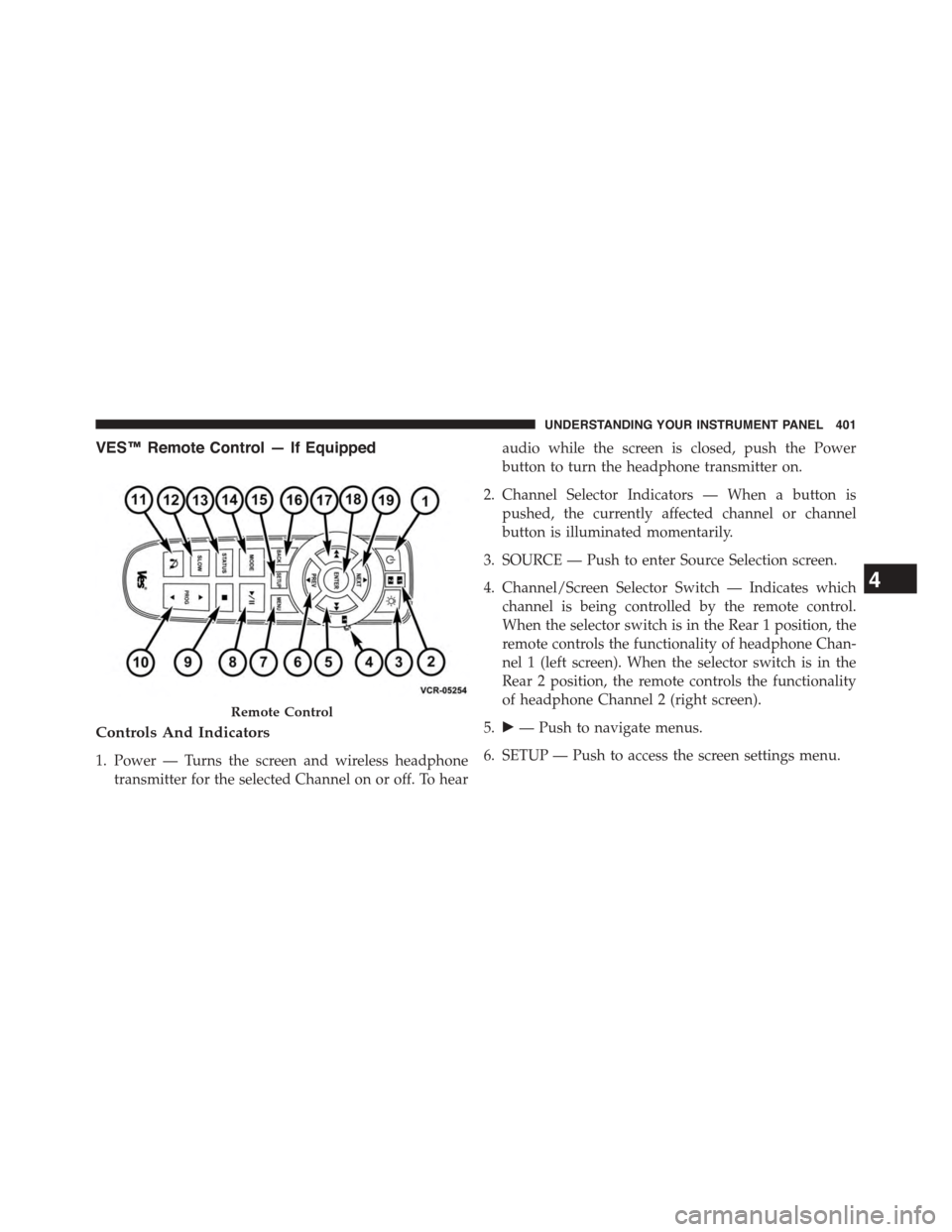
Controls And Indicators
1. Power — Turns the screen and wireless headphone
transmitter for the selected Channel on or off. To hear
audio while the screen is closed, push the Power
button to turn the headphone transmitter on.
2. Channel Selector Indicators — When a button is
pushed, the currently affected channel or channel
button is illuminated momentarily.
3. SOURCE — Push to enter Source Selection screen.
4. Channel/Screen Selector Switch — Indicates which
channel is being controlled by the remote control.
When the selector switch is in the Rear 1 position, the
remote controls the functionality of headphone Chan-
nel 1 (left screen). When the selector switch is in the
Rear 2 position, the remote controls the functionality
of headphone Channel 2 (right screen).
5.!— Push to navigate menus.
6. SETUP — Push to access the screen settings menu.
Remote Control
4
UNDERSTANDING YOUR INSTRUMENT PANEL 401
Page 404 of 703
7.!!!— Push and hold to fast forward through the
current audio track or video chapter.
8.!/%(Play/Pause) — Begin/resume or pause disc
play.
9. Four Colored Buttons — Push to access Blu-ray™ Disc
features.
10. POPUP/MENU — Push to bring up repeat and
shuffle options, the Blu-ray™ Disc popup menu, the
DVD title menu or to access disc menus.
11. KEYPAD — Push to navigate chapters or titles.
12.▪(Stop) — Stops disc play.
13.!""— Push and hold to fast rewind through the
current audio track or video chapter.
14.— Mutes headphone audio.
15. BACK — Push to exit out of menus or return to
source selection screen.
16.#— Push to navigate menus.
17. OK — Push to select the highlighted option in a
menu.
18."— Push to navigate menus.
19.$— Push to navigate menus.
402 UNDERSTANDING YOUR INSTRUMENT PANEL
Page 405 of 703
Blu-ray™ Player Remote Control — If Equipped
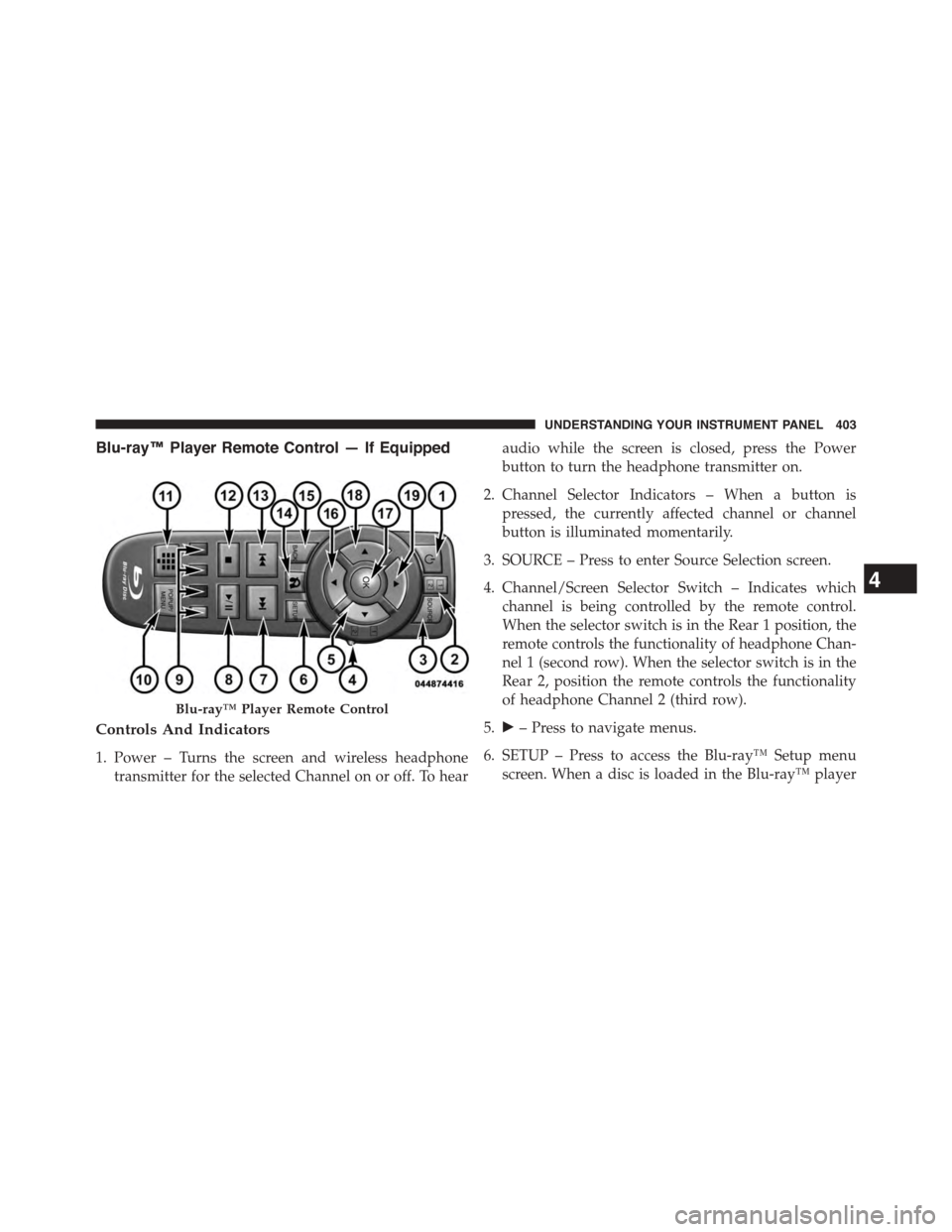
Controls And Indicators
1. Power – Turns the screen and wireless headphone
transmitter for the selected Channel on or off. To hear
audio while the screen is closed, press the Power
button to turn the headphone transmitter on.
2. Channel Selector Indicators – When a button is
pressed, the currently affected channel or channel
button is illuminated momentarily.
3. SOURCE – Press to enter Source Selection screen.
4. Channel/Screen Selector Switch – Indicates which
channel is being controlled by the remote control.
When the selector switch is in the Rear 1 position, the
remote controls the functionality of headphone Chan-
nel 1 (second row). When the selector switch is in the
Rear 2, position the remote controls the functionality
of headphone Channel 2 (third row).
5.!– Press to navigate menus.
6. SETUP – Press to access the Blu-ray™ Setup menu
screen. When a disc is loaded in the Blu-ray™ player
Blu-ray™ Player Remote Control
4
UNDERSTANDING YOUR INSTRUMENT PANEL 403
Page 406 of 703
(if equipped) and the VES™ mode is selected and the
disc is stopped, press the SETUP button to access the
Blu-ray™ Setup menu.
7.!!!– Press and release to jump to the next available
audio track or video chapter. Press and hold to fast
forward through the current audio track or video
chapter.
8.!/%(Play/Pause) – Begin/resume or pause disc play.
9. Four Colored Buttons – Press to access Blu-ray™ Disc
features.
10. POPUP/MENU – Press to access the Blu-ray™ main
menu when in Blu-ray™ or DVD mode. Press to start
Scan or start Random track functions in CD or HDD
modes.
11. KEYPAD – Press to navigate chapters or titles.
12.▪(Stop) – Stops disc play.
13.!""– Press and release to jump to the previous
audio track or video chapter. Press and hold to fast
rewind through the current audio track or video
chapter.
14. MUTE – Mutes headphone audio.
15. BACK – Press to exit out of menus or return to source
selection screen.
16.#– Press to navigate menus.
17. OK – Press to select the highlighted option in a menu.
18."– Press to navigate menus.
19.$– Press to navigate menus.
404 UNDERSTANDING YOUR INSTRUMENT PANEL
Page 409 of 703
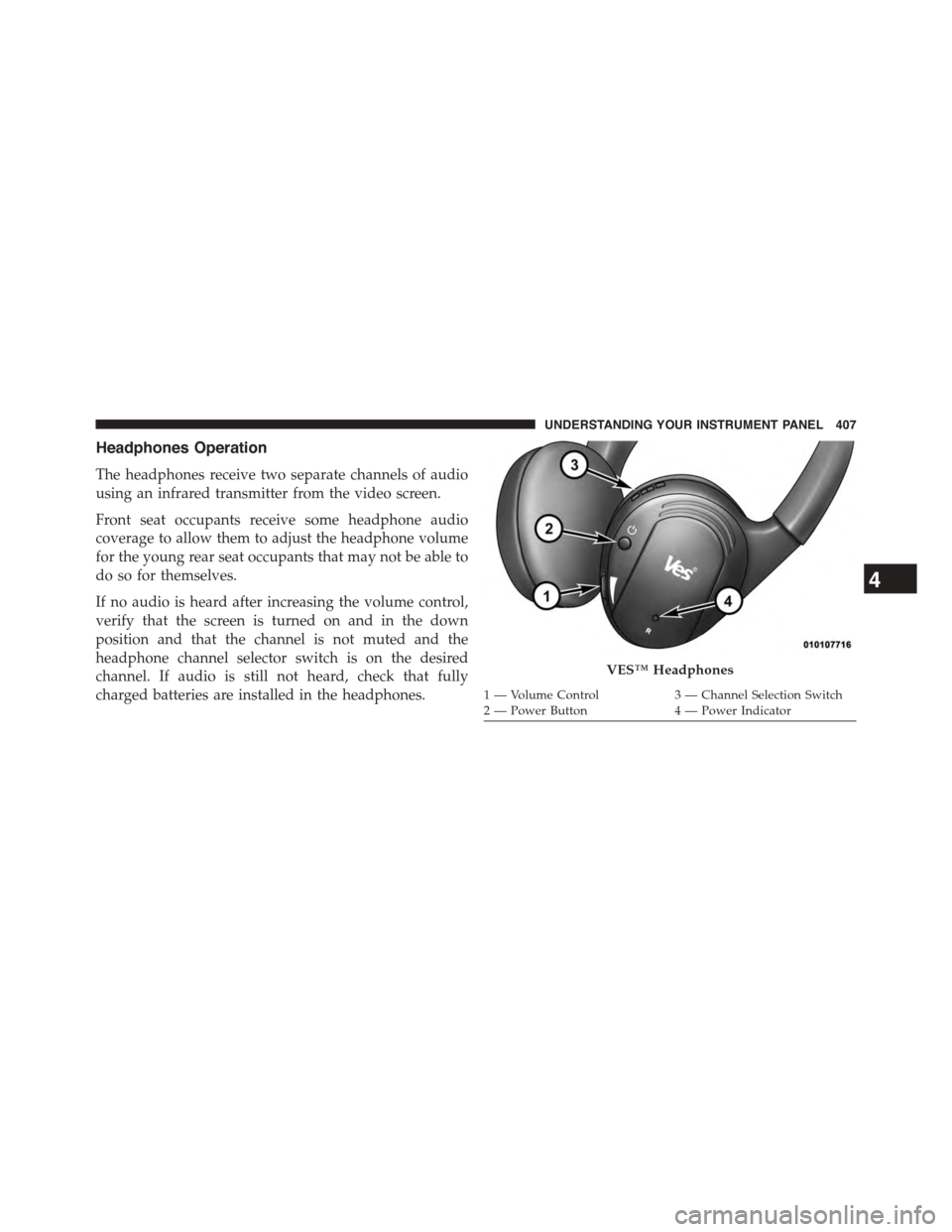
Headphones Operation
The headphones receive two separate channels of audio
using an infrared transmitter from the video screen.
Front seat occupants receive some headphone audio
coverage to allow them to adjust the headphone volume
for the young rear seat occupants that may not be able to
do so for themselves.
If no audio is heard after increasing the volume control,
verify that the screen is turned on and in the down
position and that the channel is not muted and the
headphone channel selector switch is on the desired
channel. If audio is still not heard, check that fully
charged batteries are installed in the headphones.
VES™ Headphones
1 — Volume Control3 — Channel Selection Switch2—PowerButton4—PowerIndicator
4
UNDERSTANDING YOUR INSTRUMENT PANEL 407
Page 410 of 703
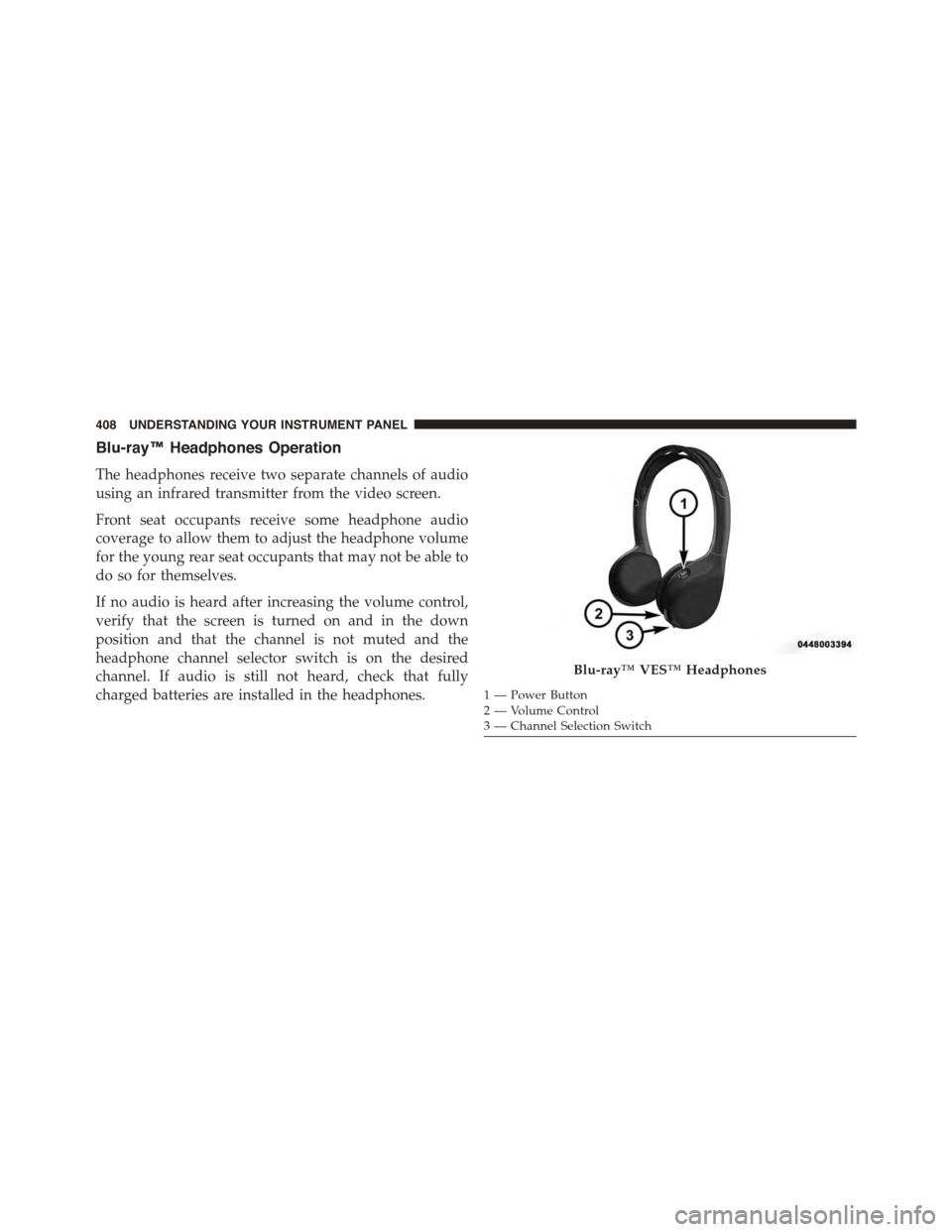
Blu-ray™ Headphones Operation
The headphones receive two separate channels of audio
using an infrared transmitter from the video screen.
Front seat occupants receive some headphone audio
coverage to allow them to adjust the headphone volume
for the young rear seat occupants that may not be able to
do so for themselves.
If no audio is heard after increasing the volume control,
verify that the screen is turned on and in the down
position and that the channel is not muted and the
headphone channel selector switch is on the desired
channel. If audio is still not heard, check that fully
charged batteries are installed in the headphones.
Blu-ray™ VES™ Headphones
1—PowerButton2—VolumeControl3 — Channel Selection Switch
408 UNDERSTANDING YOUR INSTRUMENT PANEL
Page 411 of 703
Controls
The headphone power indicator and controls are located
on the right ear cup.
NOTE:The rear video system must be turned on before
sound can be heard from the headphones. To conserve
battery life, the headphones will automatically turn off
approximately three minutes after the rear video system
is turned off.
Changing The Audio Mode For Headphones
1. Ensure the Remote Control channel/screen selector
switch is in the same position as the headphone
selector switch.
NOTE:
•When both switches are on Channel 1, the Remote is
controlling Channel 1 and the headphones are tuned
to the audio of the VES™ Channel 1.
•When both switches are on Channel 2, the Remote is
controlling Channel 2 and the headphones are tuned
to the audio of the VES™ Channel 2.
2. Press the SOURCE button on the remote control.
3. If the video screen is displaying a video source (such
as a DVD Video), pressing DISPLAY shows the status
on a popup banner at the bottom of the screen.
Pressing the SOURCE button will advance to the next
mode. When the mode is in an audio only source (such
as FM), the Mode Selection menu appears on screen.
4
UNDERSTANDING YOUR INSTRUMENT PANEL 409
Page 412 of 703
4. When the Mode Selection menu appears on screen,
use the cursor buttons on the remote control to navi-
gate to the available modes and press the OK button to
select the new mode.
5. To cancel out of the Mode Selection menu, press the
BACK button on the remote control.
Replacing The Headphone Batteries
Each set of headphones requires two AAA batteries for
operation. To replace the batteries:
•Locate the battery compartment on the left ear cup of
the headphones, and then slide the battery cover
downward.
•Replace the batteries, making sure to orient them
according to the polarity diagram shown.
•Replace the battery compartment cover.
Unwired® Stereo Headphone Lifetime Limited
Warranty
Who Does This Warranty Cover?This warranty covers
the initial user or purchaser (#you#or#your#) of this
particular Unwired Technology LLC (#Unwired#) wire-
less headphone (#Product#). The warranty is not transfer-
able.
How Long Does The Coverage Last?This warranty lasts
as long as you own the Product.
What Does This Warranty Cover?Except as specified
below, this warranty covers any Product that in normal
use is defective in workmanship or materials.
What Does This Warranty Not Cover?This warranty
does not cover any damage or defect that results from
misuse, abuse or modification of the Product other than
by Unwired. Foam earpieces, which will wear over time
through normal use, are specifically not covered (replace-
ment foam is available for a nominal charge). UNWIRED
410 UNDERSTANDING YOUR INSTRUMENT PANEL
Page 413 of 703
TECHNOLOGY IS NOT LIABLE FOR ANY INJURIES
OR DAMAGES TO PERSONS OR PROPERTY RESULT-
ING FROM THE USE OF, OR ANY FAILURE OR DE-
FECT IN, THE PRODUCT, NOR IS UNWIRED LIABLE
FOR ANY GENERAL, SPECIAL, DIRECT, INDIRECT,
INCIDENTAL, CONSEQUENTIAL, EXEMPLARY, PU-
NITIVE OR OTHER DAMAGES OF ANY KIND OR
NATURE WHATSOEVER. Some states and jurisdictions
may not allow the exclusion or limitation of incidental or
consequential damages, so the above limitation may not
apply to you. This warranty gives you specific legal
rights. You may also have other rights, which vary from
jurisdiction to jurisdiction.
What Will Unwired® Do?Unwired®, at its option, will
repair or replace any defective Product. Unwired® re-
serves the right to replace any discontinued Product with
a comparable model. THIS WARRANTY IS THE SOLE
WARRANTY FOR THIS PRODUCT, SETS FORTH YOUR
EXCLUSIVE REMEDY REGARDING DEFECTIVE
PRODUCTS, AND IS IN LIEU OF ALL OTHER WAR-
RANTIES (EXPRESS OR IMPLIED), INCLUDING ANY
WARRANTY OR MERCHANTABILITY OR FITNESS
FOR A PARTICULAR PURPOSE.
If you have any questions or comments regarding your
Unwired® wireless headphones, please phone 1-888-293-
3332 or email [email protected].
You may register your Unwired® wireless headphones
online atwww.unwiredtechnology.com or by phone at
1-888-293-3332.
System Information
Shared Modes
This allows the VES™ to output radio sources to the
headphones and the radio to output VES™ sources to the
vehicle speakers. When the radio and VES™ channel 1 or
2 are in the same (shared) mode, a VES™ icon will be
4
UNDERSTANDING YOUR INSTRUMENT PANEL 411