reset DODGE GRAND CARAVAN 2017 5.G Owner's Manual
[x] Cancel search | Manufacturer: DODGE, Model Year: 2017, Model line: GRAND CARAVAN, Model: DODGE GRAND CARAVAN 2017 5.GPages: 530, PDF Size: 5.01 MB
Page 266 of 530
Fuel Economy
Push and release theUPorDOWNarrow button
until “Fuel Economy” displays highlighted in the In-
strument Cluster Display and push the RIGHT
ar-
row button. The following Fuel Economy functions
display in the Instrument Cluster Display:
• Average Fuel Economy (MPG or L/100 km)
• Distance To Empty (mi or km)
• Current Fuel Economy (MPG or L/100 km)
Average Fuel Economy
Shows the average fuel economy since the last reset. The
Average Fuel Economy can be reset by following the
prompt in the Instrument Cluster Display to use the
RIGHT button. When the fuel economy is reset, the display
will read “zero” for two seconds. Then, the history infor-
mation will be erased, and the averaging will continue
from the last fuel average reading before the reset.
Distance To Empty (DTE)
Shows the estimated distance that can be traveled with the
fuel remaining in the tank. This estimated distance is
determined by a weighted average of the instantaneous
and average fuel economy, according to the current fuel
tank level. DTE cannot be reset through the RIGHT
arrow button.
NOTE:Significant changes in driving style or vehicle
loading will greatly affect the actual drivable distance of
the vehicle, regardless of the DTE displayed value.
Average Fuel Economy Display
264 UNDERSTANDING YOUR INSTRUMENT PANEL
Page 267 of 530
When the DTE value is less than 30 miles (48 km) estimated
driving distance, the DTE display will change to a “LOW
FUEL” message. This display will continue until the ve-
hicle runs out of fuel. Adding a significant amount of fuel
to the vehicle will turn off the “LOW FUEL” message and
a new DTE value will display.
Current Fuel Economy (MPG or L/100 km)
This display shows the instantaneous MPG or L/100 km in
bar graph form while driving. This will monitor the gas
mileage in real-time as you drive and can be used to
modify driving habits in order to increase fuel economy.
Vehicle Speed
Push and release theUPorDOWNarrow button
until “Vehicle Speed” displays highlighted in the Instru-
ment Cluster Display and push the RIGHT
arrow
button. Push and release the RIGHT
arrow button to
display the current speed in mph or km/h. Pushing the
RIGHT
arrow button a second time will toggle the
unit of measure between mph or km/h.
NOTE: Changing the unit of measure in the Vehicle Speed
menu will not change the unit of measure in the Instrument
Cluster Display.
Trip Info
Push and release the UPorDOWNarrow button
until “Trip Info” is highlighted in the Instrument Cluster
Display and push the RIGHT
button. Push and
release the UP
orDOWNarrow button to high-
light one of the following functions.
Trip A
• Shows the total distance traveled for Trip A since the last
reset.
• Shows the elapsed time traveled for Trip A since the last
reset.
Trip B
•Shows the total distance traveled for Trip B since the last
reset.
• Shows the elapsed time traveled for Trip B since the last
reset.
Elapsed Time
Shows the total elapsed time of travel since the last reset
when the ignition switch is in the ACC position. Elapsed
time will increment when the ignition switch is in the ON
or START position.
4
UNDERSTANDING YOUR INSTRUMENT PANEL 265
Page 268 of 530
To Reset A Trip Function
Reset will only occur while a resettable function is selected
(highlighted). Push and hold the RIGHT button to clear the
resettable function being displayed.
Tire Pressure
Push and release theUPorDOWNarrow button
until “Tire PSI:” displays highlighted in the Instrument
Cluster Display. Push and release the RIGHT
arrow
button to view a graphic of the vehicle with a tire
pressure value at each corner of the graphic.
Units
Push and release the UPorDOWNarrow button
until “Units” displays highlighted in the Instrument
Cluster Display and push the RIGHT
arrow button.
The Instrument Cluster Display, odometer, and naviga-
tion system (if equipped) can be changed between
English and Metric units of measure. To make your
selection, scroll up or down until the preferred setting is
highlighted, then push and release the RIGHT
arrow
button until a check-mark appears next to the setting,
showing that the setting has been selected. Vehicle Info (Customer Information Features)
Push and release the
UPorDOWNarrow button
until “Vehicle Info” displays in the Instrument Cluster
Display. Then, push and release the RIGHT
arrow
button. Push and release the UP
orDOWNarrow
button to scroll through the available information dis-
plays, then push and release RIGHT
arrow button to
display any one of the following choices.
• Coolant Temp
Displays the actual coolant temperature.
• Oil Temp
Displays the actual oil temperature.
• Oil Pressure
Displays the actual oil pressure.
• Engine Hours
Displays the number of hours of engine operation.
Messages #
Select from Main Menu using the UPorDOWN
arrow button. This feature shows the number of
stored warning messages (in the # place holder). Push-
ing the RIGHT
arrow button will allow you to see
266 UNDERSTANDING YOUR INSTRUMENT PANEL
Page 269 of 530
what the stored messages are. Push and release theUP
orDOWNarrow button if there is more than one
message to step through the remaining stored messages.
Pushing the BACKbutton takes you back to the Main
Menu.
Compass / Temperature Display
The compass readings indicate the direction the vehicle is
facing. The Instrument Cluster Display will display eight
or fifteen compass readings and the outside temperature.
NOTE: The system will display the last known outside
temperature when starting the vehicle and may need to be
driven several minutes before the updated temperature is
displayed. Engine temperature can also affect the dis-
played temperature; therefore, temperature readings are
not updated when the vehicle is not moving.
Automatic Compass Calibration
This compass is self-calibrating, which eliminates the need
to manually reset the compass. When the vehicle is new,
the compass may appear erratic until it is calibrated. You
may also calibrate the compass by completing one or more
360–degree turns (in an area free from large metal or
metallic objects). The compass will now function normally. NOTE:
A good calibration requires a level surface and an
environment free from large metallic objects such as build-
ings, bridges, underground cables, railroad tracks, etc.
Manual Compass Calibration
If the compass appears erratic and the CAL indicator does
not appear in the Instrument Cluster Display, you must put
the compass into the Calibration Mode manually, as fol-
lows:
1. Turn ON the ignition switch.
2. Push and release the UP or DOWN button until the System Setup (Customer-Programmable Features) menu
is reached, then push and release the RIGHT button.
3. Push and release the DOWN button until “Calibrate Compass” is displayed in the Instrument Cluster Dis-
play then push and release the RIGHT button.
4. Push and release the RIGHT button to start the calibra- tion. The “CAL” indicator will be displayed in the
Instrument Cluster Display.
5. Complete one or more 360–degree turns (in an area free from large metal or metallic objects) until the “CAL”
indicator turns off. The compass will now function
normally.4
UNDERSTANDING YOUR INSTRUMENT PANEL 267
Page 280 of 530
SET/RND Button — To Set The Pushbutton Memory
When you are receiving a station that you wish to commit
to pushbutton memory, push the SET/RND button. The
symbol SET 1 will now show in the display window. Select
the button (1 to 6) you wish to lock onto this station and
push and release that button. If a button is not selected
within five seconds after pushing the SET/RND button,
the station will continue to play but will not be stored into
pushbutton memory.
You may add a second station to each pushbutton by
repeating the above procedure with this exception: Push
the SET/RND button twice and SET 2 will show in the
display window. Each button can be set for SET 1 and SET
2 in both AM and FM. This allows a total of 12 AM and 12
FM stations to be stored into pushbutton memory. The
stations stored in SET 2 memory can be selected by
pushing the pushbutton twice.
Every time a preset button is used, a corresponding button
number will display.
Buttons1-6
These buttons tune the radio to the stations that you
commit to pushbutton memory (12 AM and 12 FM sta-
tions).
DISC Button
Pushing the DISC button will allow you to switch from
AM/FM modes to Disc modes.
Operation Instructions — CD MODE For CD And
MP3 Audio Play
NOTE:
•The ignition switch must be in the ON or ACC position
to operate the radio.
• This radio is capable of playing compact discs (CD),
recordable compact discs (CD-R), rewritable compact
discs (CD-RW), compact discs with MP3 tracks and
multisession compact discs with CD and MP3 tracks.
Inserting Compact Disc(s)
Gently insert one CD into the CD player with the CD label
facing up. The CD will automatically be pulled into the CD
player and the CD icon will illuminate on the radio display.
If a CD does not go into the slot more than 1 inch (2.5 cm),
a disc may already be loaded and must be ejected before a
new disc can be loaded.
If you insert a disc with the ignition ON and the radio ON,
the unit will switch from radio to CD mode and begin to
play when you insert the disc. The display will show the
278 UNDERSTANDING YOUR INSTRUMENT PANEL
Page 288 of 530
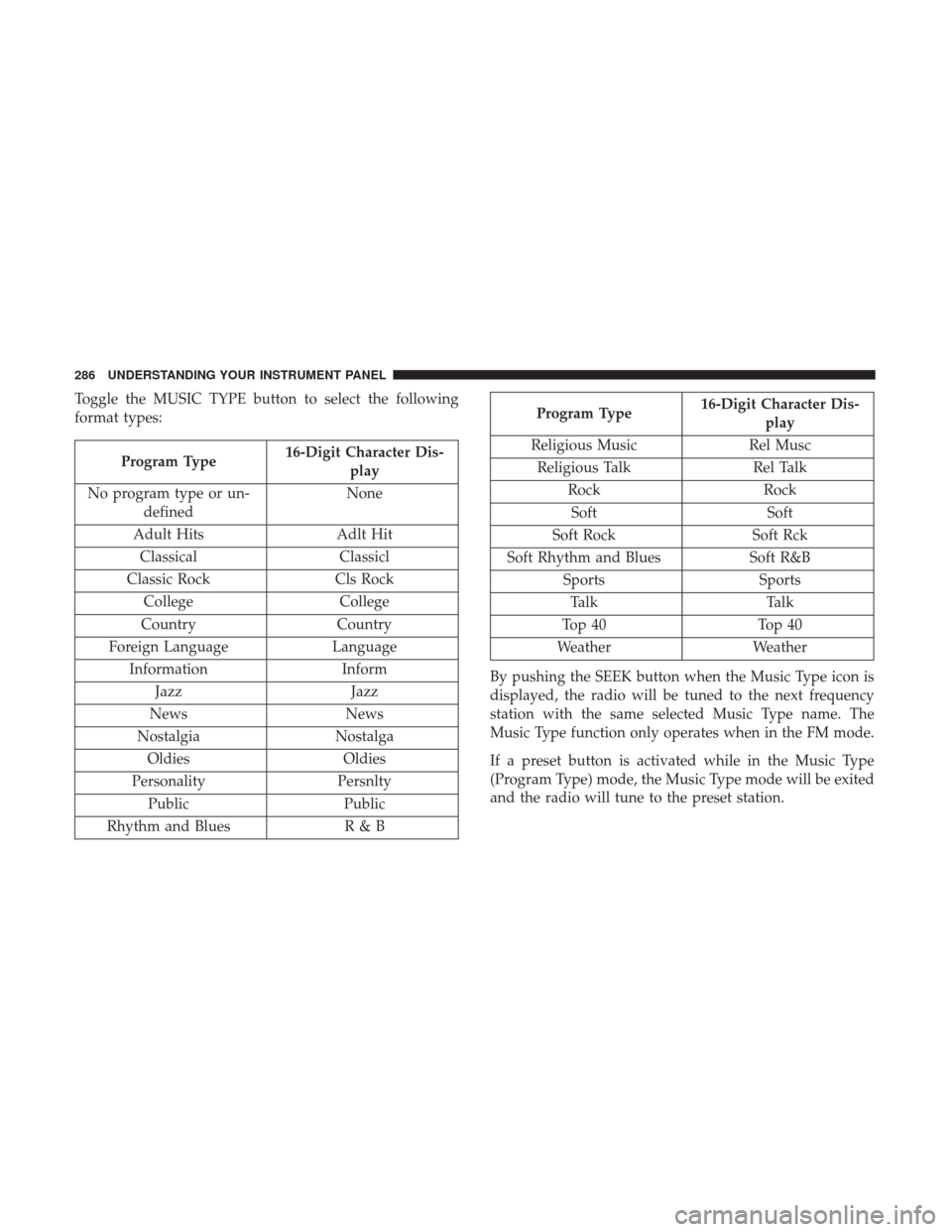
Toggle the MUSIC TYPE button to select the following
format types:
Program Type16-Digit Character Dis-
play
No program type or un- defined None
Adult Hits Adlt Hit
Classical Classicl
Classic Rock Cls Rock
College College
Country Country
Foreign Language Language
Information Inform
Jazz Jazz
News News
Nostalgia Nostalga
Oldies Oldies
Personality Persnlty
Public Public
Rhythm and Blues R & B
Program Type16-Digit Character Dis-
play
Religious Music Rel Musc
Religious Talk Rel Talk
Rock Rock
Soft Soft
Soft Rock Soft Rck
Soft Rhythm and Blues Soft R&B
Sports Sports
Talk Talk
Top 40 Top 40
Weather Weather
By pushing the SEEK button when the Music Type icon is
displayed, the radio will be tuned to the next frequency
station with the same selected Music Type name. The
Music Type function only operates when in the FM mode.
If a preset button is activated while in the Music Type
(Program Type) mode, the Music Type mode will be exited
and the radio will tune to the preset station.
286 UNDERSTANDING YOUR INSTRUMENT PANEL
Page 289 of 530
SETUP Button
Pushing the SETUP button allows you to select between
the following items:
•Set Clock — Pushing the SELECT button will allow you
to set the clock. Adjust the hours by turning the TUNE/
SCROLL control knob. After adjusting the hours, push
the TUNE/SCROLL control knob to set the minutes. The
minutes will begin to blink. Adjust the minutes using the
right side TUNE/SCROLL control knob. Push the
TUNE/SCROLL control knob to save time change.
AM/FM Button
Push the button to select either AM or FM mode.
SET/RND Button — To Set The Pushbutton Memory
When you are receiving a station that you wish to commit
to pushbutton memory, push the SET/RND button. The
symbol SET 1 will now show in the display window. Select
the button (1–6) you wish to lock onto this station and push
and release that button. If a button is not selected within
five seconds after pushing the SET/RND button, the
station will continue to play but will not be stored into
pushbutton memory. You may add a second station to each pushbutton by
repeating the above procedure with this exception: Push
the SET/RND button twice and SET 2 will show in the
display window. Each button can be set for SET 1 and SET
2 in both AM and FM. This allows a total of 12 AM and 12
FM stations to be stored into pushbutton memory. The
stations stored in SET 2 memory can be selected by
pushing the pushbutton twice.
Every time a preset button is used, a corresponding button
number will display.
Buttons1-6
These buttons tune the radio to the stations that you
commit to pushbutton memory (12 AM and 12 FM sta-
tions).
DISC/AUX Button
Pushing the DISC/AUX button will allow you to switch
from AM/FM modes to DISC/AUX mode.
4
UNDERSTANDING YOUR INSTRUMENT PANEL 287
Page 296 of 530
Operating Instructions — Uconnect (Satellite) Mode
NOTE:The ignition switch must be in the ON/RUN or
ACC position to operate the radio.
SEEK Buttons
Push and release the SEEK buttons to search for the next
listenable station in AM/FM mode. Push the right switch
to seek up and the left switch to seek down. The radio will
remain tuned to the new station until you make another
selection. Holding either button will bypass stations with-
out stopping, until you release it.
SCAN Button
Pushing the SCAN button causes the tuner to search for the
next channel, pausing for eight seconds before continuing
to the next. To stop the search, push the SCAN button a
second time.
INFO Button
Pushing the INFO button will cycle the display informa-
tion between Artist, Song Title, and Composer (if avail-
able). Also, pushing and holding the INFO button for an
additional three seconds will make the radio display the
Song Title all of the time (push and hold again to return to
normal display).
RW/FF
Pushing the RW (Rewind) or FF (Fast Forward) buttons
causes the tuner to search for the next channel in the
direction of the arrows.
TUNE Control (Rotary)
Turn the rotary TUNE/SCROLL control knob clockwise to
increase or counterclockwise to decrease the channel.
MUSIC TYPE Button
Pushing this button once will turn on the Music Type mode
for five seconds. Pushing the MUSIC TYPE button or
turning the TUNE/SCROLL control knob within five sec-
onds will allow the program format type to be selected.
Toggle the MUSIC TYPE button again to select the music
type.
By pushing the SEEK button when the Music Type function
is active, the radio will be tuned to the next channel with
the same selected Music Type name.
If a preset button is activated while in the Music Type
(Program Type) mode, the Music Type mode will be exited
and the radio will tune to the preset channel.
294 UNDERSTANDING YOUR INSTRUMENT PANEL
Page 297 of 530
SETUP Button
Pushing the SETUP button allows you to select the follow-
ing items:
•Display Sirius ID number — Push the AUDIO/SELECT
button to display the Sirius ID number. This number is
used to activate, deactivate, or change the Sirius sub-
scription.
SET Button — To Set The Pushbutton Memory
When you are receiving a channel that you wish to commit
to pushbutton memory, push the SET button. The symbol
SET 1 will now show in the display window. Select the
button (1-6) you wish to lock onto this channel and push
and release that button. If a button is not selected within
five seconds after pushing the SET button, the channel will
continue to play but will not be stored into pushbutton
memory.
You may add a second channel to each pushbutton by
repeating the above procedure with this exception: Push
the SET button twice and SET 2 will show in the display
window. Each button can be set for SET 1 and SET 2. This
allows a total of 12 Satellite channels to be stored into
pushbutton memory. The channels stored in SET 2 memory
can be selected by pushing the pushbutton twice. Every time a preset button is used, a corresponding button
number will display.
Buttons1-6
These buttons tune the radio to the channels that you
commit to pushbutton memory (12 Satellite stations).
Operating Instructions (Uconnect Phone) — If
Equipped
Refer to “Uconnect Phone” for further details.
IPOD/USB/MP3 CONTROL — IF EQUIPPED
This feature allows an iPod or external USB device to be
plugged into the USB port, located in the glove compart-
ment.
iPod control supports Mini, 4G, Photo, Nano, 5G iPod and
iPhone devices. Some iPod software versions may not fully
support the iPod control features. Please visit Apple’s
website for software updates.
NOTE:
•
If the radio has a USB port, refer to the appropriate
Uconnect Owner ’s Manual Supplement for iPod or
external USB device support capability.
4
UNDERSTANDING YOUR INSTRUMENT PANEL 295
Page 301 of 530
In List mode, the radioPRESETbuttons are used as
shortcuts to the following lists on the iPod or external USB
device:
• Preset 1 – Playlists
• Preset 2 – Artists
• Preset 3 – Albums
• Preset 4 – Genres
• Preset 5 – Audiobooks
• Preset 6 – Podcasts
Pushing a PRESET button will display the current list on
the top line and the first item in that list on the second line.
To exit List mode without selecting a track, push the same
PRESET button again to go back to Play mode.
LIST button: The LISTbutton will display the top level
menu of the iPod or external USB device.
• Turn the TUNEcontrol knob to list the top-menu item to
be selected and push the TUNEcontrol knob. This will
display the next sub-menu list item on the audio device,
then follow the same steps to go to the desired track in
that list. Not all iPod or external USB device sub-menu
levels are available on this system. MUSIC TYPE
button: TheMUSIC TYPE button is another
shortcut button to the genre listing on your audio device.
WARNING!
Do not plug in or remove the iPod or external USB
device while driving. Failure to follow this warning
could result in an accident.
CAUTION!
• Leaving the iPod or external USB device (or any
supported device) anywhere in the vehicle in ex-
treme heat or cold can alter the operation or damage
the device. Follow the device manufacturer ’s guide-
lines.
• Placing items on the iPod or external USB device, or
connections to the iPod or external USB device in the
vehicle, can cause damage to the device and/or to the
connectors.
4
UNDERSTANDING YOUR INSTRUMENT PANEL 299