CD player DODGE GRAND CARAVAN 2020 User Guide
[x] Cancel search | Manufacturer: DODGE, Model Year: 2020, Model line: GRAND CARAVAN, Model: DODGE GRAND CARAVAN 2020Pages: 380, PDF Size: 14.92 MB
Page 302 of 380
300MULTIMEDIA
Compatible Devices
Please see your authorized dealer or visit
DriveUconnect.com (US Residents) or DriveU-
connect.ca (Canadian Residents) for supported
devices.
NOTE:
Some MP3 Players do not allow songs to be
copied into other devices.
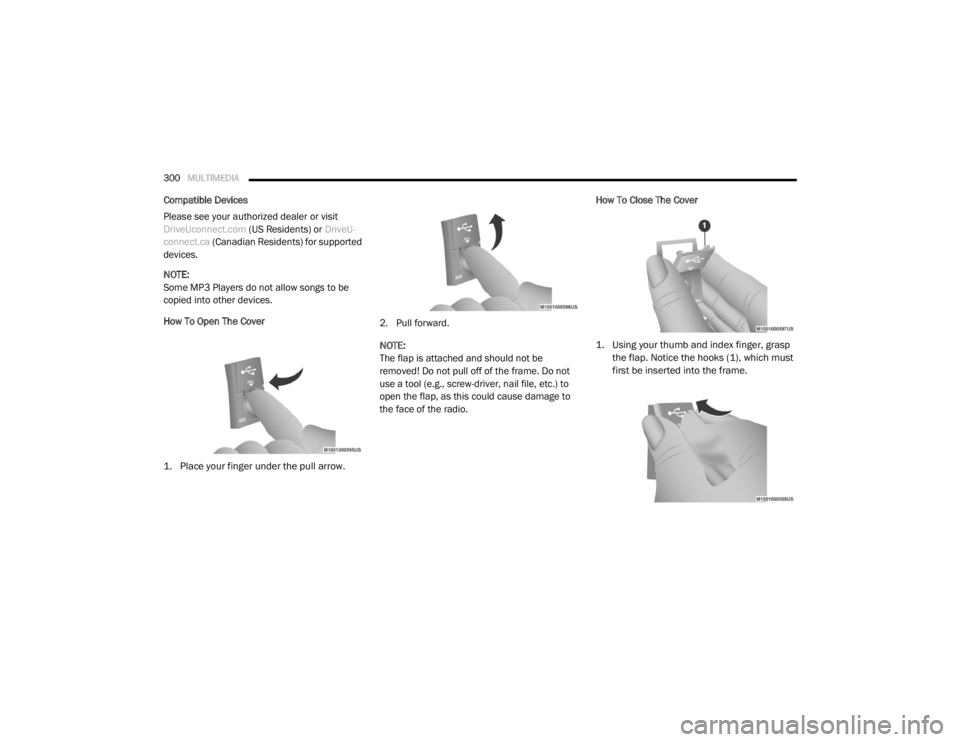
How To Open The Cover
1. Place your finger under the pull arrow.
2. Pull forward.
NOTE:
The flap is attached and should not be
removed! Do not pull off of the frame. Do not
use a tool (e.g., screw-driver, nail file, etc.) to
open the flap, as this could cause damage to
the face of the radio.How To Close The Cover
1. Using your thumb and index finger, grasp
the flap. Notice the hooks (1), which must
first be inserted into the frame.
20_RT_OM_EN_USC_t.book Page 300
Page 303 of 380
MULTIMEDIA301
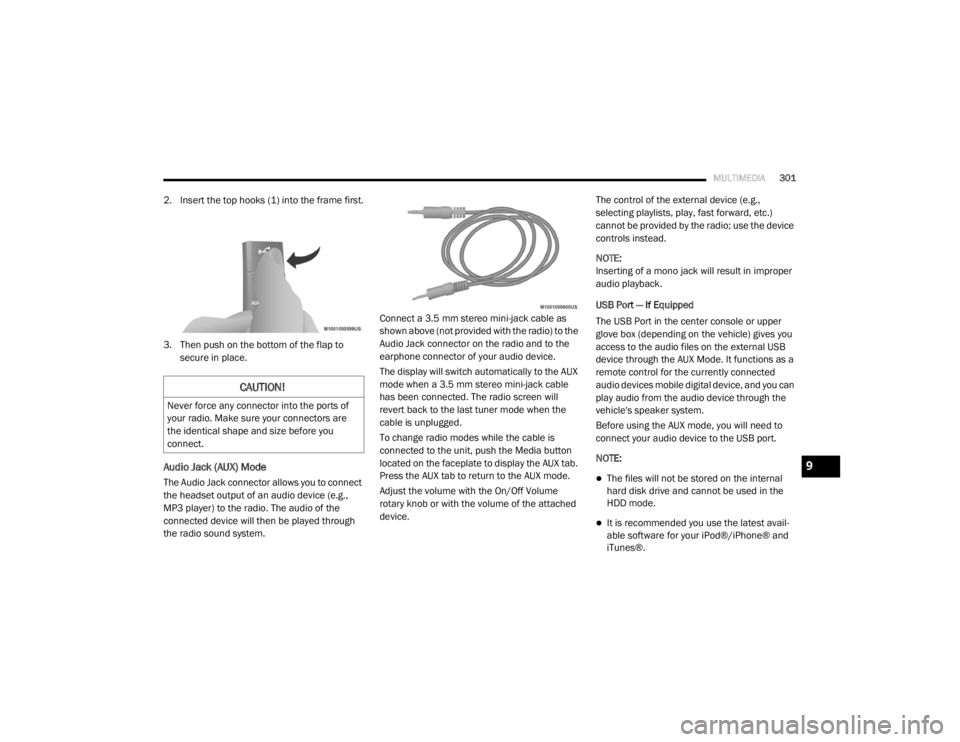
2. Insert the top hooks (1) into the frame first.
3. Then push on the bottom of the flap to
secure in place.
Audio Jack (AUX) Mode
The Audio Jack connector allows you to connect
the headset output of an audio device (e.g.,
MP3 player) to the radio. The audio of the
connected device will then be played through
the radio sound system. Connect a 3.5 mm stereo mini-jack cable as
shown above (not provided with the radio) to the
Audio Jack connector on the radio and to the
earphone connector of your audio device.
The display will switch automatically to the AUX
mode when a 3.5 mm stereo mini-jack cable
has been connected. The radio screen will
revert back to the last tuner mode when the
cable is unplugged.
To change radio modes while the cable is
connected to the unit, push the Media button
located on the faceplate to display the AUX tab.
Press the AUX tab to return to the AUX mode.
Adjust the volume with the On/Off Volume
rotary knob or with the volume of the attached
device.The control of the external device (e.g.,
selecting playlists, play, fast forward, etc.)
cannot be provided by the radio; use the device
controls instead.
NOTE:
Inserting of a mono jack will result in improper
audio playback.
USB Port — If Equipped
The USB Port in the center console or upper
glove box (depending on the vehicle) gives you
access to the audio files on the external USB
device through the AUX Mode. It functions as a
remote control for the currently connected
audio devices mobile digital device, and you can
play audio from the audio device through the
vehicle's speaker system.
Before using the AUX mode, you will need to
connect your audio device to the USB port.
NOTE:The files will not be stored on the internal
hard disk drive and cannot be used in the
HDD mode.
It is recommended you use the latest avail
-
able software for your iPod®/iPhone® and
iTunes®.
CAUTION!
Never force any connector into the ports of
your radio. Make sure your connectors are
the identical shape and size before you
connect.
9
20_RT_OM_EN_USC_t.book Page 301
Page 342 of 380
340MULTIMEDIA
STEERING WHEEL AUDIO CONTROLS — IF
EQUIPPED
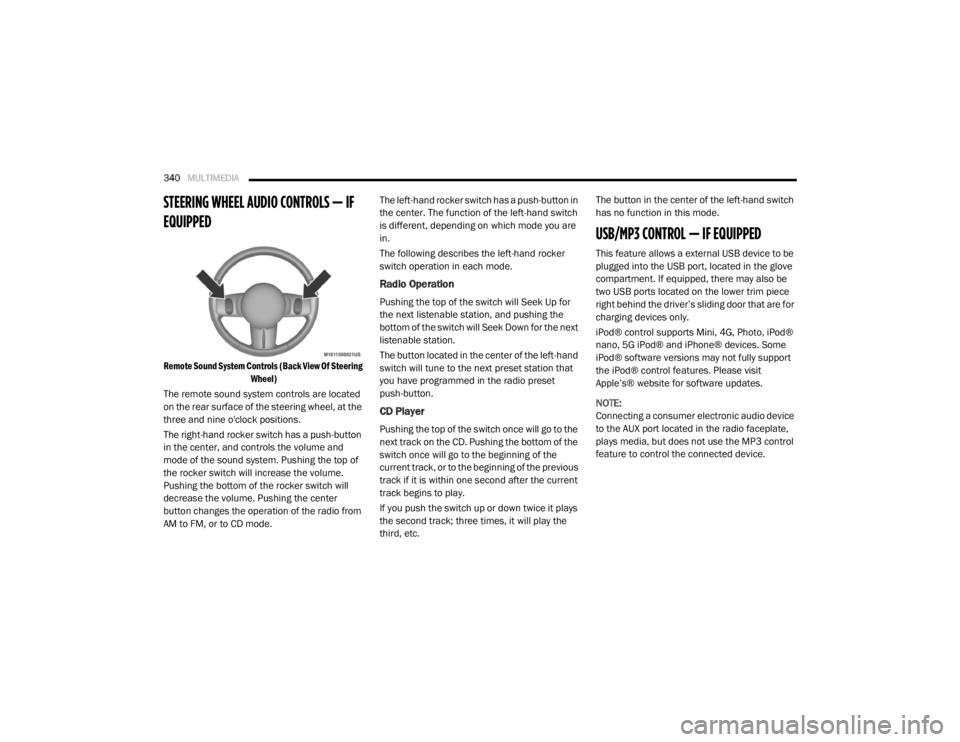
Remote Sound System Controls (Back View Of Steering
Wheel)
The remote sound system controls are located
on the rear surface of the steering wheel, at the
three and nine o'clock positions.
The right-hand rocker switch has a push-button
in the center, and controls the volume and
mode of the sound system. Pushing the top of
the rocker switch will increase the volume.
Pushing the bottom of the rocker switch will
decrease the volume. Pushing the center
button changes the operation of the radio from
AM to FM, or to CD mode. The left-hand rocker switch has a push-button in
the center. The function of the left-hand switch
is different, depending on which mode you are
in.
The following describes the left-hand rocker
switch operation in each mode.
Radio Operation
Pushing the top of the switch will Seek Up for
the next listenable station, and pushing the
bottom of the switch will Seek Down for the next
listenable station.
The button located in the center of the left-hand
switch will tune to the next preset station that
you have programmed in the radio preset
push-button.
CD Player
Pushing the top of the switch once will go to the
next track on the CD. Pushing the bottom of the
switch once will go to the beginning of the
current track, or to the beginning of the previous
track if it is within one second after the current
track begins to play.
If you push the switch up or down twice it plays
the second track; three times, it will play the
third, etc.The button in the center of the left-hand switch
has no function in this mode.
USB/MP3 CONTROL — IF EQUIPPED
This feature allows a external USB device to be
plugged into the USB port, located in the glove
compartment. If equipped, there may also be
two USB ports located on the lower trim piece
right behind the driver’s sliding door that are for
charging devices only.
iPod® control supports Mini, 4G, Photo, iPod®
nano, 5G iPod® and iPhone® devices. Some
iPod® software versions may not fully support
the iPod® control features. Please visit
Apple’s® website for software updates.
NOTE:
Connecting a consumer electronic audio device
to the AUX port located in the radio faceplate,
plays media, but does not use the MP3 control
feature to control the connected device.
20_RT_OM_EN_USC_t.book Page 340
Page 346 of 380
344MULTIMEDIA
Previous Track
Use the Seek Down button, or push the VR
button on the radio and say “Previous Track,” to
jump to the previous music track on your
cellular phone.
Browse
Browsing is not available on a Bluetooth®
Streaming Audio (BTSA) device. Only the current
song that is playing will display info.
UCONNECT MULTIMEDIA — VIDEO
ENTERTAINMENT SYSTEM (VES) — IF
EQUIPPED
Your rear seat Video Entertainment System
(VES) is designed to give your family years of
enjoyment. You can play your favorite CDs or
DVDs, listen to audio over the wireless
headphones, or plug and play a variety of
standard video games or audio devices. Please
review this Owner's Manual to become familiar
with its features and operation. NOTE:
The screen is located in the 2nd row overhead
console.
Getting Started
Screen located in the overhead console
:
Unfold the overhead LCD screen(s) by
pushing the button on the overhead console
behind the screen(s).
Cycle the ignition to the ON/RUN or ACC
position.
Turn on the Player by pushing the Power
button, located on the far left, or by pushing
the button on the Remote Control.
When the video screen is open and a DVD is
inserted into the VES player, the screen turns
on automatically, the headphone transmit -
ters turn on and playback begins.
The system can be controlled by the front
seat occupants using either the touchscreen
radio, the DVD, or by the rear seat occupants
using the remote control.
Play Video Games
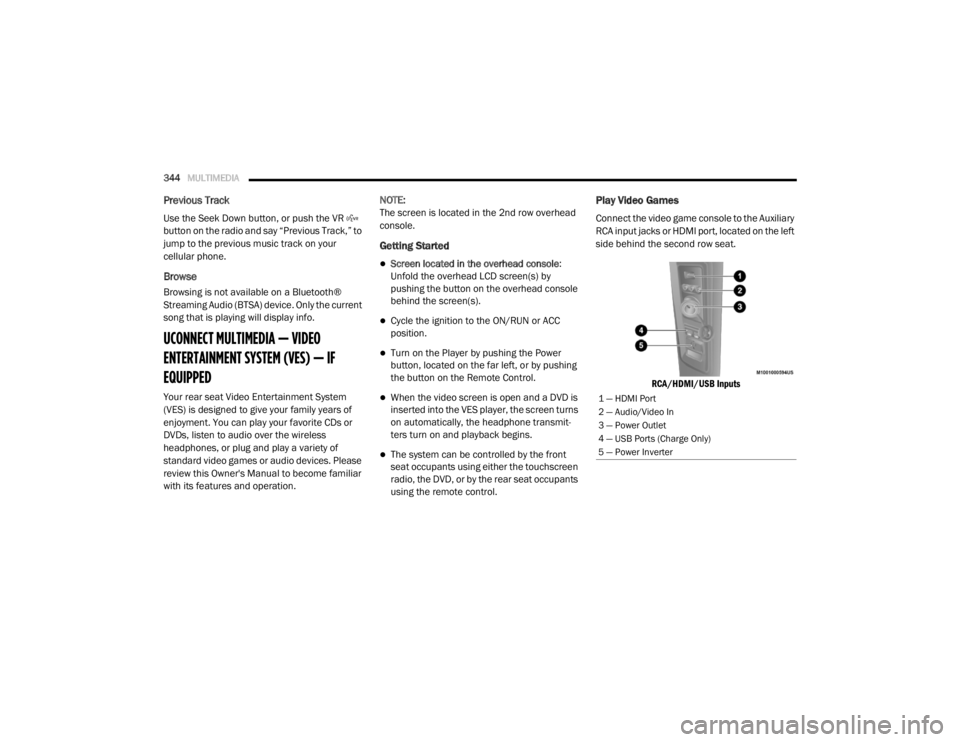
Connect the video game console to the Auxiliary
RCA input jacks or HDMI port, located on the left
side behind the second row seat.
RCA/HDMI/USB Inputs
1 — HDMI Port
2 — Audio/Video In
3 — Power Outlet
4 — USB Ports (Charge Only)
5 — Power Inverter
20_RT_OM_EN_USC_t.book Page 344
Page 348 of 380
346MULTIMEDIA
Play A DVD Using The Touchscreen Radio
NOTE:
Headunit DVD player does not play Blu-ray™
Discs.
1. Push the OPEN/CLOSE or LOAD button on
the radio faceplate (Touchscreen).
2. Insert the DVD with the label facing up. The radio automatically selects the appropriate
mode after the disc is recognized and
displays the menu screen or starts playing
the first track.
Using The Remote Control
1. Push the Source button on the Remote Control.
2. Highlight DISC by either pushing Up/Down/ Left/Right buttons or by repeatedly pushing
the Source button, then push “Enter/OK”.
NOTE:
The VES will retain the last setting when turned
off.
Using The Touchscreen Radio Controls
1. Push the Menu button on the radio faceplate.
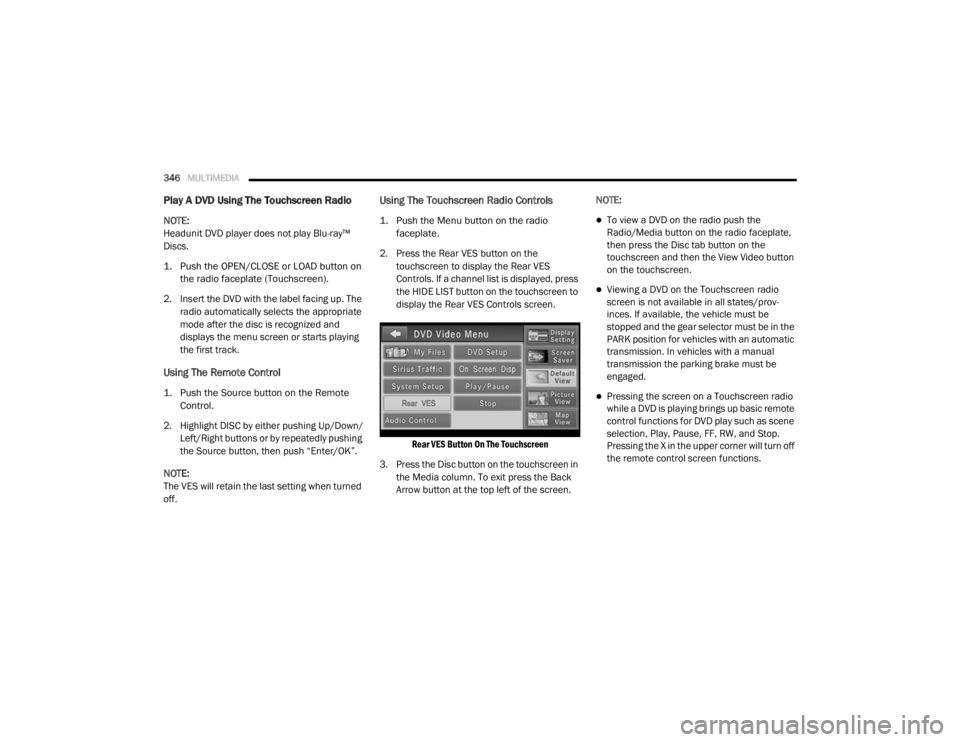
2. Press the Rear VES button on the touchscreen to display the Rear VES
Controls. If a channel list is displayed, press
the HIDE LIST button on the touchscreen to
display the Rear VES Controls screen.
Rear VES Button On The Touchscreen
3. Press the Disc button on the touchscreen in the Media column. To exit press the Back
Arrow button at the top left of the screen. NOTE:To view a DVD on the radio push the
Radio/Media button on the radio faceplate,
then press the Disc tab button on the
touchscreen and then the View Video button
on the touchscreen.
Viewing a DVD on the Touchscreen radio
screen is not available in all states/prov
-
inces. If available, the vehicle must be
stopped and the gear selector must be in the
PARK position for vehicles with an automatic
transmission. In vehicles with a manual
transmission the parking brake must be
engaged.
Pressing the screen on a Touchscreen radio
while a DVD is playing brings up basic remote
control functions for DVD play such as scene
selection, Play, Pause, FF, RW, and Stop.
Pressing the X in the upper corner will turn off
the remote control screen functions.
20_RT_OM_EN_USC_t.book Page 346
Page 349 of 380
MULTIMEDIA347
Play A DVD Using The VES Player — If
Equipped
Insert the DVD with the label facing up. The VES
player automatically selects the appropriate
mode after the disc is recognized and starts
playing the DVD.
NOTE:
The VES player has basic DVD control function
such as Menu, Play, Pause, FF, RW and Stop.
Using The Remote Control
1. Push the Source button on the Remote
Control.
2. Highlight VES DISC by either pushing Up/ Down/Left/Right buttons or by repeatedly
pushing the Source button, then push
“Enter/OK” on the Remote Control.
NOTE:
The VES will retain the last setting when turned
off.
Using The Touchscreen Radio Controls
1. Push the Menu button on the radio faceplate.
2. Press the Rear VES button on the touchscreen to display the Rear VES
Controls. If a channel list is displayed, press
the HIDE LIST button on the touchscreen to
display the Rear VES Controls screen.
Rear VES Button On The Touchscreen
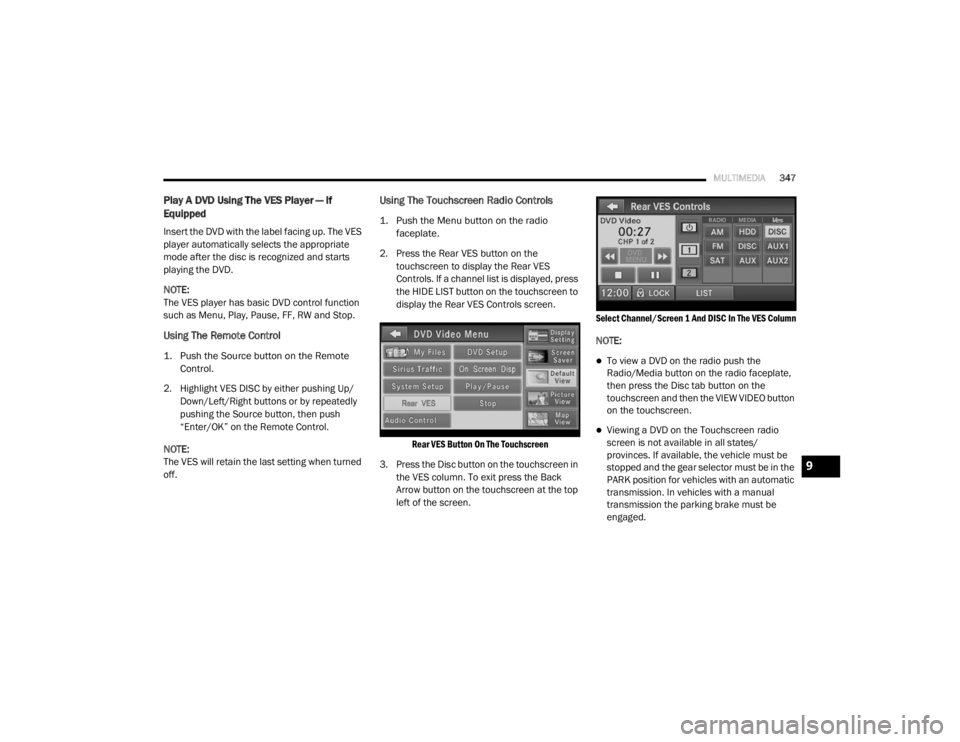
3. Press the Disc button on the touchscreen in the VES column. To exit press the Back
Arrow button on the touchscreen at the top
left of the screen.
Select Channel/Screen 1 And DISC In The VES Column
NOTE:
To view a DVD on the radio push the
Radio/Media button on the radio faceplate,
then press the Disc tab button on the
touchscreen and then the VIEW VIDEO button
on the touchscreen.
Viewing a DVD on the Touchscreen radio
screen is not available in all states/
provinces. If available, the vehicle must be
stopped and the gear selector must be in the
PARK position for vehicles with an automatic
transmission. In vehicles with a manual
transmission the parking brake must be
engaged.
9
20_RT_OM_EN_USC_t.book Page 347
Page 351 of 380
MULTIMEDIA349
15. SETUP – When in a video mode, push the
SETUP button to access the display settings
(see the display settings section) to access
the DVD setup menu, select the menu
button on the radio. When a disc is loaded
in the DVD player (if equipped) and the VES
mode is selected and the disc is stopped,
push the SETUP button to access the DVD
Setup menu.
16. BACK – When navigating in menu mode, push to return to the previous screen. When
navigating a DVD’s disc menu, the
operation depends on the disc’s contents.
17. ◂◂ – In radio modes, push to seek to the
previous tunable station. In disc modes,
push and hold to fast rewind through the
current audio track or video chapter. In
menu modes, use to navigate in the menu.
18. ENTER/OK – Push to select the highlighted option in a menu.
19. ▴ / NEXT – In radio modes, push to select to
the next station. In disc modes, push to
advance to the next audio track or video
chapter. In menu modes, use to navigate in
the menu.Remote Control Storage
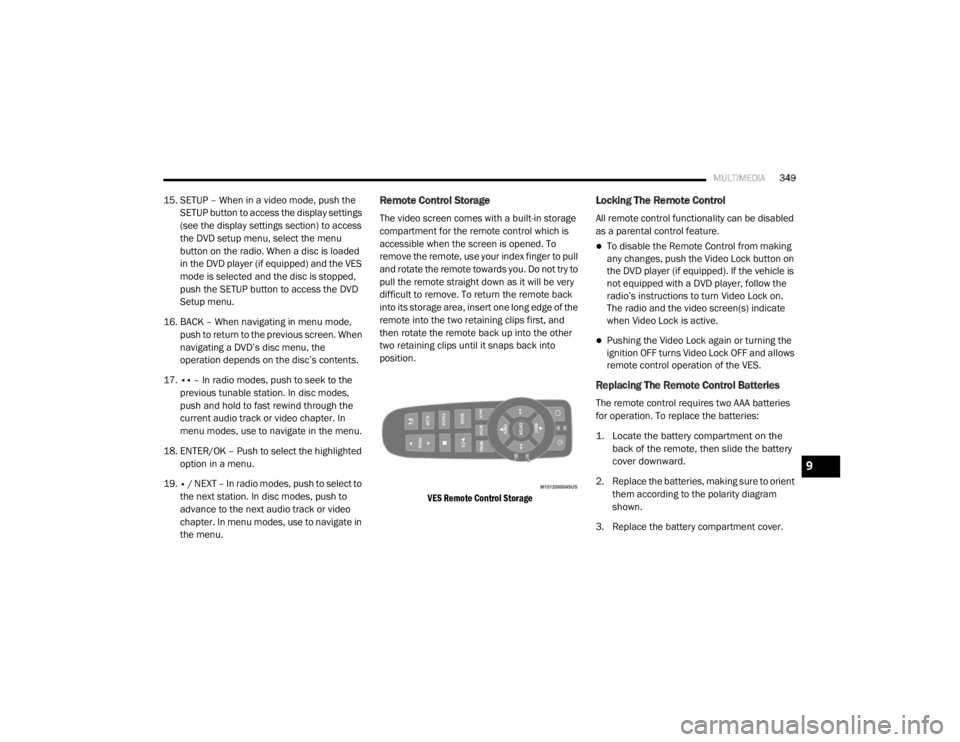
The video screen comes with a built-in storage
compartment for the remote control which is
accessible when the screen is opened. To
remove the remote, use your index finger to pull
and rotate the remote towards you. Do not try to
pull the remote straight down as it will be very
difficult to remove. To return the remote back
into its storage area, insert one long edge of the
remote into the two retaining clips first, and
then rotate the remote back up into the other
two retaining clips until it snaps back into
position.
VES Remote Control Storage
Locking The Remote Control
All remote control functionality can be disabled
as a parental control feature.
To disable the Remote Control from making
any changes, push the Video Lock button on
the DVD player (if equipped). If the vehicle is
not equipped with a DVD player, follow the
radio’s instructions to turn Video Lock on.
The radio and the video screen(s) indicate
when Video Lock is active.
Pushing the Video Lock again or turning the
ignition OFF turns Video Lock OFF and allows
remote control operation of the VES.
Replacing The Remote Control Batteries
The remote control requires two AAA batteries
for operation. To replace the batteries:
1. Locate the battery compartment on the back of the remote, then slide the battery
cover downward.
2. Replace the batteries, making sure to orient them according to the polarity diagram
shown.
3. Replace the battery compartment cover.
9
20_RT_OM_EN_USC_t.book Page 349
Page 354 of 380
352MULTIMEDIA
When in shared disc mode both the radio and
the VES have control of the video functions. The
VES has the ability to control the following video
modes:
1. CD: Ability to Fast Forward, Rewind, Scan,
and Track Up/Down.
2. CD Changer (in radio): Ability to Disk Up/Down and program all listed CD controls
(Fast Forward, Rewind, Scan, and Track
Up/Down).
The VES can even control radio modes or video
modes while the radio is turned off. The VES can
access the radio modes or disc modes by
navigating to those modes on the VES and
activating a radio mode or disc mode.
Station List Menu
When listening to Satellite audio, pushing the
remote control’s Pop-Up/Menu button displays
a list of all available channels. Navigate this list
using the remote control’s navigation buttons
(▴, ▾ ) to find the desired station, push the
remote control’s Enter/OK button to tune to
that station. To jump through the list more
quickly, navigate to the Page Up and Page Down
icons on the screen.
Disc Menu
When listening to a CD Audio or CD Data disc,
pushing the remote control’s Pop-Up/Menu
button displays a list of all commands which
control playback of the disc. Using the options
you can activate or cancel Scan play and
Random play.
Display Settings
When watching a video source (DVD Video with
the disc in Play mode, Aux Video, etc.), pushing
the remote control’s Setup button activates the
Display Settings menu. These settings control
the appearance of the video on the screen. The
factory default settings are already set for
optimum viewing, so there is no need to change
these settings under normal circumstances.
To change the settings, push the remote
control’s navigation buttons ( ▴, ▾) to select an
item, then push the remote control’s navigation
buttons ( ▸, ◂) to change the value for the
currently selected item. To reset all values back
to the original settings, select the Default
Settings menu option and press the remote
control’s Enter/OK button. Disc Features control the remote DVD settings
of DVD being watched in the remote player.
Listening To Audio With The Screen Closed
To listen to only audio portion of the channel
with the screen closed:
1. Set the audio to the desired source and
channel.
2. Close the video screen.
3. To change the current audio mode, push the remote control’s Mode button. This will
automatically select the next available
audio mode without using the Mode/Select
menu.
If the screen is closed and there is no audio
heard, verify that the headphones are turned on
(the On indicator is illuminated) and the
headphone selector switch is on the desired
channel. If the headphones are turned on, push
the remote control’s power button to turn audio
on. If audio is still not heard, check that fully
charged batteries are installed in the
headphones.
20_RT_OM_EN_USC_t.book Page 352
Page 355 of 380
MULTIMEDIA353
Disc Formats
The DVD player is capable of playing the
following types of discs:
DVD-Video discs (MPEG-2 video compres -
sion) (see notes about DVD Region Codes)
DVD-Audio discs (2 channel audio output
only)
Audio Compact Discs (CDs)
CD Data discs with MP3 and WMA
compressed audio format files
Video CDs (MPEG-1 video compression)
DVD Region Codes
The DVD player and many DVD Discs are coded
by geographic region. These region codes must
match in order for the disc to play. If the region
code for the DVD does not match the region
code for the player, the disc will stop playing
and a warning will be displayed.
DVD Audio Support
When a DVD-Audio disc is inserted in the DVD
player, the DVD-Audio title on the disc is played
by default (most DVD-Audio discs also have a
Video title, but the Video title is ignored). All
multi-channel program material is automatically mixed down to two channels, which may result
in a lowered apparent volume level. If you
increase the volume level to account for this
change in level, remember to lower the volume
before changing the disc or to another mode.
Recorded Discs
The DVD player will play CD-R and CD-RW discs
recorded in CD-Audio or Video-CD format, or as
a CD-ROM containing MP3, WMA. The player will
also play DVD-Video content recorded to a
DVD-R or DVD-RW disc. DVD-ROM discs (either
pressed or recorded) are not supported.
If you record a disc using a personal computer,
there may be cases where the DVD player may
not be able to play some or the entire disc, even
if it is recorded in a compatible format and is
playable on other players. To help avoid
playback problems, use the following guidelines
when recording discs.
Open sessions are ignored. Only sessions
that are closed are playable.
For multi-session CDs that contain only
multiple CD-Audio sessions, the player will
renumber the tracks so each track number is
unique.
For CD Data (or CD-ROM) discs, always use
the ISO-9660 (Level 1 or Level 2), Joliet, or
Romeo format. Other formats (such as HFS,
or others) are not supported.
The player recognizes a maximum of
512 files and 99 folders per CD-R and
CD-RW disc.
Mixed media recordable DVD formats will
only play the Video_TS portion of the disc.
If you are still having trouble writing a disc that
is playable in the DVD player, check with the
disc recording software publisher for more
information about burning playable discs.
The recommended method for labeling
recordable discs (CD-R, CD-RW, and DVD-R) is
with a permanent marker. Do not use adhesive
labels as they may separate from the disc,
become stuck, and cause permanent damage
to the DVD player.
9
20_RT_OM_EN_USC_t.book Page 353
Page 356 of 380
354MULTIMEDIA
Compressed Audio Files (MP3 / WMA and ACC)
The DVD is capable of playing MP3 (MPEG-1
Audio Layer 3) and WMA (Windows Media
Audio) files from a CD Data disc (usually a CD-R
or CD-RW).
The DVD player always uses the file extension
to determine the audio format, so MP3 files
must always end with the extension ".mp3" or
".MP3" and WMA files must always end with
the extension ".wma" or ".WMA." AAC files
must always end with the extension "aac" or
"AAC." To prevent incorrect playback, do not
use these extensions for any other types of
files.
For MP3 files, only version 1 ID3 tag data
(such as artist name, track title, album, etc.)
are supported.
Any file that is copy protected (such as those
downloaded from many online music stores)
will not play. The DVD player will automati -
cally skip the file and begin playing the next
available file.
Other compression formats such as AAC,
MP3 Pro, Ogg Vorbis, and ATRAC3 will not
play. The DVD player will automatically skip
the file and begin playing the next available
file.
If you are creating your own files, the recom -
mended fixed bit rate for MP3 files is
between 96 and 192 Kbps and the recom -
mended fixed bit rate for WMA files is
between 64 and 192 Kbps. Variable bit rates
are also supported. For both formats, the
recommended sample rate is either
44.1 kHz or 48 kHz.
To change the current file, use the DVD
player’s ▴ button to advance to the next file,
or the ▾ button to return to the start of the
current or previous file.
To change the current directory, use the
remote control’s PROG UP and Down buttons
or Rewind/skip back and fast fwd/skip
forward. Disc Errors
If the DVD player is unable to read the disc, a
"Disc Error" message is displayed on the Radio
display and the disc is automatically ejected. A
dirty, damaged, or incompatible disc format are
all potential causes for a "Disc Error" message.
If a disc has a damaged track which results in
audible or visible errors that persists for
2.0 seconds, the DVD player will attempt to
continue playing the disc by skipping forward
1 to 3 seconds at a time. If the end of the disc is
reached, the DVD player will return to the
beginning of the disc and attempt to play the
start of the first track.
The DVD player may shut down during extremely
hot conditions, such as when the vehicle’s
interior temperature is above 120°F (49°C).
When this occurs, the DVD Player will display
"High Temp" and will shut off the display until a
safe temperature is reached. This shutdown is
necessary to protect the optics of the DVD.
20_RT_OM_EN_USC_t.book Page 354