ad blue DODGE GRAND CARAVAN 2020 User Guide
[x] Cancel search | Manufacturer: DODGE, Model Year: 2020, Model line: GRAND CARAVAN, Model: DODGE GRAND CARAVAN 2020Pages: 380, PDF Size: 14.92 MB
Page 307 of 380
MULTIMEDIA305
Uconnect Phone Button
The radio or steering wheel controls (if
equipped) contain the two control buttons
(Uconnect Phone button and Voice
Command button) that enables you to
access the system. When you push the button
you hear the word Uconnect followed by a BEEP.
The beep is your signal to give a command.
NOTE:
The driver side upper windshield trim contains
the microphone for the Uconnect Phone.
Voice Command Button
Actual button location may vary with the radio.
The individual buttons are described in the
“Operation” section. The Uconnect Phone can be used with any
Hands-Free Profile certified Bluetooth® mobile
phone. See the Uconnect website for supported
phones. Refer to your mobile service provider or
the phone manufacturer for details.
The Uconnect Phone is fully integrated with the
vehicle's audio system. The volume of the
Uconnect Phone can be adjusted either from
the radio volume control knob or from the
steering wheel radio control (right switch), if
equipped.
The Uconnect display will be used for visual
prompts from the Uconnect Phone such as
“CELL” or caller ID on certain radios.
Operation
Voice commands can be used to operate the
Uconnect Phone and to navigate through the
Uconnect Phone menu structure. Voice
commands are required after most Uconnect
Phone prompts. You will be prompted for a
specific command and then guided through the
available options.
Prior to giving a voice command, wait for the
beep, which follows the “Ready” prompt or
another prompt.
For certain operations, compound
commands can be used. For example,
instead of saying “Setup” and then “Phone
Pairing,” the following compound command
can be said: “Setup Phone Pairing.”
For each feature explanation in this section,
only the compound form of the voice
command is given. You can also break the
commands into parts and say each part of
the command when you are asked for it. For
example, you can use the compound form
voice command “Phonebook New Entry,” or
you can break the compound form command
into two voice commands: “Phonebook” and
“New Entry.” Please remember, the Uconnect
Phone works best when you talk in a normal
conversational tone, as if speaking to
someone sitting a few feet/meters away from
you.
Help Command
If you need assistance at any prompt, or if you
want to know your options at any prompt, say
“Help” following the beep. The Uconnect Phone
will play all the options at any prompt if you ask
for help.
WARNING!
Any voice commanded system should be
used only in safe driving conditions following
all applicable laws. Your attention should be
focused on safely operating the vehicle.
Failure to do so may result in a collision
causing serious injury or death.
9
20_RT_OM_EN_USC_t.book Page 305
Page 308 of 380

306MULTIMEDIA
To activate the Uconnect Phone from idle,
simply push the Phone button and follow the
audible prompts for directions. All Uconnect
Phone sessions begin with a push of the Phone
button on the faceplate.
Cancel Command
At any prompt, after the beep, you can say
“Cancel” and you will be returned to the main
menu. However, in a few instances the system
will take you back to the previous menu.
Pair (Link) Uconnect Phone To A Mobile
Phone
To begin using your Uconnect Phone, you must
pair your compatible Bluetooth®-enabled
mobile phone.
To complete the pairing process, you will need
to reference your mobile phone Owner's
Manual. The Uconnect website may also
provide detailed instructions for pairing.
The following are general phone to Uconnect
Phone pairing instructions:
Push the Phone button to begin.
After the “Ready” prompt and the following
beep, say “Setup Phone Pairing.”
When prompted, after the beep, say “Pair a
Phone” and follow the audible prompts.
You will be asked to say a four-digit Personal
Identification Number (PIN), which you will
later need to enter into your mobile phone.
You can enter any four-digit PIN. You will not
need to remember this PIN after the initial
pairing process.
For identification purposes, you will be
prompted to give the Uconnect Phone a
name for your mobile phone. Each mobile
phone that is paired should be given a unique
phone name.
You will then be asked to give your mobile
phone a priority level between one and
seven, with one being the highest priority.
You can pair up to seven mobile phones to
your Uconnect Phone. However, at any given
time, only one mobile phone can be in use,
connected to your Uconnect System. The
priority allows the Uconnect Phone to know
which mobile phone to use if multiple mobile
phones are in the vehicle at the same time.
For example, if priority three and priority five
phones are present in the vehicle, the
Uconnect Phone will use the priority three
mobile phone when you make a call. You can select to use a lower priority mobile phone at
any time (refer to “Advanced Phone Connec
-
tivity” in this section).
NOTE:
Software updates on your phone or the
Uconnect system may interfere with the
Bluetooth® connection. If this happens, simply
repeat the pairing process. However, first, make
sure to delete the device from the list of phones
on your Uconnect system. Next, be sure to
remove Uconnect from the list of devices in your
phone’s Bluetooth® settings.
Dial By Saying A Number
Push the Phone button to begin.
After the “Ready” prompt and the following
beep, say “Dial.”
The system will prompt you to say the number
you want to call.
For example, you can say “234-567-8901.”
The Uconnect Phone will confirm the phone
number and then dial. The number will
appear in the display of certain radios.
20_RT_OM_EN_USC_t.book Page 306
Page 309 of 380

MULTIMEDIA307
Call By Saying A Name
Push the Phone button to begin.
After the “Ready” prompt and the following
beep, say “Call.”
The system will prompt you to say the name
of the person you want to call.
After the “Ready” prompt and the following
beep, say the name of the person you want to
call. For example, you can say “John Doe,”
where John Doe is a previously stored name
entry in the Uconnect phonebook or down -
loaded phonebook. To learn how to store a
name in the phonebook, refer to “Add Names
To Your Uconnect Phonebook”, in this
section.
The Uconnect system will confirm the name
and then dial the corresponding phone
number, which may appear in the display of
certain radios.
Phonebook Download – Automatic
Phonebook Transfer From Mobile Phone
If equipped and specifically supported by your
phone, Uconnect Phone automatically
downloads names (text names) and number
entries from your mobile phone’s phonebook.
Specific Bluetooth® Phones with Phone Book
Access Profile may support this feature. See
Uconnect website for supported phones.
To call a name from downloaded (or
Uconnect) Phonebook, follow the procedure
in “Call by Saying a Name” section.
Automatic download and update, if
supported, begins as soon as the Bluetooth®
wireless phone connection is made to the
Uconnect Phone, for example, after you start
the vehicle.
A maximum of 1,000 entries per phone will
be downloaded and updated every time a
phone is connected to the Uconnect Phone.
Depending on the maximum number of
entries downloaded, there may be a short
delay before the latest downloaded names
can be used. Until then, if available, the
previous downloaded phonebook is available
for use.
Only the phonebook of the currently
connected mobile phone is accessible.
Only the mobile phone’s phonebook is down -
loaded. SIM card phonebook is not part of
the Mobile phonebook.
This downloaded phonebook cannot be
edited or deleted on the Uconnect Phone.
These can only be edited on the mobile
phone. The changes are transferred and
updated to Uconnect Phone on the next
phone connection.
Add Names To Your Uconnect Phonebook
NOTE:
Adding names to the Uconnect Phonebook is
recommended when the vehicle is not in
motion.
Push the Phone button to begin.
After the “Ready” prompt and the following
beep, say “Phonebook New Entry.”
When prompted, say the name of the new
entry. Use of long names helps the Voice
Command system, and it is recommended.
For example, say “Robert Smith” or “Robert”
instead of “Bob.”
9
20_RT_OM_EN_USC_t.book Page 307
Page 315 of 380

MULTIMEDIA313
You can also send stored Uconnect Phonebook
entries as tones for fast and easy access to
voice mail and pager entries. To use this
feature, dial the number you wish to call and
then push the Voice Command button and
say, “Send.” The system will prompt you to enter
the name or number and say the name of the
phonebook entry you wish to send. The
Uconnect Phone will then send the
corresponding phone number associated with
the phonebook entry, as tones over the phone.
NOTE:
You may not hear all of the tones due to
mobile phone network configurations. This is
normal.
Some paging and voice mail systems have
system time out settings that are too short
and may not allow the use of this feature.
Barge In – Overriding Prompts
The “Voice Command” button can be used
when you wish to skip part of a prompt and
issue your voice command immediately. For
example, if a prompt is asking “Would you like to pair a phone, clear a...,” you could push the
Voice Recognition button and say, “Pair a
Phone” to select that option without having to
listen to the rest of the voice prompt.
Turning Confirmation Prompts On/Off
Turning confirmation prompts off will stop the
system from confirming your choices (e.g., the
Uconnect Phone will not repeat a phone
number before you dial it).
To turn confirmation prompts on or off using
Voice Command:
1. Push the Phone button to begin.
2. After the “Ready” prompt and the following
beep, say:“Setup Confirmations Prompts On” or
“Setup Confirmations Prompts Off”
Phone And Network Status Indicators
If available on the radio and/or on a premium
display such as the instrument panel cluster,
and supported by your mobile phone, the
Uconnect Phone will provide notification to
inform you of your phone and network status when you are attempting to make a phone call
using Uconnect Phone. The status is given for
roaming, network signal strength, phone battery
strength, etc.
Dialing Using The Mobile Phone Keypad
You can dial a phone number with your mobile
phone keypad and still use the Uconnect Phone
(while dialing via the mobile phone keypad, the
user must exercise caution and take precau
-
tionary safety measures). By dialing a number
with your paired Bluetooth® mobile phone, the
audio will be played through your vehicles audio
system. The Uconnect Phone will work the same
as if you dial the number using Voice Command.
NOTE:
Certain brands of mobile phones do not send
the dial ring to the Uconnect Phone to play it on
the vehicle audio system, so you will not hear it.
Under this situation, after successfully dialing a
number the user may feel that the call did not
go through even though the call is in progress.
Once your call is answered, you will hear the
audio.
9
20_RT_OM_EN_USC_t.book Page 313
Page 316 of 380
314MULTIMEDIA
Mute/Unmute (Mute ON/OFF)
When you mute the Uconnect Phone, you will
still be able to hear the conversation coming
from the other party, but the other party will not
be able to hear you. To mute the Uconnect
Phone:
Push the Voice Recognition button .
Following the beep, say “Mute.”
To unmute the Uconnect Phone:
Push the Voice Recognition button .
Following the beep, say “Mute off.”
Advanced Phone Connectivity
Transfer Call To And From Mobile Phone
The Uconnect Phone allows ongoing calls to be
transferred from your mobile phone to the
Uconnect Phone without terminating the call. To
transfer an ongoing call from your Uconnect
Phone paired mobile phone to the Uconnect
Phone or vice versa, push the Voice Recognition
button and say “Transfer Call.” Connect Or Disconnect Link Between The
Uconnect Phone And Mobile Phone
Your mobile phone can be paired with many
different electronic devices, but can only be
actively "connected" with one electronic device
at a time.
If you would like to connect or disconnect the
Bluetooth® connection between a Uconnect
Phone paired mobile phone and the Uconnect
Phone, follow the instructions described in your
mobile phone user manual.
List Paired Mobile Phone Names
Push the Phone button to begin.
After the “Ready” prompt and the following
beep, say “Setup Phone Pairing”.
When prompted, say “List Phones”.
The Uconnect Phone will play the phone
names of all paired mobile phones in order
from the highest to the lowest priority. To
“Select” or “Delete” a paired phone being
announced, push the Voice Command
button and say “Select” or “Delete”. Also, see
the next two sections for an alternate way to
“Select” or “Delete” a paired phone.Select Another Mobile Phone
This feature allows you to select and start using
another phone paired with the Uconnect Phone.
Push the Phone button to begin.
After the “Ready” prompt and the following
beep, say “Setup Select Phone” and follow
the prompts.
You can also push the Voice Recognition
button at any time while the list is being
played, and then choose the phone that you
wish to select.
The selected phone will be used for the next
phone call. If the selected phone is not avail
-
able, the Uconnect Phone will return to using
the highest priority phone present in or near
30 ft (9 m) of the vehicle.
Delete Uconnect Phone Paired Mobile Phones
Push the Phone button to begin.
After the “Ready” prompt and the following
beep, say “Setup Phone Pairing”.
20_RT_OM_EN_USC_t.book Page 314
Page 319 of 380

MULTIMEDIA317
3. You can either say the message you wish to
send or say “List Messages.” There are 20
preset messages.
To send a message, push the Voice Command button while the system is listing the
message and say “Send”.
Uconnect Phone will prompt you to say the
name or number of the person you wish to send
the message to.
List of Preset Messages:
1. Yes
2. No
3. Where are you?
4. I need more direction
5. L O L
6. Why
7. I love you
8. Call me
9. Call me later
10. Thanks 11. See You in 15 minutes
12. I am on my way
13. I’ll be late
14. Are you there yet?
15. Where are we meeting?
16. Can this wait?
17. Bye for now
18. When can we meet?
19. Send number to call
20. Start without me
Turn SMS Incoming Announcement ON/OFF
Turning the SMS Incoming Announcement Off
will stop the system from announcing the new
incoming messages.
1. Push the Phone button .
2. After the “Ready” prompt and the following beep, say “Setup, SMS Incoming Message
Announcement,” you will then be given a
choice to change it. Bluetooth® Communication Link
Mobile phones have been found to lose
connection to the Uconnect Phone. When this
happens, the connection can generally be
reestablished by switching the phone off/on.
Your mobile phone is recommended to remain
in Bluetooth® On mode.
Navigation — If Equipped
Safety Precautions And Important
Information
WARNING!
ALWAYS drive safely with your hands on the
steering wheel. You have full responsibility
and assume all risks related to the use of
the Uconnect features and applications in
this vehicle. Only use Uconnect when it is
safe to do so. Failure to do so may result in
an accident involving serious injury or
death.
ALWAYS follow the law! Failure to follow
traffic laws may result in serious injury or
death.9
20_RT_OM_EN_USC_t.book Page 317
Page 345 of 380
MULTIMEDIA343
Pushing a PRESET button will display the
current list on the top line and the first item in
that list on the second line.
To exit List mode without selecting a track, push
the same Preset button again to go back to
Play mode.
List button: The List button will display the top
level menu of the external USB device.
Turn the Tune control knob to list the
top-menu item to be selected and push the
Tune control knob. This will display the next
sub-menu list item on the audio device, then
follow the same steps to go to the desired
track in that list. Not all external USB device
sub-menu levels are available on this system.
Music Type button: The Music Type button is
another shortcut button to the genre listing on
your audio device.
Bluetooth® Streaming Audio (BTSA)
Music can be streamed from your cellular
phone to the Uconnect phone system.
Refer to the Uconnect Owner’s Manual
Supplement for further information on
Bluetooth® connectivity.
Controlling BTSA Using Radio Buttons
To enter BTSA mode, push either AUX button on
the radio or push the VR button and say
“Bluetooth® Streaming Audio”.
Play Mode
When switched to BTSA mode, some audio
devices can start playing music over the
vehicle’s audio system, but some devices
require the music to be initiated on the device
first. Then, it will get streamed to the Uconnect
phone system. Seven devices can be paired to
the Uconnect phone system, but just one can be
selected and played.
Selecting A Different Audio Device
1. Push the Phone button to begin.
2. After the "Ready" prompt and following the beep, say "Setup", then say "Select Audio
Devices".
3. Say the name of the audio device or ask the Uconnect phone system to list the audio
devices.
Next Track
Use the Seek Up button, or push the VR
button on the radio and say “Next Track,” to
jump to the next music track on your cellular
phone.
WARNING!
Do not plug in or remove the iPod® or
external USB device while driving. Failure to
follow this warning could result in an
accident.
CAUTION!
Leaving the iPod® or external USB device
(or any supported device) anywhere in the
vehicle in extreme heat or cold can alter the
operation or damage the device. Follow the
device manufacturer’s guidelines.
Placing items on the iPod® or external USB
device, or connections to the iPod® or
external USB device in the vehicle, can
cause damage to the device and/or to the
connectors.
9
20_RT_OM_EN_USC_t.book Page 343
Page 346 of 380
344MULTIMEDIA
Previous Track
Use the Seek Down button, or push the VR
button on the radio and say “Previous Track,” to
jump to the previous music track on your
cellular phone.
Browse
Browsing is not available on a Bluetooth®
Streaming Audio (BTSA) device. Only the current
song that is playing will display info.
UCONNECT MULTIMEDIA — VIDEO
ENTERTAINMENT SYSTEM (VES) — IF
EQUIPPED
Your rear seat Video Entertainment System
(VES) is designed to give your family years of
enjoyment. You can play your favorite CDs or
DVDs, listen to audio over the wireless
headphones, or plug and play a variety of
standard video games or audio devices. Please
review this Owner's Manual to become familiar
with its features and operation. NOTE:
The screen is located in the 2nd row overhead
console.
Getting Started
Screen located in the overhead console
:
Unfold the overhead LCD screen(s) by
pushing the button on the overhead console
behind the screen(s).
Cycle the ignition to the ON/RUN or ACC
position.
Turn on the Player by pushing the Power
button, located on the far left, or by pushing
the button on the Remote Control.
When the video screen is open and a DVD is
inserted into the VES player, the screen turns
on automatically, the headphone transmit -
ters turn on and playback begins.
The system can be controlled by the front
seat occupants using either the touchscreen
radio, the DVD, or by the rear seat occupants
using the remote control.
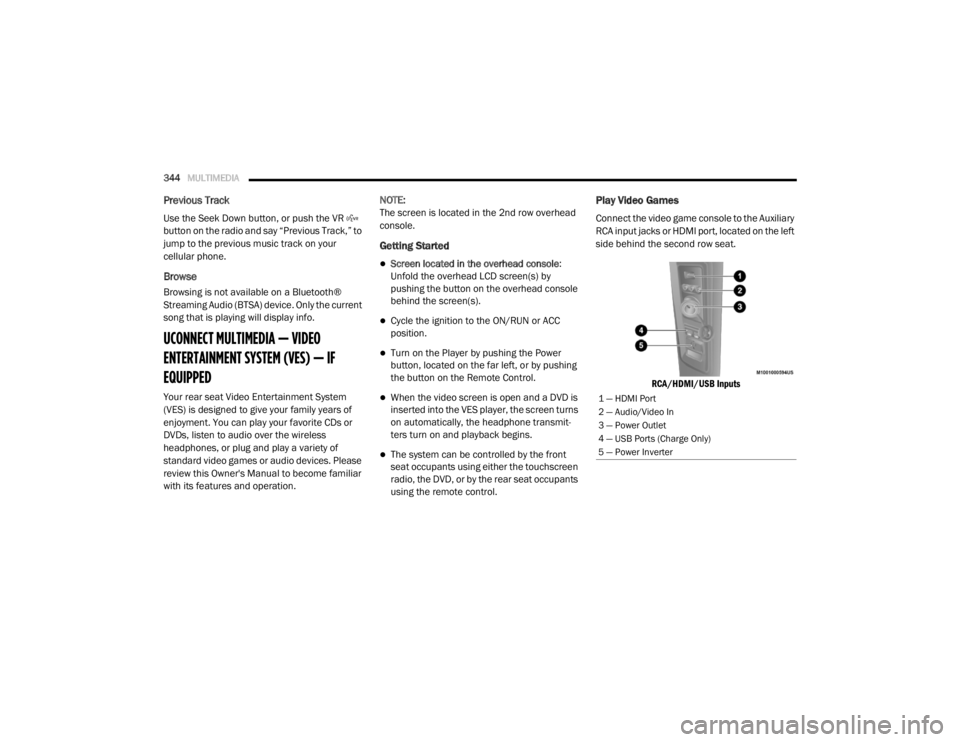
Play Video Games
Connect the video game console to the Auxiliary
RCA input jacks or HDMI port, located on the left
side behind the second row seat.
RCA/HDMI/USB Inputs
1 — HDMI Port
2 — Audio/Video In
3 — Power Outlet
4 — USB Ports (Charge Only)
5 — Power Inverter
20_RT_OM_EN_USC_t.book Page 344
Page 362 of 380
360MULTIMEDIA
NOTE:
This equipment has been tested and found to
comply with the limits for a Class B digital
device, pursuant to Part 15 of the FCC Rules.
These limits are designed to provide reason -
able protection against harmful interference
in a residential installation. This equipment
generates, uses and can radiate radio
frequency energy and, if not installed and
used in accordance with the instructions,
may cause harmful interference to radio
communications. However, there is no guar -
antee that interference will not occur in a
particular installation.
If this equipment does cause harmful inter -
ference to radio or television reception,
which can be determined by turning the
equipment off and on, the user is encour -
aged to try to correct the interference by one
or more of the following measures:
a. Increase the separation between the equipment and receiver.
b. Consult an authorized dealer or an expe -
rienced radio technician for help.
VOICE RECOGNITION QUICK TIPS— IF
EQUIPPED
Voice Command System Operation
The Uconnect Voice Command
system allows you to control your AM,
FM radio, disk player, USB mass
storage class device, Apple® family of
devices, Bluetooth® Streaming Audio Device,
satellite radio, and a memo recorder.
NOTE:
Take care to speak into the Voice Interface
System as calmly and normally as possible. The
ability of the Voice Interface System to
recognize user voice commands may be
negatively affected by rapid speaking or a
raised voice level. When you push the Voice Recognition
button, you will hear a beep. The beep is your
signal to give a command.
NOTE:
If you do not say a command within a few
seconds, the system will present you with a list
of options.
If you would like to interrupt the system while it
lists options, push the Voice Recognition
button, listen for the beep, and say your
command.
Pushing the Voice Recognition button while
the system is speaking is known as “barging in”.
The system will be interrupted, and after the
beep, you can add or change commands. This
will become helpful once you start to learn the
options.
NOTE:
At any time, you can say the words “Cancel,”
“Help” or “Main Menu.”
These commands are universal and can be
used from any menu. All other commands can
be used depending upon the active application.
When using this system, you should speak
clearly and at a normal speaking volume.
WARNING!
Any voice commanded system should be
used only in safe driving conditions following
all applicable laws. Your attention should be
focused on safely operating the vehicle.
Failure to do so may result in a collision
causing serious injury or death.
20_RT_OM_EN_USC_t.book Page 360
Page 363 of 380

MULTIMEDIA361
The system will best recognize your speech if
the windows are closed, and the heater/air
conditioning blower is set to low.
At any point, if the system does not recognize
one of your commands, you will be prompted to
repeat it.
To hear the first available Menu, push the Voice
Recognition button and say “Help” or
“Main Menu”.
Commands
The Voice Command system understands two
types of commands, Universal commands, and
Local commands. Universal commands are
available at all times. Local commands are
available if the supported radio mode is active.
Changing The Volume
1. Start a dialogue by pushing the Voice
Recognition button.
2. Say a command (e.g., “Help”). 3. Use the ON/OFF VOLUME rotary knob to
adjust the volume to a comfortable level
while the Voice Recognition system is
speaking. Please note the volume setting
for Voice Recognition is different than the
audio system.
Main Menu
Start a dialogue by pushing the Voice
Recognition button. You may say “Main
Menu” to switch to the main menu.
In this mode, you can say the following
commands:
“Radio AM” (to switch to the radio AM mode)
“Radio FM” (to switch to radio FM mode)
“Sat” (to switch to Satellite radio mode)
“Disc” (to switch to the disc mode)
“USB” (to switch to USB mode)
“Bluetooth® Streaming” (to switch to
Bluetooth® Streaming mode)
“Memo” (to switch to the memo recorder)
“System Setup” (to switch to system setup)
Radio AM
To switch to the AM band, say “AM” or “Radio
AM”. In this mode, you may say the following
commands:
“Frequency #” (to change the frequency)
“Next Station” (to select the next station)
“Previous Station” (to select the previous
station)
“Radio Menu” (to switch to the radio menu)
“Main Menu” (to switch to the main menu)
Radio FM
To switch to the FM band, say “FM” or “Radio
FM”. In this mode, you may say the following
commands:
“Frequency #” (to change the frequency)
“Next Station” (to select the next station)
9
20_RT_OM_EN_USC_t.book Page 361