start stop button DODGE GRAND CARAVAN 2020 User Guide
[x] Cancel search | Manufacturer: DODGE, Model Year: 2020, Model line: GRAND CARAVAN, Model: DODGE GRAND CARAVAN 2020Pages: 380, PDF Size: 14.92 MB
Page 322 of 380

320MULTIMEDIA
Finding A Location By Spelling The Name
1. From the main menu, press
Where To? >
Points of Interest > Spell Name
.
2. Enter all or part of the name.
3. Press Done .
4. Select a destination.
5. Press Go!
Adding Points To The Active Route
1. While navigating a route, press to return to the main menu.
2. From the main menu, press Where To?
3. Select a category.
4. If necessary, select a subcategory.
5. Select a destination.
6. Press Go!
7. Press Add as a Via Point .Changing The Destination Of The Active Route
Before you can change destinations you must
be navigating a route.
1. Press to return to the main menu.
2. Press Where To?
3. Search for the location.
4. Press Go!
5. Press Set as a New Destination
.
Taking A Detour
While navigating a route, you can use detours to
avoid obstacles ahead of you, such as
construction zones.
NOTE:
If the route you are currently taking is the only
reasonable option, the navigation system might
not calculate a detour.
1. While navigating a route, press .
2. From the main menu, press Detour. Stopping The Route
1. While navigating a route, press .
2. From the main menu, press
Stop.
Finding Locations
The Where To? menu provides several different
categories you can use to search for locations.
To perform a simple search, see the “Getting
Started” section.
Finding An Address
NOTE:
Depending on the version of the built-in map
data on your navigation system, the button
names, and the order of steps could be
different than the steps below.
1. From the main menu, press
Where To? >
Address
.
2. If necessary, change the state, the country, or the province.
3. Press Spell City .
4. Enter the city/postal code.
20_RT_OM_EN_USC_t.book Page 320
Page 344 of 380
342MULTIMEDIA
Turning it counterclockwise (backward)
by one click will jump to the previous
track in the list or push the VR button and
say "Previous Track".
Jump backward in the current track by
pushing and holding the << RW button.
Holding the << RW button long enough will
jump to the beginning of the current track.
Jump forward in the current track by pushing
and holding the FF >> button.
A single push backward << RW or forward FF
>> will jump backward or forward respec -
tively, for five seconds.
Use the << SEEK and SEEK >> buttons to
jump to the previous or next track. Pushing
the SEEK >> button during play mode will
jump to the next track in the list, or push the
VR button and say "Next or Previous Track."
While a track is playing, push the INFO button
to see the associated metadata (artist, track
title, album, etc.) for that track. Pushing the
INFO button again jumps to the next screen
of data for that track. Once all screens have
been viewed, the last INFO button push will
go back to the play mode screen on the radio.
Pushing the Repeat button will change the
audio device mode to repeat the current
playing track or push the VR button and say
"Repeat On" or "Repeat Off".
Push the Scan button to use AUX/USB/MP3
device scan mode, which will play the first 10
seconds of each track in the current list and
then forward to the next song. To stop Scan
mode and start playing the desired track,
when it is playing the track, push the Scan
button again. During Scan mode, pushing the
<< SEEK and SEEK >> buttons will select the
previous and next tracks.
RND button: Pushing this button toggles
between Shuffle ON and Shuffle OFF modes
for the external USB device, or push the VR
button and say "Shuffle On" or "Shuffle Off." If
the RND icon is showing on the radio display,
then the shuffle mode is On.
List Or Browse Mode
During Play mode, pushing any of the buttons
described below will bring up List mode. List
mode enables scrolling through the list of
menus and tracks on the audio device. Tune control knob: The Tune control knob
functions in a similar manner as the scroll
wheel on the audio device or external USB
device.
Turning it clockwise (forward) and counter-
clockwise (backward) scrolls through the
lists, displaying the track detail on the radio
display. Once the track to be played is high-
lighted on the radio display, push the Tune
control knob to select and start playing the
track. Turning the TUNE control knob fast will
scroll through the list faster. During fast
scroll, a slight delay in updating the informa
-
tion on the radio display may be noticeable.
In List mode, the radio Preset buttons are used
as shortcuts to the following lists on the
external USB device:
Preset 1 – Playlists
Preset 2 – Artists
Preset 3 – Albums
Preset 4 – Genres
Preset 5 – Audiobooks
Preset 6 – Podcasts
20_RT_OM_EN_USC_t.book Page 342
Page 348 of 380
346MULTIMEDIA
Play A DVD Using The Touchscreen Radio
NOTE:
Headunit DVD player does not play Blu-ray™
Discs.
1. Push the OPEN/CLOSE or LOAD button on
the radio faceplate (Touchscreen).
2. Insert the DVD with the label facing up. The radio automatically selects the appropriate
mode after the disc is recognized and
displays the menu screen or starts playing
the first track.
Using The Remote Control
1. Push the Source button on the Remote Control.
2. Highlight DISC by either pushing Up/Down/ Left/Right buttons or by repeatedly pushing
the Source button, then push “Enter/OK”.
NOTE:
The VES will retain the last setting when turned
off.
Using The Touchscreen Radio Controls
1. Push the Menu button on the radio faceplate.
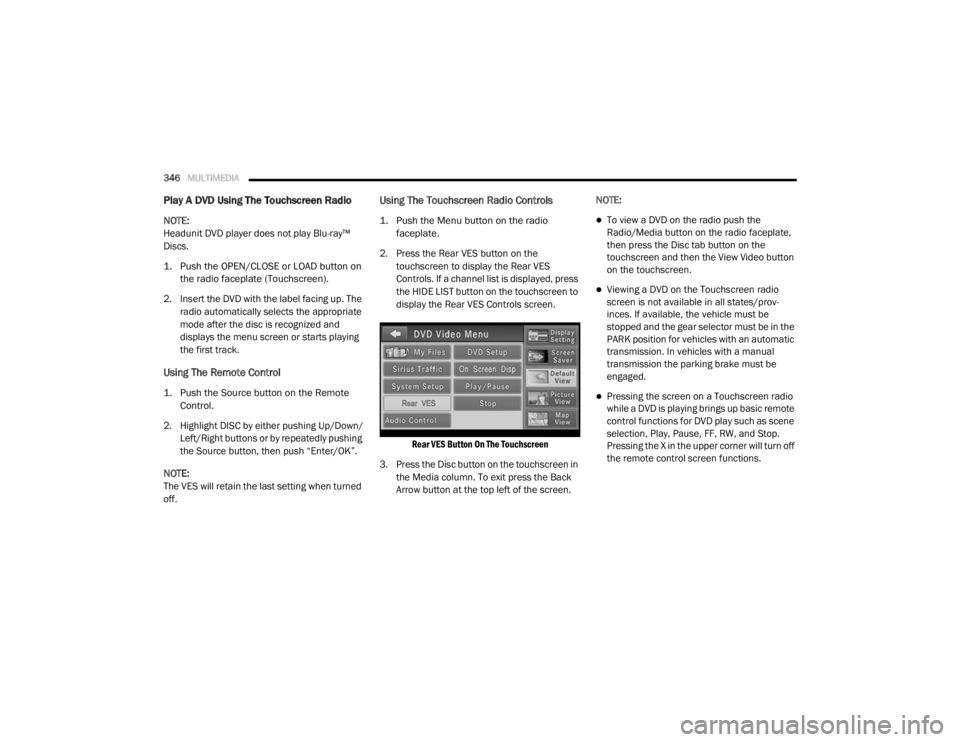
2. Press the Rear VES button on the touchscreen to display the Rear VES
Controls. If a channel list is displayed, press
the HIDE LIST button on the touchscreen to
display the Rear VES Controls screen.
Rear VES Button On The Touchscreen
3. Press the Disc button on the touchscreen in the Media column. To exit press the Back
Arrow button at the top left of the screen. NOTE:To view a DVD on the radio push the
Radio/Media button on the radio faceplate,
then press the Disc tab button on the
touchscreen and then the View Video button
on the touchscreen.
Viewing a DVD on the Touchscreen radio
screen is not available in all states/prov
-
inces. If available, the vehicle must be
stopped and the gear selector must be in the
PARK position for vehicles with an automatic
transmission. In vehicles with a manual
transmission the parking brake must be
engaged.
Pressing the screen on a Touchscreen radio
while a DVD is playing brings up basic remote
control functions for DVD play such as scene
selection, Play, Pause, FF, RW, and Stop.
Pressing the X in the upper corner will turn off
the remote control screen functions.
20_RT_OM_EN_USC_t.book Page 346
Page 349 of 380
MULTIMEDIA347
Play A DVD Using The VES Player — If
Equipped
Insert the DVD with the label facing up. The VES
player automatically selects the appropriate
mode after the disc is recognized and starts
playing the DVD.
NOTE:
The VES player has basic DVD control function
such as Menu, Play, Pause, FF, RW and Stop.
Using The Remote Control
1. Push the Source button on the Remote
Control.
2. Highlight VES DISC by either pushing Up/ Down/Left/Right buttons or by repeatedly
pushing the Source button, then push
“Enter/OK” on the Remote Control.
NOTE:
The VES will retain the last setting when turned
off.
Using The Touchscreen Radio Controls
1. Push the Menu button on the radio faceplate.
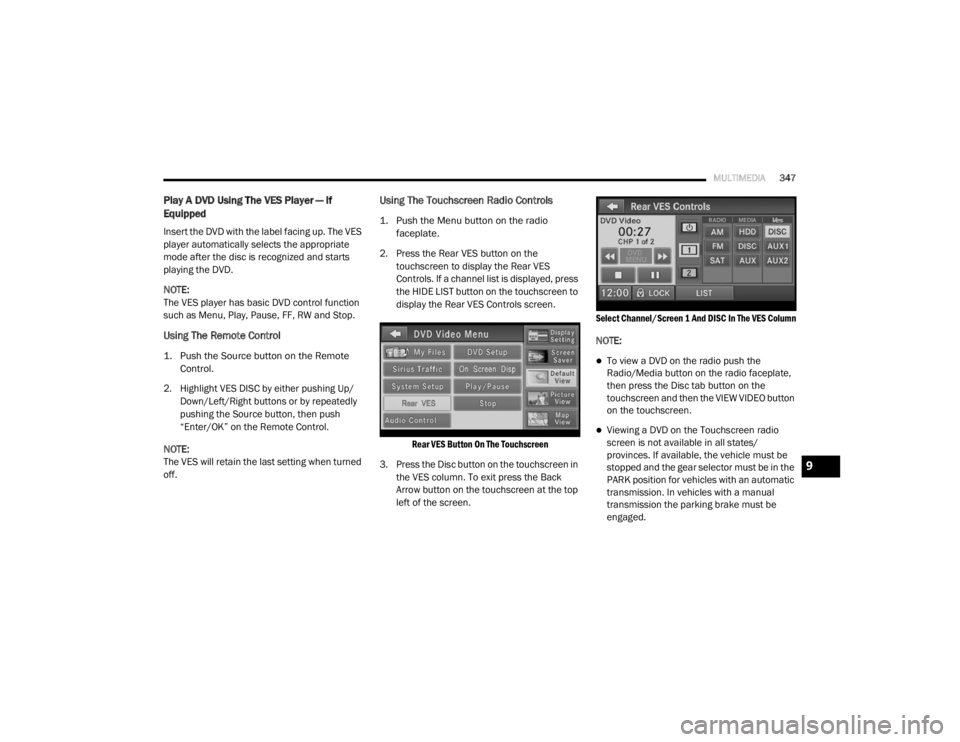
2. Press the Rear VES button on the touchscreen to display the Rear VES
Controls. If a channel list is displayed, press
the HIDE LIST button on the touchscreen to
display the Rear VES Controls screen.
Rear VES Button On The Touchscreen
3. Press the Disc button on the touchscreen in the VES column. To exit press the Back
Arrow button on the touchscreen at the top
left of the screen.
Select Channel/Screen 1 And DISC In The VES Column
NOTE:
To view a DVD on the radio push the
Radio/Media button on the radio faceplate,
then press the Disc tab button on the
touchscreen and then the VIEW VIDEO button
on the touchscreen.
Viewing a DVD on the Touchscreen radio
screen is not available in all states/
provinces. If available, the vehicle must be
stopped and the gear selector must be in the
PARK position for vehicles with an automatic
transmission. In vehicles with a manual
transmission the parking brake must be
engaged.
9
20_RT_OM_EN_USC_t.book Page 347
Page 350 of 380
348MULTIMEDIA
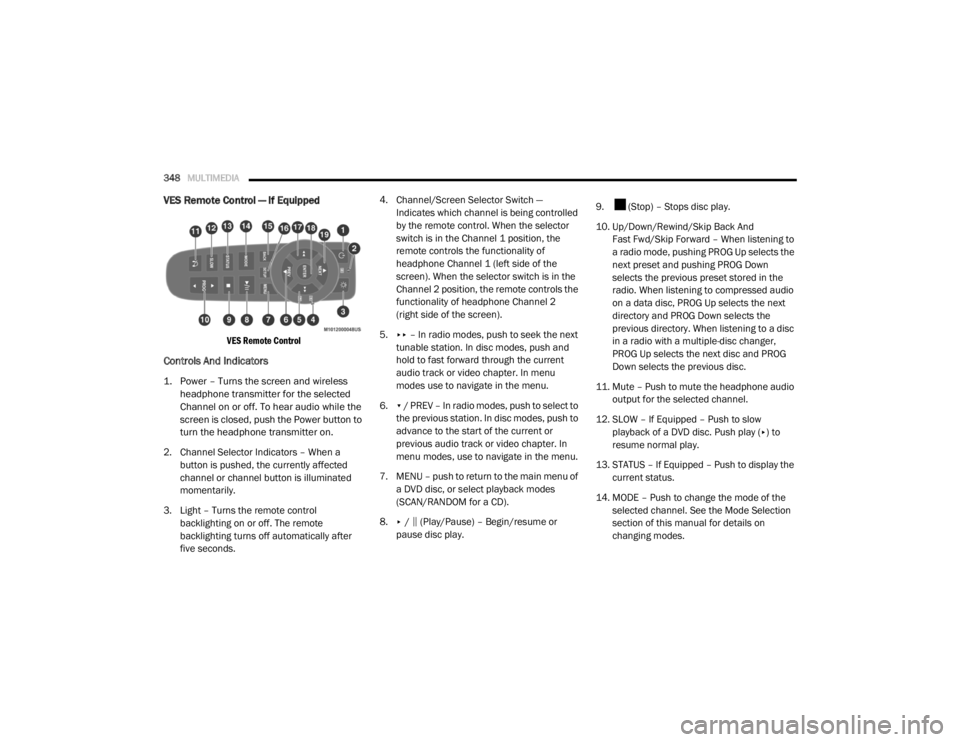
VES Remote Control — If Equipped
VES Remote Control
Controls And Indicators
1. Power – Turns the screen and wireless
headphone transmitter for the selected
Channel on or off. To hear audio while the
screen is closed, push the Power button to
turn the headphone transmitter on.
2. Channel Selector Indicators – When a button is pushed, the currently affected
channel or channel button is illuminated
momentarily.
3. Light – Turns the remote control backlighting on or off. The remote
backlighting turns off automatically after
five seconds. 4. Channel/Screen Selector Switch —
Indicates which channel is being controlled
by the remote control. When the selector
switch is in the Channel 1 position, the
remote controls the functionality of
headphone Channel 1 (left side of the
screen). When the selector switch is in the
Channel 2 position, the remote controls the
functionality of headphone Channel 2
(right side of the screen).
5. ▸▸ – In radio modes, push to seek the next
tunable station. In disc modes, push and
hold to fast forward through the current
audio track or video chapter. In menu
modes use to navigate in the menu.
6. ▾ / PREV – In radio modes, push to select to
the previous station. In disc modes, push to
advance to the start of the current or
previous audio track or video chapter. In
menu modes, use to navigate in the menu.
7. MENU – push to return to the main menu of a DVD disc, or select playback modes
(SCAN/RANDOM for a CD).
8. ▸ / ‖ (Play/Pause) – Begin/resume or
pause disc play. 9. (Stop) – Stops disc play.
10. Up/Down/Rewind/Skip Back And
Fast Fwd/Skip Forward – When listening to
a radio mode, pushing PROG Up selects the
next preset and pushing PROG Down
selects the previous preset stored in the
radio. When listening to compressed audio
on a data disc, PROG Up selects the next
directory and PROG Down selects the
previous directory. When listening to a disc
in a radio with a multiple-disc changer,
PROG Up selects the next disc and PROG
Down selects the previous disc.
11. Mute – Push to mute the headphone audio output for the selected channel.
12. SLOW – If Equipped – Push to slow playback of a DVD disc. Push play ( ▸) to
resume normal play.
13. STATUS – If Equipped – Push to display the current status.
14. MODE – Push to change the mode of the selected channel. See the Mode Selection
section of this manual for details on
changing modes.
20_RT_OM_EN_USC_t.book Page 348