reset DODGE GRAND CARAVAN 2020 Owner's Manual
[x] Cancel search | Manufacturer: DODGE, Model Year: 2020, Model line: GRAND CARAVAN, Model: DODGE GRAND CARAVAN 2020Pages: 380, PDF Size: 14.92 MB
Page 317 of 380
MULTIMEDIA315
At the next prompt, say “Delete” and follow
the prompts.
You can also push the Voice Recognition
button at any time while the list is being
played, and then choose the phone you wish
to delete.
Things You Should Know About Your
Uconnect Phone
Uconnect Phone Tutorial
To hear a brief tutorial of the system features,
push the Phone button and say “Uconnect
Tutorial.”
Voice Training
For users experiencing difficulty with the system
recognizing their voice commands or numbers,
the Uconnect Phone Voice Training feature may
be used. To enter this training mode, follow one
of the two following procedures:
From outside the Uconnect Phone mode
(e.g., from radio mode), push and hold the
Voice Recognition button for five seconds
until the session begins, or,
Push the Voice Recognition button and
say the “Voice Training,” “System Training,”
or “Start Voice Training” command.
You can either push the Uconnect Phone button
to restore the factory setting or repeat the
words and phrases when prompted by the
Uconnect Phone. For best results, the Voice
Training session should be completed when the
vehicle is parked with the engine running, all
windows closed, and the blower fan switched
off.
This procedure may be repeated with a new
user. The system will adapt to the last trained
voice only.
Reset
To Reset all settings using Voice Command:
1. Push the Phone button .
2. After the “Ready” prompt and the following beep, say “Setup,” then “Reset.”
This will delete all phone pairing, phone
book entries, and other settings in all
language modes. The System will prompt
you before resetting to factory settings. Voice Command
For best performance:
Adjust the rearview mirror to provide at least
1/2-inch (1 cm) gap between the overhead
console (if equipped) and the mirror.
Always wait for the beep before speaking.
Speak normally without pausing, just as you
would speak to a person sitting a few feet/
meters away from you.
Make sure that no one other than you is
speaking during a Voice Command period.
Performance is maximized under:
Low-to-medium blower setting
Low-to-medium vehicle speed
Low road noise
Smooth road surface
Fully closed windows
Dry weather condition
9
20_RT_OM_EN_USC_t.book Page 315
Page 319 of 380
MULTIMEDIA317
3. You can either say the message you wish to
send or say “List Messages.” There are 20
preset messages.
To send a message, push the Voice Command button while the system is listing the
message and say “Send”.
Uconnect Phone will prompt you to say the
name or number of the person you wish to send
the message to.
List of Preset Messages:
1. Yes
2. No
3. Where are you?
4. I need more direction
5. L O L
6. Why
7. I love you
8. Call me
9. Call me later
10. Thanks 11. See You in 15 minutes
12. I am on my way
13. I’ll be late
14. Are you there yet?
15. Where are we meeting?
16. Can this wait?
17. Bye for now
18. When can we meet?
19. Send number to call
20. Start without me
Turn SMS Incoming Announcement ON/OFF
Turning the SMS Incoming Announcement Off
will stop the system from announcing the new
incoming messages.
1. Push the Phone button .
2. After the “Ready” prompt and the following beep, say “Setup, SMS Incoming Message
Announcement,” you will then be given a
choice to change it. Bluetooth® Communication Link
Mobile phones have been found to lose
connection to the Uconnect Phone. When this
happens, the connection can generally be
reestablished by switching the phone off/on.
Your mobile phone is recommended to remain
in Bluetooth® On mode.
Navigation — If Equipped
Safety Precautions And Important
Information
WARNING!
ALWAYS drive safely with your hands on the
steering wheel. You have full responsibility
and assume all risks related to the use of
the Uconnect features and applications in
this vehicle. Only use Uconnect when it is
safe to do so. Failure to do so may result in
an accident involving serious injury or
death.
ALWAYS follow the law! Failure to follow
traffic laws may result in serious injury or
death.9
20_RT_OM_EN_USC_t.book Page 317
Page 327 of 380
MULTIMEDIA325
4. Press to view trip information.
5. Press to view information for the location.
6. Press to display a different data field.
7. Press to return to the main menu.
About myTrends
When the myTrends feature is enabled, your
estimated time of arrival for your frequent
destinations, like your workplace, automatically
appear in the navigation bar at the top of the
map.
When myTrends information appears in the
navigation bar, you can press the navigation bar
to view route options for the suggested
destination.
Enabling myTrends
From the main menu press Settings >
Navigation > myTrends > Enabled .
Viewing Trip Information
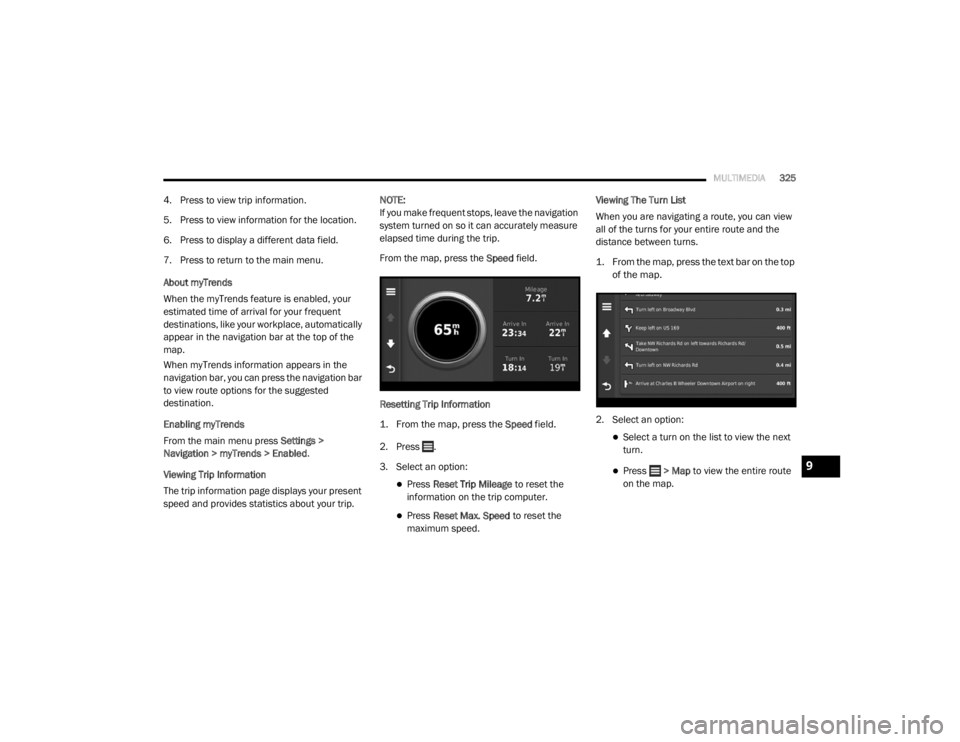
The trip information page displays your present
speed and provides statistics about your trip. NOTE:
If you make frequent stops, leave the navigation
system turned on so it can accurately measure
elapsed time during the trip.
From the map, press the
Speed field.
Resetting Trip Information
1. From the map, press the
Speed
field.
2. Press .
3. Select an option:
Press Reset Trip Mileage to reset the
information on the trip computer.
Press Reset Max. Speed to reset the
maximum speed. Viewing The Turn List
When you are navigating a route, you can view
all of the turns for your entire route and the
distance between turns.
1. From the map, press the text bar on the top
of the map.
2. Select an option:
Select a turn on the list to view the next
turn.
Press > Map to view the entire route
on the map.9
20_RT_OM_EN_USC_t.book Page 325
Page 342 of 380
340MULTIMEDIA
STEERING WHEEL AUDIO CONTROLS — IF
EQUIPPED
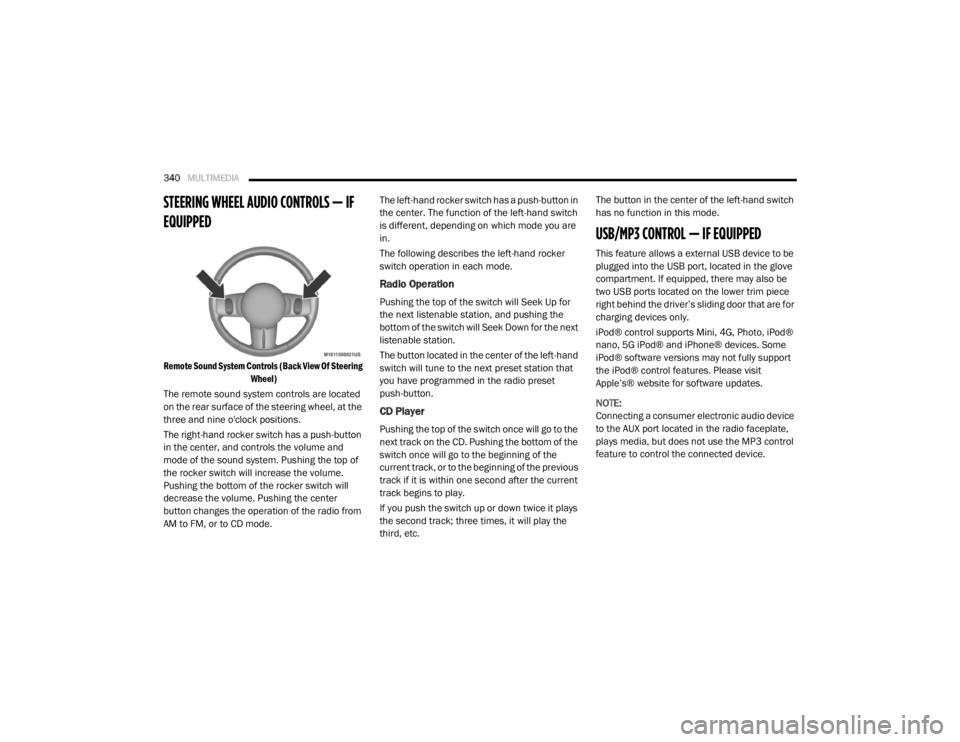
Remote Sound System Controls (Back View Of Steering
Wheel)
The remote sound system controls are located
on the rear surface of the steering wheel, at the
three and nine o'clock positions.
The right-hand rocker switch has a push-button
in the center, and controls the volume and
mode of the sound system. Pushing the top of
the rocker switch will increase the volume.
Pushing the bottom of the rocker switch will
decrease the volume. Pushing the center
button changes the operation of the radio from
AM to FM, or to CD mode. The left-hand rocker switch has a push-button in
the center. The function of the left-hand switch
is different, depending on which mode you are
in.
The following describes the left-hand rocker
switch operation in each mode.
Radio Operation
Pushing the top of the switch will Seek Up for
the next listenable station, and pushing the
bottom of the switch will Seek Down for the next
listenable station.
The button located in the center of the left-hand
switch will tune to the next preset station that
you have programmed in the radio preset
push-button.
CD Player
Pushing the top of the switch once will go to the
next track on the CD. Pushing the bottom of the
switch once will go to the beginning of the
current track, or to the beginning of the previous
track if it is within one second after the current
track begins to play.
If you push the switch up or down twice it plays
the second track; three times, it will play the
third, etc.The button in the center of the left-hand switch
has no function in this mode.
USB/MP3 CONTROL — IF EQUIPPED
This feature allows a external USB device to be
plugged into the USB port, located in the glove
compartment. If equipped, there may also be
two USB ports located on the lower trim piece
right behind the driver’s sliding door that are for
charging devices only.
iPod® control supports Mini, 4G, Photo, iPod®
nano, 5G iPod® and iPhone® devices. Some
iPod® software versions may not fully support
the iPod® control features. Please visit
Apple’s® website for software updates.
NOTE:
Connecting a consumer electronic audio device
to the AUX port located in the radio faceplate,
plays media, but does not use the MP3 control
feature to control the connected device.
20_RT_OM_EN_USC_t.book Page 340
Page 344 of 380

342MULTIMEDIA
Turning it counterclockwise (backward)
by one click will jump to the previous
track in the list or push the VR button and
say "Previous Track".
Jump backward in the current track by
pushing and holding the << RW button.
Holding the << RW button long enough will
jump to the beginning of the current track.
Jump forward in the current track by pushing
and holding the FF >> button.
A single push backward << RW or forward FF
>> will jump backward or forward respec -
tively, for five seconds.
Use the << SEEK and SEEK >> buttons to
jump to the previous or next track. Pushing
the SEEK >> button during play mode will
jump to the next track in the list, or push the
VR button and say "Next or Previous Track."
While a track is playing, push the INFO button
to see the associated metadata (artist, track
title, album, etc.) for that track. Pushing the
INFO button again jumps to the next screen
of data for that track. Once all screens have
been viewed, the last INFO button push will
go back to the play mode screen on the radio.
Pushing the Repeat button will change the
audio device mode to repeat the current
playing track or push the VR button and say
"Repeat On" or "Repeat Off".
Push the Scan button to use AUX/USB/MP3
device scan mode, which will play the first 10
seconds of each track in the current list and
then forward to the next song. To stop Scan
mode and start playing the desired track,
when it is playing the track, push the Scan
button again. During Scan mode, pushing the
<< SEEK and SEEK >> buttons will select the
previous and next tracks.
RND button: Pushing this button toggles
between Shuffle ON and Shuffle OFF modes
for the external USB device, or push the VR
button and say "Shuffle On" or "Shuffle Off." If
the RND icon is showing on the radio display,
then the shuffle mode is On.
List Or Browse Mode
During Play mode, pushing any of the buttons
described below will bring up List mode. List
mode enables scrolling through the list of
menus and tracks on the audio device. Tune control knob: The Tune control knob
functions in a similar manner as the scroll
wheel on the audio device or external USB
device.
Turning it clockwise (forward) and counter-
clockwise (backward) scrolls through the
lists, displaying the track detail on the radio
display. Once the track to be played is high-
lighted on the radio display, push the Tune
control knob to select and start playing the
track. Turning the TUNE control knob fast will
scroll through the list faster. During fast
scroll, a slight delay in updating the informa
-
tion on the radio display may be noticeable.
In List mode, the radio Preset buttons are used
as shortcuts to the following lists on the
external USB device:
Preset 1 – Playlists
Preset 2 – Artists
Preset 3 – Albums
Preset 4 – Genres
Preset 5 – Audiobooks
Preset 6 – Podcasts
20_RT_OM_EN_USC_t.book Page 342
Page 345 of 380
MULTIMEDIA343
Pushing a PRESET button will display the
current list on the top line and the first item in
that list on the second line.
To exit List mode without selecting a track, push
the same Preset button again to go back to
Play mode.
List button: The List button will display the top
level menu of the external USB device.
Turn the Tune control knob to list the
top-menu item to be selected and push the
Tune control knob. This will display the next
sub-menu list item on the audio device, then
follow the same steps to go to the desired
track in that list. Not all external USB device
sub-menu levels are available on this system.
Music Type button: The Music Type button is
another shortcut button to the genre listing on
your audio device.
Bluetooth® Streaming Audio (BTSA)
Music can be streamed from your cellular
phone to the Uconnect phone system.
Refer to the Uconnect Owner’s Manual
Supplement for further information on
Bluetooth® connectivity.
Controlling BTSA Using Radio Buttons
To enter BTSA mode, push either AUX button on
the radio or push the VR button and say
“Bluetooth® Streaming Audio”.
Play Mode
When switched to BTSA mode, some audio
devices can start playing music over the
vehicle’s audio system, but some devices
require the music to be initiated on the device
first. Then, it will get streamed to the Uconnect
phone system. Seven devices can be paired to
the Uconnect phone system, but just one can be
selected and played.
Selecting A Different Audio Device
1. Push the Phone button to begin.
2. After the "Ready" prompt and following the beep, say "Setup", then say "Select Audio
Devices".
3. Say the name of the audio device or ask the Uconnect phone system to list the audio
devices.
Next Track
Use the Seek Up button, or push the VR
button on the radio and say “Next Track,” to
jump to the next music track on your cellular
phone.
WARNING!
Do not plug in or remove the iPod® or
external USB device while driving. Failure to
follow this warning could result in an
accident.
CAUTION!
Leaving the iPod® or external USB device
(or any supported device) anywhere in the
vehicle in extreme heat or cold can alter the
operation or damage the device. Follow the
device manufacturer’s guidelines.
Placing items on the iPod® or external USB
device, or connections to the iPod® or
external USB device in the vehicle, can
cause damage to the device and/or to the
connectors.
9
20_RT_OM_EN_USC_t.book Page 343
Page 350 of 380
348MULTIMEDIA
VES Remote Control — If Equipped
VES Remote Control
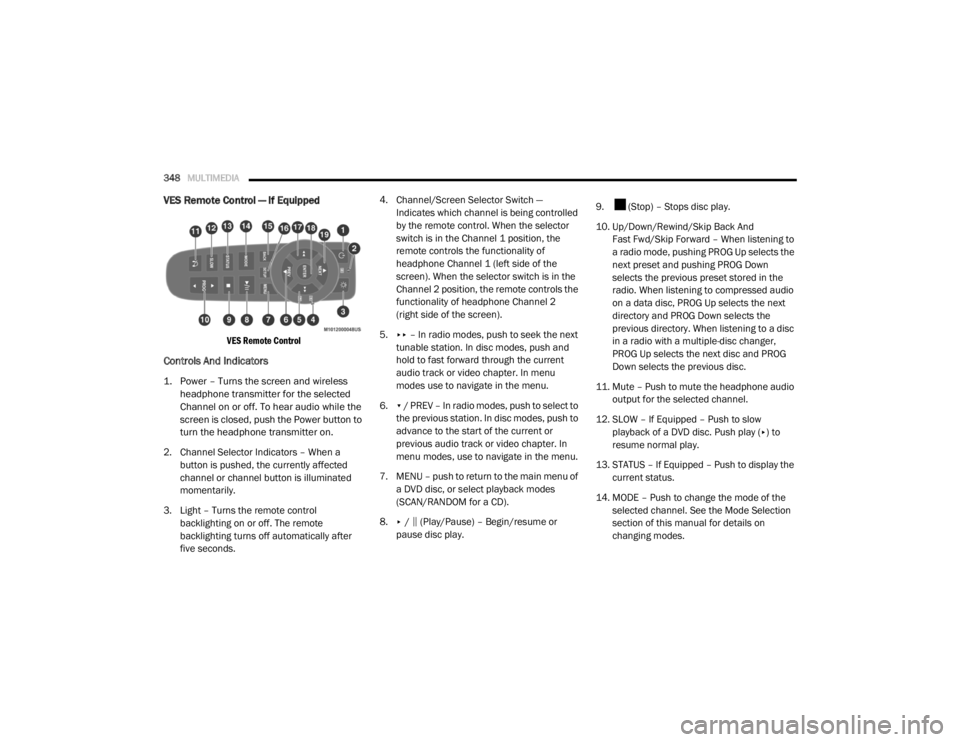
Controls And Indicators
1. Power – Turns the screen and wireless
headphone transmitter for the selected
Channel on or off. To hear audio while the
screen is closed, push the Power button to
turn the headphone transmitter on.
2. Channel Selector Indicators – When a button is pushed, the currently affected
channel or channel button is illuminated
momentarily.
3. Light – Turns the remote control backlighting on or off. The remote
backlighting turns off automatically after
five seconds. 4. Channel/Screen Selector Switch —
Indicates which channel is being controlled
by the remote control. When the selector
switch is in the Channel 1 position, the
remote controls the functionality of
headphone Channel 1 (left side of the
screen). When the selector switch is in the
Channel 2 position, the remote controls the
functionality of headphone Channel 2
(right side of the screen).
5. ▸▸ – In radio modes, push to seek the next
tunable station. In disc modes, push and
hold to fast forward through the current
audio track or video chapter. In menu
modes use to navigate in the menu.
6. ▾ / PREV – In radio modes, push to select to
the previous station. In disc modes, push to
advance to the start of the current or
previous audio track or video chapter. In
menu modes, use to navigate in the menu.
7. MENU – push to return to the main menu of a DVD disc, or select playback modes
(SCAN/RANDOM for a CD).
8. ▸ / ‖ (Play/Pause) – Begin/resume or
pause disc play. 9. (Stop) – Stops disc play.
10. Up/Down/Rewind/Skip Back And
Fast Fwd/Skip Forward – When listening to
a radio mode, pushing PROG Up selects the
next preset and pushing PROG Down
selects the previous preset stored in the
radio. When listening to compressed audio
on a data disc, PROG Up selects the next
directory and PROG Down selects the
previous directory. When listening to a disc
in a radio with a multiple-disc changer,
PROG Up selects the next disc and PROG
Down selects the previous disc.
11. Mute – Push to mute the headphone audio output for the selected channel.
12. SLOW – If Equipped – Push to slow playback of a DVD disc. Push play ( ▸) to
resume normal play.
13. STATUS – If Equipped – Push to display the current status.
14. MODE – Push to change the mode of the selected channel. See the Mode Selection
section of this manual for details on
changing modes.
20_RT_OM_EN_USC_t.book Page 348
Page 353 of 380
MULTIMEDIA351
Stereo Headphone Lifetime Limited
Warranty
Who Does This Warranty Cover? This warranty
covers the initial user or purchaser ("you" or
"your") of this particular Aptiv PLC (“Aptiv”)
wireless headphone ("Product"). The warranty is
not transferable.
How Long Does the Coverage Last? This
warranty lasts as long as you own the Product.
What Does This Warranty Cover? Except as
specified below, this warranty covers any
Product that in normal use is defective in
workmanship or materials.
What Does This Warranty Not Cover? This
warranty does not cover any damage or defect
that results from misuse, abuse or modification
of the Product other than by Aptiv. Foam
earpieces, which will wear over time through
normal use, are specifically not covered
(replacement foam is available for a nominal
charge). APTIV IS NOT LIABLE FOR ANY
INJURIES OR DAMAGES TO PERSONS OR
PROPERTY RESULTING FROM THE USE OF, OR
ANY FAILURE OR DEFECT IN, THE PRODUCT,
NOR IS APTIV LIABLE FOR ANY GENERAL, SPECIAL, DIRECT, INDIRECT, INCIDENTAL,
CONSEQUENTIAL, EXEMPLARY, PUNITIVE OR
OTHER DAMAGES OF ANY KIND OR NATURE
WHATSOEVER. Some states and jurisdictions
may not allow the exclusion or limitation of
incidental or consequential damages, so the
above limitation may not apply to you. This
warranty gives you specific legal rights. You may
also have other rights, which vary from
jurisdiction to jurisdiction.
What Will Aptiv Do?
Aptiv, at its option, will
repair or replace any defective Product. Aptiv
reserves the right to replace any discontinued
Product with a comparable model. THIS
WARRANTY IS THE SOLE WARRANTY FOR THIS
PRODUCT, SETS FORTH YOUR EXCLUSIVE
REMEDY REGARDING DEFECTIVE PRODUCTS,
AND IS IN LIEU OF ALL OTHER WARRANTIES
(EXPRESS OR IMPLIED), INCLUDING ANY
WARRANTY FOR MERCHANTABILITY OR
FITNESS FOR A PARTICULAR PURPOSE.
If you have any questions or comments
regarding your Aptiv wireless headphones,
please email [email protected] or phone:
888-293-3332
System Information
Shared Modes
This allows the VES to output radio sources to
the headphones and the radio to output VES
sources to the vehicle speakers.
If the radio functions (FM, AM, or SXM) are in the
shared mode, with the VES, only the radio is
able to control the radio functions. In this case,
VES can share the radio mode, but not change
stations until the radio mode is changed to a
mode that is different from the VES selected
radio mode. When shared, the radio has priority
over the VES or all radio modes (FM, AM, and
SAT). The VES has the ability to switch tuner
(AM/FM), SEEK, SCAN, TUNE, and recall presets
in radio modes as long as it is not in shared
mode.
9
20_RT_OM_EN_USC_t.book Page 351
Page 354 of 380

352MULTIMEDIA
When in shared disc mode both the radio and
the VES have control of the video functions. The
VES has the ability to control the following video
modes:
1. CD: Ability to Fast Forward, Rewind, Scan,
and Track Up/Down.
2. CD Changer (in radio): Ability to Disk Up/Down and program all listed CD controls
(Fast Forward, Rewind, Scan, and Track
Up/Down).
The VES can even control radio modes or video
modes while the radio is turned off. The VES can
access the radio modes or disc modes by
navigating to those modes on the VES and
activating a radio mode or disc mode.
Station List Menu
When listening to Satellite audio, pushing the
remote control’s Pop-Up/Menu button displays
a list of all available channels. Navigate this list
using the remote control’s navigation buttons
(▴, ▾ ) to find the desired station, push the
remote control’s Enter/OK button to tune to
that station. To jump through the list more
quickly, navigate to the Page Up and Page Down
icons on the screen.
Disc Menu
When listening to a CD Audio or CD Data disc,
pushing the remote control’s Pop-Up/Menu
button displays a list of all commands which
control playback of the disc. Using the options
you can activate or cancel Scan play and
Random play.
Display Settings
When watching a video source (DVD Video with
the disc in Play mode, Aux Video, etc.), pushing
the remote control’s Setup button activates the
Display Settings menu. These settings control
the appearance of the video on the screen. The
factory default settings are already set for
optimum viewing, so there is no need to change
these settings under normal circumstances.
To change the settings, push the remote
control’s navigation buttons ( ▴, ▾) to select an
item, then push the remote control’s navigation
buttons ( ▸, ◂) to change the value for the
currently selected item. To reset all values back
to the original settings, select the Default
Settings menu option and press the remote
control’s Enter/OK button. Disc Features control the remote DVD settings
of DVD being watched in the remote player.
Listening To Audio With The Screen Closed
To listen to only audio portion of the channel
with the screen closed:
1. Set the audio to the desired source and
channel.
2. Close the video screen.
3. To change the current audio mode, push the remote control’s Mode button. This will
automatically select the next available
audio mode without using the Mode/Select
menu.
If the screen is closed and there is no audio
heard, verify that the headphones are turned on
(the On indicator is illuminated) and the
headphone selector switch is on the desired
channel. If the headphones are turned on, push
the remote control’s power button to turn audio
on. If audio is still not heard, check that fully
charged batteries are installed in the
headphones.
20_RT_OM_EN_USC_t.book Page 352
Page 375 of 380

373
Mini-Trip Computer
................................... 87, 93Mirrors...................................................... 34, 36Automatic Dimming..................................... 34Electric Remote........................................... 36Exterior Folding........................................... 36Heated................................................. 34, 37Outside................................................. 34, 35Rearview.............................................. 34, 35Vanity.......................................................... 37Modifications/Alterations Vehicle.......................................................... 8Monitor, Tire Pressure System....................... 115Mopar Parts................................................... 366MP3 Control.................................................. 340Multi-Function Control Lever............................ 37
N
New Vehicle Break-In Period.......................... 163
O
Occupant Restraints...................................... 119Octane Rating, Gasoline (Fuel)............ 267, 272Oil Change IndicatorReset........................................................... 87Oil Filter, Change........................................... 234Oil Filter, Selection......................................... 234Oil Pressure Light............................................ 96Oil, Engine........................................... 233, 272Capacity.................................................... 271Change Interval......................................... 233
Checking................................................... 232Disposal................................................... 234Filter................................................ 234, 272Filter Disposal........................................... 234Identification Logo.................................... 234Materials Added To.................................. 234Pressure Warning Light............................... 96Recommendation............................ 233, 271Synthetic.................................................. 234Viscosity.......................................... 234, 271Onboard Diagnostic System.......................... 101Operating Precautions.................................. 101Operator ManualOwner's Manual.................................... 8, 367Outside Rearview Mirrors......................... 34, 35Overhead Console........................................... 71Overhead Travel Information Center................ 71Overheating, Engine...................................... 221Owner’s Manual (Operator Manual)................... 8
P
Paint Care..................................................... 262Parking Brake............................................... 164ParkSense System, Rear.............................. 175Personal Settings............................................. 90Pets.............................................................. 159Phone, Hands-Free (Uconnect)..................... 304Placard, Tire And Loading Information.......... 249
PowerBrakes...................................................... 266Door Locks...................................................17Inverter........................................................77Mirrors.........................................................36Outlet (Auxiliary Electrical Outlet).................75Seats...........................................................27Steering........................................... 172, 173Vent Windows..............................................59Power SeatsDown...........................................................28Forward.......................................................28Rearward.....................................................28Up................................................................28Pregnant Women And Seat Belts.................. 127Preparation For Jacking................................ 206PretensionersSeat Belts................................................. 127Programmable Electronic Features..................90
R
Radial Ply Tires.............................................. 254Radiator Cap (Coolant Pressure Cap)............ 241Radio Operation............................................ 359Radio Remote Controls................................. 340Rear Air Conditioning.......................................45Rear Camera................................................. 179Rear Cross Path............................................ 113Rear ParkSense System................................ 175Reclining Rear Seats........................................21
11
20_RT_OM_EN_USC_t.book Page 373