change time DODGE GRAND CARAVAN 2020 Owner's Guide
[x] Cancel search | Manufacturer: DODGE, Model Year: 2020, Model line: GRAND CARAVAN, Model: DODGE GRAND CARAVAN 2020Pages: 380, PDF Size: 14.92 MB
Page 298 of 380
296MULTIMEDIA
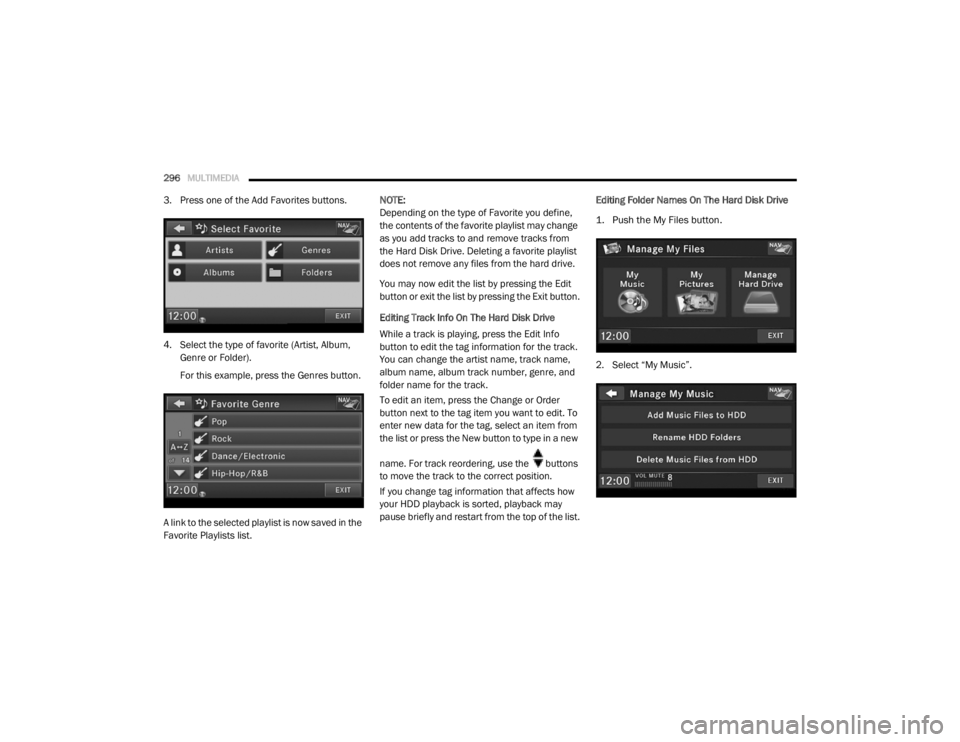
3. Press one of the Add Favorites buttons.
4. Select the type of favorite (Artist, Album,
Genre or Folder).
For this example, press the Genres button.
A link to the selected playlist is now saved in the
Favorite Playlists list. NOTE:
Depending on the type of Favorite you define,
the contents of the favorite playlist may change
as you add tracks to and remove tracks from
the Hard Disk Drive. Deleting a favorite playlist
does not remove any files from the hard drive.
You may now edit the list by pressing the Edit
button or exit the list by pressing the Exit button.
Editing Track Info On The Hard Disk Drive
While a track is playing, press the Edit Info
button to edit the tag information for the track.
You can change the artist name, track name,
album name, album track number, genre, and
folder name for the track.
To edit an item, press the Change or Order
button next to the tag item you want to edit. To
enter new data for the tag, select an item from
the list or press the New button to type in a new
name. For track reordering, use the buttons
to move the track to the correct position.
If you change tag information that affects how
your HDD playback is sorted, playback may
pause briefly and restart from the top of the list.
Editing Folder Names On The Hard Disk Drive
1. Push the My Files button.
2. Select “My Music”.
20_RT_OM_EN_USC_t.book Page 296
Page 300 of 380
298MULTIMEDIA
Importing Pictures
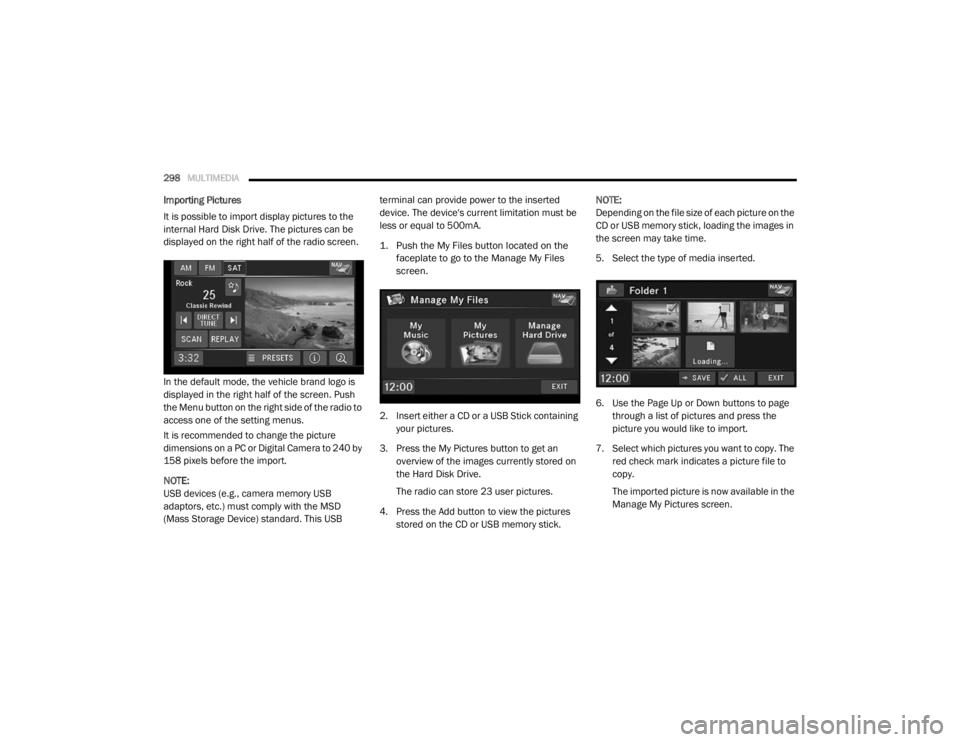
It is possible to import display pictures to the
internal Hard Disk Drive. The pictures can be
displayed on the right half of the radio screen.
In the default mode, the vehicle brand logo is
displayed in the right half of the screen. Push
the Menu button on the right side of the radio to
access one of the setting menus.
It is recommended to change the picture
dimensions on a PC or Digital Camera to 240 by
158 pixels before the import.
NOTE:
USB devices (e.g., camera memory USB
adaptors, etc.) must comply with the MSD
(Mass Storage Device) standard. This USB terminal can provide power to the inserted
device. The device's current limitation must be
less or equal to 500mA.
1. Push the My Files button located on the
faceplate to go to the Manage My Files
screen.
2. Insert either a CD or a USB Stick containing your pictures.
3. Press the My Pictures button to get an overview of the images currently stored on
the Hard Disk Drive.
The radio can store 23 user pictures.
4. Press the Add button to view the pictures stored on the CD or USB memory stick. NOTE:
Depending on the file size of each picture on the
CD or USB memory stick, loading the images in
the screen may take time.
5. Select the type of media inserted.
6. Use the Page Up or Down buttons to page
through a list of pictures and press the
picture you would like to import.
7. Select which pictures you want to copy. The red check mark indicates a picture file to
copy.
The imported picture is now available in the
Manage My Pictures screen.
20_RT_OM_EN_USC_t.book Page 298
Page 303 of 380
MULTIMEDIA301
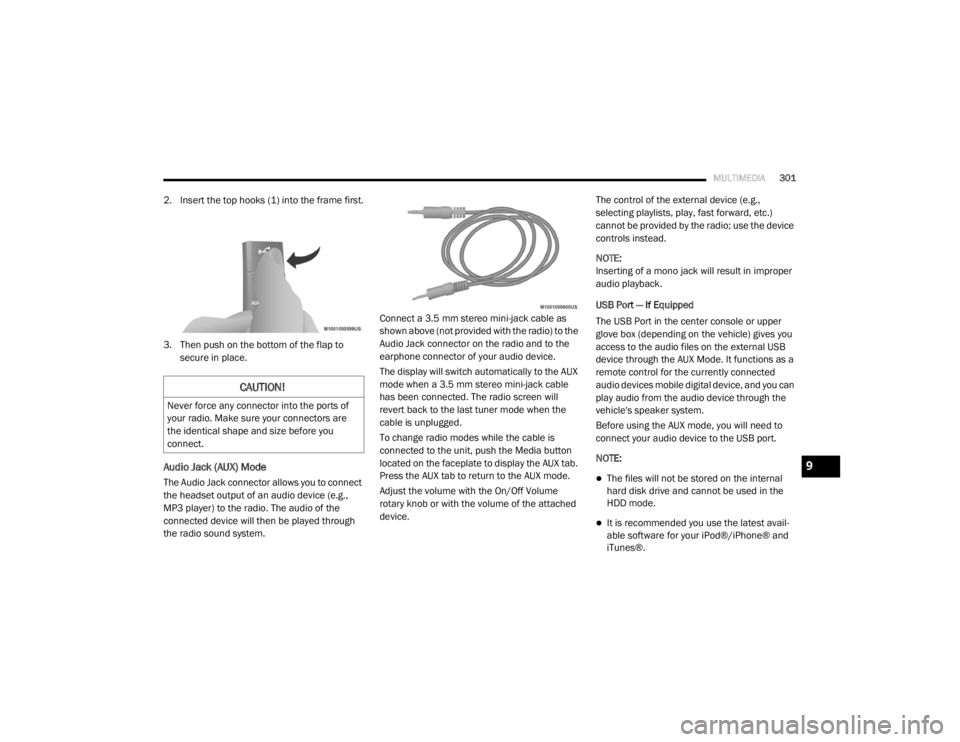
2. Insert the top hooks (1) into the frame first.
3. Then push on the bottom of the flap to
secure in place.
Audio Jack (AUX) Mode
The Audio Jack connector allows you to connect
the headset output of an audio device (e.g.,
MP3 player) to the radio. The audio of the
connected device will then be played through
the radio sound system. Connect a 3.5 mm stereo mini-jack cable as
shown above (not provided with the radio) to the
Audio Jack connector on the radio and to the
earphone connector of your audio device.
The display will switch automatically to the AUX
mode when a 3.5 mm stereo mini-jack cable
has been connected. The radio screen will
revert back to the last tuner mode when the
cable is unplugged.
To change radio modes while the cable is
connected to the unit, push the Media button
located on the faceplate to display the AUX tab.
Press the AUX tab to return to the AUX mode.
Adjust the volume with the On/Off Volume
rotary knob or with the volume of the attached
device.The control of the external device (e.g.,
selecting playlists, play, fast forward, etc.)
cannot be provided by the radio; use the device
controls instead.
NOTE:
Inserting of a mono jack will result in improper
audio playback.
USB Port — If Equipped
The USB Port in the center console or upper
glove box (depending on the vehicle) gives you
access to the audio files on the external USB
device through the AUX Mode. It functions as a
remote control for the currently connected
audio devices mobile digital device, and you can
play audio from the audio device through the
vehicle's speaker system.
Before using the AUX mode, you will need to
connect your audio device to the USB port.
NOTE:The files will not be stored on the internal
hard disk drive and cannot be used in the
HDD mode.
It is recommended you use the latest avail
-
able software for your iPod®/iPhone® and
iTunes®.
CAUTION!
Never force any connector into the ports of
your radio. Make sure your connectors are
the identical shape and size before you
connect.
9
20_RT_OM_EN_USC_t.book Page 301
Page 304 of 380
302MULTIMEDIA
Playing Audio Files From The Audio Device
You can play songs directly from the external
USB device.
Press the Tracks button to display a list view.
Press the button with the desired list item to
select and play the item.
Press the Info button to display the
track information, press the button a
second time to close the display.
Press the Browse button to browse by
categories.
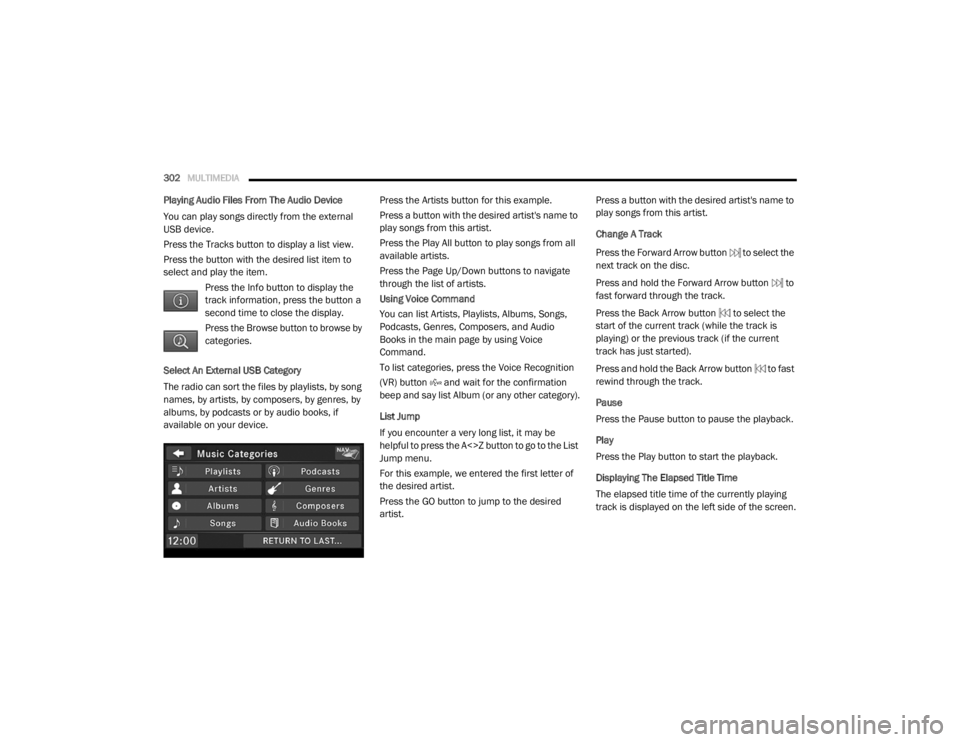
Select An External USB Category
The radio can sort the files by playlists, by song
names, by artists, by composers, by genres, by
albums, by podcasts or by audio books, if
available on your device. Press the Artists button for this example.
Press a button with the desired artist's name to
play songs from this artist.
Press the Play All button to play songs from all
available artists.
Press the Page Up/Down buttons to navigate
through the list of artists.
Using Voice Command
You can list Artists, Playlists, Albums, Songs,
Podcasts, Genres, Composers, and Audio
Books in the main page by using Voice
Command.
To list categories, press the Voice Recognition
(VR) button and wait for the confirmation
beep and say list Album (or any other category).
List Jump
If you encounter a very long list, it may be
helpful to press the A<>Z button to go to the List
Jump menu.
For this example, we entered the first letter of
the desired artist.
Press the GO button to jump to the desired
artist.Press a button with the desired artist's name to
play songs from this artist.
Change A Track
Press the Forward Arrow button to select the
next track on the disc.
Press and hold the Forward Arrow button to
fast forward through the track.
Press the Back Arrow button to select the
start of the current track (while the track is
playing) or the previous track (if the current
track has just started).
Press and hold the Back Arrow button to fast
rewind through the track.
Pause
Press the Pause button to pause the playback.
Play
Press the Play button to start the playback.
Displaying The Elapsed Title Time
The elapsed title time of the currently playing
track is displayed on the left side of the screen.
20_RT_OM_EN_USC_t.book Page 302
Page 309 of 380
MULTIMEDIA307
Call By Saying A Name
Push the Phone button to begin.
After the “Ready” prompt and the following
beep, say “Call.”
The system will prompt you to say the name
of the person you want to call.
After the “Ready” prompt and the following
beep, say the name of the person you want to
call. For example, you can say “John Doe,”
where John Doe is a previously stored name
entry in the Uconnect phonebook or down -
loaded phonebook. To learn how to store a
name in the phonebook, refer to “Add Names
To Your Uconnect Phonebook”, in this
section.
The Uconnect system will confirm the name
and then dial the corresponding phone
number, which may appear in the display of
certain radios.
Phonebook Download – Automatic
Phonebook Transfer From Mobile Phone
If equipped and specifically supported by your
phone, Uconnect Phone automatically
downloads names (text names) and number
entries from your mobile phone’s phonebook.
Specific Bluetooth® Phones with Phone Book
Access Profile may support this feature. See
Uconnect website for supported phones.
To call a name from downloaded (or
Uconnect) Phonebook, follow the procedure
in “Call by Saying a Name” section.
Automatic download and update, if
supported, begins as soon as the Bluetooth®
wireless phone connection is made to the
Uconnect Phone, for example, after you start
the vehicle.
A maximum of 1,000 entries per phone will
be downloaded and updated every time a
phone is connected to the Uconnect Phone.
Depending on the maximum number of
entries downloaded, there may be a short
delay before the latest downloaded names
can be used. Until then, if available, the
previous downloaded phonebook is available
for use.
Only the phonebook of the currently
connected mobile phone is accessible.
Only the mobile phone’s phonebook is down -
loaded. SIM card phonebook is not part of
the Mobile phonebook.
This downloaded phonebook cannot be
edited or deleted on the Uconnect Phone.
These can only be edited on the mobile
phone. The changes are transferred and
updated to Uconnect Phone on the next
phone connection.
Add Names To Your Uconnect Phonebook
NOTE:
Adding names to the Uconnect Phonebook is
recommended when the vehicle is not in
motion.
Push the Phone button to begin.
After the “Ready” prompt and the following
beep, say “Phonebook New Entry.”
When prompted, say the name of the new
entry. Use of long names helps the Voice
Command system, and it is recommended.
For example, say “Robert Smith” or “Robert”
instead of “Bob.”
9
20_RT_OM_EN_USC_t.book Page 307
Page 313 of 380
MULTIMEDIA311
Redial
To redial the last number called from your
mobile phone using Voice Command:
1. Push the Phone button to begin.
2. After the “Ready” prompt and the following
beep, say “Redial.”
The Uconnect Phone will call the last
number that was dialed from your mobile
phone.
NOTE:
This may not be the last number dialed from the
Uconnect Phone.
Call Continuation
Call continuation is the progression of a phone
call on the Uconnect Phone after the vehicle
ignition has been switched to OFF. Call contin -
uation functionality available on the vehicle can
be any one of three types:
1. After the ignition is switched to OFF, a call can continue on the Uconnect Phone either
until the call ends, or until the vehicle
battery condition dictates cessation of the
call on the Uconnect Phone and transfer of
the call to the mobile phone.
2. After the ignition is cycled to OFF, a call can
continue on the Uconnect Phone for a
certain duration, after which the call is
automatically transferred from the
Uconnect Phone to the mobile phone.
3. An active call is automatically transferred to the mobile phone after the ignition is cycled
to OFF.
Uconnect Phone Features
Language Selection
To change the language that the Uconnect
Phone is using:
Push the Phone button to begin.
After the “Ready” prompt and the following
beep, say the name of the language you wish
to switch to / English, Spanish, or French.
Continue to follow the system prompts to
complete the language selection.
After selecting one of the languages, all
prompts and voice commands will be in that
language. NOTE:
After every Uconnect Phone language change
operation, only the language-specific 32-name
phonebook is usable. The paired phone name is
not language-specific and usable across all
languages.
Emergency Assistance
If you are in an emergency and the mobile
phone is reachable:
Pick up the phone and manually dial the
emergency number for your area.
If the phone is not reachable and the Uconnect
Phone is operational, you may reach the
emergency number as follows:
Push the Phone button to begin.
After the “Ready” prompt and the following
beep, say “Emergency” and the Uconnect
Phone will instruct the paired mobile phone
to call the emergency number.
9
20_RT_OM_EN_USC_t.book Page 311
Page 319 of 380
MULTIMEDIA317
3. You can either say the message you wish to
send or say “List Messages.” There are 20
preset messages.
To send a message, push the Voice Command button while the system is listing the
message and say “Send”.
Uconnect Phone will prompt you to say the
name or number of the person you wish to send
the message to.
List of Preset Messages:
1. Yes
2. No
3. Where are you?
4. I need more direction
5. L O L
6. Why
7. I love you
8. Call me
9. Call me later
10. Thanks 11. See You in 15 minutes
12. I am on my way
13. I’ll be late
14. Are you there yet?
15. Where are we meeting?
16. Can this wait?
17. Bye for now
18. When can we meet?
19. Send number to call
20. Start without me
Turn SMS Incoming Announcement ON/OFF
Turning the SMS Incoming Announcement Off
will stop the system from announcing the new
incoming messages.
1. Push the Phone button .
2. After the “Ready” prompt and the following beep, say “Setup, SMS Incoming Message
Announcement,” you will then be given a
choice to change it. Bluetooth® Communication Link
Mobile phones have been found to lose
connection to the Uconnect Phone. When this
happens, the connection can generally be
reestablished by switching the phone off/on.
Your mobile phone is recommended to remain
in Bluetooth® On mode.
Navigation — If Equipped
Safety Precautions And Important
Information
WARNING!
ALWAYS drive safely with your hands on the
steering wheel. You have full responsibility
and assume all risks related to the use of
the Uconnect features and applications in
this vehicle. Only use Uconnect when it is
safe to do so. Failure to do so may result in
an accident involving serious injury or
death.
ALWAYS follow the law! Failure to follow
traffic laws may result in serious injury or
death.9
20_RT_OM_EN_USC_t.book Page 317
Page 320 of 380

318MULTIMEDIA
Warning
Read this information carefully before starting
to operate the navigation system and follow the
instructions in this manual. Neither the FCA US
LLC nor Garmin® shall be liable for problems or
accidents resulting from failure to observe the
instructions in this manual.
Failure to avoid the following potentially
hazardous situations could result in an accident
or collision resulting in death or serious injury.
Always drive safely. Only use the navigation
features in this vehicle when it is safe to do
so. You accept full responsibility for the use
of the features in this vehicle.
When navigating, carefully compare informa -
tion displayed on the navigation system to all
available navigation sources, including road
signs, road closures, road conditions, traffic
congestion, weather conditions, and other
factors that may affect safety while driving.
For safety, always resolve any discrepancies
before continuing navigation, and defer to
posted road signs and road conditions.
The navigation system is designed to provide
route suggestions. It is not a replacement for
driver attentiveness and good judgment. Do
not follow route suggestions if they suggest
an unsafe or illegal maneuver or would place
the vehicle in an unsafe situation.
Be careful of the ambient temperature. Using
the navigation system at extreme tempera -
tures can lead to malfunction or damage.
Also note that the unit can be damaged by
strong vibration, metal objects, or by water
getting inside the unit.
Caution
The navigation system is designed to provide
you with route suggestions. It does not reflect
road closures or road conditions, weather
conditions, or other factors that may affect
safety or timing while driving.
Use the navigation system only as a naviga -
tional aid. Do not attempt to use the navigation
system for any purpose requiring precise
measurement of direction, distance, location,
or topography. The Global Positioning System (GPS) is
operated by the United States government,
which is solely responsible for its accuracy and
maintenance. The government system is
subject to changes that could affect the
accuracy and performance of all GPS
equipment, including the navigation system.
Notice
This navigation system can be used when the
ignition key is turned to ON/RUN or ACC. To
preserve the battery, however, it should be used
with the engine running whenever possible.
Using the navigation system for a long time with
the engine switched off can cause the battery to
run down.
Map Data Information
Garmin® uses a combination of governmental
and private data sources. Virtually all data
sources contain some inaccurate or incomplete
data. In some countries, complete and accurate
map information is either not available or is
prohibitively expensive.
20_RT_OM_EN_USC_t.book Page 318
Page 322 of 380

320MULTIMEDIA
Finding A Location By Spelling The Name
1. From the main menu, press
Where To? >
Points of Interest > Spell Name
.
2. Enter all or part of the name.
3. Press Done .
4. Select a destination.
5. Press Go!
Adding Points To The Active Route
1. While navigating a route, press to return to the main menu.
2. From the main menu, press Where To?
3. Select a category.
4. If necessary, select a subcategory.
5. Select a destination.
6. Press Go!
7. Press Add as a Via Point .Changing The Destination Of The Active Route
Before you can change destinations you must
be navigating a route.
1. Press to return to the main menu.
2. Press Where To?
3. Search for the location.
4. Press Go!
5. Press Set as a New Destination
.
Taking A Detour
While navigating a route, you can use detours to
avoid obstacles ahead of you, such as
construction zones.
NOTE:
If the route you are currently taking is the only
reasonable option, the navigation system might
not calculate a detour.
1. While navigating a route, press .
2. From the main menu, press Detour. Stopping The Route
1. While navigating a route, press .
2. From the main menu, press
Stop.
Finding Locations
The Where To? menu provides several different
categories you can use to search for locations.
To perform a simple search, see the “Getting
Started” section.
Finding An Address
NOTE:
Depending on the version of the built-in map
data on your navigation system, the button
names, and the order of steps could be
different than the steps below.
1. From the main menu, press
Where To? >
Address
.
2. If necessary, change the state, the country, or the province.
3. Press Spell City .
4. Enter the city/postal code.
20_RT_OM_EN_USC_t.book Page 320
Page 323 of 380
MULTIMEDIA321
NOTE:
If you are unsure of the city/postal code, press
Search All.
5. Press Done .
6. If necessary, select the city/postal code.
NOTE:
Not all map data provides postal code
searching.
7. Enter the number of the address.
8. Press Done .
9. Enter the street name.
10. Press Done .
11. If necessary, select the street.
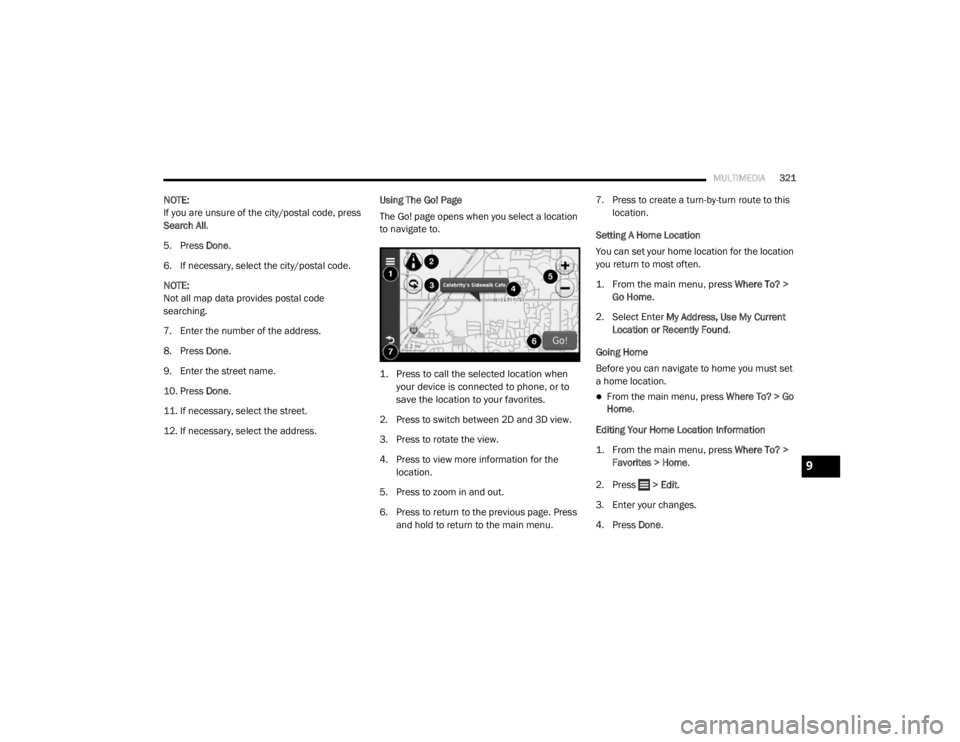
12. If necessary, select the address. Using The Go! Page
The Go! page opens when you select a location
to navigate to.
1. Press to call the selected location when
your device is connected to phone, or to
save the location to your favorites.
2. Press to switch between 2D and 3D view.
3. Press to rotate the view.
4. Press to view more information for the location.
5. Press to zoom in and out.
6. Press to return to the previous page. Press and hold to return to the main menu. 7. Press to create a turn-by-turn route to this
location.
Setting A Home Location
You can set your home location for the location
you return to most often.
1. From the main menu, press
Where To? >
Go Home
.
2. Select Enter My Address, Use My Current
Location or Recently Found .
Going Home
Before you can navigate to home you must set
a home location.
From the main menu, press Where To? > Go
Home .
Editing Your Home Location Information
1. From the main menu, press
Where To? >
Favorites > Home
.
2. Press > Edit .
3. Enter your changes.
4. Press Done .
9
20_RT_OM_EN_USC_t.book Page 321