change time DODGE GRAND CARAVAN 2020 Workshop Manual
[x] Cancel search | Manufacturer: DODGE, Model Year: 2020, Model line: GRAND CARAVAN, Model: DODGE GRAND CARAVAN 2020Pages: 380, PDF Size: 14.92 MB
Page 355 of 380

MULTIMEDIA353
Disc Formats
The DVD player is capable of playing the
following types of discs:
DVD-Video discs (MPEG-2 video compres -
sion) (see notes about DVD Region Codes)
DVD-Audio discs (2 channel audio output
only)
Audio Compact Discs (CDs)
CD Data discs with MP3 and WMA
compressed audio format files
Video CDs (MPEG-1 video compression)
DVD Region Codes
The DVD player and many DVD Discs are coded
by geographic region. These region codes must
match in order for the disc to play. If the region
code for the DVD does not match the region
code for the player, the disc will stop playing
and a warning will be displayed.
DVD Audio Support
When a DVD-Audio disc is inserted in the DVD
player, the DVD-Audio title on the disc is played
by default (most DVD-Audio discs also have a
Video title, but the Video title is ignored). All
multi-channel program material is automatically mixed down to two channels, which may result
in a lowered apparent volume level. If you
increase the volume level to account for this
change in level, remember to lower the volume
before changing the disc or to another mode.
Recorded Discs
The DVD player will play CD-R and CD-RW discs
recorded in CD-Audio or Video-CD format, or as
a CD-ROM containing MP3, WMA. The player will
also play DVD-Video content recorded to a
DVD-R or DVD-RW disc. DVD-ROM discs (either
pressed or recorded) are not supported.
If you record a disc using a personal computer,
there may be cases where the DVD player may
not be able to play some or the entire disc, even
if it is recorded in a compatible format and is
playable on other players. To help avoid
playback problems, use the following guidelines
when recording discs.
Open sessions are ignored. Only sessions
that are closed are playable.
For multi-session CDs that contain only
multiple CD-Audio sessions, the player will
renumber the tracks so each track number is
unique.
For CD Data (or CD-ROM) discs, always use
the ISO-9660 (Level 1 or Level 2), Joliet, or
Romeo format. Other formats (such as HFS,
or others) are not supported.
The player recognizes a maximum of
512 files and 99 folders per CD-R and
CD-RW disc.
Mixed media recordable DVD formats will
only play the Video_TS portion of the disc.
If you are still having trouble writing a disc that
is playable in the DVD player, check with the
disc recording software publisher for more
information about burning playable discs.
The recommended method for labeling
recordable discs (CD-R, CD-RW, and DVD-R) is
with a permanent marker. Do not use adhesive
labels as they may separate from the disc,
become stuck, and cause permanent damage
to the DVD player.
9
20_RT_OM_EN_USC_t.book Page 353
Page 356 of 380

354MULTIMEDIA
Compressed Audio Files (MP3 / WMA and ACC)
The DVD is capable of playing MP3 (MPEG-1
Audio Layer 3) and WMA (Windows Media
Audio) files from a CD Data disc (usually a CD-R
or CD-RW).
The DVD player always uses the file extension
to determine the audio format, so MP3 files
must always end with the extension ".mp3" or
".MP3" and WMA files must always end with
the extension ".wma" or ".WMA." AAC files
must always end with the extension "aac" or
"AAC." To prevent incorrect playback, do not
use these extensions for any other types of
files.
For MP3 files, only version 1 ID3 tag data
(such as artist name, track title, album, etc.)
are supported.
Any file that is copy protected (such as those
downloaded from many online music stores)
will not play. The DVD player will automati -
cally skip the file and begin playing the next
available file.
Other compression formats such as AAC,
MP3 Pro, Ogg Vorbis, and ATRAC3 will not
play. The DVD player will automatically skip
the file and begin playing the next available
file.
If you are creating your own files, the recom -
mended fixed bit rate for MP3 files is
between 96 and 192 Kbps and the recom -
mended fixed bit rate for WMA files is
between 64 and 192 Kbps. Variable bit rates
are also supported. For both formats, the
recommended sample rate is either
44.1 kHz or 48 kHz.
To change the current file, use the DVD
player’s ▴ button to advance to the next file,
or the ▾ button to return to the start of the
current or previous file.
To change the current directory, use the
remote control’s PROG UP and Down buttons
or Rewind/skip back and fast fwd/skip
forward. Disc Errors
If the DVD player is unable to read the disc, a
"Disc Error" message is displayed on the Radio
display and the disc is automatically ejected. A
dirty, damaged, or incompatible disc format are
all potential causes for a "Disc Error" message.
If a disc has a damaged track which results in
audible or visible errors that persists for
2.0 seconds, the DVD player will attempt to
continue playing the disc by skipping forward
1 to 3 seconds at a time. If the end of the disc is
reached, the DVD player will return to the
beginning of the disc and attempt to play the
start of the first track.
The DVD player may shut down during extremely
hot conditions, such as when the vehicle’s
interior temperature is above 120°F (49°C).
When this occurs, the DVD Player will display
"High Temp" and will shut off the display until a
safe temperature is reached. This shutdown is
necessary to protect the optics of the DVD.
20_RT_OM_EN_USC_t.book Page 354
Page 357 of 380
MULTIMEDIA355
Display
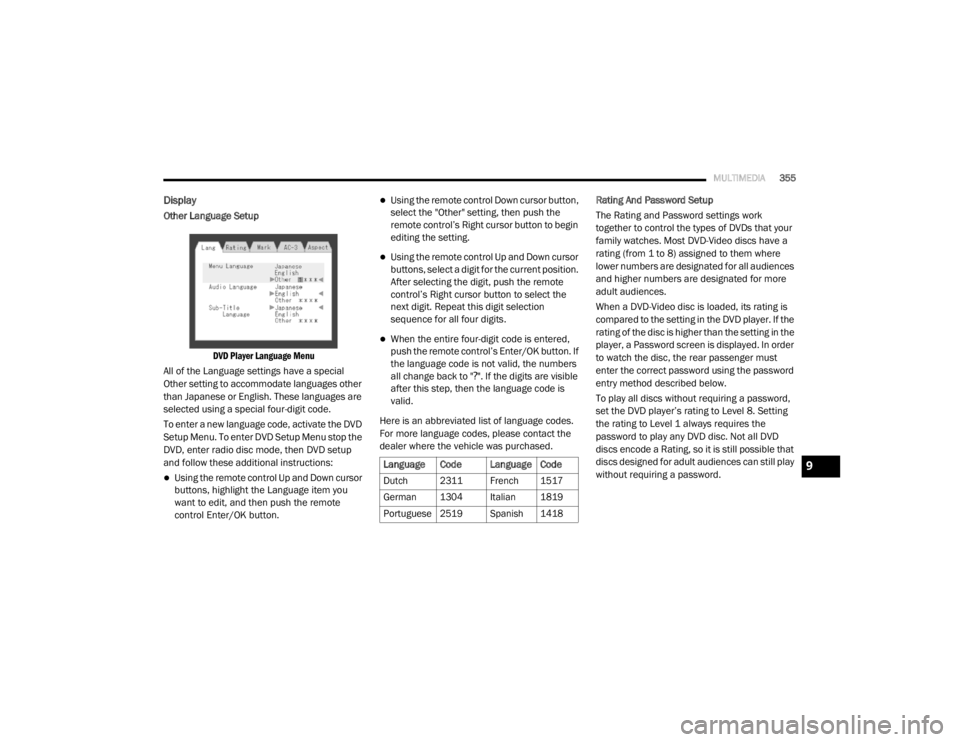
Other Language Setup
DVD Player Language Menu
All of the Language settings have a special
Other setting to accommodate languages other
than Japanese or English. These languages are
selected using a special four-digit code.
To enter a new language code, activate the DVD
Setup Menu. To enter DVD Setup Menu stop the
DVD, enter radio disc mode, then DVD setup
and follow these additional instructions:
Using the remote control Up and Down cursor
buttons, highlight the Language item you
want to edit, and then push the remote
control Enter/OK button.
Using the remote control Down cursor button,
select the "Other" setting, then push the
remote control’s Right cursor button to begin
editing the setting.
Using the remote control Up and Down cursor
buttons, select a digit for the current position.
After selecting the digit, push the remote
control’s Right cursor button to select the
next digit. Repeat this digit selection
sequence for all four digits.
When the entire four-digit code is entered,
push the remote control’s Enter/OK button. If
the language code is not valid, the numbers
all change back to " ?". If the digits are visible
after this step, then the language code is
valid.
Here is an abbreviated list of language codes.
For more language codes, please contact the
dealer where the vehicle was purchased. Rating And Password Setup
The Rating and Password settings work
together to control the types of DVDs that your
family watches. Most DVD-Video discs have a
rating (from 1 to 8) assigned to them where
lower numbers are designated for all audiences
and higher numbers are designated for more
adult audiences.
When a DVD-Video disc is loaded, its rating is
compared to the setting in the DVD player. If the
rating of the disc is higher than the setting in the
player, a Password screen is displayed. In order
to watch the disc, the rear passenger must
enter the correct password using the password
entry method described below.
To play all discs without requiring a password,
set the DVD player’s rating to Level 8. Setting
the rating to Level 1 always requires the
password to play any DVD disc. Not all DVD
discs encode a Rating, so it is still possible that
discs designed for adult audiences can still play
without requiring a password.
Language Code Language Code
Dutch 2311 French 1517
German 1304 Italian 1819
Portuguese
2519 Spanish 1418
9
20_RT_OM_EN_USC_t.book Page 355
Page 358 of 380
356MULTIMEDIA
The default rating is Level 8 (play all discs
without a password) and the default password
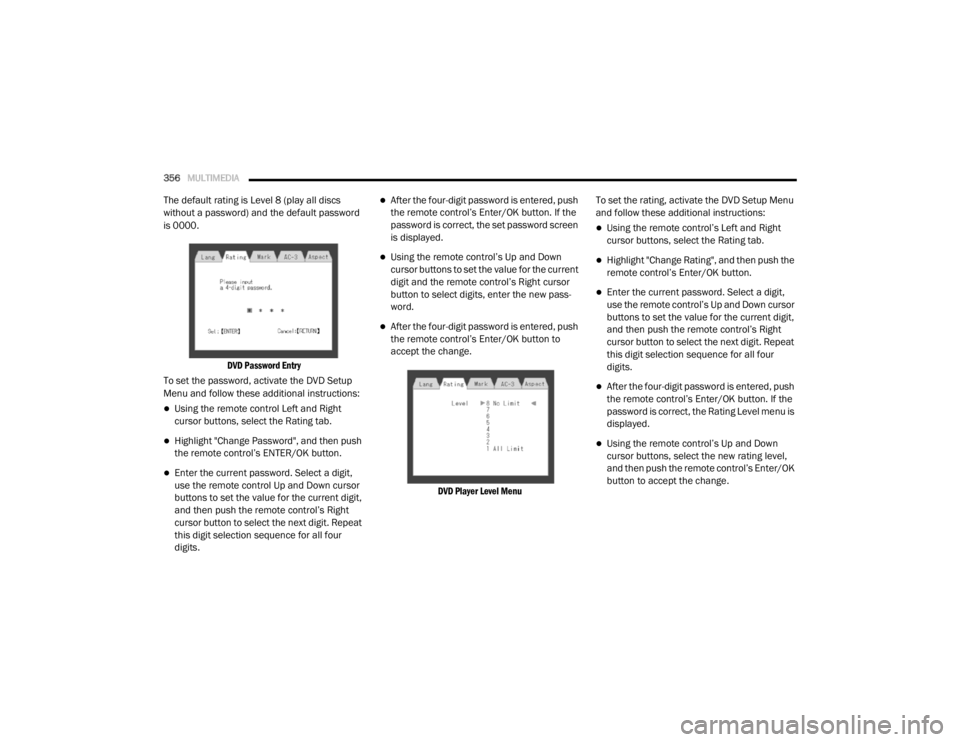
is 0000.
DVD Password Entry
To set the password, activate the DVD Setup
Menu and follow these additional instructions:
Using the remote control Left and Right
cursor buttons, select the Rating tab.
Highlight "Change Password", and then push
the remote control’s ENTER/OK button.
Enter the current password. Select a digit,
use the remote control Up and Down cursor
buttons to set the value for the current digit,
and then push the remote control’s Right
cursor button to select the next digit. Repeat
this digit selection sequence for all four
digits.
After the four-digit password is entered, push
the remote control’s Enter/OK button. If the
password is correct, the set password screen
is displayed.
Using the remote control’s Up and Down
cursor buttons to set the value for the current
digit and the remote control’s Right cursor
button to select digits, enter the new pass-
word.
After the four-digit password is entered, push
the remote control’s Enter/OK button to
accept the change.
DVD Player Level Menu
To set the rating, activate the DVD Setup Menu
and follow these additional instructions:
Using the remote control’s Left and Right
cursor buttons, select the Rating tab.
Highlight "Change Rating", and then push the
remote control’s Enter/OK button.
Enter the current password. Select a digit,
use the remote control’s Up and Down cursor
buttons to set the value for the current digit,
and then push the remote control’s Right
cursor button to select the next digit. Repeat
this digit selection sequence for all four
digits.
After the four-digit password is entered, push
the remote control’s Enter/OK button. If the
password is correct, the Rating Level menu is
displayed.
Using the remote control’s Up and Down
cursor buttons, select the new rating level,
and then push the remote control’s Enter/OK
button to accept the change.
20_RT_OM_EN_USC_t.book Page 356
Page 361 of 380

MULTIMEDIA359
RADIO OPERATION AND MOBILE PHONES
Under certain conditions, the mobile phone
being on in your vehicle can cause erratic or
noisy performance from your radio. This
condition may be lessened or eliminated by
relocating the mobile phone antenna. This
condition is not harmful to the radio. If your
radio performance does not satisfactorily
“clear” by the repositioning of the antenna, it is
recommended that the radio volume be turned
down or off during mobile phone operation
when not using Uconnect (if equipped).
Regulatory And Safety Information
USA/CANADA
Exposure to Radio Frequency Radiation
The radiated output power of the internal
wireless radio is far below the FCC and IC radio
frequency exposure limits. Nevertheless, the
wireless radio will be used in such a manner
that the radio is 8 in (20 cm) or further from the
human body.
The internal wireless radio operates within
guidelines found in radio frequency safety
standards and recommendations, which reflect
the consensus of the scientific community. The radio manufacturer believes the internal
wireless radio is safe for use by consumers. The
level of energy emitted is far less than the
electromagnetic energy emitted by wireless
devices such as mobile phones. However, the
use of wireless radios may be restricted in some
situations or environments, such as aboard
airplanes. If you are unsure of restrictions, you
are encouraged to ask for authorization before
turning on the wireless radio.
The following regulatory statement applies to all
Radio Frequency (RF) devices equipped in this
vehicle:
This device complies with Part 15 of the FCC
Rules and with Innovation, Science and
Economic Development Canada license-exempt
RSS standard(s). Operation is subject to the
following two conditions:
1. This device may not cause harmful
interference.
2. This device must accept any interference received, including interference that may
cause undesired operation. Le présent appareil est conforme aux CNR
d`Innovation, Science and Economic
Development applicables aux appareils radio
exempts de licence. L'exploitation est autorisée
aux deux conditions suivantes:
1. l'appareil ne doit pas produire de
brouillage, et
2. l'utilisateur de l'appareil doit accepter tout brouillage radioélectrique subi, même si le
brouillage est susceptible d'en compro -
mettre le fonctionnement.
La operación de este equipo está sujeta a las
siguientes dos condiciones:
1. es posible que este equipo o dispositivo no cause interferencia perjudicial y
2. este equipo o dispositivo debe aceptar cualquier interferencia, incluyendo la que
pueda causar su operación no deseada.
NOTE:
Changes or modifications not expressly
approved by the party responsible for
compliance could void the user’s authority to
operate the equipment.
9
20_RT_OM_EN_USC_t.book Page 359
Page 362 of 380
360MULTIMEDIA
NOTE:
This equipment has been tested and found to
comply with the limits for a Class B digital
device, pursuant to Part 15 of the FCC Rules.
These limits are designed to provide reason -
able protection against harmful interference
in a residential installation. This equipment
generates, uses and can radiate radio
frequency energy and, if not installed and
used in accordance with the instructions,
may cause harmful interference to radio
communications. However, there is no guar -
antee that interference will not occur in a
particular installation.
If this equipment does cause harmful inter -
ference to radio or television reception,
which can be determined by turning the
equipment off and on, the user is encour -
aged to try to correct the interference by one
or more of the following measures:
a. Increase the separation between the equipment and receiver.
b. Consult an authorized dealer or an expe -
rienced radio technician for help.
VOICE RECOGNITION QUICK TIPS— IF
EQUIPPED
Voice Command System Operation
The Uconnect Voice Command
system allows you to control your AM,
FM radio, disk player, USB mass
storage class device, Apple® family of
devices, Bluetooth® Streaming Audio Device,
satellite radio, and a memo recorder.
NOTE:
Take care to speak into the Voice Interface
System as calmly and normally as possible. The
ability of the Voice Interface System to
recognize user voice commands may be
negatively affected by rapid speaking or a
raised voice level. When you push the Voice Recognition
button, you will hear a beep. The beep is your
signal to give a command.
NOTE:
If you do not say a command within a few
seconds, the system will present you with a list
of options.
If you would like to interrupt the system while it
lists options, push the Voice Recognition
button, listen for the beep, and say your
command.
Pushing the Voice Recognition button while
the system is speaking is known as “barging in”.
The system will be interrupted, and after the
beep, you can add or change commands. This
will become helpful once you start to learn the
options.
NOTE:
At any time, you can say the words “Cancel,”
“Help” or “Main Menu.”
These commands are universal and can be
used from any menu. All other commands can
be used depending upon the active application.
When using this system, you should speak
clearly and at a normal speaking volume.
WARNING!
Any voice commanded system should be
used only in safe driving conditions following
all applicable laws. Your attention should be
focused on safely operating the vehicle.
Failure to do so may result in a collision
causing serious injury or death.
20_RT_OM_EN_USC_t.book Page 360
Page 363 of 380
MULTIMEDIA361
The system will best recognize your speech if
the windows are closed, and the heater/air
conditioning blower is set to low.
At any point, if the system does not recognize
one of your commands, you will be prompted to
repeat it.
To hear the first available Menu, push the Voice
Recognition button and say “Help” or
“Main Menu”.
Commands
The Voice Command system understands two
types of commands, Universal commands, and
Local commands. Universal commands are
available at all times. Local commands are
available if the supported radio mode is active.
Changing The Volume
1. Start a dialogue by pushing the Voice
Recognition button.
2. Say a command (e.g., “Help”). 3. Use the ON/OFF VOLUME rotary knob to
adjust the volume to a comfortable level
while the Voice Recognition system is
speaking. Please note the volume setting
for Voice Recognition is different than the
audio system.
Main Menu
Start a dialogue by pushing the Voice
Recognition button. You may say “Main
Menu” to switch to the main menu.
In this mode, you can say the following
commands:
“Radio AM” (to switch to the radio AM mode)
“Radio FM” (to switch to radio FM mode)
“Sat” (to switch to Satellite radio mode)
“Disc” (to switch to the disc mode)
“USB” (to switch to USB mode)
“Bluetooth® Streaming” (to switch to
Bluetooth® Streaming mode)
“Memo” (to switch to the memo recorder)
“System Setup” (to switch to system setup)
Radio AM
To switch to the AM band, say “AM” or “Radio
AM”. In this mode, you may say the following
commands:
“Frequency #” (to change the frequency)
“Next Station” (to select the next station)
“Previous Station” (to select the previous
station)
“Radio Menu” (to switch to the radio menu)
“Main Menu” (to switch to the main menu)
Radio FM
To switch to the FM band, say “FM” or “Radio
FM”. In this mode, you may say the following
commands:
“Frequency #” (to change the frequency)
“Next Station” (to select the next station)
9
20_RT_OM_EN_USC_t.book Page 361
Page 364 of 380

362MULTIMEDIA
“Previous Station” (to select the previous
station)
“Menu Radio” (to switch to the radio menu)
“Main Menu” (to switch to the main menu)
Satellite Radio
To switch to satellite radio mode, say “Sat” or
“Satellite Radio.” In this mode, you may say the
following commands:
“Channel Number” (to change the channel by
its spoken number)
“Next Channel” (to select the next channel)
“Previous Channel” (to select the previous
channel)
“List Channel” (to hear a list of available
channels)
“Select Name” (to say the name of a channel)
“Menu Radio” (to switch to the radio menu)
“Main Menu” (to switch to the main menu)
Disc Mode
To switch to the disc mode, say “Disc”. In this
mode, you may say the following commands:
“Track” (#) (to change the track)
“Next Track” (to play the next track)
“Previous Track” (to play the previous track)
“Main Menu” (to switch to the main menu)
USB Mode
To switch to USB mode, say “USB”. In this mode,
you may say the following commands:
“Next Track” (to play the next track)
“Previous Track” (to play the previous track)
“Play” (to play an Artist Name, Playlist Name,
Album Name, Track Name, etc.)
Bluetooth® Streaming (BT) Mode
To switch to Bluetooth® Streaming (BT) mode,
say “Bluetooth® Streaming”. In this mode, you
may say the following commands:
“Play” (to play the current track)
“Pause” (to pause the current track)
“Next Track” (to play the next track)
“Previous Track” (to play the previous track)
Memo Mode
To switch to the voice recorder mode, say
“Memo”. In this mode, you may say the
following commands:
“New Memo” (to record a new memo) —
During the recording, you may push the Voice
Command button to stop recording. You
proceed by saying one of the following
commands:
“Save” (to save the memo)
“Continue” (to continue recording)
“Delete” (to delete the recording)
20_RT_OM_EN_USC_t.book Page 362
Page 365 of 380
MULTIMEDIA363
“Play Memos” (to play previously recorded
memos) — During the playback you may push
the Voice Command button to stop
playing memos. You proceed by saying one of
the following commands:
“Repeat” (to repeat a memo)
“Next” (to play the next memo)
“Previous” (to play the previous memo)
“Delete” (to delete a memo)
“Delete All” (to delete all memos)
Setup
To switch to system setup, you may say one of
the following:
“Change to setup”
“Switch to system setup”
“Main menu setup”
“Switch to setup” In this mode, you may say the following
commands:
“Language English”
“Language French”
“Language Spanish”
“Tutorial”
“Voice Training”
NOTE:
Keep in mind that you have to push the Voice
Command button first and wait for the beep
before speaking the “Barge In” commands.
Voice Training
For users experiencing difficulty with the system
recognizing their voice commands or numbers
the Uconnect Voice “Voice Training” feature
may be used.
1. Push the Voice Recognition button, say “System Setup” and once you are in that
menu then say “Voice Training”. This will
train your own voice to the system and will
improve recognition.
2. Repeat the words and phrases when prompted by Uconnect Voice. For best
results, the “Voice Training” session should
be completed when the vehicle is parked,
engine running, all windows closed, and the
blower fan switched off. This procedure may
be repeated with a new user. The system
will adapt to the last trained voice only.
9
20_RT_OM_EN_USC_t.book Page 363
Page 371 of 380

369
Brake System
...................................... 242, 266Anti-Lock (ABS).......................................... 266Fluid Check..................................... 243, 274Parking...................................................... 164Warning Light.............................................. 94Brake/Transmission Interlock....................... 166Bulb Replacement......................................... 194Bulbs, Light.......................................... 161, 194
C
Calibration Compass
..................................................... 89Camera, Rear................................................ 179Capacities, Fluid............................................ 271Caps, FillerOil (Engine)................................................ 231Power Steering.......................................... 173Radiator (Coolant Pressure)...................... 241Car Washes................................................... 263Carbon Monoxide Warning.................. 159, 270CargoVehicle Loading........................................... 63Cargo Area Cover............................................. 63Cargo Compartment........................................ 63Luggage Carrier........................................... 79Cellular Phone..................................... 304, 359Center High Mounted Stop Light...................197Certification Label......................................... 182Chains, Tire.................................................... 260Change Oil Indicator........................................ 87
Changing A Flat Tire............................. 202, 244Chart, Tire Sizing........................................... 246Check Engine Light
(Malfunction Indicator Light)......................... 102Checking Your Vehicle For Safety................. 159Checks, Safety.............................................. 159Child Restraint.............................................. 141Child RestraintsBooster Seats........................................... 144Child Seat Installation..................... 153, 155How To Stow An unused ALR Seat Belt.... 152Infant And Child Restraints....................... 142Locating The LATCH Anchorages.............. 149Lower Anchors And Tethers For Children.. 146Older Children And Child Restraints......... 143Seating Positions...................................... 145Using The Top Tether Anchorage.............. 157Clean Air Gasoline......................................... 268CleaningWheels..................................................... 259Climate Control................................................ 42Automatic.................................................... 48Manual........................................................ 42Coat Hook........................................................ 73Cold Weather Operation............................... 163Compact Spare Tire...................................... 257Compass.......................................................... 88Calibration................................................... 89Variance...................................................... 89Computer, Trip/Travel............................... 87, 93
Console............................................................69Floor............................................................69Console, Overhead...........................................71Contract, Service........................................... 365Cooling Pressure Cap (Radiator Cap)............ 241Cooling System............................................. 239Adding Coolant (Antifreeze)...................... 240Cooling Capacity....................................... 271Disposal Of Used Coolant......................... 242Drain, Flush, And Refill............................. 240Inspection................................................. 240Points To Remember................................ 242Pressure Cap............................................ 241Radiator Cap............................................. 241Selection Of Coolant
(Antifreeze).............................240, 271, 272Corrosion Protection..................................... 262Cruise Light................................................... 100Cupholders............................................. 73, 265Customer Assistance.................................... 364Cybersecurity................................................ 275
D
Daytime Brightness, Interior Lights..................41Daytime Running Lights............................37, 38Dealer Service............................................... 233Defroster, Windshield................................... 160Delay (Intermittent) Wipers..............................42Diagnostic System, Onboard......................... 101
11
20_RT_OM_EN_USC_t.book Page 369