ignition DODGE GRAND CARAVAN 2020 Repair Manual
[x] Cancel search | Manufacturer: DODGE, Model Year: 2020, Model line: GRAND CARAVAN, Model: DODGE GRAND CARAVAN 2020Pages: 380, PDF Size: 14.92 MB
Page 238 of 380
236SERVICING AND MAINTENANCE
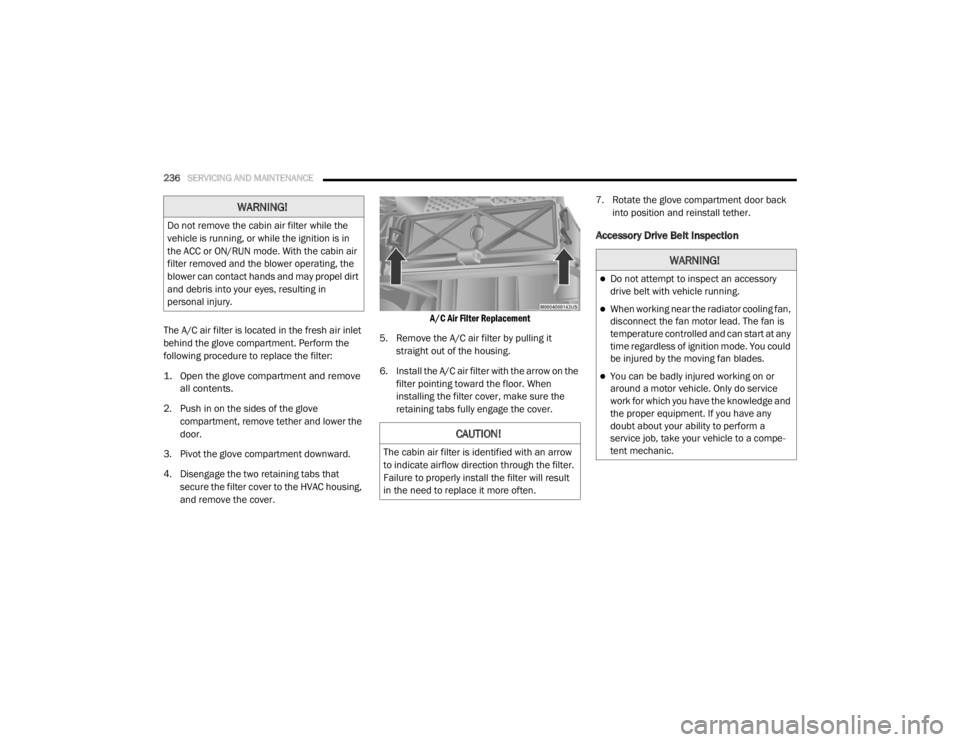
The A/C air filter is located in the fresh air inlet
behind the glove compartment. Perform the
following procedure to replace the filter:
1. Open the glove compartment and remove
all contents.
2. Push in on the sides of the glove compartment, remove tether and lower the
door.
3. Pivot the glove compartment downward.
4. Disengage the two retaining tabs that secure the filter cover to the HVAC housing,
and remove the cover.
A/C Air Filter Replacement
5. Remove the A/C air filter by pulling it straight out of the housing.
6. Install the A/C air filter with the arrow on the filter pointing toward the floor. When
installing the filter cover, make sure the
retaining tabs fully engage the cover. 7. Rotate the glove compartment door back
into position and reinstall tether.
Accessory Drive Belt Inspection
WARNING!
Do not remove the cabin air filter while the
vehicle is running, or while the ignition is in
the ACC or ON/RUN mode. With the cabin air
filter removed and the blower operating, the
blower can contact hands and may propel dirt
and debris into your eyes, resulting in
personal injury.
CAUTION!
The cabin air filter is identified with an arrow
to indicate airflow direction through the filter.
Failure to properly install the filter will result
in the need to replace it more often.
WARNING!
Do not attempt to inspect an accessory
drive belt with vehicle running.
When working near the radiator cooling fan,
disconnect the fan motor lead. The fan is
temperature controlled and can start at any
time regardless of ignition mode. You could
be injured by the moving fan blades.
You can be badly injured working on or
around a motor vehicle. Only do service
work for which you have the knowledge and
the proper equipment. If you have any
doubt about your ability to perform a
service job, take your vehicle to a compe -
tent mechanic.
20_RT_OM_EN_USC_t.book Page 236
Page 241 of 380
SERVICING AND MAINTENANCE239
Under normal operating conditions, the
catalytic converter will not require
maintenance. However, it is important to keep
the engine properly tuned to ensure proper
catalyst operation and prevent possible catalyst
damage.
NOTE:
Intentional tampering with emissions control
systems can result in civil penalties being
assessed against you. In unusual situations involving grossly malfunc
-
tioning engine operation, a scorching odor may
suggest severe and abnormal catalyst
overheating. If this occurs, stop the vehicle, turn
off the engine and allow it to cool. Service,
including a tune-up to manufacturer's specifi -
cations, should be obtained immediately.
To minimize the possibility of catalytic converter
damage:
Do not interrupt the ignition when the trans -
mission is in gear and the vehicle is in
motion.
Do not try to start the vehicle by pushing or
towing the vehicle.
Do not idle the engine with any ignition
components disconnected or removed, such
as when diagnostic testing, or for prolonged
periods during very rough idle or malfunc -
tioning operating conditions.
Cooling System
Damage to the catalytic converter can
result if your vehicle is not kept in proper
operating condition. In the event of engine
malfunction, particularly involving engine
misfire or other apparent loss of perfor -
mance, have your vehicle serviced
promptly. Continued operation of your
vehicle with a severe malfunction could
cause the converter to overheat, resulting
in possible damage to the converter and
vehicle.
CAUTION! (Continued)
WARNING!
You or others can be badly burned by hot
engine coolant (antifreeze) or steam from
your radiator. If you see or hear steam
coming from under the hood, do not open
the hood until the radiator has had time to
cool. Never open a cooling system pressure
cap when the radiator or coolant bottle is
hot.
Keep hands, tools, clothing, and jewelry
away from the radiator cooling fan when
the hood is raised. The fan starts automati -
cally and may start at any time, whether the
engine is running or not.
When working near the radiator cooling fan,
disconnect the fan motor lead or turn the
ignition to the OFF mode. The fan is
temperature controlled and can start at any
time the ignition is in the ON mode.7
20_RT_OM_EN_USC_t.book Page 239
Page 279 of 380
MULTIMEDIA277
Care And Maintenance
Touchscreen
Do not press the touchscreen with any hard
or sharp objects (pen, USB stick, jewelry,
etc.), which could scratch the touchscreen
surface!
Do not spray any liquid or caustic chemicals
directly on the screen! Use a clean and dry
microfiber lens cleaning cloth in order to
clean the touchscreen.
If necessary, use a lint-free cloth dampened
with a cleaning solution, such as isopropyl
alcohol or an isopropyl alcohol and water
solution ratio of 50:50. Be sure to follow the
solvent manufacturer's precautions and
directions.
RADIO 430/430 NAV
General Handling
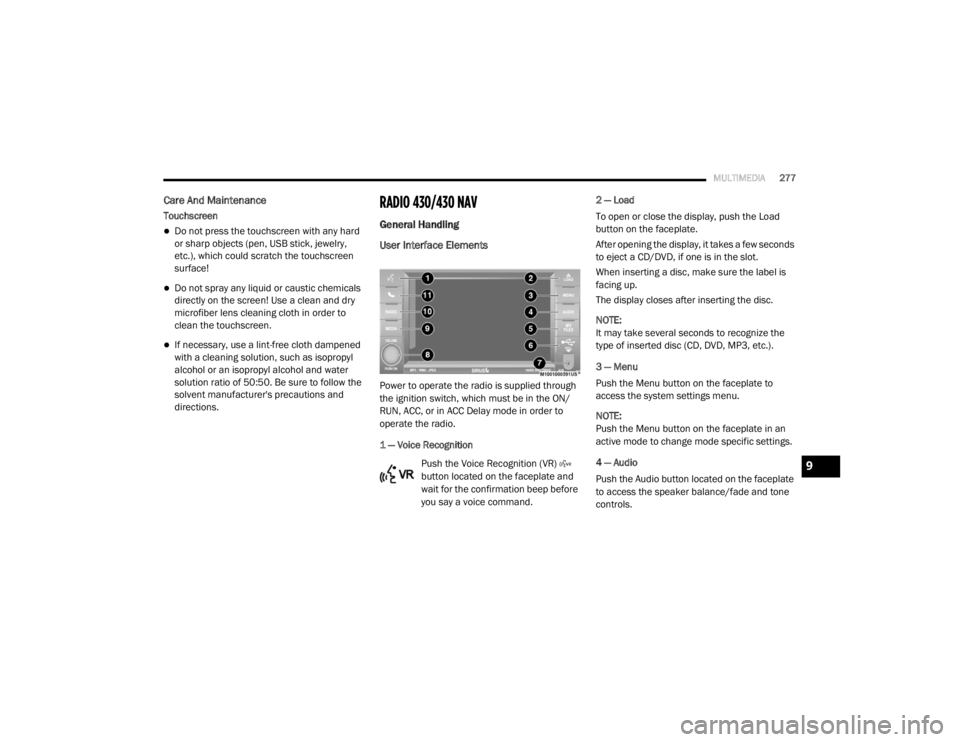
User Interface Elements
Power to operate the radio is supplied through
the ignition switch, which must be in the ON/
RUN, ACC, or in ACC Delay mode in order to
operate the radio.
1 — Voice Recognition
Push the Voice Recognition (VR)
button located on the faceplate and
wait for the confirmation beep before
you say a voice command. 2 — Load
To open or close the display, push the Load
button on the faceplate.
After opening the display, it takes a few seconds
to eject a CD/DVD, if one is in the slot.
When inserting a disc, make sure the label is
facing up.
The display closes after inserting the disc.
NOTE:
It may take several seconds to recognize the
type of inserted disc (CD, DVD, MP3, etc.).
3 — Menu
Push the Menu button on the faceplate to
access the system settings menu.
NOTE:
Push the Menu button on the faceplate in an
active mode to change mode specific settings.
4 — Audio
Push the Audio button located on the faceplate
to access the speaker balance/fade and tone
controls.
9
20_RT_OM_EN_USC_t.book Page 277
Page 280 of 380
278MULTIMEDIA
5 — My Files
Push the My Files button on the faceplate to
manage your music and picture files on the
internal storage drive.
6 — USB Connector
Connect a supported device into the USB
Connector to play music and to copy music and
picture files to the internal hard disk drive.
NOTE:
Refer to “USB Connector” in the “Remote
Devices” section of this chapter for further
information.
7 — AUX Input (Audio Jack)
Connect an external audio device into the AUX
Input (e.g., MP3 player, video game) to play the
device audio through the car audio system.
8 — On/Off Volume
It is also possible to set the unit in standby
mode while driving by pushing the On/Off
Volume rotary knob. NOTE:
If the ignition is switched OFF with the radio in
standby mode, the radio memorizes the
standby state when the ignition is switched to
ON/RUN again. Push the On/Off Volume rotary
knob to switch the radio On. The radio software
is always working when the ignition is switched
to ON/RUN, even if the radio is in standby
mode. It is still possible to eject the CD and to
display the time if the unit is switched Off.
9 — Media
Push the Media button located on the faceplate
to change to a Media mode or to toggle between
Media modes:
HDD (Hard Disk Drive)
CD/DVD
AUX
NOTE:
If you are viewing the NAV screen (Radio
430 Nav only), pushing the Media button will
return you to the Media mode screen. 10 — Radio
Push the Radio button located on the faceplate
to change to a Radio mode or to toggle between
Radio modes:
AM
FM
SAT (If Equipped)
NOTE:
If you are viewing the NAV screen (Radio
430 Nav only), pushing the Radio button will
return you to the Radio mode screen.
11 — Uconnect Phone Push the Uconnect Phone button
located on the faceplate to either
activate the Uconnect system or to
cancel an active phone call.
Audio Settings
Volume
Use the ON/OFF VOLUME rotary knob to adjust
the volume of the currently playing audio
source. While you adjust the volume, the name
of the audio source and a volume indicator is
displayed in the lower left corner of the display.
20_RT_OM_EN_USC_t.book Page 278
Page 289 of 380

MULTIMEDIA287
Your radio will play the following formats:
MP3, WMA, AAC, M4A, CD Audio, DVD Audio,
and DVD Video.
Do not insert anything other than the supported
CD/DVD formats.
SACD (SACD layer), VCD DualDisc, SVCD, VCD
format on DVD MPEG-4 are not supported.
A complete list of supported CD/DVD formats is
available at DriveUconnect.com (US Residents)
or DriveUconnect.ca (Canadian Residents).
Inserting A Disc
1. Push the Load button once.
2. After the screen opens, with the printed side upward, insert the disc into the disc slot of
the radio. The radio pulls the disc automat-
ically and closes the flip screen. The radio
selects the appropriate mode after the disc
is recognized and starts playing the first
track. The display shows “Reading...” during
this process. NOTE:
A faulty CD is NOT automatically ejected. Use
only standard size discs. Discs that have
been modified with an adhesive label should
not be used in the CD/DVD player.
On Data CDs with a large number of songs it
may take several seconds to read, play and
display information for all songs on the disc.
Recording your own CD on a home computer
at a lower write speed will result in a more
consistent quality.
High definition content and media
(e.g, HD-DVD, Blu-Ray™) is not supported.
If the user does not remove an ejected CD
within approximately 10 seconds the CD will
reload.
Removing A Disc
1. Push the Load button.
2. After the display opens the disc is ejected and can be removed. NOTE:
If the disc is not removed within approximately
10 seconds, the unit pulls it back into the slot
(park position). The disc may be ejected when
the ignition is OFF.
3. Push the Load button to close the display. If
you do not push the Load button or insert a
new disc, the display will close 30 seconds
after the display was opened.
Selecting Disc Mode
Activate Disc Mode by pushing the Media
button located on the faceplate. The disc mode
can be selected by pressing the Disc button on
the touchscreen.
NOTE:
When a disc is inserted, the appropriate mode
is automatically selected once the disc is
recognized.
Scan Search
Press the Scan button.
The first few seconds of each individual track
will be played in succession.
Press the Stop Scan button to stop the scan
function.
9
20_RT_OM_EN_USC_t.book Page 287
Page 294 of 380
292MULTIMEDIA
After a short pause, the copy process begins
and the audio resumes playback from the start
of the track. The copy process continues in the
background while the audio plays. The progress
is shown in the display. Even if you change to
another mode (radio, AUX, etc.) or turn the radio
Off (ignition ON/RUN), the copy process will
continue in the background.
It is also possible to listen to radio modes during
this process. Copying time is greater than 4x the
normal playback rate.
NOTE:
When copying CD-Audio to HDD, audio files are
converted from CD-Audio to AAC. If available,
the artist name, album name, cover art, track
names and genres are stored with the tracks on
the HDD. DVD-Audio cannot be copied to the
HDD. If the CD-Audio disc is not recognized by
the Gracenote® Music Recognition Service, you
can rip the CD-Audio disc on your
internet-equipped computer first, then copy the
resulting compressed audio files to a USB
memory stick. Then insert the USB memory
stick in the radio and copy the audio files to the
HDD mode. Copy WMA/MP3 Files To Hard-Drive
MP3 and WMA formatted compressed audio
files from a disc or via USB (e.g., USB stick) can
be copied to the Hard Disc Drive.
It is recommended to sort music files into
folders.
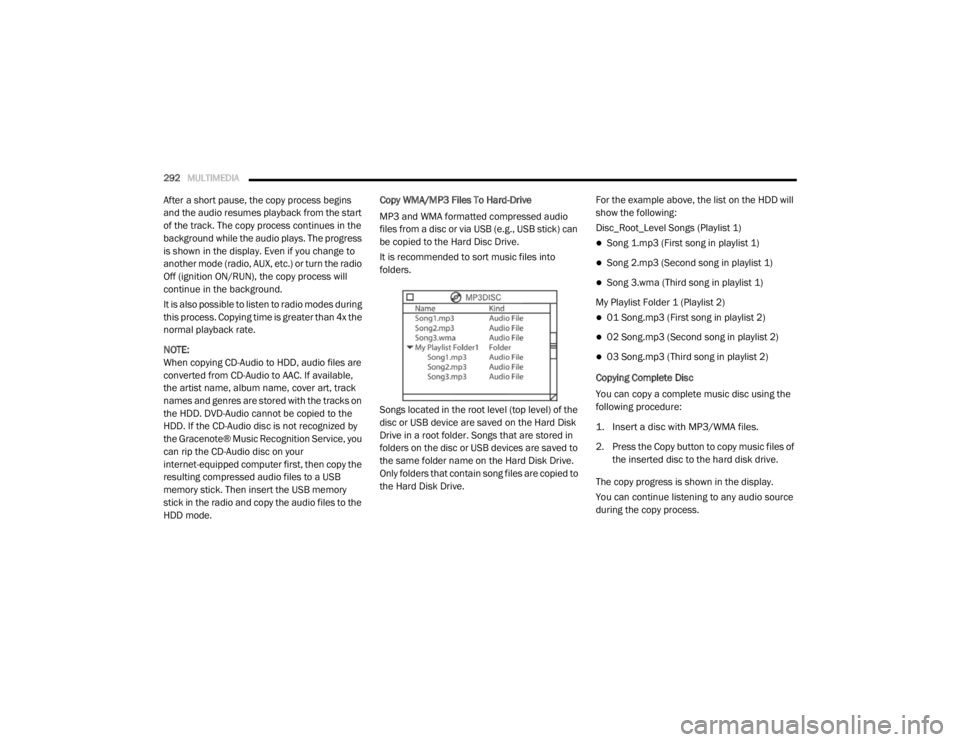
Songs located in the root level (top level) of the
disc or USB device are saved on the Hard Disk
Drive in a root folder. Songs that are stored in
folders on the disc or USB devices are saved to
the same folder name on the Hard Disk Drive.
Only folders that contain song files are copied to
the Hard Disk Drive.
For the example above, the list on the HDD will
show the following:
Disc_Root_Level Songs (Playlist 1)
Song 1.mp3 (First song in playlist 1)
Song 2.mp3 (Second song in playlist 1)
Song 3.wma (Third song in playlist 1)
My Playlist Folder 1 (Playlist 2)
01 Song.mp3 (First song in playlist 2)
02 Song.mp3 (Second song in playlist 2)
03 Song.mp3 (Third song in playlist 2)
Copying Complete Disc
You can copy a complete music disc using the
following procedure:
1. Insert a disc with MP3/WMA files.
2. Press the Copy button to copy music files of the inserted disc to the hard disk drive.
The copy progress is shown in the display.
You can continue listening to any audio source
during the copy process.
20_RT_OM_EN_USC_t.book Page 292
Page 313 of 380
MULTIMEDIA311
Redial
To redial the last number called from your
mobile phone using Voice Command:
1. Push the Phone button to begin.
2. After the “Ready” prompt and the following
beep, say “Redial.”
The Uconnect Phone will call the last
number that was dialed from your mobile
phone.
NOTE:
This may not be the last number dialed from the
Uconnect Phone.
Call Continuation
Call continuation is the progression of a phone
call on the Uconnect Phone after the vehicle
ignition has been switched to OFF. Call contin -
uation functionality available on the vehicle can
be any one of three types:
1. After the ignition is switched to OFF, a call can continue on the Uconnect Phone either
until the call ends, or until the vehicle
battery condition dictates cessation of the
call on the Uconnect Phone and transfer of
the call to the mobile phone.
2. After the ignition is cycled to OFF, a call can
continue on the Uconnect Phone for a
certain duration, after which the call is
automatically transferred from the
Uconnect Phone to the mobile phone.
3. An active call is automatically transferred to the mobile phone after the ignition is cycled
to OFF.
Uconnect Phone Features
Language Selection
To change the language that the Uconnect
Phone is using:
Push the Phone button to begin.
After the “Ready” prompt and the following
beep, say the name of the language you wish
to switch to / English, Spanish, or French.
Continue to follow the system prompts to
complete the language selection.
After selecting one of the languages, all
prompts and voice commands will be in that
language. NOTE:
After every Uconnect Phone language change
operation, only the language-specific 32-name
phonebook is usable. The paired phone name is
not language-specific and usable across all
languages.
Emergency Assistance
If you are in an emergency and the mobile
phone is reachable:
Pick up the phone and manually dial the
emergency number for your area.
If the phone is not reachable and the Uconnect
Phone is operational, you may reach the
emergency number as follows:
Push the Phone button to begin.
After the “Ready” prompt and the following
beep, say “Emergency” and the Uconnect
Phone will instruct the paired mobile phone
to call the emergency number.
9
20_RT_OM_EN_USC_t.book Page 311
Page 320 of 380
318MULTIMEDIA
Warning
Read this information carefully before starting
to operate the navigation system and follow the
instructions in this manual. Neither the FCA US
LLC nor Garmin® shall be liable for problems or
accidents resulting from failure to observe the
instructions in this manual.
Failure to avoid the following potentially
hazardous situations could result in an accident
or collision resulting in death or serious injury.
Always drive safely. Only use the navigation
features in this vehicle when it is safe to do
so. You accept full responsibility for the use
of the features in this vehicle.
When navigating, carefully compare informa -
tion displayed on the navigation system to all
available navigation sources, including road
signs, road closures, road conditions, traffic
congestion, weather conditions, and other
factors that may affect safety while driving.
For safety, always resolve any discrepancies
before continuing navigation, and defer to
posted road signs and road conditions.
The navigation system is designed to provide
route suggestions. It is not a replacement for
driver attentiveness and good judgment. Do
not follow route suggestions if they suggest
an unsafe or illegal maneuver or would place
the vehicle in an unsafe situation.
Be careful of the ambient temperature. Using
the navigation system at extreme tempera -
tures can lead to malfunction or damage.
Also note that the unit can be damaged by
strong vibration, metal objects, or by water
getting inside the unit.
Caution
The navigation system is designed to provide
you with route suggestions. It does not reflect
road closures or road conditions, weather
conditions, or other factors that may affect
safety or timing while driving.
Use the navigation system only as a naviga -
tional aid. Do not attempt to use the navigation
system for any purpose requiring precise
measurement of direction, distance, location,
or topography. The Global Positioning System (GPS) is
operated by the United States government,
which is solely responsible for its accuracy and
maintenance. The government system is
subject to changes that could affect the
accuracy and performance of all GPS
equipment, including the navigation system.
Notice
This navigation system can be used when the
ignition key is turned to ON/RUN or ACC. To
preserve the battery, however, it should be used
with the engine running whenever possible.
Using the navigation system for a long time with
the engine switched off can cause the battery to
run down.
Map Data Information
Garmin® uses a combination of governmental
and private data sources. Virtually all data
sources contain some inaccurate or incomplete
data. In some countries, complete and accurate
map information is either not available or is
prohibitively expensive.
20_RT_OM_EN_USC_t.book Page 318
Page 346 of 380
344MULTIMEDIA
Previous Track
Use the Seek Down button, or push the VR
button on the radio and say “Previous Track,” to
jump to the previous music track on your
cellular phone.
Browse
Browsing is not available on a Bluetooth®
Streaming Audio (BTSA) device. Only the current
song that is playing will display info.
UCONNECT MULTIMEDIA — VIDEO
ENTERTAINMENT SYSTEM (VES) — IF
EQUIPPED
Your rear seat Video Entertainment System
(VES) is designed to give your family years of
enjoyment. You can play your favorite CDs or
DVDs, listen to audio over the wireless
headphones, or plug and play a variety of
standard video games or audio devices. Please
review this Owner's Manual to become familiar
with its features and operation. NOTE:
The screen is located in the 2nd row overhead
console.
Getting Started
Screen located in the overhead console
:
Unfold the overhead LCD screen(s) by
pushing the button on the overhead console
behind the screen(s).
Cycle the ignition to the ON/RUN or ACC
position.
Turn on the Player by pushing the Power
button, located on the far left, or by pushing
the button on the Remote Control.
When the video screen is open and a DVD is
inserted into the VES player, the screen turns
on automatically, the headphone transmit -
ters turn on and playback begins.
The system can be controlled by the front
seat occupants using either the touchscreen
radio, the DVD, or by the rear seat occupants
using the remote control.
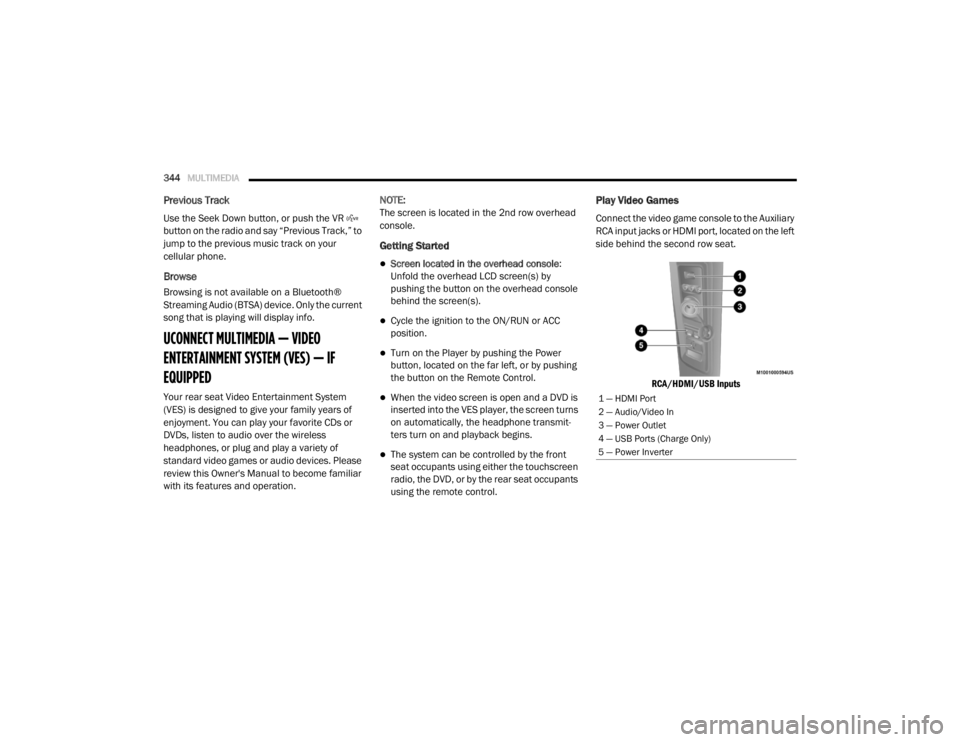
Play Video Games
Connect the video game console to the Auxiliary
RCA input jacks or HDMI port, located on the left
side behind the second row seat.
RCA/HDMI/USB Inputs
1 — HDMI Port
2 — Audio/Video In
3 — Power Outlet
4 — USB Ports (Charge Only)
5 — Power Inverter
20_RT_OM_EN_USC_t.book Page 344
Page 351 of 380
MULTIMEDIA349
15. SETUP – When in a video mode, push the
SETUP button to access the display settings
(see the display settings section) to access
the DVD setup menu, select the menu
button on the radio. When a disc is loaded
in the DVD player (if equipped) and the VES
mode is selected and the disc is stopped,
push the SETUP button to access the DVD
Setup menu.
16. BACK – When navigating in menu mode, push to return to the previous screen. When
navigating a DVD’s disc menu, the
operation depends on the disc’s contents.
17. ◂◂ – In radio modes, push to seek to the
previous tunable station. In disc modes,
push and hold to fast rewind through the
current audio track or video chapter. In
menu modes, use to navigate in the menu.
18. ENTER/OK – Push to select the highlighted option in a menu.
19. ▴ / NEXT – In radio modes, push to select to
the next station. In disc modes, push to
advance to the next audio track or video
chapter. In menu modes, use to navigate in
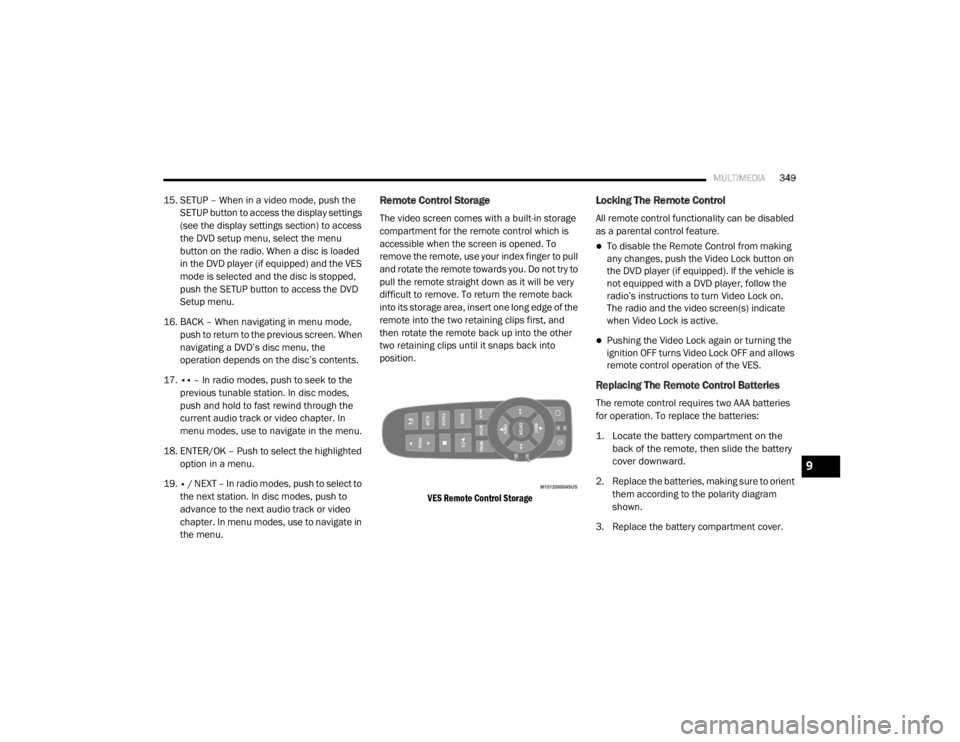
the menu.Remote Control Storage
The video screen comes with a built-in storage
compartment for the remote control which is
accessible when the screen is opened. To
remove the remote, use your index finger to pull
and rotate the remote towards you. Do not try to
pull the remote straight down as it will be very
difficult to remove. To return the remote back
into its storage area, insert one long edge of the
remote into the two retaining clips first, and
then rotate the remote back up into the other
two retaining clips until it snaps back into
position.
VES Remote Control Storage
Locking The Remote Control
All remote control functionality can be disabled
as a parental control feature.
To disable the Remote Control from making
any changes, push the Video Lock button on
the DVD player (if equipped). If the vehicle is
not equipped with a DVD player, follow the
radio’s instructions to turn Video Lock on.
The radio and the video screen(s) indicate
when Video Lock is active.
Pushing the Video Lock again or turning the
ignition OFF turns Video Lock OFF and allows
remote control operation of the VES.
Replacing The Remote Control Batteries
The remote control requires two AAA batteries
for operation. To replace the batteries:
1. Locate the battery compartment on the back of the remote, then slide the battery
cover downward.
2. Replace the batteries, making sure to orient them according to the polarity diagram
shown.
3. Replace the battery compartment cover.
9
20_RT_OM_EN_USC_t.book Page 349