service DODGE GRAND CARAVAN 2020 Manual PDF
[x] Cancel search | Manufacturer: DODGE, Model Year: 2020, Model line: GRAND CARAVAN, Model: DODGE GRAND CARAVAN 2020Pages: 380, PDF Size: 14.92 MB
Page 294 of 380
292MULTIMEDIA
After a short pause, the copy process begins
and the audio resumes playback from the start
of the track. The copy process continues in the
background while the audio plays. The progress
is shown in the display. Even if you change to
another mode (radio, AUX, etc.) or turn the radio
Off (ignition ON/RUN), the copy process will
continue in the background.
It is also possible to listen to radio modes during
this process. Copying time is greater than 4x the
normal playback rate.
NOTE:
When copying CD-Audio to HDD, audio files are
converted from CD-Audio to AAC. If available,
the artist name, album name, cover art, track
names and genres are stored with the tracks on
the HDD. DVD-Audio cannot be copied to the
HDD. If the CD-Audio disc is not recognized by
the Gracenote® Music Recognition Service, you
can rip the CD-Audio disc on your
internet-equipped computer first, then copy the
resulting compressed audio files to a USB
memory stick. Then insert the USB memory
stick in the radio and copy the audio files to the
HDD mode. Copy WMA/MP3 Files To Hard-Drive
MP3 and WMA formatted compressed audio
files from a disc or via USB (e.g., USB stick) can
be copied to the Hard Disc Drive.
It is recommended to sort music files into
folders.
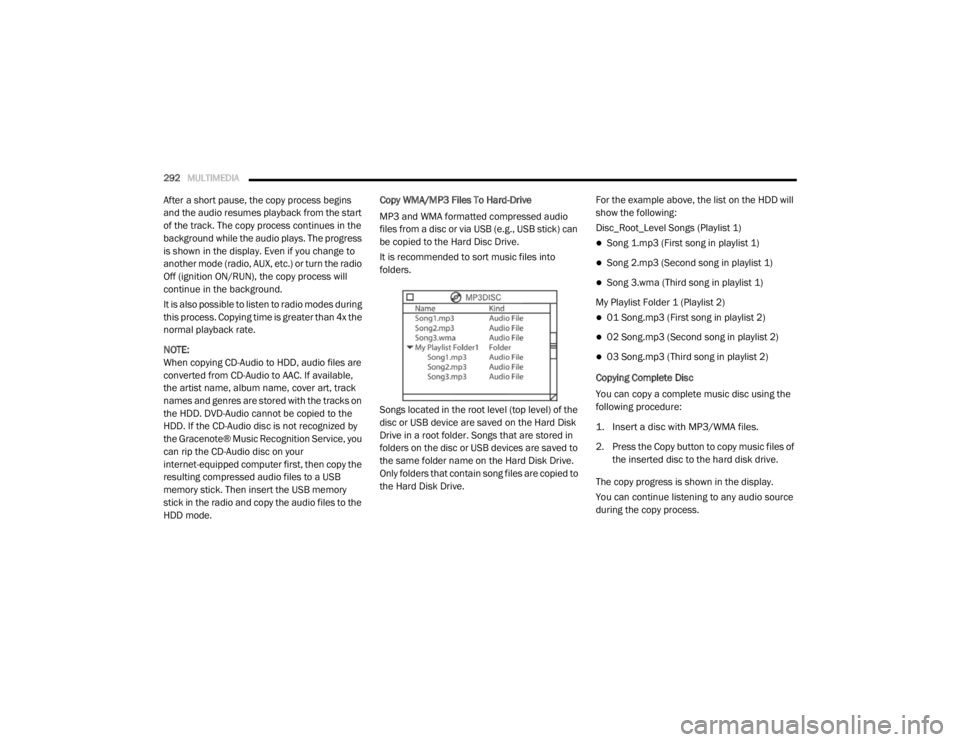
Songs located in the root level (top level) of the
disc or USB device are saved on the Hard Disk
Drive in a root folder. Songs that are stored in
folders on the disc or USB devices are saved to
the same folder name on the Hard Disk Drive.
Only folders that contain song files are copied to
the Hard Disk Drive.
For the example above, the list on the HDD will
show the following:
Disc_Root_Level Songs (Playlist 1)
Song 1.mp3 (First song in playlist 1)
Song 2.mp3 (Second song in playlist 1)
Song 3.wma (Third song in playlist 1)
My Playlist Folder 1 (Playlist 2)
01 Song.mp3 (First song in playlist 2)
02 Song.mp3 (Second song in playlist 2)
03 Song.mp3 (Third song in playlist 2)
Copying Complete Disc
You can copy a complete music disc using the
following procedure:
1. Insert a disc with MP3/WMA files.
2. Press the Copy button to copy music files of the inserted disc to the hard disk drive.
The copy progress is shown in the display.
You can continue listening to any audio source
during the copy process.
20_RT_OM_EN_USC_t.book Page 292
Page 307 of 380
MULTIMEDIA305
Uconnect Phone Button
The radio or steering wheel controls (if
equipped) contain the two control buttons
(Uconnect Phone button and Voice
Command button) that enables you to
access the system. When you push the button
you hear the word Uconnect followed by a BEEP.
The beep is your signal to give a command.
NOTE:
The driver side upper windshield trim contains
the microphone for the Uconnect Phone.
Voice Command Button
Actual button location may vary with the radio.
The individual buttons are described in the
“Operation” section. The Uconnect Phone can be used with any
Hands-Free Profile certified Bluetooth® mobile
phone. See the Uconnect website for supported
phones. Refer to your mobile service provider or
the phone manufacturer for details.
The Uconnect Phone is fully integrated with the
vehicle's audio system. The volume of the
Uconnect Phone can be adjusted either from
the radio volume control knob or from the
steering wheel radio control (right switch), if
equipped.
The Uconnect display will be used for visual
prompts from the Uconnect Phone such as
“CELL” or caller ID on certain radios.
Operation
Voice commands can be used to operate the
Uconnect Phone and to navigate through the
Uconnect Phone menu structure. Voice
commands are required after most Uconnect
Phone prompts. You will be prompted for a
specific command and then guided through the
available options.
Prior to giving a voice command, wait for the
beep, which follows the “Ready” prompt or
another prompt.
For certain operations, compound
commands can be used. For example,
instead of saying “Setup” and then “Phone
Pairing,” the following compound command
can be said: “Setup Phone Pairing.”
For each feature explanation in this section,
only the compound form of the voice
command is given. You can also break the
commands into parts and say each part of
the command when you are asked for it. For
example, you can use the compound form
voice command “Phonebook New Entry,” or
you can break the compound form command
into two voice commands: “Phonebook” and
“New Entry.” Please remember, the Uconnect
Phone works best when you talk in a normal
conversational tone, as if speaking to
someone sitting a few feet/meters away from
you.
Help Command
If you need assistance at any prompt, or if you
want to know your options at any prompt, say
“Help” following the beep. The Uconnect Phone
will play all the options at any prompt if you ask
for help.
WARNING!
Any voice commanded system should be
used only in safe driving conditions following
all applicable laws. Your attention should be
focused on safely operating the vehicle.
Failure to do so may result in a collision
causing serious injury or death.
9
20_RT_OM_EN_USC_t.book Page 305
Page 311 of 380

MULTIMEDIA309
4. After you enter the name, the Uconnect
Phone will ask you which designation you
wish to delete: home, work, mobile, other, or
all. Say the designation you wish to delete.
Note that only the phonebook entry in the
current language is deleted.
NOTE:
Automatic downloaded phonebook entries
cannot be deleted or edited.
Delete/Erase “All” Uconnect Phonebook
Entries
NOTE:
ONLY the phonebook in the current language
is deleted.
Automatic downloaded phonebook entries
cannot be deleted or edited. To delete or erase all Uconnect phonebook
entries using Voice Command:
1. Push the Phone button to begin.
2. After the “Ready” prompt and the following
beep, say “Phonebook Erase All.”
The Uconnect Phone will ask you to verify
that you wish to delete all the entries
from the phonebook.
3. After confirmation, the phonebook entries will be deleted.
List All Names In The Uconnect Phonebook
Push the Phone button to begin.
After the “Ready” prompt and the following
beep, say “Phonebook List Names.”
The Uconnect Phone will play the names of
all the phonebook entries, including the
downloaded phonebook entries, if available.
To call one of the names in the list, push the
Voice Recognition button during the
playing of the desired name, and say “Call.” NOTE:
The user can also exercise “Edit” or “Delete”
operations at this point.
The Uconnect Phone will then prompt you as
to the number designation you wish to call.
The selected number will be dialed.
Phone Call Features
The following features can be accessed through
the Uconnect Phone if the feature(s) are
available on your mobile service plan. For
example, if your mobile service plan provides
three-way calling, this feature can be accessed
through the Uconnect Phone. Check with your
mobile service provider for the features that you
have.
Answer Or Reject An Incoming Call — No Call
Currently In Progress
When you receive a call on your mobile phone,
the Uconnect Phone will interrupt the vehicle
audio system, if on, and will ask if you would like
to answer the call. Push the Phone button to
accept the call. To reject the call, push and hold
the Phone button until you hear a single
beep, indicating that the incoming call was
rejected.
9
20_RT_OM_EN_USC_t.book Page 309
Page 314 of 380
312MULTIMEDIA
NOTE:
The emergency number dialed is based on
the country where the vehicle is purchased
(911 for the US and Canada and 060 for
Mexico). The number dialed may not be appli -
cable with the available mobile service and
area.
If supported, this number may be program -
mable on some systems. To do this, push the
Phone button and say “Setup,” followed
by “Emergency.”
The Uconnect Phone does slightly lower your
chances of successfully making a phone call. Roadside Assistance/Towing Assistance
If you need roadside assistance:
Push the Phone button to begin.
After the “Ready” prompt and the following
beep, say “Towing Assistance”.
NOTE:
You should program the desired Towing
Assistance phone number using the Voice
Command system. To do this, push the Phone
button and say “Setup,” followed by “Towing
Assistance.” When prompted say
1-800-521-2779 for U.S., 1-800-363-4869 for
Canada, 55-14-3454 for Mexico City and
1-800-712-3040 for outside Mexico City in
Mexico.
Paging
To learn how to page, refer to “Working With
Automated Systems.” Paging works properly
except for pagers of certain companies, which
time out a little too soon to work properly with
the Uconnect Phone.
Voice Mail Calling
To learn how to access your voice mail, refer to
“Working With Automated Systems.” Working With Automated Systems
This method is used in instances where one
generally has to press numbers on the mobile
phone keypad while navigating through an
automated telephone system.
You can use your Uconnect Phone to access a
voice mail system or an automated service,
such as a paging service or automated
customer service line. Some services require
immediate response selection. In some
instances, that may be too quick for use of the
Uconnect Phone.
When calling a number with your Uconnect
Phone that normally requires you to enter in a
touch-tone sequence on your mobile phone
keypad, you can push the Voice Recognition
button and say the sequence you wish to
enter, followed by the word “Send.” For
example, if required to enter your PIN followed
with a pound, (3 7 4 6 #), you can push the
Voice Recognition button and say, “3 7 4 6 #
Send.” Saying a number, or sequence of
numbers, followed by “Send,” is also to be used
for navigating through an automated customer
service center menu structure, and to leave a
number on a pager.
WARNING!
To use your Uconnect Phone System in an
emergency, your mobile phone must be:
Turned on.
Paired to the Uconnect System.
Have network coverage.
20_RT_OM_EN_USC_t.book Page 312
Page 321 of 380

MULTIMEDIA319
Getting Started
To access the Navigation system on your Radio,
press the NAV button in the upper right corner
of the screen during any Radio or Media mode.
Setting Up Your System
When using your navigation system for the first
time, complete the following tasks:
1. Acquire satellites.
2. Understand the main menu.
Acquiring Satellites
The bars indicate satellite strength.
Go to an open area, away from tall buildings and
trees.
Acquiring satellite signals can take a few
minutes. Main Menu
Using The On-Screen Buttons
Press and hold to quickly return to the
main menu.
Press and to see more choices.
Press and hold and to scroll faster.Using The On-screen Keyboard
Press a character on the keyboard to enter a
letter or number.
Press “Space” to add a space.
Press to delete a character.
Press and hold to erase the entire entry.
Press to select the keyboard language
mode.
Press to enter special characters, such as
punctuation marks.
Finding A Point Of Interest
The detailed maps loaded in your navigation
system contain points of interest, such as
restaurants, hotels and auto services.
1. From the main menu, press
Where To? >
Points of Interest
.
2. Select a category.
3. If necessary, select a subcategory.
4. Select a destination.
5. Press Go!1 — Press To Find A Destination
2 — Press To View The Map
3 — Press To Stop A Route
4 — Press To Detour A Route
5 — Press To Open The Menu Of Tools
6 — Press To Open The Menu Of Settings
9
20_RT_OM_EN_USC_t.book Page 319
Page 328 of 380

326MULTIMEDIA
Viewing The Next Turn
Before you can view the next turn you must be
navigating a route.
The next turn shows the turn on the map and
the distance and time left before you reach the
turn.
Press the turn indicator in the top left corner of
the map.
Viewing The Junction View
Before you can view the junction view, you must
be navigating a route.
The junction view displays a view of some
upcoming junctions and in which lane you
should be driving.
Using The Tools
Viewing Current Location Information
Use the Where Am I? page to view information
about your current location. This feature is
helpful if you need to tell emergency personnel
your location.
From the main menu, press Tools > Where
Am I?
Finding Nearby Services
1. From the main menu, press
Tools > Where
Am I?
2. Press Hospitals, Police Stations or Fuel to
view the nearest locations in that category. Using Help
From the main menu, press
Tools > Help to view
information about using your navigation
system.
Searching Help Topics
From the main menu, press Tools > Help.
Using The World Clock
1. From the main menu, press
Tools > World
Clock
.
2. Press a city name.
3. Enter a new city name.
4. Press Done .
5. If necessary, select a city.
Viewing The World Map
From the main menu press Tools > World
Clock > .
Nighttime hours appear in the shaded area.
20_RT_OM_EN_USC_t.book Page 326
Page 332 of 380
330MULTIMEDIA
Custom POIs (Points of Interest)
NOTE:
Custom POI files must be named “poi.gpi”. and
located on the USB storage device in a folder
named “POI” within a folder named “Garmin”
(Garmin/POI/).
You can manually load custom Points Of
Interest (POI) databases, available from various
companies on the Internet. Some custom POI
databases contain alert information for points
such as safety cameras and school zones. The
navigation system can notify you when you
approach one of these points. You are
responsible for ensuring that your use of safety
camera information is lawful in your area.
CAUTION
Garmin and FCA US LLC are not responsible for
the consequences of using custom POI
databases, or for the accuracy of custom POI
databases. After downloading your POI database, use the
Garmin POI Loader to install the POIs onto a
USB mass storage device. Use the USB mass
storage device to load the POIs. The POI Loader
is available at
garmin.com/products/poiloader.
Refer to the POI Loader Help file for more
information; click Help to open the Help file. The
file name can only be POI.gpi. No other file
name or extension should be used.
NOTE:
Each time you load custom POIs to the
navigation system, any other custom POIs
already saved in the system will be overwritten.
Finding Custom POIs
You can view a list of the custom POIs loaded in
your navigation system.
Press Where To? > Extras > Custom POIs .
Deleting Custom POIs
1. Press
Tools > My Data > Delete Custom
POI(s)
.
2. Press Yes to confirm. NOTE:
All custom POIs will be deleted from your
navigation system.
Saving Trip Logs
Trip logs are recorded while you navigate a
route.
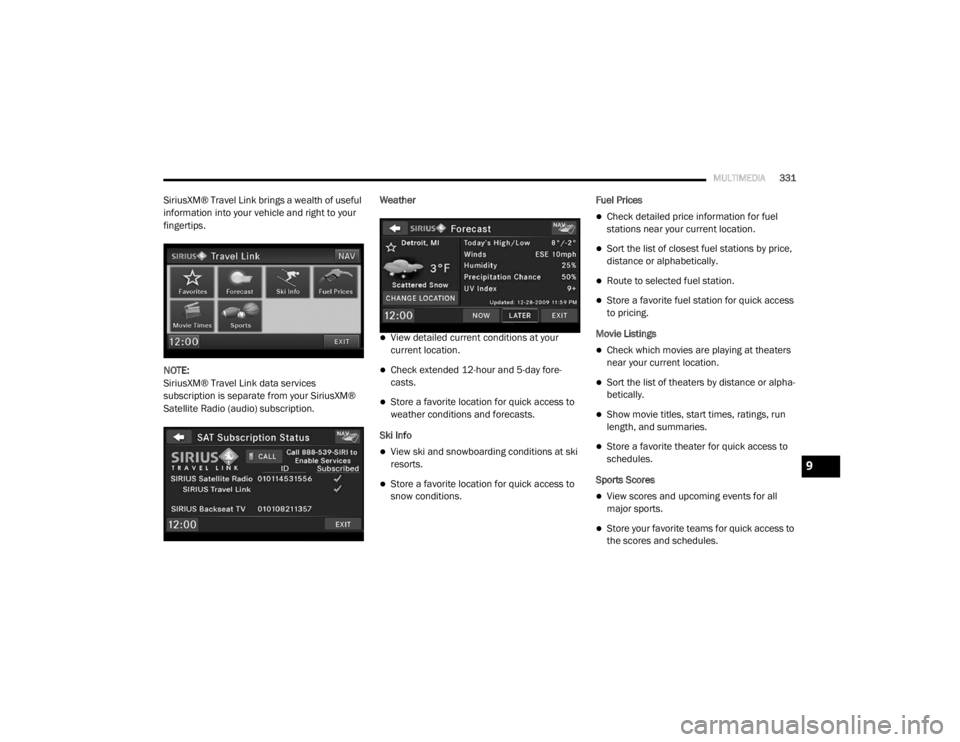
SiriusXM® Travel Link (Radio 430 NAV Only)
Now, in addition to delivering over 130
channels of the best sports, entertainment, talk
and 100% commercial-free music, SiriusXM®
now offers premium infotainment services that
work in conjunction with compatible navigation
systems.
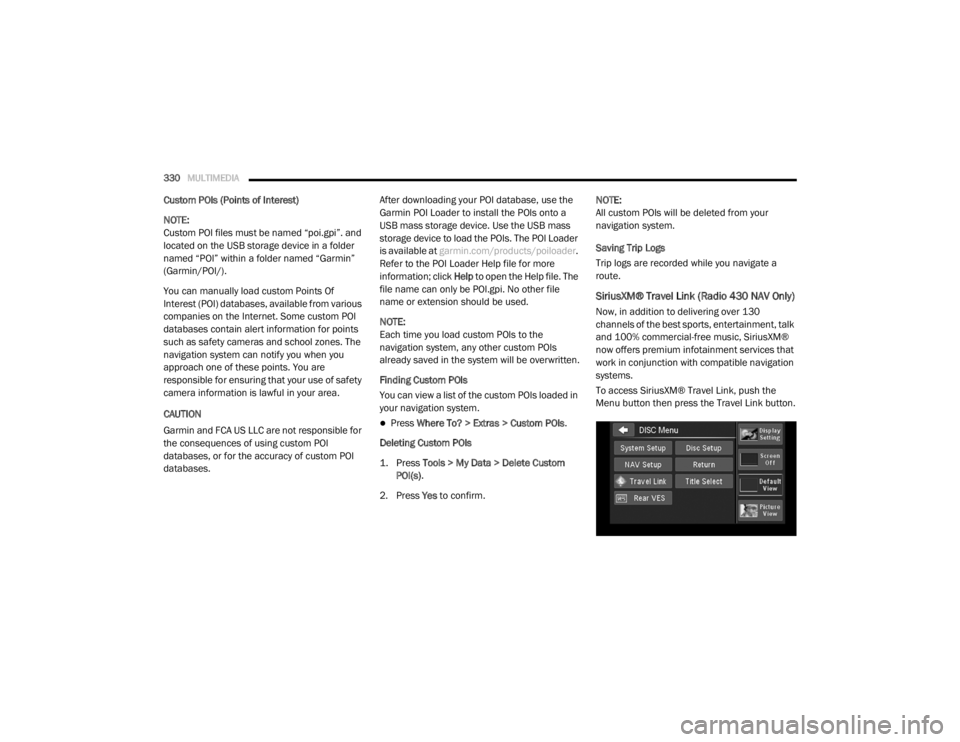
To access SiriusXM® Travel Link, push the
Menu button then press the Travel Link button.
20_RT_OM_EN_USC_t.book Page 330
Page 333 of 380
MULTIMEDIA331
SiriusXM® Travel Link brings a wealth of useful
information into your vehicle and right to your
fingertips.
NOTE:
SiriusXM® Travel Link data services
subscription is separate from your SiriusXM®
Satellite Radio (audio) subscription. Weather
View detailed current conditions at your
current location.
Check extended 12-hour and 5-day fore
-
casts.
Store a favorite location for quick access to
weather conditions and forecasts.
Ski Info
View ski and snowboarding conditions at ski
resorts.
Store a favorite location for quick access to
snow conditions. Fuel Prices
Check detailed price information for fuel
stations near your current location.
Sort the list of closest fuel stations by price,
distance or alphabetically.
Route to selected fuel station.
Store a favorite fuel station for quick access
to pricing.
Movie Listings
Check which movies are playing at theaters
near your current location.
Sort the list of theaters by distance or alpha -
betically.
Show movie titles, start times, ratings, run
length, and summaries.
Store a favorite theater for quick access to
schedules.
Sports Scores
View scores and upcoming events for all
major sports.
Store your favorite teams for quick access to
the scores and schedules.
9
20_RT_OM_EN_USC_t.book Page 331
Page 334 of 380

332MULTIMEDIA
NOTE:
SiriusXM® Travel Link data services
subscription is separate from your SiriusXM®
Satellite Radio (audio) subscription.
SiriusXM® and all related marks and logos are
trademarks of SiriusXM® Radio Inc. and its
subsidiaries. SiriusXM® Radio requires a
subscription, sold separately after trial
subscription included with vehicle purchase.
Prices and programming are provided by
SiriusXM® and are subject to change.
Subscriptions governed by Terms & Conditions
available at www.sirius.com/serviceterms .
SiriusXM® Radio U.S. service only available to
those at least 18 years of age in the 48
contiguous United States, D.C., & PR. Visit
www.sirius.com/TravelLink for more
information on SIRIUS Travel Link.End-User License Agreement
Software License Agreement
BY USING THE NAVIGATION SYSTEM, YOU
AGREE TO BE BOUND BY THE TERMS AND
CONDITIONS OF THE FOLLOWING SOFTWARE
LICENSE AGREEMENT. PLEASE READ THIS
AGREEMENT CAREFULLY.
Garmin® Ltd. and its subsidiaries (“Garmin®”)
grant you a limited license to use the software
embedded in this device (the “Software”) in
binary executable form in the normal operation
of the product. Title, ownership rights, and
intellectual property rights in and to the
Software remain in Garmin® and/or its
third-party providers.
You acknowledge that the Software is the
property of Garmin® and/or its third-party
providers and is protected under the United
States of America copyright laws and interna -
tional copyright treaties. You further
acknowledge that the structure, organization,
and code of the Software, for which source code
is not provided, are valuable trade secrets of
Garmin® and/or its third-party providers and
that the Software in source code form remains
a valuable trade secret of Garmin® and/or its
third-party providers. You agree not to decompile, disassemble, modify, reverse
assemble, reverse engineer, or reduce to
human readable form the Software or any part
thereof or create any derivative works based on
the Software. You agree not to export or
re-export the Software to any country in
violation of the export control laws of the United
States of America or the export control laws of
any other applicable country.
NAVTEQ End-user License Agreement
The software embedded in your Garmin®
product (the “Software”) is owned by Garmin®
Ltd. or its subsidiaries (“Garmin®”). The
third-party map data embedded in or
accompanying your Garmin® product
(the “Map Data”) is owned by NAVTEQ North
America LLC and/or its affiliates (“NAVTEQ”)
and is licensed to Garmin®. Garmin® also
licenses information, text, images, graphics,
photographs, audio, video, images and other
applications and data from third party data
providers (“Third Party Content Data”). The Map
Data and Third Party Content Data are collec
-
tively the “Data”. Both the Software and Data
are protected under copyright laws and interna-
tional copyright treaties. The Software and Data
are licensed, not sold. The Software and Data
are provided under the following license and
CAUTION!
Neither SiriusXM® nor FCA US LLC is
responsible for any errors in accuracies in the
SiriusXM® data services or its use in
vehicles.
20_RT_OM_EN_USC_t.book Page 332
Page 335 of 380

MULTIMEDIA333
are subject to the following terms and
conditions which are agreed to by End User
(“you” or “your”), on the one hand, and
Garmin® and its licensors (including their
licensors and suppliers) and affiliated
companies on the other hand.
IMPORTANT: CAREFULLY READ THIS LICENSE
BEFORE USING THIS PRODUCT. INSTALLING,
COPYING, OR OTHERWISE USING THIS
PRODUCT INDICATES YOUR ACKNOWL -
EDGMENT THAT YOU HAVE READ THIS LICENSE
AND AGREE TO ITS TERMS. IF YOU DO NOT
AGREE, RETURN THE COMPLETE PRODUCT
WITHIN 7 DAYS OF THE DATE YOU ACQUIRED IT
(IF PURCHASED NEW) FOR A FULL REFUND TO
THE DEALER FROM WHICH YOU PURCHASED
THIS PRODUCT.
License Terms And Conditions
Garmin® (“we” or “us”) provides you with
storage media containing the computer
Software (the “Software”) and the embedded or
accompanying Data, including any “online” or
electronic documentation and printed materials
(together called the “Product” for purposes of
this License Agreement), and grants you a
limited, non-exclusive license to use the
Product in accordance with the terms of this
Agreement. You agree to use this Data together with the Garmin® product for solely personal, or
if applicable, for use in your business’ internal
operations, and not for service bureau,
time-sharing, resale or other similar purposes.
Accordingly, but subject to the restrictions set
forth in the following paragraphs, you may copy
this Data only as necessary for your use to (i)
view it, and (ii) save it, provided that you do not
remove any copyright notices that appear and
do not modify the Software or Data in any way.
You agree not to otherwise reproduce, copy,
modify, decompile, disassemble, reverse
engineer or create derivative works of any
portion of the Product, and may not transfer or
distribute it in any form, for any purpose, except
to the extent permitted by mandatory laws.
Garmin® also reserves the right to discontinue
offering any Data supplied by any third party
supplier if such supplier ceases to supply such
content or Garmin’s® contract with such
supplier terminates for any reason.
Restrictions
. Except where you have been
specifically licensed to do so by Garmin®, and
without limiting the preceding paragraph, you
may not use this Data with any products,
systems, or applications installed or otherwise
connected to or in communication with
vehicles, and which are capable of dispatch, fleet management or similar applications where
the Data is used by a central control center in
dispatching a fleet of vehicles. In addition, you
are prohibited from renting or leasing the Data
or the Garmin® products containing the Data to
any other person or third party. Only those
rental car companies that are specifically
authorized by Garmin® in writing to rent
Garmin® products containing the Data to their
rental customers are permitted to rent out such
products.
nüMaps Lifetime
. If you purchase a nüMaps
Lifetime subscription (sold separately) or if your
Garmin® product comes bundled with a
nüMaps Lifetime subscription, you will receive
up to four (4) Map Data updates per year, when
and as such updates are made available on
Garmin’s® website, for one (1) compatible
Garmin® product until your product’s useful life
expires or Garmin® no longer receives Map
Data from NAVTEQ, whichever is shorter. A
product’s “useful life” means the period during
which the product (a) has sufficient memory
capacity and other required technical
capabilities to utilize current map data and (b) is
capable of operating as intended without major
repairs. A product will be deemed to be out of
service and its useful life to be ended if no
9
20_RT_OM_EN_USC_t.book Page 333