uconnect DODGE HORNET 2023 Owner's Guide
[x] Cancel search | Manufacturer: DODGE, Model Year: 2023, Model line: HORNET, Model: DODGE HORNET 2023Pages: 288, PDF Size: 14.2 MB
Page 114 of 288
112STARTING AND OPERATING
EXITING THE PARKING SPACE
NOTE:The function does not work for exiting a perpendicular
parking space, but only exiting parallel parking spaces.
Activation
To activate this function, push the Active ParkSense
switch once, then select “Parallel Park Exit” from the
Uconnect touchscreen. After selection, the system
activates and instructs the driver on the operations that
have to be carried out to perform the maneuver correctly. Selection Of The Maneuver Side
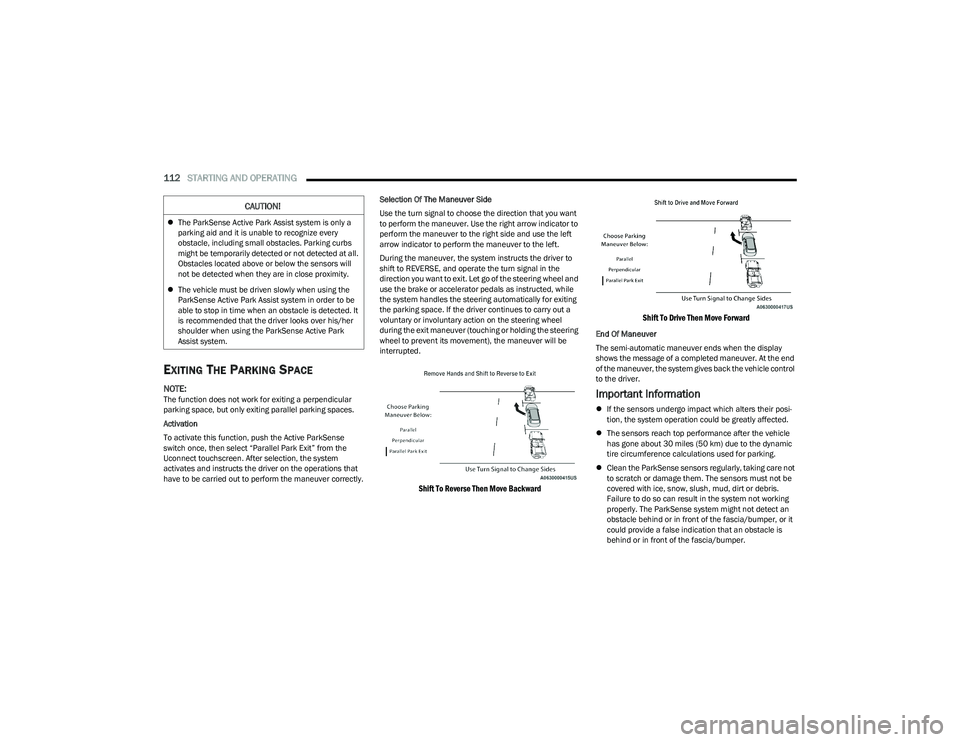
Use the turn signal to choose the direction that you want
to perform the maneuver. Use the right arrow indicator to
perform the maneuver to the right side and use the left
arrow indicator to perform the maneuver to the left.
During the maneuver, the system instructs the driver to
shift to REVERSE, and operate the turn signal in the
direction you want to exit. Let go of the steering wheel and
use the brake or accelerator pedals as instructed, while
the system handles the steering automatically for exiting
the parking space. If the driver continues to carry out a
voluntary or involuntary action on the steering wheel
during the exit maneuver (touching or holding the steering
wheel to prevent its movement), the maneuver will be
interrupted.
Shift To Reverse Then Move Backward
Shift To Drive Then Move Forward
End Of Maneuver
The semi-automatic maneuver ends when the display
shows the message of a completed maneuver. At the end
of the maneuver, the system gives back the vehicle control
to the driver.
Important Information
If the sensors undergo impact which alters their posi -
tion, the system operation could be greatly affected.
The sensors reach top performance after the vehicle
has gone about 30 miles (50 km) due to the dynamic
tire circumference calculations used for parking.
Clean the ParkSense sensors regularly, taking care not
to scratch or damage them. The sensors must not be
covered with ice, snow, slush, mud, dirt or debris.
Failure to do so can result in the system not working
properly. The ParkSense system might not detect an
obstacle behind or in front of the fascia/bumper, or it
could provide a false indication that an obstacle is
behind or in front of the fascia/bumper.
CAUTION!
The ParkSense Active Park Assist system is only a
parking aid and it is unable to recognize every
obstacle, including small obstacles. Parking curbs
might be temporarily detected or not detected at all.
Obstacles located above or below the sensors will
not be detected when they are in close proximity.
The vehicle must be driven slowly when using the
ParkSense Active Park Assist system in order to be
able to stop in time when an obstacle is detected. It
is recommended that the driver looks over his/her
shoulder when using the ParkSense Active Park
Assist system.
23_GG_OM_EN_USC_t.book Page 112
Page 118 of 288
116STARTING AND OPERATING
CHANGING LANESENSE STATUS
The LaneSense system has settings to adjust the intensity
of the torque warning (low/med/high) and the warning
zone sensitivity (early/late) that you can configure through
the Uconnect system
Úpage 130.
NOTE:
When enabled the system operates above 37 mph
(60 km/h) and below 112 mph (180 km/h).
Use of the turn signal suppresses the warnings.
The system will not apply torque to the steering wheel
whenever a safety system engages (Anti-Lock Brakes,
Traction Control System, Electronic Stability Control,
Forward Collision Warning, etc.).
PARKVIEW REAR BACK UP CAMERA
The ParkView Rear Back Up Camera allows you to see an
on-screen image of the rear surroundings of your vehicle
whenever the gear selector is put into REVERSE. The
image will be displayed on the Navigation/Multimedia
radio display screen along with a caution note to
“Check Entire Surroundings” across the top of the screen.
After five seconds this note will disappear. The ParkView
camera is located on the rear of the vehicle above the rear
license plate. When the vehicle is shifted out of REVERSE with camera
delay turned off, the rear camera mode is exited and the
previous screen appears.
Manual Activation Of The Back Up Camera
1. Press the Controls button located in the Vehicle
Controls menu, or within the Apps drawer. This
button can also be configured as a shortcut on the
bottom of the Uconnect display.
2. Press the Back Up Camera button to turn the Rear View Camera system on.
NOTE:The ParkView Rear Back Up Camera has programmable
modes of operation that may be selected through the
Uconnect system
Úpage 130.
When the vehicle is shifted out of REVERSE with camera
delay turned off, the rear camera mode is exited and the
previous screen appears. When the vehicle is shifted out
of REVERSE with camera delay turned on, the camera
image will continue to be displayed for up to 10 seconds
unless the following conditions occur: The vehicle speed
exceeds 8 mph (13 km/h), the vehicle is shifted into PARK, the vehicle’s ignition is placed in the OFF position,
or the user presses the touchscreen X button to exit out of
the camera video display. When enabled, active guidelines are overlaid on the image
to illustrate the width of the vehicle and its projected back
up path based on the steering wheel position. A dashed
center line overlay indicates the center of the vehicle to
assist with parking or aligning to a hitch/receiver.
Different colored zones indicate the distance to the rear of
the vehicle. The following table shows the approximate
distances for each zone:
Zone Distance To The Rear Of
The Vehicle
Red 0 - 1 ft (0 - 30 cm)
Yellow 1 ft - 3 ft (30 cm - 1 m)
Green 3 ft - 9.5 ft (1 m - 3 m)
WARNING!
Drivers must be careful when backing up even when
using the ParkView Rear Back Up Camera. Always
check carefully behind your vehicle, and be sure to
check for pedestrians, animals, other vehicles,
obstructions, or blind spots before backing up. You are
responsible for the safety of your surroundings and
must continue to pay attention while backing up.
Failure to do so can result in serious injury or death.
23_GG_OM_EN_USC_t.book Page 116
Page 119 of 288
STARTING AND OPERATING117
NOTE:If snow, ice, mud, or any foreign substance builds up on
the camera lens, clean the lens, rinse with water, and dry
with a soft cloth. Do not cover the lens.
SURROUND VIEW CAMERA SYSTEM —
IF EQUIPPED
Your vehicle may be equipped with the Surround View
Camera system that allows you to see an on-screen image
of the surroundings and Top View of your vehicle whenever
the gear selector is put into REVERSE or a different view is
selected through the touchscreen buttons. The Top View
of the vehicle will show which doors are open. The image
will be displayed on the touchscreen display along with a
caution note “Check Entire Surroundings” across the top
of the screen. After five seconds, this note will disappear. The Surround View Camera system is comprised of four
sequential cameras located in the front grille, rear liftgate
and side mirrors.
Automatic Activation Of The Surround View Camera
When the vehicle is shifted into REVERSE, the Rear View
and Top View will automatically be displayed on the
Uconnect touchscreen.
The Surround View Camera will also automatically activate
when the gear selector is in DRIVE or NEUTRAL and the
system detects obstacles it its path. Camera view display
will depend on the location of the detected obstacle.
Manual Activation Of The Surround View Camera
1. Press the Controls or Apps button located within the
Uconnect system.
2. Press the Surround View Camera button
to enter the camera’s menu.
NOTE:The Surround View Camera system has programmable
settings that may be selected through the Uconnect
system
Úpage 130. When the vehicle is shifted out of REVERSE with camera
delay turned on, the camera image will continue to be
displayed for up to 10 seconds unless the vehicle speed
exceeds 8 mph (13 km/h), the vehicle is shifted into PARK
or the ignition is placed in the OFF position. There is a
touchscreen X button to disable the display of the camera
image.
When the vehicle is shifted out of REVERSE with camera
delay turned off, the Surround View Camera mode is
exited and the last known screen appears again.
When enabled, active guidelines are overlaid on the image
to illustrate the width of the vehicle, including the side
view mirrors and its projected back up path based on the
steering wheel position.
Different colored zones indicate the distance to the rear of
the vehicle.
The following table shows the approximate distances for
each zone:
CAUTION!
To avoid vehicle damage, ParkView should only be
used as a parking aid. The ParkView camera is
unable to view every obstacle or object in your
drive path.
To avoid vehicle damage, the vehicle must be driven
slowly when using ParkView to be able to stop in time
when an obstacle is seen. It is recommended that
the driver look frequently over his/her shoulder when
using ParkView.
Zone Distance To The Rear Of
The Vehicle
Red 0 - 1 ft (0 - 30 cm)
Yellow 1 ft - 3 ft (30 cm - 1 m)
Green 3 ft - 9.5 ft (1 m - 3 m)
4
23_GG_OM_EN_USC_t.book Page 117
Page 120 of 288
118STARTING AND OPERATING
Modes Of Operation
Manual activation of the Surround View Camera is
selected by pressing the Surround View Camera button
located in the Controls menu within the Uconnect system.
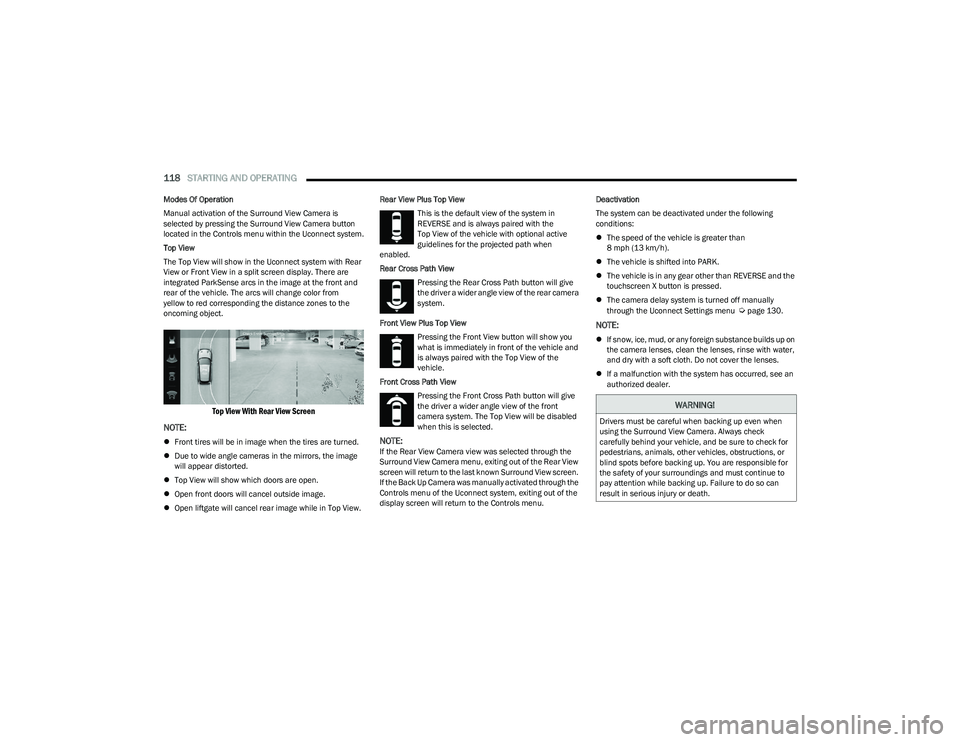
Top View
The Top View will show in the Uconnect system with Rear
View or Front View in a split screen display. There are
integrated ParkSense arcs in the image at the front and
rear of the vehicle. The arcs will change color from
yellow to red corresponding the distance zones to the
oncoming object.
Top View With Rear View Screen
NOTE:
Front tires will be in image when the tires are turned.
Due to wide angle cameras in the mirrors, the image
will appear distorted.
Top View will show which doors are open.
Open front doors will cancel outside image.
Open liftgate will cancel rear image while in Top View. Rear View Plus Top View
This is the default view of the system in
REVERSE and is always paired with the
Top View of the vehicle with optional active
guidelines for the projected path when
enabled.
Rear Cross Path View
Pressing the Rear Cross Path button will give
the driver a wider angle view of the rear camera
system.
Front View Plus Top View Pressing the Front View button will show you
what is immediately in front of the vehicle and
is always paired with the Top View of the
vehicle.
Front Cross Path View Pressing the Front Cross Path button will give
the driver a wider angle view of the front
camera system. The Top View will be disabled
when this is selected.NOTE:If the Rear View Camera view was selected through the
Surround View Camera menu, exiting out of the Rear View
screen will return to the last known Surround View screen.
If the Back Up Camera was manually activated through the
Controls menu of the Uconnect system, exiting out of the
display screen will return to the Controls menu. Deactivation
The system can be deactivated under the following
conditions:
The speed of the vehicle is greater than
8 mph (13 km/h).
The vehicle is shifted into PARK.
The vehicle is in any gear other than REVERSE and the
touchscreen X button is pressed.
The camera delay system is turned off manually
through the Uconnect Settings menu
Úpage 130.
NOTE:
If snow, ice, mud, or any foreign substance builds up on
the camera lenses, clean the lenses, rinse with water,
and dry with a soft cloth. Do not cover the lenses.
If a malfunction with the system has occurred, see an
authorized dealer.
WARNING!
Drivers must be careful when backing up even when
using the Surround View Camera. Always check
carefully behind your vehicle, and be sure to check for
pedestrians, animals, other vehicles, obstructions, or
blind spots before backing up. You are responsible for
the safety of your surroundings and must continue to
pay attention while backing up. Failure to do so can
result in serious injury or death.
23_GG_OM_EN_USC_t.book Page 118
Page 128 of 288
126STARTING AND OPERATING
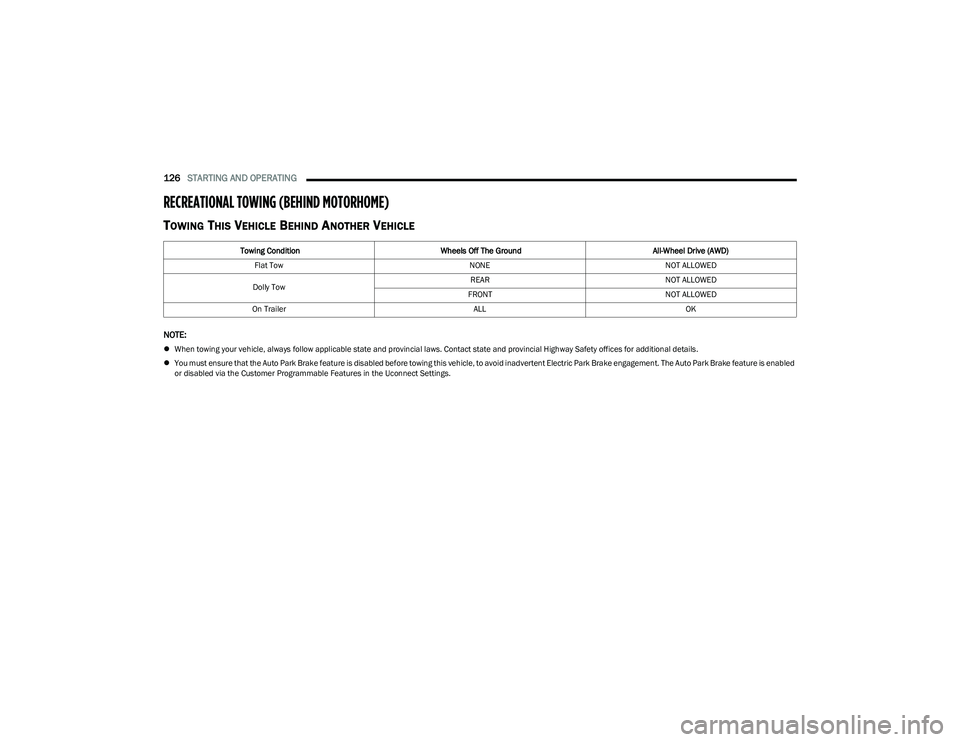
RECREATIONAL TOWING (BEHIND MOTORHOME)
TOWING THIS VEHICLE BEHIND ANOTHER VEHICLE
NOTE:
When towing your vehicle, always follow applicable state and provincial laws. Contact state and provincial Highway Safety offices for additional details.
You must ensure that the Auto Park Brake feature is disabled before towing this vehicle, to avoid inadvertent Electric Park Brake engagement. The Auto Park Brake feature is enabled
or disabled via the Customer Programmable Features in the Uconnect Settings.
Towing Condition Wheels Off The Ground All-Wheel Drive (AWD)
Flat Tow NONENOT ALLOWED
Dolly Tow REAR
NOT ALLOWED
FRONT NOT ALLOWED
On Trailer ALLOK
23_GG_OM_EN_USC_t.book Page 126
Page 131 of 288
129
MULTIMEDIA
UCONNECT SYSTEMS
For detailed information about your Uconnect 5/5 NAV
With 10.25-inch Display system, refer to your Uconnect
Radio Instruction Manual.
NOTE:Uconnect screen images are for illustration purposes only
and may not reflect exact software for your vehicle.
CYBERSECURITY
Depending on applicability, your vehicle may be able to
send or receive information from a wired or wireless
network. This information allows systems and features in
your vehicle to function properly.Your vehicle may be equipped with certain security
features to reduce the risk of unauthorized and unlawful
access to vehicle systems and wireless communications.
Vehicle software technology continues to evolve over time
and FCA US LLC, working with its suppliers, evaluates and
takes appropriate steps as needed. As always, if you
experience unusual behavior, contact an authorized
dealer immediately,
Úpage 270, or refer to your
Uconnect Radio Instruction Manual for additional contact
information.
The risk of unauthorized and unlawful access to your
vehicle systems may still exist, even if the most recent
version of vehicle software (such as Uconnect software) is
installed.
NOTE:To help further improve user experience, features,
stability, etc., and minimize the potential risk of a security
breach, vehicle owners should routinely check
www.driveuconnect.com (US Residents) or www.driveuco -
nnect.ca (Canadian Residents) to learn about available
Uconnect software updates.
WARNING!
ONLY insert trusted media devices/components into
your vehicle. Media of unknown origin could possibly
contain malicious software, and if installed in your
vehicle, it may increase the possibility for vehicle
systems to be breached.
As always, if you experience unusual vehicle
behavior, contact an authorized dealer immediately.
5
23_GG_OM_EN_USC_t.book Page 129
Page 132 of 288
130MULTIMEDIA
UCONNECT SETTINGS
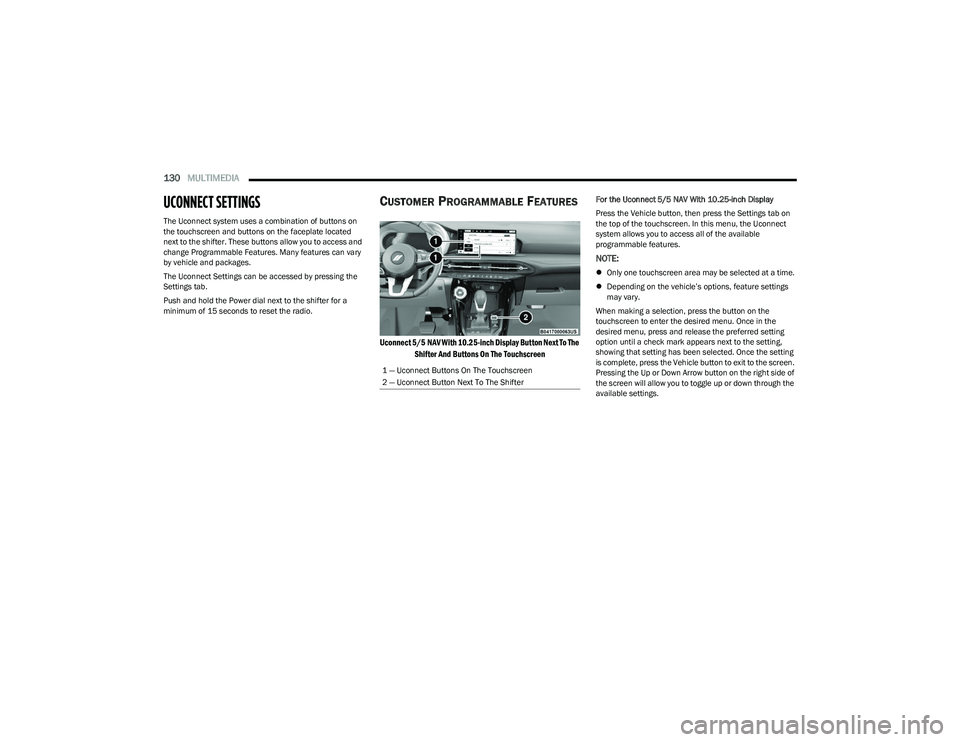
The Uconnect system uses a combination of buttons on
the touchscreen and buttons on the faceplate located
next to the shifter. These buttons allow you to access and
change Programmable Features. Many features can vary
by vehicle and packages.
The Uconnect Settings can be accessed by pressing the
Settings tab.
Push and hold the Power dial next to the shifter for a
minimum of 15 seconds to reset the radio.
CUSTOMER PROGRAMMABLE FEATURES
Uconnect 5/5 NAV With 10.25-inch Display Button Next To The
Shifter And Buttons On The Touchscreen
For the Uconnect 5/5 NAV With 10.25-inch Display
Press the Vehicle button, then press the Settings tab on
the top of the touchscreen. In this menu, the Uconnect
system allows you to access all of the available
programmable features.
NOTE:
Only one touchscreen area may be selected at a time.
Depending on the vehicle’s options, feature settings
may vary.
When making a selection, press the button on the
touchscreen to enter the desired menu. Once in the
desired menu, press and release the preferred setting
option until a check mark appears next to the setting,
showing that setting has been selected. Once the setting
is complete, press the Vehicle button to exit to the screen.
Pressing the Up or Down Arrow button on the right side of
the screen will allow you to toggle up or down through the
available settings.
1 — Uconnect Buttons On The Touchscreen
2 — Uconnect Button Next To The Shifter
23_GG_OM_EN_USC_t.book Page 130
Page 133 of 288
MULTIMEDIA131
Display
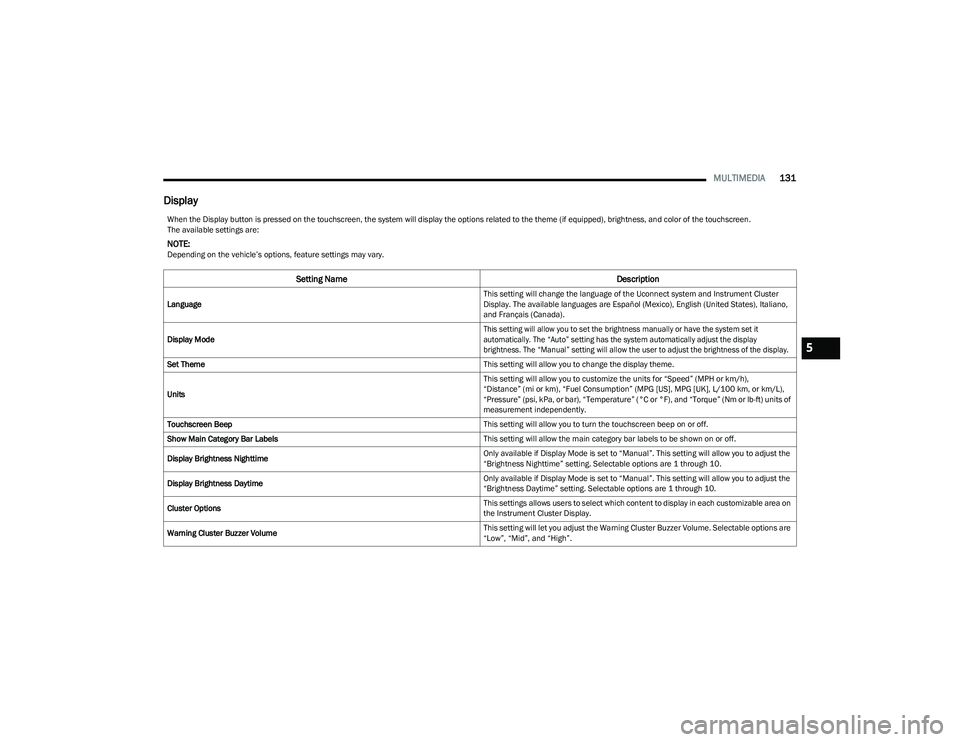
When the Display button is pressed on the touchscreen, the system will display the options related to the theme (if equipped), brightness, and color of the touchscreen.
The available settings are:
NOTE:Depending on the vehicle’s options, feature settings may vary.
Setting Name Description
Language This setting will change the language of the Uconnect system and Instrument Cluster
Display. The available languages are Español (Mexico), English (United States), Italiano,
and Français (Canada).
Display Mode
This setting will allow you to set the brightness manually or have the system set it
automatically. The “Auto” setting has the system automatically adjust the display
brightness. The “Manual” setting will allow the user to adjust the brightness of the display.
Set Theme This setting will allow you to change the display theme.
Units This setting will allow you to customize the units for “Speed” (MPH or km/h),
“Distance” (mi or km), “Fuel Consumption” (MPG [US], MPG [UK], L/100 km, or km/L),
“Pressure” (psi, kPa, or bar), “Temperature” (°C or °F), and “Torque” (Nm or lb-ft) units of
measurement independently.
Touchscreen Beep This setting will allow you to turn the touchscreen beep on or off.
Show Main Category Bar Labels This setting will allow the main category bar labels to be shown on or off.
Display Brightness Nighttime Only available if Display Mode is set to “Manual”. This setting will allow you to adjust the
“Brightness Nighttime” setting. Selectable options are 1 through 10.
Display Brightness Daytime Only available if Display Mode is set to “Manual”. This setting will allow you to adjust the
“Brightness Daytime” setting. Selectable options are 1 through 10.
Cluster Options This settings allows users to select which content to display in each customizable area on
the Instrument Cluster Display.
Warning Cluster Buzzer Volume This setting will let you adjust the Warning Cluster Buzzer Volume. Selectable options are
“Low”, “Mid”, and “High”.
5
23_GG_OM_EN_USC_t.book Page 131
Page 134 of 288
132MULTIMEDIA
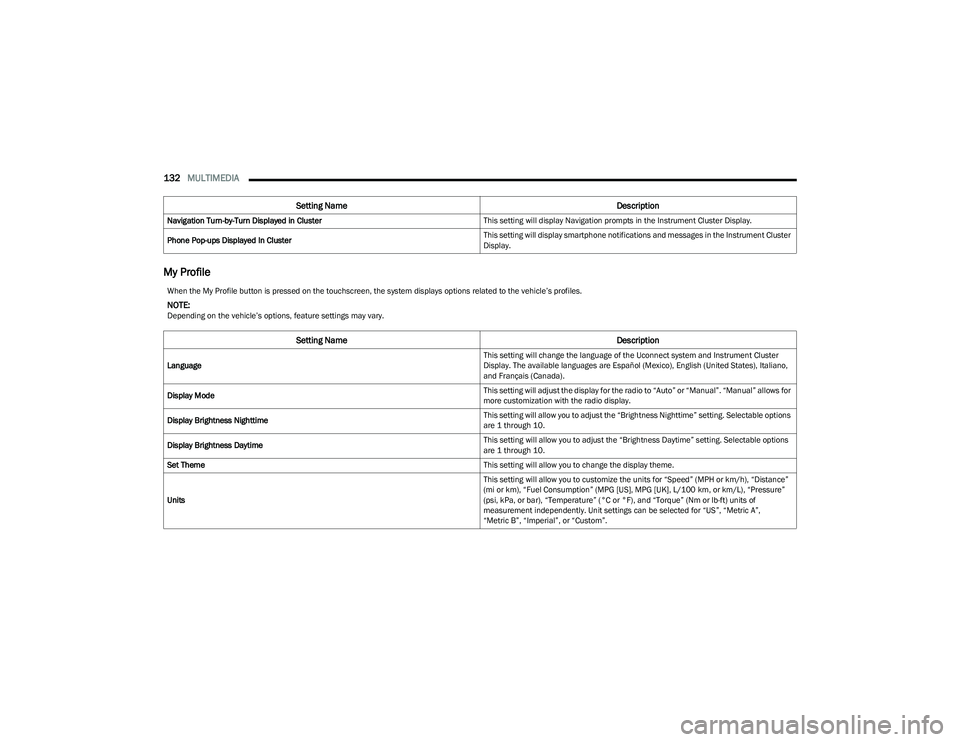
My Profile
Navigation Turn-by-Turn Displayed in Cluster This setting will display Navigation prompts in the Instrument Cluster Display.
Phone Pop-ups Displayed In Cluster This setting will display smartphone notifications and messages in the Instrument Cluster
Display.
Setting Name
Description
When the My Profile button is pressed on the touchscreen, the system displays options related to the vehicle’s profiles.
NOTE:Depending on the vehicle’s options, feature settings may vary.
Setting NameDescription
Language This setting will change the language of the Uconnect system and Instrument Cluster
Display. The available languages are Español (Mexico), English (United States), Italiano,
and Français (Canada).
Display Mode This setting will adjust the display for the radio to “Auto” or “Manual”. “Manual” allows for
more customization with the radio display.
Display Brightness Nighttime This setting will allow you to adjust the “Brightness Nighttime” setting. Selectable options
are 1 through 10.
Display Brightness Daytime This setting will allow you to adjust the “Brightness Daytime” setting. Selectable options
are 1 through 10.
Set Theme This setting will allow you to change the display theme.
Units This setting will allow you to customize the units for “Speed” (MPH or km/h), “Distance”
(mi or km), “Fuel Consumption” (MPG [US], MPG [UK], L/100 km, or km/L), “Pressure”
(psi, kPa, or bar), “Temperature” (°C or °F), and “Torque” (Nm or lb-ft) units of
measurement independently. Unit settings can be selected for “US”, “Metric A”,
“Metric B”, “Imperial”, or “Custom”.
23_GG_OM_EN_USC_t.book Page 132
Page 135 of 288
MULTIMEDIA133
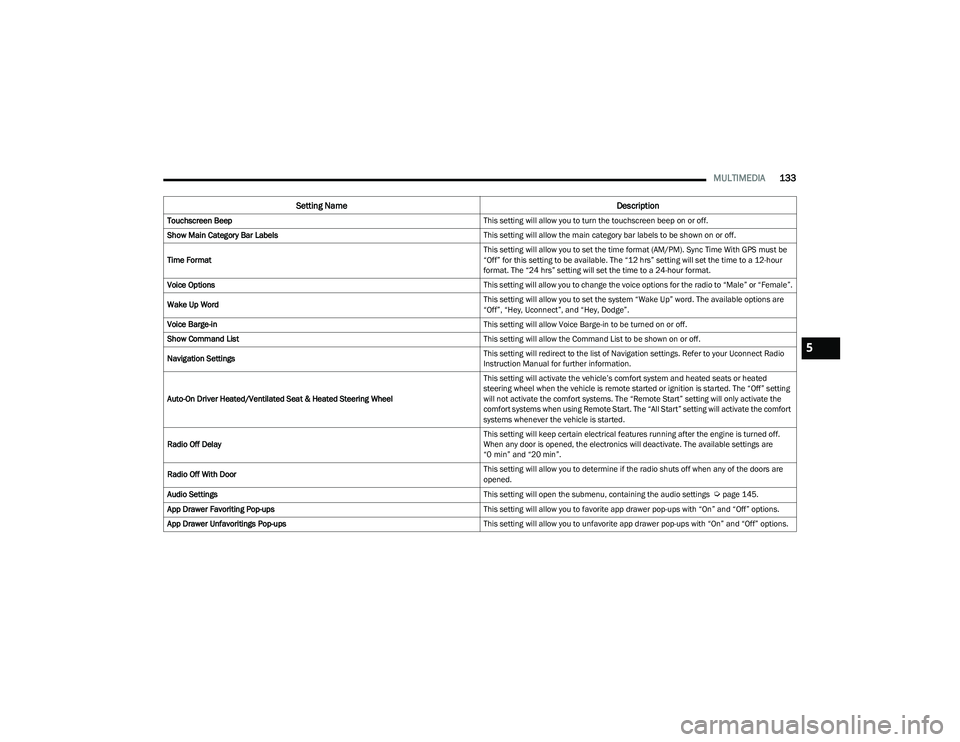
Touchscreen Beep This setting will allow you to turn the touchscreen beep on or off.
Show Main Category Bar Labels This setting will allow the main category bar labels to be shown on or off.
Time Format This setting will allow you to set the time format (AM/PM). Sync Time With GPS must be
“Off” for this setting to be available. The “12 hrs” setting will set the time to a 12-hour
format. The “24 hrs” setting will set the time to a 24-hour format.
Voice Options This setting will allow you to change the voice options for the radio to “Male” or “Female”.
Wake Up Word This setting will allow you to set the system “Wake Up” word. The available options are
“Off”, “Hey, Uconnect”, and “Hey, Dodge”.
Voice Barge-in This setting will allow Voice Barge-in to be turned on or off.
Show Command List This setting will allow the Command List to be shown on or off.
Navigation Settings This setting will redirect to the list of Navigation settings. Refer to your Uconnect Radio
Instruction Manual for further information.
Auto-On Driver Heated/Ventilated Seat & Heated Steering Wheel This setting will activate the vehicle’s comfort system and heated seats or heated
steering wheel when the vehicle is remote started or ignition is started. The “Off” setting
will not activate the comfort systems. The “Remote Start” setting will only activate the
comfort systems when using Remote Start. The “All Start” setting will activate the comfort
systems whenever the vehicle is started.
Radio Off Delay This setting will keep certain electrical features running after the engine is turned off.
When any door is opened, the electronics will deactivate. The available settings are
“0 min” and “20 min”.
Radio Off With Door This setting will allow you to determine if the radio shuts off when any of the doors are
opened.
Audio Settings This setting will open the submenu, containing the audio settings
Úpage 145.
App Drawer Favoriting Pop-ups This setting will allow you to favorite app drawer pop-ups with “On” and “Off” options.
App Drawer Unfavoritings Pop-ups This setting will allow you to unfavorite app drawer pop-ups with “On” and “Off” options.
Setting NameDescription
5
23_GG_OM_EN_USC_t.book Page 133