uconnect DODGE HORNET 2023 Service Manual
[x] Cancel search | Manufacturer: DODGE, Model Year: 2023, Model line: HORNET, Model: DODGE HORNET 2023Pages: 288, PDF Size: 14.2 MB
Page 136 of 288
134MULTIMEDIA
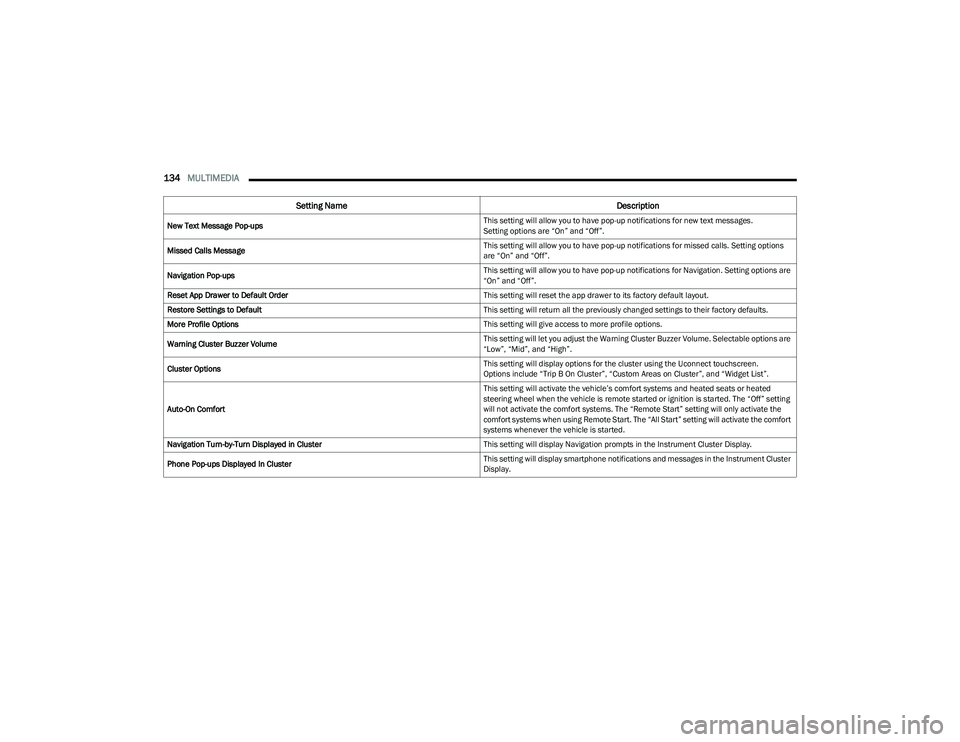
New Text Message Pop-ups This setting will allow you to have pop-up notifications for new text messages.
Setting options are “On” and “Off”.
Missed Calls Message This setting will allow you to have pop-up notifications for missed calls. Setting options
are “On” and “Off”.
Navigation Pop-ups This setting will allow you to have pop-up notifications for Navigation. Setting options are
“On” and “Off”.
Reset App Drawer to Default Order This setting will reset the app drawer to its factory default layout.
Restore Settings to Default This setting will return all the previously changed settings to their factory defaults.
More Profile Options This setting will give access to more profile options.
Warning Cluster Buzzer Volume This setting will let you adjust the Warning Cluster Buzzer Volume. Selectable options are
“Low”, “Mid”, and “High”.
Cluster Options This setting will display options for the cluster using the Uconnect touchscreen.
Options include “Trip B On Cluster”, “Custom Areas on Cluster”, and “Widget List”.
Auto-On Comfort This setting will activate the vehicle’s comfort systems and heated seats or heated
steering wheel when the vehicle is remote started or ignition is started. The “Off” setting
will not activate the comfort systems. The “Remote Start” setting will only activate the
comfort systems when using Remote Start. The “All Start” setting will activate the comfort
systems whenever the vehicle is started.
Navigation Turn-by-Turn Displayed in Cluster This setting will display Navigation prompts in the Instrument Cluster Display.
Phone Pop-ups Displayed In Cluster This setting will display smartphone notifications and messages in the Instrument Cluster
Display.
Setting Name
Description
23_GG_OM_EN_USC_t.book Page 134
Page 141 of 288
MULTIMEDIA139
Voice — If Equipped
Navigation — If Equipped
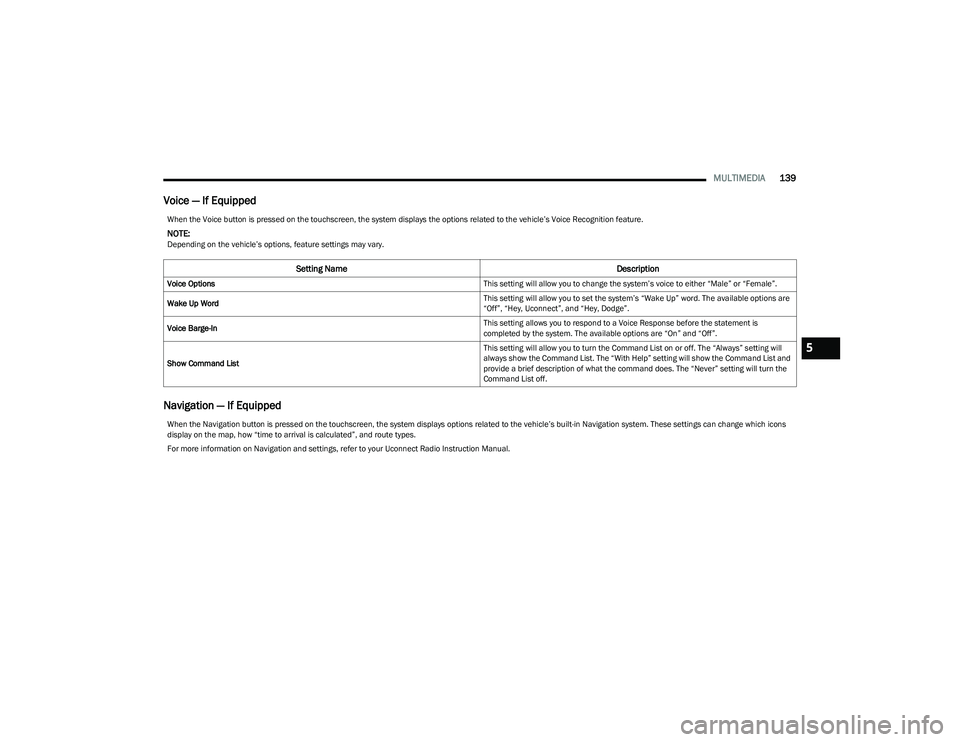
When the Voice button is pressed on the touchscreen, the system displays the options related to the vehicle’s Voice Recognition feature.
NOTE:Depending on the vehicle’s options, feature settings may vary.
Setting Name Description
Voice Options This setting will allow you to change the system’s voice to either “Male” or “Female”.
Wake Up Word This setting will allow you to set the system’s “Wake Up” word. The available options are
“Off”, “Hey, Uconnect”, and “Hey, Dodge”.
Voice Barge-In This setting allows you to respond to a Voice Response before the statement is
completed by the system. The available options are “On” and “Off”.
Show Command List This setting will allow you to turn the Command List on or off. The “Always” setting will
always show the Command List. The “With Help” setting will show the Command List and
provide a brief description of what the command does. The “Never” setting will turn the
Command List off.
When the Navigation button is pressed on the touchscreen, the system displays options related to the vehicle’s built-in Navigation system. These settings can change which icons
display on the map, how “time to arrival is calculated”, and route types.
For more information on Navigation and settings, refer to your Uconnect Radio Instruction Manual.
5
23_GG_OM_EN_USC_t.book Page 139
Page 150 of 288
148MULTIMEDIA
Software Updates
System Information
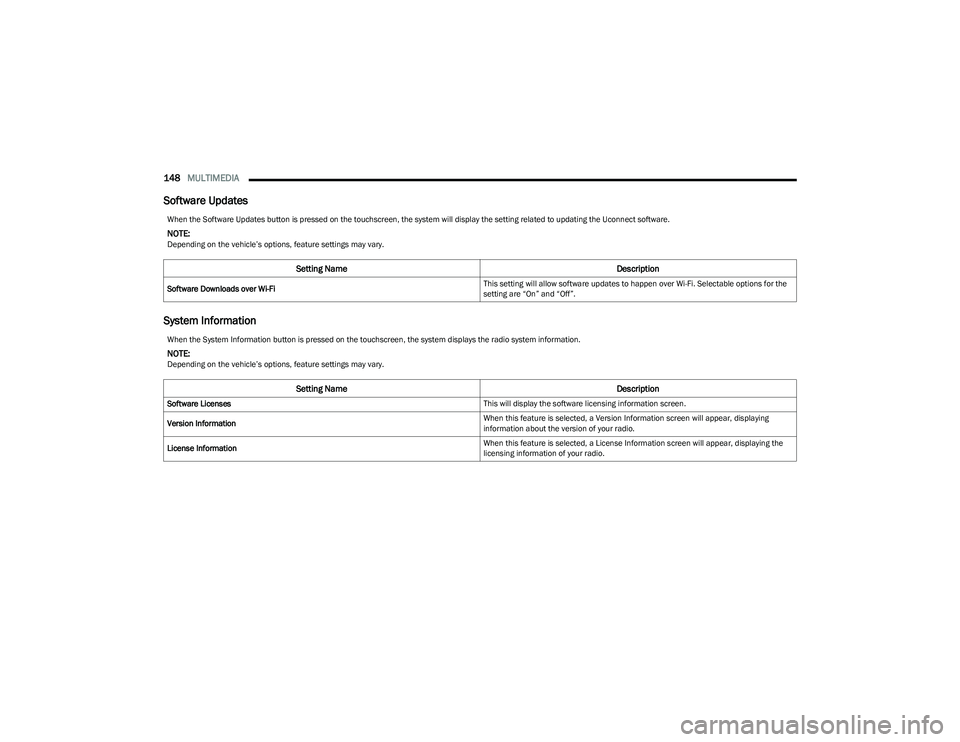
When the Software Updates button is pressed on the touchscreen, the system will display the setting related to updating the Uconnect software.
NOTE:Depending on the vehicle’s options, feature settings may vary.
Setting Name Description
Software Downloads over Wi-Fi This setting will allow software updates to happen over Wi-Fi. Selectable options for the
setting are “On” and “Off”.
When the System Information button is pressed on the touchscreen, the system displays the radio system information.
NOTE:Depending on the vehicle’s options, feature settings may vary.
Setting Name
Description
Software Licenses This will display the software licensing information screen.
Version Information When this feature is selected, a Version Information screen will appear, displaying
information about the version of your radio.
License Information When this feature is selected, a License Information screen will appear, displaying the
licensing information of your radio.
23_GG_OM_EN_USC_t.book Page 148
Page 151 of 288
MULTIMEDIA149
Reset
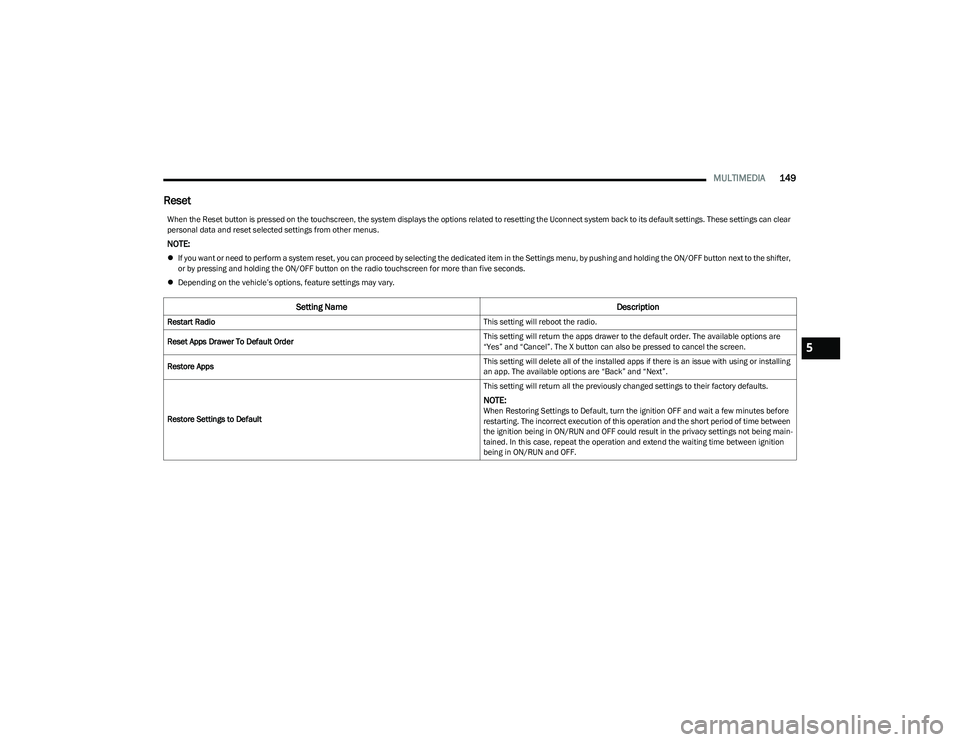
When the Reset button is pressed on the touchscreen, the system displays the options related to resetting the Uconnect system back to its default settings. These settings can clear
personal data and reset selected settings from other menus.
NOTE:
If you want or need to perform a system reset, you can proceed by selecting the dedicated item in the Settings menu, by pushing and holding the ON/OFF button next to the shifter,
or by pressing and holding the ON/OFF button on the radio touchscreen for more than five seconds.
Depending on the vehicle’s options, feature settings may vary.
Setting Name Description
Restart Radio This setting will reboot the radio.
Reset Apps Drawer To Default Order This setting will return the apps drawer to the default order. The available options are
“Yes” and “Cancel”. The X button can also be pressed to cancel the screen.
Restore Apps This setting will delete all of the installed apps if there is an issue with using or installing
an app. The available options are “Back” and “Next”.
Restore Settings to Default This setting will return all the previously changed settings to their factory defaults.
NOTE:When Restoring Settings to Default, turn the ignition OFF and wait a few minutes before
restarting. The incorrect execution of this operation and the short period of time between
the ignition being in ON/RUN and OFF could result in the privacy settings not being main
-
tained. In this case, repeat the operation and extend the waiting time between ignition
being in ON/RUN and OFF.
5
23_GG_OM_EN_USC_t.book Page 149
Page 153 of 288
MULTIMEDIA151
CON TR O LS O N CEN TR AL TUN NEL
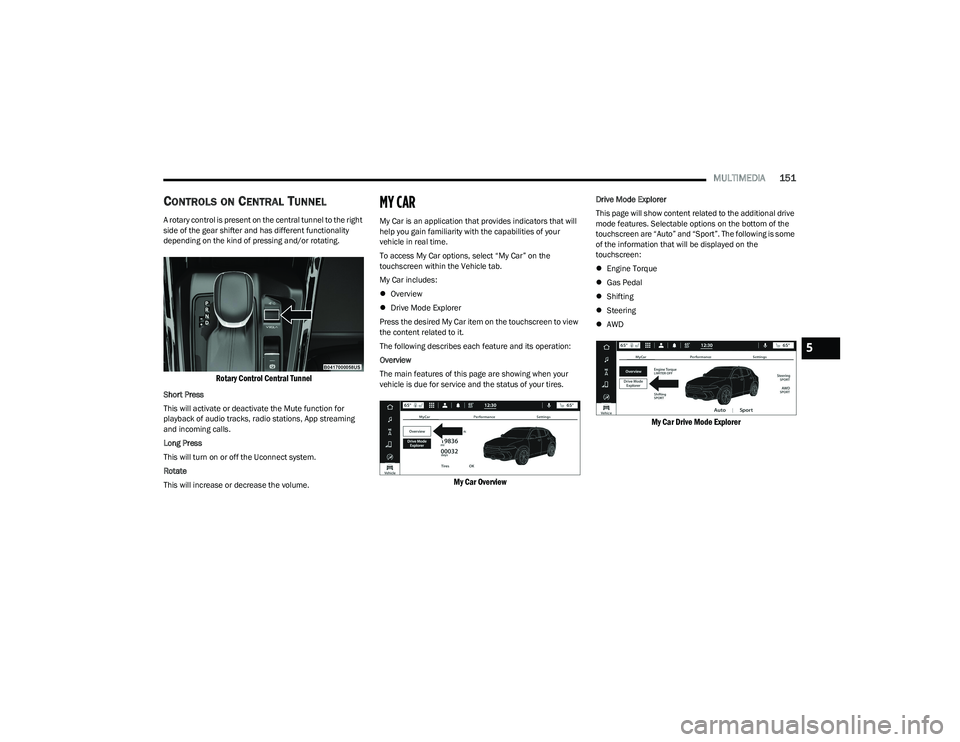
A rotary control is present on the central tunnel to the right
side of the gear shifter and has different functionality
depending on the kind of pressing and/or rotating.
Rotary Control Central Tunnel
Short Press
This will activate or deactivate the Mute function for
playback of audio tracks, radio stations, App streaming
and incoming calls.
Long Press
This will turn on or off the Uconnect system.
Rotate
This will increase or decrease the volume.
MY CAR
My Car is an application that provides indicators that will
help you gain familiarity with the capabilities of your
vehicle in real time.
To access My Car options, select “My Car” on the
touchscreen within the Vehicle tab.
My Car includes:
Overview
Drive Mode Explorer
Press the desired My Car item on the touchscreen to view
the content related to it.
The following describes each feature and its operation:
Overview
The main features of this page are showing when your
vehicle is due for service and the status of your tires.
My Car Overview
Drive Mode Explorer
This page will show content related to the additional drive
mode features. Selectable options on the bottom of the
touchscreen are “Auto” and “Sport”. The following is some
of the information that will be displayed on the
touchscreen:
Engine Torque
Gas Pedal
Shifting
Steering
AWD
My Car Drive Mode Explorer
5
23_GG_OM_EN_USC_t.book Page 151
Page 155 of 288
MULTIMEDIA153
ACCES SO RY GAUG ES
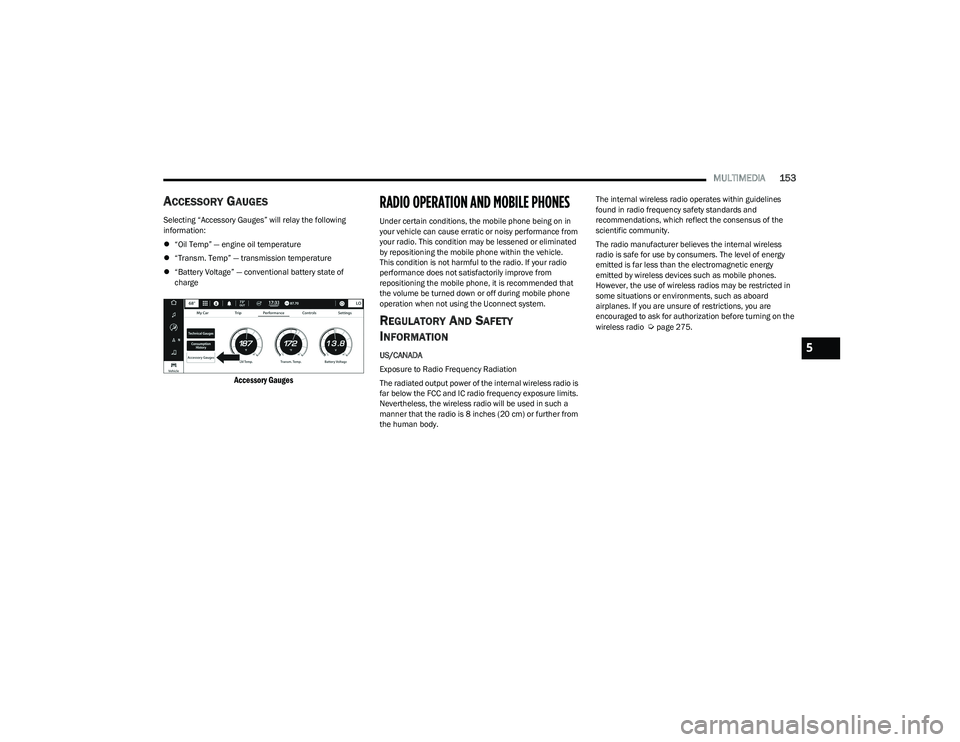
Selecting “Accessory Gauges” will relay the following
information:
“Oil Temp” — engine oil temperature
“Transm. Temp” — transmission temperature
“Battery Voltage” — conventional battery state of
charge
Accessory Gauges
RADIO OPERATION AND MOBILE PHONES
Under certain conditions, the mobile phone being on in
your vehicle can cause erratic or noisy performance from
your radio. This condition may be lessened or eliminated
by repositioning the mobile phone within the vehicle.
This condition is not harmful to the radio. If your radio
performance does not satisfactorily improve from
repositioning the mobile phone, it is recommended that
the volume be turned down or off during mobile phone
operation when not using the Uconnect system.
RE G ULA TO RY AN D SAFE TY
I
N FO RM ATIO N
US/CANADA
Exposure to Radio Frequency Radiation
The radiated output power of the internal wireless radio is
far below the FCC and IC radio frequency exposure limits.
Nevertheless, the wireless radio will be used in such a
manner that the radio is 8 inches (20 cm) or further from
the human body. The internal wireless radio operates within guidelines
found in radio frequency safety standards and
recommendations, which reflect the consensus of the
scientific community.
The radio manufacturer believes the internal wireless
radio is safe for use by consumers. The level of energy
emitted is far less than the electromagnetic energy
emitted by wireless devices such as mobile phones.
However, the use of wireless radios may be restricted in
some situations or environments, such as aboard
airplanes. If you are unsure of restrictions, you are
encouraged to ask for authorization before turning on the
wireless radio
Úpage275.
5
23_GG_OM_EN_USC_t.book Page 153
Page 164 of 288
162SAFETY
NOTE:In a parking lot situation, oncoming vehicles can be
blocked by vehicles parked on either side. If the sensors
are blocked by other structures or vehicles, the system will
not be able to alert the driver.
Blind Spot Modes
Blind Spot Alert has three selectable modes of operation
that are available in the Uconnect system.
Blind Spot Alert Lights Only (Default Setting)
When operating in Lights Only mode, the BSM system will
provide a visual alert in the appropriate side view mirror
based on a detected object. However, when the system is
operating in Rear Cross Path (RCP) mode, the system will
respond with both visual and audible alerts when a
detected object is present. Whenever an audible alert is
requested, the radio is muted for the duration of the
chime. Blind Spot Alert Lights/Chime
When operating in Blind Spot Alert Lights/Chime mode,
the BSM system will provide a visual alert in the
appropriate side view mirror based on a detected object.
If the turn signal is then activated, and it corresponds to
an alert present on that side of the vehicle, an audible
chime will also be sounded. Whenever a turn signal and
detected object are present on the same side at the same
time, both the visual and audible alerts will be issued. In
addition to the audible alert the radio (if on) will also be
muted.
When the system is in RCP, the system shall respond with
both visual and audible alerts when a detected object is
present. Whenever an audible alert is requested, the radio
volume is reduced. Turn/hazard signal status is ignored;
the RCP state always requests the chime.
Blind Spot Alert Off
When the BSM system is turned off, there will be no visual
or audible alerts from either the BSM or RCP systems.NOTE:The BSM system will store the current operating mode
when the vehicle is shut off. Each time the vehicle is
started the previously stored mode will be recalled and
used.
Blocked Sensor
If the system detects degraded performance due to
contamination or foreign objects, a message will warn you
of a blocked sensor and the warning indicators in side
view mirrors will be illuminated. The warning indicators will
remain illuminated until blockage clearing conditions are
met. First clear the fascia/bumper area around the sensors of the blockage. After removing the blockage,
reset the system by cycling the ignition from ON to OFF and
then back ON.
FORWARD COLLISION WARNING (FCW)
W
ITH MITIGATION — IF EQUIPPED
FCW with Mitigation provides the driver with audible
warnings, visual warnings (within the instrument cluster
display), and may apply a brake jerk to warn the driver
when it detects a potential frontal collision. The warnings
and limited braking are intended to provide the driver with
enough time to react, avoid or mitigate the potential
collision.
NOTE:FCW monitors the information from the forward looking
sensors/cameras as well as the Electronic Brake
Controller (EBC), to calculate the probability of a forward
collision. When the system determines that a forward
collision is probable, the driver will be provided with
audible and visual warnings and may provide a brake jerk
warning.
If the driver does not take action based upon these
progressive warnings, then the system will provide a
limited level of active braking to help slow the vehicle and
mitigate the potential forward collision. If the driver reacts
to the warnings by braking and the system determines
that the driver intends to avoid the collision by braking but
has not applied sufficient brake force, the system will
compensate and provide additional brake force as
required.
WARNING!
Rear Cross Path Detection (RCP) is not a backup aid
system. It is intended to be used to help a driver detect
an oncoming vehicle in a parking lot situation. Drivers
must be careful when backing up, even when using
RCP. Always check carefully behind your vehicle, look
behind you, and be sure to check for pedestrians,
animals, other vehicles, obstructions, and blind spots
before backing up. Failure to do so can result in serious
injury or death.
23_GG_OM_EN_USC_t.book Page 162
Page 165 of 288
SAFETY163
If a Forward Collision Warning with Mitigation event begins
at a speed below 39 mph (62 km/h), the system may
provide the maximum braking possible to mitigate the
potential forward collision. If the Forward Collision
Warning with Mitigation event stops the vehicle
completely, the system will hold the vehicle at standstill for
two seconds and then release the brakes.
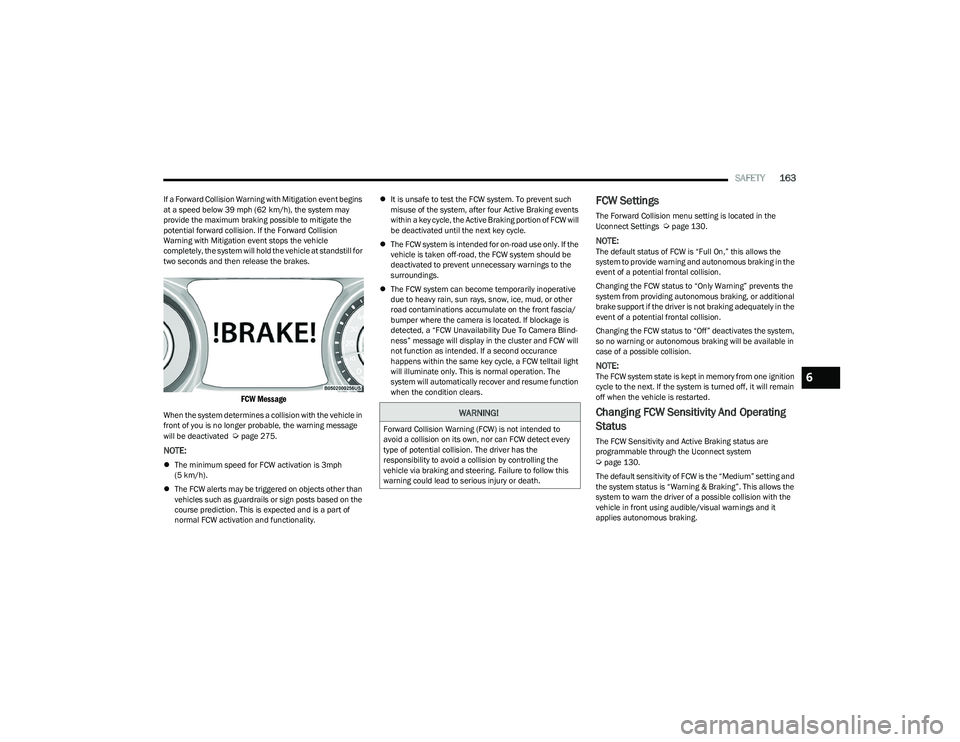
FCW Message
When the system determines a collision with the vehicle in
front of you is no longer probable, the warning message
will be deactivated
Úpage 275.
NOTE:
The minimum speed for FCW activation is 3mph
(5 km/h).
The FCW alerts may be triggered on objects other than
vehicles such as guardrails or sign posts based on the
course prediction. This is expected and is a part of
normal FCW activation and functionality.
It is unsafe to test the FCW system. To prevent such
misuse of the system, after four Active Braking events
within a key cycle, the Active Braking portion of FCW will
be deactivated until the next key cycle.
The FCW system is intended for on-road use only. If the
vehicle is taken off-road, the FCW system should be
deactivated to prevent unnecessary warnings to the
surroundings.
The FCW system can become temporarily inoperative
due to heavy rain, sun rays, snow, ice, mud, or other
road contaminations accumulate on the front fascia/
bumper where the camera is located. If blockage is
detected, a “FCW Unavailability Due To Camera Blind -
ness” message will display in the cluster and FCW will
not function as intended. If a second occurance
happens within the same key cycle, a FCW telltail light
will illuminate only. This is normal operation. The
system will automatically recover and resume function
when the condition clears.
FCW Settings
The Forward Collision menu setting is located in the
Uconnect Settings Úpage 130.
NOTE:The default status of FCW is “Full On,” this allows the
system to provide warning and autonomous braking in the
event of a potential frontal collision.
Changing the FCW status to “Only Warning” prevents the
system from providing autonomous braking, or additional
brake support if the driver is not braking adequately in the
event of a potential frontal collision.
Changing the FCW status to “Off” deactivates the system,
so no warning or autonomous braking will be available in
case of a possible collision.
NOTE:The FCW system state is kept in memory from one ignition
cycle to the next. If the system is turned off, it will remain
off when the vehicle is restarted.
Changing FCW Sensitivity And Operating
Status
The FCW Sensitivity and Active Braking status are
programmable through the Uconnect system
Úpage 130.
The default sensitivity of FCW is the “Medium” setting and
the system status is “Warning & Braking”. This allows the
system to warn the driver of a possible collision with the
vehicle in front using audible/visual warnings and it
applies autonomous braking.
WARNING!
Forward Collision Warning (FCW) is not intended to
avoid a collision on its own, nor can FCW detect every
type of potential collision. The driver has the
responsibility to avoid a collision by controlling the
vehicle via braking and steering. Failure to follow this
warning could lead to serious injury or death.
6
23_GG_OM_EN_USC_t.book Page 163
Page 167 of 288
SAFETY165
Turning PEB On Or Off
NOTE:The default status of PEB is “On.” This allows the system
to warn you of a possible frontal collision with the pedes -
trian/cyclist.
The PEB button is located in the Uconnect Settings
Úpage 130.
To turn the PEB system off, push the Pedestrian
Emergency Braking OFF button.
To turn the PEB system back on, push the Warning Active
Braking button.
Changing the PEB status to “Only Warning” prevents the
system from providing autonomous braking, or additional
brake support if the driver is not braking adequately in the
event of a potential frontal collision with a pedestrian/cyclist.
Changing the PEB status to “Off” deactivates the system,
so no warning or active braking will be available in case of
a possible frontal collision with a pedestrian/cyclist.
NOTE:The PEB system will retain the last setting selected by the
driver after ignition shut down. The system will not reset to
the default setting when the vehicle is restarted.
TIRE PRESSURE MONITORING SYSTEM
(TPMS)
The TPMS will warn the driver of a low tire pressure based
on the vehicle recommended cold placard pressure.
The tire pressure will vary with temperature by
approximately 1 psi (7 kPa) for every 12°F (6.5°C). This
means that when the outside temperature decreases, the
tire pressure will decrease. Tire pressure should always be
set based on cold inflation tire pressure. This is defined as
the tire pressure after the vehicle has not been driven for
at least three hours, or driven less than 1 mile (1.6 km)
after a three hour period. The cold tire inflation pressure
must not exceed the maximum inflation pressure molded
into the tire sidewall. The tire pressure will also increase
as the vehicle is driven. This is normal and there should be
no adjustment for this increased pressure.
For more information on how to properly inflate the
vehicle’s tires, see
Úpage 246.
The TPMS will warn the driver of a low tire pressure if the
tire pressure falls below the low-pressure warning limit for
any reason, including low temperature effects and natural
pressure loss through the tire. The TPMS will continue to
warn the driver of low tire pressure as long as the
condition exists, and will not turn off until the tire pressure
is at or above the recommended cold placard pressure.
NOTE:Once the low tire pressure warning (Tire Pressure
Monitoring System Warning Light) illuminates, you must
increase the tire pressure to the recommended cold
placard pressure in order for the Tire Pressure Monitoring
System Warning Light to turn off.
The system will automatically update and the Tire
Pressure Monitoring System Warning Light will turn off
once the system receives the updated tire pressures. The
vehicle may need to be driven for up to 20 minutes above
15 mph (24 km/h) in order for the TPMS to receive this information.
For example, your vehicle may have a recommended cold
(parked for more than three hours) placard pressure of
33 psi (227 kPa). If the ambient temperature is 68°F
(20°C) and the measured tire pressure is 28 psi
(193 kPa), a temperature drop to 20°F (-7°C) will
decrease the tire pressure to approximately 24 psi
(165 kPa). This tire pressure is low enough to turn on
the Tire Pressure Monitoring System Warning Light.
Driving the vehicle may cause the tire pressure to rise to
approximately 28 psi (193 kPa), but the Tire Pressure
Monitoring System Warning Light will still be on. In this
situation, the Tire Pressure Monitoring System Warning
Light will turn off only after the tires are inflated to the
vehicle’s recommended cold placard pressure value
Úpage 275.
NOTE:When filling warm tires, the tire pressure may need to be
increased up to an additional 4 psi (28 kPa) above the
recommended cold placard pressure in order to turn the
Tire Pressure Monitoring System Warning Light off.
6
23_GG_OM_EN_USC_t.book Page 165
Page 201 of 288
SAFETY199
(Continued)
1. Look behind the seating position where you plan to
install the child restraint to find the tether
anchorage. You may need to move the seat forward
to provide better access to the tether anchorage. If
there is no top tether anchorage for that seating
position, move the child restraint to another position
in the vehicle if one is available.
2. Route the tether strap to provide the most direct path for the strap between the anchor and the child seat.
If your vehicle is equipped with adjustable rear head
restraints, raise the head restraint, and where
possible, route the tether strap under the head
restraint and between the two posts. If not possible,
lower the head restraint and pass the tether strap
around the outboard side of the head restraint.
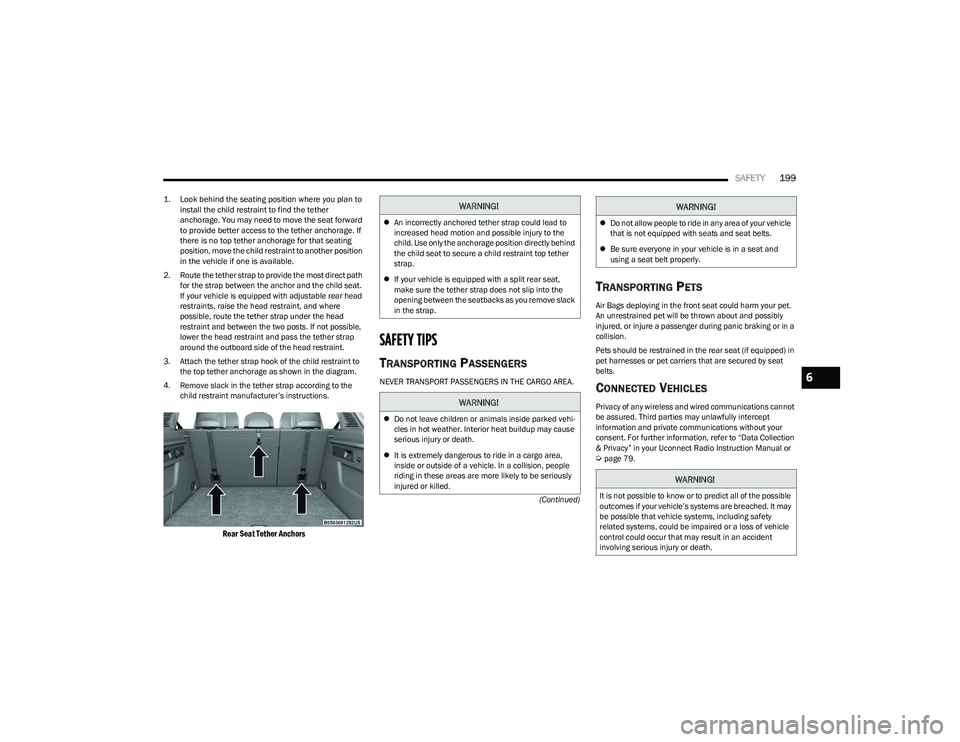
3. Attach the tether strap hook of the child restraint to the top tether anchorage as shown in the diagram.
4. Remove slack in the tether strap according to the child restraint manufacturer’s instructions.
Rear Seat Tether Anchors
SAFETY TIPS
TRANSPORTING PASSENGERS
NEVER TRANSPORT PASSENGERS IN THE CARGO AREA.
TRANSPORTING PETS
Air Bags deploying in the front seat could harm your pet.
An unrestrained pet will be thrown about and possibly
injured, or injure a passenger during panic braking or in a
collision.
Pets should be restrained in the rear seat (if equipped) in
pet harnesses or pet carriers that are secured by seat
belts.
CONNECTED VEHICLES
Privacy of any wireless and wired communications cannot
be assured. Third parties may unlawfully intercept
information and private communications without your
consent. For further information, refer to “Data Collection
& Privacy” in your Uconnect Radio Instruction Manual or
Úpage 79.
WARNING!
An incorrectly anchored tether strap could lead to
increased head motion and possible injury to the
child. Use only the anchorage position directly behind
the child seat to secure a child restraint top tether
strap.
If your vehicle is equipped with a split rear seat,
make sure the tether strap does not slip into the
opening between the seatbacks as you remove slack
in the strap.
WARNING!
Do not leave children or animals inside parked vehi -
cles in hot weather. Interior heat buildup may cause
serious injury or death.
It is extremely dangerous to ride in a cargo area,
inside or outside of a vehicle. In a collision, people
riding in these areas are more likely to be seriously
injured or killed.
Do not allow people to ride in any area of your vehicle
that is not equipped with seats and seat belts.
Be sure everyone in your vehicle is in a seat and
using a seat belt properly.
WARNING!
It is not possible to know or to predict all of the possible
outcomes if your vehicle’s systems are breached. It may
be possible that vehicle systems, including safety
related systems, could be impaired or a loss of vehicle
control could occur that may result in an accident
involving serious injury or death.
WARNING!
6
23_GG_OM_EN_USC_t.book Page 199