audio DODGE JOURNEY 2015 1.G Owner's Manual
[x] Cancel search | Manufacturer: DODGE, Model Year: 2015, Model line: JOURNEY, Model: DODGE JOURNEY 2015 1.GPages: 648
Page 188 of 648

Uconnect® Voice Commands
The Uconnect® Voice Command system understands
two types of commands. Universal commands are avail-
able at all times. Local commands are available if the
supported radio mode is active.
Start a dialogue by pushing the Uconnect® Voice Com-
mandbutton.
Changing The Volume
1. Start a dialogue by pushing the Voice Command
button.
2. Say a command (e.g., “Help”).
3. Use the ON/OFF VOLUME rotary knob to adjust the
volume to a comfortable level while the Voice Com-
mand system is speaking. Please note the volume
setting for Voice Command is different than the audio
system.
186 UNDERSTANDING THE FEATURES OF YOUR VEHICLE
Page 189 of 648
Starting Voice Recognition (VR) Session In
Radio/Player Modes
In this mode, you can say the following commands:
NOTE:The commands can be said on any screen when
a call is not active after pushing the Uconnect® Voice
Commandbutton.
Source
To switch to the audio source, say “Change source to
Disc” for example. This command can be given in any
mode or screen:
•“Track” (#) (to change the track)
3
UNDERSTANDING THE FEATURES OF YOUR VEHICLE 187
Page 193 of 648

NOTE:
•You can replace the album, artist, song, genre, playlist,
podcast and audio book names with any correspond-
ing names on the current device that is playing.
•You can replace “8” with any track on the CD that is
currently playing. Command is only available when
CD is playing.
•Playlist, Podcast and audio book commands are only
available when the iPod® is connected and playing.
•VR commands, Albums, Artists, and Genre names are
based on the music metadata contained on the loaded/
connected device.
NOTE:Available Voice Commands are shown in bold
face and shaded grey.
3
UNDERSTANDING THE FEATURES OF YOUR VEHICLE 191
Page 296 of 648
▫Buttons On The Touchscreen..............320
▫Customer Programmable Features —
Uconnect® 4.3 Settings..................321
▫Customer Programmable Features —
Uconnect® System 8.4 Settings............333
!Uconnect® MULTIMEDIA — VIDEO
ENTERTAINMENT SYSTEM (VES™) — IF
EQUIPPED...........................347
▫Getting Started.......................348
▫Single Video Screen....................348
▫Play Video Games.....................349
▫Listen To An Audio Source On Channel 2 While A
Video Is Playing On Channel 1............350
▫Important Notes For Single Video Screen
System.............................351
▫Play A DVD Using The Touchscreen Radio . . .352
▫VES™ Remote Control — If Equipped.......353
▫Remote Control Storage.................356
▫Locking The Remote Control.............357
▫Replacing The Remote Control Batteries......357
▫Headphones Operation.................357
▫Replacing The Headphone Batteries.........358
▫Controls............................358
▫Unwired® Stereo Headphone Lifetime Limited
Warranty...........................359
▫System Information....................361
294 UNDERSTANDING YOUR INSTRUMENT PANEL
Page 297 of 648

!iPod®/USB/MP3 CONTROL..............370
!STEERING WHEEL AUDIO CONTROLS......370
▫Right-Hand Switch Functions.............371
▫Left-Hand Switch Functions For Radio
Operation...........................371
▫Left-Hand Switch Functions For Media (i.e., CD)
Operation..........................371
!CD/DVD DISC MAINTENANCE...........372
!RADIO OPERATION AND MOBILE PHONES . .372
!CLIMATE CONTROLS...................373
▫Manual Climate Controls With Touchscreen — If
Equipped...........................373
▫Rear Manual Temperature Control (MTC) — If
Equipped...........................381
▫Automatic Temperature Control (ATC) With
Touchscreen — If Equipped..............386
▫Rear Automatic Temperature Control (ATC) — If
Equipped...........................395
4
UNDERSTANDING YOUR INSTRUMENT PANEL 295
Page 323 of 648
Customer Programmable Features — Uconnect®
4.3 Settings
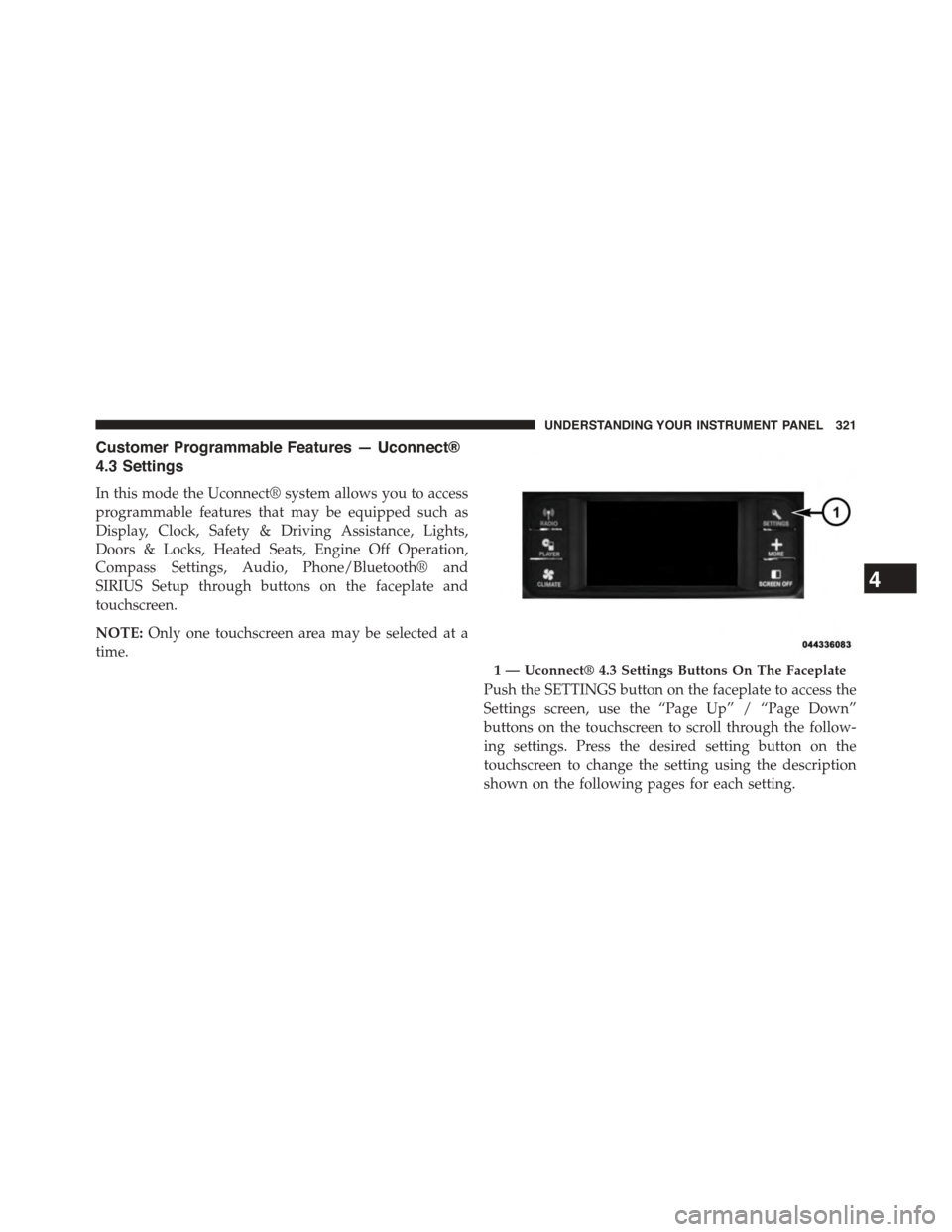
In this mode the Uconnect® system allows you to access
programmable features that may be equipped such as
Display, Clock, Safety & Driving Assistance, Lights,
Doors & Locks, Heated Seats, Engine Off Operation,
Compass Settings, Audio, Phone/Bluetooth® and
SIRIUS Setup through buttons on the faceplate and
touchscreen.
NOTE:Only one touchscreen area may be selected at a
time.
Push the SETTINGS button on the faceplate to access the
Settings screen, use the “Page Up” / “Page Down”
buttons on the touchscreen to scroll through the follow-
ing settings. Press the desired setting button on the
touchscreen to change the setting using the description
shown on the following pages for each setting.
1 — Uconnect® 4.3 Settings Buttons On The Faceplate
4
UNDERSTANDING YOUR INSTRUMENT PANEL 321
Page 333 of 648
•Calibration
Press the “Calibration” button on the touchscreen to
change this setting. This compass is self-calibrating,
which eliminates the need to manually reset the compass.
When the vehicle is new, the compass may appear erratic
and the EVIC will display CAL until the compass is
calibrated. You may also calibrate the compass by press-
ing the “ON” button on the touchscreen and completing
one or more 360-degree turns (in an area free from large
metal or metallic objects) until the CAL indicator dis-
played in the EVIC turns off. The compass will now
function normally.
NOTE:A good calibration requires a level surface and an
environment free from large metallic objects such as
buildings, bridges, underground cables, railroad tracks,
etc.
Audio
•Equalizer
Press the “Equalizer” button on the touchscreen to
change this display. When in this display, you may adjust
the Bass, Mid and Treble settings. Adjust the settings with
the “+” and “–” setting buttons on the touchscreen or by
selecting any point on the scale between the “+” and “–”
buttons on the touchscreen. Then press the back arrow
button on the touchscreen.
NOTE:Bass/Mid/Treble allow you to simply slide your
finger up or down to change the setting as well as press
directly on the desired setting.
•Balance/Fade
Press the “Balance/Fade” button on the touchscreen to
change this display. When in this display, you may adjust
the Balance and Fade settings.
4
UNDERSTANDING YOUR INSTRUMENT PANEL 331
Page 335 of 648
•Subscription Info
New vehicle purchasers or lessees will receive a free
limited time subscription to SIRIUS Satellite Radio with
your radio. Following the expiration of the free services,
it will be necessary to access the information on the
Subscription Information screen to re-subscribe.
Press the Subscription Info button on the touchscreen to
access the Subscription Information screen.
Write down the SIRIUS ID numbers for your receiver. To
reactivate your service, either call the number listed on
the screen or visit the provider online.
NOTE:SIRIUS Travel Link is a separate subscription.
Customer Programmable Features — Uconnect®
System 8.4 Settings
Press the “More” button on the touchscreen, then press
the “Settings” button on the touchscreen to display the
menu setting screen. In this mode the Uconnect® system
allows you to access programmable features that may be
equipped such as Display, Clock, Safety/Assistance,
Lights, Doors & Locks, Auto-On Comfort & Remote Start,
Engine Off Operation, Compass Settings, Audio, Phone/
Bluetooth® and SIRIUS Setup.
NOTE:Only one touchscreen area may be selected at a
time.
When making a selection, press the button on the touch-
screen to enter the desired mode. Once in the desired
mode, press and release the preferred setting until a
check-mark appears next to the setting, showing that
setting has been selected.
4
UNDERSTANDING YOUR INSTRUMENT PANEL 333
Page 347 of 648
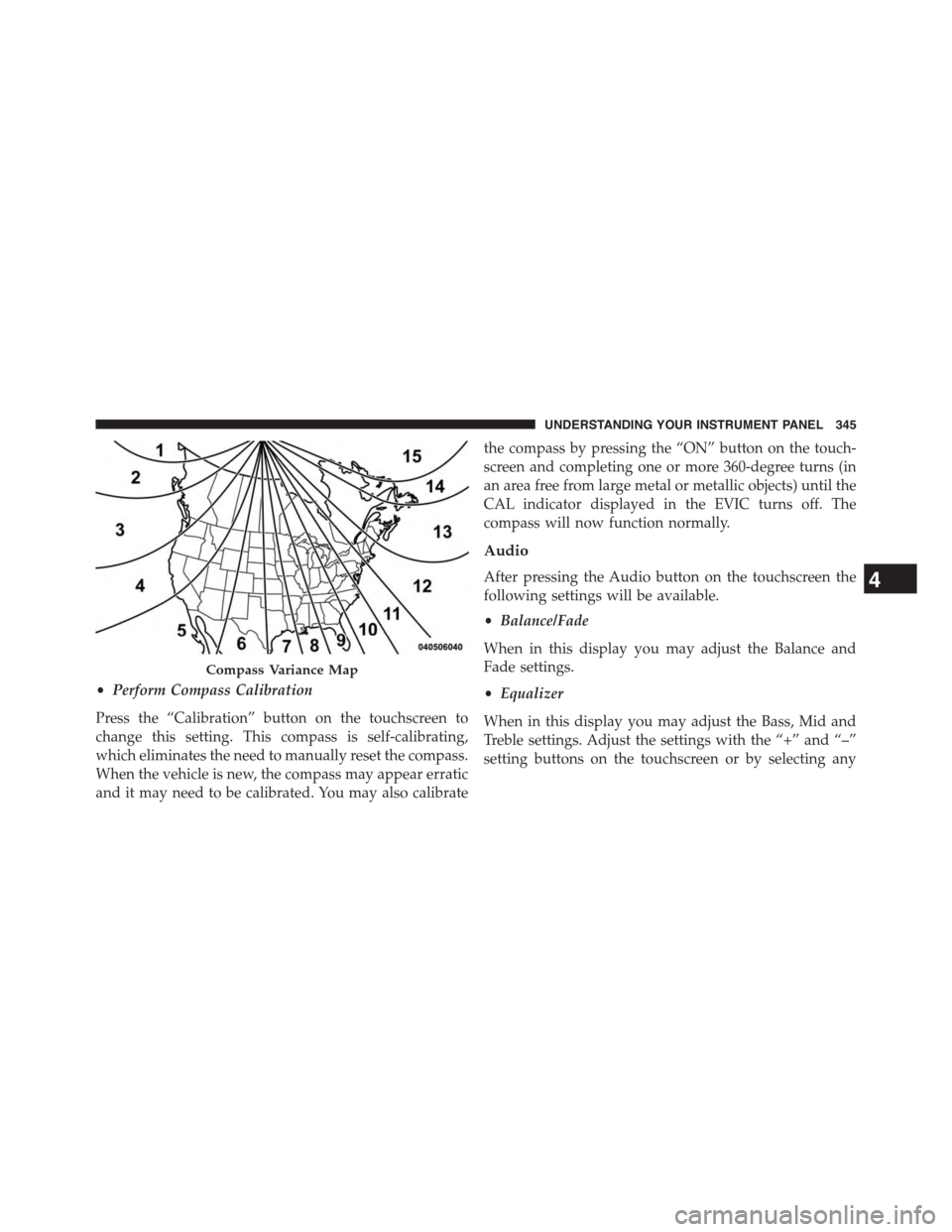
•Perform Compass Calibration
Press the “Calibration” button on the touchscreen to
change this setting. This compass is self-calibrating,
which eliminates the need to manually reset the compass.
When the vehicle is new, the compass may appear erratic
and it may need to be calibrated. You may also calibrate
the compass by pressing the “ON” button on the touch-
screen and completing one or more 360-degree turns (in
an area free from large metal or metallic objects) until the
CAL indicator displayed in the EVIC turns off. The
compass will now function normally.
Audio
After pressing the Audio button on the touchscreen the
following settings will be available.
•Balance/Fade
When in this display you may adjust the Balance and
Fade settings.
•Equalizer
When in this display you may adjust the Bass, Mid and
Treble settings. Adjust the settings with the “+” and “–”
setting buttons on the touchscreen or by selecting any
Compass Variance Map
4
UNDERSTANDING YOUR INSTRUMENT PANEL 345
Page 349 of 648

touchscreen, select the channels you would like to skip
followed by pressing the back arrow button on the
touchscreen.
•Subscription Information
New vehicle purchasers or lessees will receive a free
limited time subscription to SiriusXM Satellite Radio
with your radio. Following the expiration of the free
services, it will be necessary to access the information on
the Subscription Information screen in order to re-
subscribe.
Press the Subscription Info button on the touchscreen to
access the Subscription Information screen.
Write down the SIRIUS ID numbers for your receiver. To
reactivate your service, either call the number listed on
the screen or visit the provider online.
NOTE:SiriusXM Travel Link is a separate subscription.
Uconnect® MULTIMEDIA — VIDEO
ENTERTAINMENT SYSTEM (VES™) — IF
EQUIPPED
Your rear seat Video Entertainment System (VES™) is
designed to give your family years of enjoyment. You can
play your favorite CDs or DVDs, listen to audio over the
wireless headphones, or plug and play a variety of
standard video games or audio devices. Please review
this Owner’s Manual to become familiar with its features
and operation.
4
UNDERSTANDING YOUR INSTRUMENT PANEL 347