buttons DODGE JOURNEY 2015 1.G Owner's Manual
[x] Cancel search | Manufacturer: DODGE, Model Year: 2015, Model line: JOURNEY, Model: DODGE JOURNEY 2015 1.GPages: 648
Page 320 of 648
Vehicle Speed
Push and release the UP or DOWN button until “Vehicle
Speed” displays highlighted in the EVIC. Push the SE-
LECT button to display the current speed in mph or
km/h. Pushing the SELECT button a second time will
toggle the unit of measure between mph or km/h.
NOTE:Changing the unit of measure in the Vehicle
Speed menu will not change the unit of measure in the
EVIC.
Trip Info
Push and release the UP or DOWN button until “Trip
Info” displays highlighted in the EVIC and push the
SELECT button. Pushing the SELECT button with#Trip
Info#highlighted will cause the EVIC display to show
Trip A, Trip B, and Elapsed Time all in one display. If you
want to reset one of the three functions you use the UP or
DOWN buttons to highlight (select) the feature that you
want to reset. Pushing the SELECT button will cause the
selected feature to reset individually. The three features
can only be reset individually. The following Trip func-
tions display in the EVIC:
•Trip A
•Trip B
•Elapsed Time
The Trip Functions mode displays the following informa-
tion:
Trip A
Shows the total distance traveled for Trip A since the last
reset.
Trip B
Shows the total distance traveled for Trip B since the last
reset.
318 UNDERSTANDING YOUR INSTRUMENT PANEL
Page 322 of 648
Messages
Push and release the UP or DOWN button until “Mes-
sages: XX” displays highlighted in the EVIC. If there is
more than one message, pushing the SELECT button will
display a stored warning message. Push and release the
UP and DOWN buttons if there is more than one message
to step through the remaining stored messages. If there
are no message, pushing the SELECT button will do
nothing.
Turn Menu OFF
Select from Main Menu using the DOWN button. Push-
ing the SELECT button blanks the menu display. Pushing
any one of the four steering wheel buttons brings the
menu back.
Uconnect® SETTINGS
The Uconnect® system uses a combination of buttons on
the touchscreen and buttons on the faceplate located on
the center of the instrument panel that allows you to
access and change the customer programmable features.
Buttons On The Faceplate
Buttons on the faceplate are located on the left and right
side of the Uconnect® 4.3 screen. In addition, there is a
Scroll/Enter control knob located on the right side of the
Climate Controls in the center of the instrument panel.
Turn the control knob to scroll through menus and
change settings (i.e., 30, 60, 90), push the center of the
control knob one or more times to select or change a
setting (i.e., ON, OFF).
Buttons On The Touchscreen
Buttons on the touchscreen are accessible on the
Uconnect® Touchscreen.
320 UNDERSTANDING YOUR INSTRUMENT PANEL
Page 323 of 648
Customer Programmable Features — Uconnect®
4.3 Settings
In this mode the Uconnect® system allows you to access
programmable features that may be equipped such as
Display, Clock, Safety & Driving Assistance, Lights,
Doors & Locks, Heated Seats, Engine Off Operation,
Compass Settings, Audio, Phone/Bluetooth® and
SIRIUS Setup through buttons on the faceplate and
touchscreen.
NOTE:Only one touchscreen area may be selected at a
time.
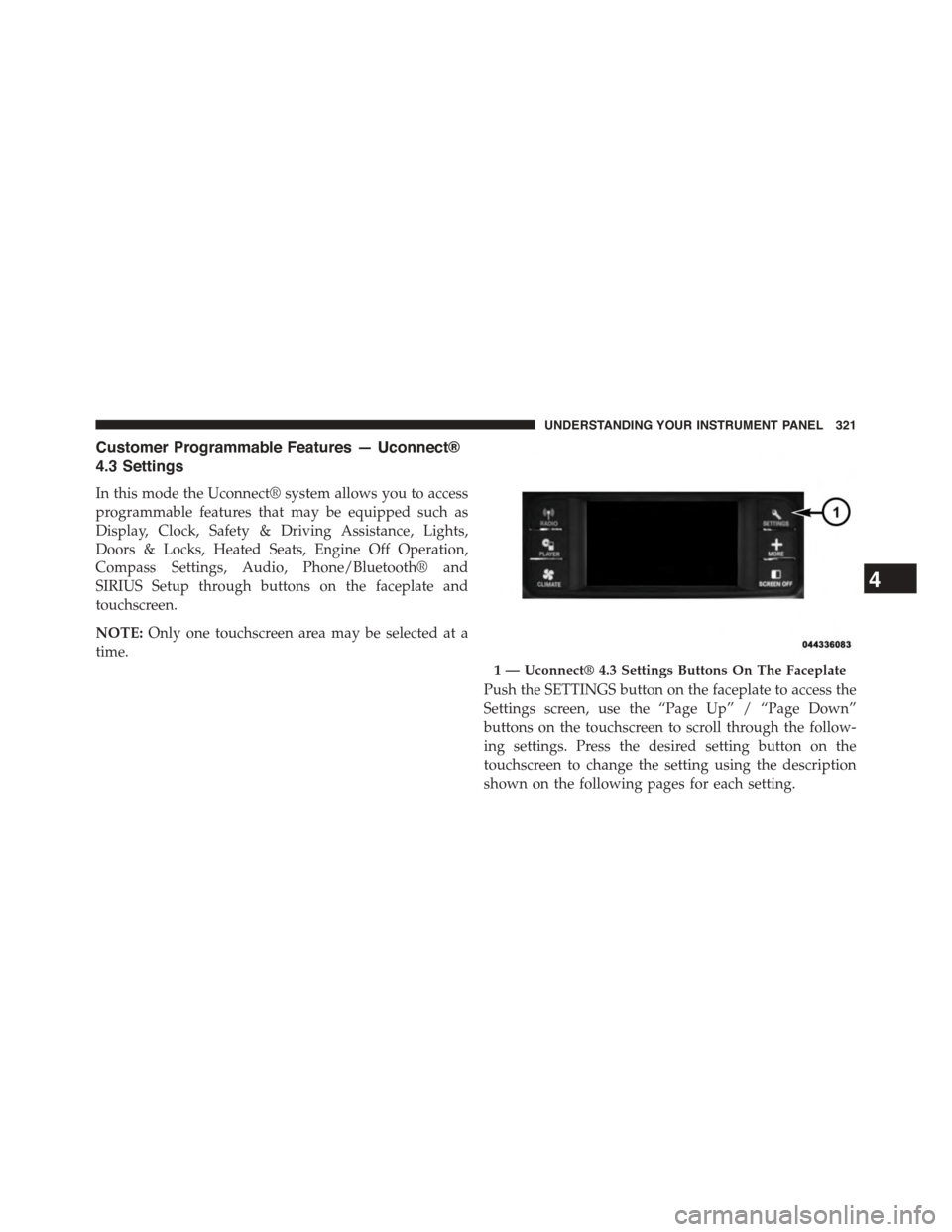
Push the SETTINGS button on the faceplate to access the
Settings screen, use the “Page Up” / “Page Down”
buttons on the touchscreen to scroll through the follow-
ing settings. Press the desired setting button on the
touchscreen to change the setting using the description
shown on the following pages for each setting.
1 — Uconnect® 4.3 Settings Buttons On The Faceplate
4
UNDERSTANDING YOUR INSTRUMENT PANEL 321
Page 324 of 648
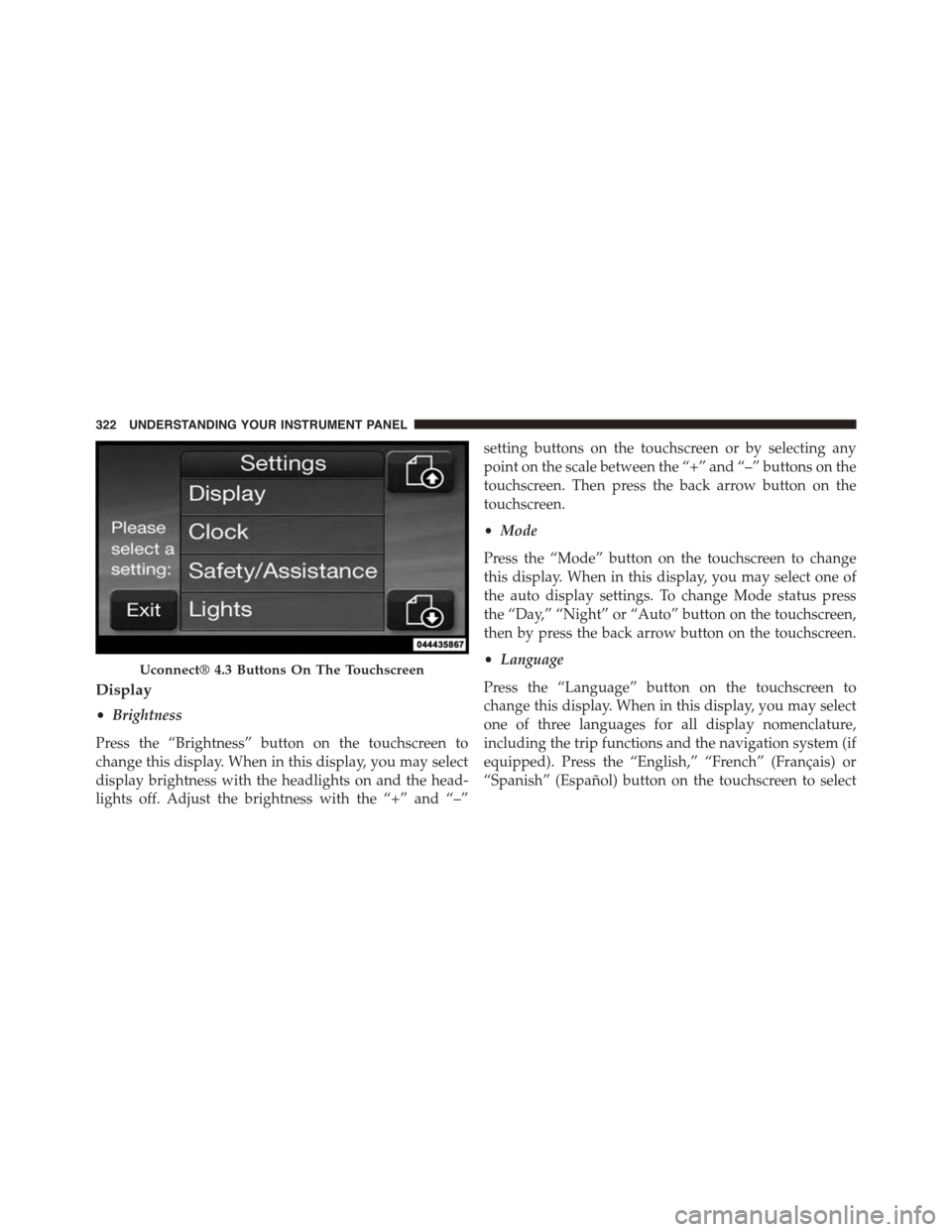
Display
•Brightness
Press the “Brightness” button on the touchscreen to
change this display. When in this display, you may select
display brightness with the headlights on and the head-
lights off. Adjust the brightness with the “+” and “–”
setting buttons on the touchscreen or by selecting any
point on the scale between the “+” and “–” buttons on the
touchscreen. Then press the back arrow button on the
touchscreen.
•Mode
Press the “Mode” button on the touchscreen to change
this display. When in this display, you may select one of
the auto display settings. To change Mode status press
the “Day,” “Night” or “Auto” button on the touchscreen,
then by press the back arrow button on the touchscreen.
•Language
Press the “Language” button on the touchscreen to
change this display. When in this display, you may select
one of three languages for all display nomenclature,
including the trip functions and the navigation system (if
equipped). Press the “English,” “French” (Français) or
“Spanish” (Español) button on the touchscreen to select
Uconnect® 4.3 Buttons On The Touchscreen
322 UNDERSTANDING YOUR INSTRUMENT PANEL
Page 325 of 648
the language preferred. Then press the back arrow button
on the touchscreen. As you continue, the information will
display in the selected language.
•Units
Press the “Units” button on the touchscreen to change
this display. When in this display, you may switch the
EVIC, odometer, and navigation system (if equipped)
between US and Metric units of measure. Press “US” or
“Metric” then press the back arrow button on the touch-
screen. As you continue, the information will display in
the selected units of measure.
•Voice Response
Press the “Voice Response” button on the touchscreen to
change the Voice Response Length settings. To change the
Voice Response Length, press and release the “Brief” or
“Long” button on the touchscreen. Then press the back
arrow button on the touchscreen.
•Touchscreen Beep
Press the “Touchscreen Beep” button on the touchscreen
to turn on or shut off the sound heard when a button on
the touchscreen is pressed. To change the Touchscreen
Beep setting press and release the “ON” or “OFF” button
on the touchscreen, then press the back arrow button on
the touchscreen.
Clock
•Set Time
Press the “Set Time” button on the touchscreen to change
this display. When in this display, you may select the time
display settings. To make your selection, press the “Set
Time” button on the touchscreen, adjust the hours and
minutes using the up and down buttons on the touch-
screen, select AM or PM, select 12 hr or 24 hr. Then press
the back arrow button on the touchscreen when all
selections are complete.
4
UNDERSTANDING YOUR INSTRUMENT PANEL 323
Page 331 of 648
•Passive Entry (Keyless Enter-N-Go™)
Press the “Passive Entry” button on the touchscreen to
change this display. This feature allows you to lock and
unlock the vehicle’s door(s) without having to press the
RKE transmitter lock or unlock buttons. To make your
selection, press the “Passive Entry” button on the touch-
screen and select “ON” or “OFF.” Then press the back
arrow button on the touchscreen. Refer to “Keyless
Enter-N-Go™” in “Things To Know Before Starting Your
Vehicle”.
Auto-On Comfort & Remote Start
•Auto On Heated Seats — If Equipped
Press the “Auto On Heated Seats” button on the touch-
screen to change this display. When the temperatures are
below 40° F (4.4° C) the Driver ’s heated seat will turn on.
To make your selection, press the “Auto On Heated
Seats” button on the touchscreen and select “ON” or
“OFF.” Then press the back arrow button on the touch-
screen.
Engine Off Options
•Headlight Off Delay
Press the “Headlight Off Delay” button on the touch-
screen to change this display. When this feature is se-
lected, the driver can choose to have the headlights
remain on for 0, 30, 60, or 90 seconds when exiting the
vehicle. To change the Headlight Off Delay status, press
the “0,” “30,” “60” or “90” button on the touchscreen.
Then press the back arrow button on the touchscreen.
•Engine Off Power Delay
Press the “Engine Off Power Delay” button on the
touchscreen to change this display. When this feature is
selected, the power window switches, radio, Uconnect®
phone system (if equipped), DVD video system (if
4
UNDERSTANDING YOUR INSTRUMENT PANEL 329
Page 333 of 648
•Calibration
Press the “Calibration” button on the touchscreen to
change this setting. This compass is self-calibrating,
which eliminates the need to manually reset the compass.
When the vehicle is new, the compass may appear erratic
and the EVIC will display CAL until the compass is
calibrated. You may also calibrate the compass by press-
ing the “ON” button on the touchscreen and completing
one or more 360-degree turns (in an area free from large
metal or metallic objects) until the CAL indicator dis-
played in the EVIC turns off. The compass will now
function normally.
NOTE:A good calibration requires a level surface and an
environment free from large metallic objects such as
buildings, bridges, underground cables, railroad tracks,
etc.
Audio
•Equalizer
Press the “Equalizer” button on the touchscreen to
change this display. When in this display, you may adjust
the Bass, Mid and Treble settings. Adjust the settings with
the “+” and “–” setting buttons on the touchscreen or by
selecting any point on the scale between the “+” and “–”
buttons on the touchscreen. Then press the back arrow
button on the touchscreen.
NOTE:Bass/Mid/Treble allow you to simply slide your
finger up or down to change the setting as well as press
directly on the desired setting.
•Balance/Fade
Press the “Balance/Fade” button on the touchscreen to
change this display. When in this display, you may adjust
the Balance and Fade settings.
4
UNDERSTANDING YOUR INSTRUMENT PANEL 331
Page 336 of 648
Once the setting is complete press the Back Arrow button
on the touchscreen to return to the previous menu or
press the “X” button on the touchscreen to close out of
the settings screen. Pressing the Up or Down Arrow
buttons on the touchscreen on the right side of the screen
will allow you to toggle up or down through the avail-
able settings.
Display
After pressing the Display button on the touchscreen the
following settings will be available.
•Display Mode
When in this display you may select one of the auto
display settings. To change Mode status, press and re-
lease the “Day,” “Night” or “Auto” button on the touch-
screen. Then press the back arrow button on the touch-
screen.
•Display Brightness With Headlights ON
When in this display, you may select the brightness with
the headlights on. Adjust the brightness with the “+” and
“–” setting buttons on the touchscreen or by selecting any
point on the scale between the “+” and “–” buttons on the
touchscreen. Then press the back arrow button on the
touchscreen.
•Display Brightness With Headlights OFF
When in this display, you may select the brightness with
the headlights off. Adjust the brightness with the “+” and
“–” setting buttons on the touchscreen or by selecting any
point on the scale between the “+” and “–” buttons on the
touchscreen. Then press the back arrow button on the
touchscreen.
•Set Language
When in this display, you may select one of three
languages for all display nomenclature, including the trip
334 UNDERSTANDING YOUR INSTRUMENT PANEL
Page 338 of 648
Cluster” button on the touchscreen, until a check-mark
appears next to the setting, showing that setting has been
selected. Press the back arrow button on the touchscreen
to return to the previous menu.
•Fuel Saver Display In Cluster — If Equipped
The “ECO” message is located in the instrument cluster
display, this message can be turned on or off. To make
your selection, press the “Fuel Saver Display” button on
the touchscreen, until a check-mark appears next to the
setting, showing that setting has been selected. Press the
back arrow button on the touchscreen to return to the
previous menu.
Clock
After pressing the Clock button on the touchscreen the
following settings will be available.
•Sync With GPS Time — If Equipped
When in this display, you may automatically have the
radio set the time. To change the Sync with GPS Time
setting press the “Sync with GPS Time” button on the
touchscreen until a check-mark appears next to the
setting, indicating that the setting has been selected. Press
the back arrow button on the touchscreen to return to the
previous menu.
•Set Time Hours
When in this display, you may adjust the hours. The
“Sync with GPS Time” button on the touchscreen must be
unchecked. To make your selection press the “+” or “–”
buttons on the touchscreen to adjust the hours up or
down. Press the back arrow button on the touchscreen to
return to the previous menu or press the “X” button on
the touchscreen to close out of the settings screen.
336 UNDERSTANDING YOUR INSTRUMENT PANEL
Page 339 of 648
•Set Time Minutes
When in this display, you may adjust the minutes. The
“Sync with GPS Time” button on the touchscreen must be
unchecked. To make your selection press the “+” or “–”
buttons on the touchscreen to adjust the minutes up or
down. Press the back arrow button on the touchscreen to
return to the previous menu or press the “X” button on
the touchscreen to close out of the settings screen.
•Time Format
When in this display, you may select the time format
display setting. Press the “Time Format” button on the
touchscreen until a check-mark appears next to the 12hrs
or 24hrs setting, indicating that the setting has been
selected. Press the back arrow button on the touchscreen
to return to the previous menu.
•Show Time In Status Bar — If Equipped
When in this display, you may turn on or shut off the
digital clock in the status bar. To change the Show Time
Status setting press the “Show Time in Status Bar” button
on the touchscreen until a check-mark appears next to
setting, indicating that the setting has been selected. Press
the back arrow button on the touchscreen to return to the
previous menu.
Safety & Driving Assistance
After pressing the Safety / Assistance button on the
touchscreen the following settings will be available.
•Park Assist
The Rear Park Assist system will scan for objects behind
the vehicle when the transmission shift lever is in RE-
VERSE and the vehicle speed is less than 11 mph
(18 km/h). The system can be enabled with Sound Only,
Sound and Display, or turned OFF. To change the Park
4
UNDERSTANDING YOUR INSTRUMENT PANEL 337