phone DODGE JOURNEY 2015 1.G Repair Manual
[x] Cancel search | Manufacturer: DODGE, Model Year: 2015, Model line: JOURNEY, Model: DODGE JOURNEY 2015 1.GPages: 648
Page 183 of 648
NOTE:
1. You can replace “John Smith” with any name in your
mobile or favorite phone book. You can also say “Send
a message to John Smith” and the system will ask you
which phone number you want to send a message to
for John Smith.
2. You can replace “Mobile” with “Home,” “Work” or
“Other.”
3. You can replace “Incoming Calls” with “Outgoing
Calls” or “Missed Calls.”
4. Messaging commands only work if the Uconnect®
system is equipped with this feature and the mobile
phone supports messaging over Bluetooth®.
5. You can replace “248 555 1212” with any phone
number supported by your Mobile phone.
6. You can replace “4” with any message number shown
on the screen.
7. If your phone does not support phonebook download
or call log download over Bluetooth® then these
commands will return a response that the contact does
not exist in the phonebook.3
UNDERSTANDING THE FEATURES OF YOUR VEHICLE 181
Page 186 of 648
WARNING!(Continued)
laws, including laws regarding phone use. Your at-
tention should be focused on safely operating the
vehicle. Failure to do so may result in a collision
causing serious injury or death.
When you push the Uconnect® Voice Command
button, you will hear a beep. The beep is your signal
to give a command.
If no command is spoken the system will say one of two
responses:
•I didn’t understand
•I didn’t get that, etc.
If a command is not spoken a second time, the system
will respond with an error and give some direction as
what can be said based on the context you are in. After
three consecutive failures of a spoken command the VR
session will end.
Pushing the Uconnect® Voice Commandbutton
while the system is speaking is known as “barging in.”
The system will be interrupted, and after the beep, you
can say a command. This will become helpful once you
start to learn the options.
NOTE:At any time, you can say the words “Cancel” or
“Help.”
These commands are universal and can be used from any
menu. All other commands can be used depending upon
the active application.
When using this system, you should speak clearly and at
a normal speaking volume.
184 UNDERSTANDING THE FEATURES OF YOUR VEHICLE
Page 187 of 648
The system will best recognize your speech if the win-
dows are closed, and the heater/air conditioning fan is
set to low.
At any point, if the system does not recognize one of your
commands, you will be prompted to repeat it.
To hear available commands, push the Uconnect® Voice
Commandbutton and say “Help.” You will hear
available commands for the screen displayed.
Natural Speech
Natural speech allows the user to speak commands in
phrases or complete sentences. The system filters out
certain non-word utterances and sounds such as “ah”
and “eh.” The system handles fill-in words such as “I
would like to.”
The system handles multiple inputs in the same phrase
or sentence such as “make a phone call” and “to Kelly
Smith.” For multiple inputs in the same phrase or sen-
tence, the system identifies the topic or context and
provides the associated follow-up prompt such as “Who
do you want to call?” in the case where a phone call was
requested but the specific name was not recognized.
The system utilizes continuous dialog; when the system
requires more information from the user it will ask a
question to which the user can respond without pressing
the Uconnect® Voice Commandbutton.
3
UNDERSTANDING THE FEATURES OF YOUR VEHICLE 185
Page 197 of 648
NOTE:
•Only available with Navigation equipped vehicles.
•You can replace “Player” with “Radio,” “Navigation,”
“Phone,” “Climate,” “More” or “Settings.”
•Navigation commands only work if equipped with
Navigation.
NOTE:Available Voice Commands are shown in bold
face and shaded grey.
3
UNDERSTANDING THE FEATURES OF YOUR VEHICLE 195
Page 272 of 648
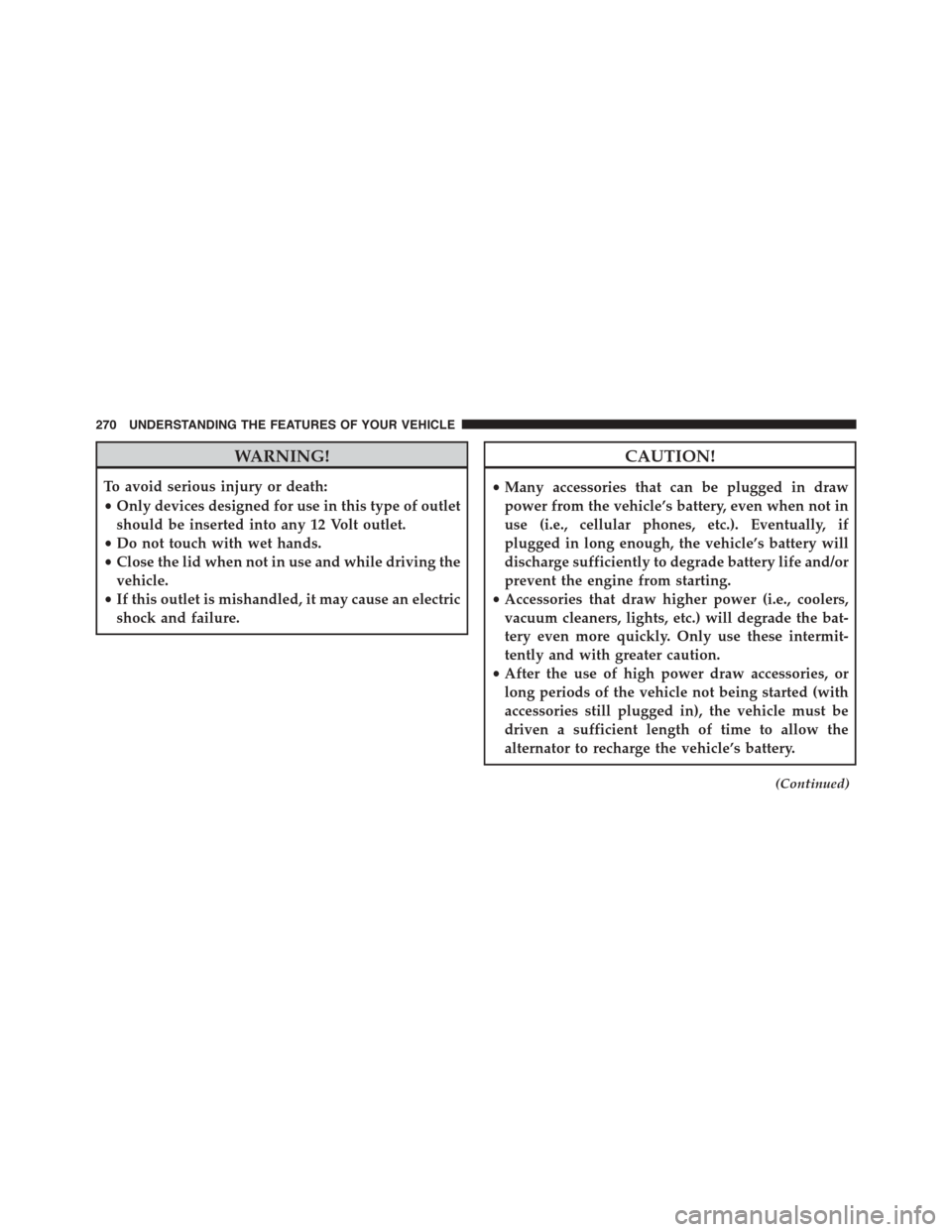
WARNING!
To avoid serious injury or death:
•Only devices designed for use in this type of outlet
should be inserted into any 12 Volt outlet.
•Do not touch with wet hands.
•Close the lid when not in use and while driving the
vehicle.
•If this outlet is mishandled, it may cause an electric
shock and failure.
CAUTION!
•Many accessories that can be plugged in draw
power from the vehicle’s battery, even when not in
use (i.e., cellular phones, etc.). Eventually, if
plugged in long enough, the vehicle’s battery will
discharge sufficiently to degrade battery life and/or
prevent the engine from starting.
•Accessories that draw higher power (i.e., coolers,
vacuum cleaners, lights, etc.) will degrade the bat-
tery even more quickly. Only use these intermit-
tently and with greater caution.
•After the use of high power draw accessories, or
long periods of the vehicle not being started (with
accessories still plugged in), the vehicle must be
driven a sufficient length of time to allow the
alternator to recharge the vehicle’s battery.
(Continued)
270 UNDERSTANDING THE FEATURES OF YOUR VEHICLE
Page 273 of 648
CAUTION!(Continued)
•Power outlets are designed for accessory plugs
only. Do not hang any type of accessory or acces-
sory bracket from the plug.
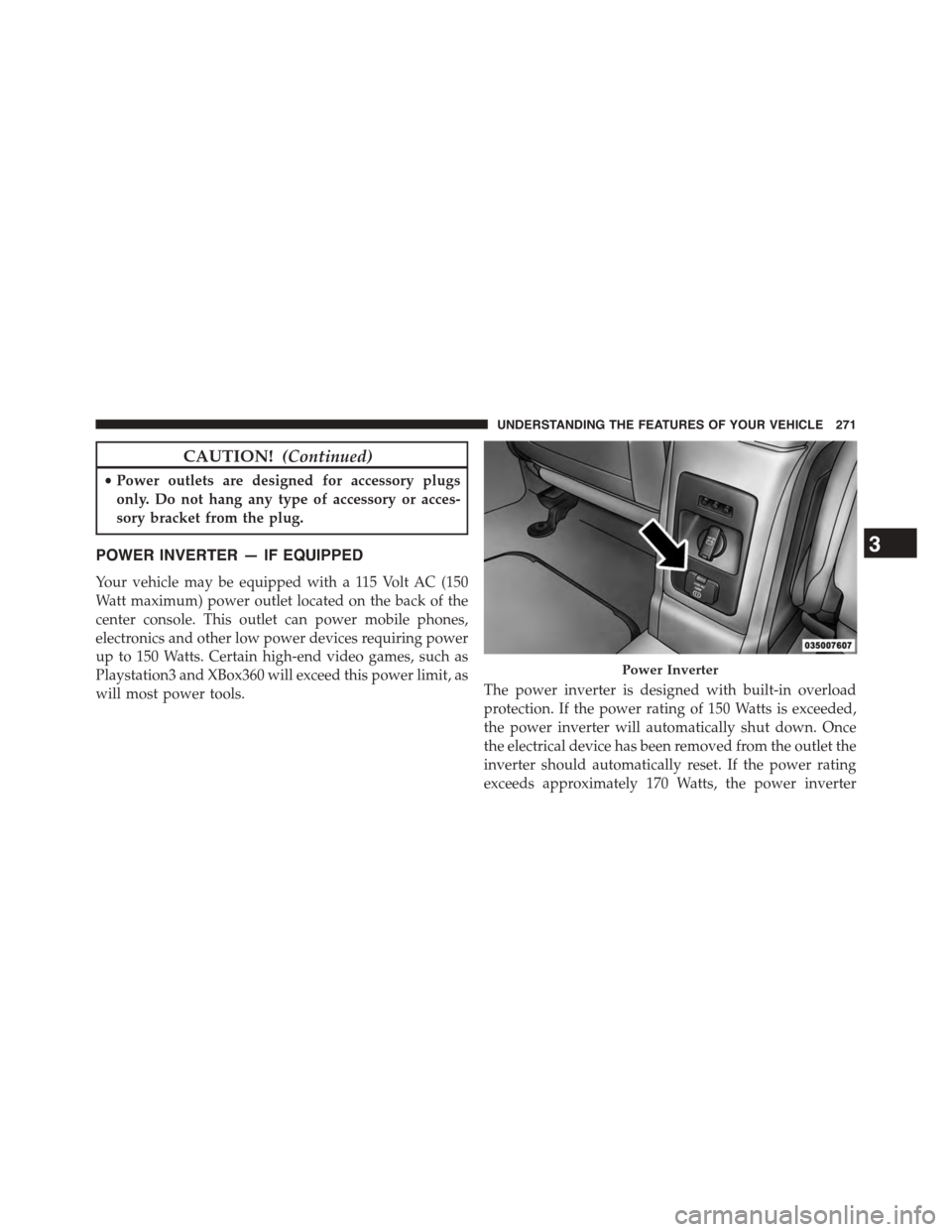
POWER INVERTER — IF EQUIPPED
Your vehicle may be equipped with a 115 Volt AC (150
Watt maximum) power outlet located on the back of the
center console. This outlet can power mobile phones,
electronics and other low power devices requiring power
up to 150 Watts. Certain high-end video games, such as
Playstation3 and XBox360 will exceed this power limit, as
will most power tools.The power inverter is designed with built-in overload
protection. If the power rating of 150 Watts is exceeded,
the power inverter will automatically shut down. Once
the electrical device has been removed from the outlet the
inverter should automatically reset. If the power rating
exceeds approximately 170 Watts, the power inverter
Power Inverter
3
UNDERSTANDING THE FEATURES OF YOUR VEHICLE 271
Page 296 of 648
▫Buttons On The Touchscreen..............320
▫Customer Programmable Features —
Uconnect® 4.3 Settings..................321
▫Customer Programmable Features —
Uconnect® System 8.4 Settings............333
!Uconnect® MULTIMEDIA — VIDEO
ENTERTAINMENT SYSTEM (VES™) — IF
EQUIPPED...........................347
▫Getting Started.......................348
▫Single Video Screen....................348
▫Play Video Games.....................349
▫Listen To An Audio Source On Channel 2 While A
Video Is Playing On Channel 1............350
▫Important Notes For Single Video Screen
System.............................351
▫Play A DVD Using The Touchscreen Radio . . .352
▫VES™ Remote Control — If Equipped.......353
▫Remote Control Storage.................356
▫Locking The Remote Control.............357
▫Replacing The Remote Control Batteries......357
▫Headphones Operation.................357
▫Replacing The Headphone Batteries.........358
▫Controls............................358
▫Unwired® Stereo Headphone Lifetime Limited
Warranty...........................359
▫System Information....................361
294 UNDERSTANDING YOUR INSTRUMENT PANEL
Page 297 of 648
!iPod®/USB/MP3 CONTROL..............370
!STEERING WHEEL AUDIO CONTROLS......370
▫Right-Hand Switch Functions.............371
▫Left-Hand Switch Functions For Radio
Operation...........................371
▫Left-Hand Switch Functions For Media (i.e., CD)
Operation..........................371
!CD/DVD DISC MAINTENANCE...........372
!RADIO OPERATION AND MOBILE PHONES . .372
!CLIMATE CONTROLS...................373
▫Manual Climate Controls With Touchscreen — If
Equipped...........................373
▫Rear Manual Temperature Control (MTC) — If
Equipped...........................381
▫Automatic Temperature Control (ATC) With
Touchscreen — If Equipped..............386
▫Rear Automatic Temperature Control (ATC) — If
Equipped...........................395
4
UNDERSTANDING YOUR INSTRUMENT PANEL 295
Page 323 of 648
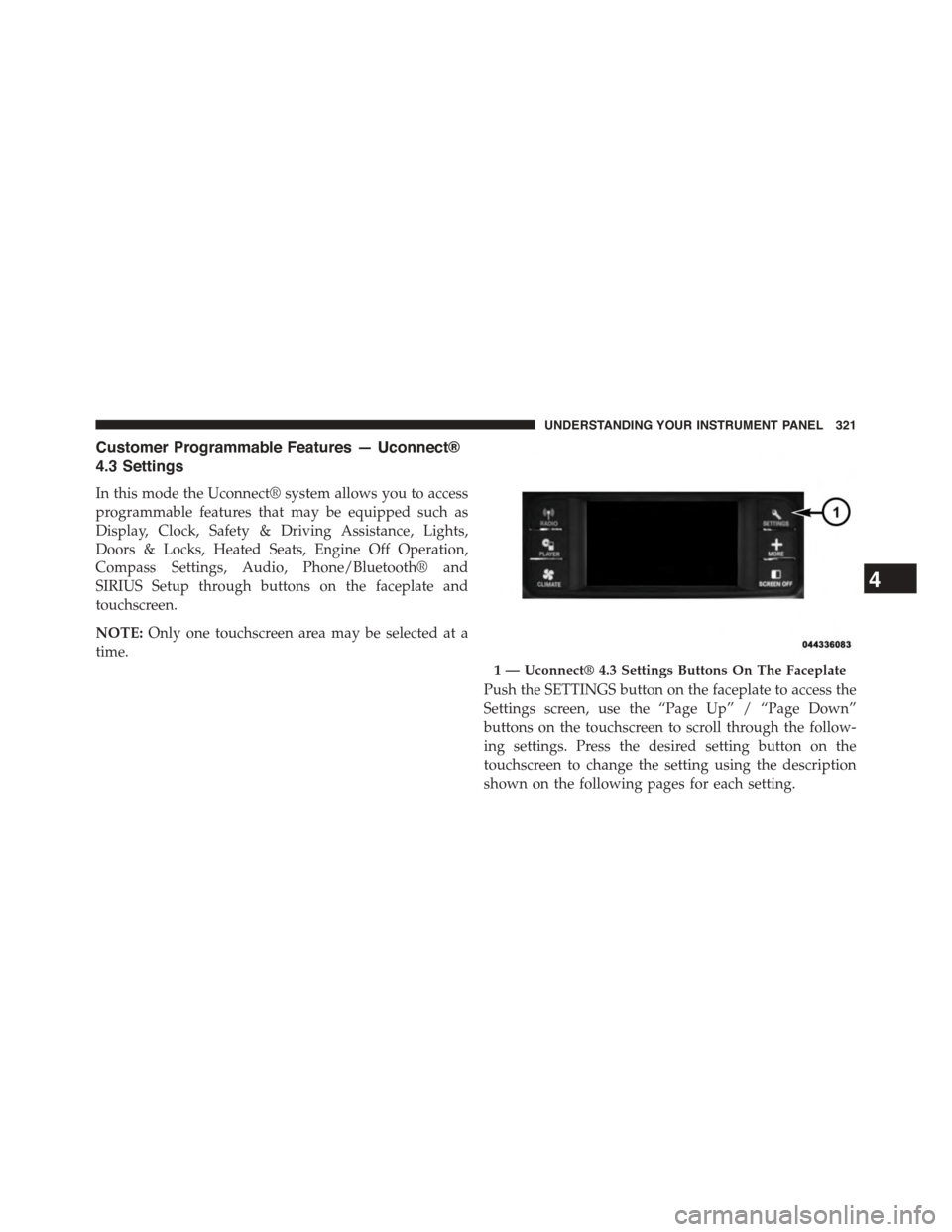
Customer Programmable Features — Uconnect®
4.3 Settings
In this mode the Uconnect® system allows you to access
programmable features that may be equipped such as
Display, Clock, Safety & Driving Assistance, Lights,
Doors & Locks, Heated Seats, Engine Off Operation,
Compass Settings, Audio, Phone/Bluetooth® and
SIRIUS Setup through buttons on the faceplate and
touchscreen.
NOTE:Only one touchscreen area may be selected at a
time.
Push the SETTINGS button on the faceplate to access the
Settings screen, use the “Page Up” / “Page Down”
buttons on the touchscreen to scroll through the follow-
ing settings. Press the desired setting button on the
touchscreen to change the setting using the description
shown on the following pages for each setting.
1 — Uconnect® 4.3 Settings Buttons On The Faceplate
4
UNDERSTANDING YOUR INSTRUMENT PANEL 321
Page 331 of 648
•Passive Entry (Keyless Enter-N-Go™)
Press the “Passive Entry” button on the touchscreen to
change this display. This feature allows you to lock and
unlock the vehicle’s door(s) without having to press the
RKE transmitter lock or unlock buttons. To make your
selection, press the “Passive Entry” button on the touch-
screen and select “ON” or “OFF.” Then press the back
arrow button on the touchscreen. Refer to “Keyless
Enter-N-Go™” in “Things To Know Before Starting Your
Vehicle”.
Auto-On Comfort & Remote Start
•Auto On Heated Seats — If Equipped
Press the “Auto On Heated Seats” button on the touch-
screen to change this display. When the temperatures are
below 40° F (4.4° C) the Driver ’s heated seat will turn on.
To make your selection, press the “Auto On Heated
Seats” button on the touchscreen and select “ON” or
“OFF.” Then press the back arrow button on the touch-
screen.
Engine Off Options
•Headlight Off Delay
Press the “Headlight Off Delay” button on the touch-
screen to change this display. When this feature is se-
lected, the driver can choose to have the headlights
remain on for 0, 30, 60, or 90 seconds when exiting the
vehicle. To change the Headlight Off Delay status, press
the “0,” “30,” “60” or “90” button on the touchscreen.
Then press the back arrow button on the touchscreen.
•Engine Off Power Delay
Press the “Engine Off Power Delay” button on the
touchscreen to change this display. When this feature is
selected, the power window switches, radio, Uconnect®
phone system (if equipped), DVD video system (if
4
UNDERSTANDING YOUR INSTRUMENT PANEL 329