MULTIMEDIA DODGE JOURNEY 2019 Owners Manual
[x] Cancel search | Manufacturer: DODGE, Model Year: 2019, Model line: JOURNEY, Model: DODGE JOURNEY 2019Pages: 524, PDF Size: 5.29 MB
Page 473 of 524
Once a message is received and viewed or listened to, you
will have the following options:
•Send a Reply
• Forward
• Call
Send Messages Using Buttons On The Touchscreen:
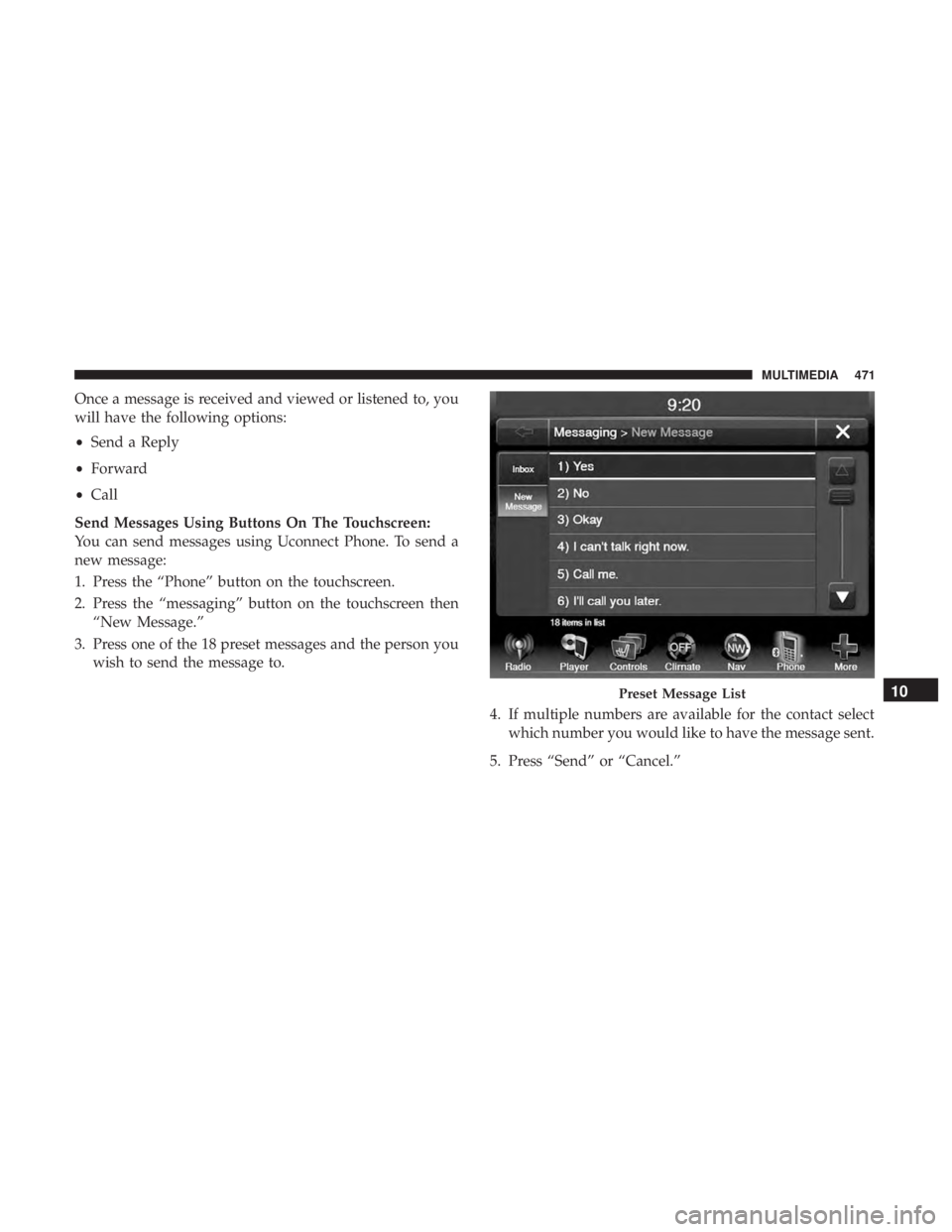
You can send messages using Uconnect Phone. To send a
new message:
1. Press the “Phone” button on the touchscreen.
2. Press the “messaging” button on the touchscreen then “New Message.”
3. Press one of the 18 preset messages and the person you wish to send the message to.
4. If multiple numbers are available for the contact selectwhich number you would like to have the message sent.
5. Press “Send” or “Cancel.”
Preset Message List10
MULTIMEDIA 471
Page 474 of 524
Send Messages Using Voice Commands:
1. Push the Phone
button.
2. After the “Listening” prompt and the following beep,say “Send message to John Smith mobile.”
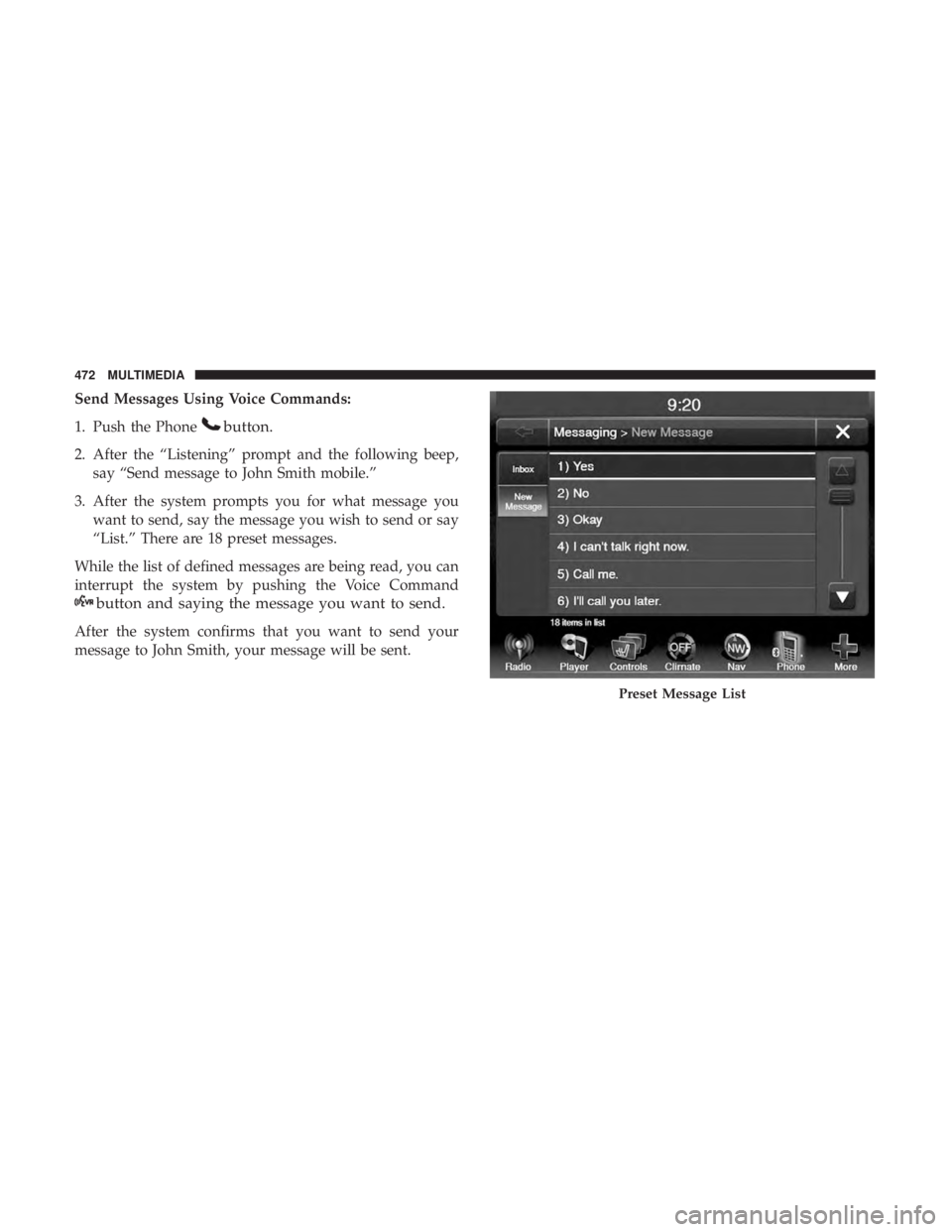
3. After the system prompts you for what message you want to send, say the message you wish to send or say
“List.” There are 18 preset messages.
While the list of defined messages are being read, you can
interrupt the system by pushing the Voice Command
button and saying the message you want to send.
After the system confirms that you want to send your
message to John Smith, your message will be sent.
Preset Message List
472 MULTIMEDIA
Page 475 of 524
List of Preset Messages:
1. Yes.
2. No.
3. Okay.
4. I can’t talk right now.
5. Call me.
6. I’ll call you later.
7. I’m on my way.
8. Thanks.
9. I’ll be late.
10. I will be
11. See you in
12. Stuck in traffic.
13. Start without me.14. Where are you?
15. Are you there yet?
16. I need directions.
17. I’m lost.
18. See you later.
Bluetooth Communication Link
Mobile phones have been found to lose connection to the
Uconnect Phone. When this happens, the connection can
generally be re-established by switching the mobile phone
OFF/ON. Your mobile phone is recommended to remain in
Bluetooth ON mode.
Power-Up
After switching the ignition key from OFF to either the ON
or ACC position, or after a language change, you must wait
at least 15 seconds prior to using the system.10
MULTIMEDIA 473
Page 476 of 524

Voice Tree
Uconnect Hands-Free Calling
474 MULTIMEDIA
Page 477 of 524
NOTE:
1. You can replace “John Smith” with any name in yourmobile or favorite phone book. You can also say “Send
a message to John Smith,” and the system will ask you
which phone number you want to send a message to for
John Smith.
2. You can replace “Mobile” with “Home,” “Work” or “Other.”
3. You can replace “Incoming Calls” with “Outgoing Calls” or “Missed Calls.”
4. You can replace “248 555 1212” with any phone number supported by your Mobile phone.
5. These commands can be used during a phone call after pushing the Uconnect Voice Command button on the
steering wheel. Please note the call will be muted while
the VR session is active.
6. Send dial tones for automated systems is available while a call is active. This is an example that uses a Phonebook
Record named “Voicemail Password.” 7. Storing Dial tones in contact names is possible but only
the first number encountered in a contact name will be
sent. For example, if there is a number stored in the
Home and Work numbers for the contact “Voicemail
password,” only the Home number will be sent.
8. If your phone does not support phonebook download or call log download over Bluetooth, then these commands
will return a response that the contact does not exist in
the phonebook.
9. Emergency and Towing assistance are contacts that have been pre-loaded in the phonebook. Commands such as
“Call Emergency” and “Call Towing Assistance” will
call the corresponding number stored with those con-
tacts.
NOTE: Available Voice Commands are shown in bold face
and underlined in the gray shaded boxes.
10
MULTIMEDIA 475
Page 478 of 524
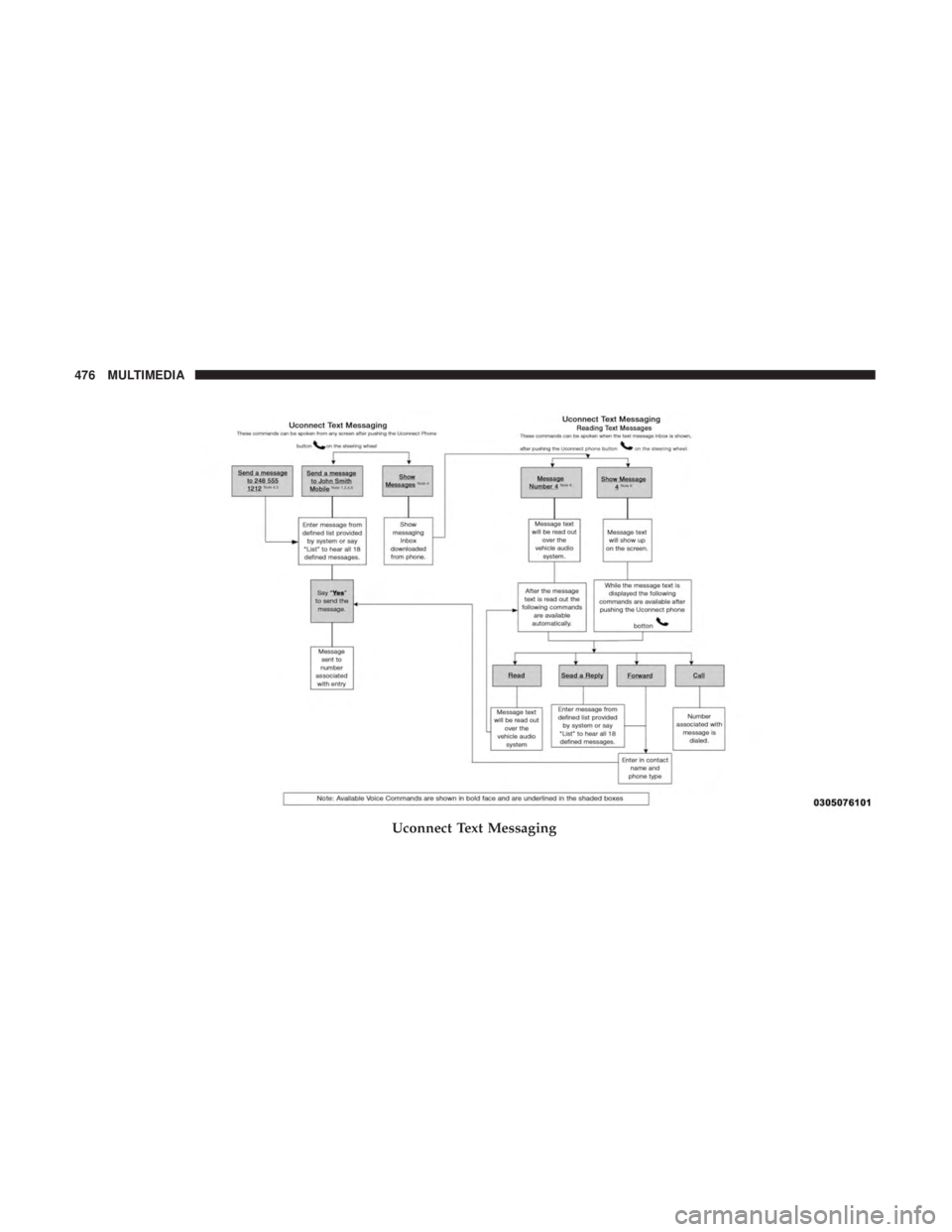
Uconnect Text Messaging
476 MULTIMEDIA
Page 479 of 524
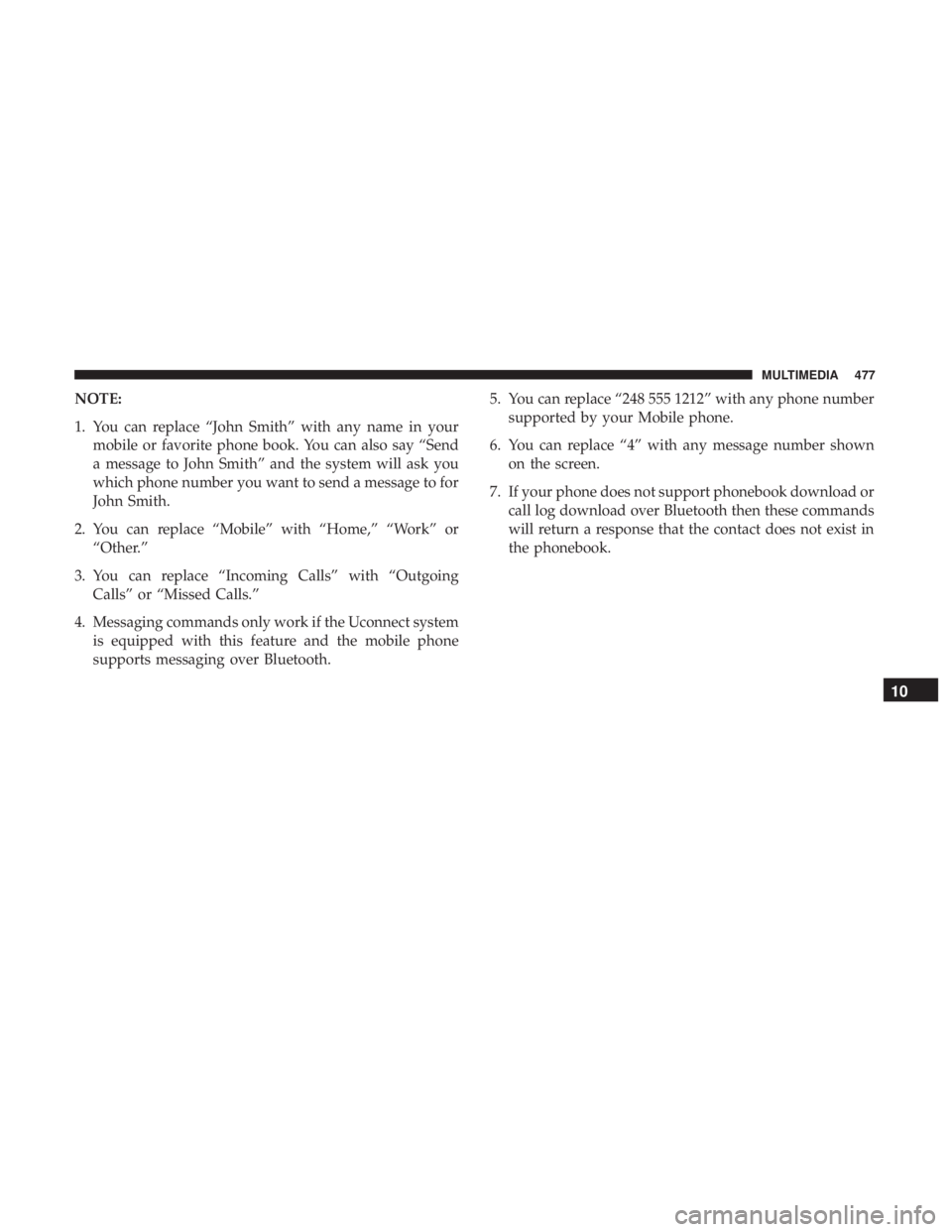
NOTE:
1. You can replace “John Smith” with any name in yourmobile or favorite phone book. You can also say “Send
a message to John Smith” and the system will ask you
which phone number you want to send a message to for
John Smith.
2. You can replace “Mobile” with “Home,” “Work” or “Other.”
3. You can replace “Incoming Calls” with “Outgoing Calls” or “Missed Calls.”
4. Messaging commands only work if the Uconnect system is equipped with this feature and the mobile phone
supports messaging over Bluetooth. 5. You can replace “248 555 1212” with any phone number
supported by your Mobile phone.
6. You can replace “4” with any message number shown on the screen.
7. If your phone does not support phonebook download or call log download over Bluetooth then these commands
will return a response that the contact does not exist in
the phonebook.
10
MULTIMEDIA 477
Page 480 of 524
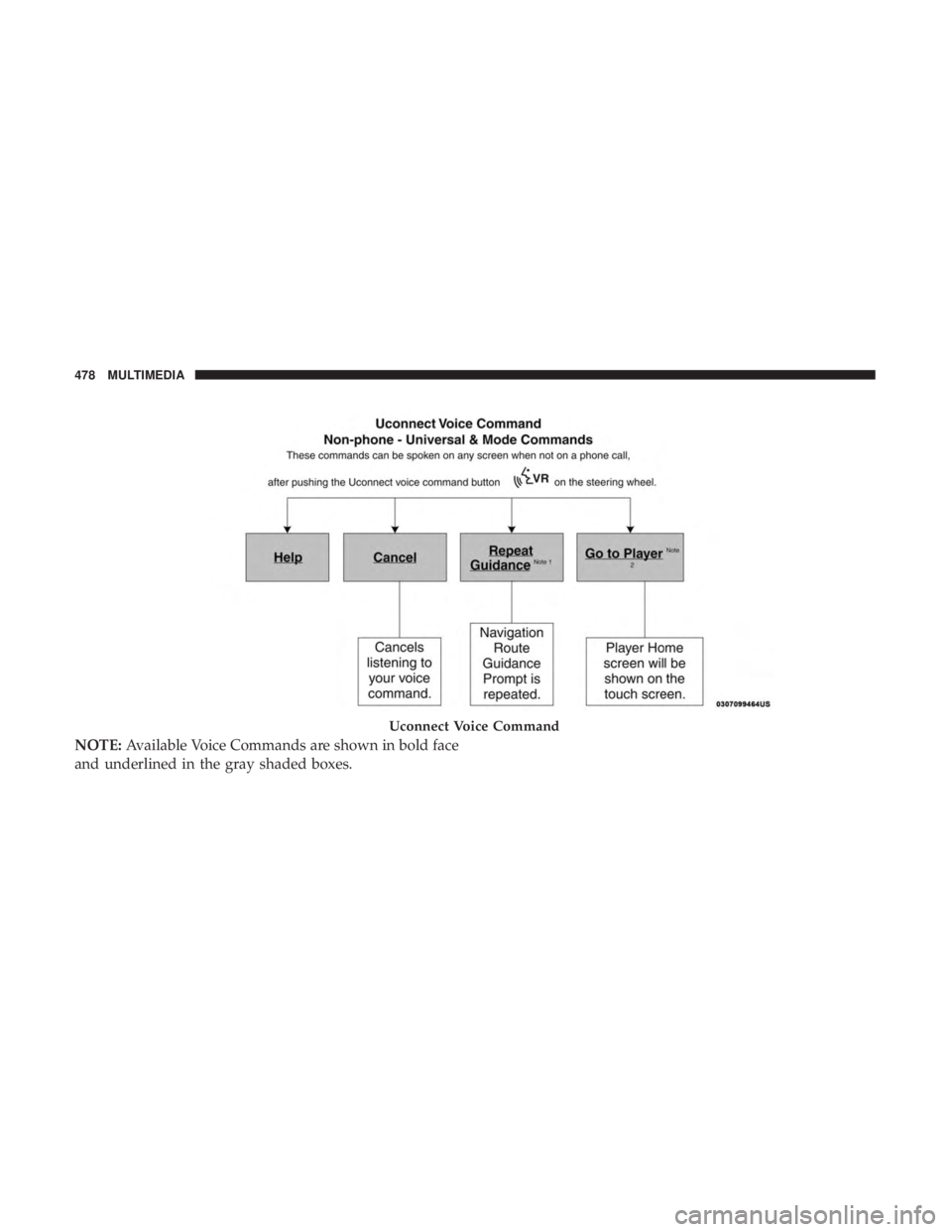
NOTE:Available Voice Commands are shown in bold face
and underlined in the gray shaded boxes.
Uconnect Voice Command
478 MULTIMEDIA
Page 481 of 524
General Information
The following regulatory statement applies to all Radio
Frequency (RF) devices equipped in this vehicle:
This device complies with Part 15 of the FCC Rules and
with Industry Canada license-exempt RSS standard(s).
Operation is subject to the following two conditions:
1. This device may not cause harmful interference, and
2.
This device must accept any interference received, includ-
ing interference that may cause undesired operation.
Changes or modifications not expressly approved by the
party responsible for compliance could void the user ’s
authority to operate the equipment.
RADIO OPERATION AND MOBILE PHONES
Under certain conditions, the mobile phone being on in
your vehicle can cause erratic or noisy performance from
your radio. This condition may be lessened or eliminated
by relocating the mobile phone antenna. This condition is
not harmful to the radio. If your radio performance does
not satisfactorily “clear” by the repositioning of the an-
tenna, it is recommended that the radio volume be turned
down or off during mobile phone operation when not
using Uconnect (if equipped).
10
MULTIMEDIA 479
Page 482 of 524
Regulatory And Safety Information
USA/CANADA
Exposure to Radio Frequency Radiation
The radiated output power of the internal wireless radio is
far below the FCC and IC radio frequency exposure limits.
Nevertheless, the wireless radio will be used in such a
manner that the radio is 8 in (20 cm) or further from the
human body.
The internal wireless radio operates within guidelines
found in radio frequency safety standards and recommen-
dations, which reflect the consensus of the scientific com-
munity.
The radio manufacturer believes the internal wireless radio
is safe for use by consumers. The level of energy emitted is
far less than the electromagnetic energy emitted by wire-
less devices such as mobile phones. However, the use of
wireless radios may be restricted in some situations or
environments, such as aboard airplanes. If you are unsure
of restrictions, you are encouraged to ask for authorization
before turning on the wireless radio.The following regulatory statement applies to all Radio
Frequency (RF) devices equipped in this vehicle:
This device complies with Part 15 of the FCC Rules and
with Industry Canada license-exempt RSS standard(s).
Operation is subject to the following two conditions:
1. This device may not cause harmful interference, and
2. This device must accept any interference received, in-
cluding interference that may cause undesired opera-
tion.
NOTE: Changes or modifications not expressly approved
by the party responsible for compliance could void the
user ’s authority to operate the equipment.
480 MULTIMEDIA