bluetooth DODGE JOURNEY 2019 Owner's Manual
[x] Cancel search | Manufacturer: DODGE, Model Year: 2019, Model line: JOURNEY, Model: DODGE JOURNEY 2019Pages: 524, PDF Size: 5.29 MB
Page 458 of 524
NOTE:If there is no device currently connected with the
system, a pop-up will appear.
5. Search for available devices on your Bluetooth enabled audio device. When prompted on the device, enter the
PIN shown on the Uconnect screen.
6. Uconnect Phone will display an in process screen while the system is connecting.
7. When the pairing process has successfully been com- pleted, the system will prompt you to choose whether or
not this is your favorite device. Selecting “Yes” will
make this device the highest priority. This device will
take precedence over other paired devices within range.
NOTE: For devices which are not made a favorite, the
device priority is determined by the order in which it was
paired. The latest device paired will have the higher
priority.
You can also use the following VR command to bring up a
list of paired audio devices:
• “Show Paired Phones”
• “Connect My Phone”Connecting To A Particular Mobile Phone Or Audio
Device After Pairing
Uconnect Phone will automatically connect to the highest
priority paired phone and/or Audio Device within range.
If you need to choose a particular phone or Audio Device
follow these steps:
1. Press the “Settings” button on the touchscreen.
2. Press the “Paired Phones” or “Paired Audio Sources”
button on the touchscreen.
3. Press to select the particular Phone or the particular Audio Device.
4. Press the “X” to exit out of the Settings screen.
Disconnecting A Phone Or Audio Device
1. Press the “Settings” button on the touchscreen.
2. Press the “Paired Phones” or “Paired Audio Devices” button on the touchscreen.
3. Press the settings icon button located to the right of the device name.
4. The options pop-up will be displayed.
456 MULTIMEDIA
Page 459 of 524
5. Press the “Disconnect Device” button on the touch-screen.
6. Press the “X” to exit out of the Settings screen.
Deleting A Phone Or Audio Device
1. Press the “Settings” button on the touchscreen.
2. Press the “Pair Phones” or “Paired Audio Devices” button on the touchscreen.
3. Press the settings icon button located to the right of the device name for a different Phone or Audio Device than
the currently connected device.
4. The options pop-up will be displayed.
5. Press the “Delete Device” button on the touchscreen.
6. Press the “X” to exit out of the Settings screen.
Making A Phone Or Audio Device A Favorite
1. Press the “Settings” button on the touchscreen.
2. Press the “Paired Phones” or “Paired Audio Devices” button on the touchscreen.
3. Press the settings icon button located to the right of the device name. 4. The options pop-up will be displayed.
5. Press the “Make Favorite” button on the touchscreen;
you will see the chosen device move to the top of the list.
6. Press the “X” to exit out of the Settings screen.
Phonebook Download (Automatic Phonebook
Transfer From Mobile Phone) — If Equipped
If equipped and specifically supported by your phone,
Uconnect Phone automatically downloads names (text
names) and number entries from the mobile phone’s
phonebook. Specific Bluetooth Phones with Phone Book
Access Profile may support this feature. See Uconnect
website, UconnectPhone.com, for supported phones.
• To call a name from a downloaded mobile phone book,
follow the procedure in the Voice Recognition Quick
Reference section.
• Automatic download and update of a phone book, if
supported, begins as soon as the Bluetooth wireless
phone connection is made to the Uconnect Phone, for
example, after you start the vehicle.
• A maximum of 2,000 entries per phone will be down-
loaded and updated every time a phone is connected to
the Uconnect Phone.
10
MULTIMEDIA 457
Page 462 of 524
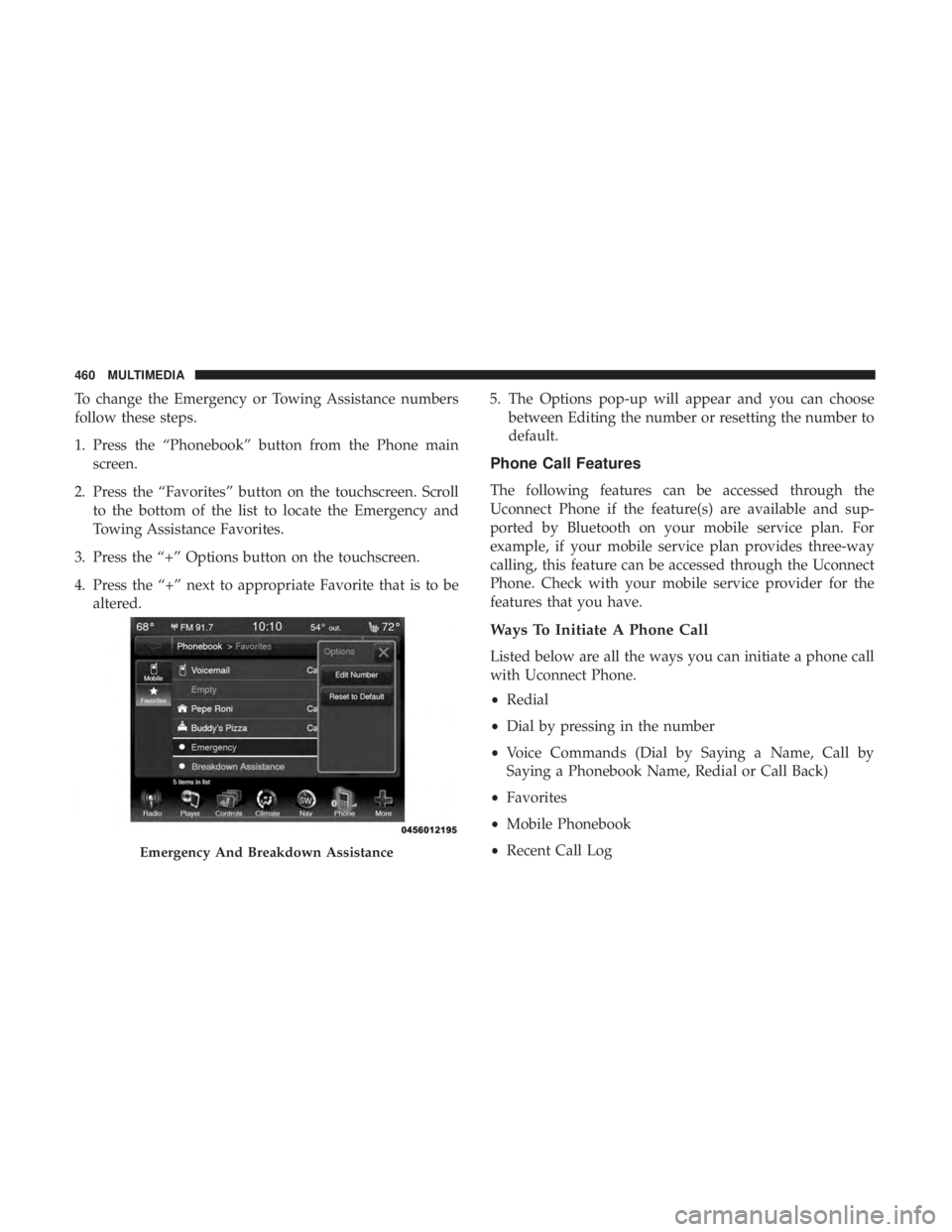
To change the Emergency or Towing Assistance numbers
follow these steps.
1. Press the “Phonebook” button from the Phone mainscreen.
2. Press the “Favorites” button on the touchscreen. Scroll to the bottom of the list to locate the Emergency and
Towing Assistance Favorites.
3. Press the “+” Options button on the touchscreen.
4. Press the “+” next to appropriate Favorite that is to be altered. 5. The Options pop-up will appear and you can choose
between Editing the number or resetting the number to
default.
Phone Call Features
The following features can be accessed through the
Uconnect Phone if the feature(s) are available and sup-
ported by Bluetooth on your mobile service plan. For
example, if your mobile service plan provides three-way
calling, this feature can be accessed through the Uconnect
Phone. Check with your mobile service provider for the
features that you have.
Ways To Initiate A Phone Call
Listed below are all the ways you can initiate a phone call
with Uconnect Phone.
•Redial
• Dial by pressing in the number
• Voice Commands (Dial by Saying a Name, Call by
Saying a Phonebook Name, Redial or Call Back)
• Favorites
• Mobile Phonebook
• Recent Call Log
Emergency And Breakdown Assistance
460 MULTIMEDIA
Page 466 of 524
Redial
Press the “Redial” button on the touchscreen, or push the
“VR” button and after the “Listening” prompt and the
following beep, say “Redial.”
The Uconnect Phone will call the last number that was
dialed from your mobile phone.
Call Continuation
Call continuation is the progression of a phone call on the
Uconnect Phone after the vehicle ignition has been
switched to OFF.
NOTE:The call will remain within the vehicle audio
system until the phone becomes out of range for the
Bluetooth connection. It is recommended to press the
“transfer” button on the touchscreen when leaving the
vehicle.
Uconnect Phone Features
Emergency Assistance
If you are in an emergency and the mobile phone is
reachable:
• Pick up the phone and manually dial the emergency
number for your area. If the phone is not reachable and the Uconnect Phone is
operational, you may reach the emergency number as
follows:
1. Push the Phone
button to begin.
2. After the “Listening” prompt and the following beep,
say “Dial Emergency” and the Uconnect Phone will
instruct the paired mobile phone to call the emergency
number. This feature is supported in the U.S., Canada,
and Mexico.
NOTE:
• The Emergency call may also be initiated by using the
touchscreen.
• The emergency number dialed is based on the country
where the vehicle is purchased (911 for the U.S. and
Canada and 060 for Mexico). The number dialed may
not be applicable with the available mobile service and
area.
• The Uconnect Phone does slightly lower your chances of
successfully making a phone call as to that for the
mobile phone directly.
464 MULTIMEDIA
Page 468 of 524
You can also send stored mobile phonebook entries as
tones for fast and easy access to voice mail and pager
entries. For example, if you previously created a Phone-
book entry with First and/or Last Name as “Voicemail
Password”, then if you push the Voice Command
but-
ton and say “Send Voicemail Password” the Uconnect
Phone will then send the corresponding phone number
associated with the phonebook entry, as tones over the
phone.
NOTE:
• The first number encountered for that contact will be
sent. All other numbers entered for that contact will be
ignored.
• You may not hear all of the tones due to mobile phone
network configurations. This is normal.
• Some paging and voice mail systems have system time
out settings that are too short and may not allow the use
of this feature.
• Pauses, wait or other characters that are supported by
some phones are not supported over Bluetooth. These
additional symbols will be ignored in the dialing a
numbered sequence.
Barge In — Overriding Prompts
The Voice Commandbutton can be used when you
wish to skip part of a prompt and issue your voice
command immediately. For example, if a prompt is
asking “There are two numbers with the name John. Say
the full name” you could push the Voice Command
button and say, “John Smith” to select that option
without having to listen to the rest of the voice prompt.
Voice Response Length
It is possible for you to choose between Brief and Detailed
Voice Response Length.
1. Press the “Settings” button on the touchscreen.
2. Press the “Voice” button on the touchscreen, then scroll down to Voice Response Length.
3. Select either “Brief” or “Detailed” by pressing the box next to the selection. A check-mark will appear to
indicate your selection.
Phone And Network Status Indicators
Uconnect Phone will provide notification to inform you of
your phone and network status when you are attempting
466 MULTIMEDIA
Page 469 of 524
to make a phone call using Uconnect Phone. The status is
given for network signal strength and phone battery
strength.
Dialing Using The Mobile Phone Keypad
You can dial a phone number with your mobile phone
keypad and still use the Uconnect Phone (while dialing via
the mobile phone keypad, the user must exercise caution
and take precautionary safety measures). By dialing a
number with your connected Bluetooth mobile phone, the
audio will be played through your vehicle’s audio system.
The Uconnect Phone will work the same as if you dial the
number using a voice command.
NOTE:Certain brands of mobile phones do not send the
dial ring to the Uconnect Phone to play it on the vehicle
audio system, so you will not hear it. Under this situation,
after successfully dialing a number the user may feel that
the call did not go through even though the call is in
progress. Once your call is answered, you will hear the
audio.
Mute/Un-Mute (Mute ON/OFF)
When you mute the Uconnect Phone, you will still be able
to hear the conversation coming from the other party, but
the other party will not be able to hear you. To mute the
Uconnect Phone simply press the “Mute” button on the
Phone main screen.
Advanced Phone Connectivity
Transfer Call To And From Mobile Phone
The Uconnect Phone allows ongoing calls to be transferred
from your mobile phone to the Uconnect Phone without
terminating the call. To transfer an ongoing call from your
connected mobile phone to the Uconnect Phone or vice
versa, press the “Transfer” button on the Phone main
screen.
Connect Or Disconnect Link Between The Uconnect
Phone And Mobile Phone
If you would like to connect or disconnect the Bluetooth
connection between a Uconnect Phone paired mobile
phone and the Uconnect Phone, follow the instructions
described in your mobile phone User’s Manual.
10
MULTIMEDIA 467
Page 472 of 524
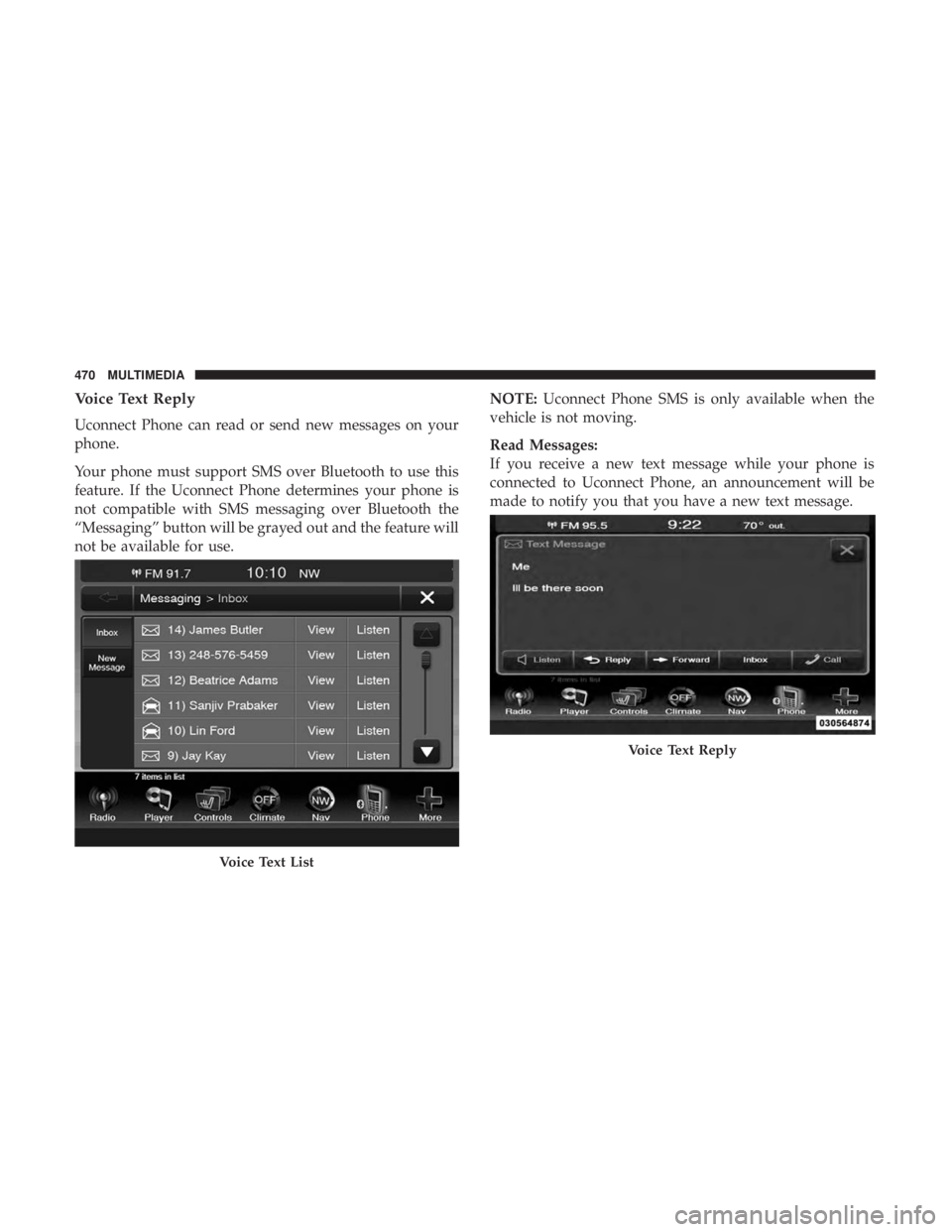
Voice Text Reply
Uconnect Phone can read or send new messages on your
phone.
Your phone must support SMS over Bluetooth to use this
feature. If the Uconnect Phone determines your phone is
not compatible with SMS messaging over Bluetooth the
“Messaging” button will be grayed out and the feature will
not be available for use.NOTE:
Uconnect Phone SMS is only available when the
vehicle is not moving.
Read Messages:
If you receive a new text message while your phone is
connected to Uconnect Phone, an announcement will be
made to notify you that you have a new text message.
Voice Text List
Voice Text Reply
470 MULTIMEDIA
Page 475 of 524
List of Preset Messages:
1. Yes.
2. No.
3. Okay.
4. I can’t talk right now.
5. Call me.
6. I’ll call you later.
7. I’m on my way.
8. Thanks.
9. I’ll be late.
10. I will be
11. See you in
12. Stuck in traffic.
13. Start without me.14. Where are you?
15. Are you there yet?
16. I need directions.
17. I’m lost.
18. See you later.
Bluetooth Communication Link
Mobile phones have been found to lose connection to the
Uconnect Phone. When this happens, the connection can
generally be re-established by switching the mobile phone
OFF/ON. Your mobile phone is recommended to remain in
Bluetooth ON mode.
Power-Up
After switching the ignition key from OFF to either the ON
or ACC position, or after a language change, you must wait
at least 15 seconds prior to using the system.10
MULTIMEDIA 473
Page 477 of 524
NOTE:
1. You can replace “John Smith” with any name in yourmobile or favorite phone book. You can also say “Send
a message to John Smith,” and the system will ask you
which phone number you want to send a message to for
John Smith.
2. You can replace “Mobile” with “Home,” “Work” or “Other.”
3. You can replace “Incoming Calls” with “Outgoing Calls” or “Missed Calls.”
4. You can replace “248 555 1212” with any phone number supported by your Mobile phone.
5. These commands can be used during a phone call after pushing the Uconnect Voice Command button on the
steering wheel. Please note the call will be muted while
the VR session is active.
6. Send dial tones for automated systems is available while a call is active. This is an example that uses a Phonebook
Record named “Voicemail Password.” 7. Storing Dial tones in contact names is possible but only
the first number encountered in a contact name will be
sent. For example, if there is a number stored in the
Home and Work numbers for the contact “Voicemail
password,” only the Home number will be sent.
8. If your phone does not support phonebook download or call log download over Bluetooth, then these commands
will return a response that the contact does not exist in
the phonebook.
9. Emergency and Towing assistance are contacts that have been pre-loaded in the phonebook. Commands such as
“Call Emergency” and “Call Towing Assistance” will
call the corresponding number stored with those con-
tacts.
NOTE: Available Voice Commands are shown in bold face
and underlined in the gray shaded boxes.
10
MULTIMEDIA 475
Page 479 of 524
NOTE:
1. You can replace “John Smith” with any name in yourmobile or favorite phone book. You can also say “Send
a message to John Smith” and the system will ask you
which phone number you want to send a message to for
John Smith.
2. You can replace “Mobile” with “Home,” “Work” or “Other.”
3. You can replace “Incoming Calls” with “Outgoing Calls” or “Missed Calls.”
4. Messaging commands only work if the Uconnect system is equipped with this feature and the mobile phone
supports messaging over Bluetooth. 5. You can replace “248 555 1212” with any phone number
supported by your Mobile phone.
6. You can replace “4” with any message number shown on the screen.
7. If your phone does not support phonebook download or call log download over Bluetooth then these commands
will return a response that the contact does not exist in
the phonebook.
10
MULTIMEDIA 477