UCONNECT SETTINGS DODGE JOURNEY 2019 Owner's Guide
[x] Cancel search | Manufacturer: DODGE, Model Year: 2019, Model line: JOURNEY, Model: DODGE JOURNEY 2019Pages: 524, PDF Size: 5.29 MB
Page 439 of 524
4. At the Options pop-up screen press the “Connect De-vice” button on the touchscreen.
5. Press the “X” to exit out of the Settings screen.
Disconnecting A Phone Or Audio Device
1. Push the SETTINGS button on the faceplate.
2. Press the “Phone/Bluetooth” button on the touchscreen.
3. Select the Phone or Audio Device.
4. At the Options pop-up screen press the “Disconnect Device” button on the touchscreen.
5. Press the “X” to exit out of the Settings screen.
Deleting A Phone Or Audio Device
1. Push the SETTINGS button on the faceplate.
2. Press the “Phone/Bluetooth” button on the touchscreen.
3. Select the Phone or Audio Device.
4. At the Options pop-up screen press the “Delete Device” button on the touchscreen.
5. Press the “X” to exit out of the Settings screen.
Making A Phone Or Audio Device A Favorite
1. Push the SETTINGS button on the faceplate.
2. Press the “Phone/Bluetooth” button on the touchscreen.
3. Select a different Phone or Audio Device then the currently connected device.
4. At the Options pop-up screen press the “Make Favorite” button on the touchscreen; you will see the chosen
device move to the top of the list.
5. Press the “X” to exit out of the Settings screen.
Phonebook Download (Automatic Phonebook
Transfer From Mobile Phone) — If Equipped
If equipped and specifically supported by your phone,
Uconnect Phone automatically downloads names (text
names) and number entries from the mobile phone’s
phonebook. Specific Bluetooth Phones with Phone Book
Access Profile may support this feature. See Uconnect
website, UconnectPhone.com, for supported phones.
• To call a name from a downloaded mobile phone book,
follow the procedure in the Voice Recognition Quick
Reference section.
10
MULTIMEDIA 437
Page 446 of 524
send the corresponding phone number associated with
the phonebook entry, as tones over the phone.
NOTE:
•The first number encountered for that contact will be
sent. All other numbers entered for that contact will be
ignored.
• You may not hear all of the tones due to mobile phone
network configurations. This is normal.
• Some paging and voice mail systems have system time
out settings that are too short and may not allow the use
of this feature.
• Pauses, wait or other characters that are supported by
some phones are not supported over Bluetooth. These
additional symbols will be ignored when dialing a
numbered sequence.
Barge In — Overriding Prompts
The Voice Commandbutton can be used when you
wish to skip part of a prompt and issue your voice
command immediately. For example, if a prompt is
asking “There are two numbers with the name John. Say
the full name” you could push the Voice Command
button and say, “John Smith” to select that option
without having to listen to the rest of the voice prompt.
Voice Response Length
It is possible for you to choose between Brief and Detailed
Voice Response Length.
1. Push the MORE button on the faceplate, then press the “Settings” button on the touchscreen.
2. Press the “Display” button on the touchscreen, then scroll down to Voice Response Length.
3. Select either “Brief” or “Detailed” by pressing the box next to the selection. A check-mark will appear to
indicate your selection.
Phone And Network Status Indicators
Uconnect Phone will provide notification to inform you of
your phone and network status when you are attempting
to make a phone call using Uconnect Phone. The status is
given for network signal strength and phone battery
strength.
444 MULTIMEDIA
Page 456 of 524
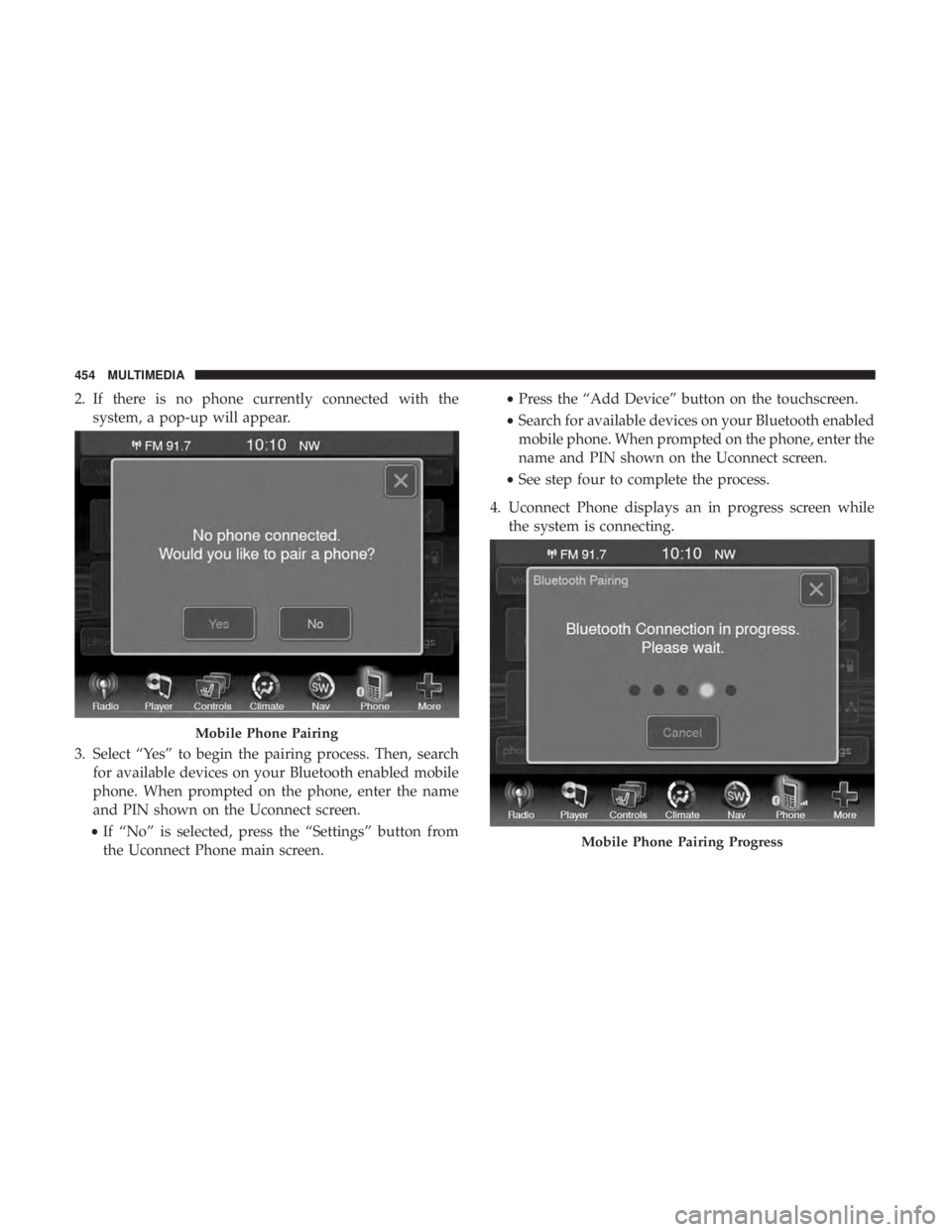
2. If there is no phone currently connected with thesystem, a pop-up will appear.
3. Select “Yes” to begin the pairing process. Then, search for available devices on your Bluetooth enabled mobile
phone. When prompted on the phone, enter the name
and PIN shown on the Uconnect screen.
• If “No” is selected, press the “Settings” button from
the Uconnect Phone main screen. •
Press the “Add Device” button on the touchscreen.
• Search for available devices on your Bluetooth enabled
mobile phone. When prompted on the phone, enter the
name and PIN shown on the Uconnect screen.
• See step four to complete the process.
4. Uconnect Phone displays an in progress screen while the system is connecting.
Mobile Phone Pairing
Mobile Phone Pairing Progress
454 MULTIMEDIA
Page 457 of 524
5. When the pairing process has successfully completed,the system prompts you to choose whether or not this is
your favorite phone. Selecting “Yes” makes this phone
the highest priority. This phone takes precedence over
other paired phones within range.
NOTE: Software updates on your phone or the Uconnect
system may interfere with the Bluetooth connection. If this
happens, simply repeat the pairing process. However, first,
make sure to delete the device from the list of phones on
your Uconnect system. Next, be sure to remove Uconnect
from the list of devices in your phone’s Bluetooth settings.
Pair Additional Mobile Phones
1. Press the “Settings” button from the Phone main screen.
2. Press the “Add Device” button on the touchscreen.
3. Search for available devices on your Bluetooth enabled mobile phone. When prompted on the phone, enter the
name and PIN shown on the Uconnect screen.
4. Uconnect Phone will display an in process screen while the system is connecting. 5. When the pairing process has successfully been com-
pleted, the system will prompt you to choose whether or
not this is your favorite phone. Selecting “Yes” will
make this phone the highest priority. This phone will
take precedence over other paired phones within range.
NOTE: For phones which are not made a favorite, the
phone priority is determined by the order in which it was
paired. The latest phone paired will have the higher
priority.
You can also use the following VR commands to bring up
the Paired Phone screen from any screen on the radio:
• “Show Paired Phones”
• “Connect My Phone”
Pair A Bluetooth Streaming Audio Device
1. Press the “Player” button on the touchscreen to begin.
2. Change the Source to Bluetooth.
3. Press the “Bluetooth” button on the touchscreen to
display the Paired Audio Devices screen.
4. Press the “Add Device” button on the touchscreen.
10
MULTIMEDIA 455
Page 458 of 524
NOTE:If there is no device currently connected with the
system, a pop-up will appear.
5. Search for available devices on your Bluetooth enabled audio device. When prompted on the device, enter the
PIN shown on the Uconnect screen.
6. Uconnect Phone will display an in process screen while the system is connecting.
7. When the pairing process has successfully been com- pleted, the system will prompt you to choose whether or
not this is your favorite device. Selecting “Yes” will
make this device the highest priority. This device will
take precedence over other paired devices within range.
NOTE: For devices which are not made a favorite, the
device priority is determined by the order in which it was
paired. The latest device paired will have the higher
priority.
You can also use the following VR command to bring up a
list of paired audio devices:
• “Show Paired Phones”
• “Connect My Phone”Connecting To A Particular Mobile Phone Or Audio
Device After Pairing
Uconnect Phone will automatically connect to the highest
priority paired phone and/or Audio Device within range.
If you need to choose a particular phone or Audio Device
follow these steps:
1. Press the “Settings” button on the touchscreen.
2. Press the “Paired Phones” or “Paired Audio Sources”
button on the touchscreen.
3. Press to select the particular Phone or the particular Audio Device.
4. Press the “X” to exit out of the Settings screen.
Disconnecting A Phone Or Audio Device
1. Press the “Settings” button on the touchscreen.
2. Press the “Paired Phones” or “Paired Audio Devices” button on the touchscreen.
3. Press the settings icon button located to the right of the device name.
4. The options pop-up will be displayed.
456 MULTIMEDIA
Page 459 of 524
5. Press the “Disconnect Device” button on the touch-screen.
6. Press the “X” to exit out of the Settings screen.
Deleting A Phone Or Audio Device
1. Press the “Settings” button on the touchscreen.
2. Press the “Pair Phones” or “Paired Audio Devices” button on the touchscreen.
3. Press the settings icon button located to the right of the device name for a different Phone or Audio Device than
the currently connected device.
4. The options pop-up will be displayed.
5. Press the “Delete Device” button on the touchscreen.
6. Press the “X” to exit out of the Settings screen.
Making A Phone Or Audio Device A Favorite
1. Press the “Settings” button on the touchscreen.
2. Press the “Paired Phones” or “Paired Audio Devices” button on the touchscreen.
3. Press the settings icon button located to the right of the device name. 4. The options pop-up will be displayed.
5. Press the “Make Favorite” button on the touchscreen;
you will see the chosen device move to the top of the list.
6. Press the “X” to exit out of the Settings screen.
Phonebook Download (Automatic Phonebook
Transfer From Mobile Phone) — If Equipped
If equipped and specifically supported by your phone,
Uconnect Phone automatically downloads names (text
names) and number entries from the mobile phone’s
phonebook. Specific Bluetooth Phones with Phone Book
Access Profile may support this feature. See Uconnect
website, UconnectPhone.com, for supported phones.
• To call a name from a downloaded mobile phone book,
follow the procedure in the Voice Recognition Quick
Reference section.
• Automatic download and update of a phone book, if
supported, begins as soon as the Bluetooth wireless
phone connection is made to the Uconnect Phone, for
example, after you start the vehicle.
• A maximum of 2,000 entries per phone will be down-
loaded and updated every time a phone is connected to
the Uconnect Phone.
10
MULTIMEDIA 457
Page 468 of 524
You can also send stored mobile phonebook entries as
tones for fast and easy access to voice mail and pager
entries. For example, if you previously created a Phone-
book entry with First and/or Last Name as “Voicemail
Password”, then if you push the Voice Command
but-
ton and say “Send Voicemail Password” the Uconnect
Phone will then send the corresponding phone number
associated with the phonebook entry, as tones over the
phone.
NOTE:
• The first number encountered for that contact will be
sent. All other numbers entered for that contact will be
ignored.
• You may not hear all of the tones due to mobile phone
network configurations. This is normal.
• Some paging and voice mail systems have system time
out settings that are too short and may not allow the use
of this feature.
• Pauses, wait or other characters that are supported by
some phones are not supported over Bluetooth. These
additional symbols will be ignored in the dialing a
numbered sequence.
Barge In — Overriding Prompts
The Voice Commandbutton can be used when you
wish to skip part of a prompt and issue your voice
command immediately. For example, if a prompt is
asking “There are two numbers with the name John. Say
the full name” you could push the Voice Command
button and say, “John Smith” to select that option
without having to listen to the rest of the voice prompt.
Voice Response Length
It is possible for you to choose between Brief and Detailed
Voice Response Length.
1. Press the “Settings” button on the touchscreen.
2. Press the “Voice” button on the touchscreen, then scroll down to Voice Response Length.
3. Select either “Brief” or “Detailed” by pressing the box next to the selection. A check-mark will appear to
indicate your selection.
Phone And Network Status Indicators
Uconnect Phone will provide notification to inform you of
your phone and network status when you are attempting
466 MULTIMEDIA
Page 514 of 524

Door Locks..............................32
Inverter .............................. .130
Mirrors ................................61
Outlet (Auxiliary Electrical Outlet) ............126
Seats ..................................48
Steering ........................... .244, 245
Sunroof .............................. .105
Transfer Unit ....................... .340, 384
Windows ............................. .102
Power Seats Down .................................49
Forward ................................49
Rearward ...............................49
Up....................................49
Power Steering Fluid ....................... .384
Pregnant Women And Seat Belts ................183
Preparation For Jacking ..................... .292
Pretensioners Seat Belts ............................. .183
Radial Ply Tires ........................... .353
Radiator Cap (Coolant Pressure Cap) .............334
Radio Frequency General Information ................21, 27, 28, 36
Radio Operation .......................... .479Radio Remote Controls
..................... .414
Rear Air Conditioning .....................79, 92
Rear Axle (Differential) ..................... .340
Rear Camera ............................. .255
Rear Cupholders .......................... .124
Rear Drive Assembly ....................... .340
Rear ParkSense System ..................... .249
Rear Seats, Folding ....................... .42, 47
Rear Wiper/Washer ..........................71
Reclining Front Seats .........................41
Reclining Rear Seats .........................43
Recreational Towing ........................ .272
Reformulated Gasoline ...................... .375
Refrigerant .............................. .326
Release, Hood ............................ .107
Reminder, Lights On .........................65
Reminder
, Seat Belt ........................ .176
Remote Keyless Entry ........................18
Panic Alarm .............................19
Programming Additional Key Fobs ..........21, 28
Remote Sound System (Radio) Control ...........414
Remote Starting Exit Remote Start Mode .....................26
Uconnect Settings .........................26
Replacement Bulbs ........................ .278
512 INDEX
Page 518 of 524
Trailer Weight............................ .264
Transaxle Autostick ............................. .241
Transmission Automatic ......................... .236, 337
Fluid ................................ .337
Maintenance ........................... .337
Transporting Pets ......................... .222
Tread Wear Indicators ...................... .355
Trip Computer ........................... .142
Turn Signals ....................... .66, 154, 282
Uconnect Advanced Phone Connectivity ............445, 467
Phone Call Features .............438, 442, 460, 464
Uconnect Settings ...................19, 26, 388
Uconnect (Hands-Free Phone) Making A Phone Call ..................439, 461
Uconnect Phone ....................... .431, 449
Making A Call .......................... .460
Pairing ............................... .453
Receiving A Call ........................ .462
Uconnect Voice Command ....................481
Underhood Fuses ......................... .286
Uniform Tire Quality Grades ..................365 Unleaded Gasoline
........................ .375
Untwisting Procedure, Seat Belt ................181
USB................................... .415
Vanity Mirrors .............................63
Vehicle Certification Label ....................259
Vehicle Identification Number (VIN) .............372
Vehicle Loading .....................259, 260, 348
Vehicle Modifications/Alterations .................5
Vehicle Storage ........................... .100
Video Entertainment System ...................415
Viscosity, Engine Oil ....................... .323
Voice Command ....................... .468, 481
Warning Flashers, Hazard ....................278
Warning Lights (Instrument Cluster Descriptions) . . . .151
W
arnings And Cautions .......................5
Warranty Information ...................... .499
Washer Adding Fluid .......................... .320
Washers, Windshield ...................68, 70, 320
Washing Vehicle .......................... .367
Water Driving Through ........................ .274
Wheel And Wheel Tire Care ...................361
516 INDEX