light DODGE JOURNEY 2020 Owners Manual
[x] Cancel search | Manufacturer: DODGE, Model Year: 2020, Model line: JOURNEY, Model: DODGE JOURNEY 2020Pages: 396, PDF Size: 25.53 MB
Page 281 of 396

MULTIMEDIA 279
Doors & Locks
After pressing the Doors & Locks button on the touchscreen, the following settings will be available:NOTE:
When the “Auto Dim High Beams” feature is selected, the high beam headlights activate/deactivate automatically under certain conditions.
Daytime Running Lights OnOff
NOTE:
When the “Daytime Running Lights” feature is selected, the daytime running lights can be turned On or Off. This feature is only available if allowed by
l a
w in the country of the vehicle purchase.
Steering Directed Headlights — If Equipped OnOff
NOTE:
The “Steering Directed Headlights” feature causes the headlights to turn relative to a change in direction of the steering wheel.
Flash Headlights With Lock OnOff
Setting Name Selectable Options
Setting NameSelectable Options
Auto Door Locks — If EquippedOnOff
NOTE:
When the “Auto Door Locks” feature is selected, all doors will lock automatically when the vehicle reaches a speed of 12 mph (20 km/h).
Auto Unlock On Exit OnOff
NOTE:
When this feature is selected, all doors will unlock when the vehicle is stopped, the transmission is in the PARK or NEUTRAL position and the driver's
d o
or is opened.
Flash Lamps With Lock OnOff
9
Page 283 of 396
MULTIMEDIA 281
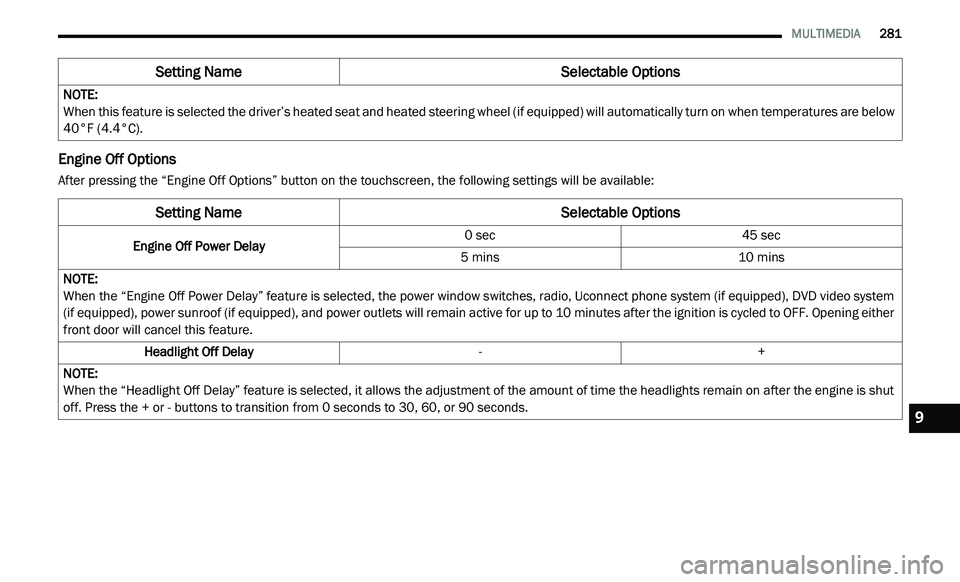
Engine Off Options
After pressing the “Engine Off Options” button on the touchscreen, the following settings will be available:NOTE:
When this feature is selected the driver’s heated seat and heated steering wheel (if equipped) will automatically turn on when temperatures are below
40
°F (4.4°C).
Setting Name Selectable Options
Setting NameSelectable Options
Engine Off Power Delay0 sec
45 sec
5 mins 10 mins
NOTE:
When the “Engine Off Power Delay” feature is selected, the power window switches, radio, Uconnect phone system (if equipped), DVD video system
( i
f equipped), power sunroof (if equipped), and power outlets will remain active for up to 10 minutes after the ignition is cycled to OFF. Opening either
f r
ont door will cancel this feature.
Headlight Off Delay -+
NOTE:
When the “Headlight Off Delay” feature is selected, it allows the adjustment of the amount of time the headlights remain on after the engine is shut
of
f. Press the + or - buttons to transition from 0 seconds to 30, 60, or 90 seconds.
9
Page 304 of 396
302 MULTIMEDIA
Uconnect Phone Features
Emergency Assistance
If you are in an emergency and the mobile
ph
one is reachable:
Pick up the phone and manually dial the
emergency number for your area.
If the phone is not reachable and the Uconnect
P h
one is operational, you may reach the
emergency number as follows:
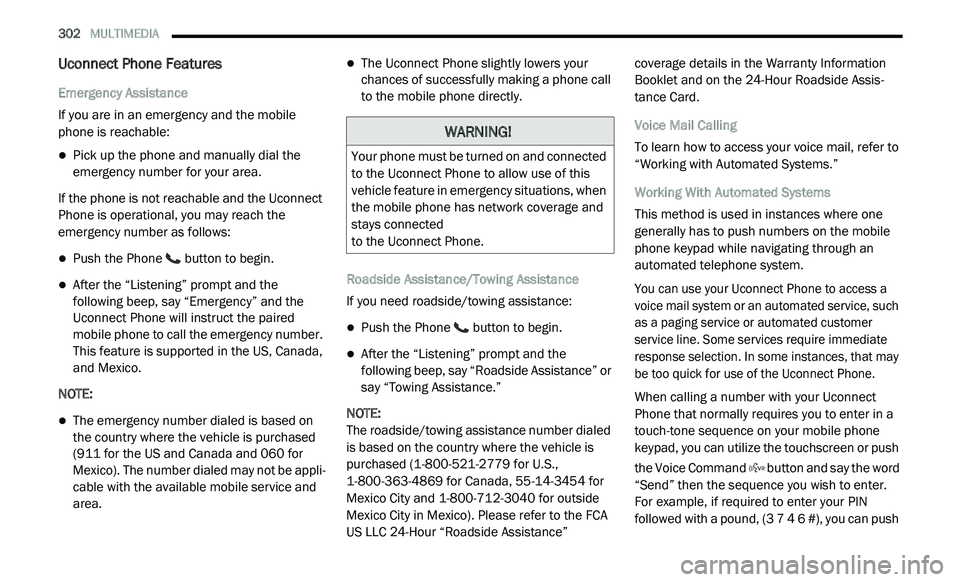
Push the Phone button to begin.
After the “Listening” prompt and the
following beep, say “Emergency” and the
Uconnect Phone will instruct the paired
mobile phone to call the emergency number.
This feature is supported in the US, Canada,
and Mexico.
NOTE:
The emergency number dialed is based on
the country where the vehicle is purchased
(911 for the US and Canada and 060 for
Mexico). The number dialed may not be appli -
cable with the available mobile service and
a r
ea.
The Uconnect Phone slightly lowers your
chances of successfully making a phone call
to the mobile phone directly.
Roadside Assistance/Towing Assistance
If you need roadside/towing assistance:
Push the Phone button to begin.
After the “Listening” prompt and the
following beep, say “Roadside Assistance” or
say “Towing Assistance.”
NOTE:
The roadside/towing assistance number dialed
i s
based on the country where the vehicle is
purchased (1-800-521-2779 for U.S.,
1-800-363-4869 for Canada, 55-14-3454 for
Mexico City and 1-800-712-3040 for outside
Mexico City in Mexico). Please refer to the FCA
US LLC 24-Hour “Roadside Assistance” coverage details in the Warranty Information
Booklet and on the 24-Hour Roadside Assis
-
tance Card.
Voice Mail Calling
To learn how to access your voice mail, refer to
“ W
orking with Automated Systems.”
Working With Automated Systems
This method is used in instances where one
g e
nerally has to push numbers on the mobile
phone keypad while navigating through an
automated telephone system.
You can use your Uconnect Phone to access a
v o
ice mail system or an automated service, such
as a paging service or automated customer
service line. Some services require immediate
response selection. In some instances, that may
be too quick for use of the Uconnect Phone.
When calling a number with your Uconnect
P h
one that normally requires you to enter in a
touch-tone sequence on your mobile phone
keypad, you can utilize the touchscreen or push
the Voice Command button and say the word
“Send” then the sequence you wish to enter.
F o
r example, if required to enter your PIN
followed with a pound, (3 7 4 6 #), you can push
WARNING!
Your phone must be turned on and connected
to the Uconnect Phone to allow use of this
vehicle feature in emergency situations, when
the mobile phone has network coverage and
stays connected
to the Uconnect Phone.
Page 309 of 396
MULTIMEDIA 307
4 — PLAYER
Press the Player button on the touchscreen to
ac
cess media sources such as: Disc, USB
Device, and AUX as long as the requested
media is present.
5 — CONTROLS
Press the Controls button on the touchscreen to
a c
cess the Settings list. Controls such as
Heated Seats, Heated Steering Wheel, Vented
Seats, etc. can be selected or turned on/off by
pressing the corresponding button.
6 — CLIMATE (Touchcreen Controls)
Refer to “Climate Controls” in “Getting To Know
Y o
ur Vehicle” for more information.
7 — NAV (Uconnect 3 NAV Only)
Press the Nav button on the touchscreen to
ac
cess the Navigation feature.
8 — PHONE — If Equipped
Press the Phone button on the touchscreen to
ac
cess the Uconnect Phone feature. Refer to
“Uconnect Phone” in this section for more
information. 9 — MORE
Press the More button on the touchscreen to
a
c
cess additional options. Options available
such as Settings and SiriusXM® Travel Link
(if equipped) can be accessed by pressing the
c o
rresponding button in the More Menu.
10 — ENTER/BROWSE & TUNE/SCROLL
Push the ENTER/BROWSE button to accept a
hi
ghlighted selection on the screen. Rotate the
TUNE/SCROLL rotary knob to scroll through a
list or tune a radio station.
11 — SD CARD SLOT
Insert an SD Card containing audio media files
t o
play them through the vehicle’s sound
system.
12 — DISC SLOT
When inserting a disc, ensure the label is facing
u p
. Push the Eject button to eject the disc.
RADIO MODE
Overview
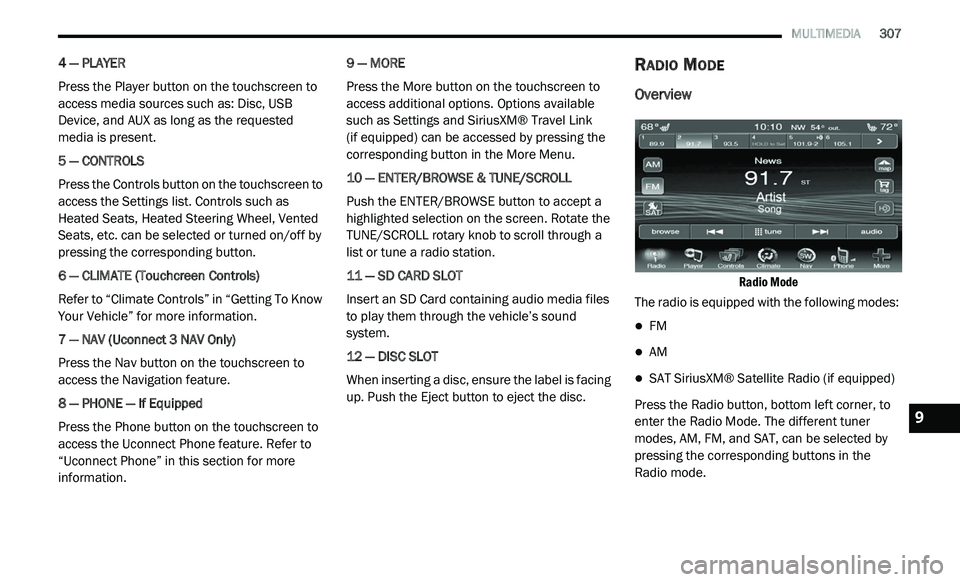
Radio Mode
The radio is equipped with the following modes:
FM
AM
SAT SiriusXM® Satellite Radio (if equipped)
Press the Radio button, bottom left corner, to
e n
ter the Radio Mode. The different tuner
modes, AM, FM, and SAT, can be selected by
pressing the corresponding buttons in the
Radio mode.9
Page 312 of 396
310 MULTIMEDIA
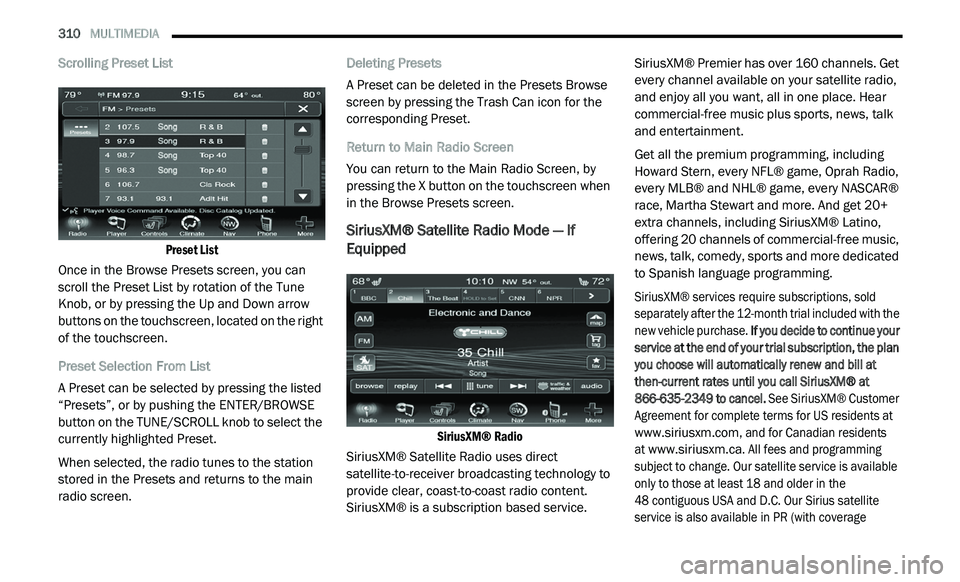
Scrolling Preset List
Preset List
Once in the Browse Presets screen, you can
s c
roll the Preset List by rotation of the Tune
Knob, or by pressing the Up and Down arrow
buttons on the touchscreen, located on the right
of the touchscreen.
Preset Selection From List
A Preset can be selected by pressing the listed
“ P
resets”, or by pushing the ENTER/BROWSE
button on the TUNE/SCROLL knob to select the
currently highlighted Preset.
When selected, the radio tunes to the station
s t
ored in the Presets and returns to the main
radio screen. Deleting Presets
A Preset can be deleted in the Presets Browse
sc
reen by pressing the Trash Can icon for the
corresponding Preset.
Return to Main Radio Screen
You can return to the Main Radio Screen, by
p r
essing the X button on the touchscreen when
in the Browse Presets screen.
SiriusXM® Satellite Radio Mode — If
Equipped
SiriusXM® Radio
SiriusXM® Satellite Radio uses direct
s a
tellite-to-receiver broadcasting technology to
provide clear, coast-to-coast radio content.
SiriusXM® is a subscription based service. SiriusXM® Premier has over 160 channels. Get
e
v
ery channel available on your satellite radio,
and enjoy all you want, all in one place. Hear
commercial-free music plus sports, news, talk
and entertainment.
Get all the premium programming, including
Ho
ward Stern, every NFL® game, Oprah Radio,
every MLB® and NHL® game, every NASCAR®
race, Martha Stewart and more. And get 20+
extra channels, including SiriusXM® Latino,
offering 20 channels of commercial-free music,
news, talk, comedy, sports and more dedicated
to Spanish language programming.
SiriusXM® services require subscriptions, sold
s e
parately after the 12-month trial included with the
new vehicle purchase. If you decide to continue your
service at the end of your trial subscription, the plan
you choose will automatically renew and bill at
then-current rates until you call SiriusXM® at
866-635-2349 to cancel. See SiriusXM® Customer
Agreement for complete terms for US residents at
www.siriusxm.com
, and for Canadian residents
at
www.siriusxm.ca
. All fees and programming
subject to change. Our satellite service is available
o n
ly to those at least 18 and older in the
48 contiguous USA and D.C. Our Sirius satellite
s e
rvice is also available in PR (with coverage
Page 313 of 396
MULTIMEDIA 311
limitations). Our Internet radio service is available
throughout our satellite service area and in AK and
HI. © 2020 SiriusXM® Radio Inc. Sirius, XM and all
related marks and logos are trademarks of
SiriusXM® Radio Inc.
This functionality is only available for radios
eq
uipped with a Satellite receiver. To receive
satellite radio, the vehicle needs to be outside
with a clear view to the sky.
If the screen shows Acquiring Signal, you might
h a
ve to change the vehicle’s position to receive
a signal. In most cases, the satellite radio does
not receive a signal in underground parking
garages or tunnels.
No Subscription
Radios equipped with a Satellite receiver
r e
quire a subscription to the SiriusXM® Service.
When the Radio does not have the necessary
subscription, the Radio is able to receive the
Preview channel only.
Acquiring SiriusXM® Subscription
To activate the SiriusXM® Satellite Radio
s u
bscription, call 800-643-2112 (USA
residents) or 888-534-7474 (Canadian
Residents). You will need to provide the Sirius ID (ESN) located at the bottom of the Channel 0
screen.
The SiriusXM® Satellite Mode is activated by a
pr
ess of the SAT button on the touchscreen.
When in SiriusXM® Satellite mode:
The SAT button is highlighted.
The SiriusXM® Presets are displayed at the
top of the screen.
The Genre is displayed below the Presets
Bar.
The SiriusXM® Channel Number is displayed
in the center.
The Program Information is displayed at the
bottom of the Channel Number.
The SiriusXM® function buttons are
displayed below the Program Information.
Tuning is done by operating the Tune Knob or by
D i
rect Tune, similar to other Radio Bands, see
Presets, browse, Tune Knob, and Direct Tune.
In addition to the tuning Operation functions
c o
mmon to all Radio modes, the replay, Traffic/
Weather Jump, and Fav button functions are
available in SiriusXM® Mode. Replay
The replay function provides a means to store
a
n
d replay up to 22 minutes of music audio and
4 8
minutes of talk radio. Once the channel is
s w
itched, content in replay memory is lost.
Press the Replay button. The Play/Pause,
R e
wind/Forward and Live buttons will display at
the top of the screen, along with the replay time.
You can exit by pressing the Replay button any
t i
me during the Replay mode.
Play/Pause
Press the Pause/Play buttons to pause playing
of
the content at any time that the content is
playing live or rewound content. Play can be
resumed again by pressing the Pause/Play
button.
Rewind
Press the RW button to rewind the content in
s t
eps of five seconds. Pressing the RW button
for more than two seconds rewinds the content.
The Radio begins playing the content when the
RW button is released.
9
Page 315 of 396
MULTIMEDIA 313
Presets
Press the Presets button located at the left of
th
e Browse screen.
You can scroll the Presets list pressing the Up
a n
d Down Arrows, located at the right side of
the screen. Scrolling can also be done by
operating the TUNE/SCROLL knob.
Preset Selection
A Preset can be selected by pressing any of the
l i
sted Presets, or by pushing the ENTER/BROWSE
button on the TUNE/SCROLL knob to select the
currently highlighted Preset. When selected, the
Radio tunes to the station stored in the Preset,
and returns to the main Radio screen.
Deleting a Preset
A Preset can be deleted in the Presets Browse
s c
reen by pressing the Trash Can icon for the
corresponding Preset.
Favorites
Press the Favorites button, located at the left of
t h
e Browse screen.
The Favorites menu provides a means to Edit the
F a
vorites list and to configure the Alert Settings,
along with providing a list of Channels currently
airing any of the items in the Favorites list.
You can scroll the Favorites list pressing the Up
an
d Down Arrows, located at the right side of
the screen. Scrolling can also be done by
operating the TUNE/SCROLL knob.
Remove Favorites
Press the Remove Favorites tab at the top of the
s c
reen. Press the Delete All button to delete all
of the Favorites or press the Trash Can icon next
to the Favorite to be deleted.
Alert Settings
Press the Alert Setting tab at the top of the
s c
reen. The Alert Settings menu allows you to
choose from a Visual alert or Audible and Visual
alert when one of your favorites is airing on any
of the SiriusXM® channels.
Game Zone
Press the Game Zone button on the
t o
uchscreen, located at the left of the Browse
screen. This feature provides you with the ability
to select teams, edit the selection, and set
alerts.
On Air
Press the On-Air tab at the top of the screen. The
O n
-Air list provides a list of Channels currently
airing any of the items in the Selections list, and pressing any of the items in the list tunes the
radio to that channel.
Select Teams
Press the Select Teams button on the
t
o
uchscreen to activate the League Scroll list.
Press the chosen league and a scroll list of all
teams within the league will appear, then you can
select a team by pressing the corresponding box.
A check mark appears for all teams that are
chosen.
Remove Selection
Press the Remove Selection tab at the top of the
s c
reen. Press the Delete All button on the
touchscreen to delete all of the Selections or
press the Trash Can icon next to the Selection to
be deleted.
Alert Settings
Press the Alert Setting tab at the top of the
s c
reen. The Alert Settings menu allows you to
choose from “Alert me to on-air games upon
start” or “Alert upon score update” or both when
one or more of your selections is airing on any
of the SiriusXM® channels.
9
Page 319 of 396
MULTIMEDIA 317
Fast Seek Down
Press and hold the Left Arrow button and the
Di
sc player will begin to rewind through the
current track until the button is released.
Browse
Press the Browse button to display the browse
w i
ndow. The left side of the browse window
displays a list of ways you can browse through
the contents of the Disc. If supported by the
device, you can browse by Folders, Artists,
Playlists, Albums, Songs, etc. Press the desired
button on the left side of the screen. The center
of the browse window shows items and it’s
sub-functions, which can be scrolled by
pressing the Up and Down buttons to the right.
The TUNE/SCROLL knob can also be used to
scroll.
Source
Press the Source button on the touchscreen to
s e
lect the desired audio source: Disc/USB/SD
Card/AUX/Bluetooth®. This screen will time out
after a few seconds and return to the main radio
screen if no selection is made. Repeat
Press the Repeat button to toggle the repeat
f
u
nctionality. The Repeat button is highlighted
when active. The radio will continue to play the
current track, repeatedly, as long as the repeat
is active.
Shuffle
Press the Shuffle button to play the selections
o n
the compact disc in random order to provide
an interesting change of pace. Press the Shuffle
button a second time to turn this feature off.
Info
Press the Info button to display the current
t r
ack information. Press the Info button a
second time to cancel this feature.
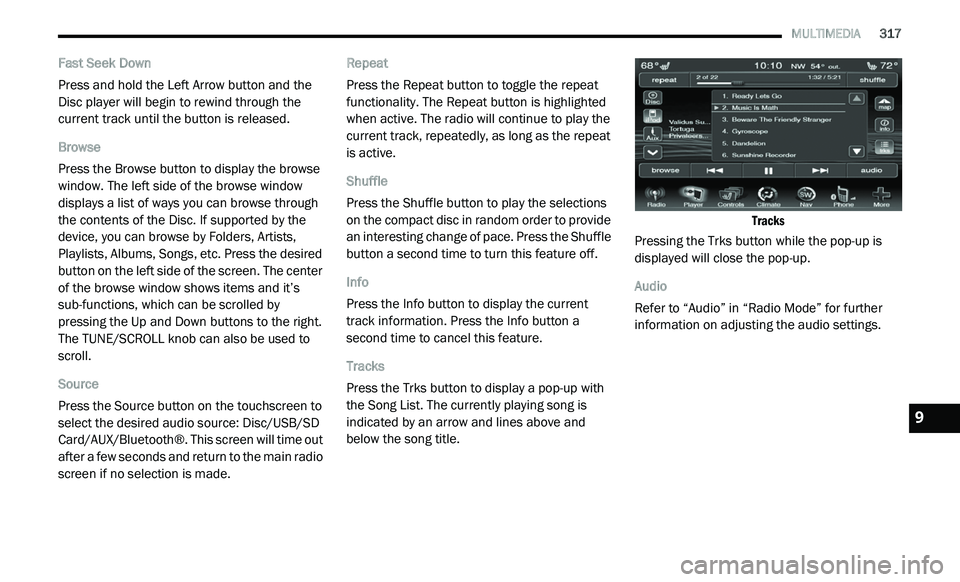
Tracks
Press the Trks button to display a pop-up with
t h
e Song List. The currently playing song is
indicated by an arrow and lines above and
below the song title.
Tracks
Pressing the Trks button while the pop-up is
d i
splayed will close the pop-up.
Audio
Refer to “Audio” in “Radio Mode” for further
i n
formation on adjusting the audio settings.
9
Page 322 of 396
320 MULTIMEDIA
Repeat
Press the Repeat button to toggle the repeat
fu
nctionality. The Repeat button is highlighted
when active. The Radio will continue to play the
current track, repeatedly, as long as the repeat
is active.
Shuffle
Press the Shuffle button to play the selections on
t h
e USB device in random order. Press the Shuffle
button a second time to turn this feature off.
Info
Press the Info button to display the current
t r
ack information. Press the Info button a
second time to cancel this feature.
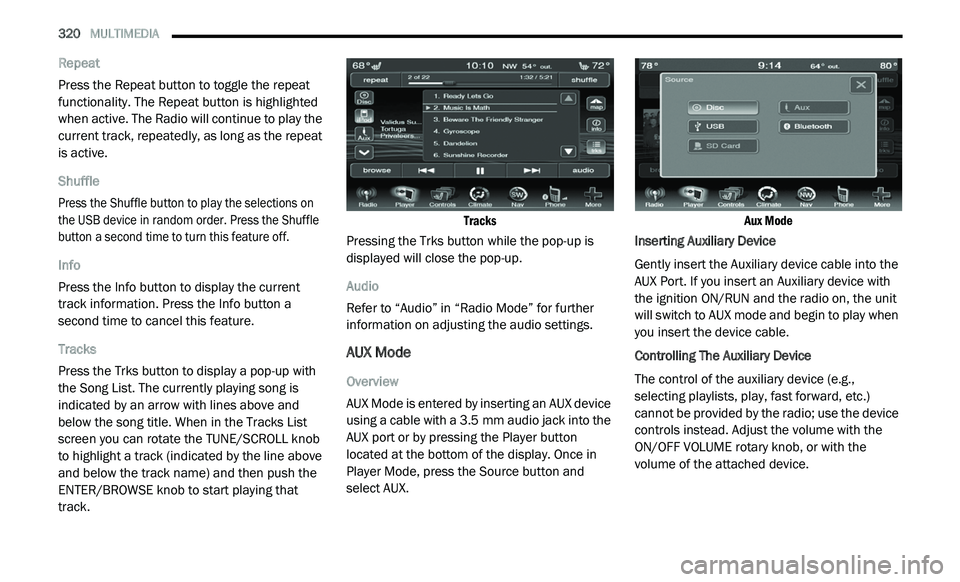
Tracks
Press the Trks button to display a pop-up with
t h
e Song List. The currently playing song is
indicated by an arrow with lines above and
below the song title. When in the Tracks List
screen you can rotate the TUNE/SCROLL knob
to highlight a track (indicated by the line above
and below the track name) and then push the
ENTER/BROWSE knob to start playing that
track.
Tracks
Pressing the Trks button while the pop-up is
d i
splayed will close the pop-up.
Audio
Refer to “Audio” in “Radio Mode” for further
i n
formation on adjusting the audio settings.
AUX Mode
Overview
AUX Mode is entered by inserting an AUX device
us
ing a cable with a 3.5 mm audio jack into the
A U
X port or by pressing the Player button
located at the bottom of the display. Once in
Player Mode, press the Source button and
select AUX.
Aux Mode
Inserting Auxiliary Device
Gently insert the Auxiliary device cable into the
A U
X Port. If you insert an Auxiliary device with
the ignition ON/RUN and the radio on, the unit
will switch to AUX mode and begin to play when
you insert the device cable.
Controlling The Auxiliary Device
The control of the auxiliary device (e.g.,
s e
lecting playlists, play, fast forward, etc.)
cannot be provided by the radio; use the device
controls instead. Adjust the volume with the
ON/OFF VOLUME rotary knob, or with the
volume of the attached device.
Page 325 of 396
MULTIMEDIA 323
Source
Press the Source button on the touchscreen to
se
lect the desired audio source, Disc/USB/SD
Card/AUX/ or Bluetooth®. This screen will time
out after a few seconds and return to the main
radio screen if no selection is made.
Repeat
Press the Repeat button to toggle the repeat
f u
nctionality. The Repeat button is highlighted
when active. The Radio will continue to play the
current track, repeatedly, as long as the repeat
is active.
Shuffle
Press the Shuffle button to play the selections
o n
the Auxiliary device in random order to
provide an interesting change of pace. Press
the Shuffle button a second time to turn this
feature off.
Info
Press the Info button to display the current
t r
ack information. Press the Info button a
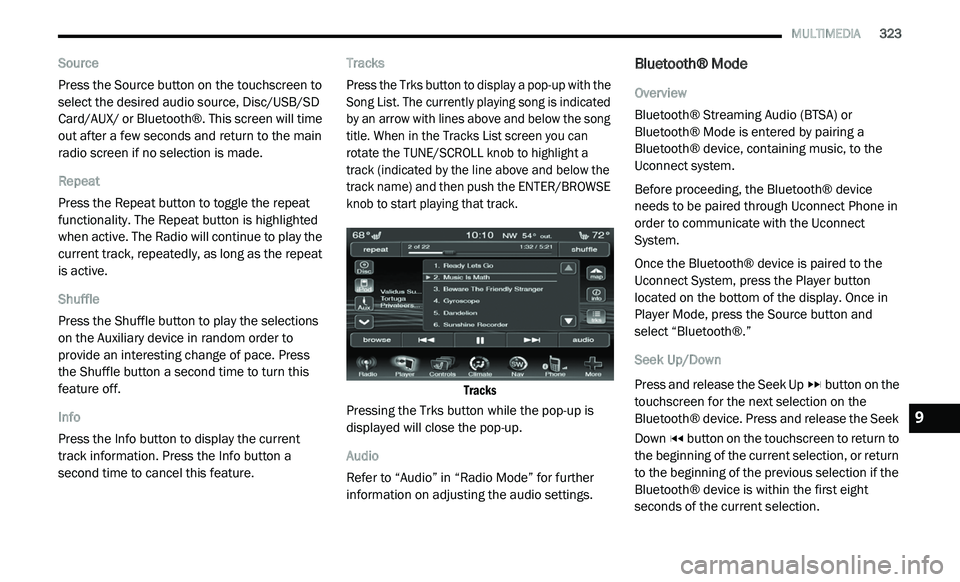
second time to cancel this feature. Tracks
Press the Trks button to display a pop-up with the
S
o
ng List. The currently playing song is indicated
by an arrow with lines above and below the song
title. When in the Tracks List screen you can
rotate the TUNE/SCROLL knob to highlight a
track (indicated by the line above and below the
track name) and then push the ENTER/BROWSE
knob to start playing that track.
Tracks
Pressing the Trks button while the pop-up is
d i
splayed will close the pop-up.
Audio
Refer to “Audio” in “Radio Mode” for further
i n
formation on adjusting the audio settings.
Bluetooth® Mode
Overview
Bluetooth® Streaming Audio (BTSA) or
Bl
uetooth® Mode is entered by pairing a
Bluetooth® device, containing music, to the
Uconnect system.
Before proceeding, the Bluetooth® device
n e
eds to be paired through Uconnect Phone in
order to communicate with the Uconnect
System.
Once the Bluetooth® device is paired to the
U c
onnect System, press the Player button
located on the bottom of the display. Once in
Player Mode, press the Source button and
select “Bluetooth®.”
Seek Up/Down
Press and release the Seek Up button on the
touchscreen for the next selection on the
B l
uetooth® device. Press and release the Seek
Down button on the touchscreen to return to
the beginning of the current selection, or return
t o
the beginning of the previous selection if the
Bluetooth® device is within the first eight
seconds of the current selection.
9