Battery DODGE JOURNEY 2020 Owner's Guide
[x] Cancel search | Manufacturer: DODGE, Model Year: 2020, Model line: JOURNEY, Model: DODGE JOURNEY 2020Pages: 396, PDF Size: 25.53 MB
Page 223 of 396
SERVICING AND MAINTENANCE 221
CHECKING OIL LEVEL
To ensure proper engine lubrication, the engine
oil must be maintained at the correct level.
Check the oil level at regular intervals, such as
every fuel stop. The best time to check the
engine oil level is about five minutes after a fully
warmed engine is shut off. Checking engine oil
level when the engine is cold will give you an
incorrect reading.
Checking the oil while the vehicle is on level
gr
ound and only when the engine is hot, will
improve the accuracy of the oil level readings.
Maintain the oil level between the range
markings on the dipstick. Either the range
markings consist of a crosshatch zone marked
SAFE or a crosshatch zone marked with MIN at
the low end of the range and MAX at the high
end of the range. Adding 1 Quart (1 Liter) of oil
when the reading is at the low end of the range
marking will raise the oil level to the high end of
the range marking.
ADDING WASHER FLUID
The windshield washer and the rear window
washer share the same fluid reservoir. The fluid
reservoir is located in the engine compartment.
Be sure to check the fluid level in the reservoir
at regular intervals. Fill the reservoir with
windshield washer solvent (not radiator
antifreeze) and operate the system for a few
seconds to flush out the residual water.
When refilling the washer fluid reservoir, apply
s o
me washer fluid to a cloth or towel and wipe
the wiper blades clean. This will help blade
performance.
To prevent freeze-up of your windshield washer
s y
stem in cold weather, select a solution or
mixture that meets or exceeds the temperature
range of your climate. This rating information
can be found on most washer fluid containers. The fluid reservoir will hold nearly 1 Gallon
(4 Liters) of washer fluid when the message
“ Lo
WASH” appears in the instrument cluster.
MAINTENANCE-FREE BATTERY
Your vehicle is equipped with a maintenance-free
battery. You will never have to add water, nor is
periodic maintenance required.
NOTE:
The battery is stored in a compartment that is
lo
cated behind the left front fender and is
accessible through the wheel well. The wheel
and tire assembly do not need to be removed to
access the compartment. Remote battery termi -
nals are located in the engine compartment for
j u
mp starting. Refer to “Jump Starting Proce -
dure” in “In Case Of Emergency” for further
i n
formation.
CAUTION!
Do not overfill the engine with oil. Overfilling
the engine with oil will cause oil aeration,
which can lead to loss of oil pressure and an
increase in oil temperature. This loss of oil
pressure and increased oil temperature could
damage your engine.
WARNING!
Commercially available windshield washer
solvents are flammable. They could ignite and
burn you. Care must be exercised when filling
or working around the washer solution.
7
Page 224 of 396
222 SERVICING AND MAINTENANCE
To access the battery, turn the steering wheel
fully to the right and remove the access panel
from the inner fender shield.
PRESSURE WASHING
DEALER SERVICE
An authorized dealer has qualified service
personnel, special tools, and equipment to
perform all service operations in an expert
manner. Service Manuals are available which
include detailed service information for your
vehicle. Refer to these Service Manuals before
attempting any procedure yourself.
NOTE:
Intentional tampering with emissions control
s y
stems may void your warranty and could result
in civil penalties being assessed against you.
WARNING!
Battery fluid is a corrosive acid solution and
can burn or even blind you. Do not allow
battery fluid to contact your eyes, skin, or
clothing. Do not lean over a battery when
attaching clamps. If acid splashes in eyes
or on skin, flush the area immediately with
large amounts of water.
Battery gas is flammable and explosive.
Keep flame or sparks away from the
battery. Do not use a booster battery or any
other booster source with an output greater
than 12 Volts. Do not allow cable clamps to
touch each other.
Battery posts, terminals, and related acces -
sories contain lead and lead compounds.
W a
sh hands after handling.
CAUTION!
It is essential when replacing the cables on
the battery that the positive cable is
attached to the positive post and the nega -
tive cable is attached to the negative post.
B a
ttery posts are marked positive (+) and
negative (-) and are identified on the battery
case. Cable clamps should be tight on the
terminal posts and free of corrosion.
If a “fast charger” is used while the battery
is in the vehicle, disconnect both vehicle
battery cables before connecting the
charger to the battery. Do not use a “fast
charger” to provide starting voltage.
CAUTION!
Cleaning the engine compartment with a high
pressure washer is not recommended.
Precautions have been taken to safeguard
all parts and connections however, the
p r
essures generated by these machines is
such that complete protection against water
ingress cannot be guaranteed.
WARNING!
You can be badly injured working on or
around a motor vehicle. Only do service work
for which you have the knowledge and the
proper equipment. If you have any doubt
about your ability to perform a service job,
take your vehicle to a competent mechanic.
Page 303 of 396
MULTIMEDIA 301
the answer button on the touchscreen, or caller
ID box, to place the current call on hold and
answer the incoming call.
NOTE:
The Uconnect Phone compatible phones in the
ma
rket today do not support rejecting an
incoming call when another call is in progress.
Therefore, the user can only answer an
incoming call or ignore it.
Making A Second Call While Current Call Is In
Pr
ogress
To make a second call while you are currently on
a
call, push the Voice Command button and
say “Dial” or “Call” followed by the phone
n u
mber or phonebook entry you wish to call.
The first call will be on hold while the second call
is in progress. Or you can place a call on hold by
pressing the Hold button on the touchscreen,
then dial a number from the dial-pad, recent
calls or from the phonebooks. To go back to the
first call, refer to “Toggling Between Calls” in
this section. To combine two calls, refer to “Join
Calls” in this section. Toggling Between Calls
If two calls are in progress (one active and one
o
n
hold), push the Phone button until you
hear a single beep, indicating that the active
a n
d hold status of the two calls have switched.
Only one call can be placed on hold at a time.
Also you can press the Swap button on the
touchscreen, on the Phone main screen.
Join Calls
When two calls are in progress (one active and
o n
e on hold), press the Join Calls button on the
Phone main screen to combine all calls into a
Conference Call.
Call Termination
To end a call in progress, momentarily press the
E n
d button on the touchscreen or the Phone
button. Only the active call(s) will be terminated
a n
d if there is a call on hold, it will become the
new active call. If the active call is terminated by
the far end, a call on hold may not become
active automatically. This is cell
phone-dependent. Redial
1. P
ress the Redial button on the
t
ouchscreen, or push the Phone button
and after the “Listening” prompt and the
f o
llowing beep, say “Redial”.
2. T he Uconnect Phone will call the last
n
umber that was dialed from your mobile
phone.
Call Continuation
Call continuation is the progression of a phone
c a
ll on the Uconnect Phone after the vehicle
ignition key has been switched to OFF.
After the ignition is switched to OFF, a call
can continue on the Uconnect Phone either
until the call ends, or until the vehicle battery
condition dictates cessation of the call on the
Uconnect Phone and transfer of the call to
the mobile phone.
9
Page 305 of 396
MULTIMEDIA 303
the Voice Command button and say, “Send
3 7 4 6 #.” Saying “Send” followed by a number,
o r
sequence of numbers, is also to be used for
navigating through an automated customer
service center menu structure, and to leave a
number on a pager.
You can also send stored mobile phonebook
en
tries as tones for fast and easy access to
voice mail and pager entries. For example, if you
previously created a Phonebook entry and/or
Last Name as “Voice Password,” then if you
push the Voice Command button and say
“Send Voicemail Password,” the Uconnect
P h
one will then send the corresponding phone
number associated with the phonebook entry,
as tones over the phone.
NOTE:
The first number encountered for that
contact will be sent. All other numbers
entered for that contact will be ignored.
You may not hear all of the tones due to
mobile phone network configurations.
This is normal.
Some paging and voice mail systems have
system time out settings that are too short
and may not allow the use of this feature.
Pauses, wait or other characters that are
supported by some phones are not
supported over Bluetooth®. These additional
symbols will be ignored when dialing a
numbered sequence.
Barge In — Overriding Prompts
The Voice Command button can be used
when you wish to skip part of a prompt and
i s
sue your voice command immediately.
For example, if a prompt is asking “There are
t w
o numbers with the name John. Say the full
name” you could push the Voice Command
button and say, “John Smith” to select that
o p
tion without having to listen to the rest of the
voice prompt.
Voice Response Length
It is possible for you to choose between Brief
a n
d Detailed Voice Response Length.
1. P ush the MORE button on the faceplate,
t
hen press the Settings button on the
touchscreen.
2. P ress the Display button on the
t
ouchscreen, then scroll down to Voice
Response Length. 3. S
elect either “Brief” or “Detailed” by
p
ressing the box next to the selection.
A check-mark will appear to indicate your
s e
lection.
Phone And Network Status Indicators
Uconnect Phone will provide notification to
in
form you of your phone and network status
when you are attempting to make a phone call
using Uconnect Phone. The status is given for
network signal strength and phone battery
strength.
Dialing Using The Mobile Phone Keypad
You can dial a phone number with your mobile
p h
one keypad and still use the Uconnect Phone
(while dialing via the mobile phone keypad, the
user must exercise caution and take
precautionary safety measures). By dialing a
number with your connected Bluetooth® mobile
phone, the audio will be played through your
vehicle's audio system. The Uconnect Phone will
work the same as if you dial the number using a
voice command.
NOTE:
Certain brands of mobile phones do not send
t h
e dial ring to the Uconnect Phone to play it on
the vehicle audio system, so you will not hear it.
9
Page 338 of 396
336 MULTIMEDIA
Barge In — Overriding Prompts
The Voice Recognition button can be used
when you wish to skip part of a prompt and
i s
sue your voice command immediately.
For example, if a prompt is asking “There are
t w
o numbers with the name John. Say the full
name” you could push the Voice Recognition
button and say, “John Smith” to select that
option without having to listen to the rest of the
v o
ice prompt.
Voice Response Length
It is possible for you to choose between Brief
a n
d Detailed Voice Response Length.
1. P ress the Settings button on the
t
ouchscreen.
2. P ress the Voice button on the touchscreen,
t
hen scroll down to Voice Response Length.
3. S elect either “Brief” or “Detailed” by
p
ressing the box next to the selection.
A check mark will appear to indicate your
s e
lection. Phone And Network Status Indicators
Uconnect Phone will provide notification to
i
n
form you of your phone and network status
when you are attempting to make a phone call
using Uconnect Phone. The status is given for
network signal strength and phone battery
strength.
Dialing Using The Mobile Phone Keypad
You can dial a phone number with your mobile
p h
one keypad and still use the Uconnect Phone
(while dialing via the mobile phone keypad,
the user must exercise caution and take
p r
ecautionary safety measures). By dialing a
number with your connected Bluetooth® mobile
phone, the audio will be played through your
vehicle's audio system. The Uconnect Phone will
work the same as if you dial the number using a
voice command.
NOTE:
Certain brands of mobile phones do not send the
d i
al ring to the Uconnect Phone to play it on the
vehicle audio system, so you will not hear it.
Under this situation, after successfully dialing a
number the user may feel that the call did not go
through even though the call is in progress. Once
your call is answered, you will hear the audio.
Mute/Un-Mute (Mute ON/OFF)
When you mute the Uconnect Phone, you will
s
t
ill be able to hear the conversation coming
from the other party, but the other party will not
be able to hear you. To mute the Uconnect
Phone simply, press the Mute button on the
Phone main screen.
Advanced Phone Connectivity
Transfer Call To And From Mobile Phone
The Uconnect Phone allows ongoing calls to be
t r
ansferred from your mobile phone to the
Uconnect Phone without terminating the call.
To transfer an ongoing call from your connected
m o
bile phone to the Uconnect Phone or vice
versa, press the Transfer button on the Phone
main screen.
Connect Or Disconnect Link Between The
U c
onnect Phone And Mobile Phone
If you would like to connect or disconnect the
B l
uetooth® connection between a Uconnect
Phone paired mobile phone and the Uconnect
system, follow the instructions described in your
mobile phone User's Manual.
Page 342 of 396
340 MULTIMEDIA
Be careful of the ambient temperature. Using
the navigation system at extreme tempera -
tures can lead to malfunction or damage.
A ls
o note that the unit can be damaged by
strong vibration, metal objects, or by water
getting inside the unit. Notice
This navigation system can be used when the
i
g
nition key is turned to ON/RUN or ACC.
To preserve the battery, however, it should
be used with the engine running whenever
p o
ssible. Using the navigation system for a long
time with the engine switched off can cause the
battery to run down.
Map Data Information
Garmin® uses a combination of governmental
a n
d private data sources. Virtually all data
sources contain some inaccurate or incomplete
data. In some countries, complete and accurate
map information is either not available or is
prohibitively expensive.
Getting Started
To access the Navigation system, press the Nav
button on bottom of the screen.
Setting Up Your System
When using your navigation system for the first
t i
me, complete the following tasks:
1. Ac quire satellites.
2
. U nderstand the main menu. A
cquiring Satellites
The bars indicate satellite strength.
Go to an open area, away from tall buildings and
t r
ees.
Acquiring satellite signals can take a few
m i
nutes.
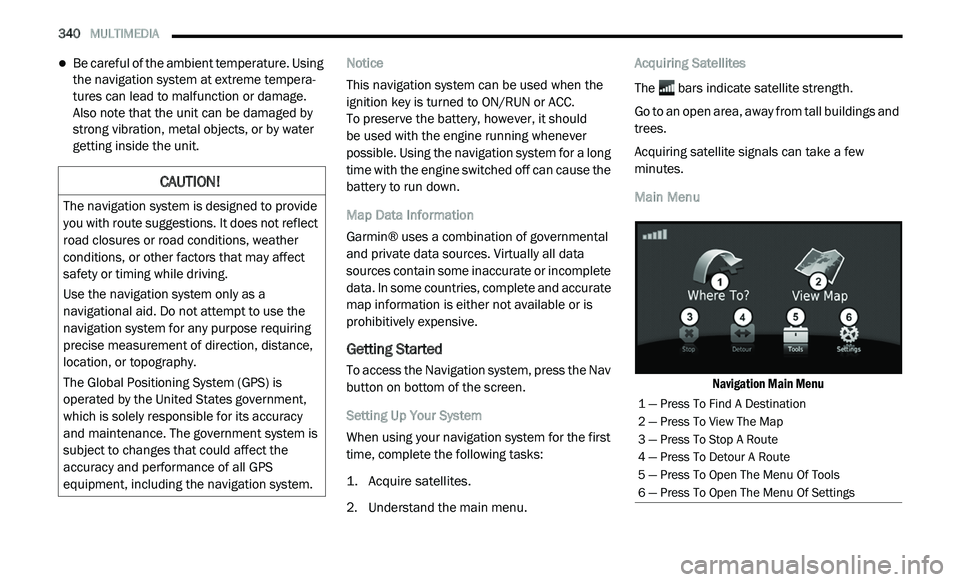
Main Menu
Navigation Main Menu
CAUTION!
The navigation system is designed to provide
you with route suggestions. It does not reflect
road closures or road conditions, weather
conditions, or other factors that may affect
safety or timing while driving.
Use the navigation system only as a
na
vigational aid. Do not attempt to use the
navigation system for any purpose requiring
precise measurement of direction, distance,
location, or topography.
The Global Positioning System (GPS) is
o p
erated by the United States government,
which is solely responsible for its accuracy
and maintenance. The government system is
subject to changes that could affect the
accuracy and performance of all GPS
equipment, including the navigation system.
1 — Press To Find A Destination
2 — Press To View The Map
3 — Press To Stop A Route
4 — Press To Detour A Route
5 — Press To Open The Menu Of Tools
6 — Press To Open The Menu Of Settings
Page 353 of 396
MULTIMEDIA 351
Searching For Traffic Delays
1. From the map page press .
2
. P ress Traffic Search to view a list of roads
w
ith traffic delays.
3. P ress an item in the list to view delays on
t
he road.
4. I f there is more than one delay, press the
a
rrows to view additional delays.
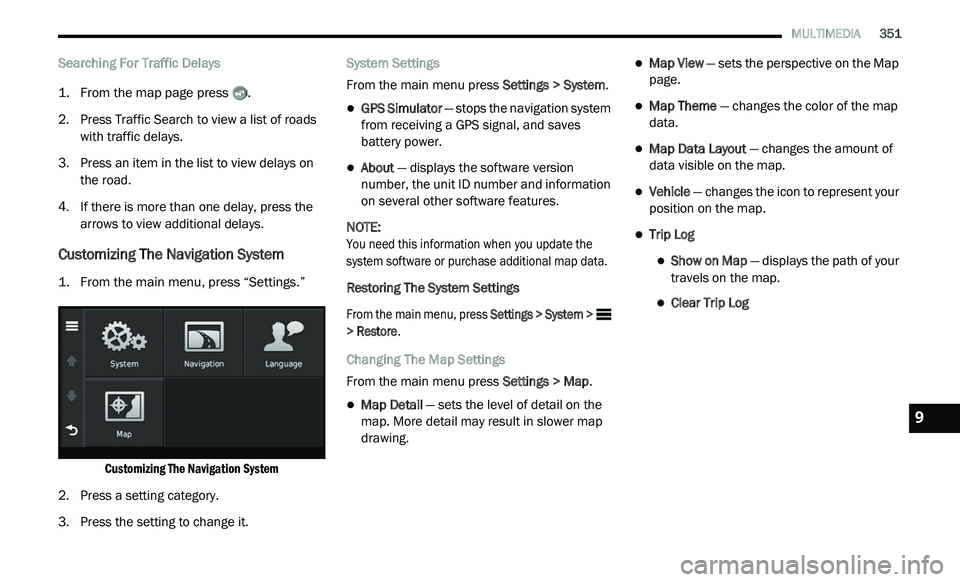
Customizing The Navigation System
1. From the main menu, press “Settings.”
Customizing The Navigation System
2. P ress a setting category.
3
. P ress the setting to change it. S
ystem Settings
From the main menu press Se
ttings > System.
GPS Simulator — stops the navigation system
from receiving a GPS signal, and saves
battery power.
About — displays the software version
number, the unit ID number and information
on several other software features.
NOTE:
You need this information when you update the
s y
stem software or purchase additional map data.
Restoring The System Settings
From the main menu, press Se
ttings > System >
> Restore .
Changing The Map Settings
From the main menu press Se
ttings > Map.
Map Detail — sets the level of detail on the
map. More detail may result in slower map
drawing.
Map View — sets the perspective on the Map
page.
Map Theme — changes the color of the map
data.
Map Data Layout — changes the amount of
data visible on the map.
Vehicle — changes the icon to represent your
position on the map.
Trip Log
Show on Map — displays the path of your
travels on the map.
Clear Trip Log
9
Page 371 of 396
MULTIMEDIA 369
REMOTE CONTROL STORAGE
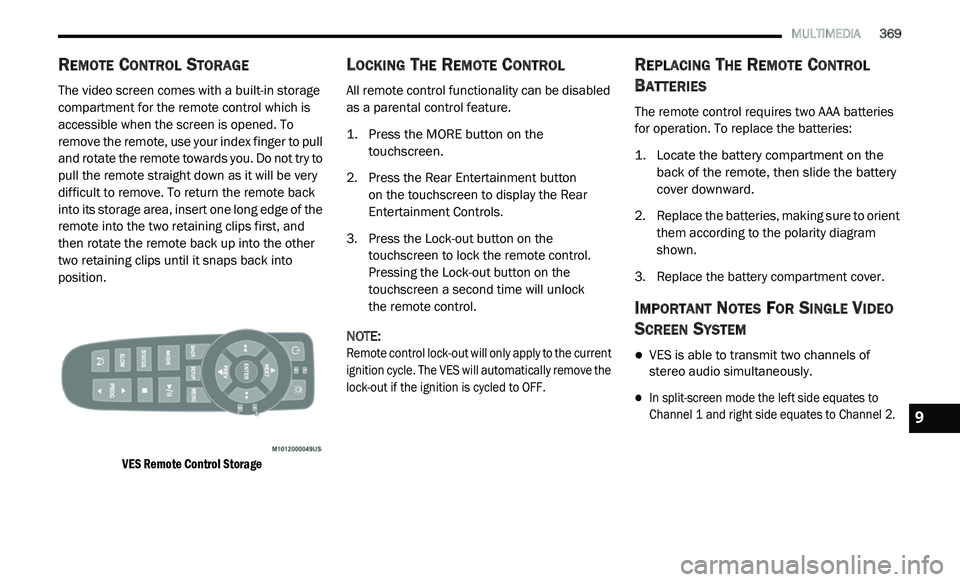
The video screen comes with a built-in storage
compartment for the remote control which is
accessible when the screen is opened. To
remove the remote, use your index finger to pull
and rotate the remote towards you. Do not try to
pull the remote straight down as it will be very
difficult to remove. To return the remote back
into its storage area, insert one long edge of the
remote into the two retaining clips first, and
then rotate the remote back up into the other
two retaining clips until it snaps back into
position.
VES Remote Control Storage
LOCKING THE REMOTE CONTROL
All remote control functionality can be disabled
as a parental control feature.
1. Press the MORE button on the
t
ouchscreen.
2. P ress the Rear Entertainment button
o
n the touchscreen to display the Rear
E n
tertainment Controls.
3. P ress the Lock-out button on the
t
ouchscreen to lock the remote control.
Pressing the Lock-out button on the
touchscreen a second time will unlock
the remote control.
NOTE:
Remote control lock-out will only apply to the current
i g
nition cycle. The VES will automatically remove the
lock-out if the ignition is cycled to OFF.
REPLACING THE REMOTE CONTROL
B
ATTERIES
The remote control requires two AAA batteries
for operation. To replace the batteries:
1. L ocate the battery compartment on the
b
ack of the remote, then slide the battery
cover downward.
2. R eplace the batteries, making sure to orient
t
hem according to the polarity diagram
shown.
3. R eplace the battery compartment cover.
IMPORTANT NOTES FOR SINGLE VIDEO
S
CREEN SYSTEM
VES is able to transmit two channels of
stereo audio simultaneously.
In split-screen mode the left side equates to
Channel 1 and right side equates to Channel 2.
9
Page 372 of 396
370 MULTIMEDIA
If a video source is selected on Channel 1,
then Channel 2 is for audio only.
When selecting a video source on Channel 1,
the video will display on the screen and the
audio will be heard on Channel 1 in the head-
phones.
Audio can be heard through the headphones
even when the Video Screen is closed.
UCONNECT HEADPHONES OPERATION
The headphones receive two separate channels
of audio using an infrared transmitter from the
video screen.
If no audio is heard after increasing the volume
c o
ntrol, verify that the screen is turned on and
in the down position, and the channel is not
muted and the headphone channel selector
switch is on the desired channel. If audio is still
not heard, check that fully charged batteries are
installed in the headphones.
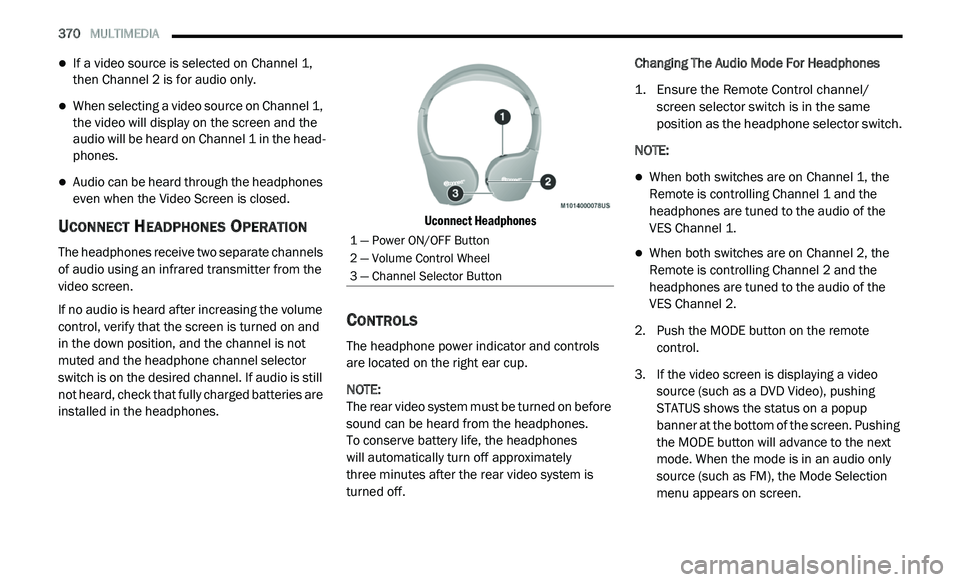
Uconnect Headphones
CONTROLS
The headphone power indicator and controls
are located on the right ear cup.
NOTE:
The rear video system must be turned on before
s o
und can be heard from the headphones.
To conserve battery life, the headphones
will automatically turn off approximately
three minutes after the rear video system is
t u
rned off. Changing The Audio Mode For Headphones
1. E
nsure the Remote Control channel/
s
creen selector switch is in the same
position as the headphone selector switch.
NOTE:
When both switches are on Channel 1, the
Remote is controlling Channel 1 and the
headphones are tuned to the audio of the
VES Channel 1.
When both switches are on Channel 2, the
Remote is controlling Channel 2 and the
headphones are tuned to the audio of the
VES Channel 2.
2. Push the MODE button on the remote c
ontrol.
3. I f the video screen is displaying a video
s
ource (such as a DVD Video), pushing
STATUS shows the status on a popup
banner at the bottom of the screen. Pushing
the MODE button will advance to the next
mode. When the mode is in an audio only
source (such as FM), the Mode Selection
menu appears on screen.
1 — Power ON/OFF Button
2 — Volume Control Wheel
3 — Channel Selector Button
Page 373 of 396
MULTIMEDIA 371
4. When the Mode Selection menu appears on
screen, use the cursor buttons on the
remote control to navigate to the available
modes and push the ENTER button to select
the new mode.
5. T o cancel out of the Mode Selection menu,
p
ush the BACK button on the remote
control.
REPLACING THE HEADPHONE
B
ATTERIES
Each set of headphones requires two AAA
batteries for operation. To replace the batteries:
1. L ocate the battery compartment on the left
e
ar cup of the headphones, and then slide
the battery cover downward.
2. R eplace the batteries, making sure to orient
t
hem according to the polarity diagram
shown.
3. R eplace the battery compartment cover.
ACCESSIBILITY
Accessibility is a feature of the DVD system that
announces a function prior to performing the
action. The first time a button is pressed the
system will identify the button, and will enact
the function of the button the second time it
is pressed. For further information, refer to
“ U
connect Settings” in “Multimedia.”
STEREO HEADPHONE LIFETIME LIMITED
W
ARRANTY
Who Does This Warranty Cover?
This warranty covers the initial user or
p u
rchaser ("you" or "your") of this particular
Aptiv PLC (“Aptiv”) wireless headphone
("Product"). The warranty is not transferable.
How Long Does the Coverage Last?
This warranty lasts as long as you own the
Pr
oduct.
What Does This Warranty Cover?
Except as specified below, this warranty covers
a n
y Product that in normal use is defective in
workmanship or materials. What Does This Warranty Not Cover?
This warranty does not cover any damage or
d e
fect that results from misuse, abuse or
modification of the Product other than by Aptiv.
Foam earpieces, which will wear over time
through normal use, are specifically not covered
(replacement foam is available for a nominal
charge). APTIV IS NOT LIABLE FOR ANY
INJURIES OR DAMAGES TO PERSONS OR
PROPERTY RESULTING FROM THE USE OF, OR
ANY FAILURE OR DEFECT IN, THE PRODUCT,
NOR IS APTIV LIABLE FOR ANY GENERAL,
SPECIAL, DIRECT, INDIRECT, INCIDENTAL,
CONSEQUENTIAL, EXEMPLARY, PUNITIVE OR
OTHER DAMAGES OF ANY KIND OR NATURE
WHATSOEVER. Some states and jurisdictions
may not allow the exclusion or limitation of
incidental or consequential damages, so
the above limitation may not apply to you.
This warranty gives you specific legal rights.
You may also have other rights, which vary from
j u
risdiction to jurisdiction.9