clock DODGE MAGNUM 2008 1.G Owners Manual
[x] Cancel search | Manufacturer: DODGE, Model Year: 2008, Model line: MAGNUM, Model: DODGE MAGNUM 2008 1.GPages: 482, PDF Size: 6.94 MB
Page 124 of 482
inches (15 cm), and then drop it. This should secure both
latches. Never drive your vehicle unless the hood is fully
closed, with both latches engaged.
WARNING!
If the hood is not fully latched, it could fly up when
the vehicle is moving and block your forward vision.
You could have a collision. Be sure all hood latches
are fully latched before driving.
LIGHTS
Headlight Switch
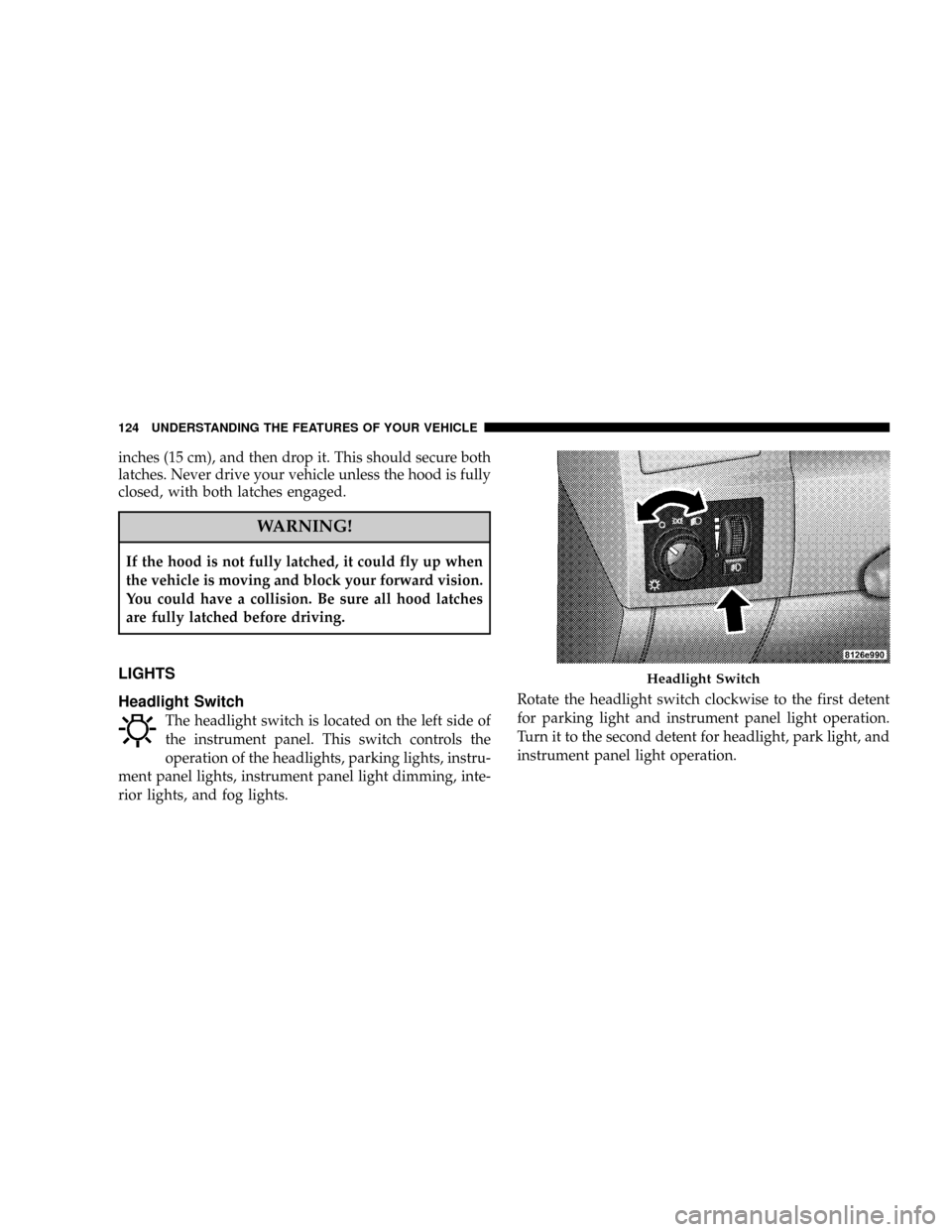
The headlight switch is located on the left side of
the instrument panel. This switch controls the
operation of the headlights, parking lights, instru-
ment panel lights, instrument panel light dimming, inte-
rior lights, and fog lights.Rotate the headlight switch clockwise to the first detent
for parking light and instrument panel light operation.
Turn it to the second detent for headlight, park light, and
instrument panel light operation.
Headlight Switch
124 UNDERSTANDING THE FEATURES OF YOUR VEHICLE
Page 125 of 482

Automatic Headlights Ð If Equipped
This system automatically turns the headlights ON or
OFF according to ambient light levels. To turn the system
ON, rotate the headlight switch counter-clockwise to the
AUTO (A) position. When the system is ON, the Head-
light Time Delay feature is also ON. This means the
headlights will stay ON for up to 90 seconds after you
turn the ignition switch OFF. To turn the Automatic
System OFF, move the headlight switch out of the AUTO
(A) position.
NOTE:The engine must be running before the head-
lights will come ON in the Automatic mode.
Headlight Switch
UNDERSTANDING THE FEATURES OF YOUR VEHICLE 125
3
Page 163 of 482

ROOF LUGGAGE RACK Ð IF EQUIPPED
The roof luggage rack consists of side rails and adjustable
crossbars. The roof luggage rack is designed to carry up
to 150 lbs (68 kg) of cargo uniformly distributed over
both crossbars.
When loading cargo on the roof luggage rack, distribute
the cargo weight evenly on the crossbars. The roof
luggage rack does not increase the total load carrying
capacity of the vehicle.Be sure that the total load of
cargo inside the vehicle plus that on the external rack
does not exceed the maximum vehicle load capacity.
Refer to the ªTire and Loading Informationº placard for
more information about cargo and load capacity. The
placard is located on either the driver's side ªBº pillar or
the driver door.
To adjust, remove, or install the crossbars, proceed as
follows:1. Flip the lever on the end of the crossbar upward.
2. Turn the lever counter clockwise to loosen the lower
clamp. When the lower clamp is loose, turn it until the
round side of the clamp completely faces away from the
side rail.
Roof Luggage Rack
UNDERSTANDING THE FEATURES OF YOUR VEHICLE 163
3
Page 164 of 482
3. Repeat Steps 1 and 2 on the opposite clamp on the
other side of the crossbar.
4. Pick up the crossbar and move it to the desired
location. Do not place the crossbar directly over the
sunroof glass (if equipped).
5. Turn the lower clamp until the round side of the clamp
completely faces the side rail.
6. Turn the lever clockwise to tighten the lower clamp to
the side rail. When tight, flip the lever downward.
7. Repeat Steps 5 and 6 on the opposite clamp on the
other side of the crossbar.
8. Attempt to move the crossbar to ensure that it is
locked in position.
NOTE:To reduce the amount of wind noise when the
crossbars are not in use, remove both crossbars from the
side rails and place them inside the vehicle.CAUTION!
²To avoid damage to the roof rack and vehicle, do
not exceed the maximum roof rack load capacity of
150 lbs (68 kg). Always distribute heavy loads as
evenly as possible and secure the load appropri-
ately.
²Long loads, which extend over the windshield,
such as wood panels or surfboards, or loads with
large frontal area should be secured to both the
front and rear of the vehicle.
²Travel at reduced speeds and turn corners carefully
when carrying large or heavy loads on the roof
rack. Wind forces, due to natural causes or nearby
truck traffic, can add sudden upward loads. This is
especially true on large flat loads and may result in
damage to the cargo or your vehicle.
²Do not use the pop-up feature of the sliding /
pop-up roof when positioning or placing luggage
above it, to prevent damage to the sliding / pop-up
roof panel.
164 UNDERSTANDING THE FEATURES OF YOUR VEHICLE
Page 168 of 482

NAM Reception.......................200
NFM Reception........................200
mSales Code REN Ð Multimedia System Ð
If Equipped...........................201
NOperating Instructions Ð Satellite Radio
(If Equipped)........................202
NOperating Instructions Ð Hands-Free
Communication (UConnectŸ) (If Equipped) . . 202
NClock Setting Procedure.................202
mSales Code REQ Ð AM/FM Stereo Radio And
6±Disc CD/DVD Changer (MP3/WMA AUX
Jack)................................204
NOperating Instructions - Radio Mode.......205
NOperation Instructions - (Disc Mode For CD
And MP3/WMA Audio Play, DVD-Video)....213NNotes On Playing MP3/WMA Files........215
NList Button (Disc Mode For MP3/WMA
Play)..............................217
NInfo Button (Disc Mode For MP3/WMA
Play)..............................217
mSales Code RER Ð Multimedia System Ð
If Equipped...........................219
NOperating Instructions Ð Satellite Radio.....221
NOperating Instructions Ð Hands-Free
Communication (UConnectŸ) (If Equipped) . . 221
NClock Setting Procedure.................221
mSales Code RES Ð AM/FM Stereo Radio With
CD Player (MP3 AUX Jack)................223
NOperating Instructions - Radio Mode.......224
168 UNDERSTANDING YOUR INSTRUMENT PANEL
Page 202 of 482

to the car speakers while different audio tracks play
through the system's wireless headphones. This means
rear seat passengers can watch a DVD on the optional
rear-seat entertainment system while the driver and front
seat passenger listen to the radio.
Other special features include direct tune, music type
selections, easy store presets, backup camera display for
vehicles equipped with a backup camera, and on some
models a dual display screen operation. Refer to your
Radio Specific User's Manual for detailed operating
instructions.
Operating Instructions Ð Satellite Radio (If
Equipped)
Refer to your Radio Specific User's Manual for detailed
operating instructions.
Operating Instructions Ð Hands-Free
Communication (UConnectŸ) (If Equipped)
Refer to ªHands-Free Communication (UConnectŸ)º in
Section 3 of this manual for detailed operating instruc-
tions.
Clock Setting Procedure
Setting the Clock
1. Turn on the system.
2. Touch the screen where the time is displayed. The
clock setting menu will appear on the screen.
3. To move the hour forward, touch the screen where the
word ªHourº with the arrow pointing upward is dis-
played. To move the hour backward, touch the screen
where the word ªHourº with the arrow pointing down-
ward is displayed.
202 UNDERSTANDING YOUR INSTRUMENT PANEL
Page 203 of 482
4. To move the minute forward, touch the screen where
the word ªMinº with the arrow pointing upward is
displayed. To move the minute backward, touch the
screen where the word ªMinº with the arrow pointing
downward is displayed.
5. To save the new time setting, touch the screen where
the word ªSaveº is displayed.
Changing Daylight Savings Time
When selected, this feature will display the time of day in
daylight savings time. Proceed as follows to change the
current setting:
1. Turn on the system.
2. Touch the screen where the time is displayed. The
clock setting menu will appear on the screen.3. When this feature is on, a check mark will appear in
the box next to the words ªDaylight Savings.º Touch the
screen where the words ªDaylight Savingsº are dis-
played to change the current setting.
Show Time if Radio is Off
When selected, this feature will display the time of day
on the touch screen when the system is turned off.
Proceed as follows to change the current setting:
1. Turn on the system.
2. Touch the screen where the time is displayed. The
clock setting menu will appear on the screen.
3. When this feature is on, a check mark will appear in
the box next to the words ªShow Time if Radio is Off.º
Touch the screen where the words ªShow Time if Radio is
Offº are displayed to change the current setting.
UNDERSTANDING YOUR INSTRUMENT PANEL 203
4
Page 204 of 482

Changing the Time Zone
1. Turn on the system.
2. Touch the screen where the time is displayed. The
clock setting menu will appear on the screen.
3. Touch the screen where the words ªSet Time Zoneº are
displayed. The time zone selection menu will appear on
the screen.
4. Select a time zone by touching the screen where your
selection appears. If you do not see a time zone that you
want to select, touch the screen where the word ªPageº is
displayed to view additional time zones in the menu.
5. Touch the screen where the word ªSaveº is displayed.
SALES CODE REQ Ð AM/FM STEREO RADIO
AND 6±DISC CD/DVD CHANGER (MP3/WMA AUX
JACK)
NOTE:The radio sales code is located on the lower right
side of your radio faceplate.
REQ Radio
204 UNDERSTANDING YOUR INSTRUMENT PANEL
Page 206 of 482

Phone Button (UConnectŸ Hands Free Phone) Ð
If Equipped
Press this button to operate the Hand Free Phone (UCon-
nectŸ) feature (if equipped). Refer to ªHands-Free Com-
munication (UConnectŸ)º in Section 3 for more informa-
tion.
If your vehicle is not equipped with or this feature is not
available on your vehicle, a ªUConnectŸ System Not
Availableº message will display on the radio screen.
TIME Button
Press the TIME button and the time of day will display. In
AM or FM mode, pressing the TIME button will switch
between the time and frequency displays.
Clock Setting Procedure
1. Press and hold the TIME button, until the hours blink.
2. Adjust the hours by turning the right side TUNE
control knob.3. After adjusting the hours, press the right side TUNE
control knob to set the minutes. The minutes will begin to
blink.
4. Adjust the minutes using the right side TUNE control
knob. Press the TUNE control knob to save time change.
5. To exit, press any button/knob or wait 5 seconds.
The clock can also be set by pressing the SETUP button
and selecting the ªSET HOME CLOCKº entry. Once in
this display follow the above procedure, starting at step
2.
INFO Button (Radio Mode)
Press the INFO button for an RDS station (one with call
letters displayed). The radio will return a Radio Text
message broadcast from an FM station (FM mode only).
206 UNDERSTANDING YOUR INSTRUMENT PANEL
Page 207 of 482
RW/FF (Radio Mode)
Pressing the rewind or fast forward button causes the
tuner to search for the next frequency in the direction of
the arrows. This feature operates in either AM, FM or
Satellite (if equipped) frequencies.
TUNE Control (Radio Mode)
Turn the right side rotary control clockwise to increase or
counter-clockwise to decrease the frequency.
Setting the Tone, Balance, and Fade
Press the rotary TUNE control knob and BASS will
display. Turn the TUNE control knob to the right or left to
increase or decrease the Bass tones.
Press the rotary TUNE control knob a second time and
MID will display. Turn the TUNE control knob to the
right or left to increase or decrease the Mid Range tones.Press the rotary TUNE control knob a third time and
TREBLE will display. Turn the TUNE control knob to the
right or left to increase or decrease the Treble tones.
Press the rotary TUNE control knob a fourth time and
BALANCE will display. Turn the TUNE control knob to
the right or left to adjust the sound level from the right or
left side speakers.
Press the rotary TUNE control knob a fifth time and
FADE will display. Turn the TUNE control knob to the
left or right to adjust the sound level between the front
and rear speakers.
Press the rotary TUNE control knob again to exit setting
tone, balance, and fade.
MUSIC TYPE Button (Radio Mode)
Pressing this button once will turn on the Music Type mode
for 5 seconds. Pressing the Music Type button or turning
the TUNE control knob within 5 seconds will allow the
UNDERSTANDING YOUR INSTRUMENT PANEL 207
4