language DODGE NITRO 2008 1.G Owners Manual
[x] Cancel search | Manufacturer: DODGE, Model Year: 2008, Model line: NITRO, Model: DODGE NITRO 2008 1.GPages: 434, PDF Size: 6.2 MB
Page 87 of 434

HANDS±FREE COMMUNICATION (UConnectT)Ð
IF EQUIPPED
NOTE: The sales code RER radio contains an inte-
grated Hands-Free Communication (UConnectt) sys-
tem. Refer to your ªNavigation User's Manualº for
UConnecttsystem operating instructions for this radio.
UConnecttis a voice-activated, hands-free, in- vehicle
communications system. UConnecttallows you to dial a
phone number with your cellular phone using simple
voice commands (e.g.,9Callº{ªMikeº{ºWork9or9Dialº
{ª248-555-12129). Your cellular phone's audio is trans-
mitted through your vehicle's audio system; the system
will automatically mute your radio when using the
UConnecttsystem.
NOTE:The UConnecttsystem use requires a cellular
phone equipped with the Bluetooth9Hands-Free Profile,9
version 0.96 or higher. See UConnecttwebsite for sup-
ported phones.NOTE:For UConnecttcustomer support, visit the
following web sites:²www.chrysler.com/uconnect
²www.dodge.com/uconnect
²www.jeep.com/uconnect
²or call 1±877±855±8400
UConnecttallows you to transfer calls between the
system and your cellular phone as you enter or exit your
vehicle, and enables you to mute the system's micro-
phone for private conversation.
The UConnecttphone book enables you to store up to 32
names and four numbers per name. Each language has a
separate 32-name phone book accessible only in that
language. This system is driven through your Blue-
toothŸ Hands-Free profile cellular phone. UConnectt
features BluetoothŸ technology - the global standard
UNDERSTANDING THE FEATURES OF YOUR VEHICLE 87
3
Page 88 of 434

that enables different electronic devices to connect to
each other without wires or a docking station, so UCon-
necttworks no matter where you stow your cellular
phone (be it your purse, pocket, or briefcase), as long as
your phone is turned on and has been paired to the
vehicle's UConnecttsystem. The UConnecttsystem
allows up to seven cellular phones to be linked to system.
Only one linked (or paired) cellular phone can be used
with the system at a time. The system is available in
English, Spanish, or French languages (as equipped).
Phone Button
The rearview mirror contains the microphone
for the system (depending on the type of
mirror and radio equipped), and either the
radio or the mirror has the two control buttons
(Phone Button and Voice Recognition Button) that will
enable you to access the system.Voice Recognition Button
Actual button location may vary with radio.
The individual buttons are described in the
ªOperationº section.
The UConnecttsystem can be used with any Hands-Free
Profile certified BluetoothŸ cellular phone. See UCon-
necttwebsite for supported phones. If your cellular
phone supports a different profile (e.g., Headset Profile)
you may not be able to use any UConnecttfeatures.
Refer to your cellular service provider or the phone
manufacturer for details.
The UConnecttsystem is fully integrated with the vehi-
cle's audio system. The volume of the UConnecttsystem
can be adjusted either from the radio volume control
knob or from the steering wheel radio control (right
switch), if so equipped.
88 UNDERSTANDING THE FEATURES OF YOUR VEHICLE
Page 93 of 434

The UConnecttsystem will allow you to enter up to 32
names in the phone book with each name having up to
four associated phone numbers and designations. Each
language has a separate 32-name phone book accessible
only in that language.
Phonebook Download
UConnecttallows the user to download entries from
their phone via Bluetooth. To use this feature, press the
ªPhoneº button and say ªPhonebook Download.º Sys-
tem prompts ªReady to accept vcard entry via Blue-
tooth¼º The system is now ready to accept phonebook
entries from your phone using the Bluetooth Object
Exchange Profile (OBEX). Please see your phone owners'
manual for specific instructions on how to send these
entries from your phone.
NOTE:
²Phone handset must support Bluetooth OBEX trans-
fers of phonebook entries to use this feature.
²Some phones cannot send phonebook entries if they
are already connected to any system via Bluetooth,
and you may see a message on the phone display that
the Bluetooth link is busy. In this case, the user must
first disconnect or drop the Bluetooth connection to
the UConnecttand then send the address book entry
via Bluetooth. Please see your phone owners' manual
for specific instructions on how to drop the Bluetooth
connection.
²If the phonebook entry is longer than 24 characters it
will be use only the first 24 characters.
Edit Entries in the UConnecttPhonebook
NOTE:Editing names in the phone book is recom-
mended when vehicle is not in motion.
²Press the ªPhoneº button to begin.
²After the9Ready9prompt and the following beep, say
9Phonebook Edit.9
UNDERSTANDING THE FEATURES OF YOUR VEHICLE 93
3
Page 95 of 434

²After you enter the name, the UConnecttsystem will
ask you which designation you wish to delete, home,
work, mobile, pager, or all. Say the designation you
wish to delete.
²Note that only the phone book entry in the current
language is deleted.
Delete All Entries in the UConnecttPhonebook
²
Press the ªPhoneº button to begin.
²After the9Ready9prompt and the following beep, say
9Phonebook Erase All.9
²The UConnecttsystem will ask you to verify that you
wish to delete all the entries from the phonebook.
²After confirmation, the phone book entries will be
deleted.
²Note that only the phone book in the current language
is deleted.
List All Names in the UConnecttPhonebook
²
Press the ªPhoneº button to begin.
²After the9Ready9prompt and the following beep, say
9Phonebook List Names.9
²The UConnecttsystem will play the names of all the
phone book entries.
²To call one of the names in the list, press the9Voice
Recognition' button during the playing of the desired
name, and say9Call.9
NOTE:The user can also exercise9Edit9or9Delete9
operations at this point.
²The UConnecttsystem will then prompt you as to the
number designation you wish to call.
²The selected number will be dialed.
UNDERSTANDING THE FEATURES OF YOUR VEHICLE 95
3
Page 99 of 434

UConnectTSystem Features
Language Selection
To change the language that the UConnecttsystem is
using,
²Press the ªPhoneº button to begin.
²After the9Ready9prompt and the following beep, say
the name of the language you wish to switch to
(English, Espanol, or Francais, if so equipped).
²Continue to follow the system prompts to complete
language selection.
After selecting one of the languages, all prompts and
voice commands will be in that language.
NOTE:After every UConnecttlanguage change opera-
tion, only the language specific 32-name phone book is
usable. The paired phone name is not language specific
and usable across all languages.
Emergency Assistance
If you are in an emergency and the mobile phone is
reachable:
²Pick up the phone and manually dial the emergency
number for your area.
If the phone is not reachable and the UConnecttsystem
is operational, you may reach the emergency number as
follows:
²Press the ªPhoneº button to begin.
²After the9Ready9prompt and the following beep, say
9Emergency9and the UConnecttsystem will instruct
the paired cellular phone to call the emergency num-
ber. This feature is only supported in the USA.
NOTE:The emergency number dialed is based on the
Country where the vehicle is purchased (911 for USA and
Canada and 060 for Mexico). The number dialed may not
be applicable with the available cellular service and area.
UNDERSTANDING THE FEATURES OF YOUR VEHICLE 99
3
Page 107 of 434

²Even though international dialing for most number
combinations is supported, some shortcut dialing
number combinations may not be supported.
²In a convertible vehicle, system performance may be
compromised with the convertible top down.
Far End Audio Performance
²
Audio quality is maximized under:
²low-to-medium blower setting,
²low-to-medium vehicle speed,
²low road noise,
²smooth road surface,
²fully closed windows, and
²dry weather condition.
²operation from driver seat.
²Performance, such as audio clarity, echo, and loudness
to a large degree rely on the phone and network, and
not the UConnecttsystem.
²Echo at far end can sometime be reduced by lowering
the in-vehicle audio volume.
²In a convertible vehicle, system performance may be
compromised with the convertible top down.
Bluetooth Communication Link
Cellular phones have been found to lose connection to
the UConnecttsystem. When this happens, the connec-
tion can generally be re-established by switching the
phone off/on. Your cell phone is recommended to remain
in Bluetooth9on9mode.
Power-Up
After switching the ignition key from OFF to either ON
or ACC position, or after a language change, you must
wait at least five (5) seconds prior to using the system.
UNDERSTANDING THE FEATURES OF YOUR VEHICLE 107
3
Page 112 of 434
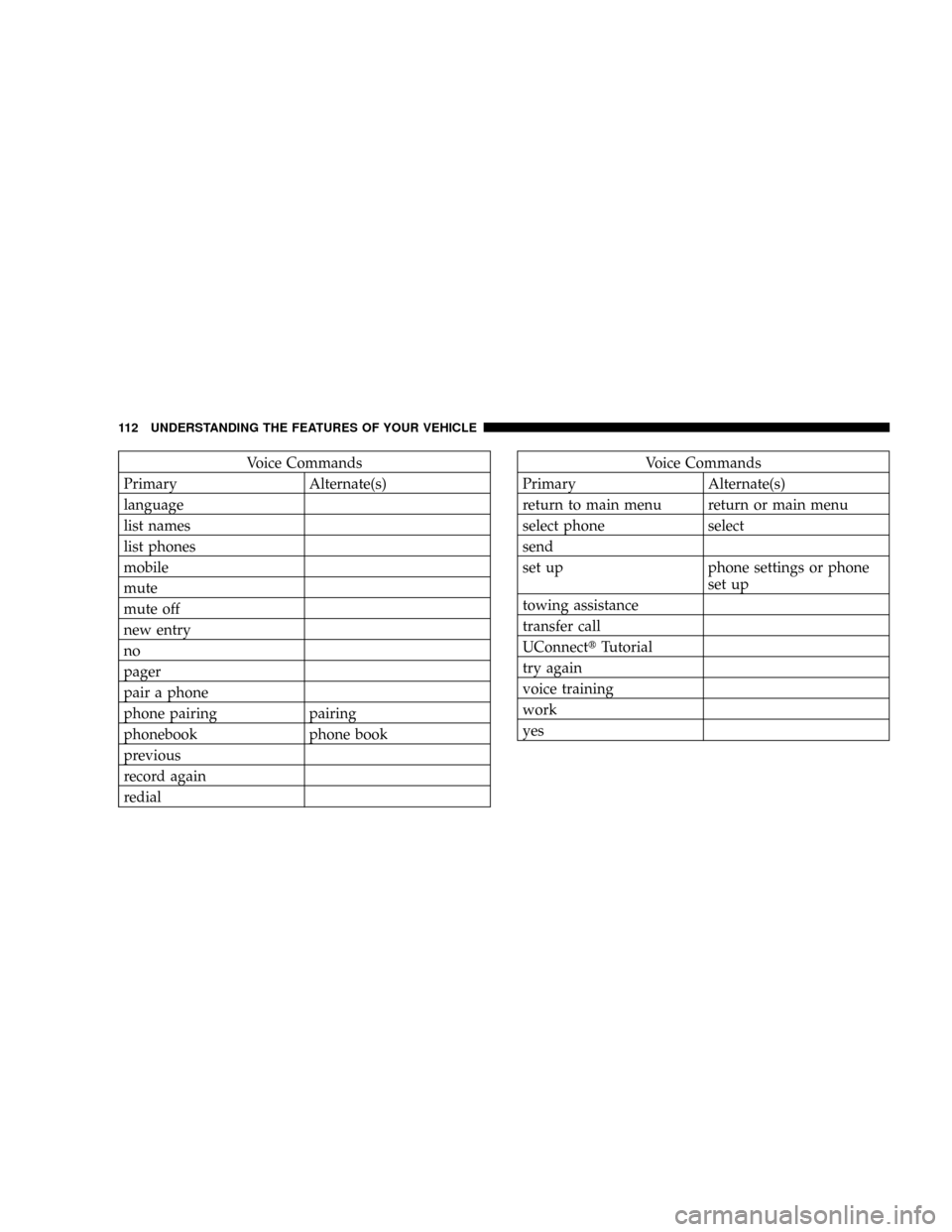
Voice Commands
Primary Alternate(s)
language
list names
list phones
mobile
mute
mute off
new entry
no
pager
pair a phone
phone pairing pairing
phonebook phone book
previous
record again
redialVoice Commands
Primary Alternate(s)
return to main menu return or main menu
select phone select
send
set up phone settings or phone
set up
towing assistance
transfer call
UConnecttTutorial
try again
voice training
work
yes
112 UNDERSTANDING THE FEATURES OF YOUR VEHICLE
Page 194 of 434

Use the SCROLL button to display one of the following
choices:
Language
When in this display you may select one of five lan-
guages for all display nomenclature, including the trip
functions and the navigation system (if equipped). Press
the FUNCTION SELECT button while in this display to
select English, Espanol, or Francais. Then, as you con-
tinue, the information will display in the selected lan-
guage.
NOTE:The EVIC will not change the UConnectŸ
language selection. Please refer to ªLanguage Selectionº
in the HANDS±FREE COMMUNICATION (UConnectŸ)
section of this manual for details.
Lock Doors Automatically at 15 mph (24 km/h)
When ON is selected, all doors will lock automatically
when the vehicle reaches a speed of 15 mph (24 km/h).
To make your selection, press and release the FUNC-
TION SELECT button until ªONº or ªOFFº appears.
Unlock Doors Automatically on Exit
When ON is selected, all doors will unlock when the
vehicle is stopped and the transmission is in the P (Park)
or N (Neutral) position and the driver's door is opened.
To make your selection, press and release the FUNC-
TION SELECT button until ªONº or ªOFFº appears.
Remote Key Unlock
WhenDriver Door 1st Pressis selected, only the driver's
door will unlock on the first press of the remote keyless
entry unlock button. When Driver Door 1st Press is
selected, you must press of the remote keyless entry
unlock button twice to unlock the passenger's doors.
WhenAll Doors 1st Pressis selected, all of the doors will
unlock on the first press of the remote keyless entry
unlock button. To make your selection, press and release
the FUNCTION SELECT button until ªDriver Door 1st
Pressº or ªAll Doors 1st Pressº appears.
194 INSTRUMENT PANEL AND CONTROLS
Page 201 of 434
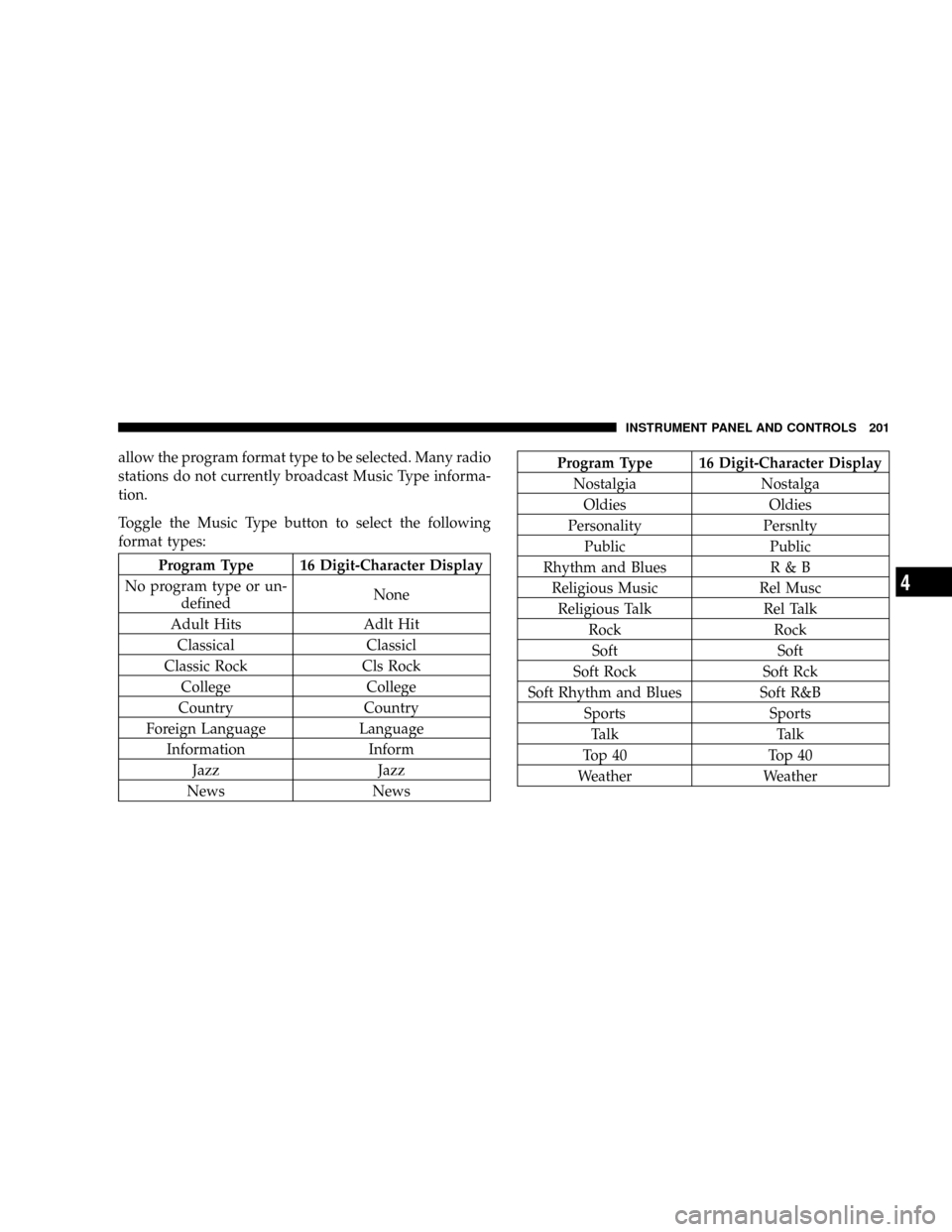
allow the program format type to be selected. Many radio
stations do not currently broadcast Music Type informa-
tion.
Toggle the Music Type button to select the following
format types:
Program Type 16 Digit-Character Display
No program type or un-
definedNone
Adult Hits Adlt Hit
Classical Classicl
Classic Rock Cls Rock
College College
Country Country
Foreign Language Language
Information Inform
Jazz Jazz
News News
Program Type 16 Digit-Character Display
Nostalgia Nostalga
Oldies Oldies
Personality Persnlty
Public Public
Rhythm and Blues R & B
Religious Music Rel Musc
Religious Talk Rel Talk
Rock Rock
Soft Soft
Soft Rock Soft Rck
Soft Rhythm and Blues Soft R&B
Sports Sports
Talk Talk
Top 40 Top 40
Weather Weather
INSTRUMENT PANEL AND CONTROLS 201
4
Page 202 of 434

By pressing the SEEK button when the Music Type icon
is displayed, the radio will be tuned to the next frequency
station with the same selected Music Type name. The
Music Type function only operates when in the FM
mode.
If a preset button is activated while in the Music Type
(Program Type) mode, the Music Type mode will be
exited and the radio will tune to the preset station.
SETUP Button
Pressing the SETUP button allows you to select between
the following items:
NOTE:Use the Tune Control Knob to scroll through the
entries. Push the Audio/Select button to select an entry
and make changes.
²DVD Enter -When the disc is in DVD Menu mode,
selecting DVD Enter will allow you to play the current
highlighted selection. Use the remote control to scroll
up and down the menu (If Equipped).
²DISC Play/Pause -You can toggle between
playing the DVD and pausing the DVD by
pushing the SELECT button (If Equipped).
²DVD Play Options -Selecting the DVD Play Options
will display the following:
²Subtitle ± Repeatedly Pressing SELECT will switch
subtitles to different subtitle languages that are
available on the disc (If Equipped).
²Audio Stream ± Repeatedly Pressing SELECT will
switch to different audio languages (if supported on
the disc) (If Equipped).
202 INSTRUMENT PANEL AND CONTROLS