change time DODGE RAM 2500 DIESEL 2008 3.G User Guide
[x] Cancel search | Manufacturer: DODGE, Model Year: 2008, Model line: RAM 2500 DIESEL, Model: DODGE RAM 2500 DIESEL 2008 3.GPages: 527, PDF Size: 8.88 MB
Page 220 of 527
Radio display will show9EJECTING DISC9when the disc
is being ejected and prompt the user to remove the disc.
Press and hold the LOAD/ EJT button for five seconds
and all CDs will be ejected from the radio.
If you have ejected a disc and have not removed it within
15 seconds, it will be reloaded. If the CD is not removed,
the radio will continue to play the non-removed CD. If
the CD is removed and there are other CDs in the radio,
the radio will play the next CD after a two minute
timeout. If the CD is removed and there are no other CDs
in the radio, the radio will remain in CD mode and
display9INSERT DISCº for 10 seconds. If no discs are
inserted within 10 seconds ªNO DISCS LOADEDº will
be displayed.
On some vehicles a disc can be ejected with the radio and
ignition OFF.TIME Button (CD Mode for CD Audio Play)
Press this button to change the display from a large CD
playing time display to a small CD playing time display.
RW/FF (CD Mode for CD Audio Play)
Press and hold FF (Fast Forward) and the CD player will
begin to fast forward until FF is released or RW or
another CD button is pressed. The RW (Reverse) button
works in a similar manner.
Press and hold the FF button to fast forward through the
tracks. Release the FF button to stop the fast forward
feature.
TUNE Control (CD Mode for CD Audio Play)
Pressing the TUNE control allows the setting of the Tone,
Fade, and Balance. See Radio Mode.
AM/FM Button (CD Mode for CD Audio Play)
Switches the Radio to the Radio mode.
218 UNDERSTANDING YOUR INSTRUMENT PANEL
Page 221 of 527
RND/PTY Button (Random Play Button) (CD Mode
for CD Audio Play)
Press this button while the CD is playing to activate
Random Play. This feature plays the selections on the
compact disc in random order to provide an interesting
change of pace.
Press the SEEK button to move to the next randomly
selected track.
Press the RND button a second time to stop Random
play.
Buttons1-6(CDMode for CD Audio Play)
Selects disc positions1-6forPlay/Load/Eject.
Notes On Playing MP3 Files
The radio can play MP3 files, however, acceptable MP3
file recording media and formats are limited. When
writing MP3 files, pay attention to the following restric-
tions.
Supported Media (Disc Types)
The MP3 file recording media supported by the radio are
CD-ROM, CD-R and CD-RW.
Supported Medium Formats (File Systems)
The medium formats supported by the radio are ISO 9660
Level 1 and Level 2 and includes the Joliet extension.
When reading discs recorded using formats other than
ISO 9660 Level 1 and Level 2, the radio may fail to read
files properly and may be unable to play the file nor-
mally. UDF and Apple HFS formats are not supported.
The radio uses the following limits for file systems:
²Maximum number of directory levels: 15
²Maximum number of files: 255
²Maximum number of folders: 100
UNDERSTANDING YOUR INSTRUMENT PANEL 219
4
Page 231 of 527
Fast Forward (FF)
Press the FF button up momentarily to advance the tape
in the direction that it is playing. The tape will advance
until the button is pressed again or the end of the tape is
reached. At the end of the tape, the tape will play in the
opposite direction.
Rewind (RW)
Press the RW button momentarily to reverse the tape
direction. The tape will reverse until the button is pressed
again or until the end of the tape is reached. At the end of
the tape, the tape will play in the opposite direction.
Tape Eject
Press this button and the cassette will disen-
gage and eject from the radio.
SCAN Button
Press this button to play 10 seconds of each selection.
Press the SCAN button a second time to cancel the
feature.
Changing Tape Direction
If you wish to change the direction of tape travel (side
being played), press Preset 6. The lighted arrow in the
display window will show the new direction.
Metal Tape Selection
If a standard metal tape is inserted into the player, the
player will automatically select the correct equalization.
Pinch Roller Release
If ignition power or the radio ON/OFF switch is turned
off, the pinch roller will automatically retract to protect
the tape from any damage. When power is restored to the
tape player, the pinch roller will automatically reengage
and the tape will resume play.
UNDERSTANDING YOUR INSTRUMENT PANEL 229
4
Page 234 of 527
Radio display will show9EJECTING DISC9when the disc
is being ejected and prompt the user to remove the disc.
Press and hold the LOAD/EJT button for five seconds
and all CDs will be ejected from the radio.
If you have ejected a disc and have not removed it within
15 seconds, it will be reloaded. If the CD is not removed,
the radio will continue to play the non-removed CD. If
the CD is removed and there are other CDs in the radio,
the radio will play the next CD after a two-minute
timeout. If the CD is removed and there are no other CDs
in the radio, the radio will remain in CD mode and
display9INSERT DISCº for two minutes. After two
minutes, the radio will go to the previous tuner mode.
The disc can be ejected with the radio and ignition OFF.
TIME Button (CD Mode for CD Audio Play)
Press this button to change the display from a large CD
playing time display to a small CD playing time display.
RW/FF (CD Mode for CD Audio Play)
Press and hold FF (Fast Forward) and the CD player will
begin to fast forward until FF is released or RW or
another CD button is pressed. The RW (Reverse) button
works in a similar manner.
Press and hold the FF button to fast forward through the
tracks. Release the FF button to stop the fast forward
feature. If the RW button is pressed, the current track will
reverse to the beginning of the track and begin playing.
TUNE Control (CD Mode for CD Audio Play)
Pressing the TUNE control allows the setting of the Tone,
Fade, and Balance. See Radio Mode.
AM/FM Button (CD Mode for CD Audio Play)
Switches the Radio to the Radio mode.
232 UNDERSTANDING YOUR INSTRUMENT PANEL
Page 235 of 527
RND/PTY Button (Random Play Button) (CD Mode
for CD Audio Play)
Press this button while the CD is playing to activate
Random play. This feature plays the selections on the
compact disc in random order to provide an interesting
change of pace.
NOTE:MP3 and WMA Random play are for file folders
only.
Press the SEEK button to move to the next randomly
selected track.
Press the RND button a second time to stop Random
play.
Buttons1-6(CDMode for CD Audio Play)
Selects disc positions1-6forPlay/Load/Eject.
Notes On Playing MP3 Files
The radio can play MP3 files; however, acceptable MP3
file recording media and formats are limited. When
writing MP3 files, pay attention to the following restric-
tions.
Supported Media (Disc Types)
The MP3 file recording media supported by the radio are
CD-ROM, CD-R, and CD-RW.
Supported Medium Formats (File Systems)
The medium formats supported by the radio are ISO 9660
Level 1 and Level 2 and includes the Joliet extension.
When reading discs recorded using formats other than
ISO 9660 Level 1 and Level 2, the radio may fail to read
files properly and may be unable to play the file nor-
mally. UDF and Apple HFS formats are not supported.
UNDERSTANDING YOUR INSTRUMENT PANEL 233
4
Page 241 of 527
menus and instructions for selecting a variety of destina-
tions and routes, AM/FM stereo radio and six-disc CD
changer with MP3 capability.
Mapping information for navigation is supplied on a
DVD that is loaded into the unit. One map DVD covers
all of North America. Refer to your ªNavigation User's
Manualº for detailed operating instructions.
Operating Instructions Ð Satellite Radio Ð If
Equipped
Refer to your ªNavigation User's Manualº for detailed
operating instructions.
REC Setting the Clock
GPS Clock
The GPS receiver used in this system is synchronized to
the time data being transmitted by the GPS satellites. The
satellites' clock is Greenwich Mean Time (GMT). This isthe worldwide standard for time. This makes the sys-
tem's clock very accurate once the appropriate time zone
and daylight savings information is set.
1. At theMain Menuscreen, highlight ªClock Setupº
and press ENTERORpress and hold for three seconds
the TIME button on the unit's faceplate. TheClock Setup
screen appears.
UNDERSTANDING YOUR INSTRUMENT PANEL 239
4
Page 242 of 527
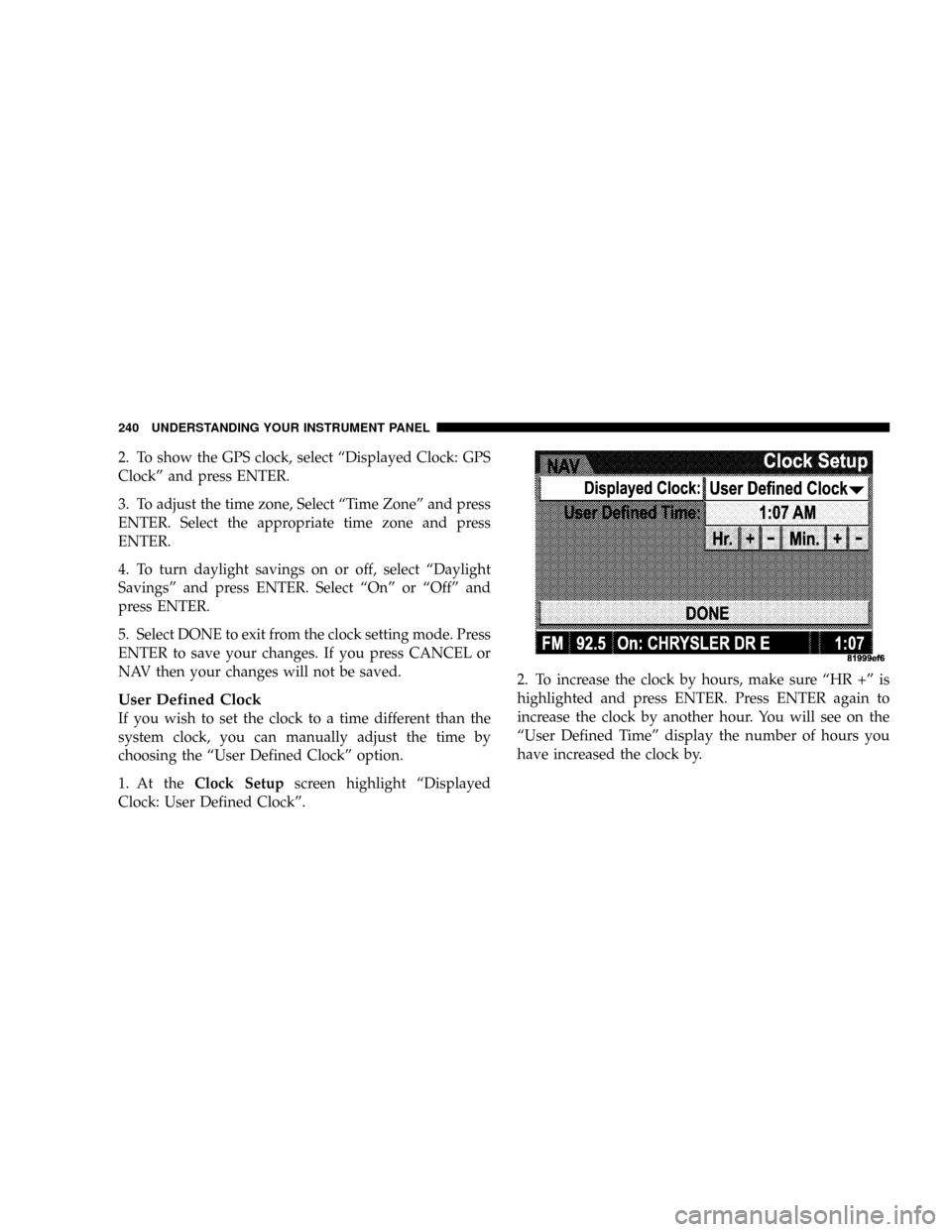
2. To show the GPS clock, select ªDisplayed Clock: GPS
Clockº and press ENTER.
3. To adjust the time zone, Select ªTime Zoneº and press
ENTER. Select the appropriate time zone and press
ENTER.
4. To turn daylight savings on or off, select ªDaylight
Savingsº and press ENTER. Select ªOnº or ªOffº and
press ENTER.
5. Select DONE to exit from the clock setting mode. Press
ENTER to save your changes. If you press CANCEL or
NAV then your changes will not be saved.
User Defined Clock
If you wish to set the clock to a time different than the
system clock, you can manually adjust the time by
choosing the ªUser Defined Clockº option.
1. At theClock Setupscreen highlight ªDisplayed
Clock: User Defined Clockº.2. To increase the clock by hours, make sure ªHR +º is
highlighted and press ENTER. Press ENTER again to
increase the clock by another hour. You will see on the
ªUser Defined Timeº display the number of hours you
have increased the clock by.
240 UNDERSTANDING YOUR INSTRUMENT PANEL
Page 246 of 527
Press and release the SCAN button (if equipped) to
automatically change channels every seven seconds. The
radio will pause on each channel for seven seconds
before moving on to the next channel. The word9SCAN9
will appear in the display between each channel change.
Press the SCAN button a second time to stop the search.
NOTE:Channels that may contain objectionable content
can be blocked. Contact Sirius Customer Care at 888-539-
7474 to discuss options for channel blocking or unblock-
ing. Please have your ESN/SID information available.
Storing And Selecting Preset Channels
In addition to the 12 AM and 12 FM preset stations, you
may also commit 12 satellite stations to pushbutton
memory. These satellite channel preset stations will not
erase any AM or FM preset memory stations. Follow the
memory preset procedures that apply to your radio.
Using The PTY (Program Type) Button Ð If
Equipped
Follow the PTY button instructions that apply to your
radio.
PTY Button SCAN
When the desired program type is obtained, press the
SCAN button within five seconds. The radio will play
seven seconds of the selected channel before moving to
the next channel of the selected program type. Press the
SCAN button a second time to stop the search.
NOTE:Pressing the SEEK or SCAN button, while
performing a music type scan, will change the channel by
one and stop the search. Pressing a preset memory button
during a music type scan will call up the memory
channel and stop the search.
244 UNDERSTANDING YOUR INSTRUMENT PANEL
Page 254 of 527
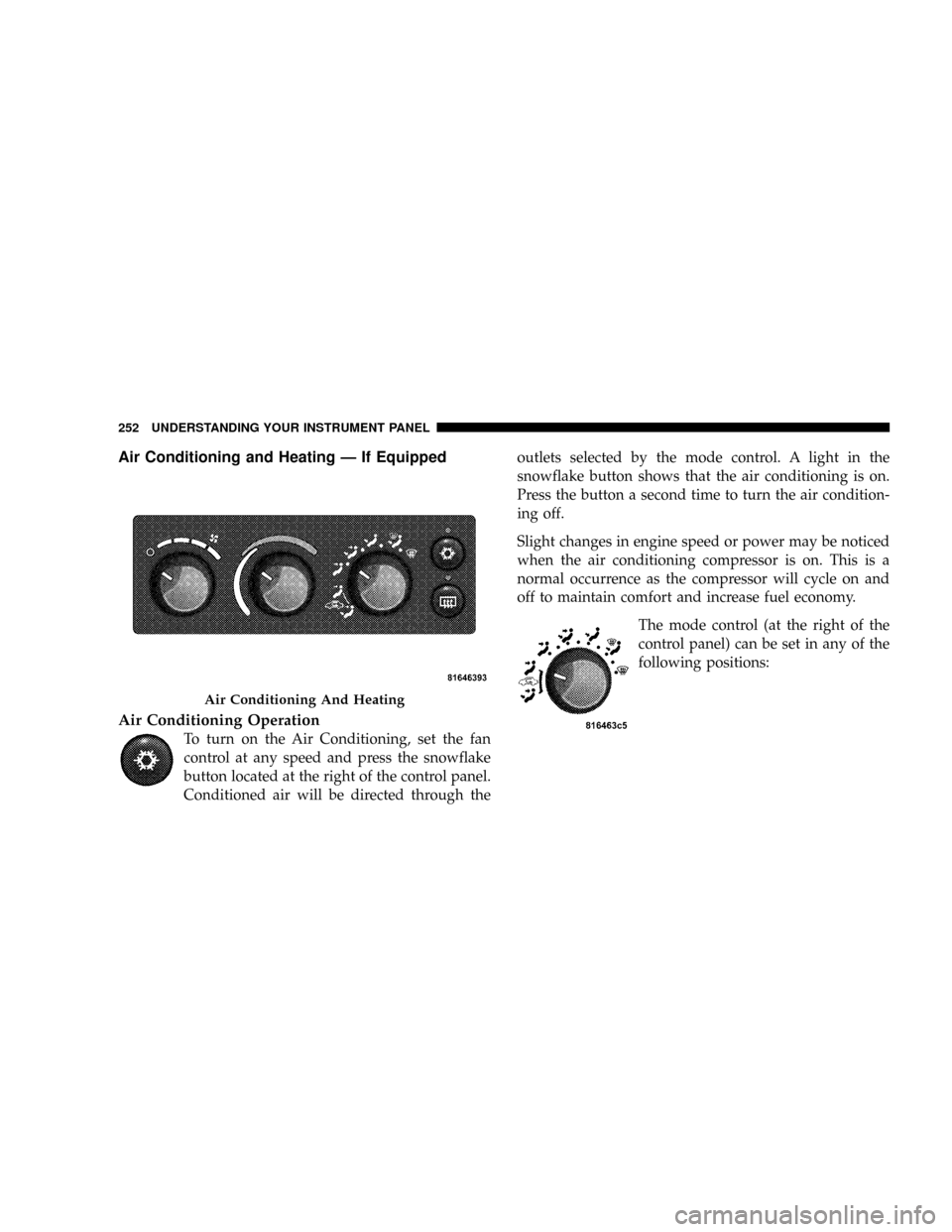
Air Conditioning and Heating Ð If Equipped
Air Conditioning Operation
To turn on the Air Conditioning, set the fan
control at any speed and press the snowflake
button located at the right of the control panel.
Conditioned air will be directed through theoutlets selected by the mode control. A light in the
snowflake button shows that the air conditioning is on.
Press the button a second time to turn the air condition-
ing off.
Slight changes in engine speed or power may be noticed
when the air conditioning compressor is on. This is a
normal occurrence as the compressor will cycle on and
off to maintain comfort and increase fuel economy.
The mode control (at the right of the
control panel) can be set in any of the
following positions:
Air Conditioning And Heating
252 UNDERSTANDING YOUR INSTRUMENT PANEL
Page 261 of 527
Circulation
The cab is designed with features to promote outside air
circulation. There are grilles in the cab back panel. These
are air exhausters that provide the means for regular
exchange of cab air.
Side window demisters direct airflow specifically to the
window glass to help prevent interior fogging of the
glass. They are located in the extreme outside upper
edges of the instrument panel. The demisters also pro-
vide extra air ducts for circulation. They are in operation
whenever the Floor, Mix or Defrost modes are in use.
NOTE:When you turn off the engine you may hear a
hissing sound from under the hood for a short period of
time. This is a normal condition that occurs if the air
conditioning system has been on. It is not an indication of
a problem with the air conditioning system.
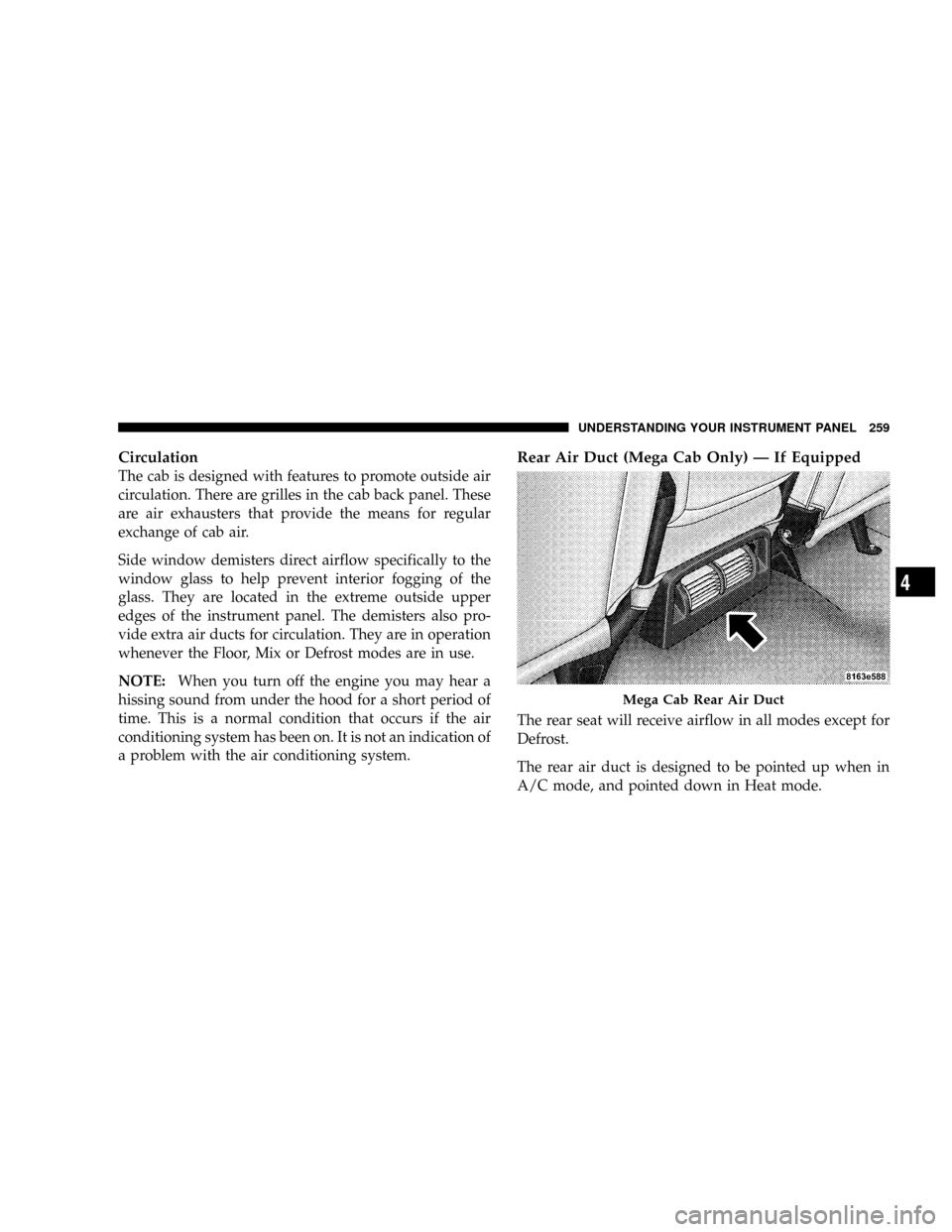
Rear Air Duct (Mega Cab Only) Ð If Equipped
The rear seat will receive airflow in all modes except for
Defrost.
The rear air duct is designed to be pointed up when in
A/C mode, and pointed down in Heat mode.
Mega Cab Rear Air Duct
UNDERSTANDING YOUR INSTRUMENT PANEL 259
4