ECO mode DODGE RAM 2500 POWER WAGON 2008 3.G Owner's Guide
[x] Cancel search | Manufacturer: DODGE, Model Year: 2008, Model line: RAM 2500 POWER WAGON, Model: DODGE RAM 2500 POWER WAGON 2008 3.GPages: 504, PDF Size: 8.17 MB
Page 214 of 504

Power Switch/Volume Control (Rotary)
Press the ON/VOL control to turn the radio ON. Press
the ON/VOL a second time to turn OFF the radio.
Electronic Volume Control
The electronic volume control turns continuously (360
degrees) in either direction without stopping. Turning the
volume control to the right increases the volume and to
the left decreases it.
When the audio system is turned on, the sound will be
set at the same volume level as last played.
Mode Button (Radio Mode)
Press the mode button repeatedly to select between the
CD player, Cassette, Satellite, or Vehicle Entertainment
System (VES) (if equipped).
SEEK Button (Radio Mode)
Press and release the SEEK button to search for the next
station in either AM/FM or Satellite (if equipped) mode.
Press the right side of the button to seek up and the left
side to seek down. The radio will remained tuned to the
new station until you make another selection. Holding
the button and will bypass stations without stopping
until you release it.
SCAN Button (Radio Mode)
Pressing the SCAN button causes the tuner to search for
the next station, in either AM, FM or Satellite (if
equipped) frequencies, pausing for 5 seconds (satellite
scan 8 seconds) at each listenable station before continu-
ing to the next. To stop the search, press SCAN a second
time.
Time Button
Press the time button and the time of day will display for
5 seconds.
214 UNDERSTANDING YOUR INSTRUMENT PANEL
Page 215 of 504

Clock Setting Procedure
1. Press and hold the time button until the hours blink.
2. Adjust the hours by turning the right side Tune/
Audio control.
3. After the hours are adjusted, press the right side
Tune/Audio control to set the minutes. The minutes will
begin to blink.
4. Adjust the minutes using the right side Tune/Audio
control.
5. To exit, press any button/knob or wait 5 seconds.
INFO Button (Radio Mode)
Press the INFO button for an RBDS station (one with call
letters displayed). The radio will return a Radio Text
message broadcast (if available) from an FM station (FM
mode only).
RW/FF (Radio Mode)
Pressing the rewind/fast forward button causes the tuner
to search for the next frequency in the direction of the
arrows. This feature operates in either AM, FM or Satel-
lite (if equipped) frequencies.
TUNE Control (Radio Mode)
Turn the right side rotary control to increase or decrease
the frequency.
AM/FM Button (Radio Mode)
Press the button to select AM or FM Modes.
Setting the Tone, Balance, and Fade
Press the rotary TUNE control and BASS will display.
Turn the TUNE control to the right or left to increase or
decrease the Bass tones.
Press the rotary TUNE control a second time and MID
will display. Turn the TUNE control to the right or left to
increase or decrease the Mid Range tones.
UNDERSTANDING YOUR INSTRUMENT PANEL 215
4
Page 216 of 504
Press the rotary TUNE control a third time and TREBLE
will display. Turn the TUNE control to the right or left to
increase or decrease the Treble tones.
Press the rotary TUNE control a fourth time and BAL will
display. Turn the TUNE control to the right or left to
adjust the sound level from the right or left side speakers.
Press the rotary TUNE control a fifth time and FADE will
display. Turn the TUNE control to the right or left to
adjust the sound level between the front and rear speak-
ers.
Press the rotary TUNE control again to exit setting tone,
balance, and fade.
RND/PTY Button (Radio Mode)
Pressing this button once will turn on the PTY mode for
5 seconds. If no action is taken during the 5-second time
out, the PTY icon will turn off. Turning the tune knobwithin 5 seconds will allow the program format type to
be selected. Many radio stations do not currently broad-
cast PTY information.
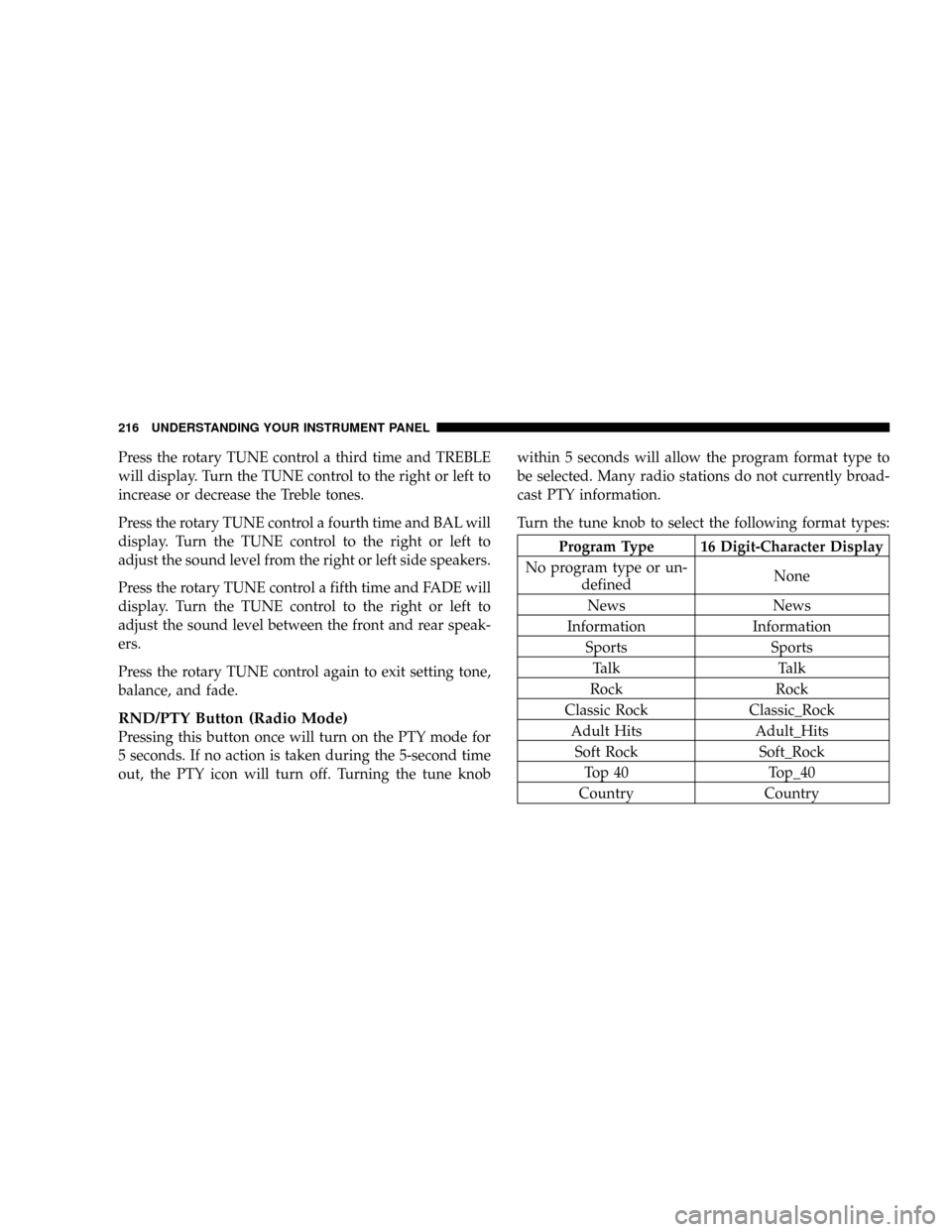
Turn the tune knob to select the following format types:
Program Type 16 Digit-Character Display
No program type or un-
definedNone
News News
Information Information
Sports Sports
Talk Talk
Rock Rock
Classic Rock Classic_Rock
Adult Hits Adult_Hits
Soft Rock Soft_Rock
Top 40 Top_40
Country Country
216 UNDERSTANDING YOUR INSTRUMENT PANEL
Page 219 of 504

Scan Button
Press this button to play 10 seconds of each selection.
Press the scan button a second time to cancel the feature.
Changing Tape Direction
If you wish to change the direction of tape travel (side
being played), press Preset 6. The lighted arrow in the
display window will show the new direction.
Metal Tape Selection
If a standard metal tape is inserted into the player, the
player will automatically select the correct equalization.
Pinch Roller Release
If ignition power or the radio ON/OFF switch is turned
off, the pinch roller will automatically retract to protect
the tape from any damage. When power is restored to the
tape player, the pinch roller will automatically reengage
and the tape will resume play.
Noise Reduction
The Dolby Noise Reduction System* is on whenever the
tape player is on, but may be switched off.
To turn off the Dolby Noise reduction System: Press
Preset 1 after you insert the tape. The NR light in the
display will go off when the Dolby System is off.
* ºDolbyº noise reduction is manufactured under license
from Dolby Laboratories Licensing Corporation. Dolby
and the double-D symbol are trademarks of Dolby Labo-
ratories Licensing Corporation.
Operation Instructions - (CD MODE for CD Audio
Play)
NOTE:The ignition switch must be in the ON or ACC
position to operate the radio.
NOTE:Note: This Radio is capable of playing compact
discs (CD), recordable compact discs (CD-R), rewritable
UNDERSTANDING YOUR INSTRUMENT PANEL 219
4
Page 220 of 504
compact discs (CD-RW) compact discs with MP3 tracks
and multisession compact discs with CD and MP3 tracks
and WMA.
Inserting Compact Disc(s)
CAUTION!
This CD player will accept 4 3/4 inch (12 cm) discs
only. The use of other sized discs may damage the
CD player mechanism.
You may eject a disc with the radio OFF.
If you insert a disc with the ignition ON and the radio
ON, the unit will switch from radio to CD mode and
begin to play when you insert the disc. The display will
show the disc number, the track number, and index time
in minutes and seconds. Play will begin at the start of
track 1.
SEEK Button (CD MODE for CD Audio Play)
Press the right side of the SEEK button for the next
selection on the CD. Press the left side of the button to
return to the beginning of the current selection, or return
to the beginning of the previous selection if the CD is
within the first 5 seconds of the current selection.
SCAN Button (CD MODE for CD Audio Play)
Press the Scan button to scan through each track on the
CD currently playing.
LOAD/EJECT Button (CD Mode for CD Audio
Play)
LOAD/EJECT - Load
Press the LOAD/EJT button and the push-
button with the corresponding number where
the CD is being loaded. The radio will display
PLEASE WAIT and prompt when to INSERT
DISC. After the radio displays9INSERT DISC,9insert the
CD into the player.
220 UNDERSTANDING YOUR INSTRUMENT PANEL
Page 221 of 504

Radio display will show9LOADING DISC9when the disc
is loading and ªREADING DISCº when the radio is
reading the disc.
LOAD/EJT - Eject
Press the LOAD/EJT button and the push-
button with the corresponding number where
the CD was loaded and the disc will unload
and move to the entrance for easy removal.
Radio display will show9EJECTING DISC9when the disc
is being ejected and prompt the user to remove the disc.
Press and hold the LOAD/EJT button for 5 seconds and
all CDs will be ejected from the radio.
If you have ejected a disc and have not removed it within
15 seconds, it will be reloaded. If the CD is not removed,
the radio will continue to play the non-removed CD. If
the CD is removed and there are other CD's in the radio,
the radio will play the next CD after a 2-minute timeout.
If the CD is removed and there are no other CD's in theradio, the radio will remain in CD mode and display
9INSERT DISCº for 2 minutes. After 2 minutes, the radio
will go to the previous tuner mode.
The disc can be ejected with the radio and ignition OFF.TIME Button (CD MODE for CD Audio Play)
Press this button to change the display from a large CD
playing time display to a small CD playing time display.
RW/FF (CD MODE for CD Audio Play)
Press and hold FF (Fast Forward) and the CD player will
begin to fast forward until FF is released or RW or
another CD button is pressed. The RW (Reverse) button
works in a similar manner.
TUNE Control (CD MODE for CD Audio Play)
Pressing the TUNE control allows the setting of the Tone,
Fade, and Balance. See Radio Mode.
AM/FM Button (CD MODE for CD Audio Play)
Switches the Radio to the Radio mode.
UNDERSTANDING YOUR INSTRUMENT PANEL 221
4
Page 222 of 504

RND/PTY Button (Random Play Button) (CD
MODE for CD Audio Play)
Press this button while the CD is playing to activate
Random Play. This feature plays the selections on the
compact disc in random order to provide an interesting
change of pace.
NOTE:MP3 and WMA Random Play are for file folders
only.
Press the SEEK button to move to the next randomly
selected track.
Press and hold the FF button to fast forward through the
tracks. Release the FF button to stop the fast forward
feature. If the RW button is pressed, the current track will
reverse to the beginning of the track and begin playing.
Press the RND button a second time to stop Random
Play.
Buttons1-6(CDMODE for CD Audio Play)
Selects disc positions1-6forPlay/Load/Eject.
Notes On Playing MP3 Files
The radio can play MP3 files; however, acceptable MP3
file recording media and formats are limited. When
writing MP3 files, pay attention to the following restric-
tions.
Supported Media (Disc Types)
The MP3 file recording media supported by the radio are
CD-ROM, CD-R, and CD-RW.
Supported Medium Formats (File Systems)
The medium formats supported by the radio are ISO 9660
Level 1 and Level 2 and includes the Joliet extension.
When reading discs recorded using formats other than
ISO 9660 Level 1 and Level 2, the radio may fail to read
files properly and may be unable to play the file nor-
mally. UDF and Apple HFS formats are not supported.
222 UNDERSTANDING YOUR INSTRUMENT PANEL
Page 225 of 504

Operation Instructions - (CD Mode for MP3 and
WMA Audio Play)
SEEK Button (CD Mode for MP3 and WMA Play)
Pressing the right side of the SEEK button plays the next
file. Pressing the left side of the SEEK button plays the
beginning of the file. Pressing the button within the first
ten seconds plays the previous file.
LOAD/EJECT Button (CD Mode for MP3 and WMA
Play)
LOAD/EJT - Load
Press the LOAD/EJT button and the push-
button with the corresponding number where
the CD is being loaded. The radio will display
PLEASE WAIT and prompt when to INSERT
DISC. After the radio displays9INSERT DISC,9insert the
CD into the player.The radio display will show9LOADING DISC9when the
disc is loading.
LOAD/EJT - Eject
Press the LOAD/EJT button and the push-
button with the corresponding number where
the CD was loaded and the disc will unload
and move to the entrance for easy removal.
Radio display will show9EJECTING DISC9when the disc
is being ejected and prompt the user to remove the disc.
If you have ejected a disc and have not removed it within
15 seconds, it will be reloaded. If the CD is not removed,
the radio will continue to play the non-removed CD. If
the CD is removed and there are other CD's in the radio,
the radio will play the next CD after a 2-minute timeout.
If the CD is removed and there are no other CD's in the
radio, the radio will remain in CD mode and display
9INSERT DISCº for 2 minutes. After 2 minutes, the radio
will go to the previous tuner mode.
UNDERSTANDING YOUR INSTRUMENT PANEL 225
4
Page 232 of 504

1. The Electronic Serial Number/Sirius Identification
Number (ESN/SID).
2. Your Vehicle Identification Number.
Electronic Serial Number/Sirius Identification
Number (ESN/SID)
The Electronic Serial Number/Sirius Identification Num-
ber is needed to activate your Sirius Satellite Radio
system. To access the ESN/SID, refer to the following
steps:
ESN/SID Access with REF Radios
With the ignition switch in the ACCESSORY position and
the radio OFF, press the CD Eject and Time buttons
simultaneously for 3 seconds. The first four digits of the
twelve-digit ESN/SID number will display. Press the
SEEK UP button to display the next four digits. Continue
to press the SEEK UP button until all twelve ESN/SID
digits display. The SEEK DOWN will page down until
the first four digits display. The radio will exit theESN/SID mode when any other button is pushed, the
ignition is turned OFF, or 5 minutes has passed since any
button was pushed.
ESN/SID Access with RAQ and RAK Radios
With the ignition switch in the ACCESSORY position and
the radio OFF, press the CD Eject and TIME buttons
simultaneously for 3 seconds. All twelve ESN/SID num-
bers will display. The radio will exit the ESN/SID mode
when any other button is pushed, the ignition is turned
OFF, or 5 minutes has passed since any button was
pushed.
ESN/SID Access with REC Navigation Radios
Please refer to your Navigation User's Manual.
With the ignition in the ACCESSORY position and the
radio off, press the CD Eject and Set buttons simulta-
neously until the 12 digits of the ESN/SID appear on the
screen.
232 UNDERSTANDING YOUR INSTRUMENT PANEL
Page 233 of 504

Selecting Satellite Mode in REF, RAQ, and RAK
Radios
Selecting Satellite Mode Ð REF Radio
Press the MODE button repeatedly until the word9SAT9
appears in the display.
A CD may remain in the radio while in the Satellite radio
mode.
Selecting Satellite Mode Ð RAQ and RAK Radio
Press the MODE button repeatedly until the word9SAT9
appears in the display.
These radios will also display the current station name
and program type. For more information, such as song
title and artist, press the MSG or INFO button.
A CD or tape may remain in the radio while in the
Satellite radio mode.
Selecting a Channel
Press and release the SEEK or TUNE knob to search for
the next channel. Press the top of the button to search up
and the bottom of the button to search down. Holding the
TUNE button causes the radio to bypass channels until
the button is released.
Press and release the SCAN button (if equipped) to
automatically change channels every 7 seconds. The
radio will pause on each channel for 7 seconds before
moving on to the next channel. The word9SCAN9will
appear in the display between each channel change. Press
the SCAN button a second time to stop the search.
NOTE:Channels that may contain objectionable content
can be blocked. Contact Sirius Customer Care at 888-539-
7474 to discuss options for channel blocking or unblock-
ing. Please have your ESN/SID information available.
UNDERSTANDING YOUR INSTRUMENT PANEL 233
4