display DODGE VIPER 2015 VX / 3.G Owner's Manual
[x] Cancel search | Manufacturer: DODGE, Model Year: 2015, Model line: VIPER, Model: DODGE VIPER 2015 VX / 3.GPages: 400, PDF Size: 9.59 MB
Page 168 of 400
Vehicle Info (Customer Information Features)
Push and release the UP or DOWN arrow
button until the Vehicle Info icon is highlighted
in the DID. Push and release the RIGHT arrow
button to display the following information
sub-menus:
Tire Pressure
Push and release the UP or DOWN arrow button until
“Tire Pressure” is highlighted in the DID. Push and
release the RIGHT arrow button, and one of the follow-
ing will be displayed:
•If tire pressure is OK for all tires a vehicle ICON is
displayed with tire pressure values in each corner of
the ICON.
•If one or more tires have low pressure, the tire pressure
values in each corner of the ICON with the pressure
value of the low tire displayed in a different color than
the other tire pressure value.
•If the Tire Pressure system requires service, “Service
Tire Pressure System” is displayed.
Tire PSI is an information only function and cannot be
reset. Push and release the LEFT arrow button to return
to the main menu.
Refer to “Tire Pressure Monitoring System (TPMS)”
under “Starting and Operating” for further information.
Coolant Temperature
Push and release the UP or DOWN arrow button until
“Coolant Temperature” is highlighted in the DID. Push
and release the RIGHT arrow button, and the coolant
temperature will be displayed.
166 UNDERSTANDING YOUR INSTRUMENT PANEL
Page 169 of 400
Oil Temperature
Push and release the UP or DOWN arrow button until
“Oil Temperature” is highlighted in the DID. Push and
release the RIGHT arrow button, and the oil temperature
will be displayed.
Engine Hours
Push and release the UP or DOWN arrow button until
“Engine Hours” is highlighted in the DID. Push and
release the RIGHT arrow button, and the oil temperature
will be displayed.
Intake Air Temp.
Push and release the UP or DOWN arrow button until
“Intake Air Temp.” is highlighted in the DID. Push and
release the RIGHT arrow button, and the intake air
temperature will be displayed.
Current Power
Push and release the UP or DOWN arrow button until
“Current Power” is highlighted in the DID. Push and
release the RIGHT arrow button, and the current power
will be displayed.
Current Torque
Push and release the UP or DOWN arrow button until
“Current Torque” is highlighted in the DID. Push and
release the RIGHT arrow button, and the current torque
will be displayed.
4
UNDERSTANDING YOUR INSTRUMENT PANEL 167
Page 170 of 400
SRT Performance
WARNING!
Measurement of vehicle statistics with the Perfor-
mance Features is intended for off-highway or off-
road use only and should not be done on any public
roadways. It is recommended that these features be
used in a controlled environment and within the
limits of the law. The capabilities of the vehicle as
measured by the performance pages must never be
exploited in a reckless or dangerous manner, which
can jeopardize the user ’s safety or the safety of
others. Only a safe, attentive, and skillful driver can
prevent accidents.
Push and release the UP or DOWN arrow button until
the SRT icon is highlighted in the DID. Push and release
the RIGHT arrow button, and 0–60 MPH Duration will be
displayed. Push and release the LEFT and RIGHT arrow
button to scroll through the following information sub-
menus:
0–60 Time
Push and release the LEFT and RIGHT arrow button
until the last 0–60 MPH information is displayed.
Braking Distance
Push and release the LEFT and RIGHT arrow button
until the last Braking Distance information is displayed.
1/4 Mile Elapsed Time
Push and release the LEFT and RIGHT arrow button
until the last 1/4 Mile Top Speed & Duration information
is displayed.
168 UNDERSTANDING YOUR INSTRUMENT PANEL
Page 171 of 400
1/8 Mile Elapsed Time
Push and release the LEFT and RIGHT arrow button
until the last 1/8 Mile Top Speed & Duration information
is displayed.
G-Force Instant
Push and release the LEFT and RIGHT arrow button
until the Current G-Forces are displayed.
G-Force Peak
Push and release the LEFT and RIGHT arrow button
until the Peak G-Forces are displayed.
Fuel Economy
Push and release the UP or DOWN arrow
button until the Fuel Economy icon is high-
lighted and the following will display:
Range To Empty (RTE)
Average Fuel Economy/Miles Per Gallon (MPG Bar-
graph)
Current Miles Per Gallon (MPG)
Trip A
Push and release the UP or DOWN arrow
button until the Trip A icon is highlighted in
the DID. The Trip A information will display
the following:
•Distance
•Average Speed
•Elapsed Time
Hold the RIGHT arrow button to reset all the informa-
tion.
4
UNDERSTANDING YOUR INSTRUMENT PANEL 169
Page 172 of 400
Tr i p B — I fEquipped
Push and release Up or Down arrow button
until the Trip B icon is highlighted in the DID.
The Trip B information will display the
following:
•Distance
•Average Speed
•Elapsed Time
Hold the RIGHT arrow button to reset all the informa-
tion.
Audio
Push and release the UP or DOWN arrow
button until the Audio display icon is high-
lighted in the DID. Push and release the RIGHT
arrow button to display the active source.
Stored Messages
Push and release the UP or DOWN arrow
button until the Messages Menu item is high-
lighted in the DID. This feature shows the
number of stored warning messages. Pushing
the RIGHT arrow button will allow you to see what the
stored messages are.
170 UNDERSTANDING YOUR INSTRUMENT PANEL
Page 175 of 400
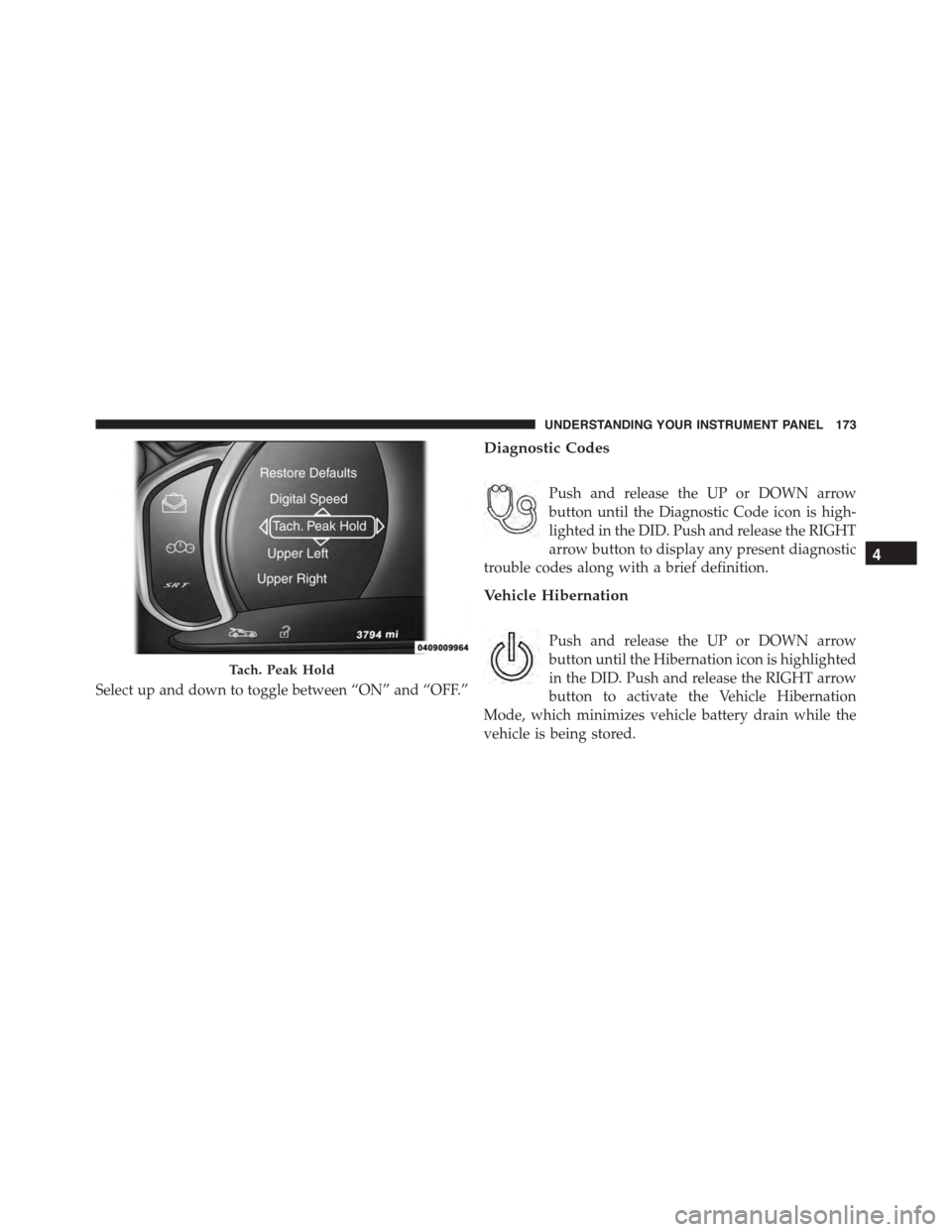
Select up and down to toggle between “ON” and “OFF.”
Diagnostic Codes
Push and release the UP or DOWN arrow
button until the Diagnostic Code icon is high-
lighted in the DID. Push and release the RIGHT
arrow button to display any present diagnostic
trouble codes along with a brief definition.
Vehicle Hibernation
Push and release the UP or DOWN arrow
button until the Hibernation icon is highlighted
in the DID. Push and release the RIGHT arrow
button to activate the Vehicle Hibernation
Mode, which minimizes vehicle battery drain while the
vehicle is being stored.
Tach. Peak Hold
4
UNDERSTANDING YOUR INSTRUMENT PANEL 173
Page 177 of 400
Buttons On the Faceplate
Buttons on the faceplate are located below the Uconnect®
system in the center of the instrument panel. In addition,
there is a Scroll/Enter control knob located on the right
side of the Climate Controls in the center of the instru-
ment panel. Turn the control knob to scroll through
menus and change settings (i.e., 30, 60, 90), push the
center of the control knob one or more times to select or
change a setting (i.e., ON, OFF).
Buttons On The Touchscreen
Buttons on the touchscreen are accessible on the
Uconnect® display.
Customer Programmable Features/Personal
Settings — Uconnect® 8.4 System Settings
Press the “SRT & Apps” button on the touchscreen, then
press the “Settings” button on the touchscreen to display
the menu setting screen. In this mode the Uconnect®
system allows you to access programmable features that
may be equipped such as Display, Voice, Clock, Safety &
Driving Assistance, Lights, Doors & Locks, Engine Off
Options, Audio, Phone/Bluetooth®, SiriusXM Setup, Re-
store Settings, Clear Personal Data, and System Informa-
tion.
NOTE:Only one category may be selected at a time.
To adjust the setting of a programmable feature, press the
desired setting option. Once in the desired setting option,
press and release the preferred setting until a check-mark
appears next to the setting, showing that the setting has
been selected.
Once the setting is complete, press the Back Arrow
button on the touchscreen to return to the previous menu
or press the X button on the touchscreen to close out of
the settings screen. Pressing the Up or Down Arrow
button on the right side of the screen will allow you to
toggle up or down through the list of available settings.
4
UNDERSTANDING YOUR INSTRUMENT PANEL 175
Page 178 of 400
Display
After pressing the Display button on the touchscreen the
following settings will be available.
•Display Mode
This feature will allow you to select one of the auto
display settings. To change Mode status, press and re-
lease the Auto or Manual button on the touchscreen.
Then press the arrow back button on the touchscreen, or
push the back button on the faceplate.
•Display Brightness With Headlights ON
This feature will allow you to select the display bright-
ness when the headlights are on. Adjust the brightness
with the “+” and “–” setting buttons on the touchscreen,
then press the arrow back button on the touchscreen, or
push the back button on the faceplate.
NOTE:The usage of the Parade Mode feature will cause
the radio to activate the “Display Brightness With Head-
lights OFF” control even though the headlights are on.
•Display Brightness With Headlights OFF
This feature will allow you to select the display bright-
ness when the headlights are off. Adjust the brightness
with the “+” and “–” setting buttons on the touchscreen,
then press the arrow back button on the touchscreen, or
push the back button on the faceplate.
•Set Theme — If Equipped
This feature will allow you to choose a theme for the
display screen. The theme will change the background
color, highlight color, and button color of the display
screen.
•Set Language
This feature will allow you to select one of the languages
for all display nomenclature, including the trip functions
176 UNDERSTANDING YOUR INSTRUMENT PANEL
Page 180 of 400
designated turn within a programmed route. To turn on
or enable, press the Navigation Turn-By-Turn In Cluster
button on the touchscreen, until a check-mark appears
next to the setting, showing that setting has been se-
lected. Press the back arrow button on the touchscreen to
return to the previous menu or push the back button on
the faceplate.
Voice
After pressing the “Voice” button on the touchscreen the
following settings will be available:
•Voice Response Length
When in this display, you may change the Voice Re-
sponse Length settings. To change the Voice Response
Length, press the “Brief” or “Detailed” button on the
touchscreen until a check-mark appears next to the
setting, showing that setting has been selected. Press the
back arrow button on the touchscreen to return to the
previous menu.
•Show Command List
When in this display, you may choose to Always, With
Help, or Never display the Teleprompter with possible
options while in a voice session. To change the Show
Command List settings, press the “Always,” “With
Help,” or “Never” button on the touchscreen until a
check-mark appears next to the setting, showing that
setting has been selected. Press the back arrow button on
the touchscreen to return to the previous menu.
Clock
After pressing the “Clock” button on the touchscreen the
following settings will be available:
•Sync Time With GPS
This feature will allow you to automatically have the
radio set the time. To change the Sync Time setting, press
the “Sync with GPS Time” button on the touchscreen
until a check-mark appears next to the setting, showing
178 UNDERSTANDING YOUR INSTRUMENT PANEL
Page 181 of 400
that setting has been selected. Press the back arrow
button on the touchscreen to return to the previous
menu, or push the back button on the faceplate.
•Set Time Hours
This feature will allow you to adjust the hours. The “Sync
with GPS Time” button on the touchscreen must be
unchecked. To make your selection, press the “+” or “–”
buttons on the touchscreen to adjust the hours up or
down. Press the back arrow button on the touchscreen to
return to the previous menu or press the” X” button on
the touchscreen to close out of the settings screen.
•Set Time Minutes
This feature will allow you to adjust the minutes. The
“Sync with GPS Time” button on the touchscreen must be
unchecked. To make your selection, press the “+” or “–”
buttons on the touchscreen to adjust the minutes up or
down. Press the back arrow button on the touchscreen to
return to the previous menu or press the “X” button on
the touchscreen to close out of the settings screen.
•Time Format
This feature will allow you to select the time format
display setting. Press the “Time Format” button on the
touchscreen until a check-mark appears next to the 12hrs
or 24hrs setting, showing that setting has been selected.
Press the back arrow button on the touchscreen to return
to the previous menu, or push the back button on the
faceplate.
Clock
After pressing the “Clock” button on the touchscreen the
following settings will be available:
•Sync Time With GPS
This feature will allow the radio to sync time with a GPS
signal. To change the Sync Time setting, press the “Sync
4
UNDERSTANDING YOUR INSTRUMENT PANEL 179