ECO mode FIAT 500 2013 2.G User Guide
[x] Cancel search | Manufacturer: FIAT, Model Year: 2013, Model line: 500, Model: FIAT 500 2013 2.GPages: 423, PDF Size: 9.86 MB
Page 120 of 423

Front Windshield Wiper Operation
There are five different modes of operation for the front
windshield wipers. The windshield wiper lever can be
raised or lowered to access these modes:
Windshield Wiper Off
This is the normal position of the wiper lever.
Intermittent Wiper Operation
Push the lever downward to the first detent. The wipers
will operate intermittently.
NOTE:The Intermittent function only has one detent
but wiper delay will vary with changes in vehicle speed.
As vehicle speed increases the delay time will decrease.
Low Speed
Push the lever downward to the second detent. The
wipers will operate at low speed.
High Speed
Push the lever downward to the third detent. The wipers
will operate at high speed.Windshield Wiper Operation
11 8 U N D E R S TA N D I N G T H E F E AT U R E S O F Y O U R V E H I C L E
Page 127 of 423
NOTE:The Electronic Speed Control system maintains
speed up and down hills. A slight speed change on
moderate hills is normal.
On steep hills, a greater speed loss or gain may occur so
it may be preferable to drive without Electronic Speed
Control.
WARNING!
Electronic Speed Control can be dangerous where the
system cannot maintain a constant speed. Your ve-
hicle could go too fast for the conditions, and you
could lose control and have an accident. Do not use
Electronic Speed Control in heavy traffic or on roads
that are winding, icy, snow-covered or slippery.
REAR PARK ASSIST — IF EQUIPPED
The Rear Park Assist system provides an audible indica-
tion of the distance between the rear fascia/bumper and
a detected obstacle when backing up, e.g. during a
parking maneuver. Refer to the “Park Assist System
Usage Precautions” for the limitations of this system and
recommendations.
Rear Park Assist is automatically activated when the
transmission is placed into REVERSE. As the distance
from an obstacle behind the vehicle decreases, the au-
dible alert becomes more frequent.
Rear Park Assist Sensors
The four Rear Park Assist sensors, located in the rear
fascia/bumper, monitor the area behind the vehicle that
is within the sensors’ field of view. The sensors can detect
3
UNDERSTANDING THE FEATURES OF YOUR VEHICLE 125
Page 163 of 423
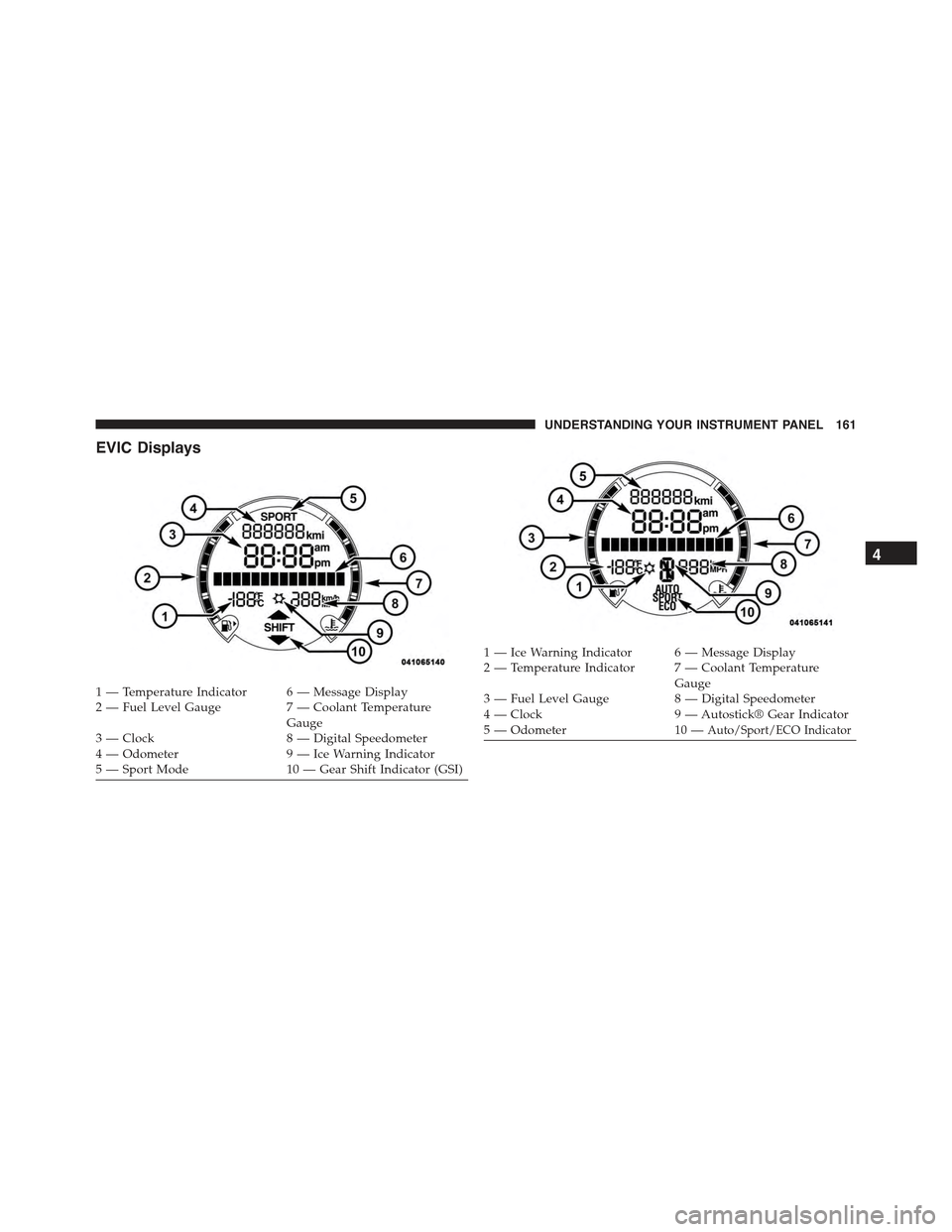
EVIC Displays
1 — Temperature Indicator 6 — Message Display2—FuelLevelGauge 7—CoolantTemperatureGauge3 — Clock 8 — Digital Speedometer4 — Odometer 9 — Ice Warning Indicator5 — Sport Mode 10 — Gear Shift Indicator (GSI)
1 — Ice Warning Indicator 6 — Message Display2—TemperatureIndicator 7—CoolantTemperatureGauge3 — Fuel Level Gauge 8 — Digital Speedometer4 — Clock 9 — Autostick® Gear Indicator5 — Odometer 10 —Auto/Sport/ECO Indicator
4
UNDERSTANDING YOUR INSTRUMENT PANEL 161
Page 172 of 423
2. Press the UPor DOWNbutton to select the
setting.
3. Briefly press theSET ESCbutton to go back to the
menu screen, or press and hold theSET ESCbutton
(approximately one second) to go back to the main
screen without storing the settings.
Set Time (Clock)
This function may be used to set the clock through two
sub-menu items: “Time” and “Mode.”
Proceed as follows:
1. Briefly press theSET ESCbutton. The display will
show the two sub-menu items “Time” and “Mode.”
2. Press the UPor DOWNbutton to navigate
the two sub-menu items.
3. Select the required option and then press theSET ESC
button.
4. When accessing the “Time” sub-menu item, briefly
press theSET ESCbutton and “hours” will flash on
the display.
5. Press the UPor DOWNbutton for setting.
6. Briefly press theSET ESCbutton and “minutes” will
flash on the display.
7. Press the UPor DOWNbutton for setting.
NOTE:
•The setting will increase or decrease by one unit each
time the UPor DOWNbutton is pressed.
Press and hold the button to increase/decrease the
setting rapidly. Save the setting by briefly pressing
the button when you approach the required set-
ting.
•Briefly press theSET ESCbutton to return to the
“Time” sub-function.
170 UNDERSTANDING YOUR INSTRUMENT PANEL
Page 173 of 423
•When accessing the “Mode” submenu, briefly press
theSET ESCbutton. The previously set display
format will flash on the display.
•Press the UPor DOWNbutton to select
“24h” or “12h.”
When you have selected the required settings, briefly
press theSET ESCbutton to go back to the Time, Mode
sub-menu screen, or press and hold theSET ESCbutton
(approximately one second) to go back to the main screen
without storing the settings.
Set Date
This function may be used to set the date (day - month -
year).
To change the date proceed as follows:
1. Briefly press theSET ESCbutton and “year” will flash
on the display.
2. Press the UPor DOWNbutton for setting.
3. Briefly press theSET ESCbutton and “month” will
flash on the display.
4. Press the UPor DOWNbutton for setting.
5. Briefly press theSET ESCbutton and “day” will flash
on the display.
6. Press the UPor DOWNbutton for setting.
NOTE:The setting will increase or decrease by one unit
each time the UPor DOWNbutton is pressed.
Press and hold the UPor DOWNbutton to
increase/decrease the setting rapidly. Save the setting
by briefly pressing the button when you approach the
required setting.
4
UNDERSTANDING YOUR INSTRUMENT PANEL 171
Page 179 of 423
•Fuel Econ On – turns on a fuel economy upshift light
in the instrument cluster, for optimum fuel economy,
when operating in base driving mode.
•Fuel Econ Off – the fuel economy upshift light is
disabled.
To set the required unit, proceed as follows:
1. Briefly press theSET ESCbutton to display the two
sub-menus.
2. Press the UPor DOWNbutton to navigate
the two sub-menus.
3. Select the required sub-menu and then briefly press
theSET ESCbutton.
4. Press the UPor DOWNbutton for setting.
5. Briefly press theSET ESCbutton to return to the
sub-menu.
When you have made the required settings, briefly press
theSET ESCbutton to go back to the sub-menu screen,
or press and hold theSET ESCbutton (approximately
one second) to go back to the main screen without storing
the settings.
Hill Start Assist
This function is used when starting a vehicle from a stop
on a hill. Hill Start Assist maintains the same level of
brake pressure the driver applied for a short period of
time after the foot has been removed from the brake
pedal.
Proceed as follows to switch this function on or off:
1. Briefly press theSET ESCbutton. “On” or “Off” will
flash on the display (according to previous setting).
2. Press the UPor DOWNbutton for setting.
4
UNDERSTANDING YOUR INSTRUMENT PANEL 177
Page 196 of 423
Frequency Band Selection
With the Radio mode active, press the FM or AM tuner
button briefly and repeatedly to select the desired recep-
tion band.
Each time the button is pressed the following bands are
selected cyclically:
•AM, FM or SAT (if equipped)
Each band is highlighted by the corresponding wordings
on the display. The radio will be tuned to last station
selected on the respective frequency band.
Preset Buttons
The buttons numbered from 1 to 5 are used to set the
following pre-selections:
•15 in the FM band (5 in FMA, 5 in FMB, 5 in FMC
•10 in the AM band (5 in AMA, 5 in AMB)
•15 in SAT (if so equipped) (5 SATA, 5 SATB, 5 SATC)
To listen to a preset station, select the desired frequency
band and then briefly press the corresponding preset
button (from 1 to 5).
By pressing the preset button for more than 2 seconds,
the tuned station will be stored. Pressing the A-B-C
button will change between the preset memory group in
the current frequency band.
Automatic Tuning
Briefly press theorbutton to start the automatic
tuning search for the next station that can be received
in the selected direction.
If theorbutton is pressed for longer, the rapid
search is started. When the button is released, the
tuner will stop on the next station that can be received.
194 UNDERSTANDING YOUR INSTRUMENT PANEL
Page 200 of 423
The following are instructions for retrieving the Elec-
tronic Serial Number (ESN) from FIAT 500 NAFTA model
radios:
To retrieve the ESN of SIRIUS Satellite Receiver Module
tune to Channel 0. Make sure that when the order is
placed, the ESN are correct. If any of the ESN numbers
are not entered correctly, then the SIRIUS subscription
will not be able to be transferred to the new radio and
will not be active when installed in the customer ’s
vehicle.
CD Player
Introduction
This chapter describes the operation of the CD player
only. To operate the radio, refer to the description in the
“Functions and Adjustments” chapter.
CD Player Selection
To activate the CD player built into the equipment,
proceed as follows:
•Load a CD with the equipment switched on. The first
track will start to play.
or
•If a CD has already been loaded, turn on the radio and
then briefly press the MEDIA button to select the “CD”
function mode. The last track listened to will start to
play.
It is advisable to use original CDs to ensure optimal
playing. If CD-R/RWs are used, we recommend using
good quality media that are burned at the slowest speed
possible.
198 UNDERSTANDING YOUR INSTRUMENT PANEL
Page 201 of 423
CD Loading/Ejecting
To load the CD, insert it gently into the slot to activate the
motorized loading system, which will position it cor-
rectly.
The CD can be loaded with the radio off and the ignition
key turned to ON/RUN. In this case, the radio will
remain off. When the radio is turned on, the last source
listened to before being switched off, will be activated.
When a CD is inserted, the display will show the symbol
“CD” and the wording “CD Reading.” They will remain
displayed for the whole time required for the radio to
read the CD. When this time has elapsed the radio
automatically starts playing the first track.
Press thebutton with the radio turned on, to
activate the motorized CD ejection system. After ejec-
tion, the last audio source listened to before playing
the CD will be heard.
If the CD is not removed from the radio, it will automati-
cally be reloaded about 20 seconds later but will not
resume playing until the#MEDIA#button is pressed to
select the CD mode. The radio will switch to the last
source prior to CD mode.
The CD cannot be ejected if the radio is off.
Possible Error Messages
If the loaded CD cannot be read (e.g. a CD ROM has been
inserted or the CD is inserted the wrong way or there is
a reading error) the display shows the wording “CD Disc
error.”
The CD will then be ejected and the audio source
activated before the CD mode selection will be heard.
A CD which cannot be read will not be ejected until these
functions are over. At the end, with the CD mode
activated, the display will show the wording “CD Disc
error” for a few seconds and then the CD will be ejected.
4
UNDERSTANDING YOUR INSTRUMENT PANEL 199
Page 203 of 423

NOTE:Layer-3 audio decoding technology is licensed
from Fraunhofer IIS and Thomson multimedia.
MP3 Mode
In addition to playing regular audio CDs, the radio is also
enabled to play CDROMs on which compressed audio
files have been recorded in an MP3 format.
To guarantee optimal reproduction, it is advisable to use
good quality CDs burned at the lowest speed possible.
The files on an MP3 CD are structured in folders that
create lists of all the folders containing MP3 tracks
(folders or subfolders are all on the same level). The
folders that do not contain MP3 tracks cannot be selected.
The specifications and operating conditions for playing
MP3 files are the following:
•The CD-ROMs used should be burned in accordance
with ISO standard 9660.
•The music files should have the extension “.mp3” or
“.wma” files with a different extension will not be
reproduced.
•The sampling frequencies that can be reproduced are:
44.1 kHz, stereo (from 96 to 320 kbit/s) – 22.05 kHz,
mono or stereo (from 32 to 80 kbit/s).
•Tracks with a variable bit-rate can be reproduced.
NOTE:The track names must not include the following
characters: spaces, ‘ (apostrophes), ( and ) (open and close
brackets). During the burning of a MP3 CD, make sure
that the names of the files do not contain these characters;
if not, the radio will not be able to play the tracks
involved.
Selecting MP3 Sessions With Hybrid Discs
If a hybrid disc is inserted (Mixed Mode, Enhanced,
CD-Extra) also containing MP3 files, the radio automati-
cally starts playing the audio session. It is possible to
4
UNDERSTANDING YOUR INSTRUMENT PANEL 201