drive FIAT 500 2017 2.G Workshop Manual
[x] Cancel search | Manufacturer: FIAT, Model Year: 2017, Model line: 500, Model: FIAT 500 2017 2.GPages: 350, PDF Size: 3.01 MB
Page 132 of 350
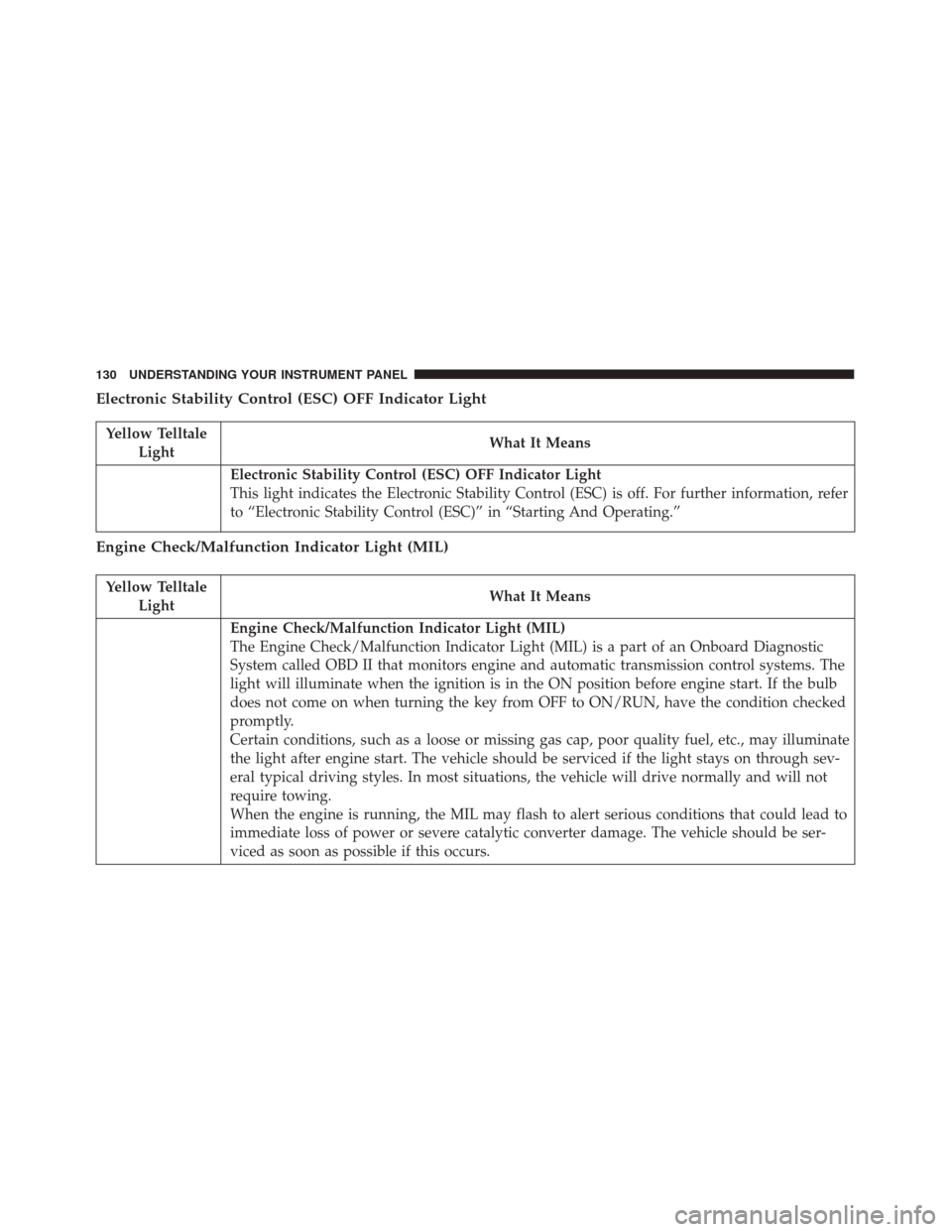
Electronic Stability Control (ESC) OFF Indicator Light
Yellow TelltaleLight What It Means
Electronic Stability Control (ESC) OFF Indicator Light
This light indicates the Electronic Stability Control (ESC) is off. For further information, refer
to “Electronic Stability Control (ESC)” in “Starting And Operating.”
Engine Check/Malfunction Indicator Light (MIL)
Yellow Telltale
Light What It Means
Engine Check/Malfunction Indicator Light (MIL)
The Engine Check/Malfunction Indicator Light (MIL) is a part of an Onboard Diagnostic
System called OBD II that monitors engine and automatic transmission control systems. The
light will illuminate when the ignition is in the ON position before engine start. If the bulb
does not come on when turning the key from OFF to ON/RUN, have the condition checked
promptly.
Certain conditions, such as a loose or missing gas cap, poor quality fuel, etc., may illuminate
the light after engine start. The vehicle should be serviced if the light stays on through sev-
eral typical driving styles. In most situations, the vehicle will drive normally and will not
require towing.
When the engine is running, the MIL may flash to alert serious conditions that could lead to
immediate loss of power or severe catalytic converter damage. The vehicle should be ser-
viced as soon as possible if this occurs.
130 UNDERSTANDING YOUR INSTRUMENT PANEL
Page 133 of 350
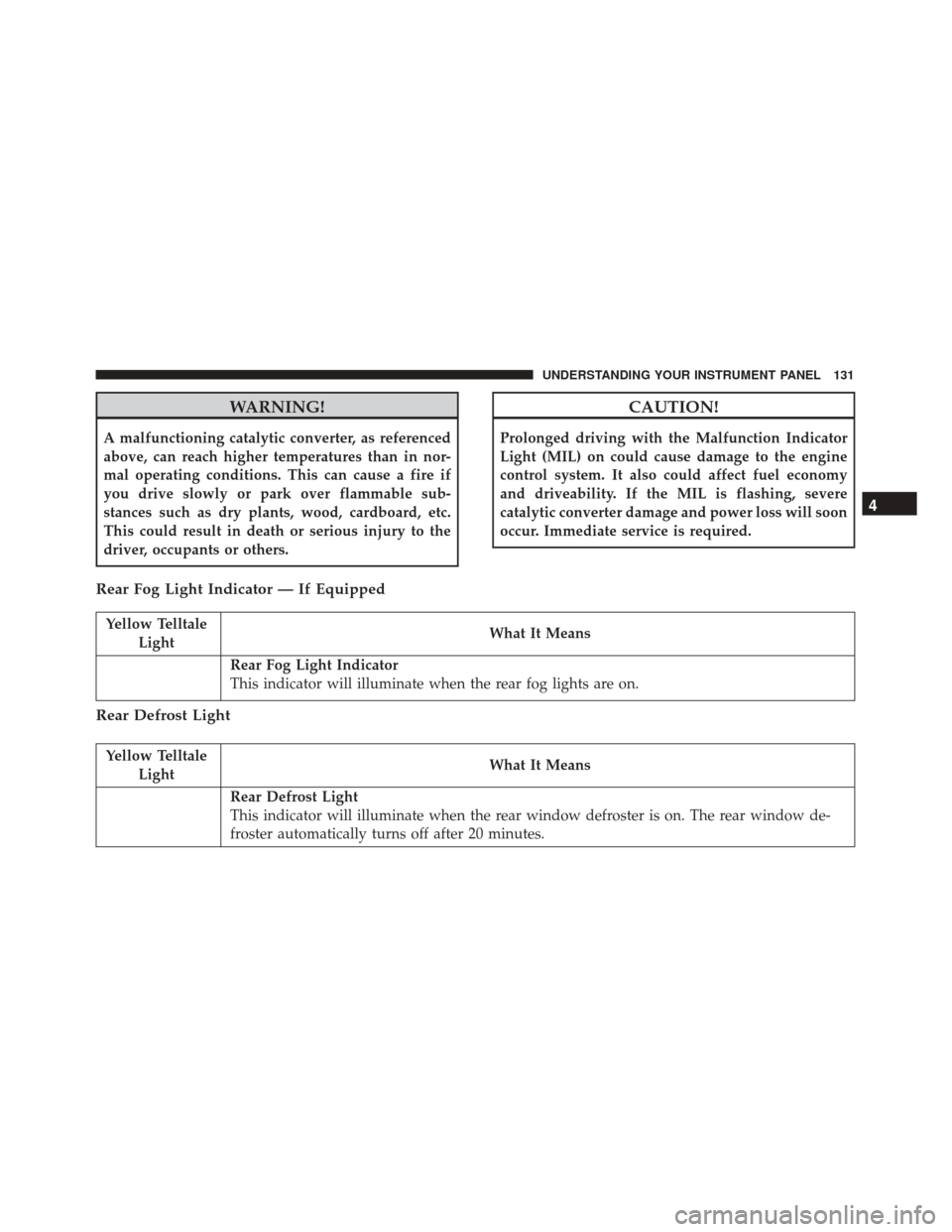
WARNING!
A malfunctioning catalytic converter, as referenced
above, can reach higher temperatures than in nor-
mal operating conditions. This can cause a fire if
you drive slowly or park over flammable sub-
stances such as dry plants, wood, cardboard, etc.
This could result in death or serious injury to the
driver, occupants or others.
CAUTION!
Prolonged driving with the Malfunction Indicator
Light (MIL) on could cause damage to the engine
control system. It also could affect fuel economy
and driveability. If the MIL is flashing, severe
catalytic converter damage and power loss will soon
occur. Immediate service is required.
Rear Fog Light Indicator — If Equipped
Yellow TelltaleLight What It Means
Rear Fog Light Indicator
This indicator will illuminate when the rear fog lights are on.
Rear Defrost Light
Yellow Telltale
Light What It Means
Rear Defrost Light
This indicator will illuminate when the rear window defroster is on. The rear window de-
froster automatically turns off after 20 minutes.
4
UNDERSTANDING YOUR INSTRUMENT PANEL 131
Page 140 of 350
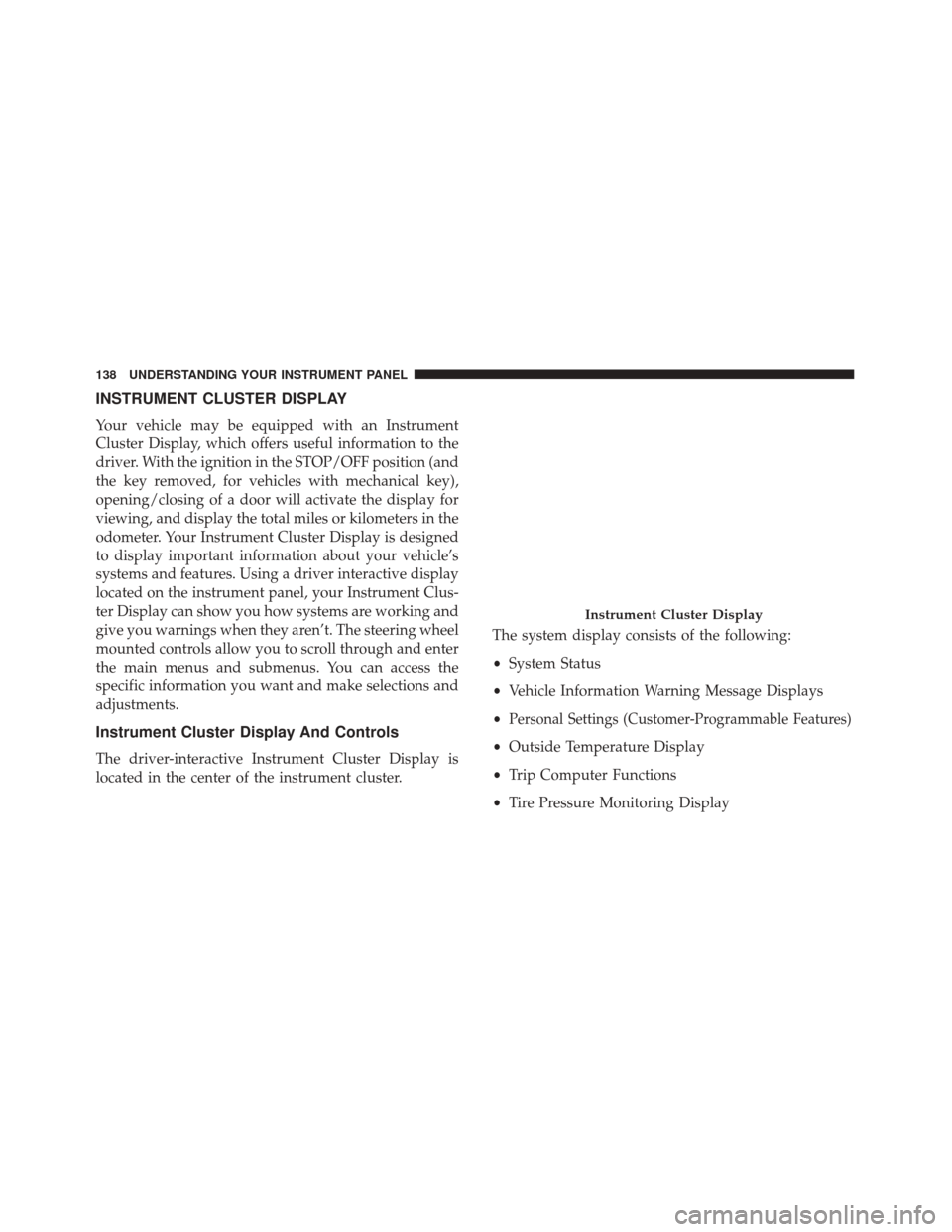
INSTRUMENT CLUSTER DISPLAY
Your vehicle may be equipped with an Instrument
Cluster Display, which offers useful information to the
driver. With the ignition in the STOP/OFF position (and
the key removed, for vehicles with mechanical key),
opening/closing of a door will activate the display for
viewing, and display the total miles or kilometers in the
odometer. Your Instrument Cluster Display is designed
to display important information about your vehicle’s
systems and features. Using a driver interactive display
located on the instrument panel, your Instrument Clus-
ter Display can show you how systems are working and
give you warnings when they aren’t. The steering wheel
mounted controls allow you to scroll through and enter
the main menus and submenus. You can access the
specific information you want and make selections and
adjustments.
Instrument Cluster Display And Controls
The driver-interactive Instrument Cluster Display is
located in the center of the instrument cluster.The system display consists of the following:
•
System Status
• Vehicle Information Warning Message Displays
•
Personal Settings (Customer-Programmable Features)
• Outside Temperature Display
• Trip Computer Functions
• Tire Pressure Monitoring Display
Instrument Cluster Display
138 UNDERSTANDING YOUR INSTRUMENT PANEL
Page 143 of 350
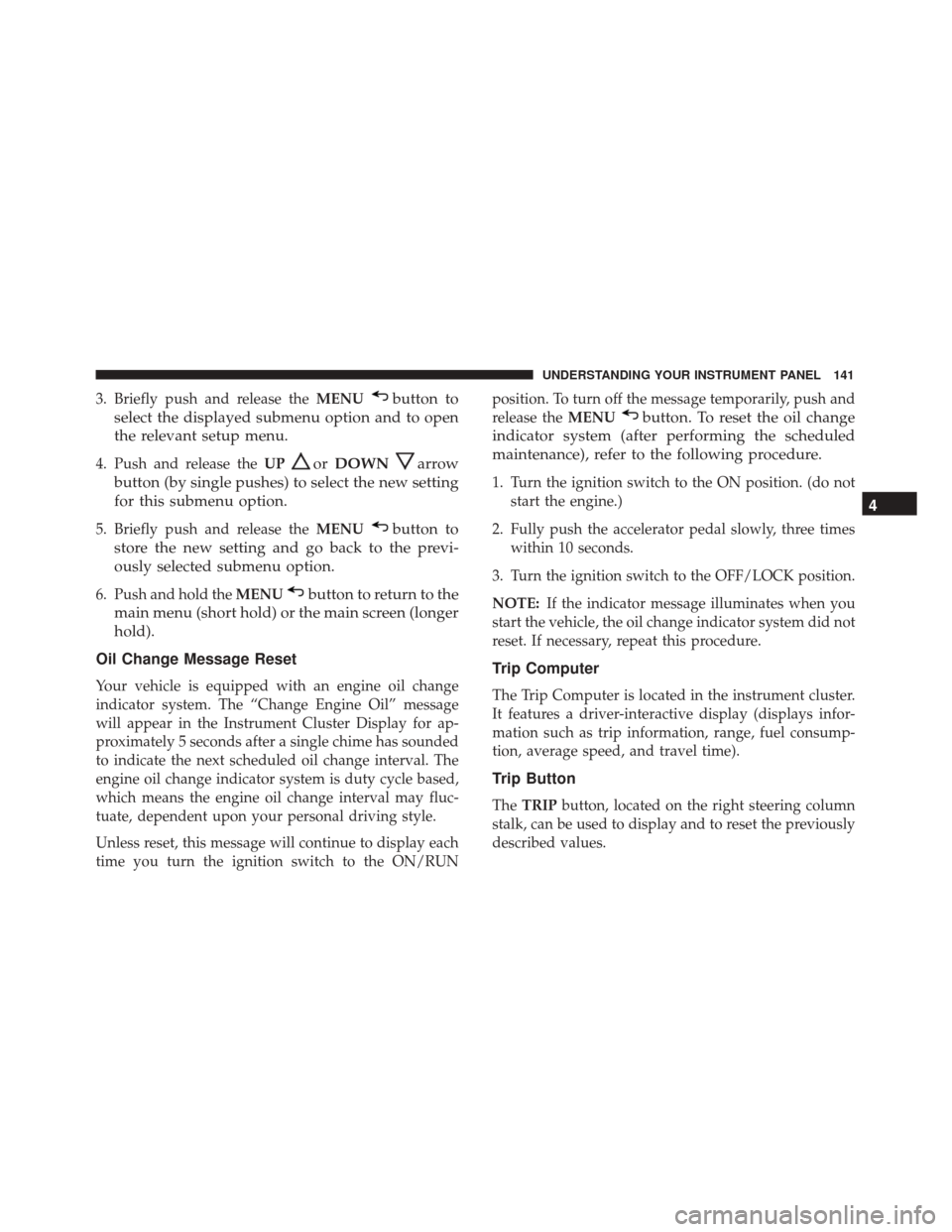
3. Briefly push and release theMENUbutton to
select the displayed submenu option and to open
the relevant setup menu.
4. Push and release the UPorDOWNarrow
button (by single pushes) to select the new setting
for this submenu option.
5. Briefly push and release the MENUbutton to
store the new setting and go back to the previ-
ously selected submenu option.
6. Push and hold the MENUbutton to return to the
main menu (short hold) or the main screen (longer
hold).
Oil Change Message Reset
Your vehicle is equipped with an engine oil change
indicator system. The “Change Engine Oil” message
will appear in the Instrument Cluster Display for ap-
proximately 5 seconds after a single chime has sounded
to indicate the next scheduled oil change interval. The
engine oil change indicator system is duty cycle based,
which means the engine oil change interval may fluc-
tuate, dependent upon your personal driving style.
Unless reset, this message will continue to display each
time you turn the ignition switch to the ON/RUN position. To turn off the message temporarily, push and
release the
MENU
button. To reset the oil change
indicator system (after performing the scheduled
maintenance), refer to the following procedure.
1. Turn the ignition switch to the ON position. (do not start the engine.)
2. Fully push the accelerator pedal slowly, three times within 10 seconds.
3. Turn the ignition switch to the OFF/LOCK position.
NOTE: If the indicator message illuminates when you
start the vehicle, the oil change indicator system did not
reset. If necessary, repeat this procedure.
Trip Computer
The Trip Computer is located in the instrument cluster.
It features a driver-interactive display (displays infor-
mation such as trip information, range, fuel consump-
tion, average speed, and travel time).
Trip Button
The TRIP button, located on the right steering column
stalk, can be used to display and to reset the previously
described values.
4
UNDERSTANDING YOUR INSTRUMENT PANEL 141
Page 152 of 350
WARNING!(Continued)
including safety related systems, could be im-
paired or a loss of vehicle control could occur that
may result in an accident involving serious injury
or death.
• ONLY insert media (e.g., USB, SD card, or CD)
into your vehicle if it came from a trusted source.
Media of unknown origin could possibly contain
malicious software, and if installed in your ve-
hicle, it may increase the possibility for vehicle
systems to be breached.
• As always, if you experience unusual vehicle
behavior, take your vehicle to your nearest Autho-
rized Dealer immediately.
NOTE:
• FCA or your dealer may contact you directly regard-
ing software updates. •
To help further improve vehicle security and mini-
mize the potential risk of a security breach, vehicle
owners should:
• Routinely check www.driveuconnect.com/
software-update to learn about available Uconnect
software updates.
• Only connect and use trusted media devices (e.g.
personal mobile phones, USBs, CDs).
Privacy of any wireless and wired communications
cannot be assured. Third parties may unlawfully inter-
cept information and private communications without
your consent. For further information, refer to “On-
board Diagnostic System (OBD II) Cybersecurity” in
“Maintaining Your Vehicle”.
UCONNECT RADIOS
For detailed information about your Uconnect radio,
refer to your Uconnect Owner ’s Manual Supplement.
150 UNDERSTANDING YOUR INSTRUMENT PANEL
Page 158 of 350
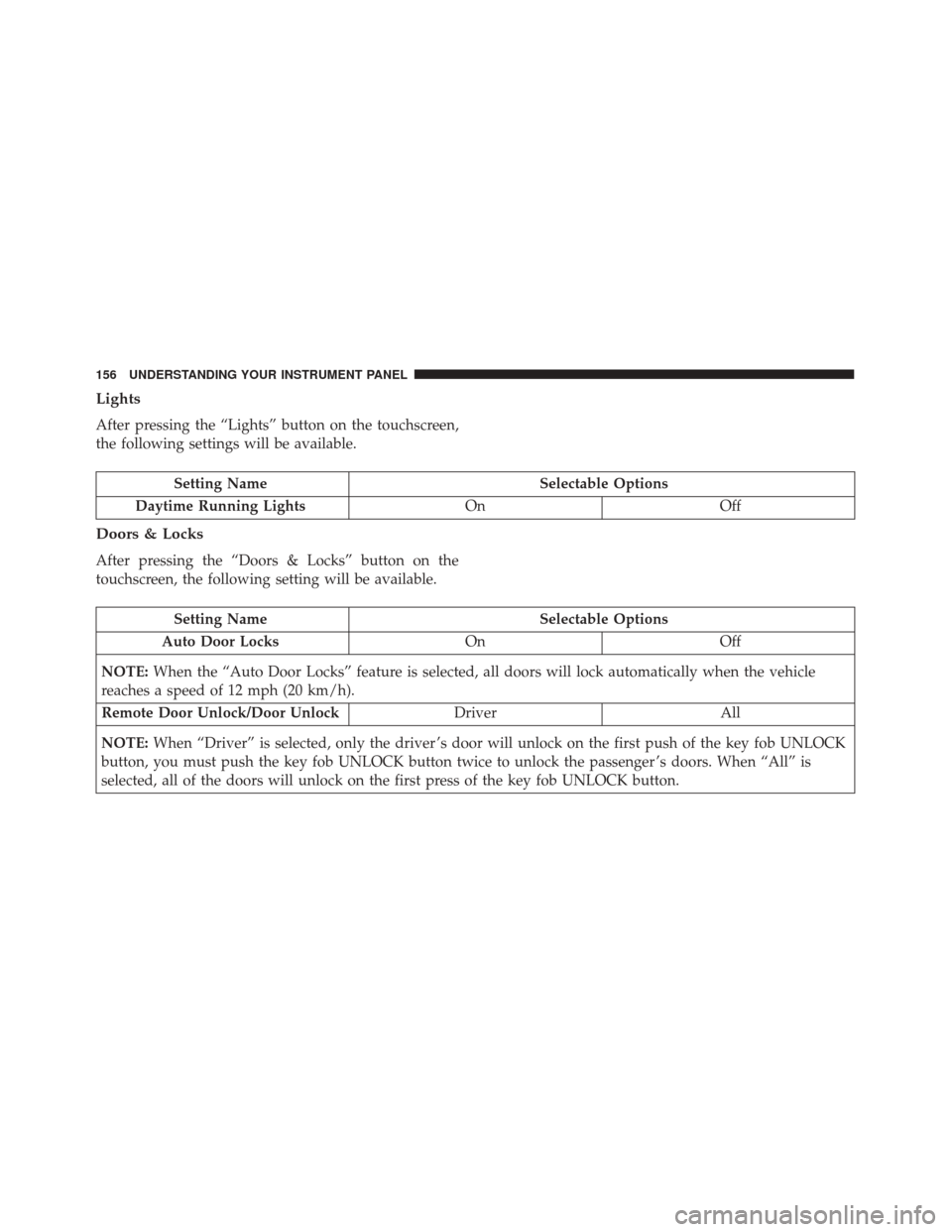
Lights
After pressing the “Lights” button on the touchscreen,
the following settings will be available.
Setting NameSelectable Options
Daytime Running Lights OnOff
Doors & Locks
After pressing the “Doors & Locks” button on the
touchscreen, the following setting will be available.
Setting Name Selectable Options
Auto Door Locks OnOff
NOTE: When the “Auto Door Locks” feature is selected, all doors will lock automatically when the vehicle
reaches a speed of 12 mph (20 km/h).
Remote Door Unlock/Door Unlock DriverAll
NOTE: When “Driver” is selected, only the driver ’s door will unlock on the first push of the key fob UNLOCK
button, you must push the key fob UNLOCK button twice to unlock the passenger ’s doors. When “All” is
selected, all of the doors will unlock on the first press of the key fob UNLOCK button.
156 UNDERSTANDING YOUR INSTRUMENT PANEL
Page 160 of 350
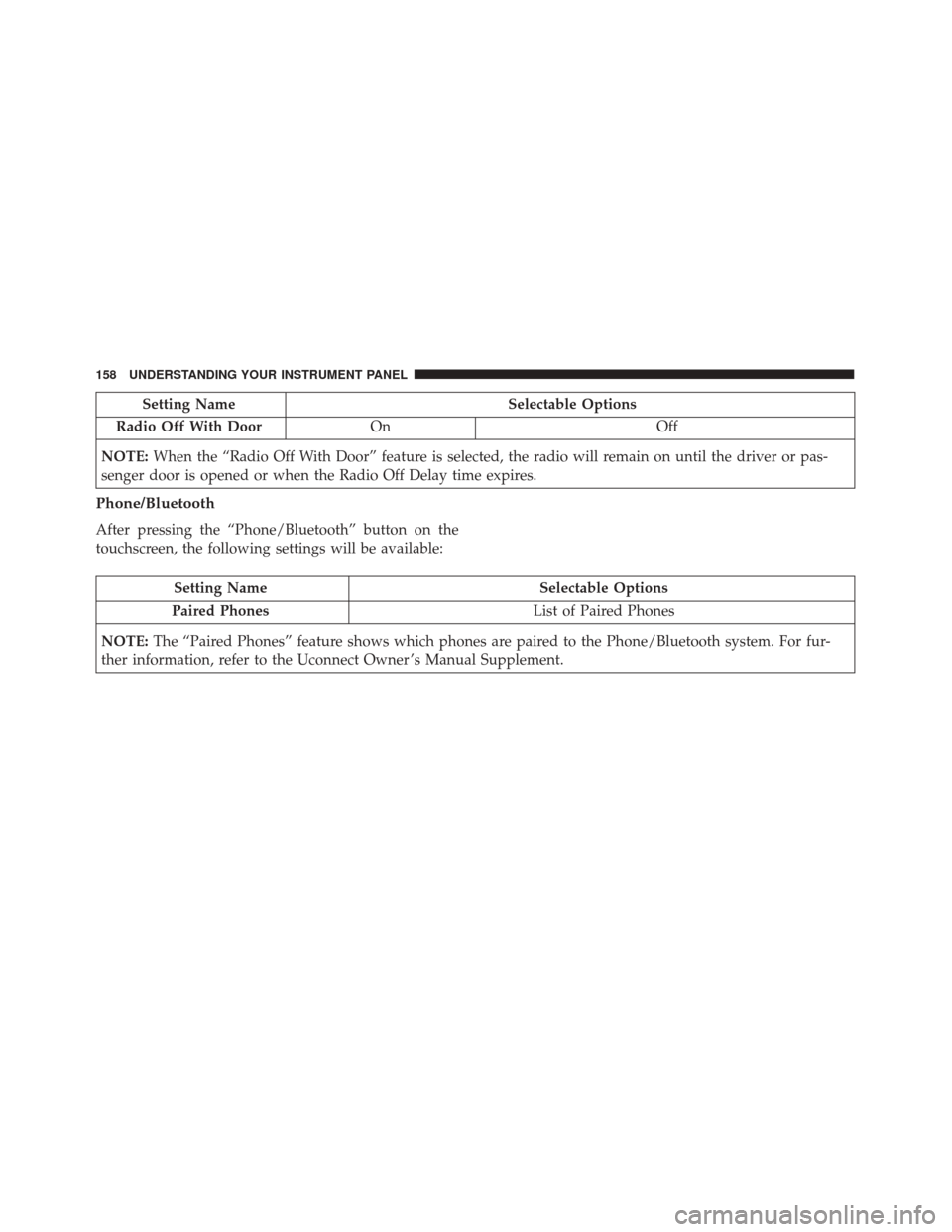
Setting NameSelectable Options
Radio Off With Door On Off
NOTE: When the “Radio Off With Door” feature is selected, the radio will remain on until the driver or pas-
senger door is opened or when the Radio Off Delay time expires.
Phone/Bluetooth
After pressing the “Phone/Bluetooth” button on the
touchscreen, the following settings will be available:
Setting Name Selectable Options
Paired Phones List of Paired Phones
NOTE: The “Paired Phones” feature shows which phones are paired to the Phone/Bluetooth system. For fur-
ther information, refer to the Uconnect Owner ’s Manual Supplement.
158 UNDERSTANDING YOUR INSTRUMENT PANEL
Page 163 of 350
UCONNECT 5.0/5.0 NAV VOICE RECOGNITION
QUICK TIPS
Introducing Uconnect
Start using Uconnect Voice Recognition with these
helpful quick tips. It provides the key Voice Commands
and tips you need to know to control your Uconnect
system.
Get Started
1. Visit UconnectPhone.com to check mobile deviceand feature compatibility and to find phone pairing
instructions.
2. Reduce background noise. Wind and passenger con- versations are examples of noise that may impact
recognition.
3. Speak clearly at a normal pace and volume while facing straight ahead. The microphone is positioned
on the rearview mirror and aimed at the driver.
4. Each time you give a Voice Command, you must first push either the VR or PHONE button, wait until
after the beep, then say your Voice Command.
5. You can interrupt the help message or system prompts by pushing the VR or PHONE button and
saying a Voice Command from current category.
Uconnect 5.0/5.0 NAV
4
UNDERSTANDING YOUR INSTRUMENT PANEL 161
Page 167 of 350
TIP:Your mobile phone must have the full implemen-
tation of the Message Access Profile (MAP) to take
advantage of this feature. For details about MAP, visit
UconnectPhone.com. Apple iPhone iOS6 or later sup-
ports reading incomingtext messages only.
Radio Operation And Mobile Phones
Under certain conditions, the mobile phone being on in
your vehicle can cause erratic or noisy performance
from your radio. This condition may be lessened or
eliminated by relocating the mobile phone antenna.
This condition is not harmful to the radio. If your radio
performance does not satisfactorily “clear” by the repo-
sitioning of the antenna, it is recommended that the
radio volume be turned down or off during mobile
phone operation.
Harmful Interference Statement
This device complies with Part 15 of the FCC rules and
RSS 210 of Industry Canada. Operation is subject to the
following conditions:
•This device may not cause harmful interference.
• This device must accept any interference received,
including interference that may cause undesired op-
eration. NOTE:
Changes or modifications not expressly ap-
proved by the party responsible for compliance could
void the user ’s authority to operate the equipment.
Additional Information
© 2016 FCA US LLC. All rights reserved. Mopar and
Uconnect are registered trademarks and Mopar Owner
Connect is a trademark of FCA US LLC. Android is a
trademark of Google Inc. SiriusXM and all related
marks and logos are trademarks of SiriusXM Radio Inc.
For Uconnect system support, call 1-877-855-8400 (24
hours a day 7 days a week) or visit DriveUconnect.com.
STEERING WHEEL AUDIO CONTROLS
The remote sound system controls are located on the
rear surface of the steering wheel. Reach behind the
wheel to access the switches.
4
UNDERSTANDING YOUR INSTRUMENT PANEL 165
Page 177 of 350
IconDescription
•Mix Mode
Air is directed through the floor, defrost, and side window demister outlets. This
setting works best in cold or snowy conditions that require extra heat to the
windshield. This setting is good for maintaining comfort while reducing moisture on
the windshield.
Climate Control OFF Button
Push and release this button to turn the Climate Control ON/OFF.
Temperature UP And DOWN Button
Provides the driver with independent temperature control. Push the UP button on the face-
plate for warmer temperature settings. Push the DOWN button on the faceplate for cooler
temperature settings.
CAUTION!
Failure to follow these cautions can cause damage
to the heating elements:
•Use care when washing the inside of the rear
window. Do not use abrasive window cleaners on
(Continued)
CAUTION! (Continued)
the interior surface of the window. Use a soft
cloth and a mild washing solution, wiping paral-
lel to the heating elements. Labels can be peeled
off after soaking with warm water.
(Continued)
4
UNDERSTANDING YOUR INSTRUMENT PANEL 175